Workflow Action - If/Else
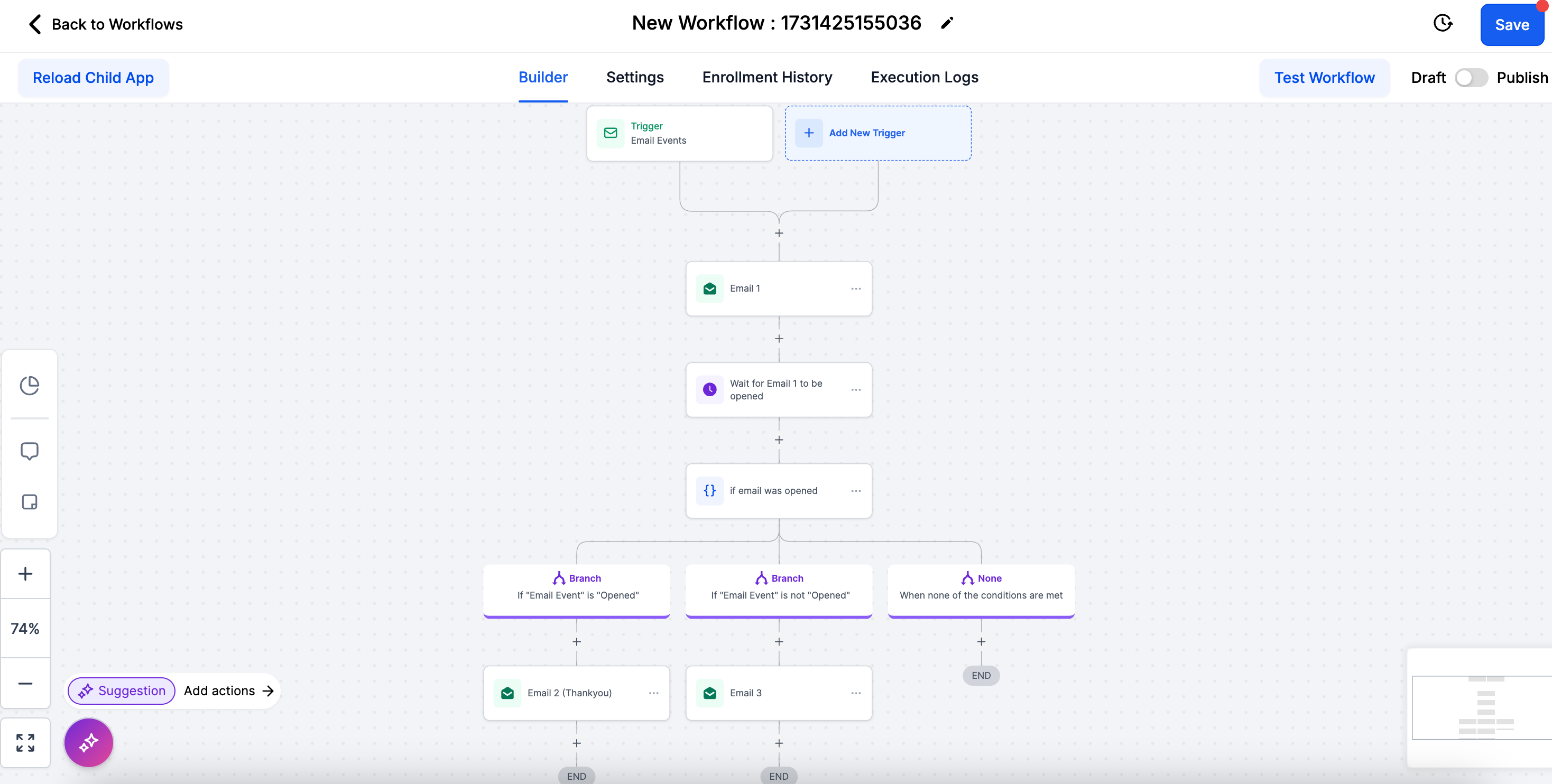
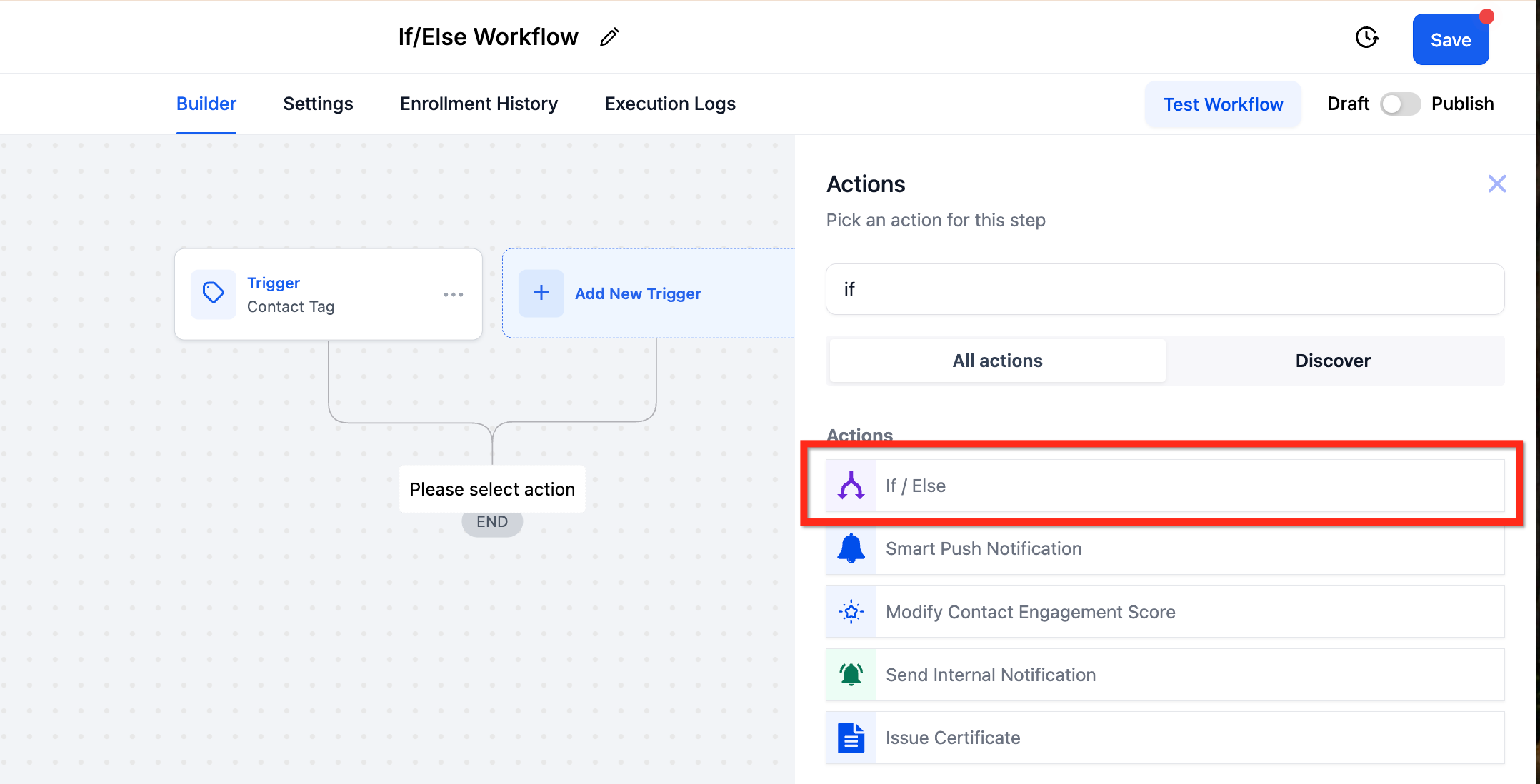
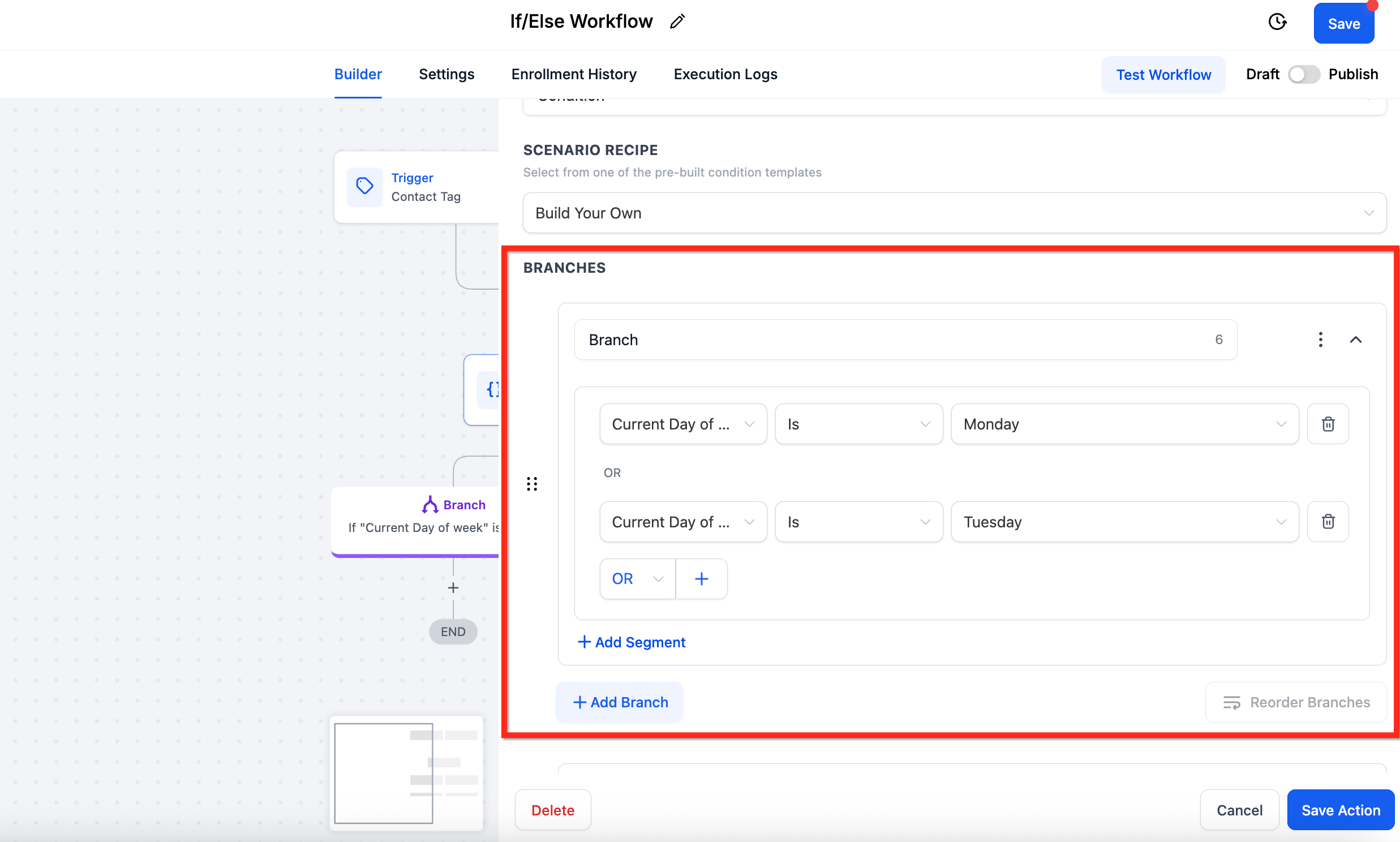
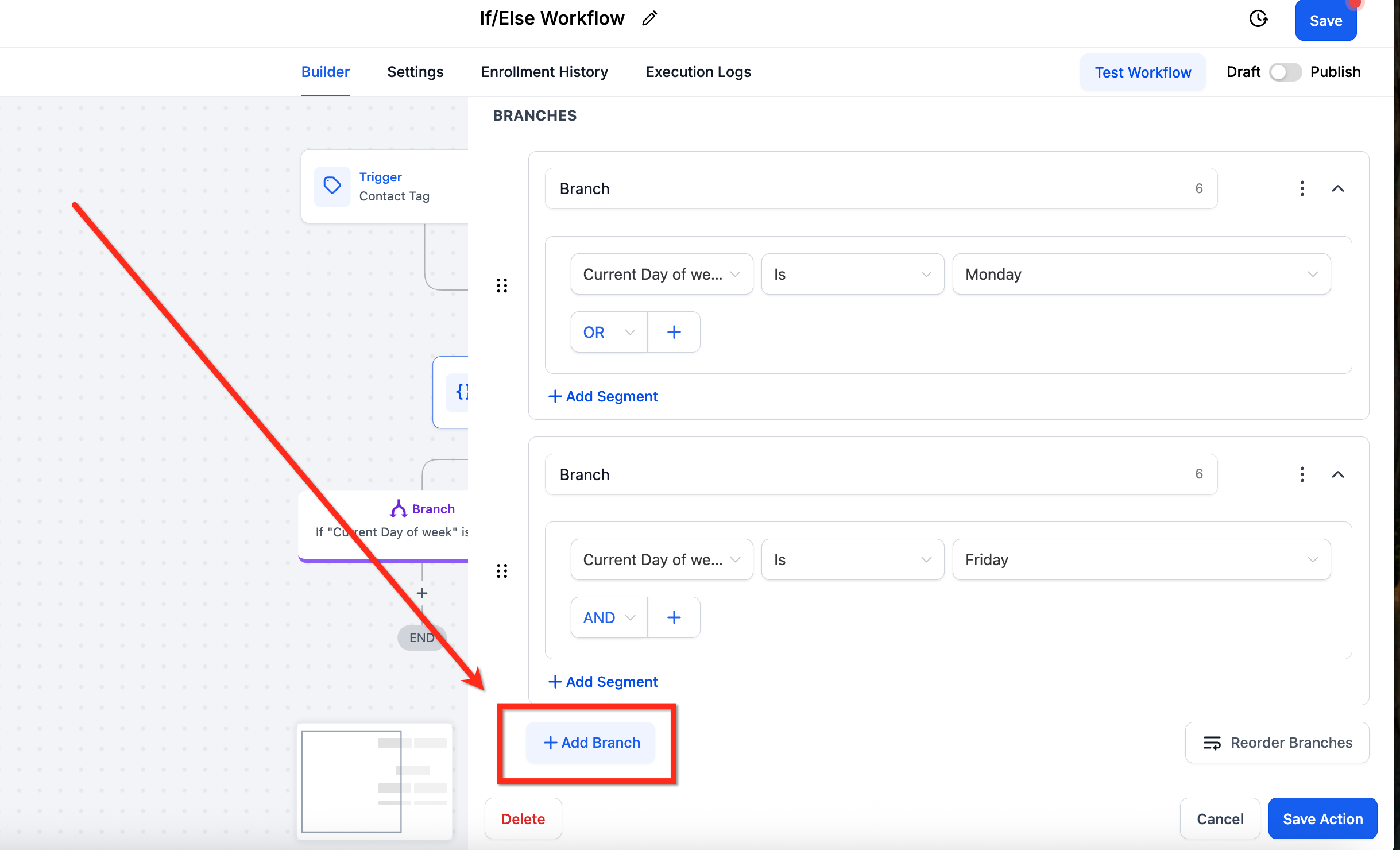
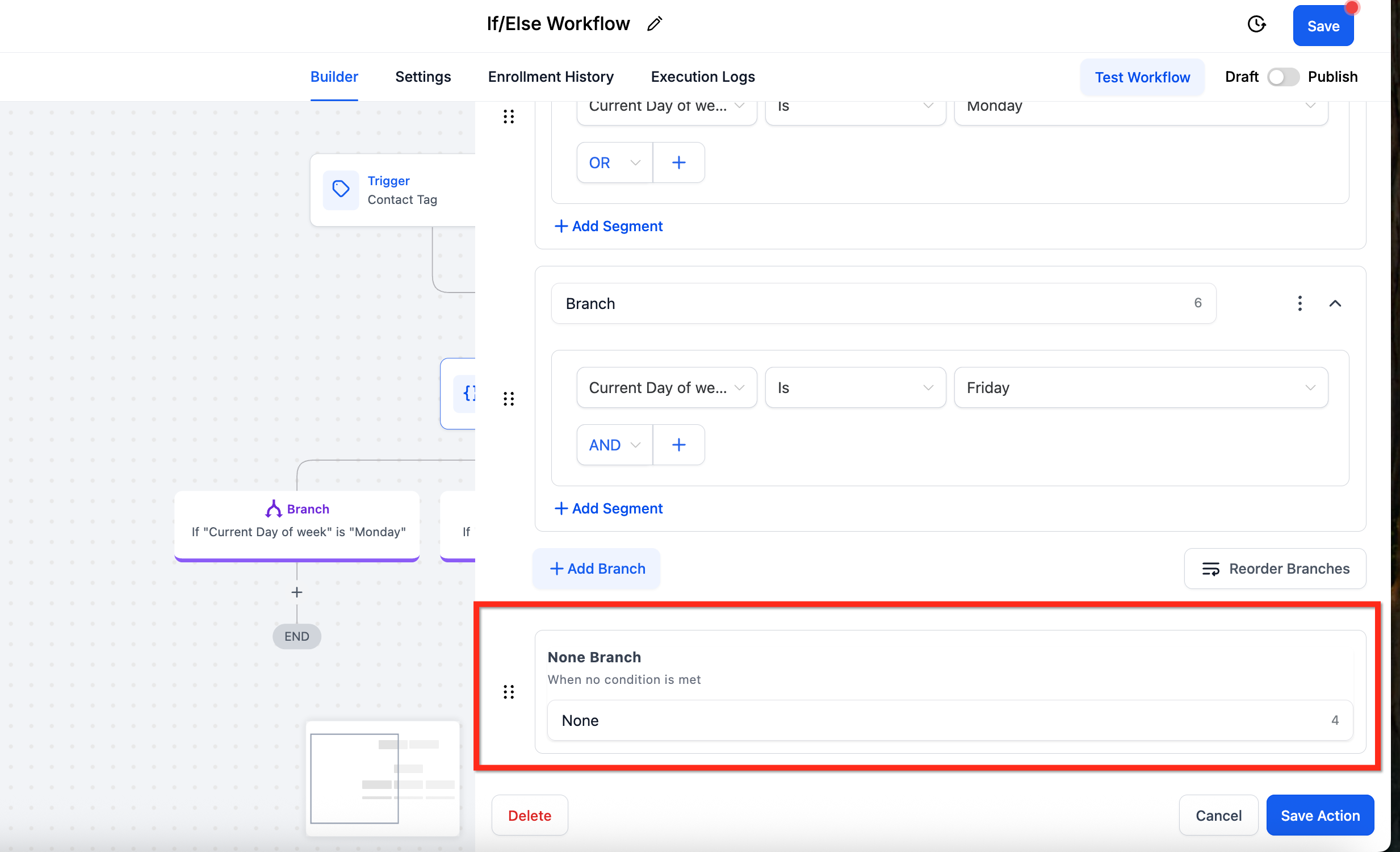
The If/Else workflow action allows you to route contacts through different paths based on defined conditions. With the latest enhancement, you can now use Dynamic Custom Values in If/Else conditions to compare live values from earlier workflow steps or stored fields—eliminating the need to hard-type values and reducing duplicate logic. * * * ## What Is the If/Else Workflow Action? The If/Else action evaluates contact-specific data and splits a workflow into multiple branches based on whether conditions are met. Each branch represents a logical path that a contact follows depending on the outcome of the condition check. This makes it possible to create personalized, data-driven workflows that adapt dynamically to a contact’s behavior, attributes, or calculated values. * * * ## Key Benefits of the If/Else Action - Conditional Logic: Route contacts down different paths based on real-time data - Automation Efficiency: Reduce manual sorting and duplicate workflow steps - Scalable Segmentation: Handle complex branching logic as workflows grow - Visual Clarity: Clearly see and manage decision points in the workflow builder * * * ## How to Use the If/Else Action ### Step 1: Add the If/Else Action 1. Open your workflow. 2. Click the + icon to add a new action. 3. Select If / Else from the action list.!(https://assets.patientcopilot.ai/c2db3bef02caf607.png) ### Step 2: Choose a Logic Setup Method You can either: - Build logic manually using Build My Own, or - Start from a prebuilt recipe with common conditions. ### Step 3: Configure the First Branch 1. Select the field you want to evaluate. 2. Choose the appropriate operator. 3. Set the comparison value. 4. Click Add Segment to add additional conditions. 5. Use AND / OR to control how conditions are grouped. !(https://assets.patientcopilot.ai/28b2f3234c63faea.png) ### Step 4: Add Additional Branches (Optional) - Click Add Branch to define more condition groups. - Each branch represents a separate path in the workflow. !(https://assets.patientcopilot.ai/e0c8f42fdf092ca6.png) ### Step 5: Configure the “None” (Else) Branch - The None branch is created automatically. - It runs when no defined conditions are met. - This branch does not support conditions and cannot be removed. - You can rename it and add fallback actions. !(https://assets.patientcopilot.ai/5443f7cdd8b09d4e.png) * * * ## Using Dynamic Values in If/Else Conditions You can now use Dynamic Values on the right-hand side of If/Else conditions. This allows you to compare live values—such as outputs from earlier workflow steps or stored fields—without hard-coding numbers or text. This enhancement lets you branch directly on values that were calculated or captured upstream. You can select Company fields in If/Else conditions when building a contact-based workflow. Company fields appear alongside contact fields in the field/variable picker. Important: Company fields resolve only when the contact is associated with a company. If the contact has no associated company, the value is blank. Example Use Cases Route contacts based on Company Address (for example, by state or region). Branch based on Company Name to apply different logic for specific accounts. * * * ## Supported Field Types Dynamic Values are supported for the following condition types in If/Else actions: - Numeric – scores, counts, totals - Date – appointment dates, renewal dates - Select / Dropdown (advanced – requires option IDs) - Monetary – invoice totals or amounts * * * ## How to Use Dynamic Values 1. Add an If/Else action to your workflow. 2. Configure the left-hand field as usual. 3. In the right-hand input, switch the value type to Dynamic Value. 4. Select a value from: - An earlier workflow step output, or - A stored field. 5. Choose the appropriate operator (number, date, or value). 6. Save and publish the workflow. ### Important Note for Select / Dropdown Fields > Select / Dropdown fields require option IDs, not display names, when used with Dynamic Values in If/Else conditions. > > In many cases, these IDs can be found in settings (for example, Pipeline IDs or Stage IDs). ### New workflow fields available in If/Else If/Else conditions support more workflow fields, which gives you more precise branching without adding extra lookup steps. These fields appear in the field picker like other supported values, but some only appear when the workflow has the right context. Newly available fields include: - Contact Engagement Score
- Contact → Attribution Medium ID
- Note created by (Name)
- Task ID Use these fields in If/Else when you want to branch based on attribution, engagement, note ownership, or task-specific workflow data. Field availability notes: 1. Contact Engagement Score appears when Engagement Scoring is set up in the sub-account.
- Contact → Attribution Medium ID can be used to branch based on first or latest attribution details.
- Note created by (Name) appears in note-related workflow contexts.
- Task ID appears in task-related workflows, such as task triggers or after an Add Task step. Examples: 1. If Contact Engagement Score is greater than or equal to 20, send the contact down a high-priority follow-up path.
- If Attribution Medium ID matches your paid social source, route the contact to the correct reporting branch.
- If Note created by (Name) includes Success, notify the Success team.
- If Task ID is present, send it to an external tracking system for reference. Note: If a value is unavailable for the current contact or workflow context, the field may be empty and the workflow will still continue to run. * * * ## Example Use Case When a proposal value is captured earlier in the workflow, you can compare that value dynamically. If the amount is ** or more**, route the contact to a priority path; otherwise, continue with the standard process. !(https://assets.patientcopilot.ai/59877e44bdb2dac0.png) * * * ## Action Details | Field | Description | Required | | --- | --- | --- | | Action Name | Label used to identify the action in the workflow | Yes | | Condition | The rule evaluated to determine the branch | Yes | | Branches | Workflow paths created by the If/Else action | Yes | | Segments | Groups of conditions combined using AND / OR logic | No | * * * ## Example: Follow-Up Based on Email Engagement Scenario: You want to follow up differently based on whether a contact opened an email. Workflow Logic: - Trigger: Promotional email sent - If/Else Condition: Email Event → Is Opened - Yes Branch: Send thank-you email with an offer - No Branch: Resend the email with a different subject line This ensures follow-ups are relevant to each contact’s engagement. * * * ## Frequently Asked Questions Q: How can I control when the If/Else condition is evaluated? Insert a Wait action before the If/Else step. You can wait for an event or a timeout (for example, “Wait until email is opened OR 1 day passes”) before evaluating the condition. Q: Can I edit a branch after it’s created? Yes. You can update fields, operators, and values before or after publishing the workflow. Q: Is the None branch required? Yes. It is created automatically and cannot be removed. * * * ## Related Articles - Workflow Action – Update Contact Field - If/Else Workflow Action – Appointment Filter Options