Workflow Trigger - Facebook Comment(s) On A Post
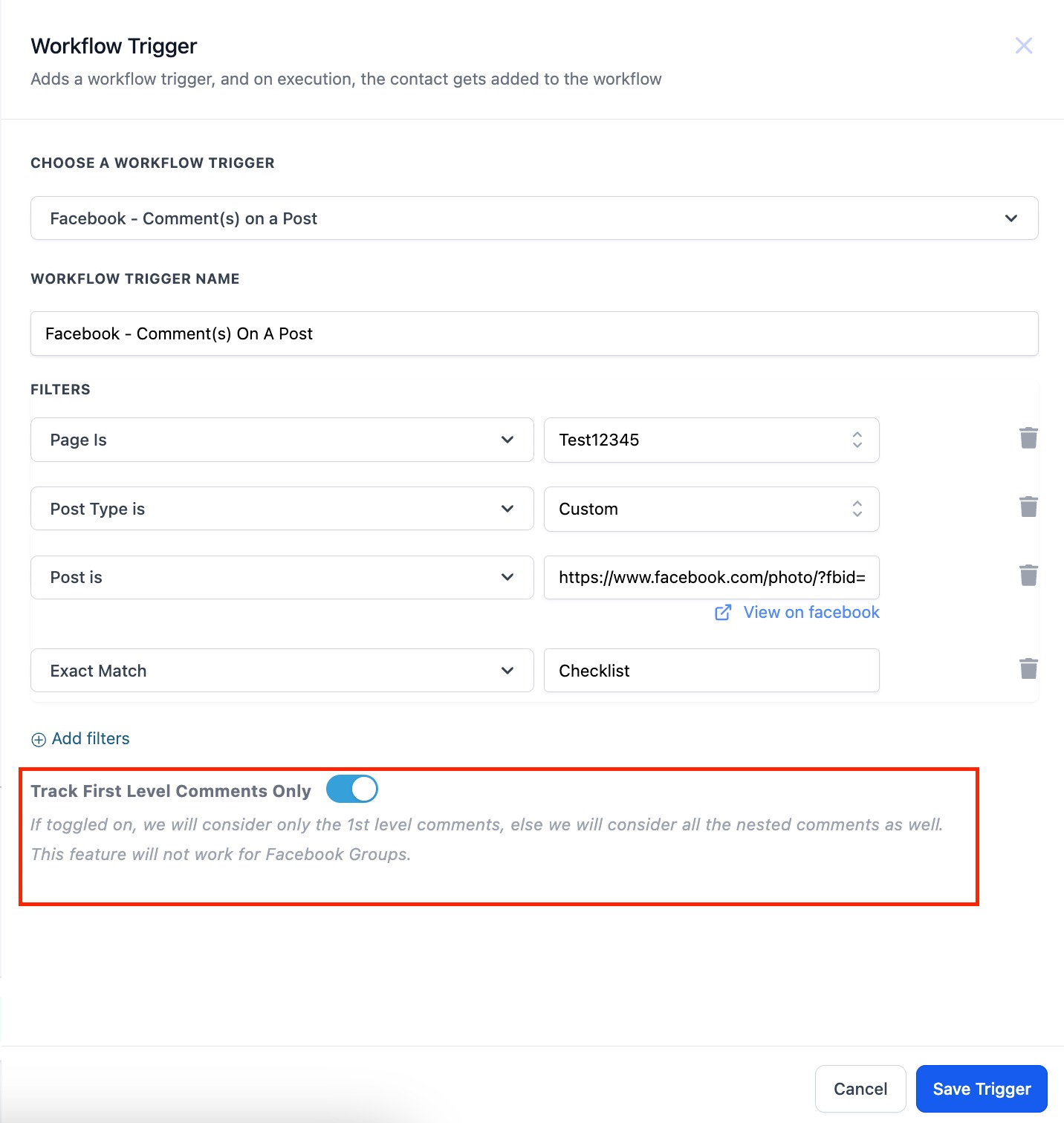
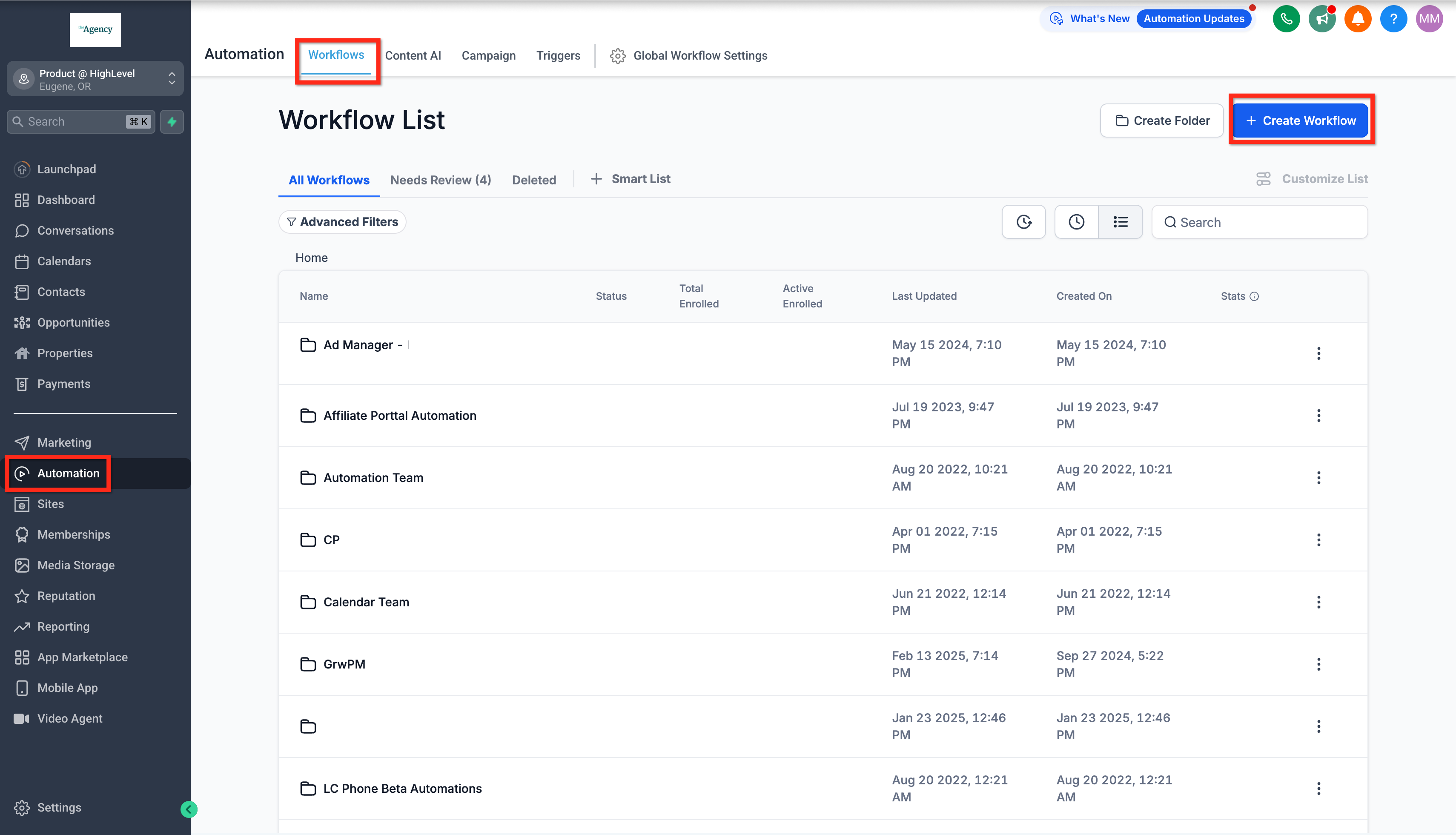
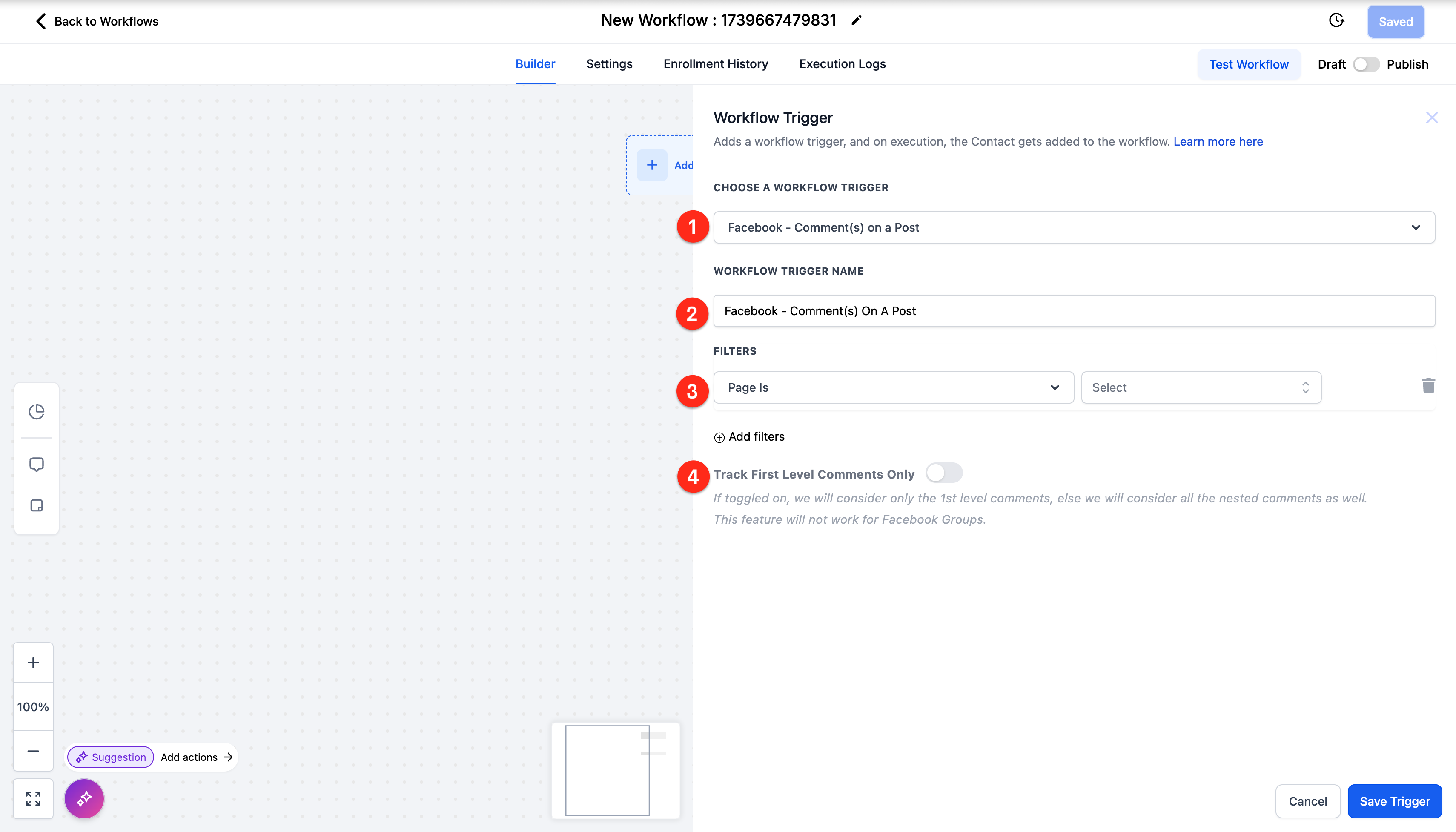
This trigger fires when there is a comment on your Facebook post(s). * * * ## Where To Find This Trigger Navigate to Automations > Workflows > Workflow Builder > Triggers > Facebook/Instagram Events.!(https://assets.patientcopilot.ai/4fd4e9ea295b2c96.png)!(https://assets.patientcopilot.ai/09a4f193db8d733d.png) * * * ## Components There are four (4) primary components of the Workflow Trigger - Facebook Comment(s) On A Post: 1. Choose A Workflow Trigger: By default this option is set to this trigger. You can change it to a different trigger if you want. 2. Workflow Trigger Name: By default this is just the name of the trigger. You can edit this to give it a clearer name that is visible in the Workflow. 3. Filters: This is where you select the criteria for firing the trigger in the right situation. More details in the next section. 4. Track First Level Comments Only: This toggle, when off, will allow the trigger to fire for all nested comments. When it is toggled on, then the trigger will only fire for the top (first) comment, not for comments under that comment.!(https://assets.patientcopilot.ai/5077dc6de1237ab0.png) * * * ## Filters Detailed description of the filters:
!(https://assets.patientcopilot.ai/09a4f193db8d733d.png)
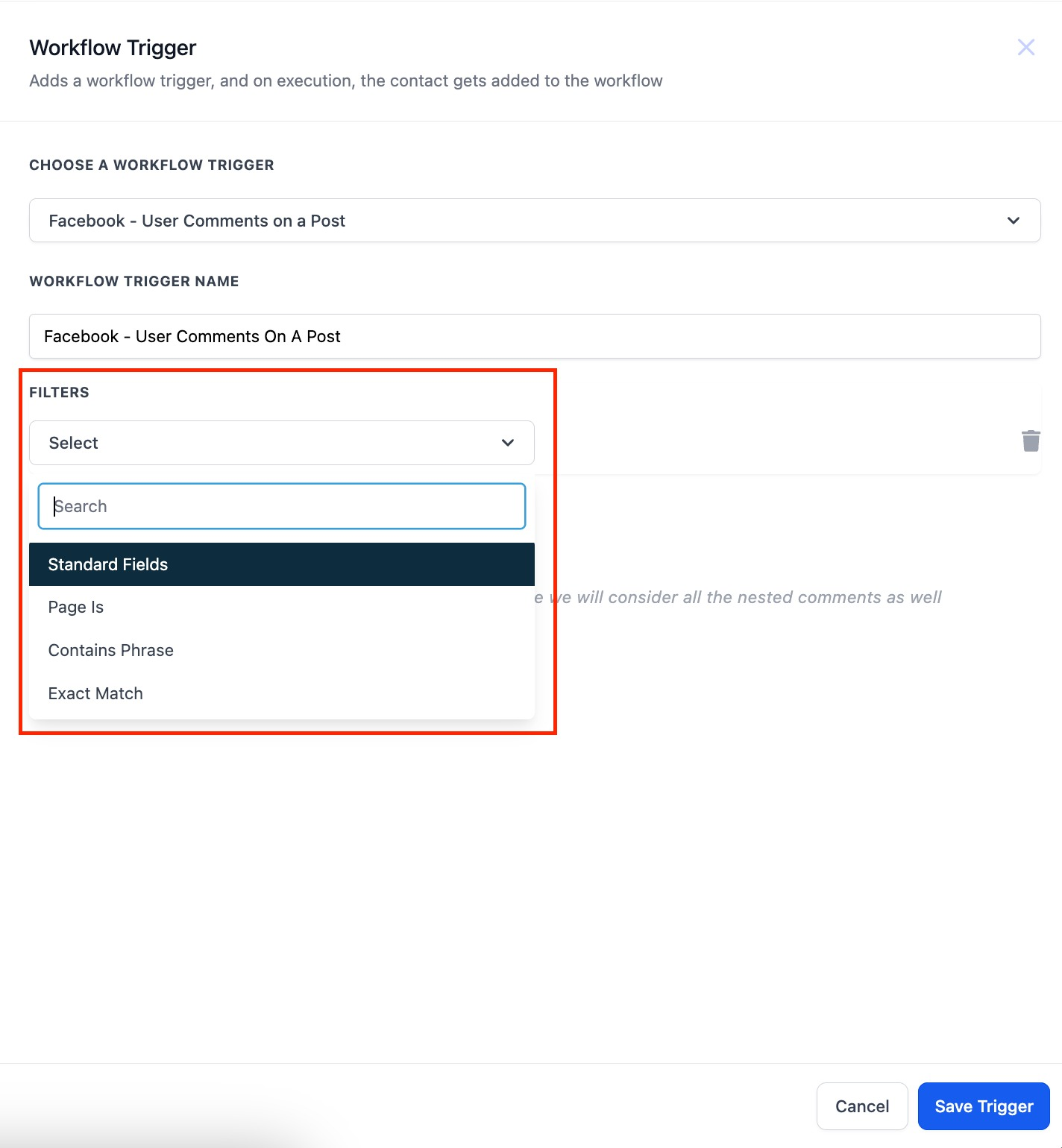
| Filter Level 1 | Options |
| Page Is | List of your account’s pages |
| Post Type | Published Post (all posts on your business page) |
| Custom Post (enter a URL) | |
| Post is | List of the posts that match your Page Is + Post Type settings |
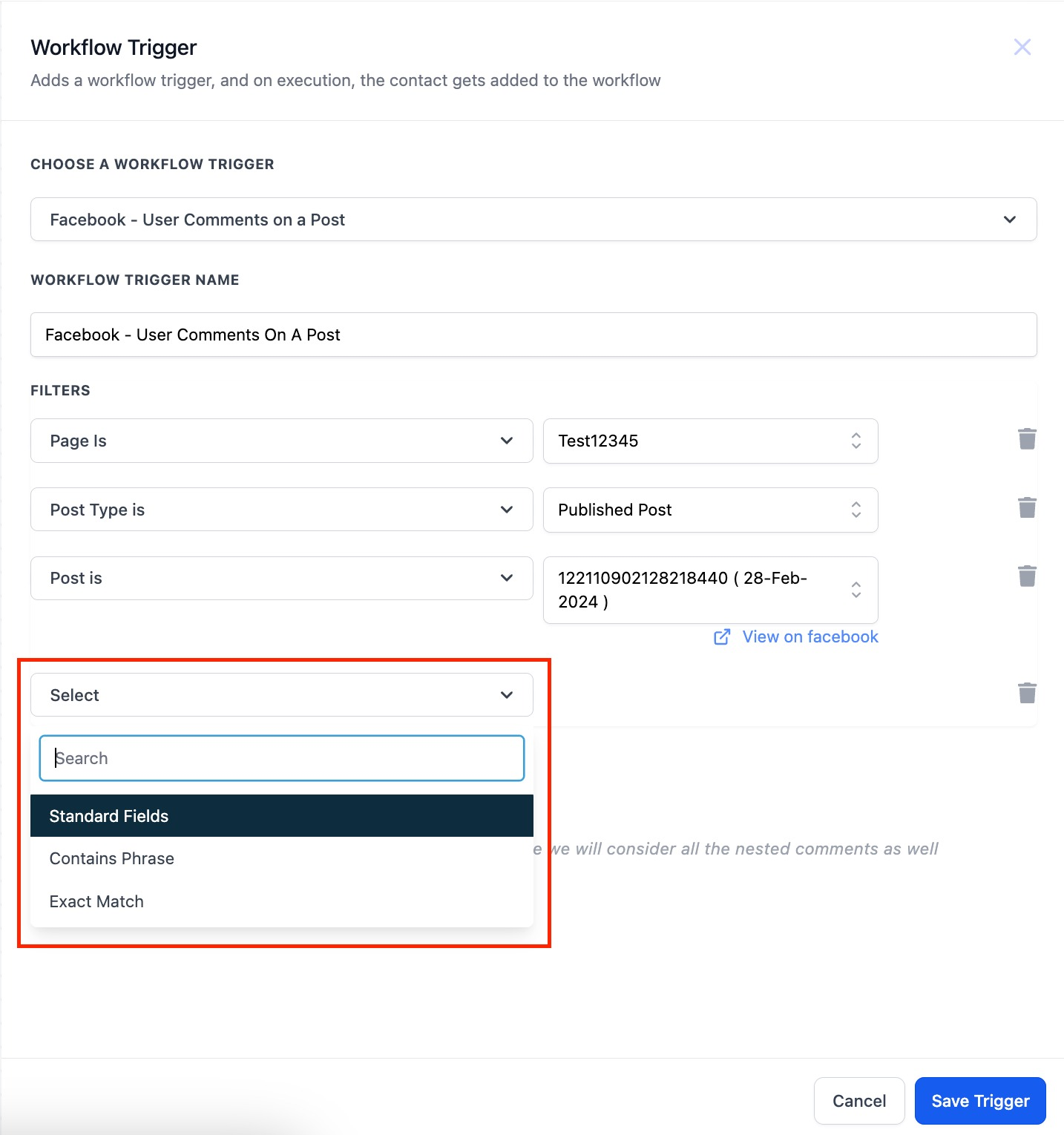
| Contains Phrase | Phrase = “I bought from you” Comment = “I bought from you yesterday” —> Pass Comment = “I bought one from you” —> Fail Comment = “how much” —> Fail |
| Exact Match | Phrase = “I bought from you” Comment = “I bought from you” —> Pass Comment = “I bought from you yesterday” —> Fail Comment = “I bought one from you” —> Fail |
!(https://assets.patientcopilot.ai/16bb391d599e27ca.png)
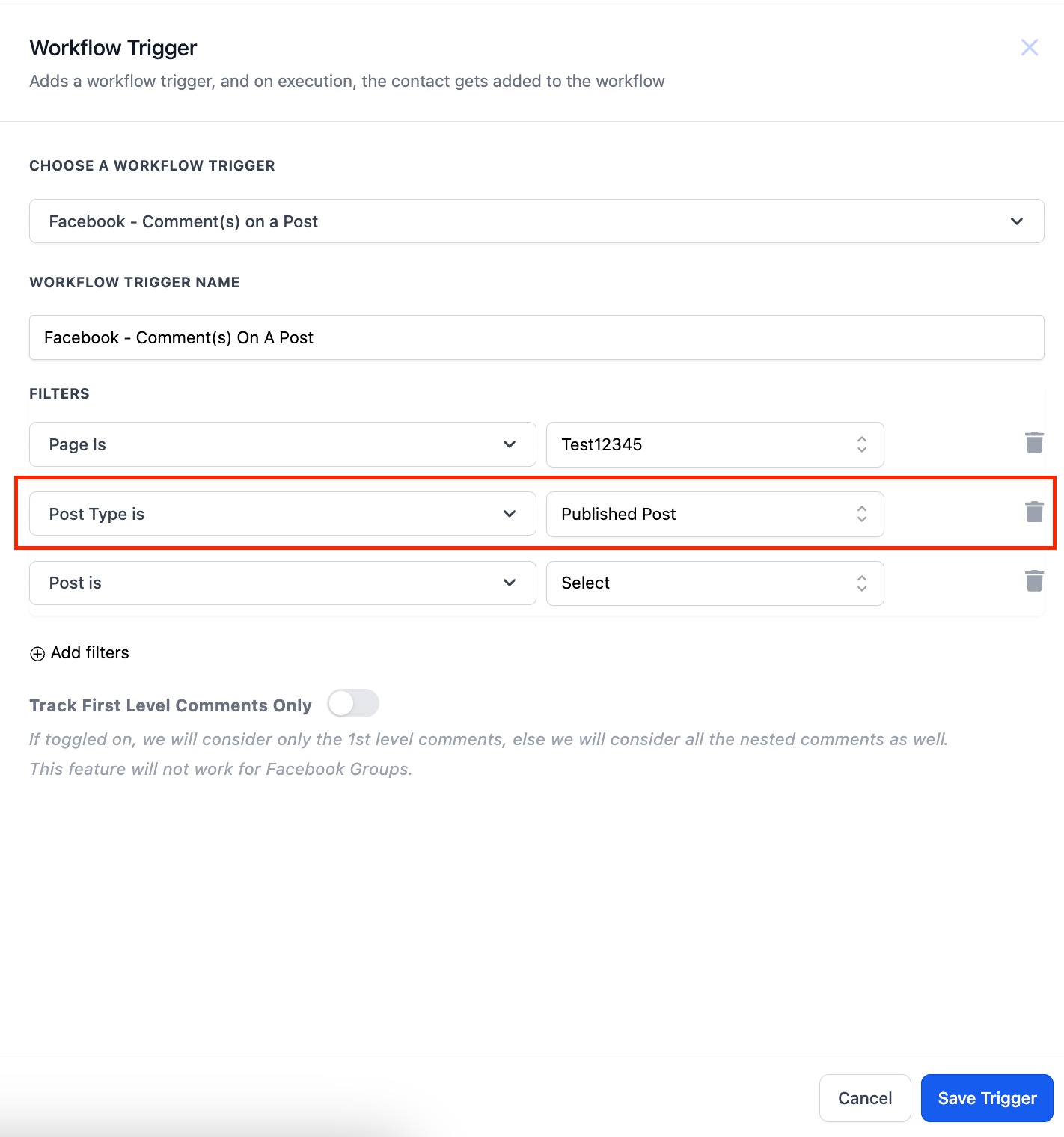
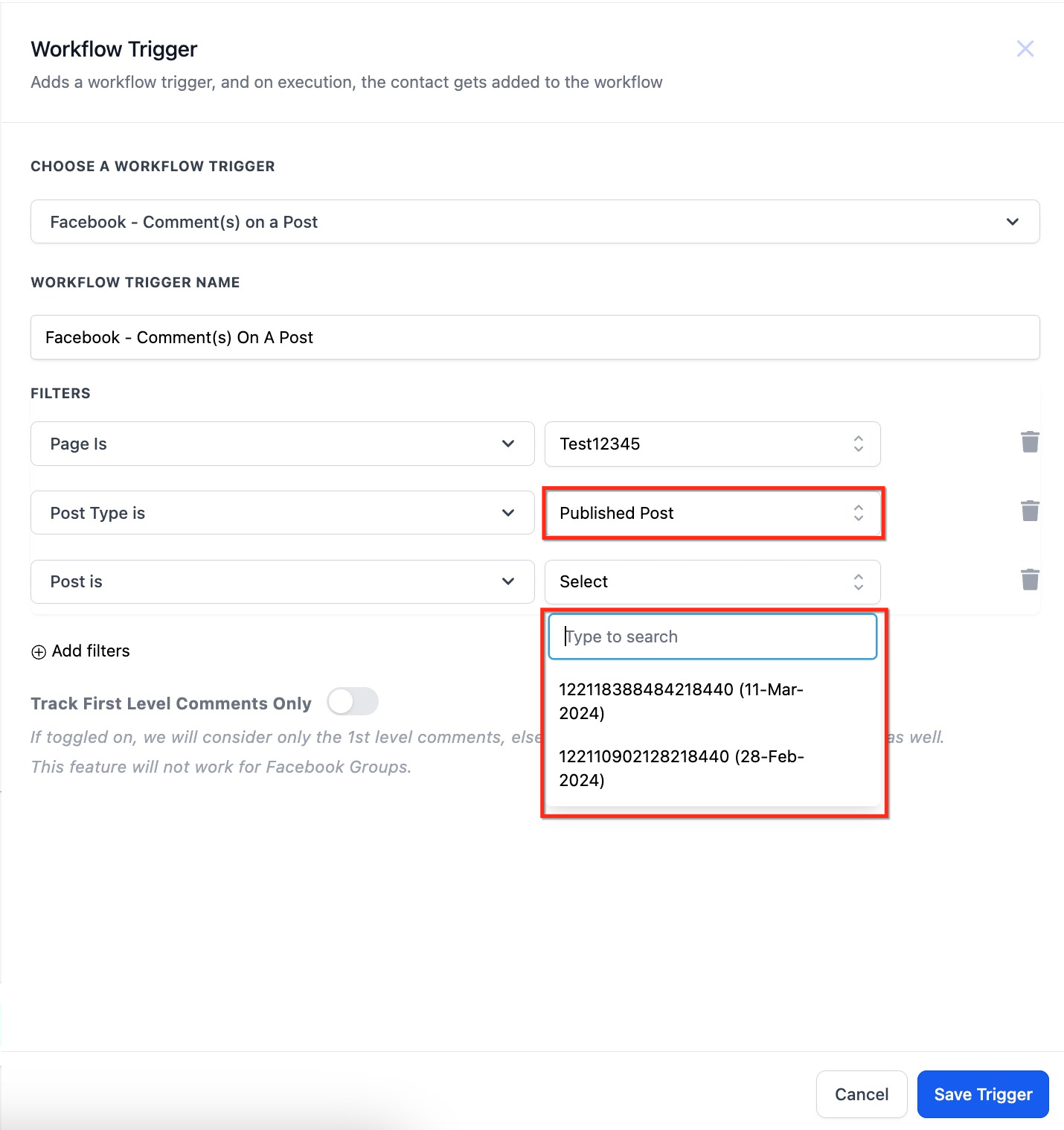!(https://assets.patientcopilot.ai/3b668ce2e24a2b73.png)
- Exact Match: the trigger will fire if the entire body of the comment exactly matches one of the text strings you provide.!(https://assets.patientcopilot.ai/54108bf30803dab3.png)!(https://assets.patientcopilot.ai/b443b1d2ade49f98.png) * * * You can use the toggle to turn on/off 1st level comment only. - Toggle On: the trigger will only fire for the first comment in a chain, not for comments under a comment.
- Toggle Off: the trigger will fire for any comment, even if it’s nested under other comments.!(https://assets.patientcopilot.ai/520b7e7c1617724a.png) * * * ## Frequently Asked Questions Q: Can the trigger Facebook Comment(s) on post work for Instagram? A: No, this trigger only works for Facebook. You can use the identical Instagram Comment(s) on post trigger for Instagram. Q: What actions should I use with the trigger Facebook Comment(s) on post? A: Use the Recipe Facebook Comment Automation to see an example of how to use this trigger in a workflow. Review the article Facebook & Instagram Comment Automation and the actions Reply In Comment and Facebook Interactive Messenger. Q: Can the Comment On Post trigger create an infinite loop? A: No, automatic comments will not create an infinite loop. The workflow triggers automatically ignore any comments posted by workflow actions.
!(https://assets.patientcopilot.ai/b443b1d2ade49f98.png)