
Workflow Action - Messenger
Overview The Messenger action allows you to send a message directly to a contact via Facebook Messenger. To use this action effectively, the contact must have previously messaged a connected Facebook page no more than 24 hours before arriving at this event. This ensures that the message is successfully delivered, adhering to Facebook’s messaging policies. ## Action Name Messenger ## Action Description The Messenger action facilitates sending personalized messages through Facebook Messenger, enhancing engagement and communication with contacts who have interacted with your connected Facebook page within the last 24 hours. This action can be utilized for various purposes, such as sending reminders, updates, or promotional messages. ## Action Details!(https://assets.patientcopilot.ai/7333752c5e95036c.png)
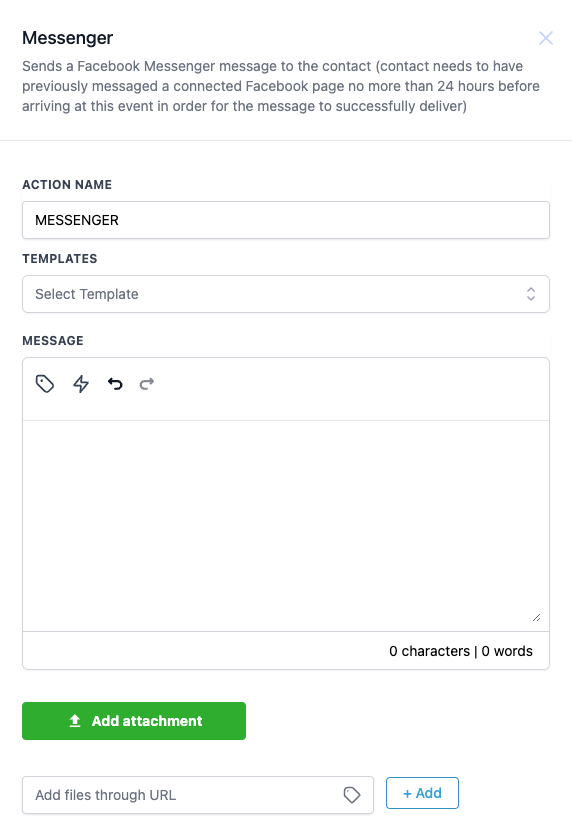
| Field | Description | Mandatory |
| Action Name | Specifies the name of the action for identification within the workflow. | Yes |
| Templates | Select a pre-configured message template to use. Templates allow for consistency in messaging and ensure compliance with Facebook’s message format guidelines. | No |
| Message | Input the message content to be sent to the contact. Supports the use of custom values and dynamic content to personalise the message. | Yes |
| Add Attachment | Allows you to attach files or media to the message. This can include images, documents, or other media types relevant to the communication. | No |
| Add files through URL | Provides an option to attach files via a URL link, expanding the type of content that can be shared. | No |
| Test Phone Number | Allows testing of the message by sending it to a specified phone number before finalising the workflow. | No |
- Select a Template: Choose from the available message templates if you have pre-defined messages that you regularly use.
- Compose the Message: Enter your message in the provided text box. Use custom values to personalize the message content based on the contact’s information.
- Add Attachments (Optional): Click on Add attachment to include any files or media with the message. This feature can be used to send images, documents, or promotional content.
- Use URL for Files (Optional): If your files are hosted online, use the option to add files through a URL by clicking the + Add button.
- Send Test SMS (Optional): Before finalizing, use the test functionality to preview how the message will appear to the recipient. This ensures the message is formatted correctly and the content is accurate. ## Example Was this article helpful? That’s Great! Thank you for your feedback Sorry! We couldn’t be helpful Thank you for your feedback Feedback sent We appreciate your effort and will try to fix the article