Getting Started - Connect Personal Inbox
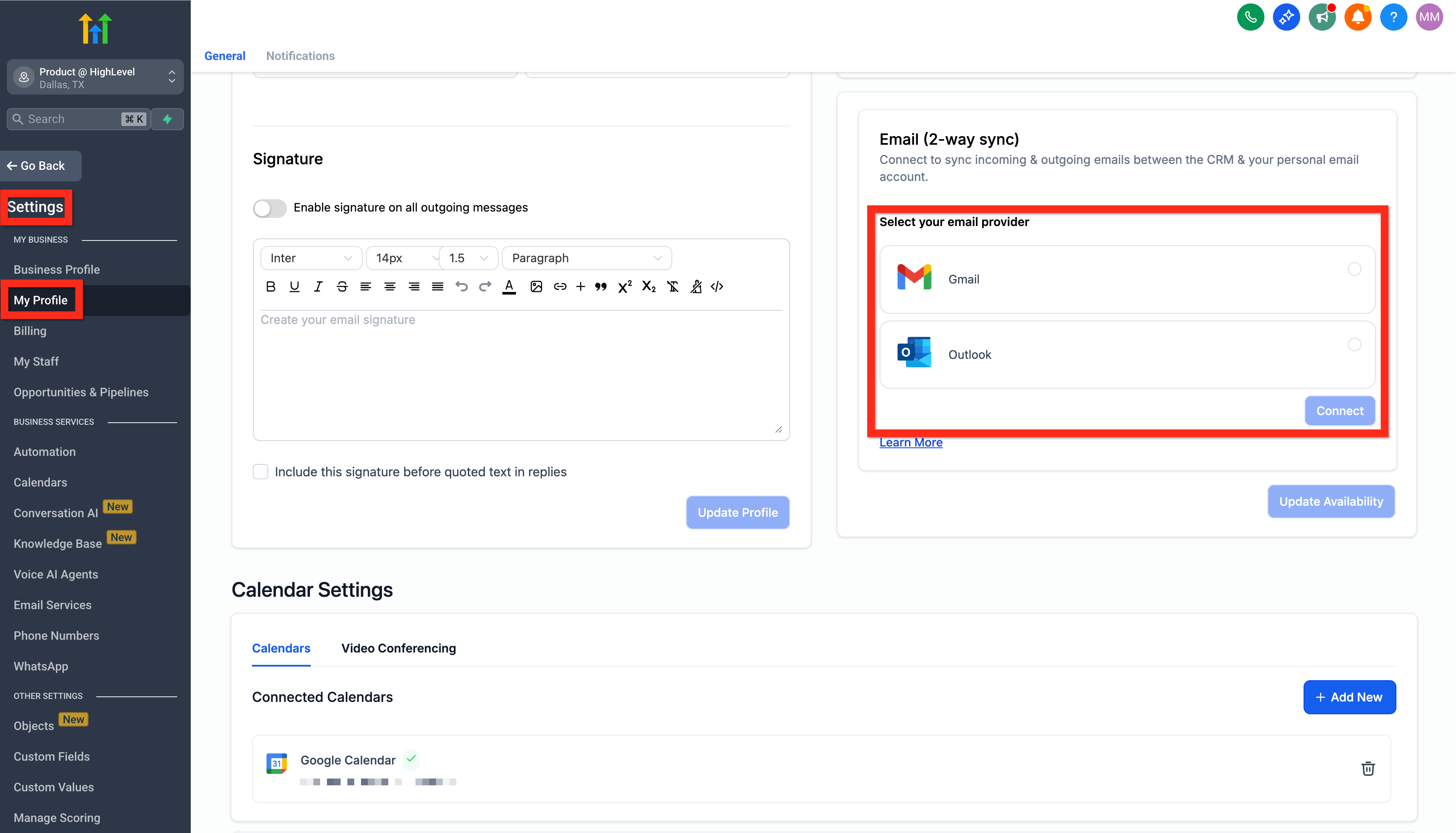
Keeping track of client conversations can be tricky when you’re juggling multiple inboxes. But don’t worry, we’ve made it super easy to sync your Gmail or Outlook inbox right into Patient Copilot. This means you’ll see all your customer interactions in one unified place, so you’ll never miss an important follow-up again. * * * ## Connect Gmail or Outlook Ready to streamline your email management? Here’s how you can quickly connect your inbox: - Go to Settings > My Profile > Email (2-way sync).
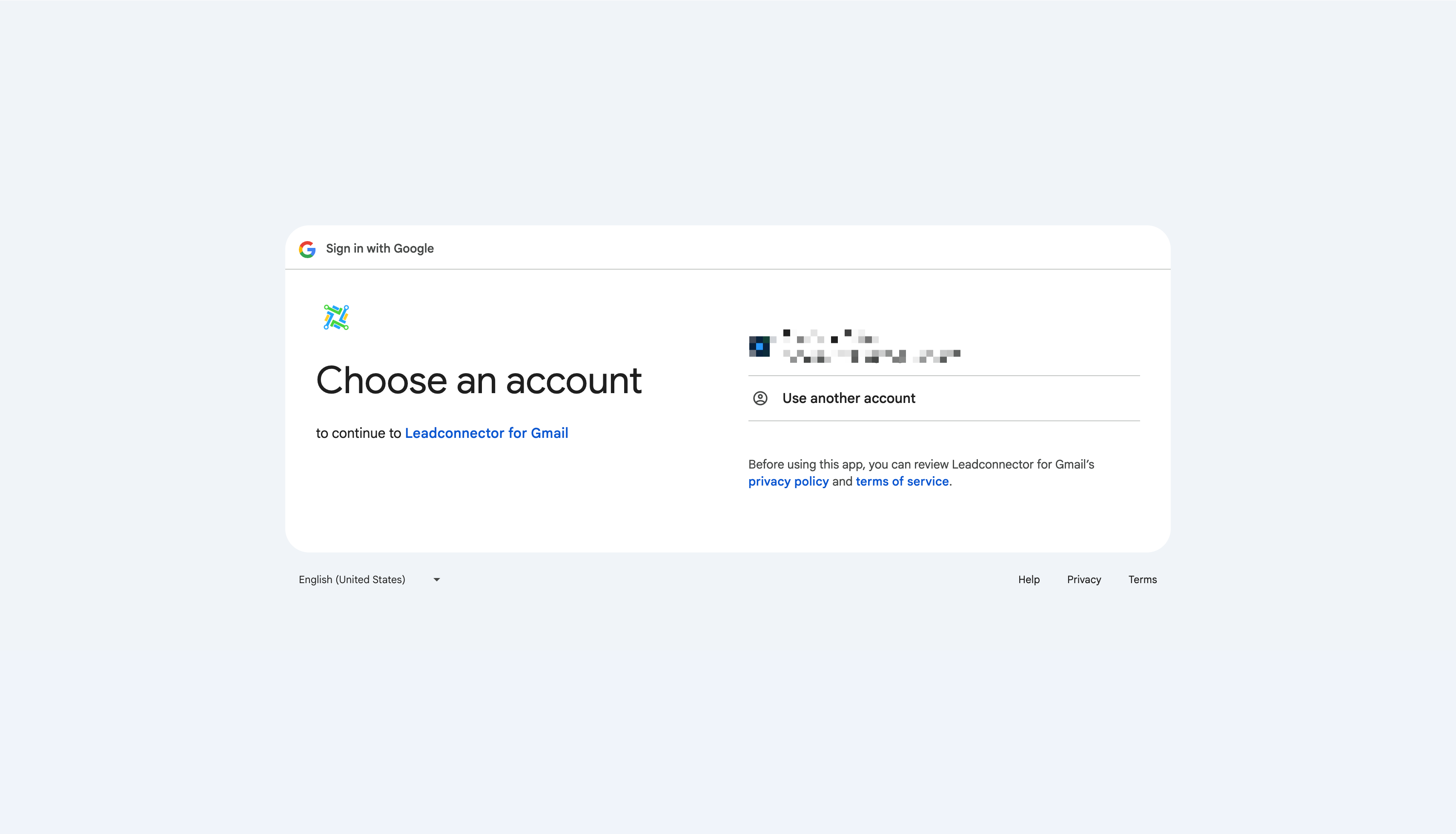
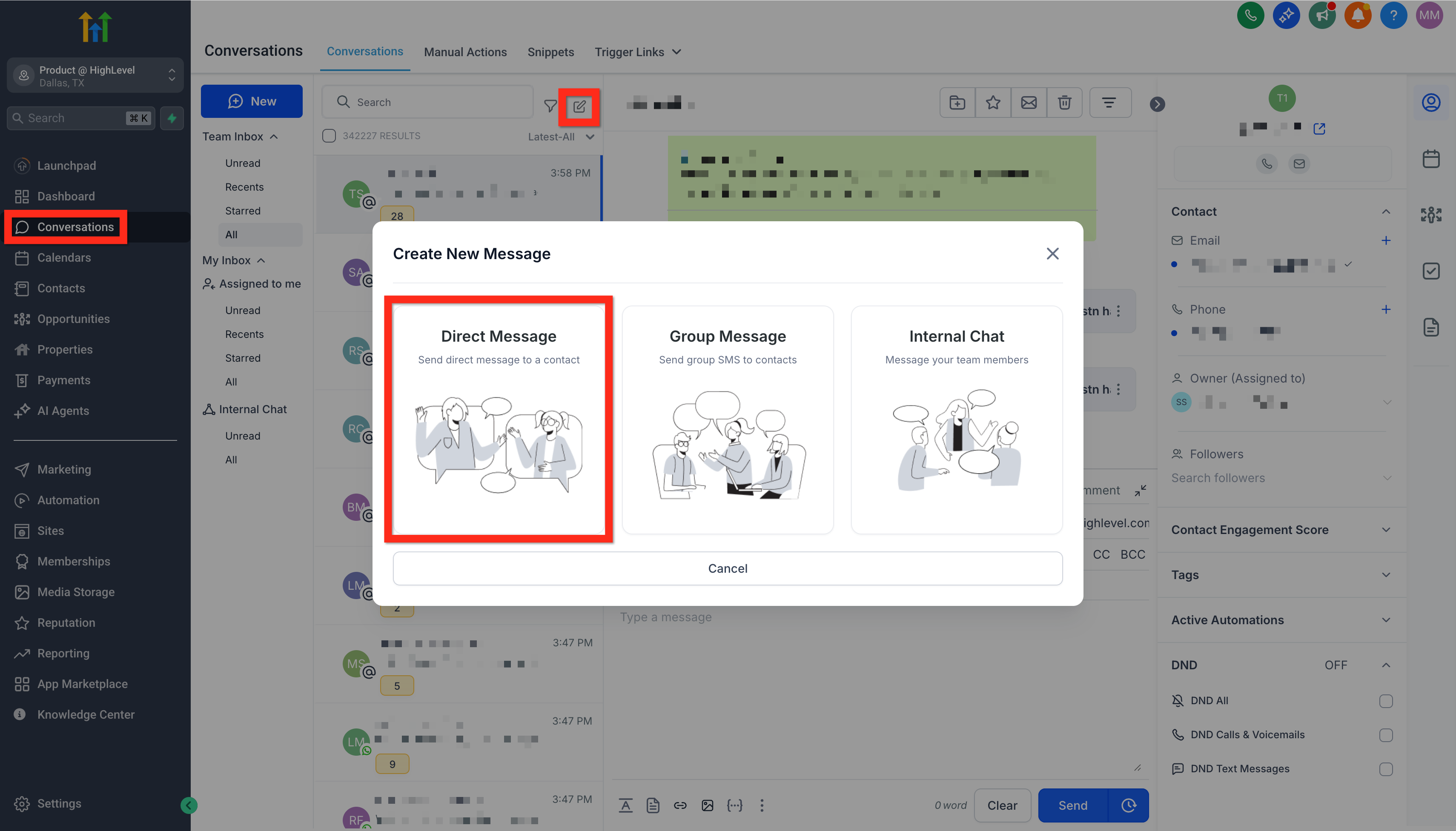
- Choose Gmail or Outlook, then click Connect. !(https://assets.patientcopilot.ai/ee31680619bd54e2.png) - Follow the prompts to accept permissions. It’s safe and secure!!(https://assets.patientcopilot.ai/eb8e054f4efe0b37.png) * * * - How to Set Up Two Way Email Sync for Gmail (https://help.patientcopilot.ai/en/support/solutions/articles/48001235216) - Two Way Email Sync for Outlook (https://help.patientcopilot.ai/en/support/solutions/articles/48001229663) Next, you can start sending messages directly from within Patient Copilot to make your workflow even smoother. * * * ## Use Your Connected Email Now that you’ve got your inbox connected, you’re all set to manage your emails directly from Patient Copilot. Here’s how simple it is to start sending emails: - Navigate to Conversations.
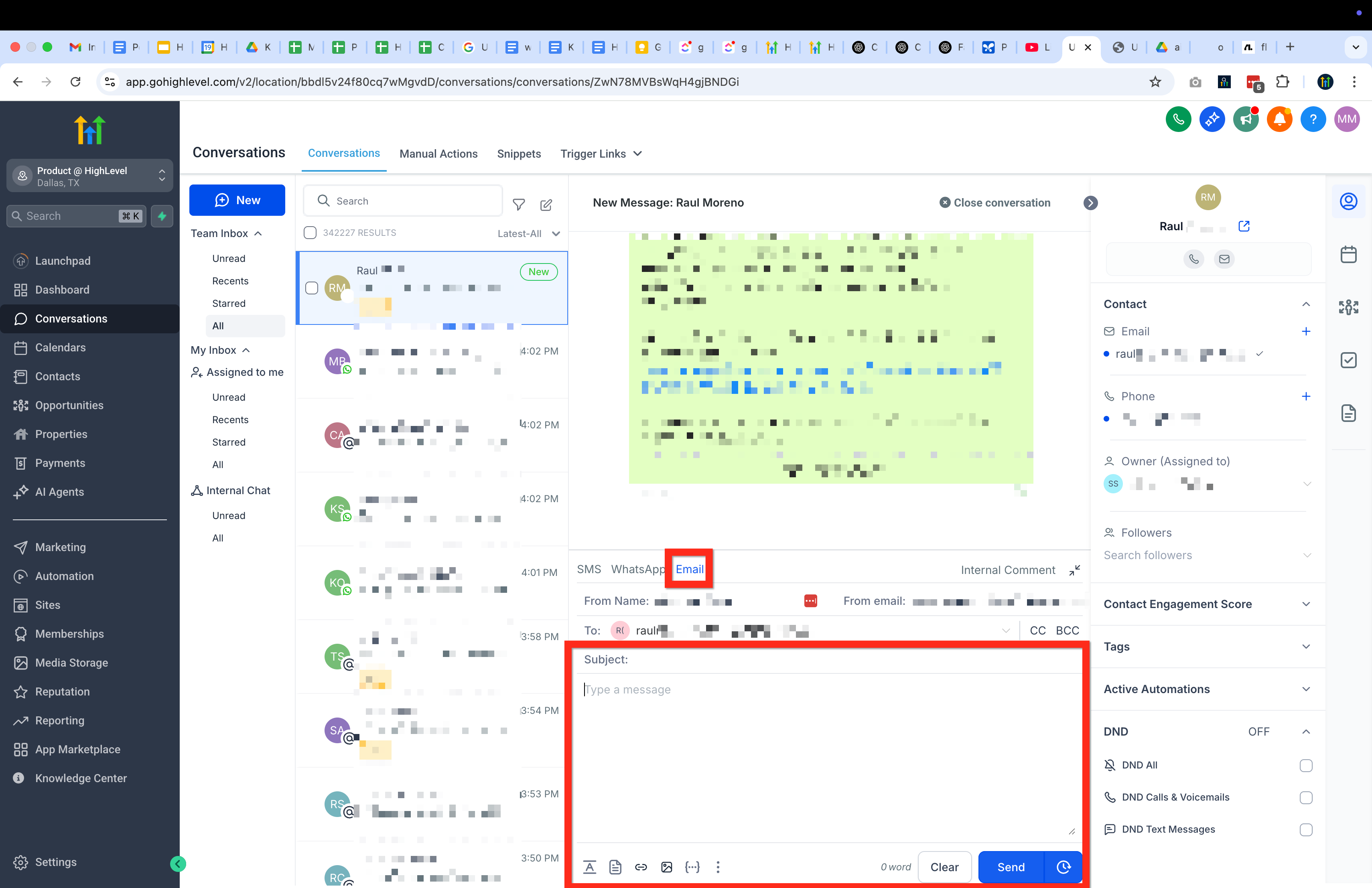
- Click on Create New Message (the pencil-on-paper icon).
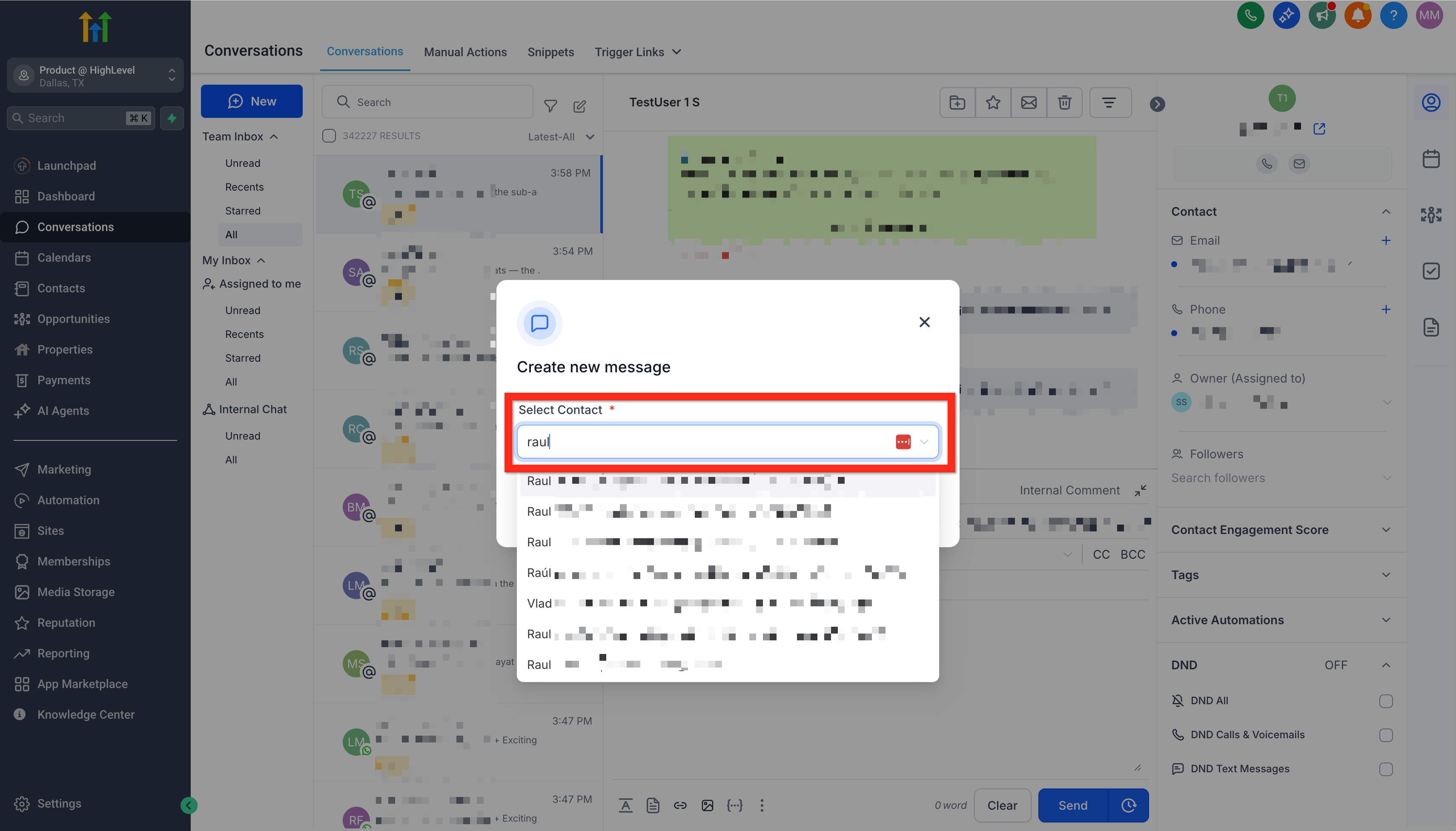
- Select Direct Message.!(https://assets.patientcopilot.ai/08e244f95b143be5.png) - Choose your contact and click Continue.!(https://assets.patientcopilot.ai/da3a3ab7779d1fce.png) - Your connected email address will automatically populate in the “From” field.!(https://assets.patientcopilot.ai/aef46b0878d86c91.png) Your emails will seamlessly sync both ways—from Patient Copilot to your personal inbox and back again—so you’re always in sync. Next, explore how you can automate responses and workflows to make client communication even easier! * * * ## Related Articles - Getting Started - Launch an Email Campaign
- Getting Started - Create New Contact
- Getting Started - Connect Stripe
- Getting Started - Create and Send Invoices
- Getting Started - Launch an SMS Campaign Was this article helpful? That’s Great! Thank you for your feedback Sorry! We couldn’t be helpful Thank you for your feedback Feedback sent We appreciate your effort and will try to fix the article