
Default Headers for Dedicated Sending Domains
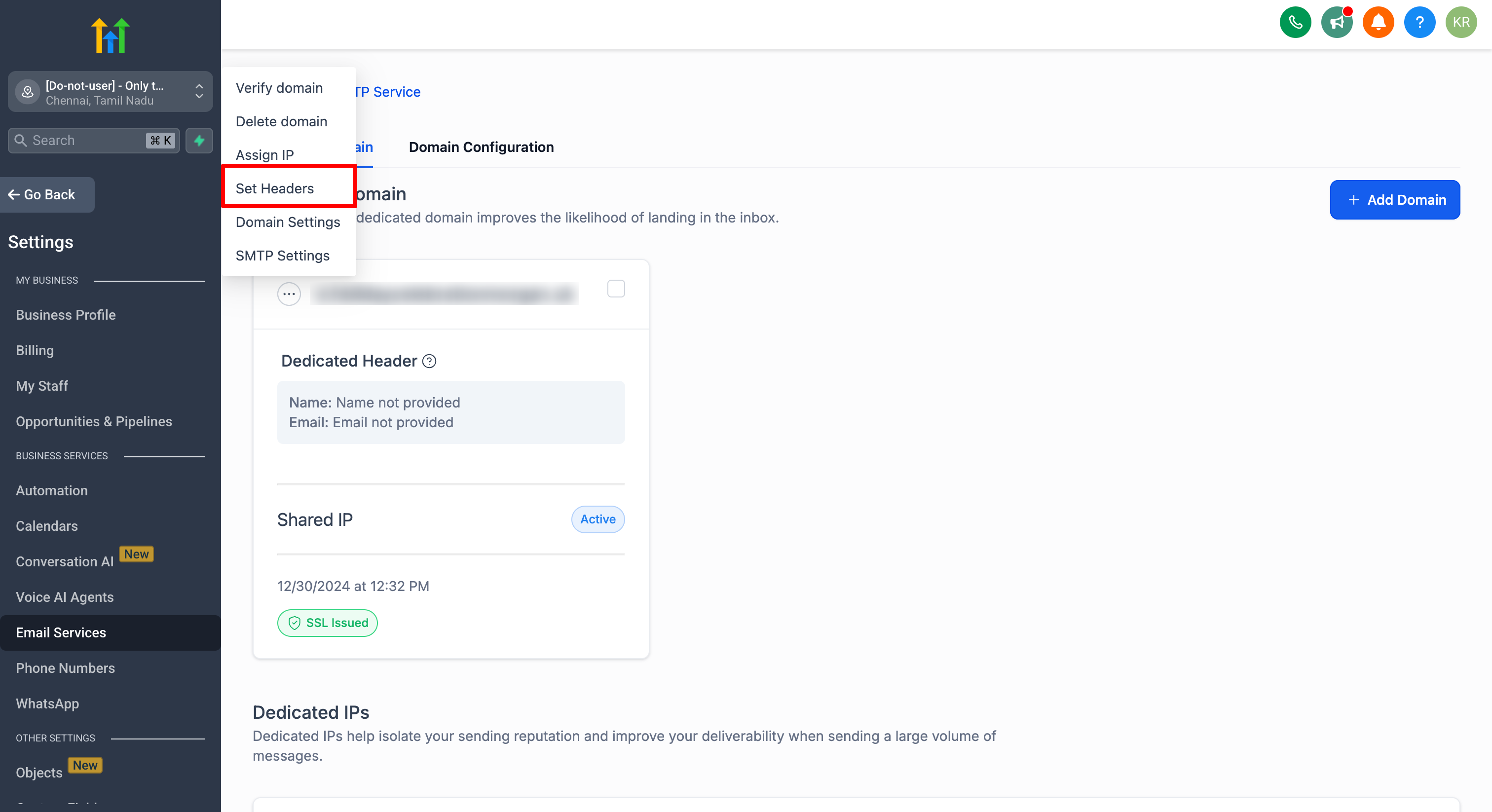
A “default header” provides a fallback From Name and From Email for outbound messages sent via a dedicated sending domain for all emails. This ensures deliverability and brand consistency. * * * ## Prerequisites Before you can configure default headers, ensure that: 1. You’re in a Sub-Account - Only sub-accounts can add and manage dedicated sending domains and set default headers. Agency-level domains do not support per-sub-account default headers. 2. Dedicated Sending Domain Is Added and Validated - You have completed DNS setup (CNAME, DKIM, and SPF) for your custom sending domain (e.g., email.yourbrand.com). - Patient Copilot displays a green checkmark indicating your domain is validated under Settings → Email Service → SMTP Service → Dedicated Domain and IP * * * You can set up default “From address and Email” for dedicated domains under your account only for the Sub-account created domains. Navigate to Sub-account Settings - Email Service -> SMTP Service -> Dedicated Domain and IP -> Set headers under dedicated domain. **!(https://assets.patientcopilot.ai/8b892b6331cbf154.png)**!(https://assets.patientcopilot.ai/5156f5488e78ed7a.png) The designated header will be applied to emails sent through the dedicated domain when DMARC alignment fails. * * * 1. Campaign Configuration - When creating a broadcast or workflow email, you can set a campaign-level “From Name” and “From Email. - If you intentionally use a different “From Email” (e.g., sales@differentdomain.com) that does not align with your dedicated domain (email.yourbrand.com), DMARC will fail. 2. DMARC Check & Fallback - At send time, Patient Copilot checks DMARC alignment between the campaign’s “From” address and the sending domain’s DKIM/SPF records. - If alignment passes: The email goes out with the campaign’s chosen “From. - If alignment fails: Patient Copilot use the default header you configured under that dedicated domain. 3. Recipient Experience - Recipients see a valid “From Name” and “From Email” that matches your authenticated sending domain. - The email remains DMARC-compliant and is less likely to be rejected or flagged as spam. * * * ### Example scenario - Dedicated sending domain: email.yourbrand.com (validated) - Default Header From Name: YourBrand Support - Default Header From Email: support@email.yourbrand.com ### Broadcast/workflow email configured by the user - Campaign From Name: Jane from YourBrand - Campaign From Email: jane@anotherdomain.com (does not align with email.yourbrand.com) ### What Happens at Send Time - If the campaign From Email aligns with the dedicated sending domain, recipients see: - From: Jane from YourBrand <jane@email.yourbrand.com> (or whatever aligned address you selected) - If the campaign From Email does NOT align and DMARC alignment fails, Patient Copilot applies the Default Header and recipients see: - From: YourBrand Support <support@email.yourbrand.com> ### How to Confirm It Worked - Send a test email using a non-aligned From Email (domain mismatch). - Check the received email’s “From” address and confirm it matches the Default Header. * * * ## Best Practices & Considerations 1. Configure Default Headers Before Sending: Always set up your fallback header prior to launching major campaigns. If DNS or DMARC misconfiguration occurs, your default header will kick in automatically. 2. Monitor Replies: The default “From Email” can be any address at your sending domain, but ensure mailboxes or aliases are monitored (e.g., support@yourbrand.com forwarding to the correct team). 3. Test Before Scaling: Send a small internal test using a non-aligned “From” address to confirm Patient Copilot defaults properly. Check both inbox placement and DMARC status. 4. Understand Propagation Delays: Changing DNS (especially DKIM/SPF/TXT records) can take up to 48 hours to fully propagate. Without default headers, messages sent during propagation may be rejected. 5. Segregate by Sub-Account: If you manage multiple brands or departments, create separate sub-accounts—each with its own dedicated domain and default headers—for isolated control. * * * ## Common Troubleshooting Scenarios | Issue | Possible Cause | Resolution |
| --- | --- | --- |
| “Set headers” option is not visible | You’re in an agency-level view or the domain is not validated under a sub-account. | Switch to the correct sub-account. Add/validate a dedicated domain in Settings → Email Service → SMTP Service → Dedicated Domain and IP. |
| Emails still failing to send after fallback | DNS records (DKIM/SPF) are incomplete or incorrectly formatted. | Double-check DNS entries for your sending domain. Use online DKIM/SPF validators. Wait for propagation. |
| Fallback header not applied when expected | Campaign “From” address aligns with the sending domain (even if unintended). | Verify the campaign’s “From Email” is genuinely non-aligned (e.g., domain mismatch). Check DMARC reports to confirm failures. |
| Recipients see the wrong “From Name” or “From Email” | The campaign or workflow may hard-code a display name that overrides expectations. | Edit the campaign/workflow “From Name” and “From Email.” Ensure fallback is correctly spelled and free of stray spaces. |
| SSL certificate not issued for the sending domain | Missing or incorrect CNAME/DNS records for domain validation. | In Settings → Dedicated Domain, click “Edit DNS Info” and follow the instructions exactly. Wait for propagation before retrying. | Was this article helpful? That’s Great! Thank you for your feedback Sorry! We couldn’t be helpful Thank you for your feedback Feedback sent We appreciate your effort and will try to fix the article
**!(https://assets.patientcopilot.ai/5156f5488e78ed7a.png)