
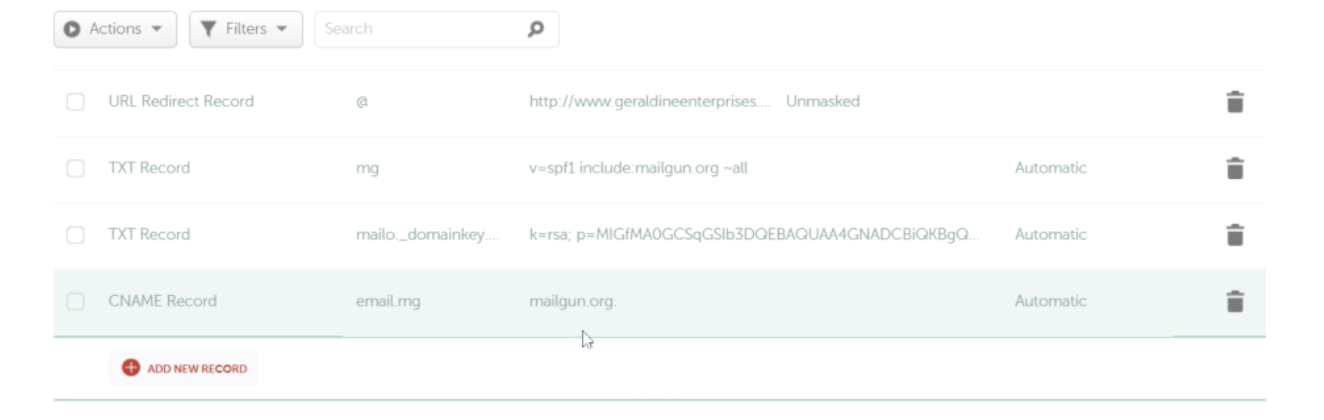
How to fix links in the email that do not open?
If links in your emails are not opening, it’s usually caused by an issue with your tracking domain or DNS configuration. This article walks you through why this happens and provides steps to troubleshoot and fix the issue. Note: This video example uses Mailgun, but the same principles apply to all providers. * * * ## What Causes Email Links to Not Open? Email links usually don’t open because the tracking domain isn’t set up correctly or isn’t resolving in DNS. When an email is sent, the link is rewritten so it passes through a tracking domain before sending users to the final page. If that tracking domain has a DNS or SSL issue, the redirect breaks and the link won’t open. To fix this, make sure your tracking domain is configured properly. This means the correct CNAME record is in place, the domain resolves in DNS and the HTTPS/SSL is active. Once these are set correctly, the redirect works again and your links will open normally. Note: Link tracking (redirecting links through a tracking domain) is used by most email providers to enable click tracking and ensure proper link routing. However, Email Tracking (such as open and click reporting inside Patient Copilot) are only available when using LC Email.!(https://assets.patientcopilot.ai/680e35e4fe0ba8cb.png) * * * ## How Email Link Redirects Work Understanding how links behave behind the scenes makes it easier to diagnose why they fail. 1. Your original link is replaced with a tracking link. 2. The tracking link routes through a subdomain (e.g., email.yourdomain.com). 3. This subdomain relies on a CNAME record in your DNS. 4. If the DNS or SSL is misconfigured, the redirect fails and the link may not open. * * * ## How To Fix Links in Emails That Do Not Open #### Step 1: Identify Your Tracking Domain - From your Agency Dashboard, go to Settings > Email Services > Location Settings.
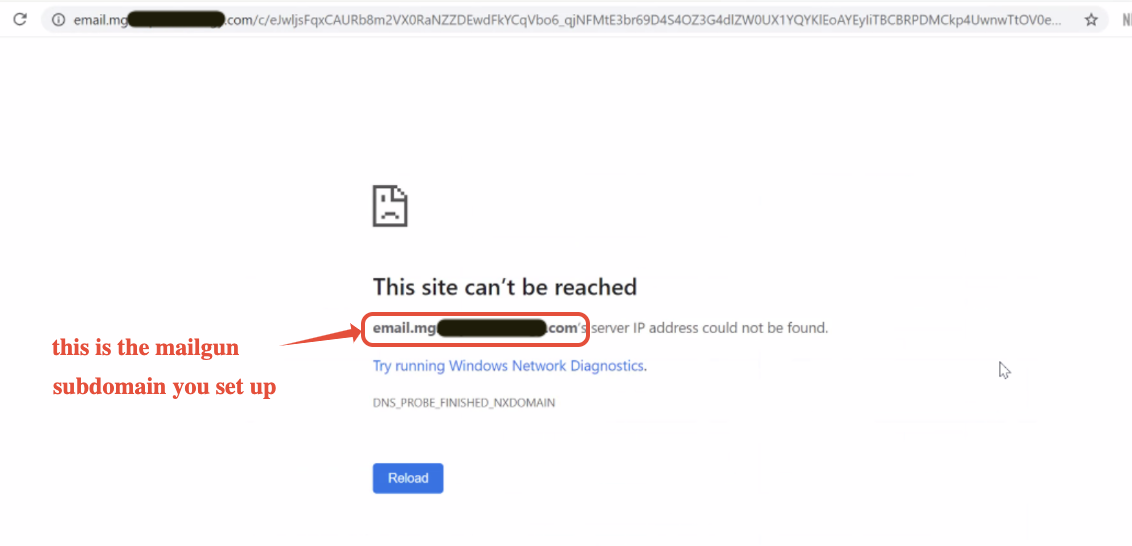
- Find the domain used for email tracking (e.g., email.yourdomain.com) for the location you would like to troubleshoot.!(https://assets.patientcopilot.ai/f00c8a612cf03973.png) #### Step 2: Check Your CNAME Record Go to MX toolbox or Whatsmydns to look up the CNAME record. Enter your tracking lookup domain as defined below 1. Copy your tracking domain found in step 1 (e.g., mg.yourdomain.com)
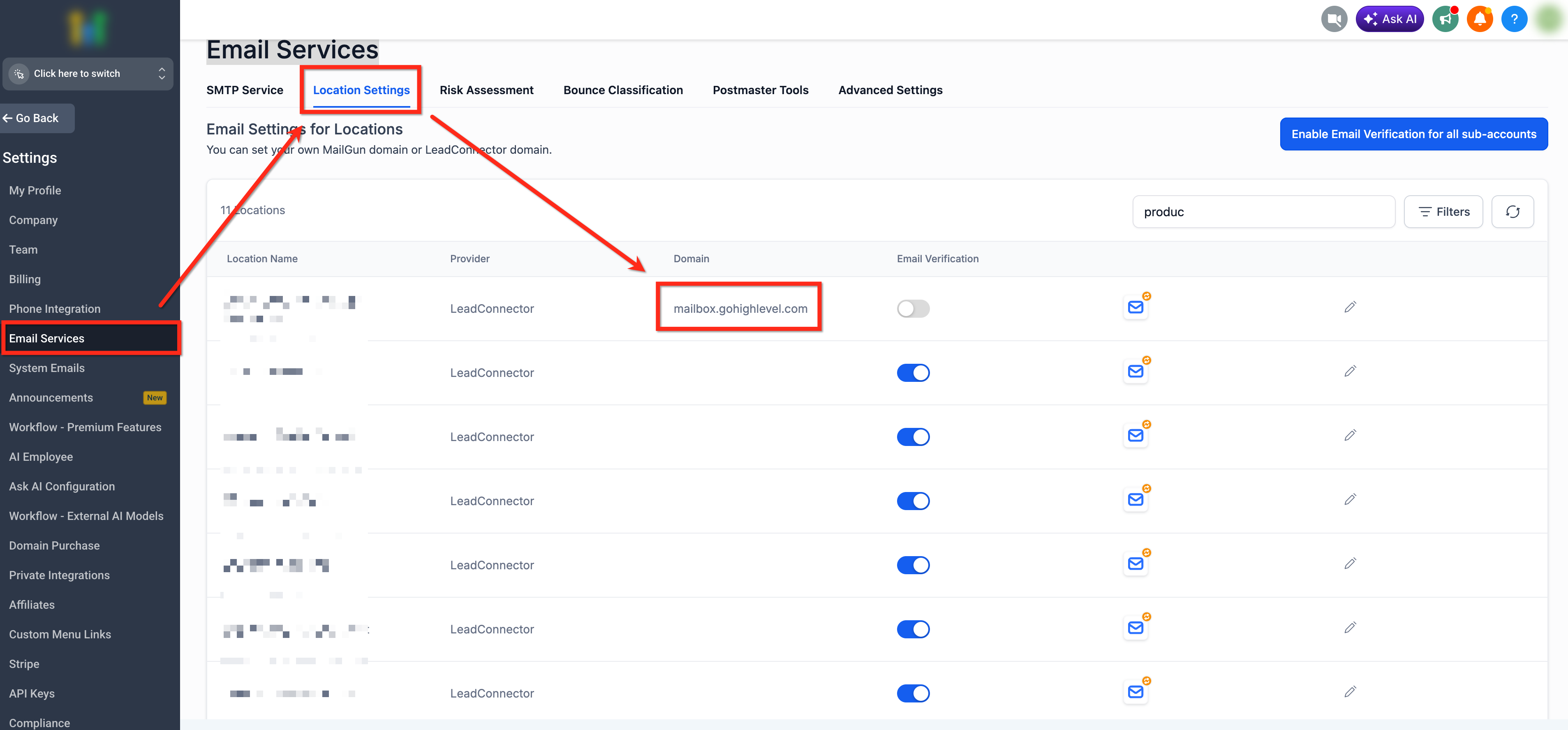
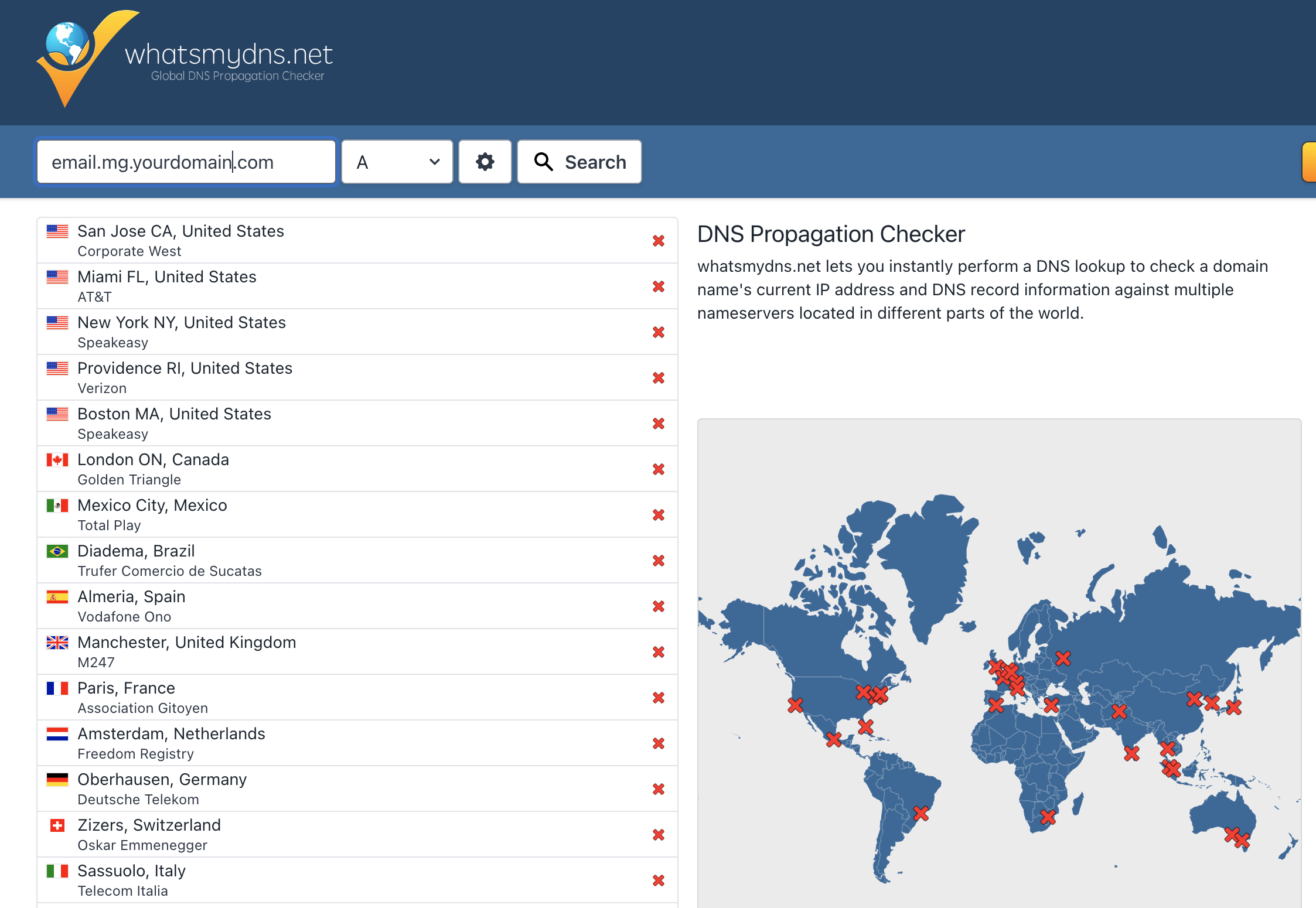
- Add email. in front → (https://email.mg.yourdomain.com/)_email.mg.yourdomain.com_(https://email.mg.yourdomain.com/) For example: If you set up mg.companyname.com, you will look up the CNAME record for email.mg.companyname.com If you set up replies.companyname.com, you will look up the CNAME record for email.replies.companyname.com(https://replies.companyname.com/)**(https://replies.companyname.com/)****(https://replies.companyname.com/)****(https://replies.companyname.com/)****(https://replies.companyname.com/)****(https://replies.companyname.com/)** If you set up _support.companyname.com, y_ou will look up the cname record for email.support.companyname.com The result should return a valid CNAME record. If you see “DNS record not found”, your CNAME is missing or incorrect.!(https://assets.patientcopilot.ai/f529fc3781b37098.png)!(https://assets.patientcopilot.ai/79a1dbac60785641.png) #### Step 3: Check Your CNAME Record Log in to your DNS provider and Locate the CNAME record for your tracking domain. Ensure: - Host is only the subdomain (e.g., email.mg, not full domain)
!(https://assets.patientcopilot.ai/79a1dbac60785641.png)
- Value points to your provider’s tracking domain!(https://assets.patientcopilot.ai/bbabcdf3ff3b45e2.png) #### Step 4: Ensure HTTPS is Enabled Tracking domains must support HTTPS. Go to your provider settings and ensure the tracking protocol is set to HTTPS. Wait for SSL provisioning if recently updated. (https://help.mailgun.com/hc/en-us/articles/360011566033-How-to-Enable-HTTPS-Tracking-Links)(https://help.mailgun.com/hc/en-us/articles/360011566033-How-to-Enable-HTTPS-Tracking-Links)[Click here for more information on How to Enable HTTPS Tracking Links](https://help.mailgun.com/hc/en-us/articles/360011566033-How-to-Enable-HTTPS-Tracking-Links)(https://help.mailgun.com/hc/en-us/articles/360011566033-How-to-Enable-HTTPS-Tracking-Links)(https://help.mailgun.com/hc/en-us/articles/360011566033-How-to-Enable-HTTPS-Tracking-Links)!(https://assets.patientcopilot.ai/76669f75e2fa3ebc.png) #### Step 5: Test Your Links Send a test email from Patient Copilot. Click the link and confirm it redirects properly to the final URL. #### Step 6: Contact Support if the Issue Persists If your links still do not open, contact your domain/DNS provider (e.g., GoDaddy, Cloudflare, Google Domains). - Ask them to verify that your CNAME record for the tracking domain is correctly set up and resolving.
- Share screenshots of your DNS records as shown below for faster troubleshooting. If your DNS provider confirms everything is correct and the issue continues, **(https://help.patientcopilot.ai/en/support/solutions/articles/48001204857)**(https://help.patientcopilot.ai/en/support/solutions/articles/48001204857)[Contact Patient Copilot Customer Support](https://help.patientcopilot.ai/en/support/solutions/articles/155000000969)(https://help.patientcopilot.ai/en/support/solutions/articles/48001204857)**(https://help.patientcopilot.ai/en/support/solutions/articles/48001204857)**.!(https://assets.patientcopilot.ai/583734a688bea20b.png) * * * ## Troubleshooting Common Issues Even after following the setup steps, some configurations can still cause links to fail. Reviewing these common issues can help you quickly identify what might still be wrong. - CNAME record not found: If MXToolbox shows “DNS record not found,” the tracking domain CNAME is missing. Re-add the record in your DNS provider
- Wrong CNAME value: The CNAME must point to your email provider’s tracking host. If it points elsewhere, links will not redirect properly.
- Using the full domain in the Host field: In most DNS providers (like GoDaddy or Namecheap), you should only enter the subdomain (e.g., email or email.mg), not the full domain like email.yourdomain.com. Correct host name format (common setups): - If your subdomain is mg.companyname.com → Host should be email.mg - If your subdomain is replies.companyname.com → Host should be email.replies - If your subdomain is support.companyname.com → Host should be email.support
- Cloudflare proxy enabled: If you’re using Cloudflare, the record must be set to DNS Only (No Proxy).
- HTTPS not enabled: Some providers require HTTPS tracking to be enabled in their settings. If HTTP is used or SSL is not active, links may fail to open.
- DNS not fully propagated: After making changes, it can take up to 24–48 hours for DNS updates to apply globally. * * * ## Related Articles - Email Tracking for LC Email
- Google Dedicated Sending Domain Setup (LC Email)
- How to Add a Domain and Verify DNS Record
- Connecting Your Domain on Patient Copilot - A Guide Was this article helpful? That’s Great! Thank you for your feedback Sorry! We couldn’t be helpful Thank you for your feedback Feedback sent We appreciate your effort and will try to fix the article
(https://help.mailgun.com/hc/en-us/articles/360011566033-How-to-Enable-HTTPS-Tracking-Links)(https://help.mailgun.com/hc/en-us/articles/360011566033-How-to-Enable-HTTPS-Tracking-Links)!(https://assets.patientcopilot.ai/76669f75e2fa3ebc.png)
(https://help.patientcopilot.ai/en/support/solutions/articles/48001204857)**(https://help.patientcopilot.ai/en/support/solutions/articles/48001204857)**.!(https://assets.patientcopilot.ai/583734a688bea20b.png)