View Calendar & Appointments in User Timezone
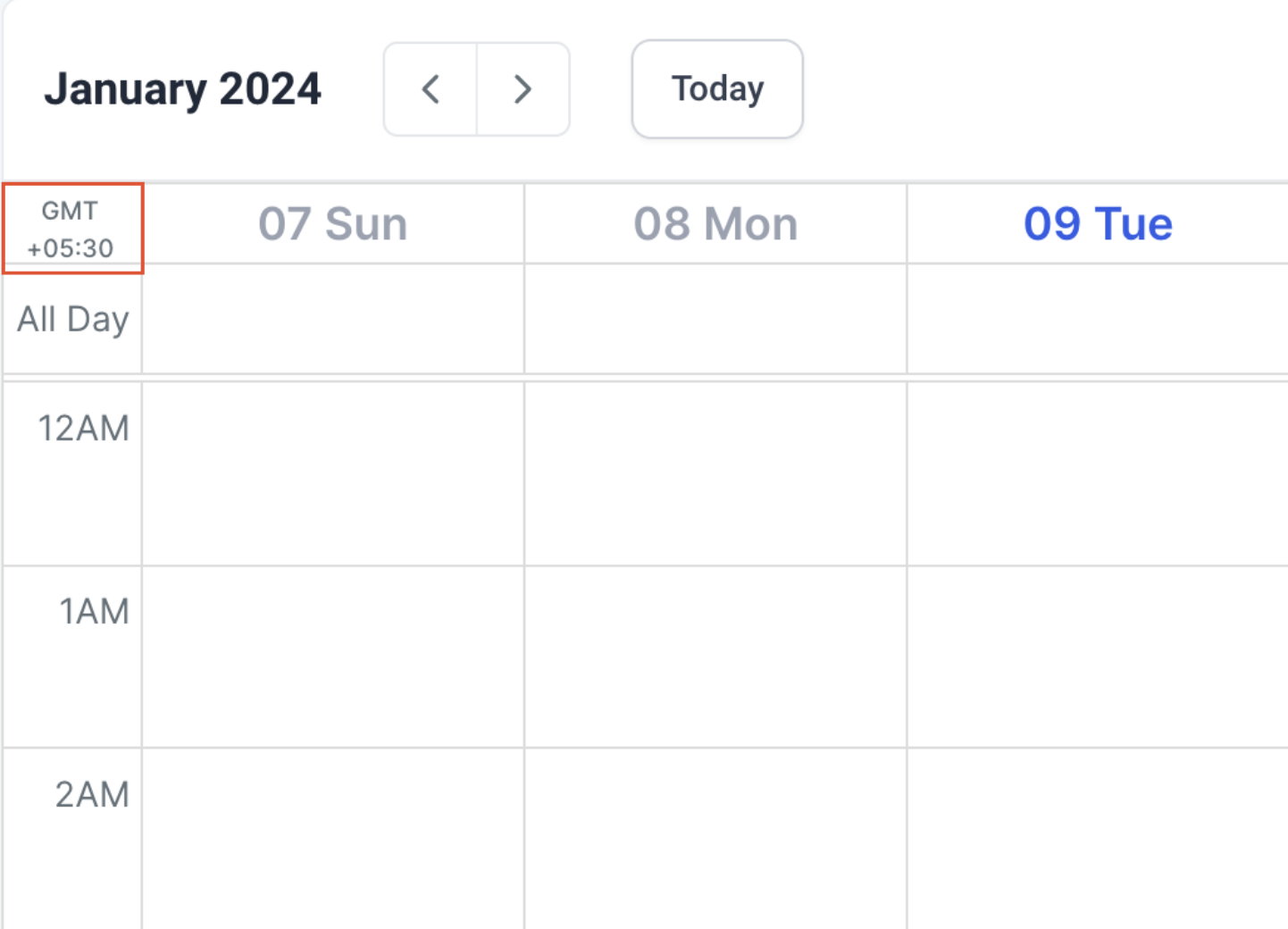
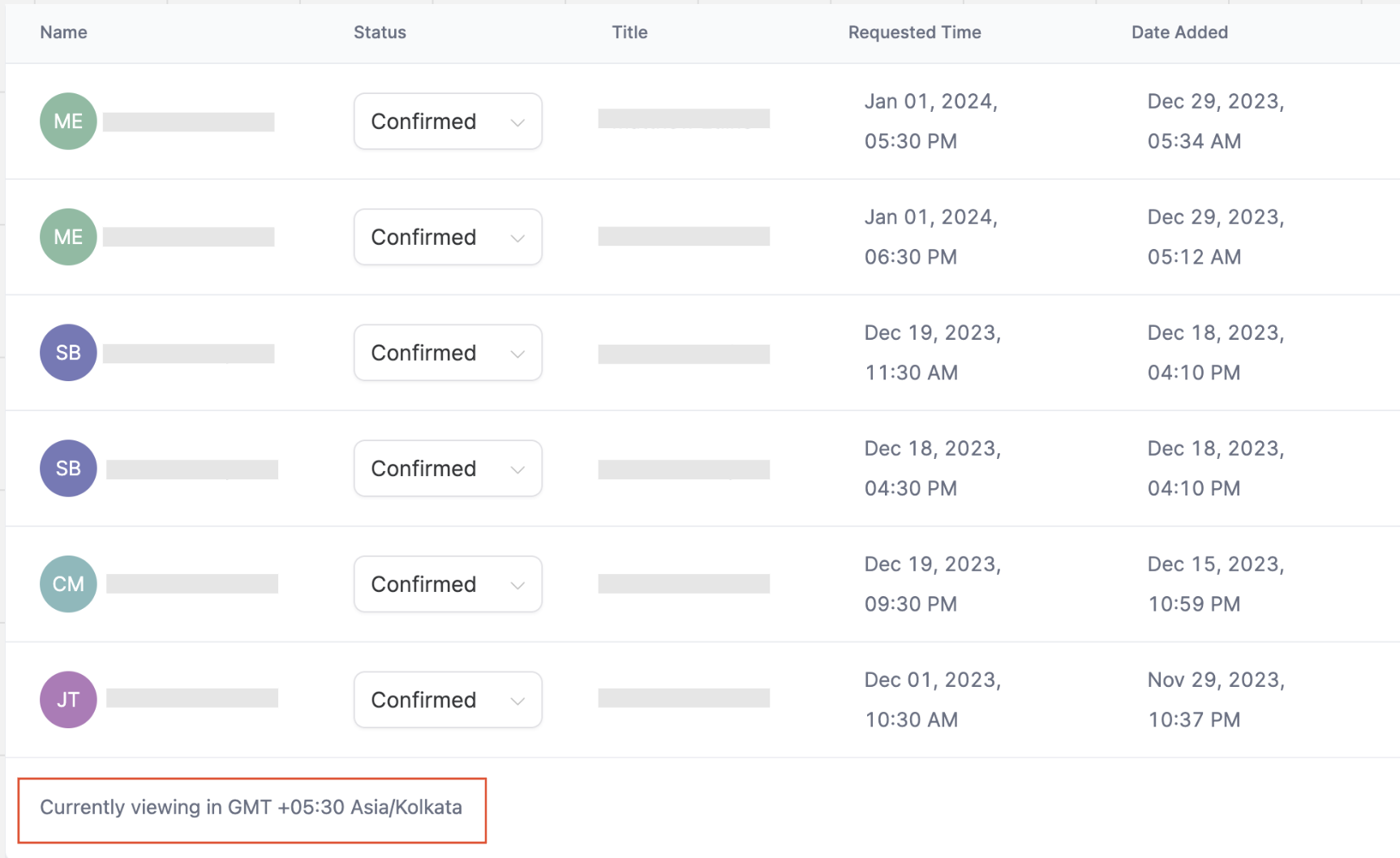
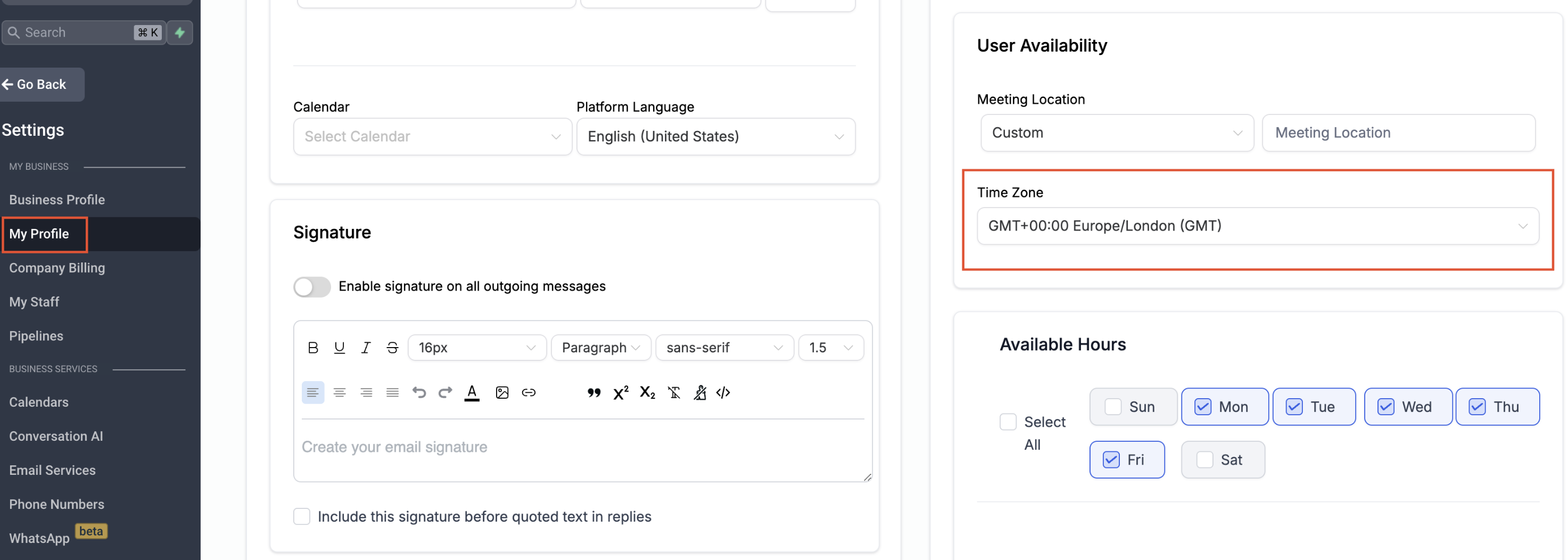
You can now choose any timezone to view appointments across the platform. This user-specific setting controls how appointment times appear in Calendar View, Appointment List, Contacts, and Conversations without affecting availability, booking behavior, or scheduling logic. * * * ## Overview The View Appointments In setting allows each user to select their preferred timezone for displaying appointments. - Applies only to the logged-in user - Controls how appointment times are displayed - Does not affect availability settings - Does not impact booking links or confirmations - Does not change scheduling logic You are no longer limited to viewing appointments in only the User Timezone or Business Timezone. You can now select any timezone. * * * ## Where This Setting Applies The selected timezone affects appointment display in: - Contacts (Appointments section) - Conversations * * * ## How to Change Your Appointment Viewing Timezone To adjust your viewing timezone: 1. Navigate to Calendar Settings. 3. Locate View Appointments In. 4. Select your preferred timezone. 5. Click Save Preferences. You can update this setting at any time. * * * ## Timezone Indicators in the Platform Calendar View !(https://assets.patientcopilot.ai/25e8fee644068edb.png) The currently selected timezone appears within the calendar interface so you can confirm which timezone is active. * * * ## Appointment List !(https://assets.patientcopilot.ai/00148172e165b173.png) The Appointment List displays the active timezone at the bottom of the page. * * * ## Backward Compatibility Previously, a Labs flag controlled how appointments were displayed: - If the flag was ON, appointments displayed in User Timezone - If the flag was OFF, appointments displayed in Business Timezone This Labs flag has been removed and replaced with the View Appointments In setting. For backward compatibility: - If the flag was previously ON, your setting is now set to User Timezone. - If the flag was previously OFF, your setting is now set to your Business Timezone. You may change this preference at any time. * * * ## Availability and Timezone Settings This feature only changes how appointments are displayed. - Confirmation or reminder logic Availability continues to be configured under: Settings → My Profile → User Availability!(https://assets.patientcopilot.ai/cecfb1a9269bd740.png) * * * ## Example Scenario If your business operates in New York (EST) and you are located in London (GMT): - You may choose to view appointments in GMT for local clarity. - Another user may choose EST to align with business operations. - Appointment times are displayed according to each user’s selected timezone. No manual conversion is required. * * * ## Frequently Asked Questions Q: Does changing the viewing timezone affect my availability? No. It only changes how appointment times are displayed to you. Q: Will other users see appointments in my selected timezone? No. The setting is user-specific. Q: Can I select any timezone? Yes. You can select any available timezone. Q: I want to view appointments in the business timezone. What should I do? Go to Calendar Settings → Preferences → View Appointments In and select the business timezone configured in your sub-account. * * * ## Related Articles - Managing Team Member Assignments in Round Robin Calendars