ActiveCampaign to Patient Copilot (Migration Guide)
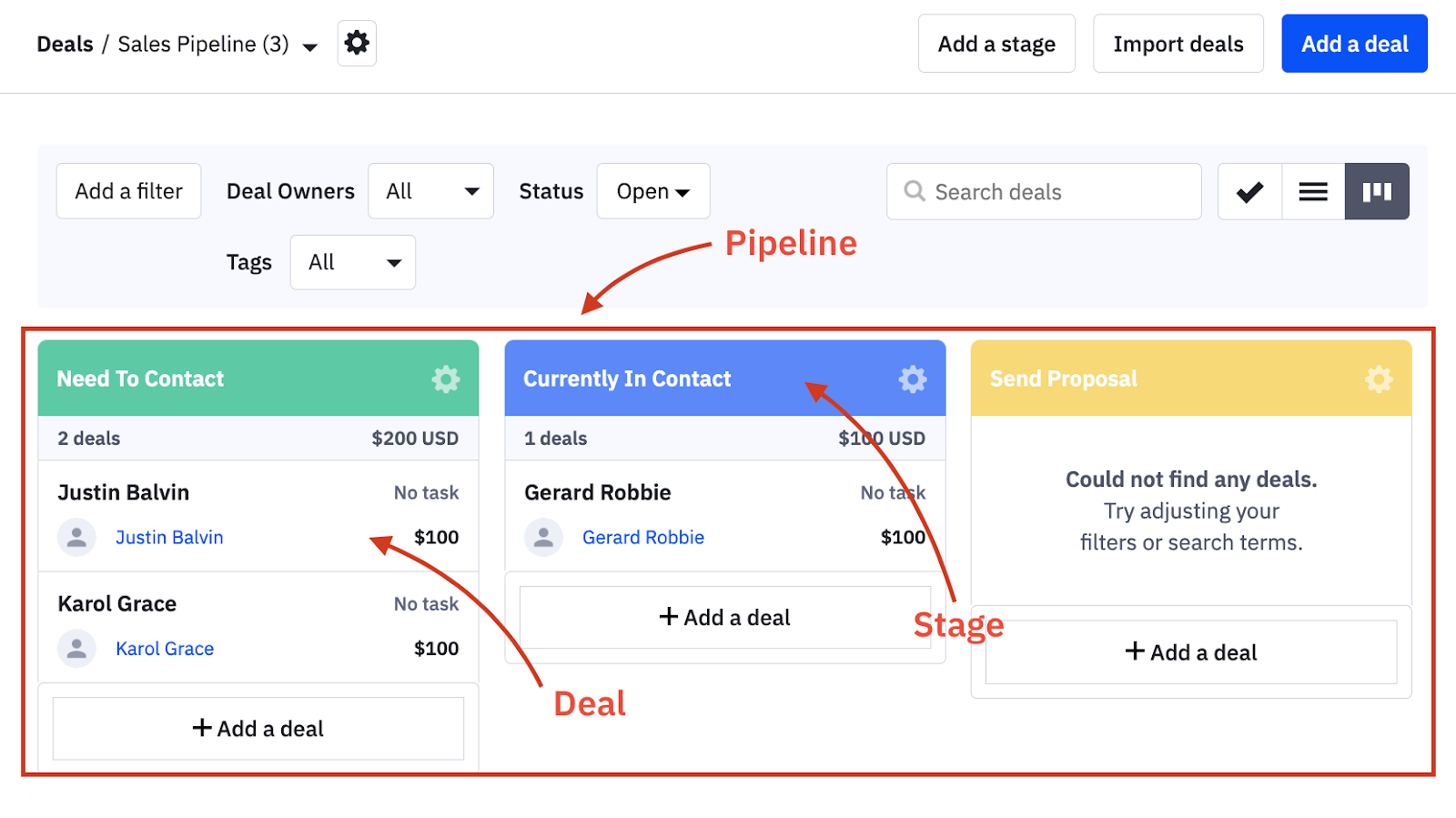
This is a comprehensive guide to migrating key components from ActiveCampaign to Patient Copilot. The goal is to ensure a smooth transition, minimize data loss, and maintain the integrity of your marketing and sales processes. IMPORTANT: Make sure you migrate all of the following components when switching over from ActiveCampaign to Patient Copilot. 1. Contacts 2. Deals (Opportunities) 3. Email Templates 4. Landing Pages 5. Forms 6. Automations * * * ## Migrate Deals (Opportunities) Deals (referred to as Opportunities in Patient Copilot) represent potential sales or transactions. Migrating deals involves exporting deal data from ActiveCampaign and importing it into the appropriate pipeline in Patient Copilot. ### Step 1: Export Deals from ActiveCampaign - Access Deals: In ActiveCampaign, navigate to the Deals section via the left-hand menu.
- Filter Deals: Use filters at the top of the Deals page to narrow down the deals you wish to export. You can filter by status (Open, Won, Lost), pipeline, and other criteria.
- Initiate Export: Click the Export button, typically located in the gear icon menu at the top right.
- Download CSV: The system will generate a CSV file containing the deal data. Download this file for use in Patient Copilot. ### Step 2: Prepare CSV for Patient Copilot Import - Review Required Fields: Ensure that each deal has a corresponding contact in the Patient Copilot system. The CSV should include fields such as Deal Title, Value, Pipeline, Stage, Contact Name, and Deal Owner.
- Data Consistency: Confirm that the data is consistent, especially for fields like Pipeline and Stage, which must align with the structures in Patient Copilot. ### Step 3: Import Deals into Patient Copilot - Navigate to Opportunities: In Patient Copilot, go to Opportunities via the left-hand menu.
- Start Import Process: Click the Import Opportunities button.
- Upload CSV File: Select and upload the CSV file.
- Map Fields: Map the CSV fields to the corresponding fields in Patient Copilot. For example, map “Deal Title” to “Opportunity Title.”
- Pipeline and Stage: Ensure that each deal is assigned to the correct pipeline and stage within Patient Copilot.
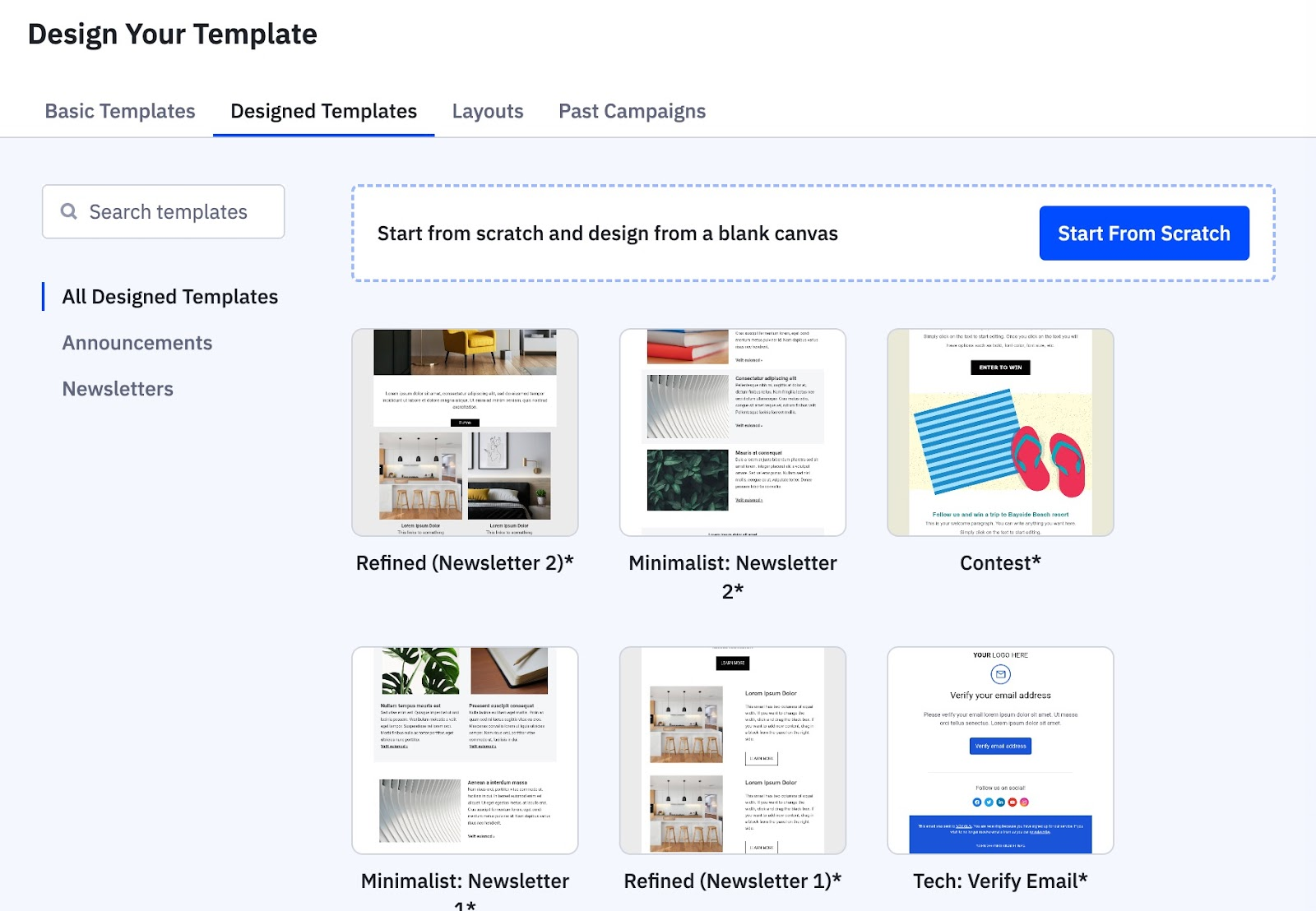
- Complete Import: After mapping the fields, click Import. The deals will be added to the specified pipeline in Patient Copilot. ### Step 4: Post-Import Check - After import, review the opportunities in Patient Copilot to ensure all deals have been accurately imported, including their stage and assigned owner.!(https://assets.patientcopilot.ai/a6e41e7f50d2bd69.png) * * * ## Migrate Email Templates Email templates are pre-designed emails used in campaigns and automations. These can be transferred from ActiveCampaign to Patient Copilot using a share link. - Access Email Templates: Navigate to Campaigns > Campaign Templates in ActiveCampaign.
- Locate Template: Find the template you wish to migrate.
- Generate Share Link: Hover over the template, click the gear icon, and select Share. A window will appear with a share link. Copy this link. ### Step 2: Import Email Template into Patient Copilot - Navigate to Email Templates: In Patient Copilot, go to Marketing > Emails > Email Templates.
- Start Import Process: Click Create New Template and select Import Template.
- Paste Share Link: Paste the ActiveCampaign template share link into the provided field.
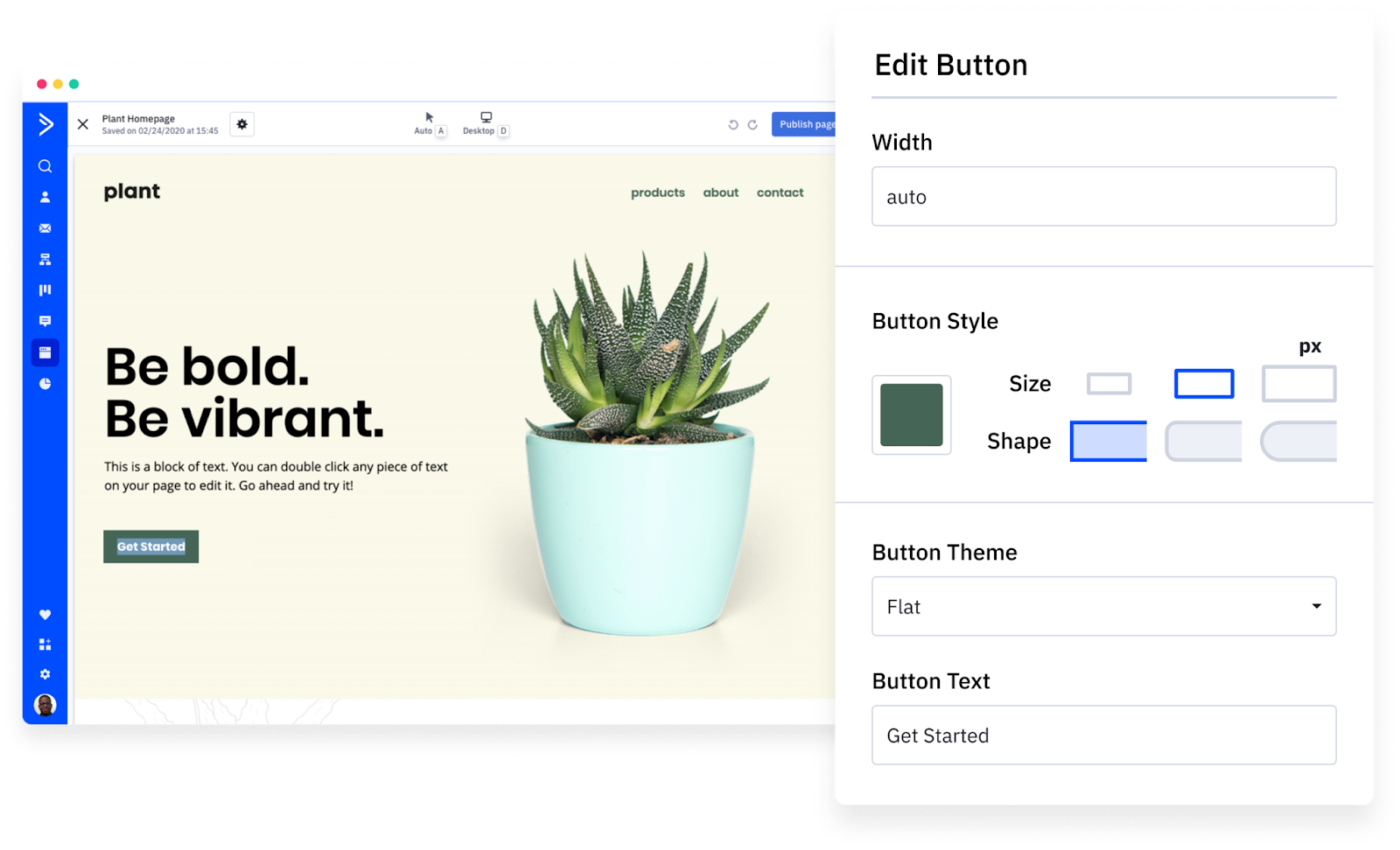
- Name the Template: Give the template a name in Patient Copilot and click Create Template. ### Step 3: Post-Import Check - After importing, review the template in Patient Copilot. Make any necessary customizations to align with your branding and campaign needs.!(https://assets.patientcopilot.ai/0168436122a83c9a.png) * * * ## Recreate Landing Pages Landing pages are standalone web pages designed to capture leads or promote specific offers. While Patient Copilot does not support direct import of landing pages, they can be manually recreated using Patient Copilot’s page builder. ### Step 1: Document Landing Page Details - Export Content: Review the landing page in ActiveCampaign and note down its structure, content, and any tracking codes (e.g., Google Analytics, Facebook Pixel).
- Take Screenshots: Capture screenshots of the landing page layout for reference during the rebuild process. ### Step 2: Rebuild Landing Page in Patient Copilot - Navigate to Page Builder: In Patient Copilot, go to Sites > Funnels/Websites.
- Create New Page: Select Create New Funnel/Website and choose a template or start with a blank page.
- Recreate Structure: Using Patient Copilot’s drag-and-drop builder, recreate the structure of the ActiveCampaign landing page. Add the content, images, and forms as needed.
- Add Tracking Codes: Go to Settings > Tracking Codes and add any necessary tracking codes (e.g., Google Analytics ID, Facebook Pixel).
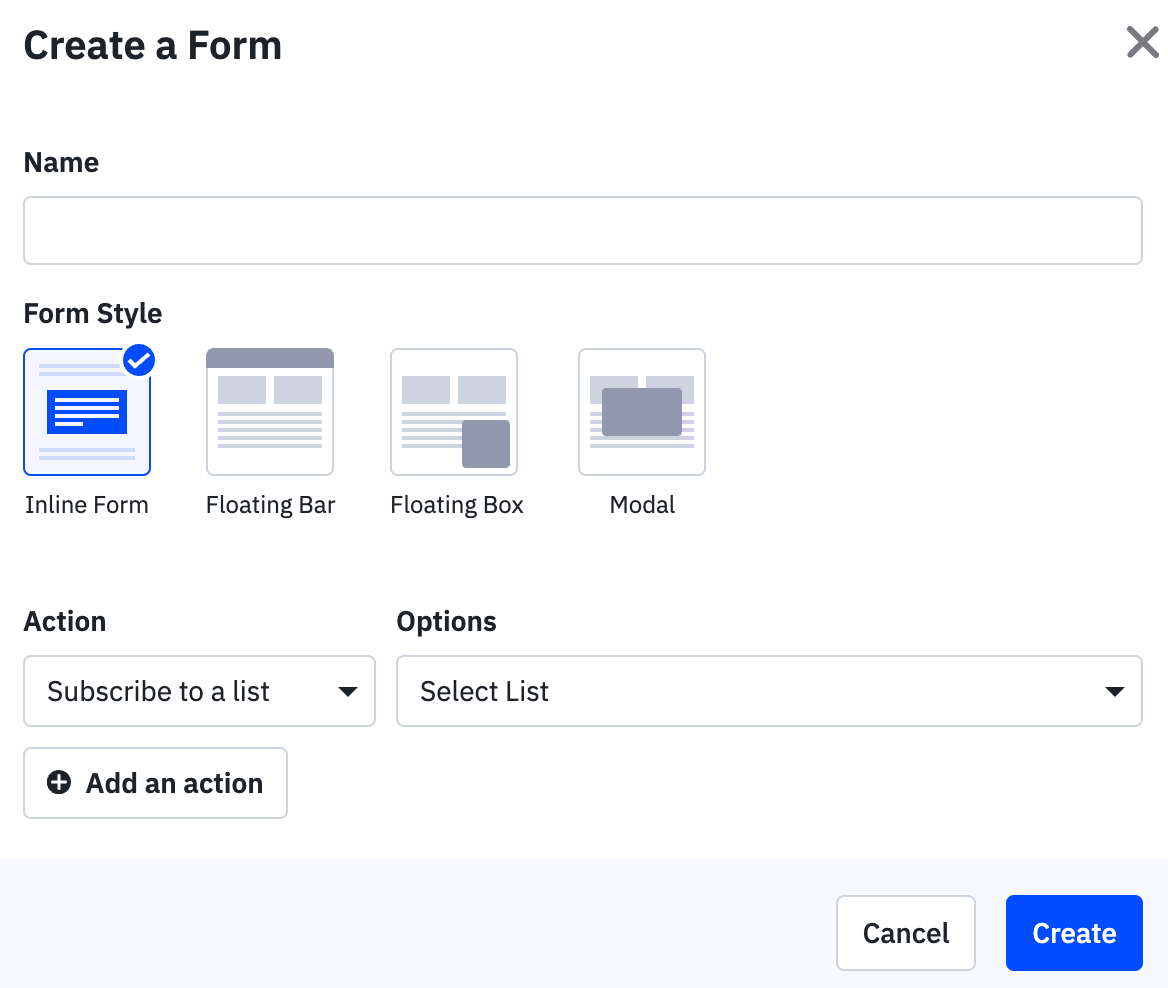
- Customize and Publish: Customize the page’s theme, layout, and SEO settings. Once satisfied, click Publish. ### Step 3: Post-Publish Check - Ensure all links, forms, and tracking codes work correctly on the published page.!(https://assets.patientcopilot.ai/fd3804efd8d78cb7.png) * * * ## Migrate Forms Forms are used to collect information from leads and trigger automations. Forms from ActiveCampaign need to be recreated in Patient Copilot’s form builder. ### Step 1: Document Form Details - Review Form Fields: In ActiveCampaign, note down the form fields, actions (e.g., add to list, apply tag), and any integrations.
- Capture Form Settings: Document any specific settings, such as form visibility, custom CSS, or conditional logic. ### Step 2: Recreate Forms in Patient Copilot - Navigate to Form Builder: In Patient Copilot, go to Sites > Forms.
- Create New Form: Click Create New Form and start adding fields that match those from the ActiveCampaign form.
- Configure Actions: Set up form actions such as adding contacts to a list, applying tags, or triggering workflows in Patient Copilot.
- Embed Form: Once the form is built, you can embed it on a Patient Copilot landing page or website by copying the embed code. ### Step 3: Post-Implementation Check - Test Form Submission: Submit a test entry through the form to ensure that all actions (e.g., adding to lists, applying tags) are working correctly.
- Verify Data Capture: Check that the form data is captured accurately in Patient Copilot, including any custom fields or tags.
- Review Embedded Forms: If the form is embedded on a landing page or website, ensure it displays correctly across different devices (desktop, tablet, mobile).!(https://assets.patientcopilot.ai/81911f2cfa759f4c.png) * * * ## Recreate Automations Automations in ActiveCampaign are sequences of actions triggered by specific events (e.g., form submission, tag application). Migrating automations involves manually recreating these workflows in Patient Copilot using its Workflows feature. ### Step 1: Document ActiveCampaign Automations - Export Automation Details: If possible, export a visual representation or detailed breakdown of each automation from ActiveCampaign. If this is not available, manually document the triggers, actions, conditions, and end goals of each automation.
- Identify Key Elements: For each automation, identify key components such as entry triggers (e.g., contact added to a list), actions (e.g., send email, add tag), and any conditional logic (e.g., if/else branches). ### Step 2: Recreate Automations in Patient Copilot - Access Patient Copilot Workflows: In Patient Copilot, navigate to Automation > Workflows.
- Create New Workflow: Click Create New Workflow and start by setting the entry trigger that matches the one in ActiveCampaign (e.g., form submission, tag added).
- Add Actions and Conditions: Recreate the sequence of actions from the ActiveCampaign automation. This may include sending emails, adding/removing tags, updating contact records, or moving deals through a pipeline.
- Use Conditional Logic: Patient Copilot allows you to add conditional logic similar to ActiveCampaign’s if/else branches. Ensure that these conditions are correctly set up to guide contacts through different paths based on their behavior or attributes.
- Configure Timing: If the automation involves timed delays (e.g., wait for 1 day), ensure these are set up accurately in Patient Copilot. ### Step 3: Test and Validate - Run Test Contacts: Create a test contact or use a segment of existing contacts to run through the newly created workflow. Monitor the process to ensure all actions are executed correctly.
- Check Workflow Reports: After the test run, review the workflow reports in Patient Copilot to verify that the automation is performing as expected.
- Adjust as Necessary: If any part of the workflow does not behave as intended, make adjustments and re-test until the automation is functioning smoothly. * * * ## Additional Migration Considerations ### Training and Documentation - Internal Training: Provide training for your team on how to use Patient Copilot effectively, especially focusing on differences from ActiveCampaign.
- Create Internal SOPs: Document any internal processes that have changed as a result of the migration to Patient Copilot. ### Data Integrity - Double-Check Data: After all components have been migrated, double-check that all data (contacts, deals, email templates, etc.) has been transferred accurately and is complete.
- Backup Data: Ensure you have backups of all original data from ActiveCampaign before deleting or archiving it. ### Customer Communication - Notify Contacts: If the migration impacts your customer-facing processes (e.g., changes to email templates or form submissions), consider notifying your contacts about the transition to avoid confusion. ### Ongoing Monitoring - Monitor Performance: Regularly monitor the performance of workflows, email campaigns, and other automated processes in Patient Copilot to ensure they are working as intended.
- Optimize: Use Patient Copilot’s analytics and reporting tools to identify areas for optimization post-migration. * * * ## Frequently Asked Questions How do I export my contacts from ActiveCampaign? To export your contacts from ActiveCampaign, you need to log in to your ActiveCampaign account, navigate to the Contacts section, click the Export option, select which fields you want to include in the export such as Email, First Name, and Last Name, name your file while avoiding special characters, and download the resulting CSV file. What do I need to do to prepare my contact data for import into Patient Copilot? Ensure dates are in YYYY-MM-DD format, use UTF-8 encoding for the CSV, remove line breaks and emojis, and confirm each contact has a valid email address. How do I import contacts into Patient Copilot and map the fields correctly? In Patient Copilot, navigate to Contacts, click Import Contacts, upload your CSV, map the fields (e.g., “Email” to “Email”), assign tags or lists, and click Import. How can I migrate my deals (opportunities) from ActiveCampaign to Patient Copilot? Export deals from ActiveCampaign via Deals > Export, preparing a CSV with fields like Deal Title, Value, and Stage. In Patient Copilot, go to Opportunities, click Import Opportunities, upload the CSV, map fields, and import into the correct pipeline. Is there a way to transfer email templates directly from ActiveCampaign to Patient Copilot? Yes, in ActiveCampaign, go to Campaigns > Campaign Templates, select a template, click the gear icon, choose Share, and copy the link. In Patient Copilot, go to Marketing > Emails > Email Templates, select Import Template, paste the link, and create. How do I recreate my landing pages in Patient Copilot since direct import isn’t possible? Document your ActiveCampaign landing page’s layout and tracking codes. In Patient Copilot, go to Sites > Funnels/Websites, create a new page, use the drag-and-drop builder to rebuild it, add tracking codes in Settings > Tracking Codes, and publish. What steps should I take to migrate my forms to Patient Copilot? Note your ActiveCampaign form’s fields and actions. In Patient Copilot, go to Sites > Forms, create a new form, add matching fields, set actions (e.g., apply tags), and embed it on your pages. How do I migrate my automations from ActiveCampaign to Patient Copilot? Document your ActiveCampaign automation’s triggers and actions. In Patient Copilot, go to Automation > Workflows, create a new workflow, set the trigger, add actions and conditions, and test it. Are there any differences between ActiveCampaign automations and Patient Copilot workflows that I should know about? Both systems support similar automation features, but Patient Copilot uses workflows with a different interface and potentially unique triggers or actions. Review both platforms’ documentation and adapt your automations. What are some best practices to ensure data integrity during the migration? Follow the SOP’s steps, verify data formats and mappings, back up all ActiveCampaign data, review imported data for accuracy, and monitor workflows post-migration. Was this article helpful? That’s Great! Thank you for your feedback Sorry! We couldn’t be helpful Thank you for your feedback Feedback sent We appreciate your effort and will try to fix the article