SaaS Mode - Full Setup Guide + FAQ
Patient Copilot SaaS Mode allows agencies to sell Patient Copilot as their own branded software platform while automating subscriptions, billing, onboarding, and account creation.This guide covers the essential setup steps for launching SaaS Mode successfully. * * * ## What is SaaS Mode? SaaS Mode allows agencies to: - Sell Patient Copilot under their own brand
- Create recurring subscription plans
- Automate sub-account creation
- Rebill usage and premium services
- Manage subscriptions directly inside Patient Copilot * * * ## Why Use SaaS Mode? - White-labeled platform experience
- Automated recurring billing
- Subscription management
- Automated client onboarding
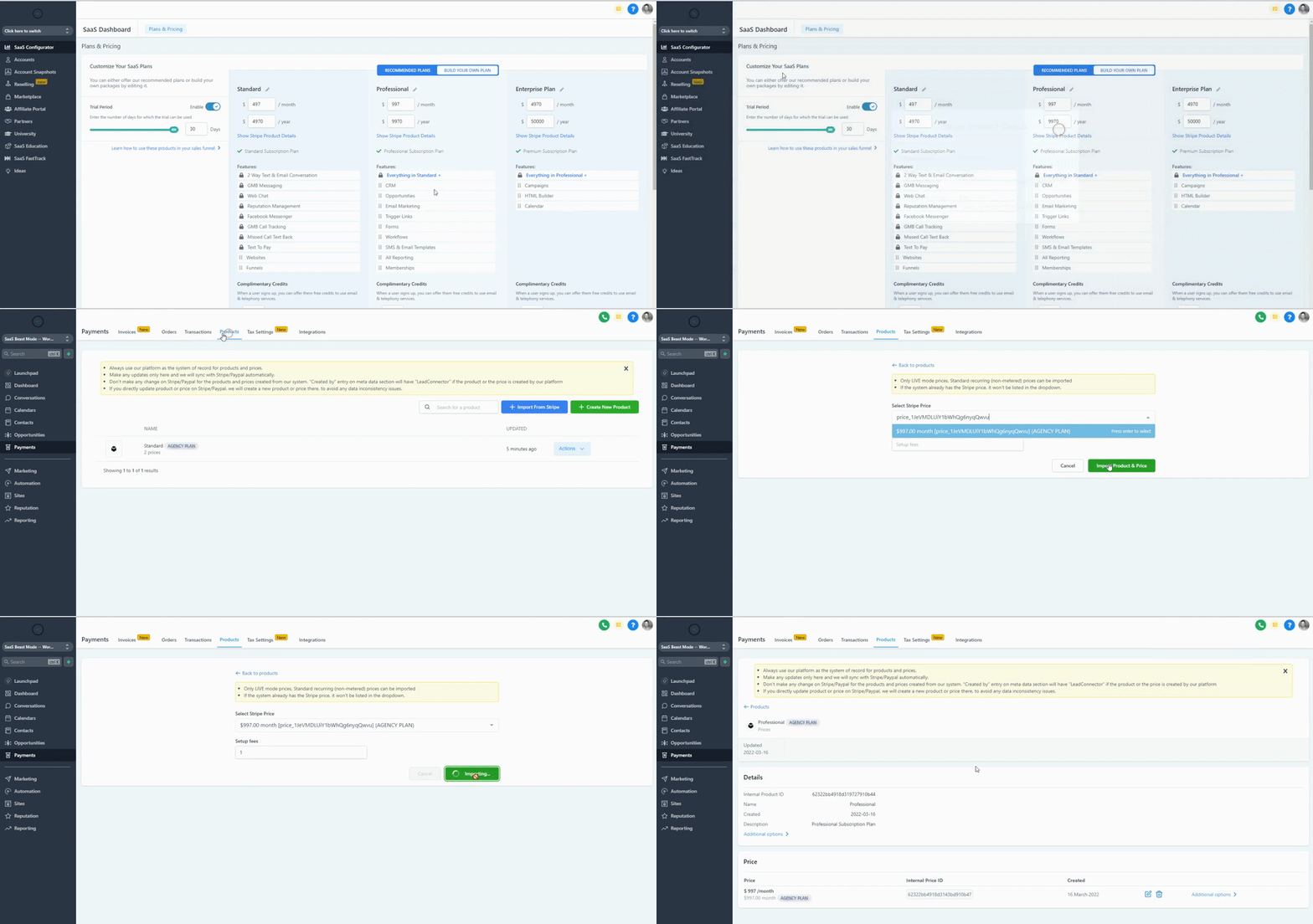
- Scalable recurring revenue * * * ## Agency Setup Before selling SaaS plans, complete the following setup steps: ### Connect Stripe Agency View → Settings → Stripe Connect Connect your Stripe account to enable SaaS billing. Stripe is currently the only supported payment provider for SaaS Mode. ### Configure SaaS Plans Agency View → SaaS Configurator Inside SaaS Configurator you can: - Create SaaS plans
- Configure pricing
- Set trial periods
- Attach snapshots
- Configure rebilling
- Enable plan features ### !(https://assets.patientcopilot.ai/d09a2d4707d921a3.gif) * * * ## Important Notes - Agencies can create up to 20 SaaS plans
- SaaS plans should not be deleted directly inside Stripe
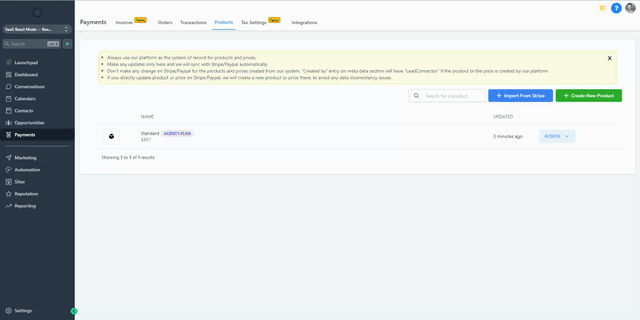
- Stripe card payments are required for SaaS onboarding * * * ## Build Your SaaS Sales Page 1. Import SaaS Plans into Your Selling Location Payments → Products → Import from Stripe Copy the Stripe Product/Price ID from SaaS Configurator and import it into your sub-account. ## 2. Create Your Funnel or Website - Create a sales page
- Add your SaaS products
- Add a 1-Step or 2-Step Order Form * * * ## Special Prices for SaaS Sub-Accounts Special Prices allow agencies to create custom pricing for individual sub-accounts without changing their public SaaS plans. - Promotional pricing
- Enterprise agreements
- Temporary discounts
- Legacy pricing ## Create a Special Price 1. Open Manage Client
- Go to the SaaS tab
- Click Add a SaaS Subscription
- Select a plan
- Click Create a Special Price !(https://assets.patientcopilot.ai/4b5b97c2a8340626.png) - Custom amount
- Currency
- Billing interval 7. Click Save Price - Special Price popup modal screenshot!(https://assets.patientcopilot.ai/034e26e1ee9b9ea3.png) * * * ## Reactivating Cancelled Special-Price Subscriptions When reactivating a cancelled subscription using a Special Price, the payment modal now correctly displays the configured custom pricing amount. No additional setup is required. * * * ## Updated “Switch to SaaS” Experience Patient Copilot has updated the “Switch to SaaS” experience with: - Cleaner visual layout
- Simplified onboarding guidance
- Clearer explanation of SaaS benefits
- Improved activation flow The SaaS activation process itself remains unchanged. * * * ## Troubleshooting ### Why is my sub-account not created? - Product is not a SaaS price
- Purchase occurred in Stripe test mode
- PayPal was used
- Email already exists in Patient Copilot * * * ## Frequently Asked Questions Q: Is Stripe required for SaaS Mode? A: Yes. Stripe is currently the only supported payment provider for SaaS subscriptions. Q: Can I create custom pricing for a specific client? A: Yes. Use Special Prices during SaaS activation. Q: Will reactivated subscriptions display the correct Special Price amount? A: Yes. Reactivated subscriptions now correctly display the configured custom price. Q: Can clients upgrade or downgrade plans later? A: Yes. Plans can be managed through Company Billing or Manage Client. Q: Did the SaaS activation process change? A: No. The setup flow remains the same. The update only refreshes the onboarding experience. * * * ## Related Articles - Convert Existing Sub-Account to SaaS Mode Subscription
- How to Upgrade/Downgrade a SaaS Plan for a Location