Creating Collective Booking Calendars
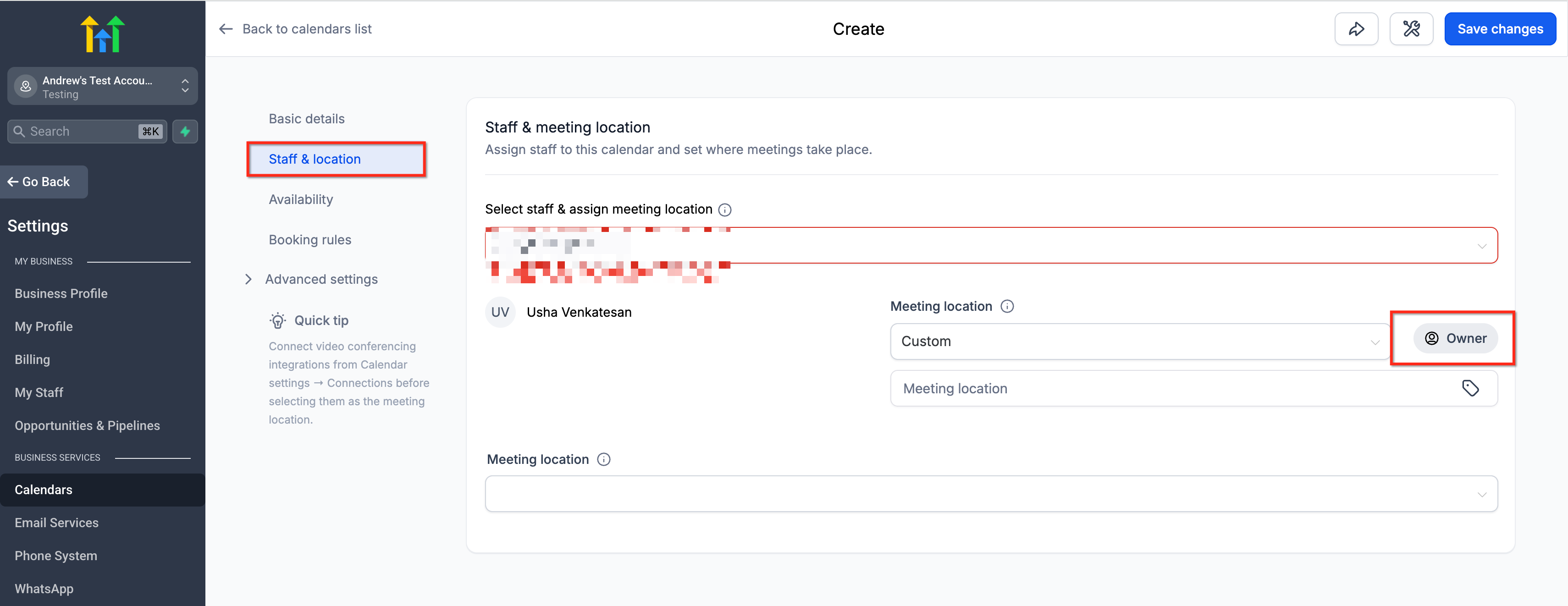
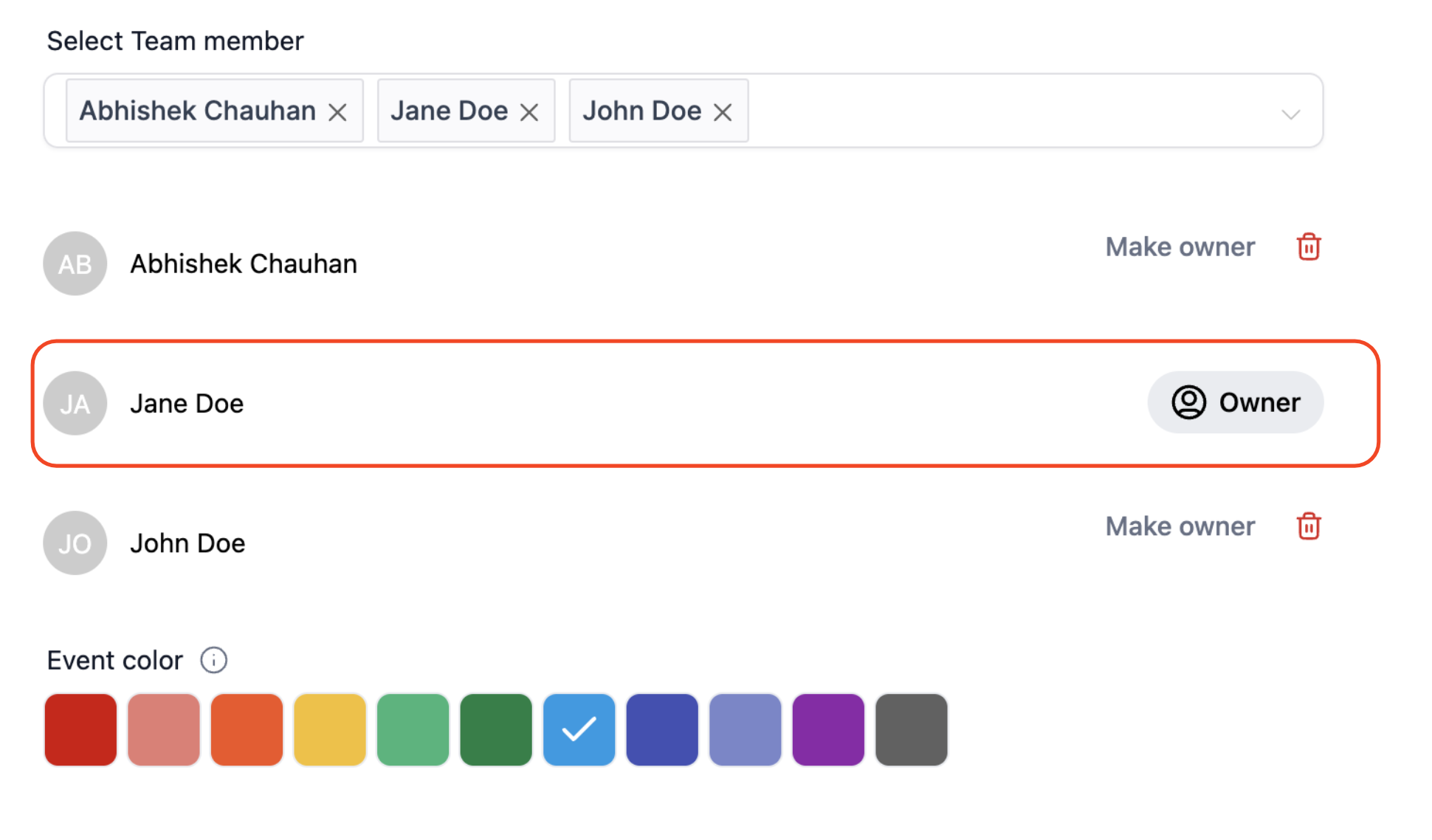
Set Calendar Primary Owner A primary owner in Collective booking would be that team member who would lead the appointment. The primary owner would also be the Appointment owner, and if the contact assignment is enabled then the contact would get assigned to the primary owner. By default, the first team member added to the collective booking would be made the primary owner and the primary owner in the Collective booking cannot be deleted. Change Primary Owner To change the Primary owner: 1. To change the primary owner, open Edit calendar, then go to Basic details (or the section that contains meeting/owner details). 2. You would see the option “Make owner” against all the team members who are not currently Primary owner
- Click on “Make owner” against the team member whom you want to make Primary Owner
- The owner would change as shown below and would be indicated with the “Owner” label next to them.!(https://assets.patientcopilot.ai/12f249ae8ac92a47.png) Please Note:
A Primary owner cannot be deleted from the collective booking calendar. To delete a team member please ensure that the team member is not the Primary owner!(https://assets.patientcopilot.ai/0b78aca4ea8015a4.png) ### How would the Notifications work? Only the assigned user will receive the email notification. However all the Users would receive a calendar invite notification from their third party integrated calendars (Google, Outlook, iCloud). ### Payments Payments would continue to work for Collective Booking if they are enabled for the Calendar, where the user would have to make the payment first, and once the payment is confirmed only then would the appointment be booked. Was this article helpful? That’s Great! Thank you for your feedback Sorry! We couldn’t be helpful Thank you for your feedback Feedback sent We appreciate your effort and will try to fix the article