
How to Use the Spread to Column Option in Forms and Surveys
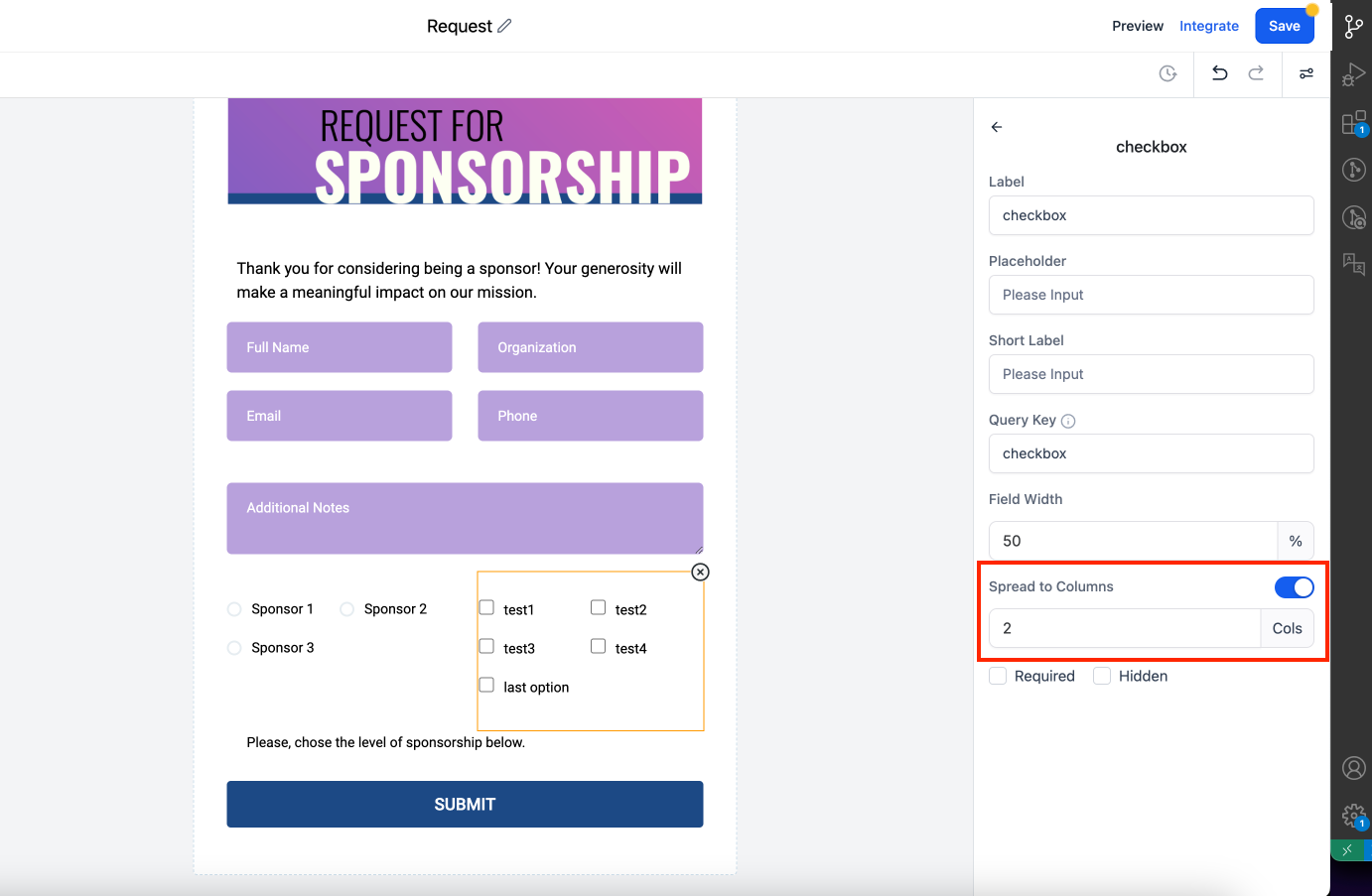
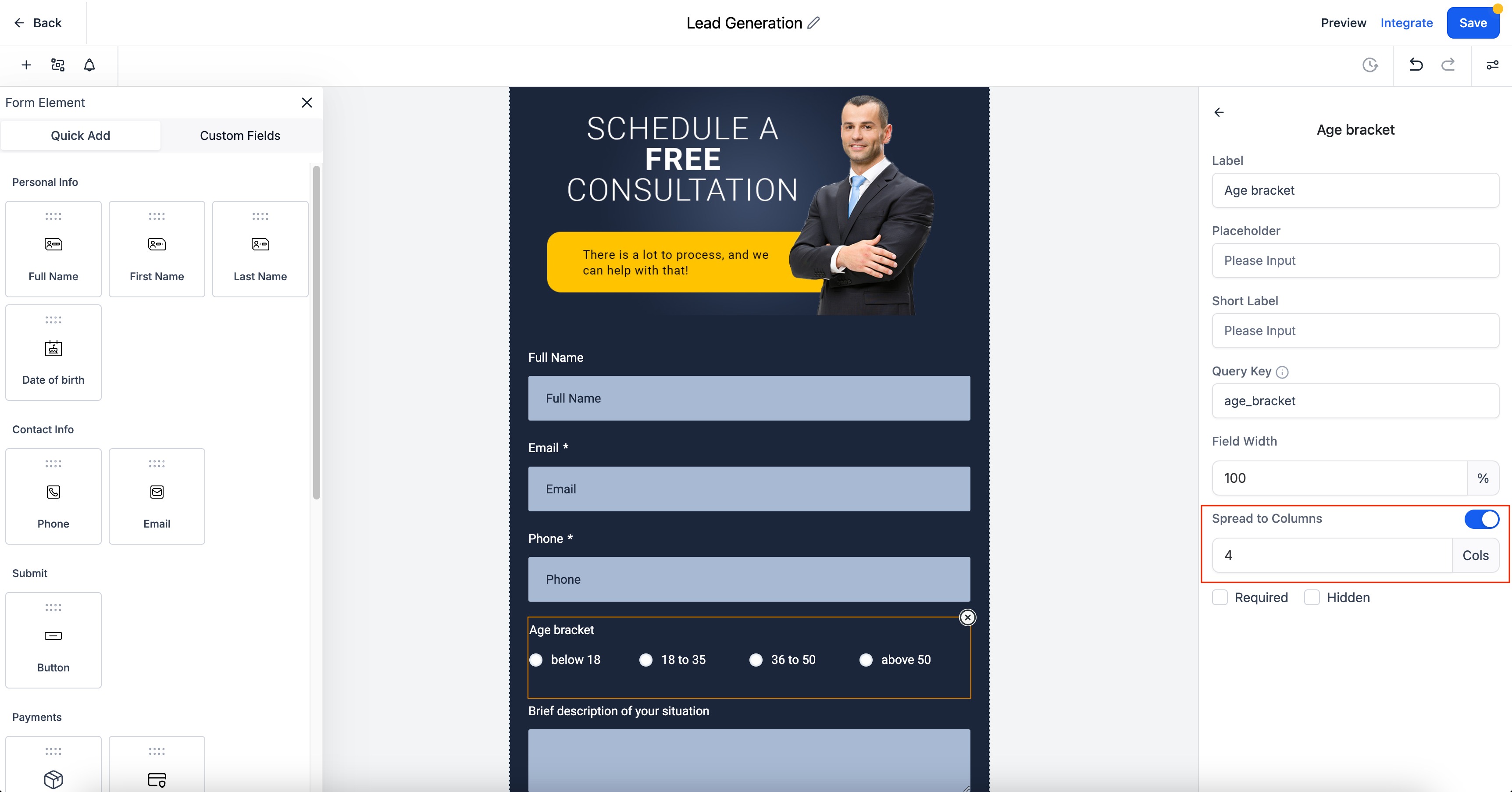
We are thrilled to announce the launch of our “Spread to Column” feature, now available for radio buttons, radio images, and checkboxes in forms and surveys. This feature allows you to configure multiple columns for radio and checkbox options, enhancing both the styling and organization of your forms. - Open your Form or Survey Builder.
- Click on the Radio, Checkbox, or Radio Image field.
- In the right settings panel, enable the “Spread to Column” option.
- Specify the number of columns. ## Key Features / Benefits Improved Styling: Create visually appealing and well-organized forms by distributing radio options and checkboxes into columns. ## Better User Experience: Enhance the clarity and usability of your forms, making it easier for respondents to navigate and select options. ## Notes: - In Single Column, the maximum number of columns is 5.
- In Two Column, the maximum number of columns is 2.
- In Single Line Column, the maximum number of columns is 5.
- This feature does not affect older forms.

 Was this article helpful? That’s Great! Thank you for your feedback Sorry! We couldn’t be helpful Thank you for your feedback Feedback sent We appreciate your effort and will try to fix the article