Import Stripe Products into SaaS Configurator (legacy v1)
Importing your existing Stripe products into Patient Copilot’s SaaS Configurator has never been easier. This article explains how agencies on the Legacy/V1 SaaS system can streamline billing migration while ensuring consistency between existing Stripe clients and new SaaS clients. * * * ## What is Import Stripe Products into SaaS Configurator? Import Stripe Products into SaaS Configurator is a new feature designed for agencies using the Legacy/V1 SaaS system. It allows you to bring over products directly from your Stripe account into the SaaS Configurator. By eliminating the need to manually create products, this feature ensures a consistent billing experience and reduces errors during the migration process. * * * ## Key Benefits of Import Stripe Products into SaaS Configurator This feature provides several tangible benefits, helping agencies improve operational efficiency and billing accuracy: - Streamlined Migration – Import products directly from Stripe to avoid manual entry and reduce inconsistencies.
- Unified Billing – Consolidate your billing workflows by linking existing Stripe subscriptions to sub-accounts, ensuring seamless continuity for clients.
- Enhanced Configurability – Easily adjust category, pricing, features, trial periods, and rebilling options within the SaaS Configurator.
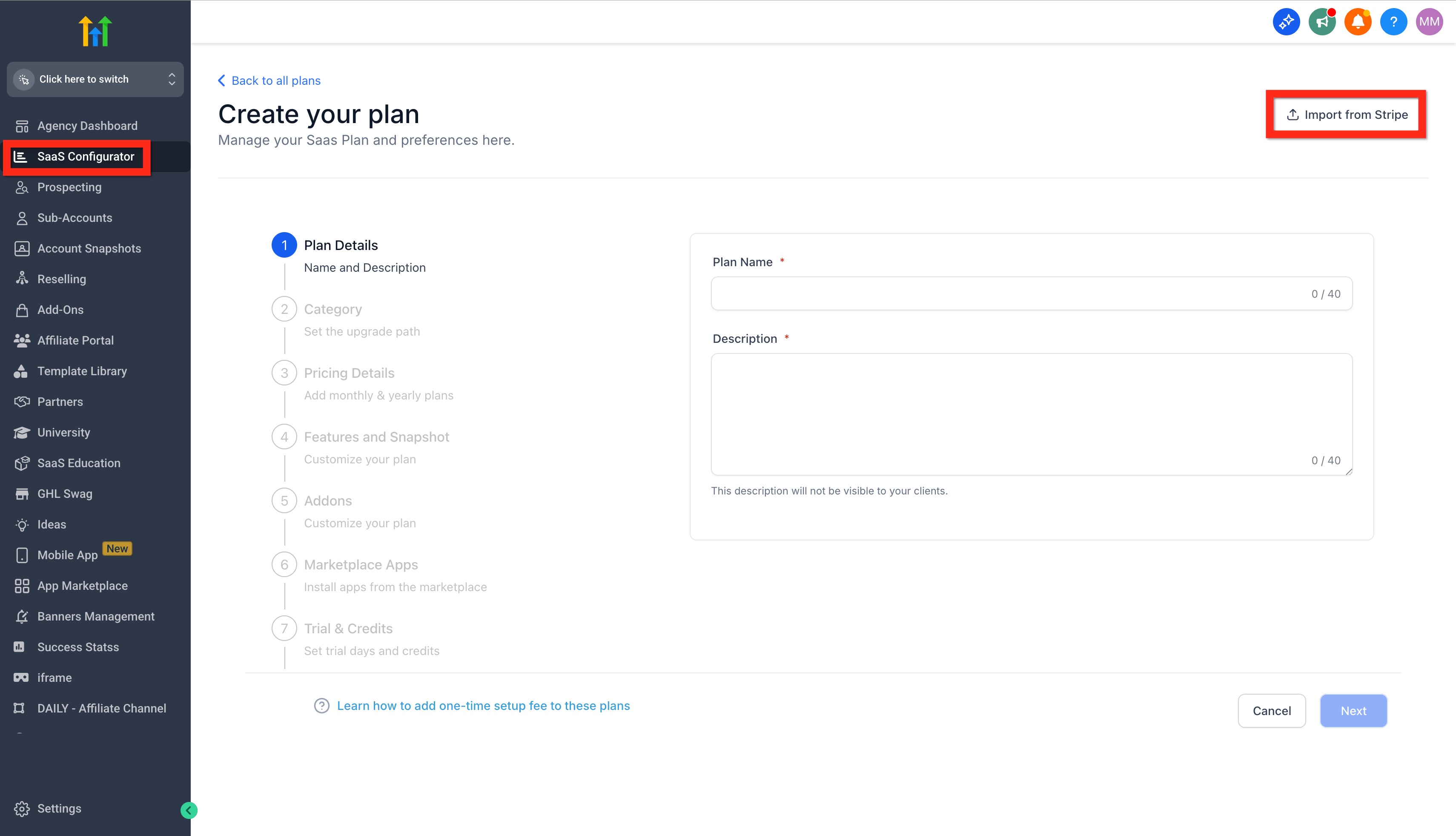
- Increased Adoption – Simplify the transition into Patient Copilot SaaS billing, reducing agency churn and promoting a unified system experience. * * * ## Import Stripe Products into Configurator This capability lets you quickly retrieve and integrate Stripe product data into your SaaS plan setup. Agencies can: 1. Navigate to your Agency > SaaS Configurator > + Add Your Plan button.
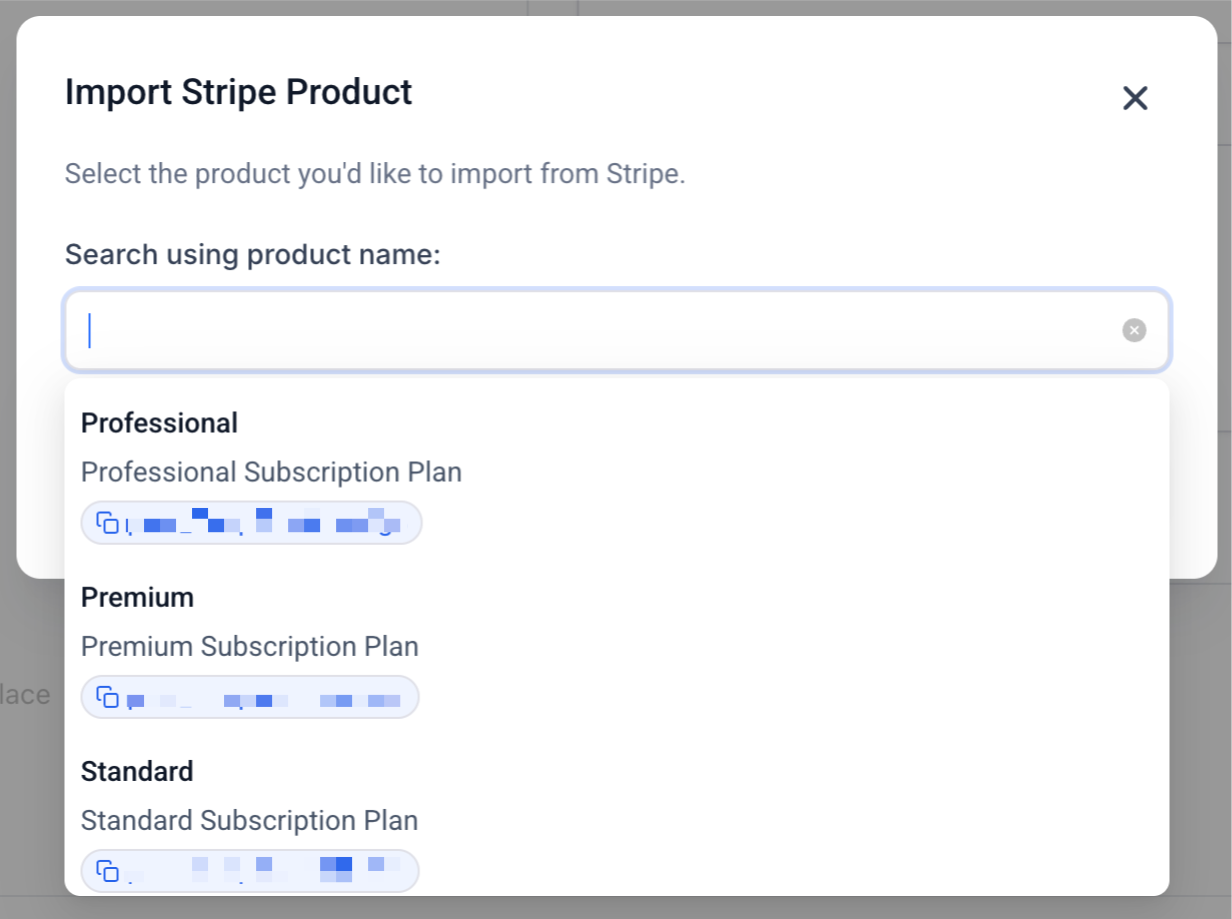
- Select the “Import from Stripe” option when creating a new SaaS plan.!(https://assets.patientcopilot.ai/8d760a975370be1f.jpg) 3. Search for products by name and review them before confirming the import.!(https://assets.patientcopilot.ai/205bcde96b2a2490.png) 4. Configure key parameters such as category, pricing, features, trial periods, and rebilling settings.
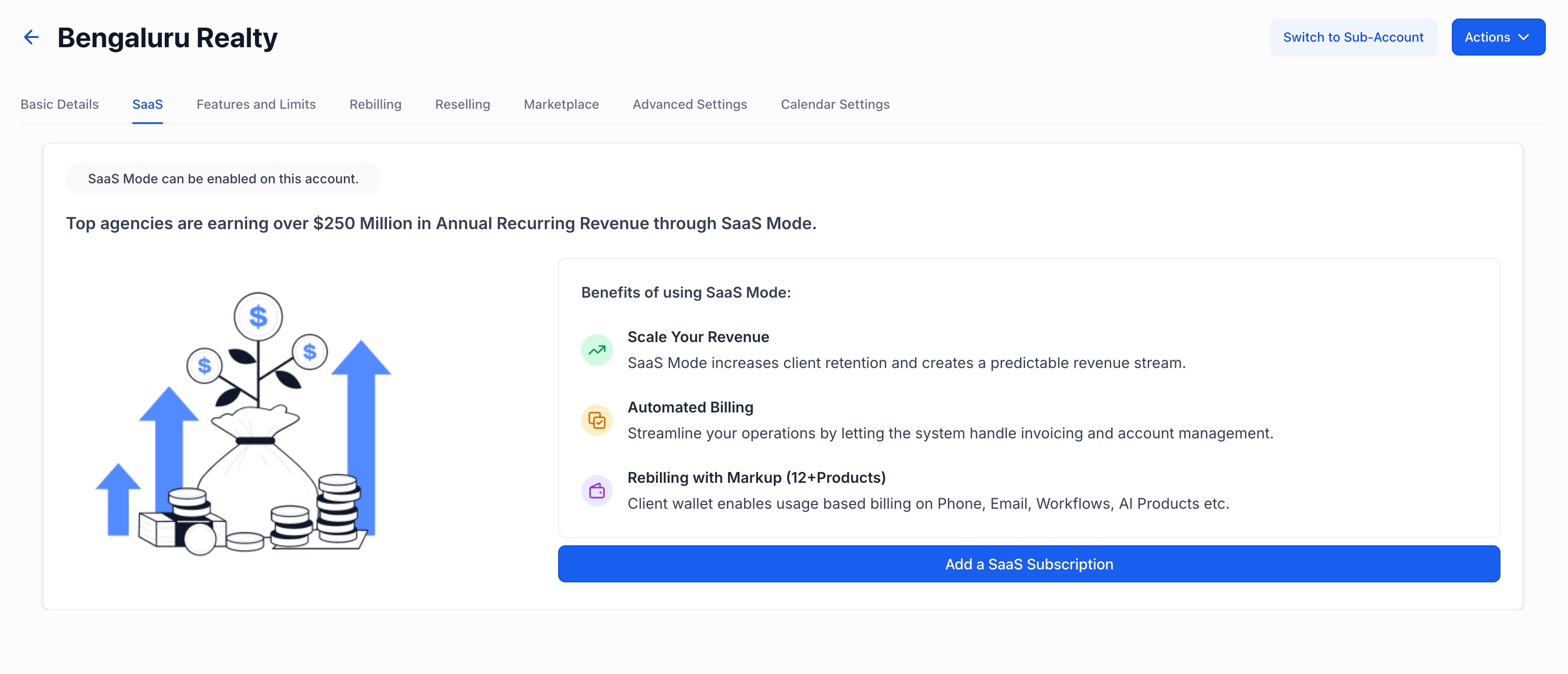
- Benefit from automatically generated new price IDs within the SaaS Configurator, ensuring no overlap with existing Stripe price IDs. * * * ## Link Existing Stripe Subscriptions to Sub-Accounts Once products have been imported, you can maintain service continuity by linking current Stripe subscriptions to appropriate SaaS sub-accounts. How To Setup Import Stripe Products into SaaS Configurator 1. From Agency View, go to Sub-Accounts > Manage Client > SaaS tab.
- Click Add a SaaS Subscription.!(https://assets.patientcopilot.ai/8a30556566d07c2e.jpg)
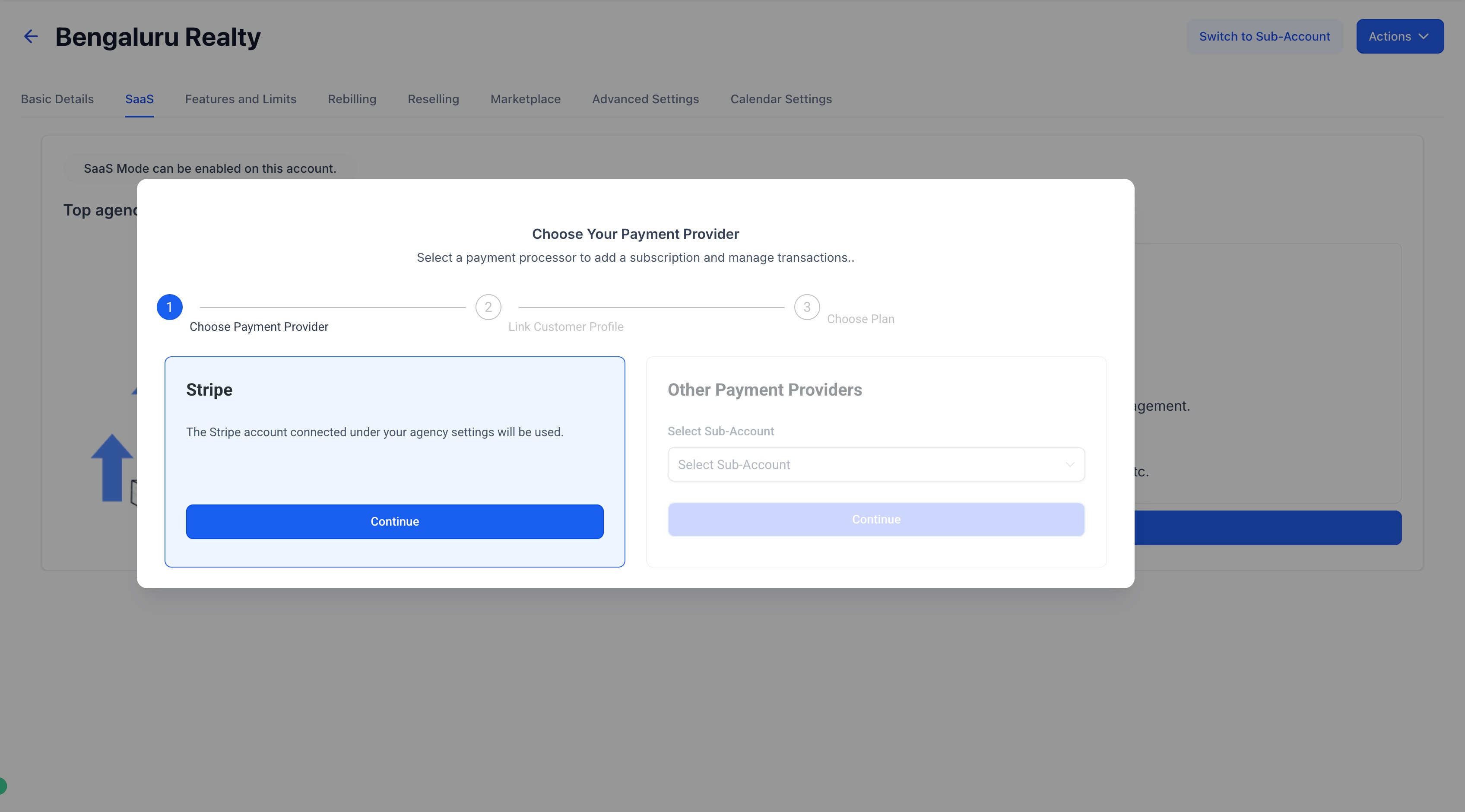
- Choose Stripe as the payment provider.!(https://assets.patientcopilot.ai/e5bb622bb06a13d3.jpg)
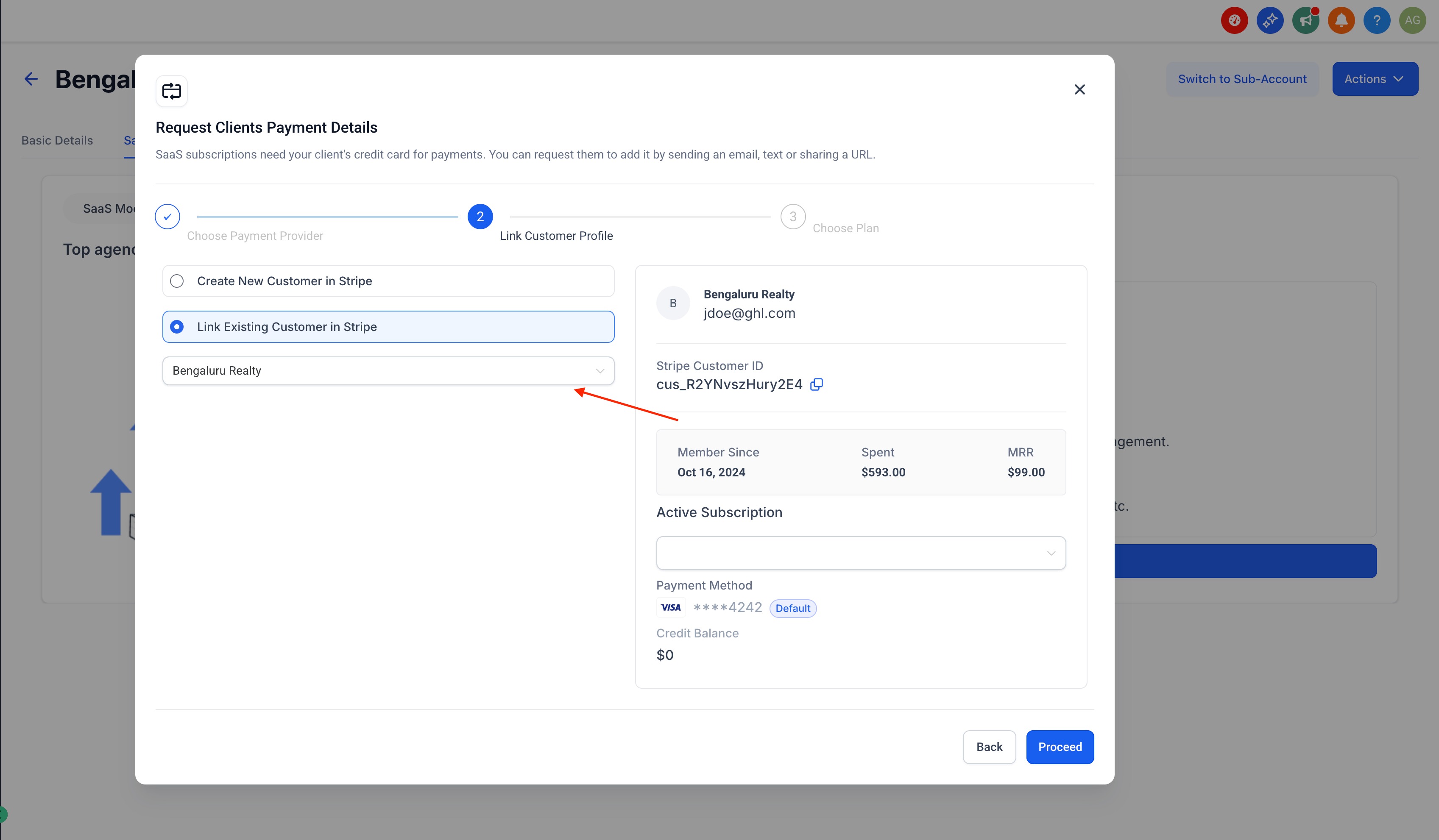
- In the Request Client Payment Details modal, select Link Existing Customer in Stripe.
- Choose the customer profile with an active subscription.!(https://assets.patientcopilot.ai/82b2a0b0b0e6201c.jpg)
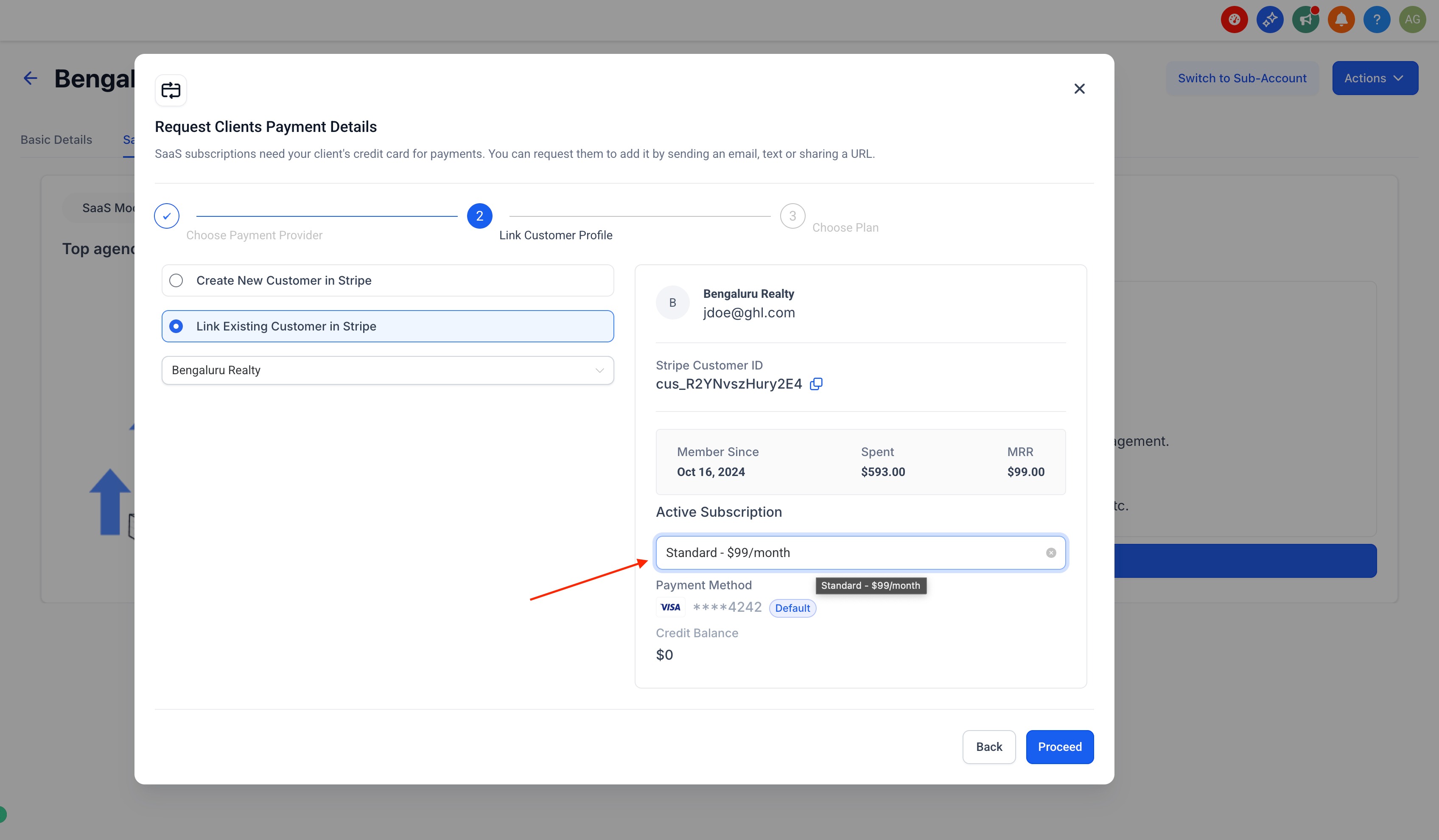
- Select the subscription from the right-hand panel.!(https://assets.patientcopilot.ai/302308d2027477ef.jpg)
- Confirm to enable SaaS on the sub-account. * * * ## Frequently Asked Questions Q: What happens to my existing Stripe price IDs during the import process? A: The system generates new price IDs within the SaaS Configurator to maintain consistency and avoid duplications. Q: Can I import more than one product from Stripe at a time? A: Each product is imported individually through the product search function for precise control and review. Q: How do I link existing Stripe subscriptions to my newly imported products? A: After the import, use the subscription mapping section within the SaaS Configurator to associate existing Stripe subscriptions with the appropriate sub-accounts. Q: Is this feature available for all agencies using Patient Copilot SaaS? A: This specific import capability targets agencies on the Legacy/V1 SaaS system, ensuring a smooth migration for those transitioning from Stripe-based billing. * * * ## Related Articles - How to Import Stripe Products into SaaS Configurator