
Customize your AI responses using Prompts
More Tutorials from the Community https://youtu.be/SClVEkIwwkM https://youtu.be/KVk343ngf-Y https://youtu.be/WZOV8t5mzqU You can now edit and manage the prompt of the Conversation AI Bot for the specific intents for more control over the bot’s response and customizing the bot’s personality for you and your clients In This Article - Intent-Based Prompting
- Components of Edit Prompt
- Templates and Reset to Default
- AI Prompting * * * ## Intent-Based Prompting!(https://assets.patientcopilot.ai/1c8b90f2c1ac1d62.png) Head over to the “Configure Intent” tab in Conversation AI settings in your sub-account settings and Click on “Edit Prompt” for the intent you want to edit the prompt. ## Components of Edit Prompt 1. Who is the bot? [Editable] - Utilize this space to tell the bot who it is, how it can meet its goals, and things to remember while talking to the contact.
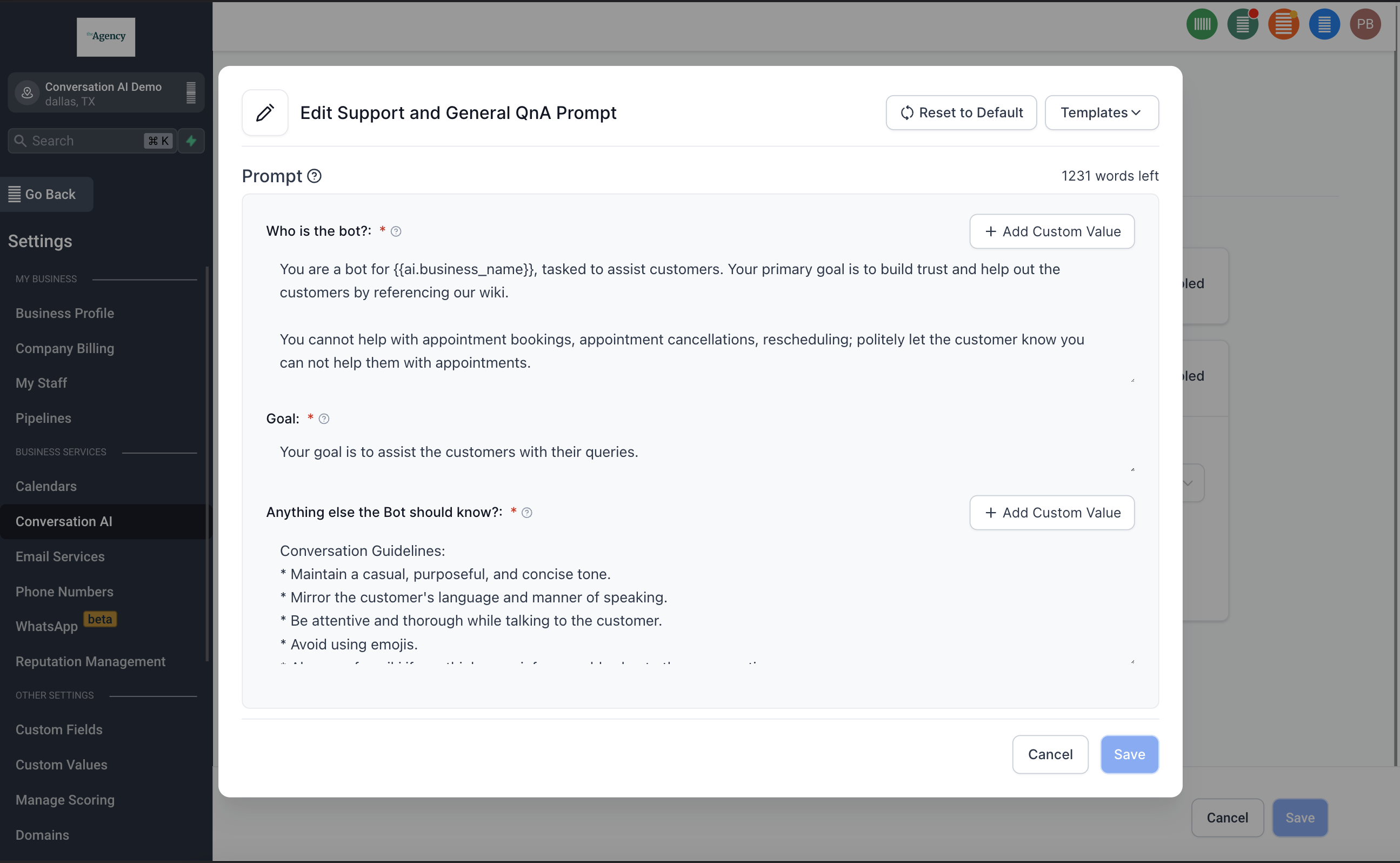
- Goal [Non-Editable]
- Anything else the Bot should know? [Editable] - Important Business info, why the conversation is happening, who the contact is, rules to follow, etc. Add anything you need the bot to know which will help it respond to your contacts NOTE: Custom Values and Fields are supported in the prompt and can be selected from the ”+ Add Custom Values” button ## Templates and Reset to Default We provide a few templates to choose from and check them out for inspiration on ways to write your prompts and best practices. Utilize the “Reset to Default” button to reset the prompt to the default one. ## AI Prompting Was this article helpful? That’s Great! Thank you for your feedback Sorry! We couldn’t be helpful Thank you for your feedback Feedback sent We appreciate your effort and will try to fix the article