
Dedicated Email Sending Domains Overview & Setup
Email Services A dedicated sending domain gives your business full control over what email servers deliver on your behalf — helping you avoid spam filters, protect your brand reputation, and improve deliverability. ⚠️ LC Email Users Only Dedicated sending domains apply only to accounts on the LC Email system. Warm up any brand-new domain before emailing large lists to avoid poor deliverability. Table of Contents 1. 1 What is a Dedicated Sending Domain?
2. 2 Configuring Dedicated Sending Domains
3. 3 Shared Domain Email Refactoring
4. 4 Troubleshooting Dedicated Sending Domains
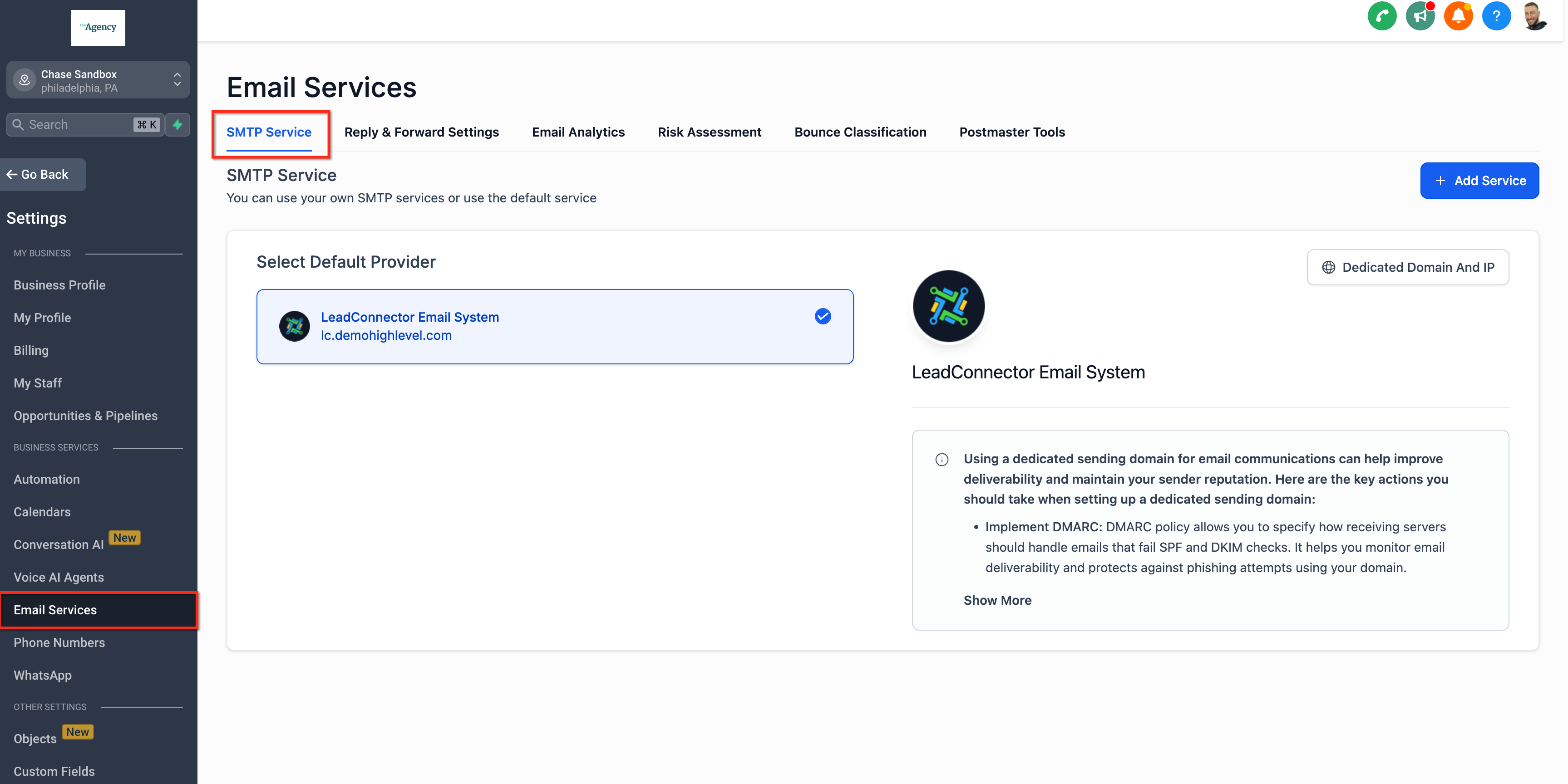
5. 5 Frequently Asked Questions? ## What is a Dedicated Sending Domain? A dedicated sending domain lets you send emails that appear to come directly from your brand — not from Patient Copilot’s shared infrastructure. This protects your sender reputation and gives recipients a trustworthy, consistent experience. Any sub-account or agency can set one up quickly. By default, all emails sent through the platform show Patient Copilot’s sending servers in the “sent on behalf of” or “sent via” headers, as shown below: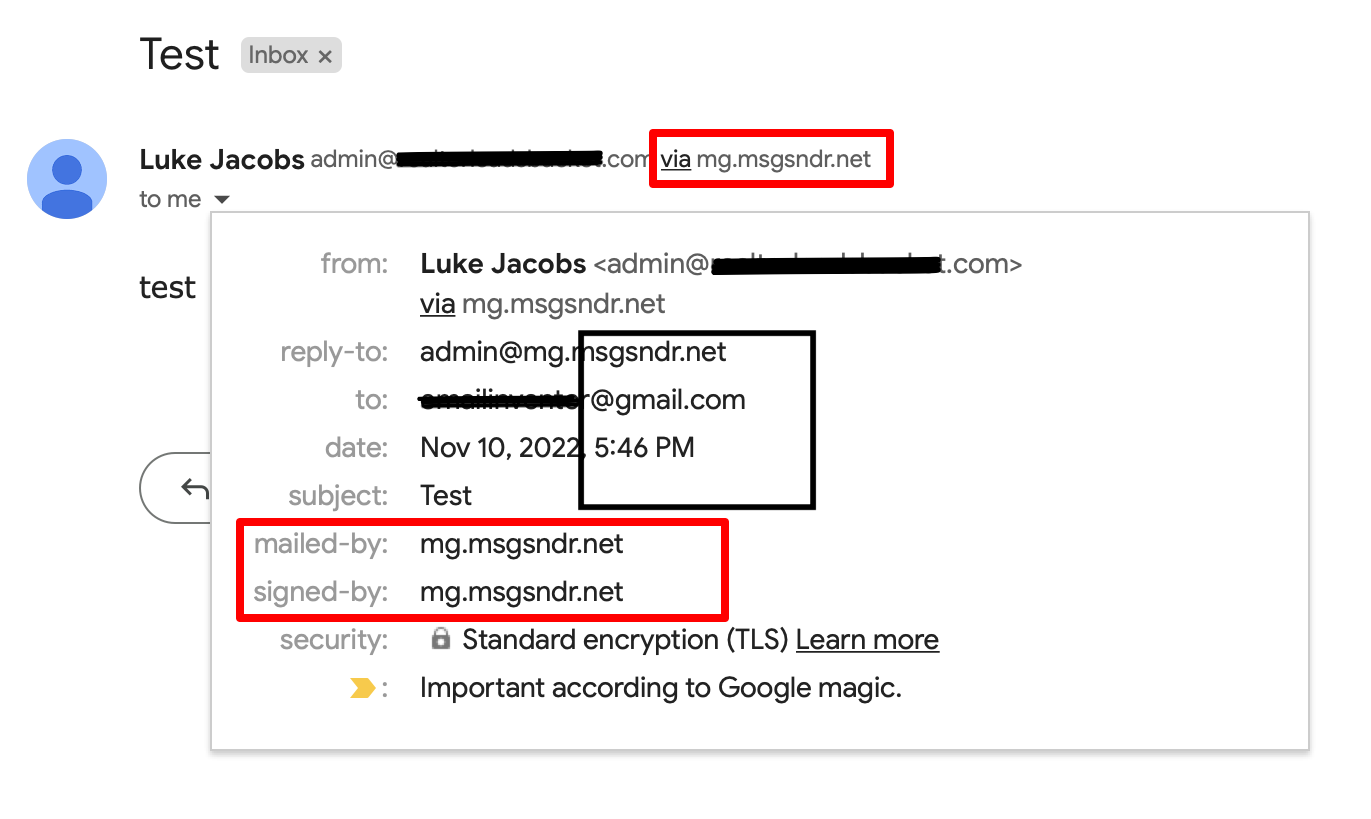 ⚙️ ## Configuring Dedicated Sending Domains You can create multiple sending domains and assign different ones for 1-to-1 emails, workflow emails, marketing campaigns, and payment/invoice emails. 1 ### Navigate to Email Services - Go to Settings → Email Services
- Click the “Dedicated Domain and IP” tab.
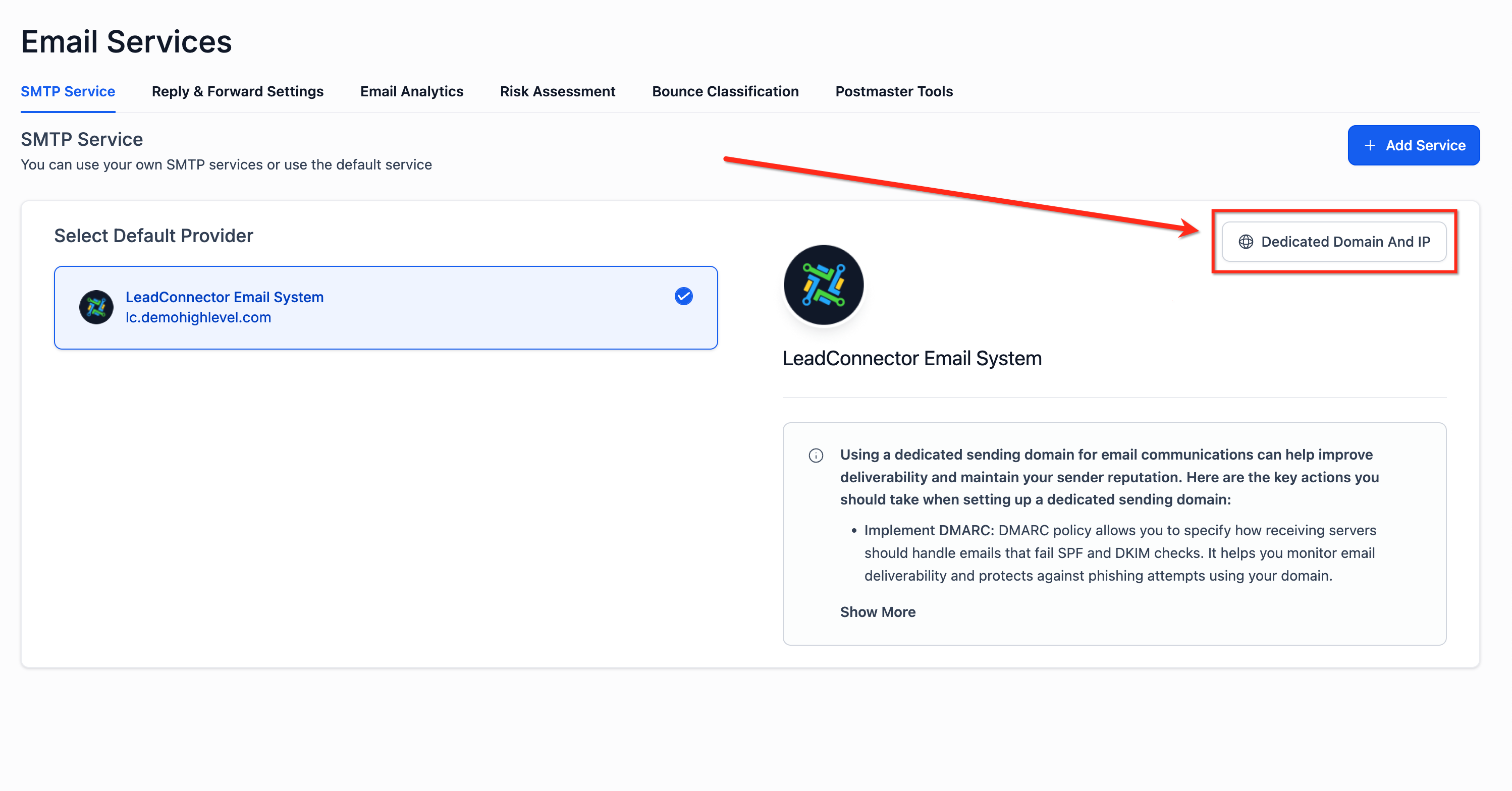 * * * 2 ### Add Domain Information - Click “Add Domain” to begin configuring.
 - Enter the sub-domain you want to use for sending.
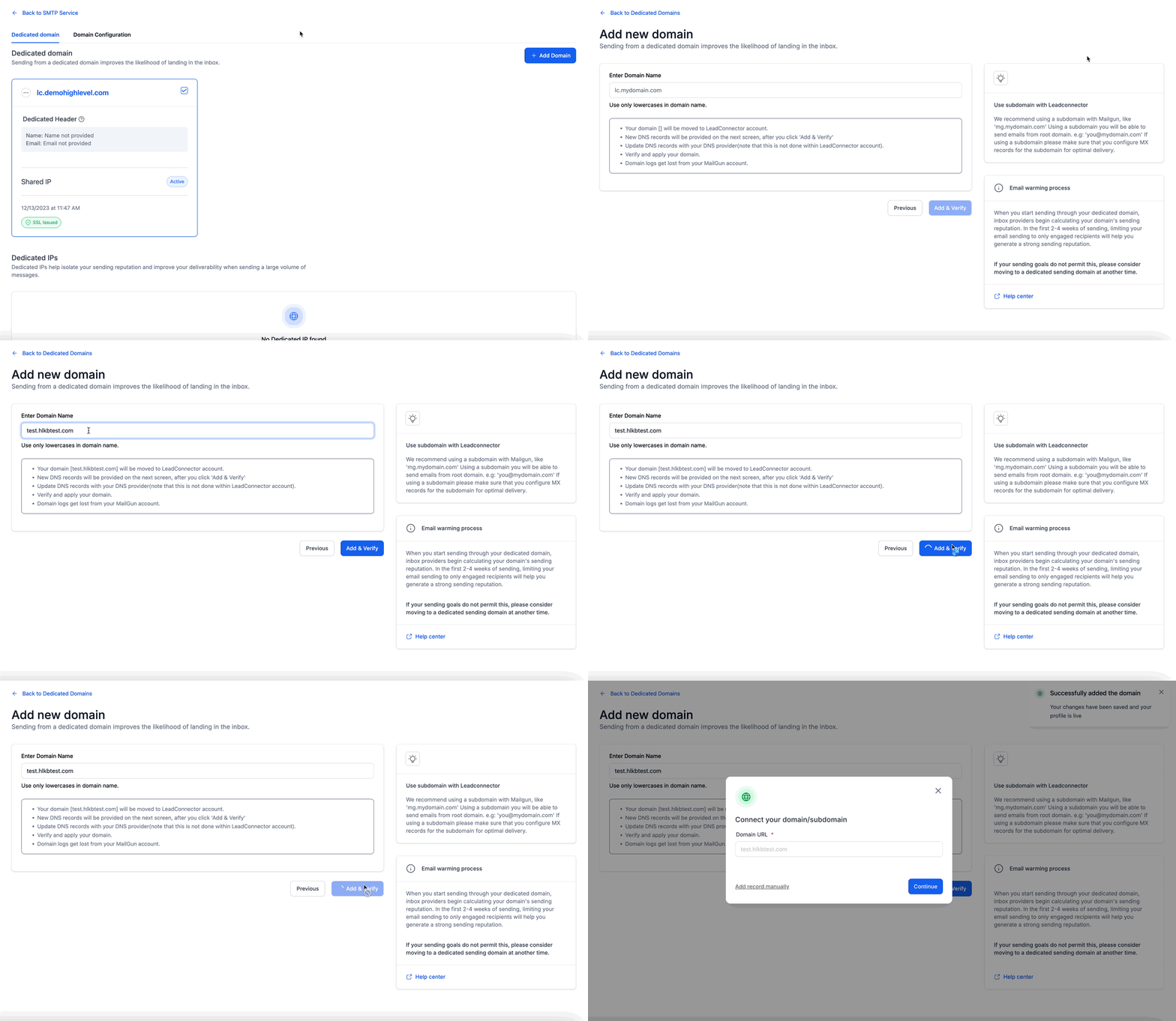 ? What is a Sub-Domain? Sub-domains are variants of your root domain. For example, if your root domain is agency123.com, you can create sub-domains like emails.agency123.com or no-reply.agency123.com. You can create as many sub-domains as you like and use different ones for different campaigns or communication types. * * * 3 ### Verify DNS Records After adding your sub-domain, you’ll need to verify DNS records. Patient Copilot can auto-configure them, or you can add them manually if auto-configuration isn’t available.? Propagation can take up to 24 hours. If it’s been longer, double-check your DNS settings. Note: Multiple DKIM records for the same domain are not supported.
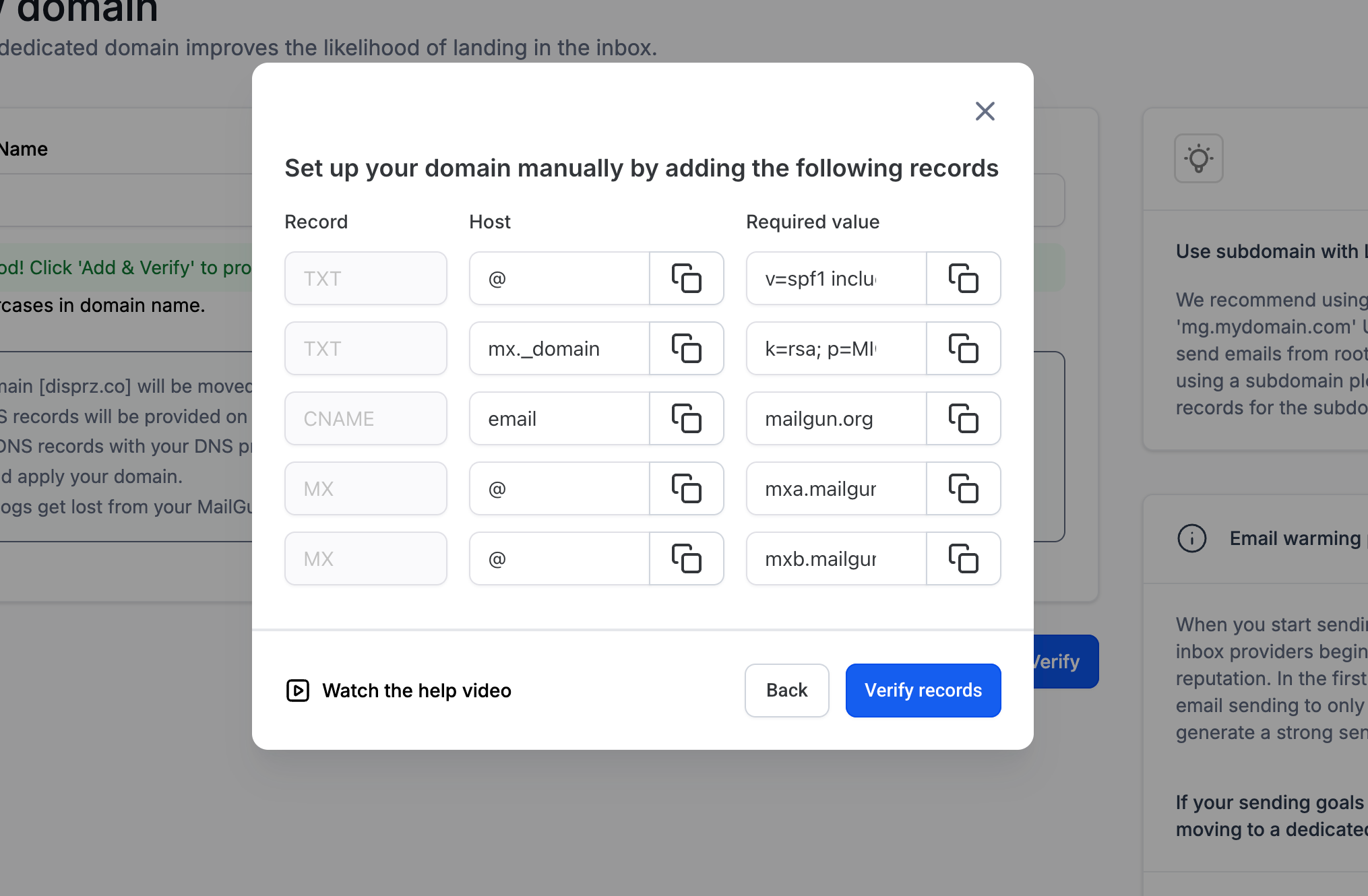
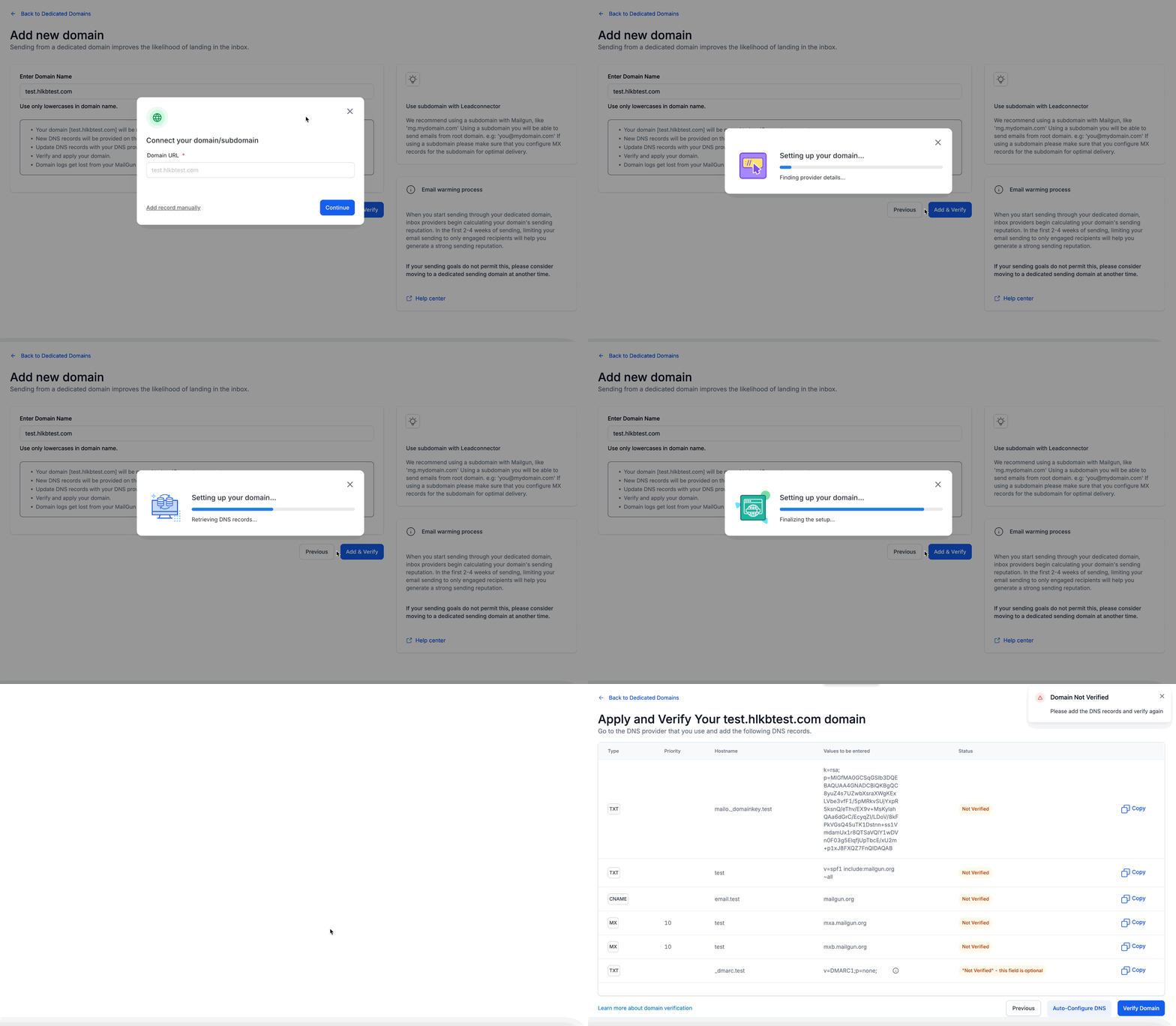 #### Manually Adding DNS Records To add DNS records manually, create them in your hosting provider’s dashboard using the values Patient Copilot provides (as shown below). Then verify them from the Patient Copilot settings panel.
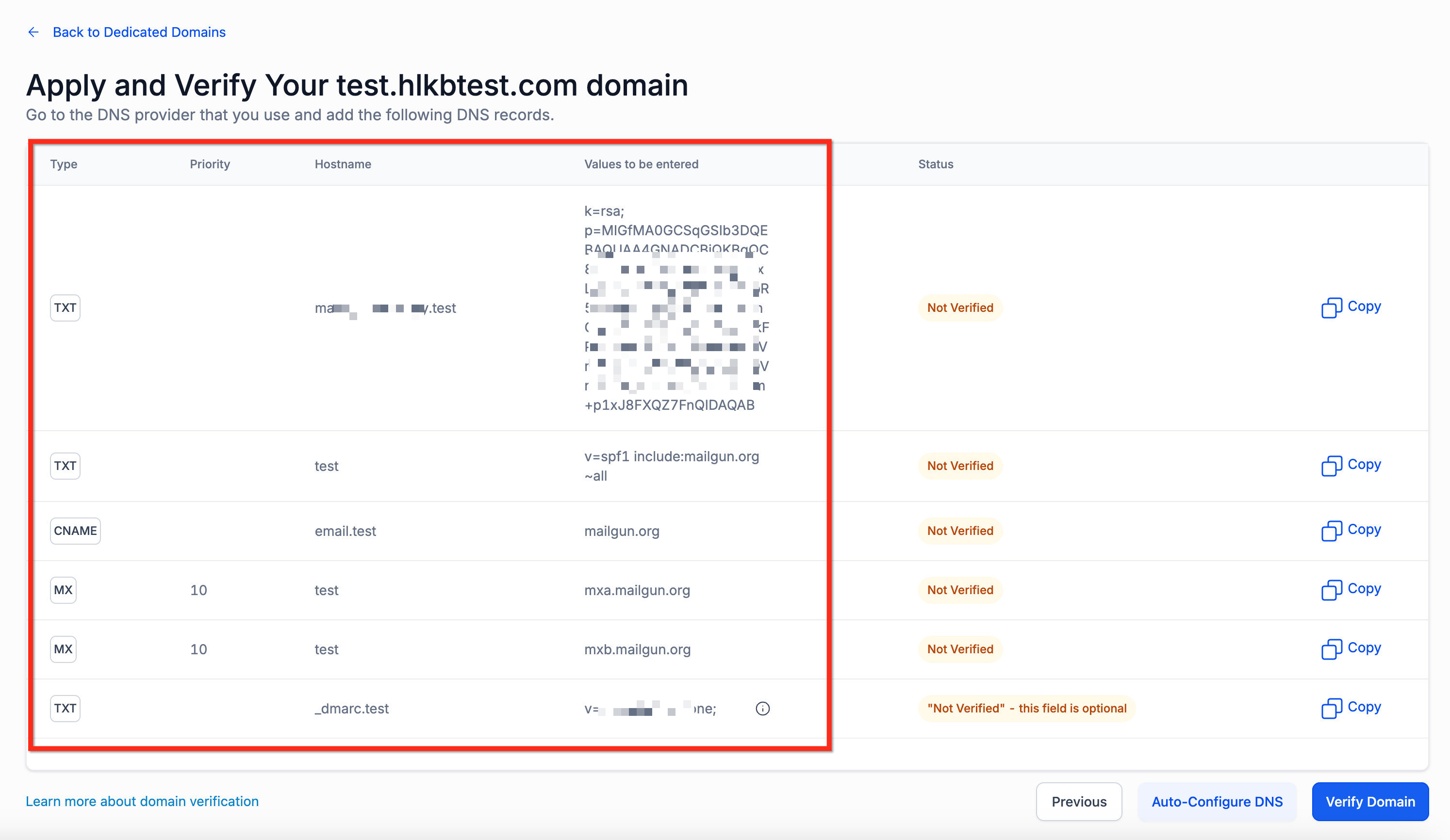 Instructions for common DNS providers: - ▸ GoDaddy
 - ▸ Google Domains
- ▸ Hostgator
- ▸ Hover
- ▸ Namecheap - ▸ AWS Route 53
- ▸ Cloudflare
- ▸ Bluehost
- ▸ Hostinger
- ▸ InMotion * * * 4 ### Dedicated Sending Domains for Calendar Emails You can assign dedicated sending domains specifically for Calendar emails (confirmations, reminders, reschedules) to protect deliverability for time-sensitive appointment communications. ① Go to Settings → Email Service → SMTP Service
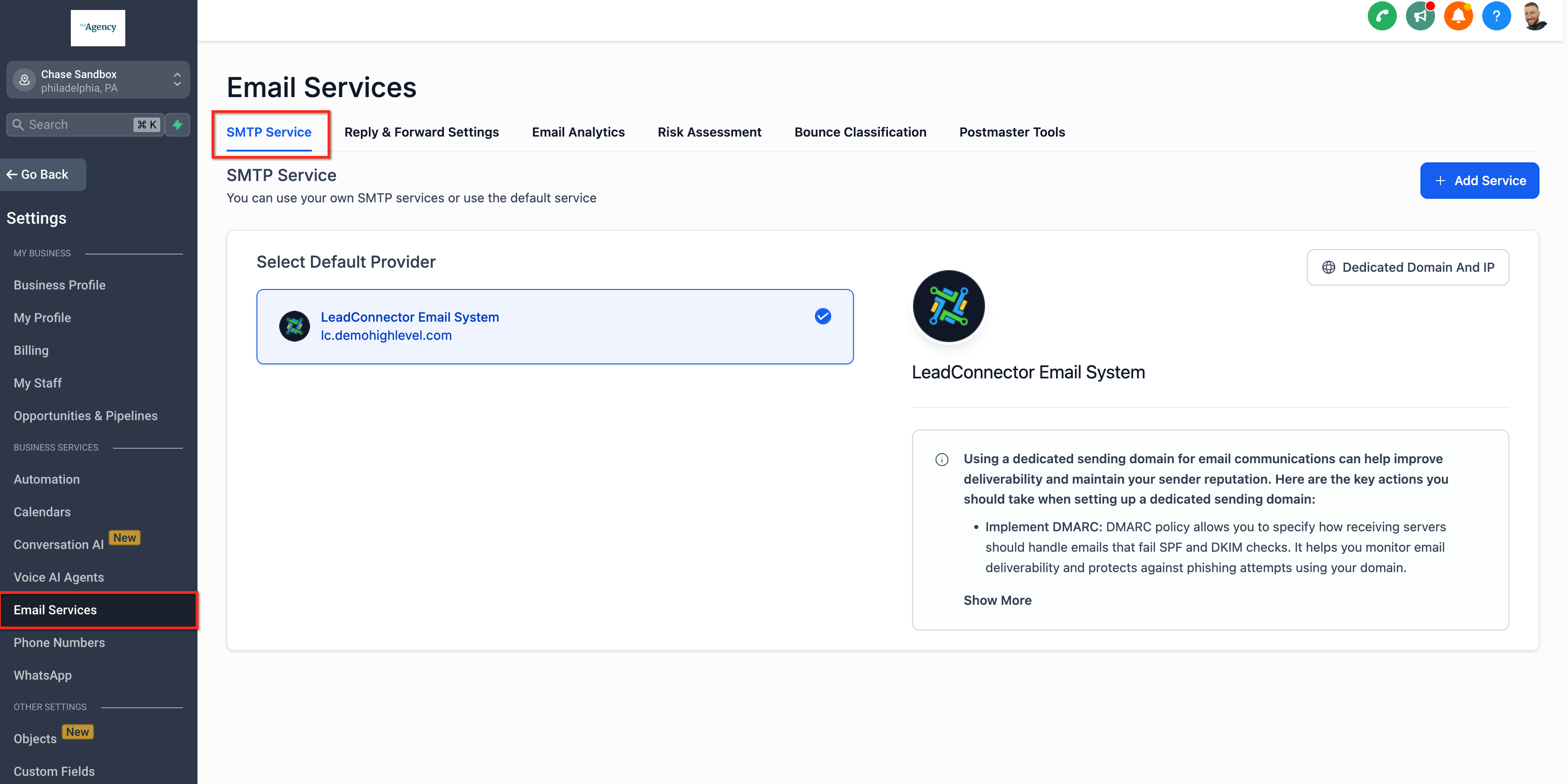 ② Select Dedicated Domain and IP
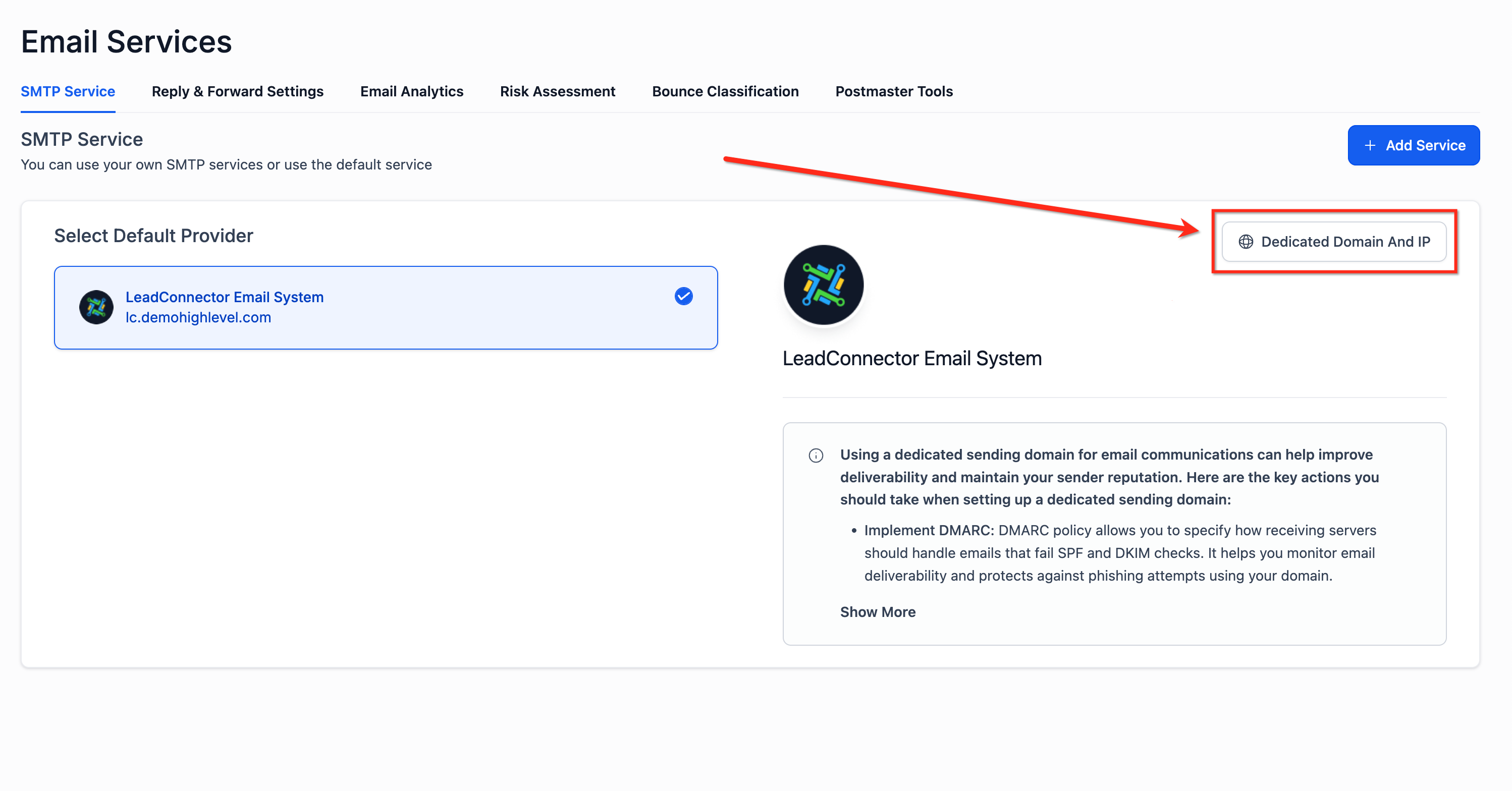 ③ Under Domain Configuration → Calendar, add up to 5 domains
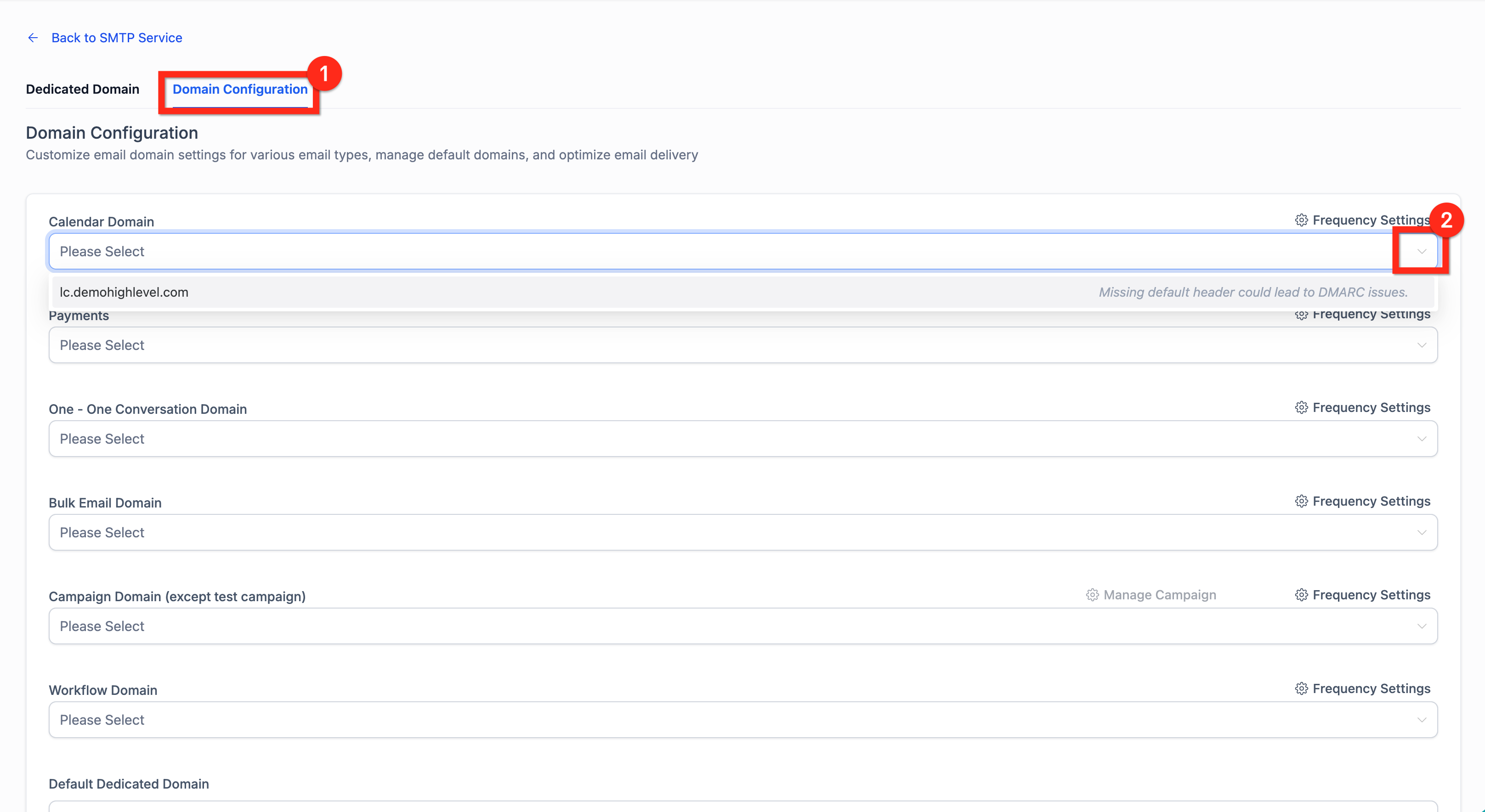 ④ Set percentage-based distribution across multiple Calendar domains
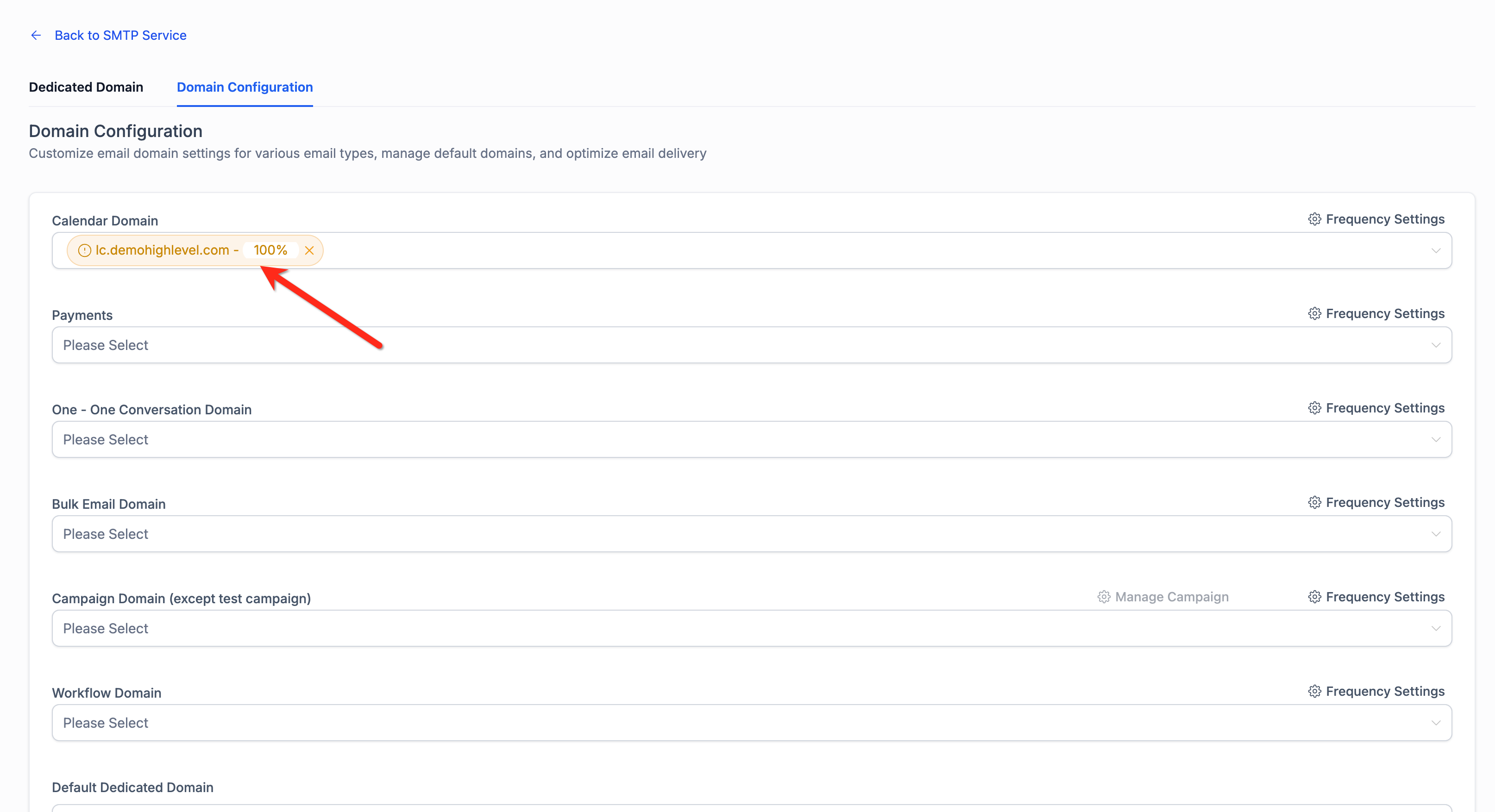 Only sub-account–created domains are available for selection. This feature is available for LC Email users only.? ## Set Up Google Postmaster Tools For your dedicated sending domain Google Postmaster Tools (GPT) helps you monitor Gmail-specific deliverability for your Patient Copilot dedicated sending domain. Track domain/IP reputation, spam rate, authentication alignment, and delivery errors to diagnose inboxing issues and improve performance. 2 Add your domain (e.g.,
 yourbrand.comormail.yourbrand.com)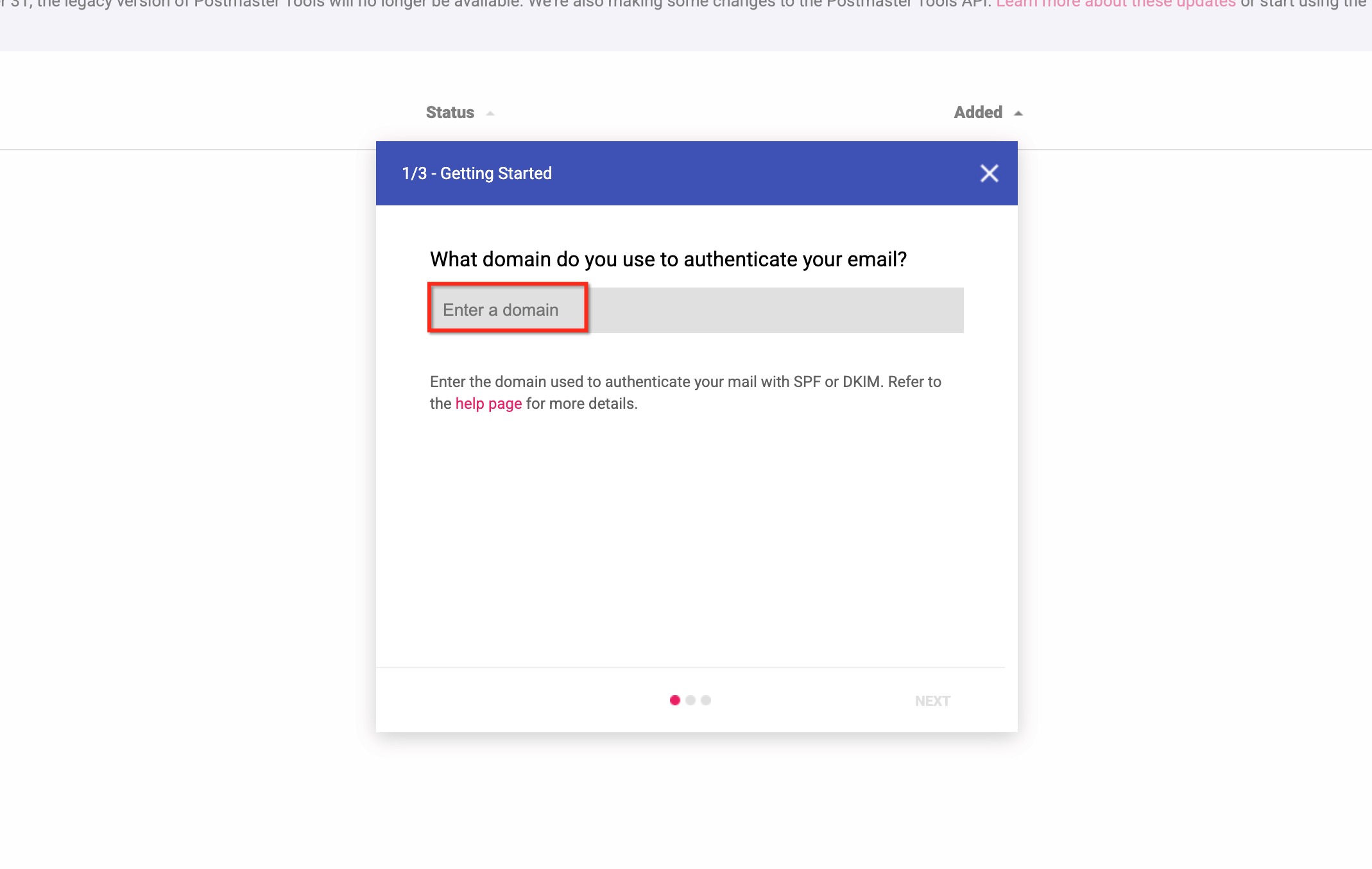 3 Choose Verify and copy the TXT record
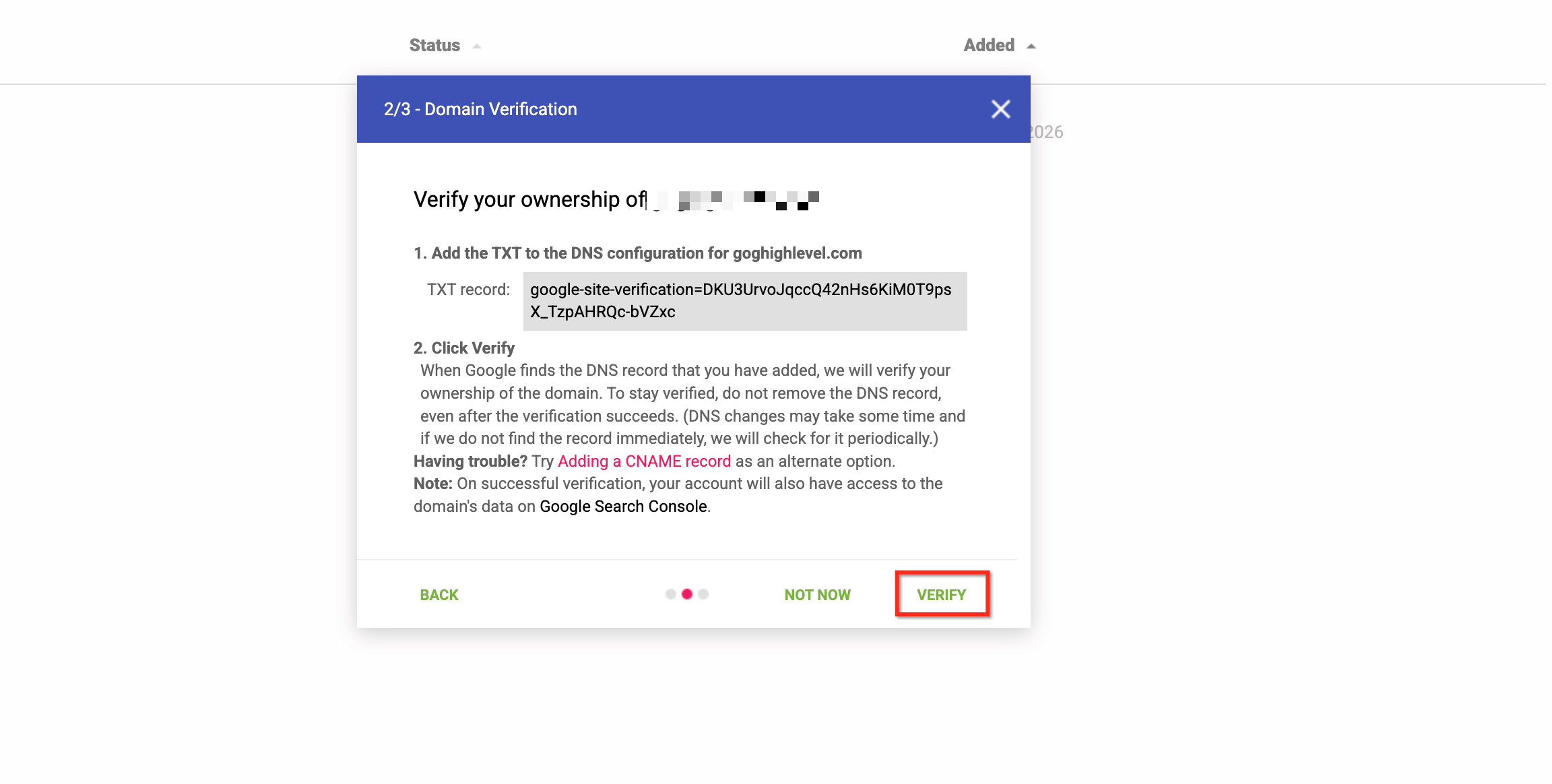 4 Add TXT record to your DNS host exactly as shown, then save
 5 Return to GPT and complete verification. Google may take some time to detect the record. 6 Send email from Patient Copilot using your verified dedicated domain. 7 After Google collects sufficient volume, review Domain Reputation, IP Reputation, Spam Rate, Authentication, and Delivery Errors dashboards.? ## Shared Domain Email Refactoring When using a shared sending domain (Patient Copilot-owned or an Agency Shared Domain), Patient Copilot automatically refactors the actual sent address to match the shared-domain infrastructure. ### How It Works Patient Copilot keeps the From address you configured, but rewrites the sending address behind the scenes using a “plus” format: # From address (as configured) test@patientcopilot.ai # Shared domain (account-level) mg.msgsndr.com # Actual sent address test+patientcopilot.ai@mg.msgsndr.com Applies To: - All agency sub-accounts created after August 26th
 - All locations under these agencies using shared domains
- Refactoring will be automatically applied to all existing agencies within the next 2 weeks Existing agencies are not impacted yet. The same functionality is planned to be available in Labs for existing agencies for testing and gradual rollout. ✅ To avoid email refactoring and maintain your brand identity: Set up a dedicated sending domain following the steps in this article. With a dedicated domain, your emails send exactly as configured — no modifications.? ## Troubleshooting Dedicated Sending Domains Below are common issues you may encounter when setting up your dedicated sending domains, along with how to resolve them without contacting support.? Error: “Domain already pointing to email server!” This means your domain already has DNS records connected to a different service. You’ll need to remove any existing MX or SPF records (even Patient Copilot ones) before connecting it here. Use a free lookup tool to check your current records: mxtoolbox.com/SuperTool.aspx → ❓ ## Frequently Asked Questions Q: How do I choose a sending domain name for my account? Use a unique subdomain not used for any other purpose. For example, if your root domain is yourbrand.com, create a subdomain like
mg.yourbrand.comwhere “mg” is the subdomain portion. Q: How do I set up a dedicated IP address? Q: What do I do if some DNS records are not verified yet? Force the verification process manually. If records still aren’t verified after that, contact your hosting provider — there may be an issue they can help resolve on their end. Q: How do I generate an SSL certificate for dedicated sending domains? The SSL certificate is automatically generated when your domain is verified. If it’s showing as verified but no SSL exists, re-verify by going through the full verification process again. If that doesn’t work, contact your hosting provider. Q: What if my domain has a wildcard DNS record? Wildcard records (e.g.,*.yourdomain.com) act as catch-alls, so any subdomain already “exists” by default — this causes a “pre-existing record” error. Fix: Temporarily remove the wildcard record, verify the dedicated domain, then add the wildcard back. Alternatively, manually add DNS records for each subdomain to override the wildcard. Q: Will my recipients see the refactored email address? Yes — recipients will see the refactored sending address (e.g.,support+yourbusiness.com@mg.msgsndr.com) in their email client. Q: How can I prevent my email addresses from being refactored? Set up a dedicated sending domain. With a dedicated domain, your emails will send with your exact From address — no modifications applied. Q: Does refactoring affect my reply-to address? No — refactoring only affects the sending address. Your reply-to address remains exactly as configured. Q: What is the difference between the sending email address and the reply-to email address? Can I use my root domain instead of a subdomain? The sending email address (From address) is used to send emails and must be authenticated using a dedicated sending domain, typically set up as a subdomain. The reply-to email address is where recipient replies are delivered and can be configured independently without requiring domain authentication. While your From address can appear as a root domain email, using a subdomain for sending is recommended to protect domain reputation and improve deliverability. You can still set the reply-to address to your root domain email to receive replies in your main inbox. Was this article helpful? That’s Great! Thank you for your feedback Sorry! We couldn’t be helpful Thank you for your feedback Feedback sent We appreciate your effort and will try to fix the article