
SaaS Configurator Onboarding
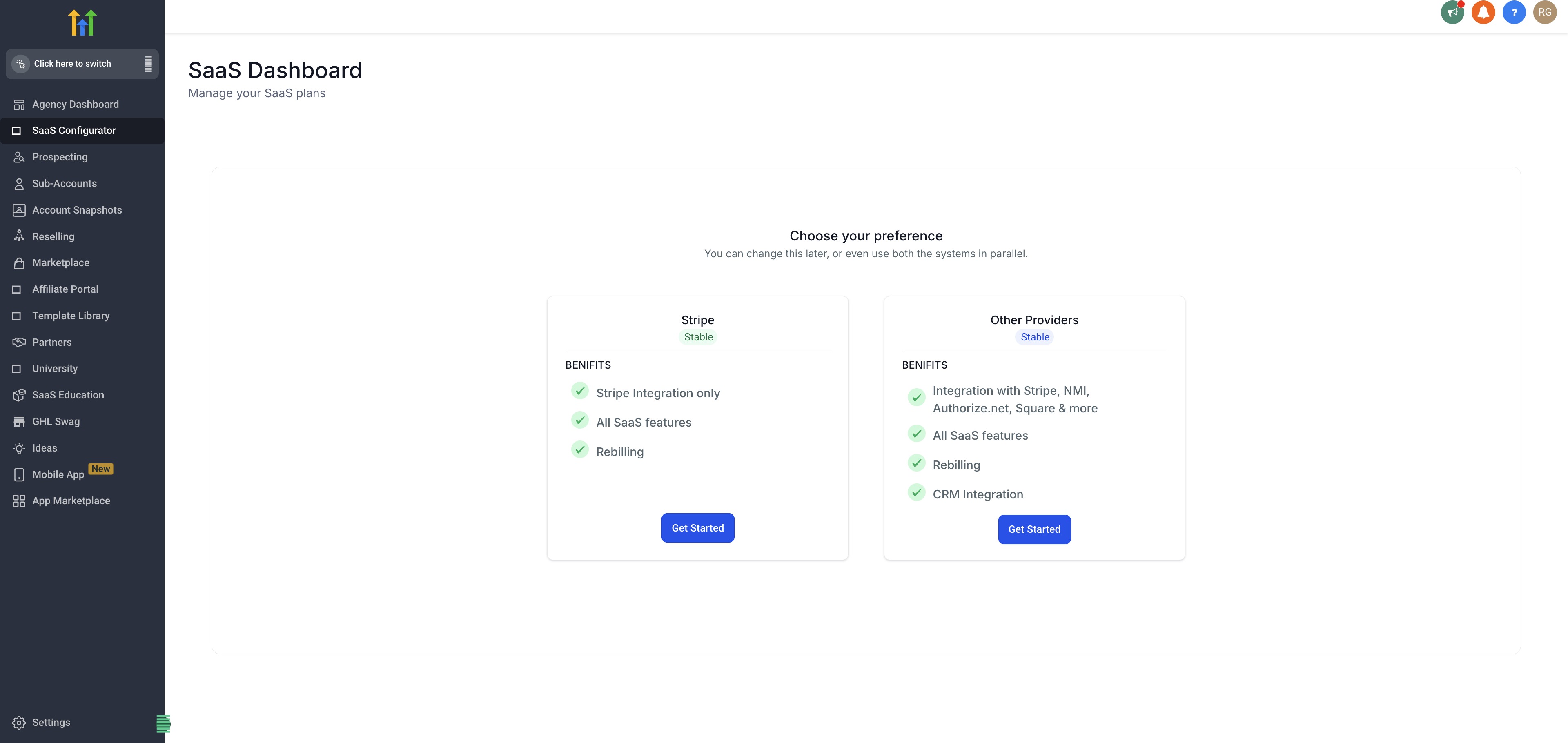
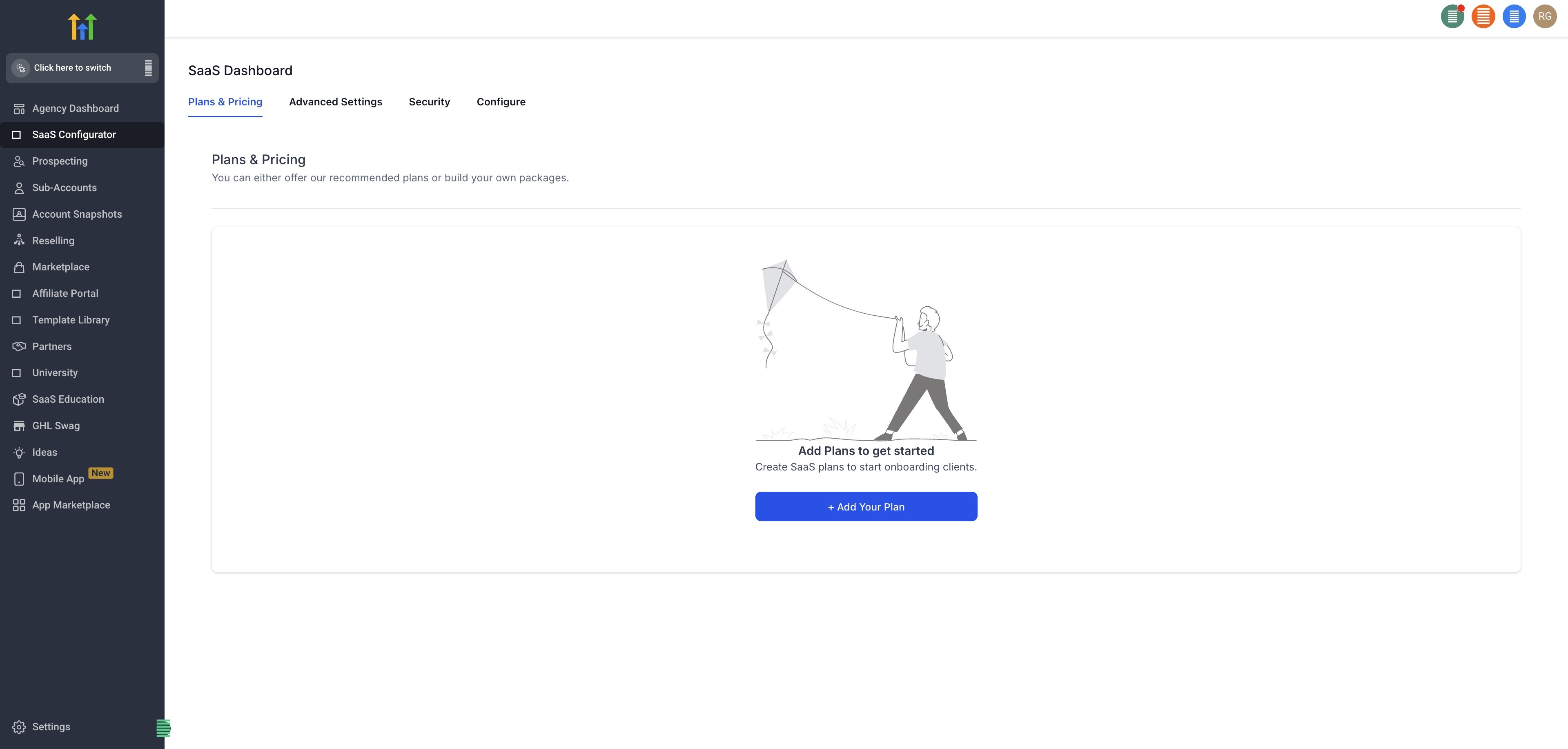
The first time you use the SaaS Configurator to setup SaaS Mode there are helpful onboarding widgets. Patient Copilot provides a guided onboarding checklist for agencies setting up SaaS Mode. The checklist helps you complete required setup steps in the right order. ## Where to Find the Checklist In Agency view, open SaaS Configurator. If your agency has not completed SaaS setup, the checklist appears in the configurator. ## Complete the Setup Checklist Connect Stripe (payment provider): Connect Stripe to enable SaaS billing. Note: Stripe is the default payment processor for SaaS products. Other payment gateways are not currently supported for SaaS products.!(https://assets.patientcopilot.ai/56fd8d4288d22971.jpg) Select currency: Select the base currency used for SaaS plan pricing. If you see an “Invalid price currency” banner, confirm the category currency in SaaS Configurator → Advanced Settings. Then update the Stripe price currency to match. Important: If a sale link has already been generated for a price (or there are active subscriptions), Stripe may not allow changing the currency for that existing price. Create a new price and update the currency on the new Stripe price. Create SaaS plans: Create SaaS plans using templates or by building plans manually. Complete the required fields and save your plans.!(https://assets.patientcopilot.ai/07538955ccb84387.jpg) Generate a sale link: Generate a sale link so you can share a checkout link with prospects and start selling. Tip: If a sale link already exists for the same SaaS product, Patient Copilot returns the existing URL instead of creating a duplicate link.!(https://assets.patientcopilot.ai/a9dd2dc5cf0c8530.jpg)!(https://assets.patientcopilot.ai/4636ca3ffad5cabc.jpg) **Progress, Saving, and Resuming ** - Each step expands inline.
!(https://assets.patientcopilot.ai/4636ca3ffad5cabc.jpg)
- Your progress saves automatically.
- You can return later and resume where you left off.
- A progress indicator shows how many steps are complete.