Online Listing Overview & Setup Doc
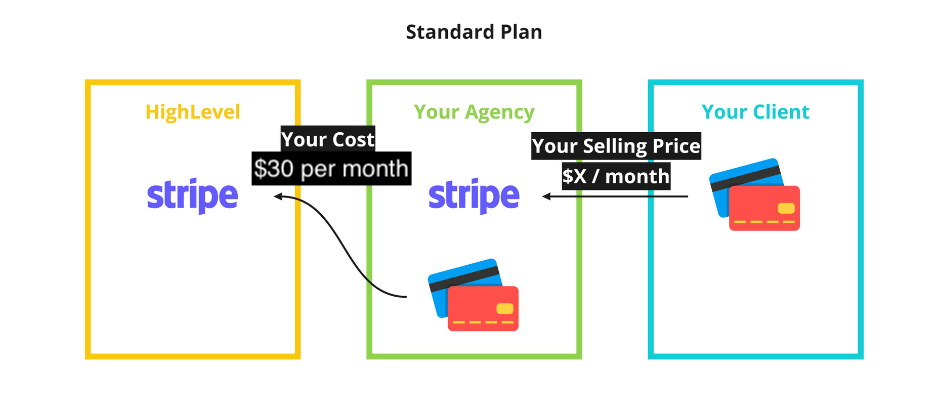
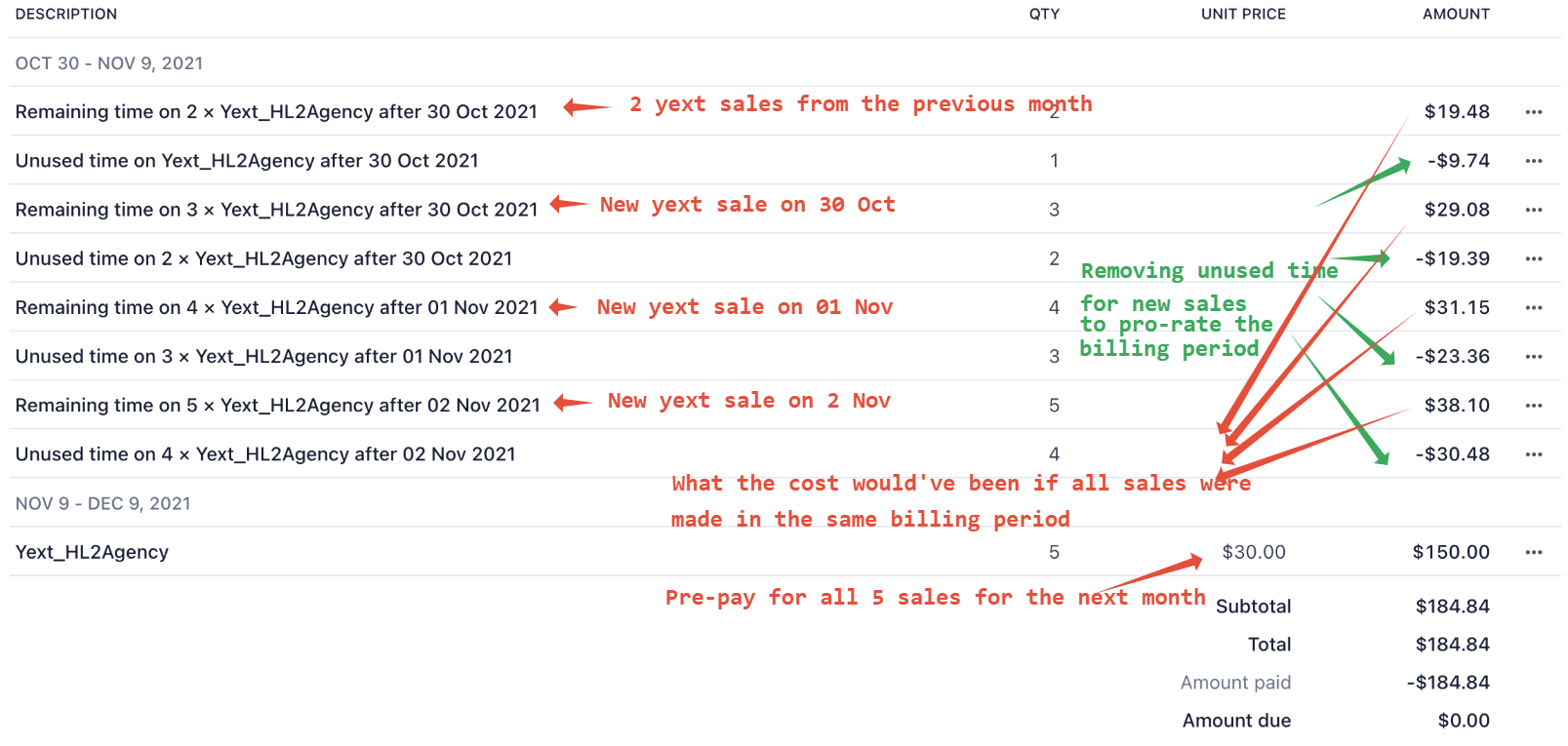
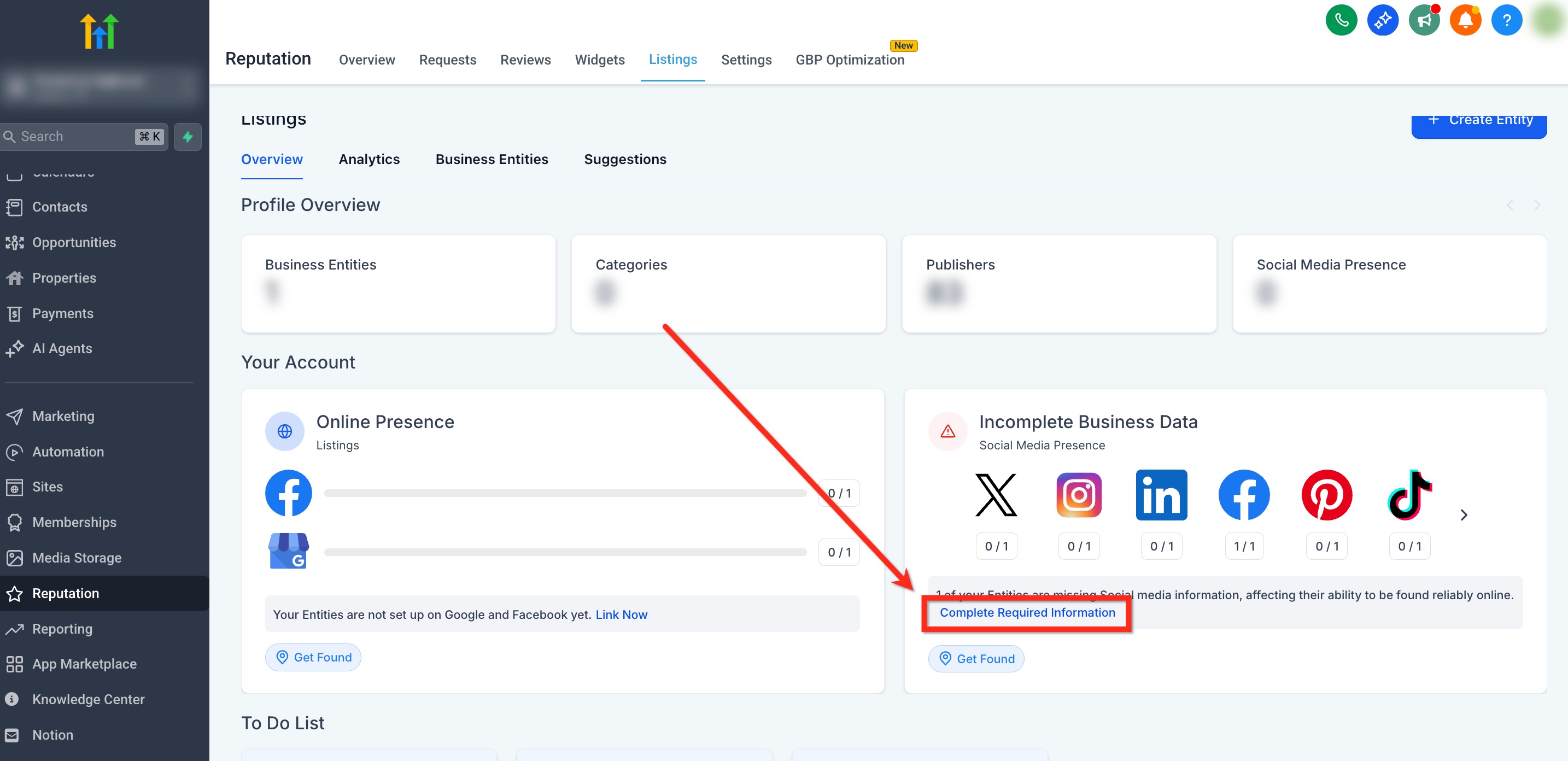
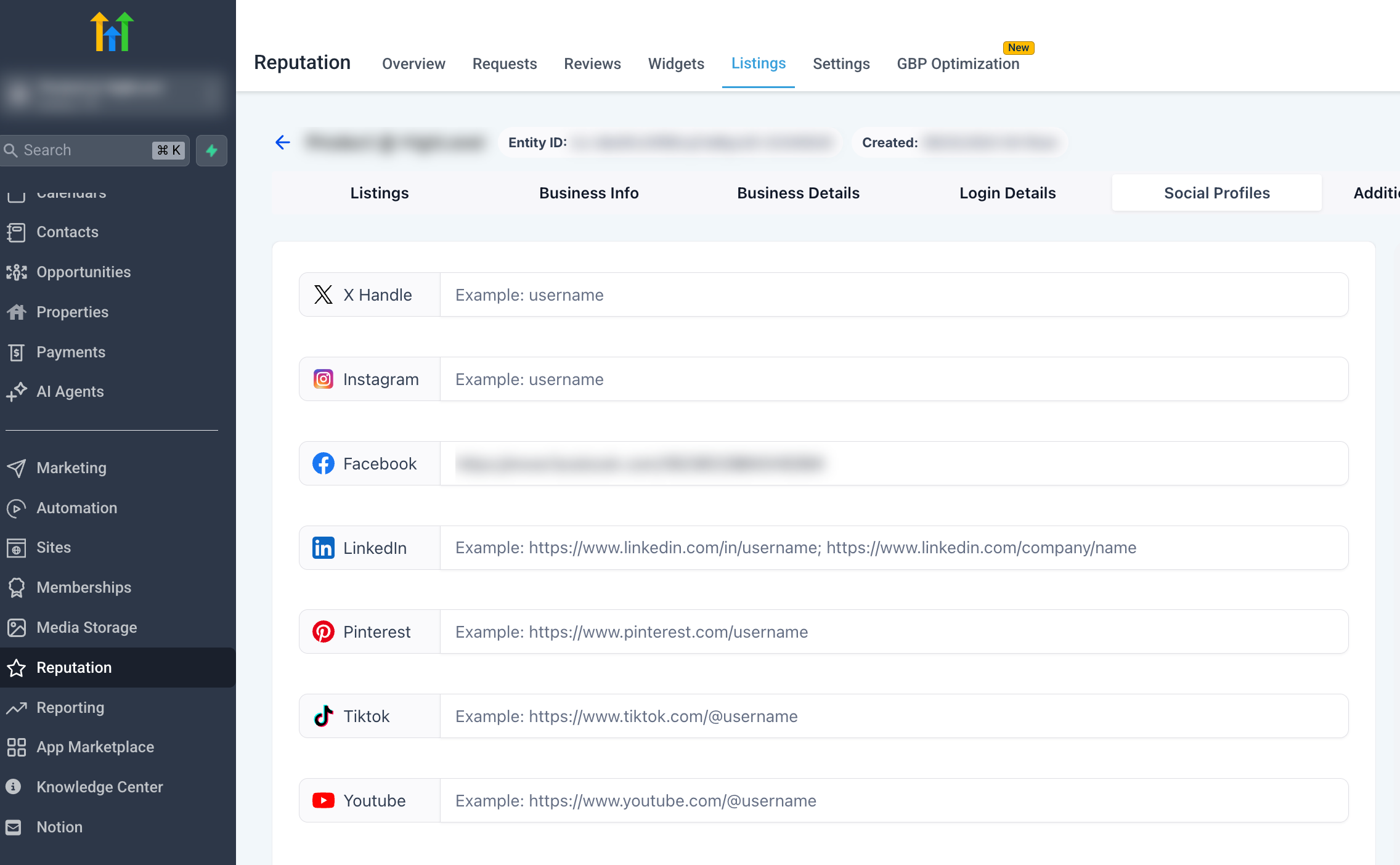
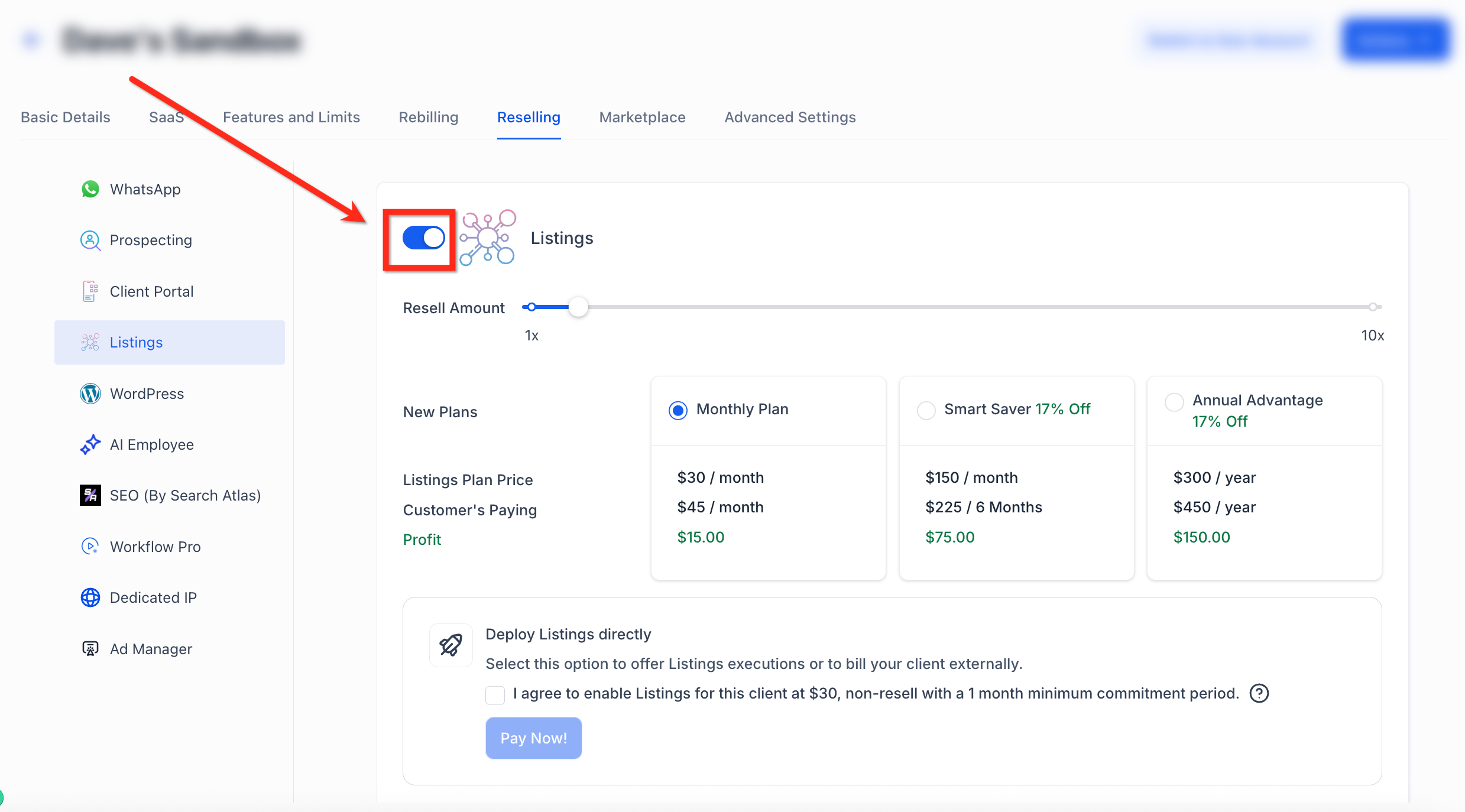
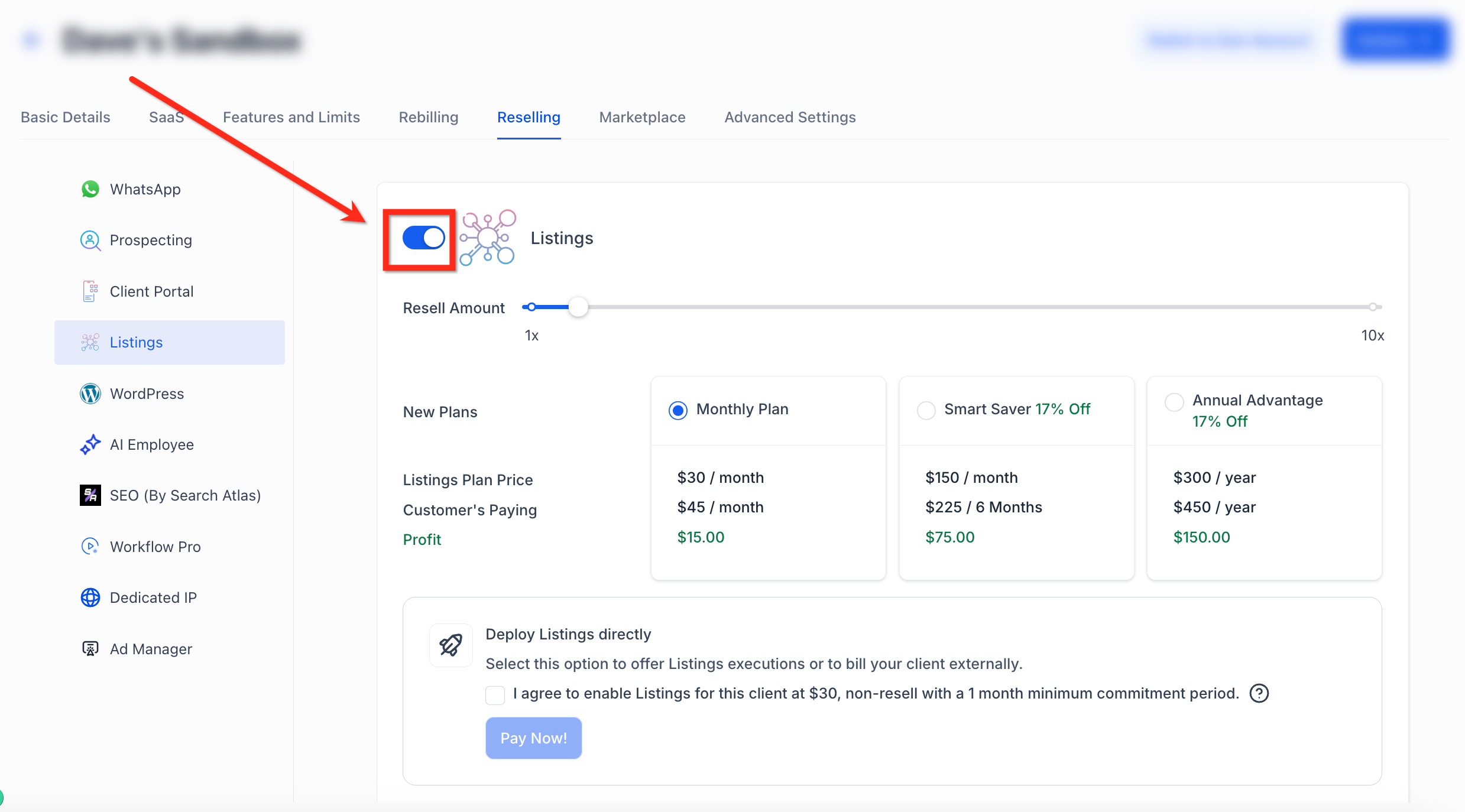
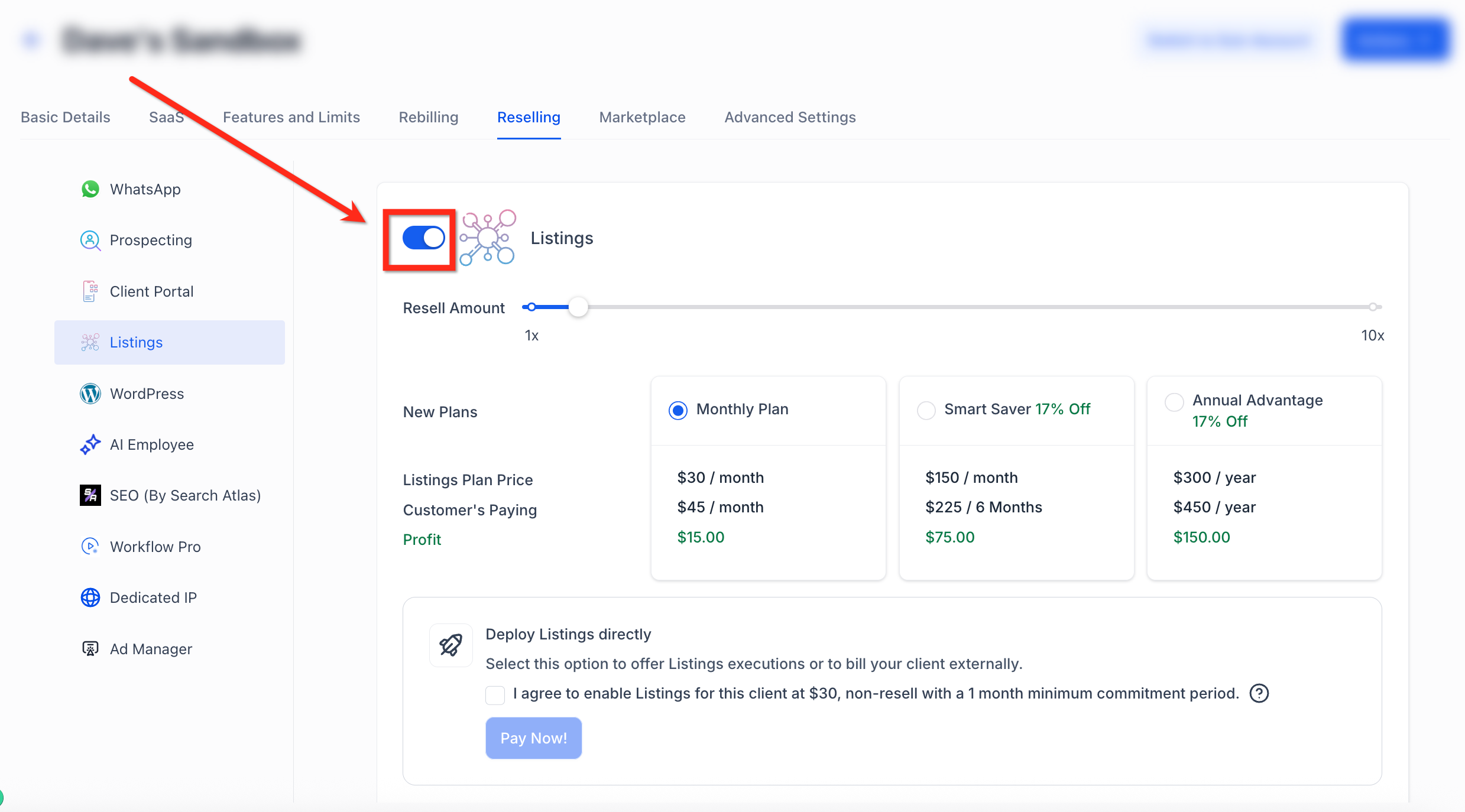
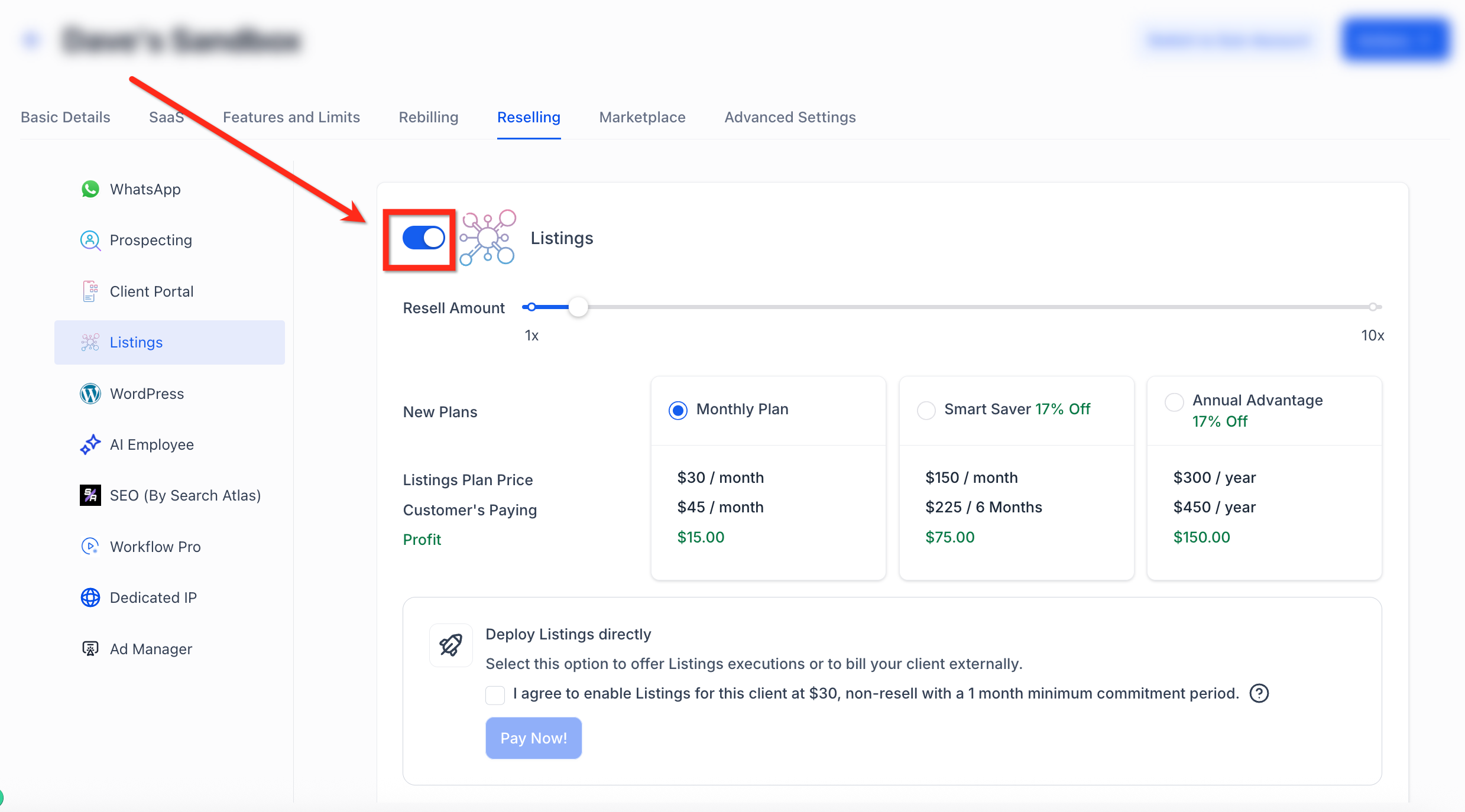
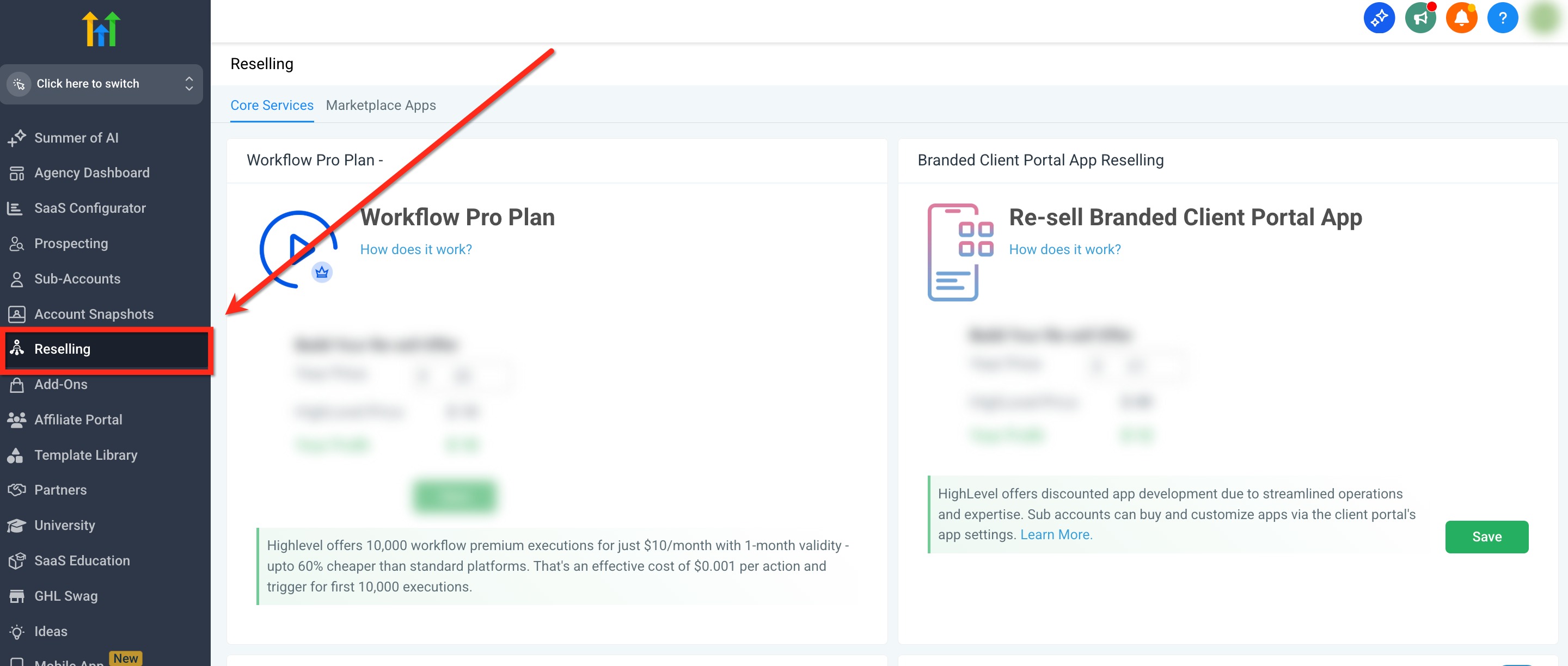
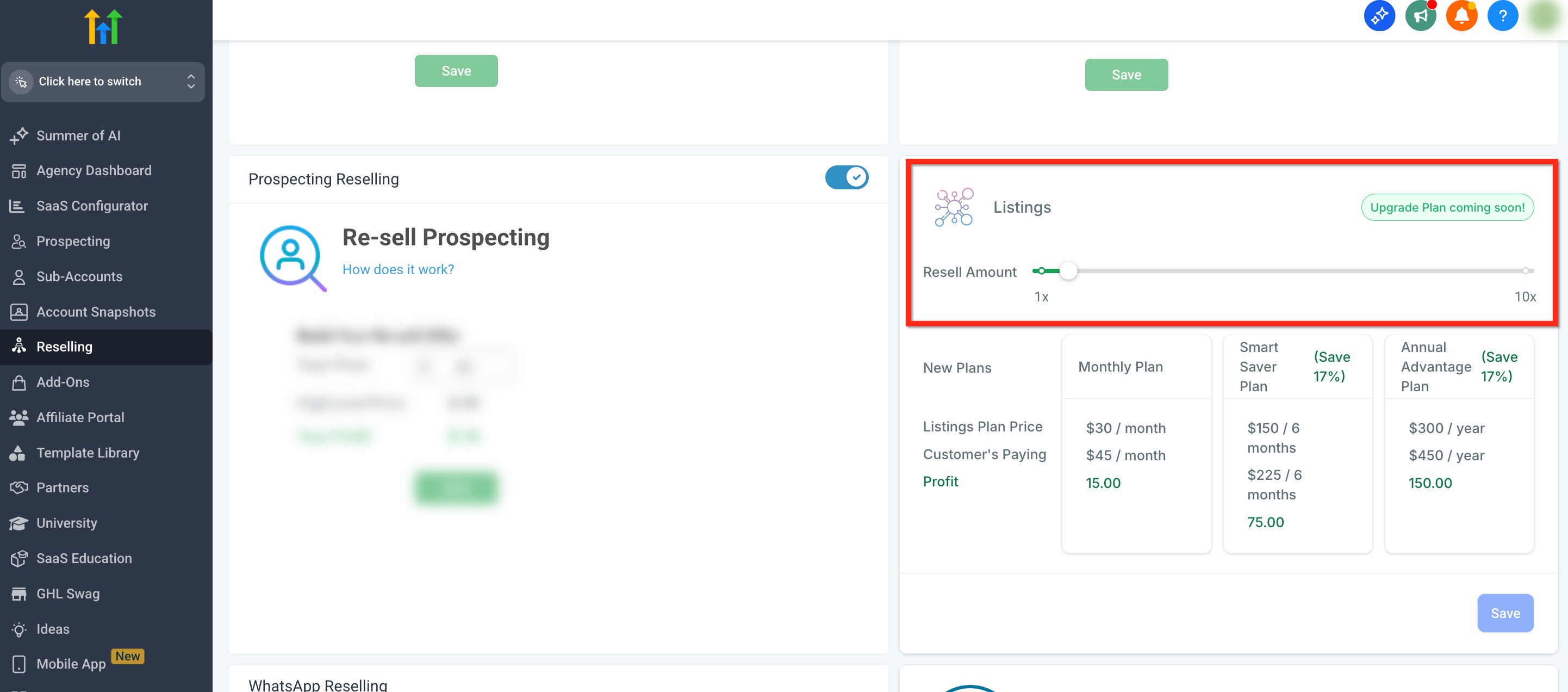
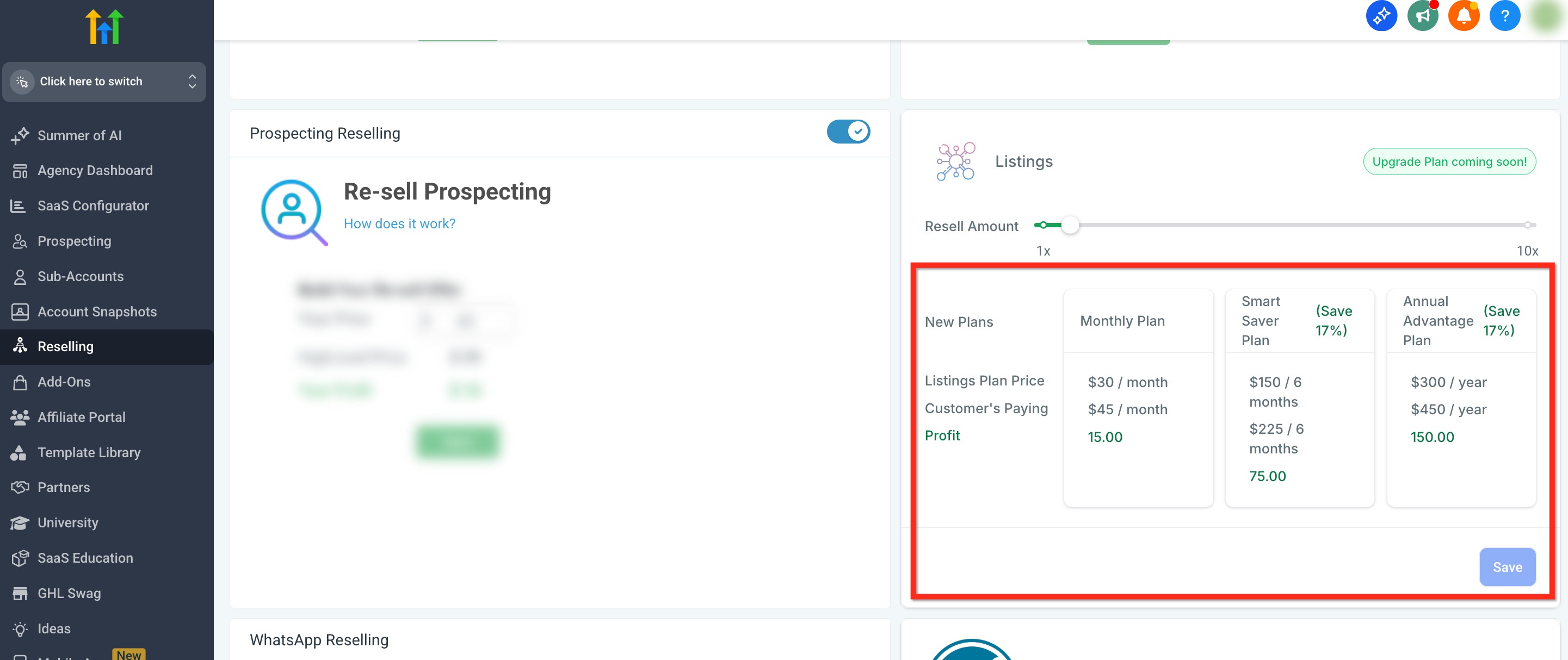
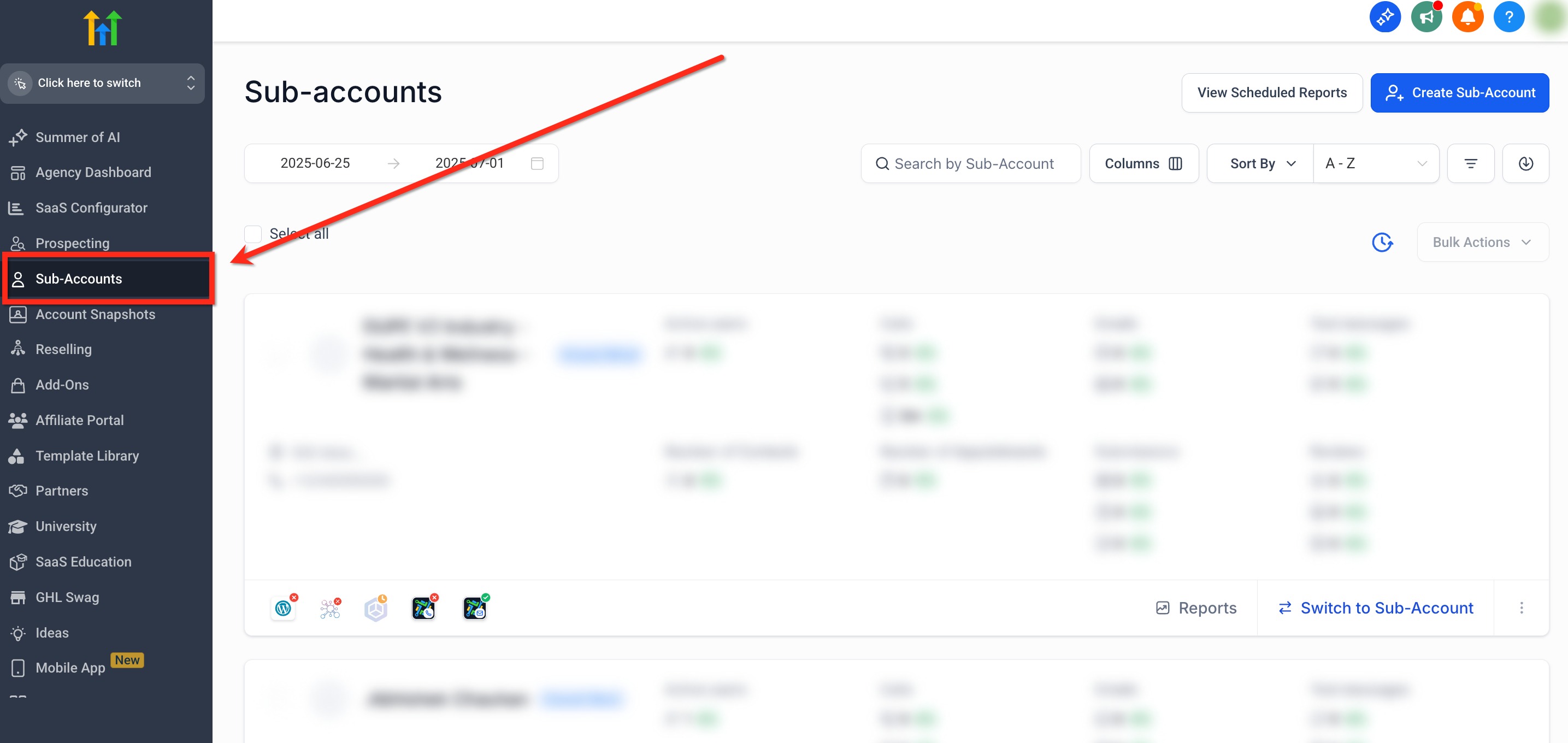
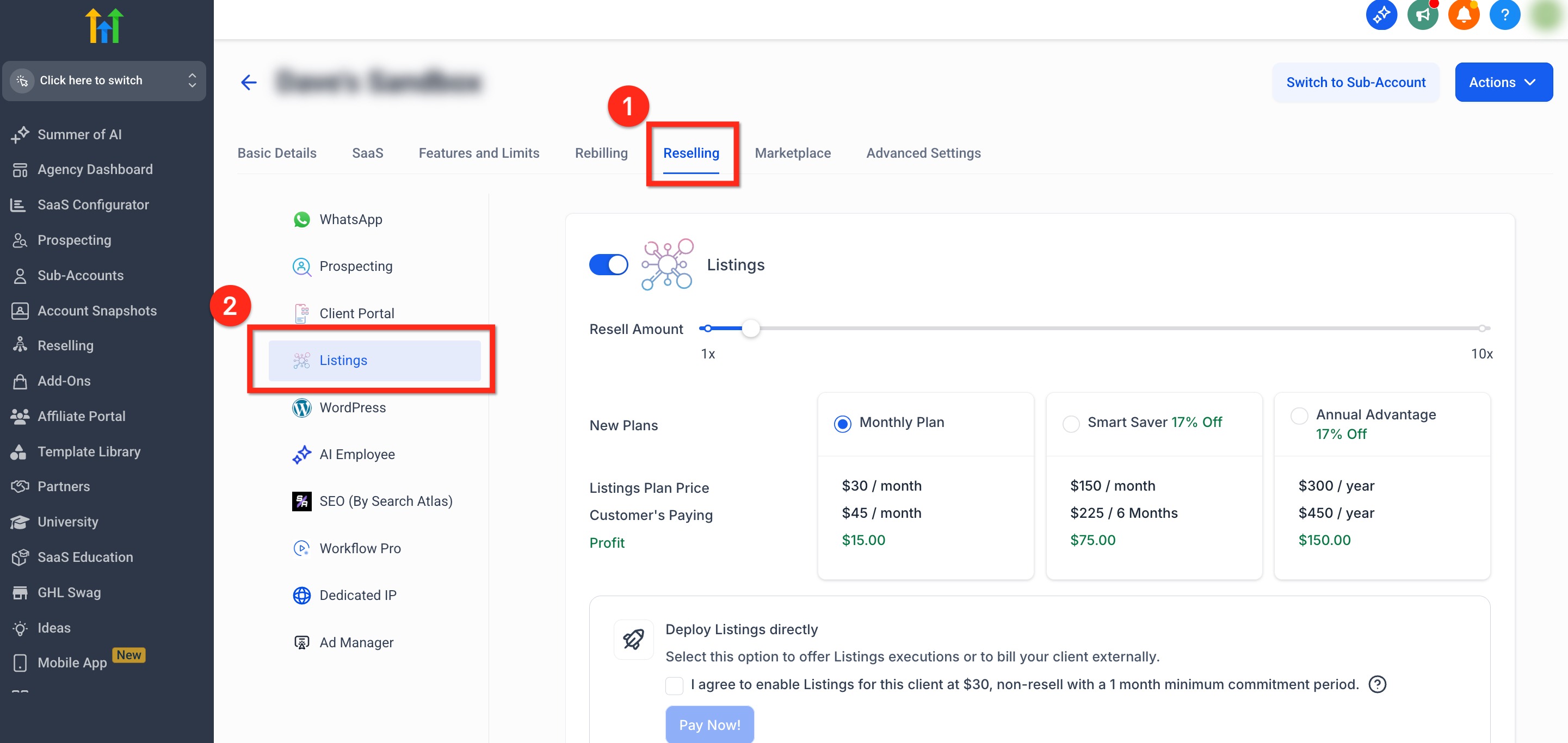
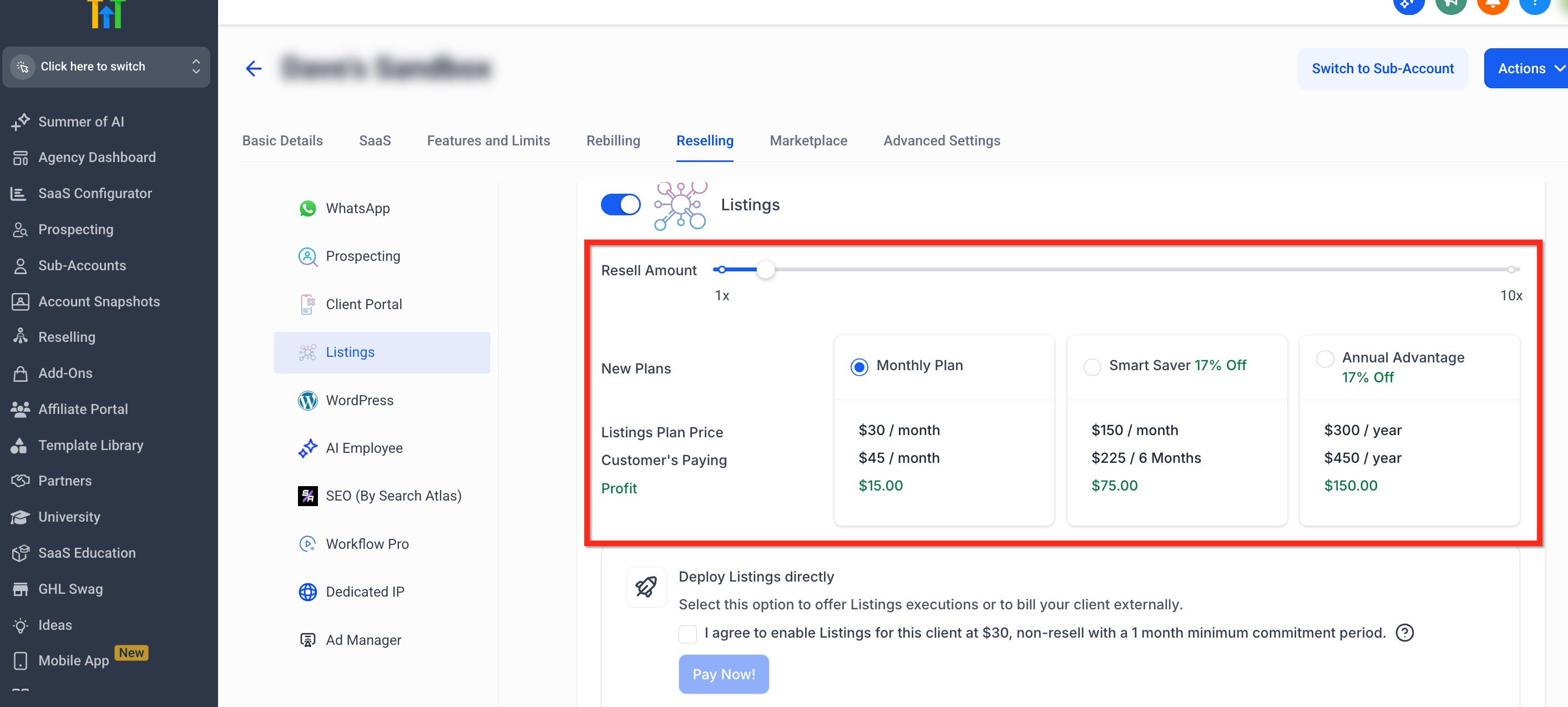
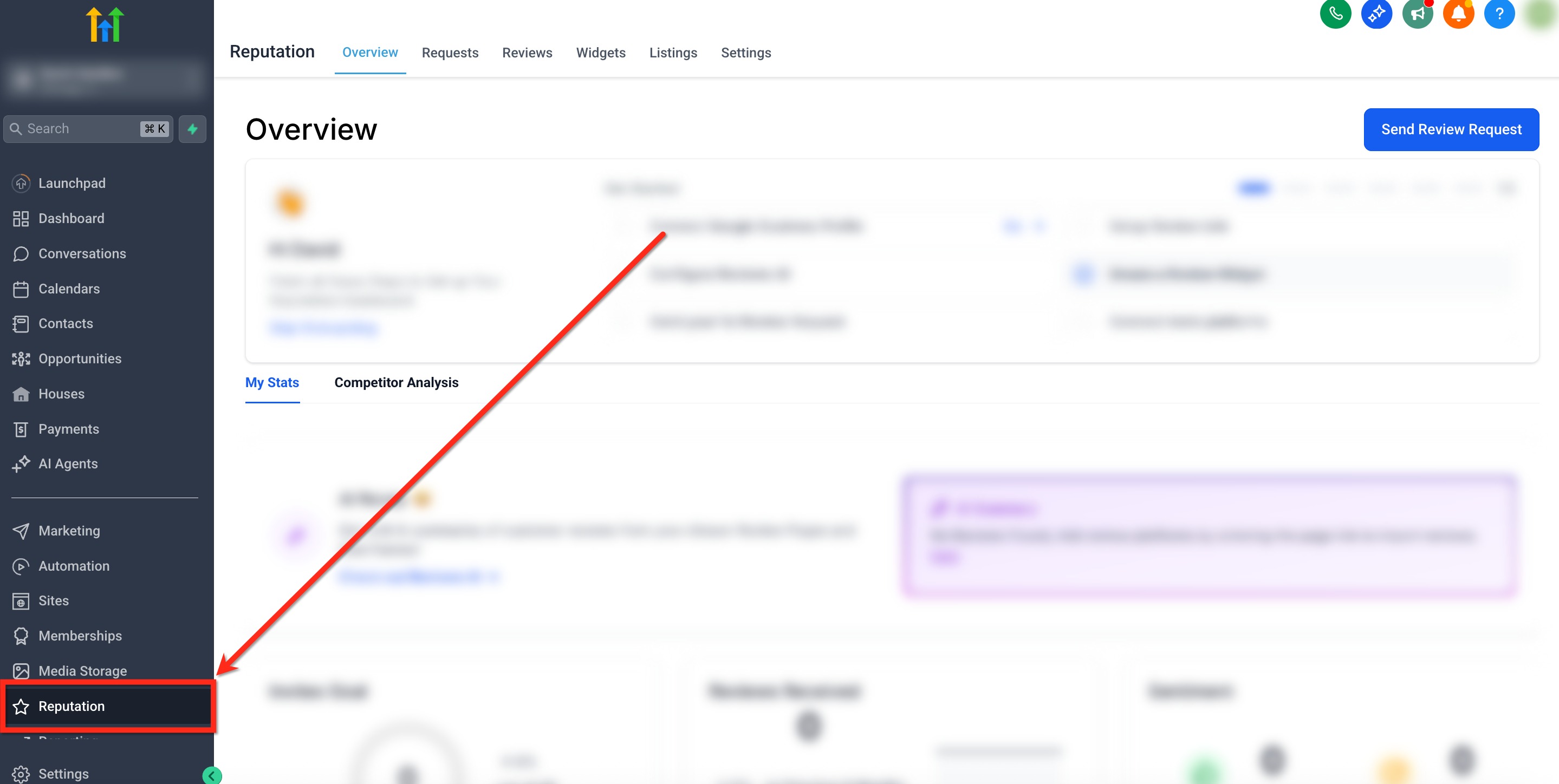
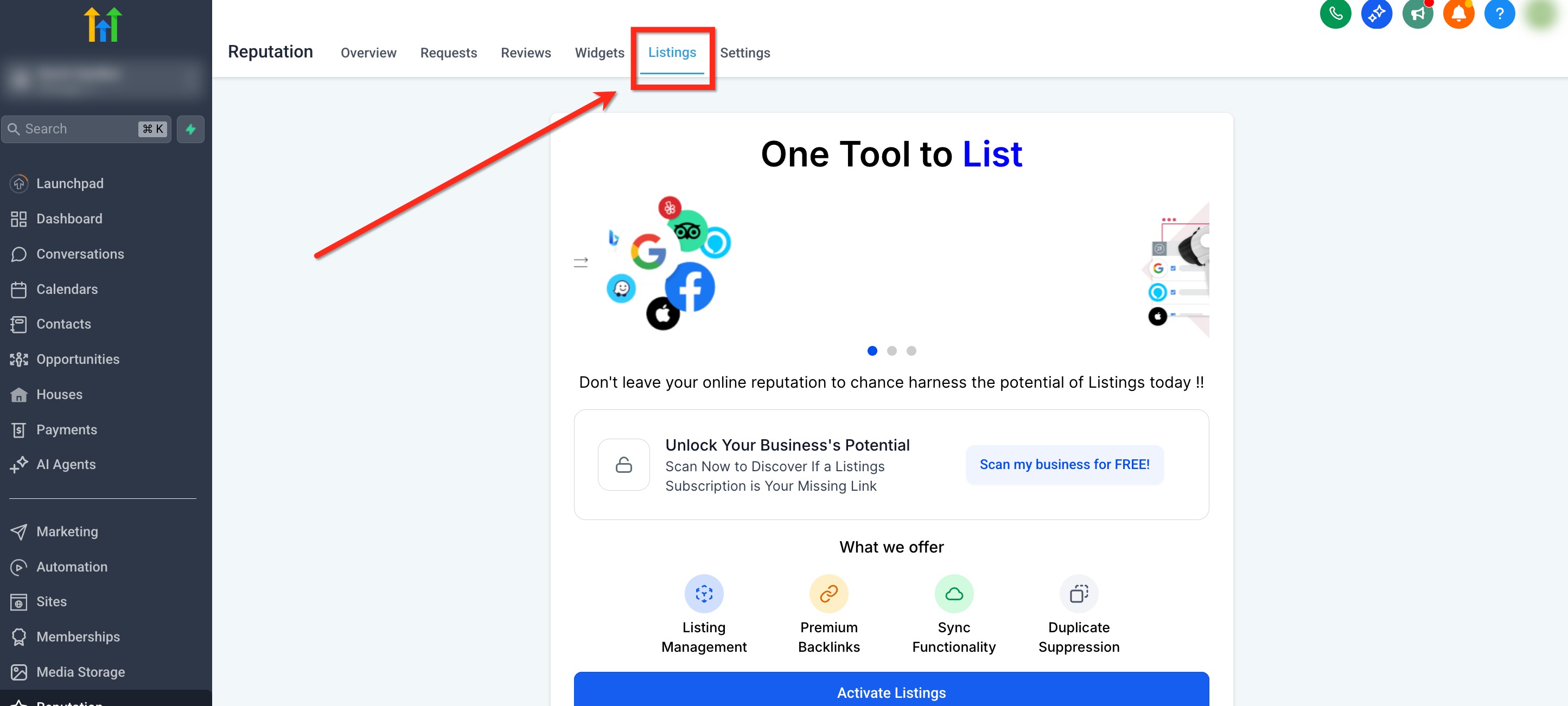
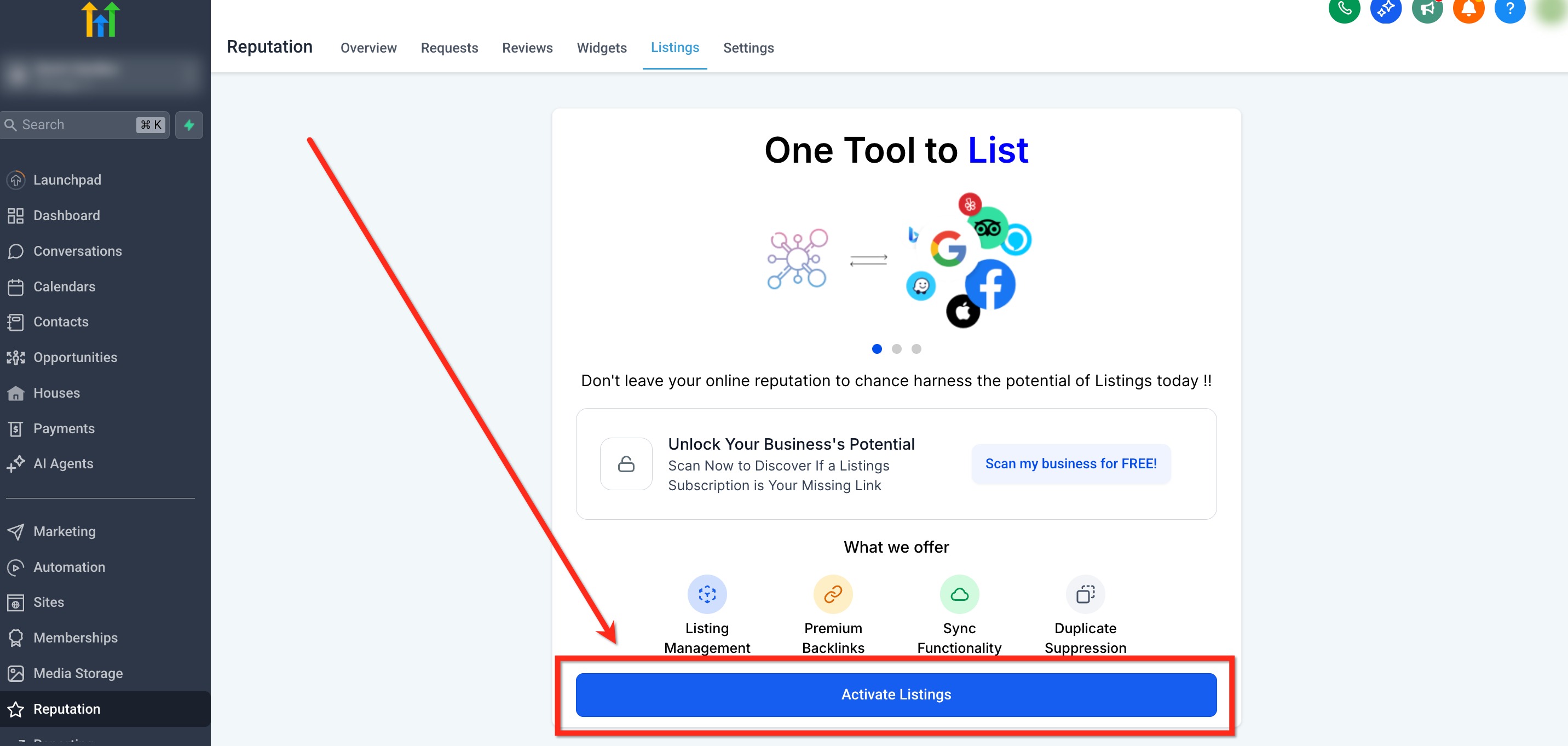
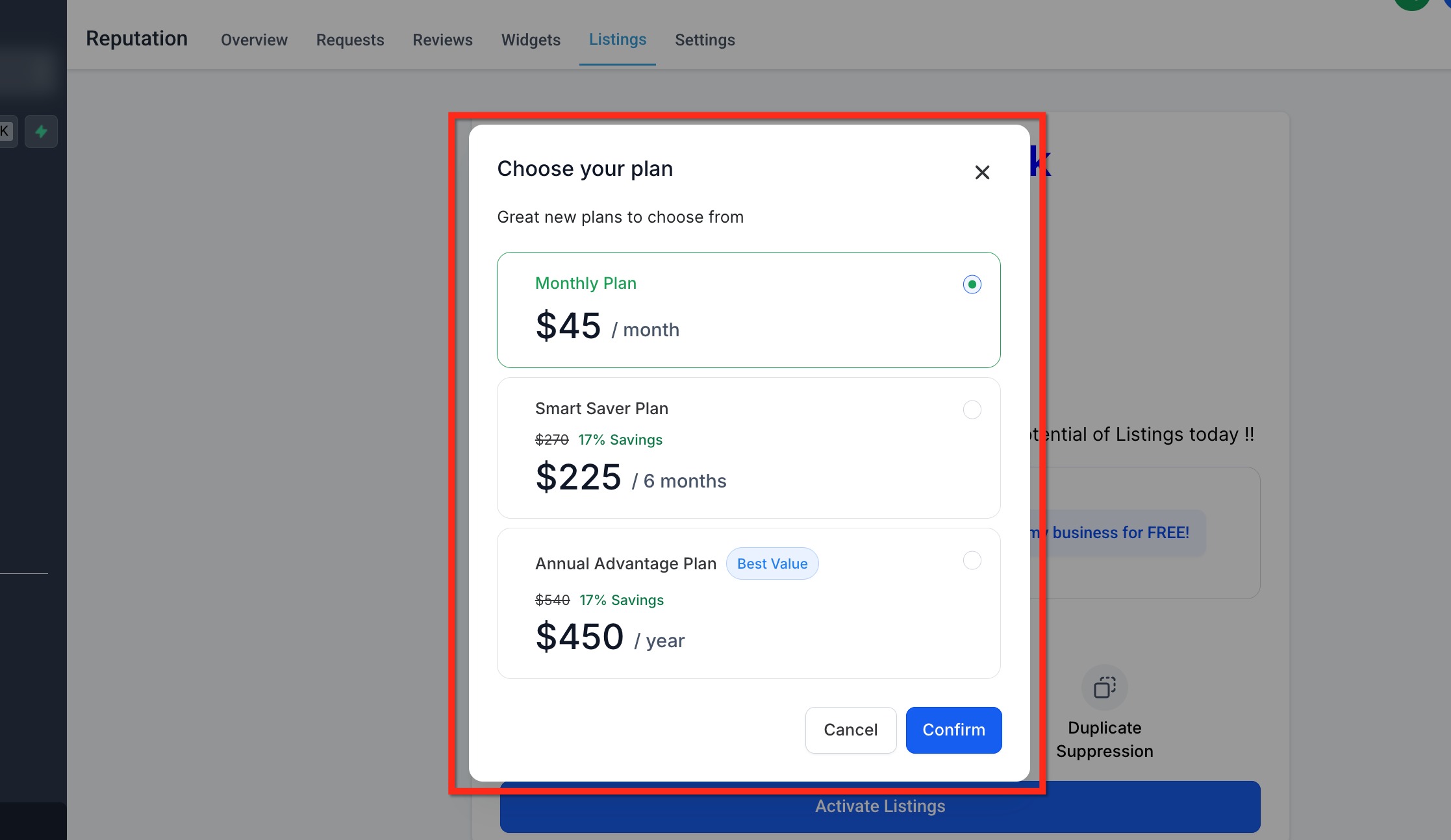
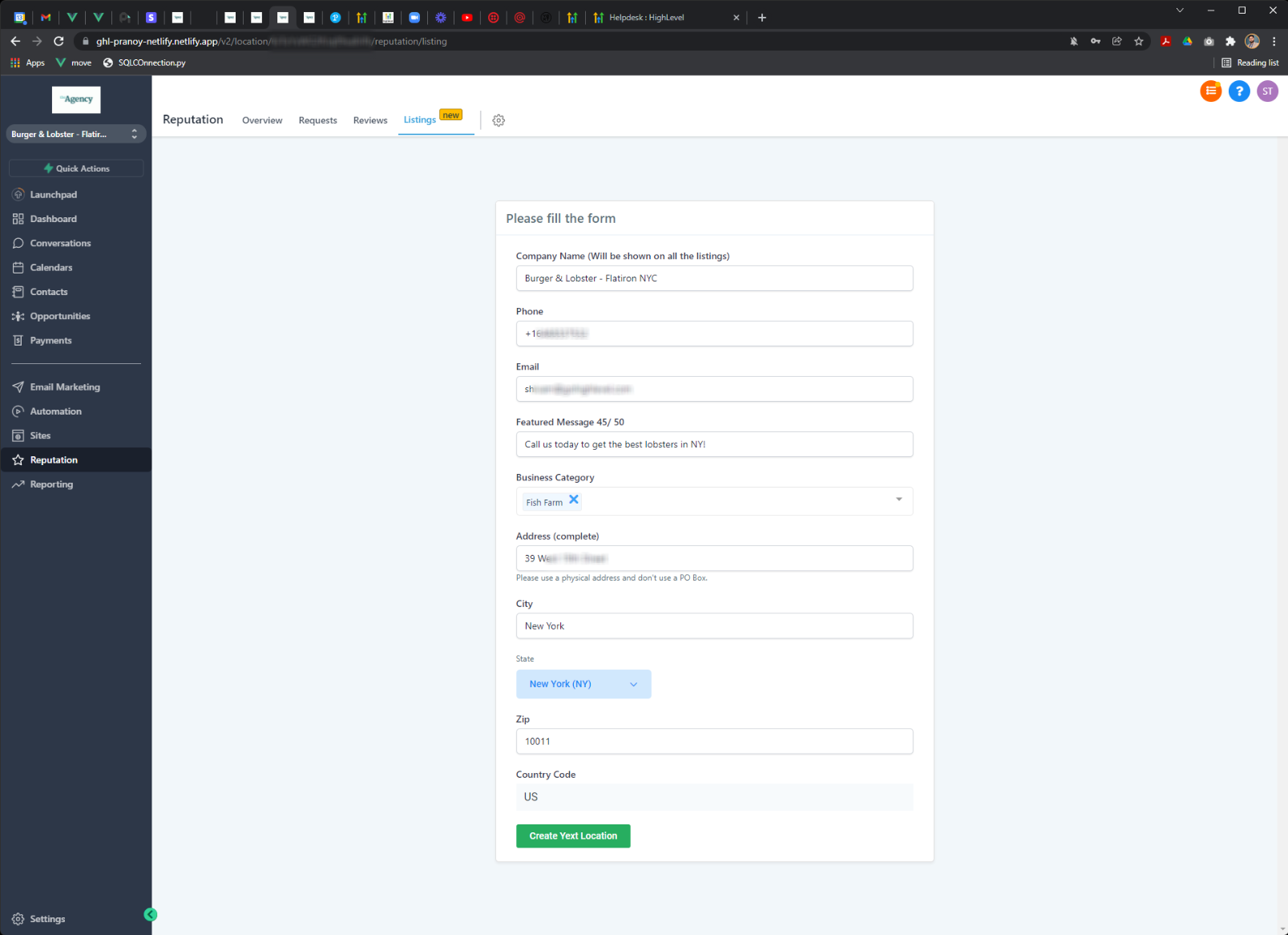
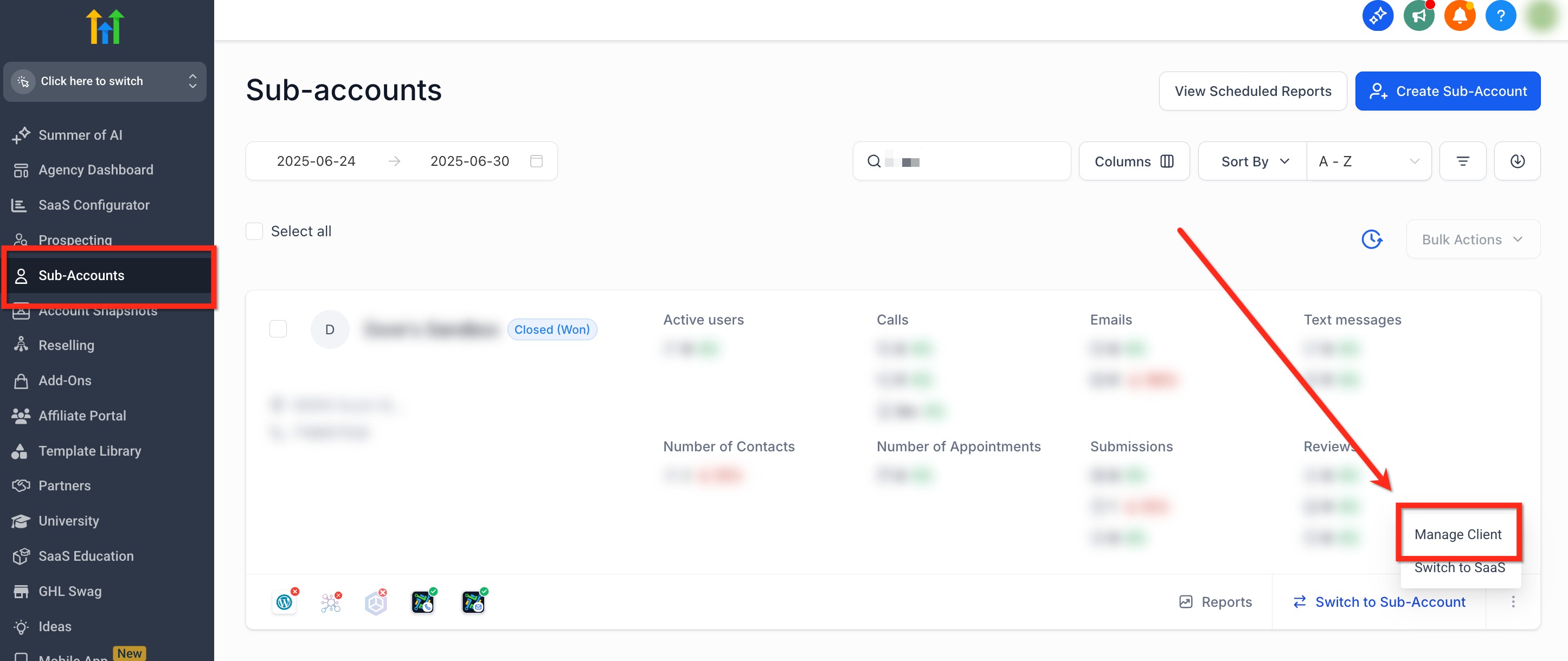
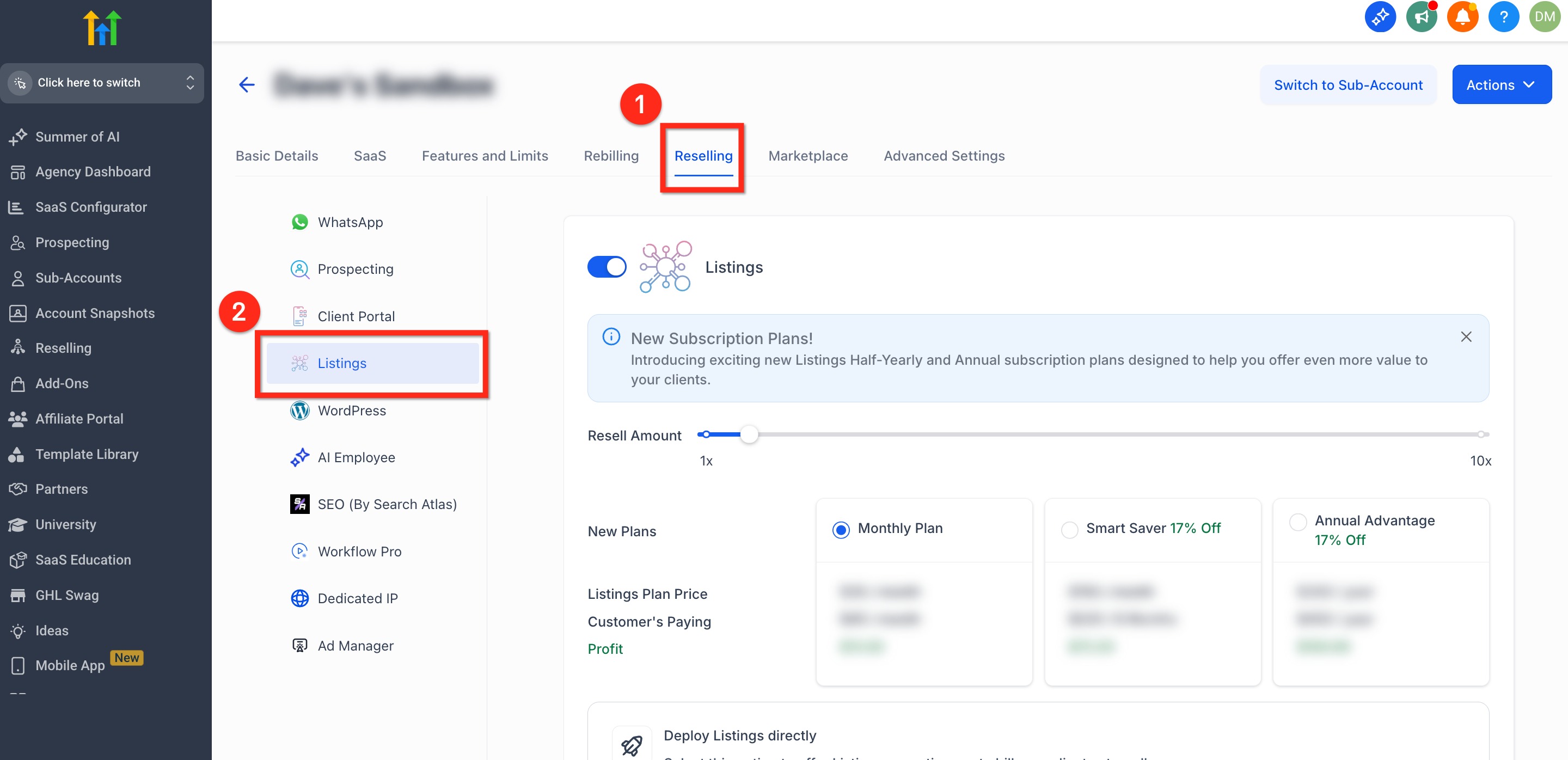
This article explains how to use the Listings feature in Patient Copilot to improve your clients’ local SEO through directory listings management. Learn how to resell Listings, configure pricing, manage billing, and deploy the feature across your SaaS plans. * * * ### More Tutorials from the Community https://youtu.be/PmvgilQIDs4 https://youtu.be/_DPcMxaM4Mo https://www.youtube.com/watch?v=0tHGCX3b-mE * * * ## What is the Listings Feature? Listings is an incredibly powerful SEO tool that creates backlinks and ensures your client’s Vital business info (address, operation hours, phone numbers, etc) is consistent across 70+ of the world’s most reputable websites. Listings is a great complimentary service that can be deployed alongside your services and can be resold through Patient Copilot with a markup price of your choosing… cha chinggg! Listings with Patient Copilot is available at an absolute rock bottom price with minimal commitment. Click here for more information on pricing If you’re looking for a quick way to drive more organic inbound messages, combine Listings with our Google My Business chat widget. This is something that’s quick to set up and all businesses can benefit from. * * * ## Key Benefits of Listings Listings provides powerful SEO and reselling advantages for agencies and their clients. - Enhances SEO with structured backlinks from reputable directories - Ensures consistent business information across major listing platforms - Minimal commitment (1-month minimum) - Custom markup for reselling to sub-accounts - Value added service that can be deployed alongside your packages * * * ## How to Add Listings to a SaaS Offer 1. Go to “SaaS Configurator” in your agency dashboard!(https://assets.patientcopilot.ai/25259a1ecc5ebe66.png) 2. Find the plan you want to edit and click Edit Details!(https://assets.patientcopilot.ai/369381fb2370c7f9.png) 3. Navigate to the Addons section!(https://assets.patientcopilot.ai/ad91b2de723a0166.png) 4. Check the box labeled Listings to include it in the plan then click Save Changes to confirm!(https://assets.patientcopilot.ai/6d091c3596273948.png) * * * ## How to Resell Listings Set up Listings as a resale item to generate new revenue streams for your agency. For more details on this adding Listings to your SaaS offer, click here. ### How to Set Agency-Wide Listings Default Pricing Agency-level pricing defines the default cost clients will see when activating Listings. You’ll use a pricing slider to set rates and preview monthly profits per plan. Follow these steps to set the pricing: 1. From the Agency View, click Reselling in the left-side navigation bar!(https://assets.patientcopilot.ai/ee062fadc23dc648.jpg) 2. Scroll down to Listings and adjust slider to set your pricing!(https://assets.patientcopilot.ai/f2aeb8ad9feb3ab5.jpg) 3. Preview the Client Pricing, Your Cost, and Your Profit based on the selected pricing. Click the blue Save button to deploy changes!(https://assets.patientcopilot.ai/ea0620639bdfff5d.jpg) * * * ### How to Customize Listings Pricing Per Sub-Account You can override default pricing for individual sub-accounts to match unique client needs. Follow these steps to set the pricing: 1. In Agency View, use the left-side navigation bar to navigate to Sub-Accounts!(https://assets.patientcopilot.ai/48412e015977633f.jpg) 2. Click the 3-dots icon on the desired sub-account and select Manage Client !(https://assets.patientcopilot.ai/f93082313e257cda.jpg) 3. Navigate to Reselling → Listings!(https://assets.patientcopilot.ai/5835083dcbc63adf.jpg) 4. Adjust the pricing slider as needed!(https://assets.patientcopilot.ai/b0ca43a8b70e03b3.jpg) * * * ### How Clients Can Purchase Listings Offer Clients can activate Listings directly from their sub-account if you’ve enabled the feature. Follow these steps to activate listings from inside a sub-account: 1. From the sub-account, use the left-side navigation bar to go to the Reputation!(https://assets.patientcopilot.ai/2de5c9afa51bfb88.jpg) 2. Click the Listings tab at the top!(https://assets.patientcopilot.ai/a0dcb667027e64e6.jpg) 3. Hit the Activate Listings button!(https://assets.patientcopilot.ai/75ecebf517032fb7.jpg) 4. Choose a plan and confirm payment!(https://assets.patientcopilot.ai/caa3cb6758043f35.jpg) 5. Fill out listing information !(https://assets.patientcopilot.ai/1e12db71f132b184.png) * * * ## How to Deploy Listings without Directly Charging the Client If you want to include Listings as part of your services without separate billing, follow these steps. For more details on this adding Listings to your SaaS offer, click here. #### Step 1: Navigate to Manage Sub-Account - From the Agency-View, use the left-side navigation bar to go to Sub-Accounts
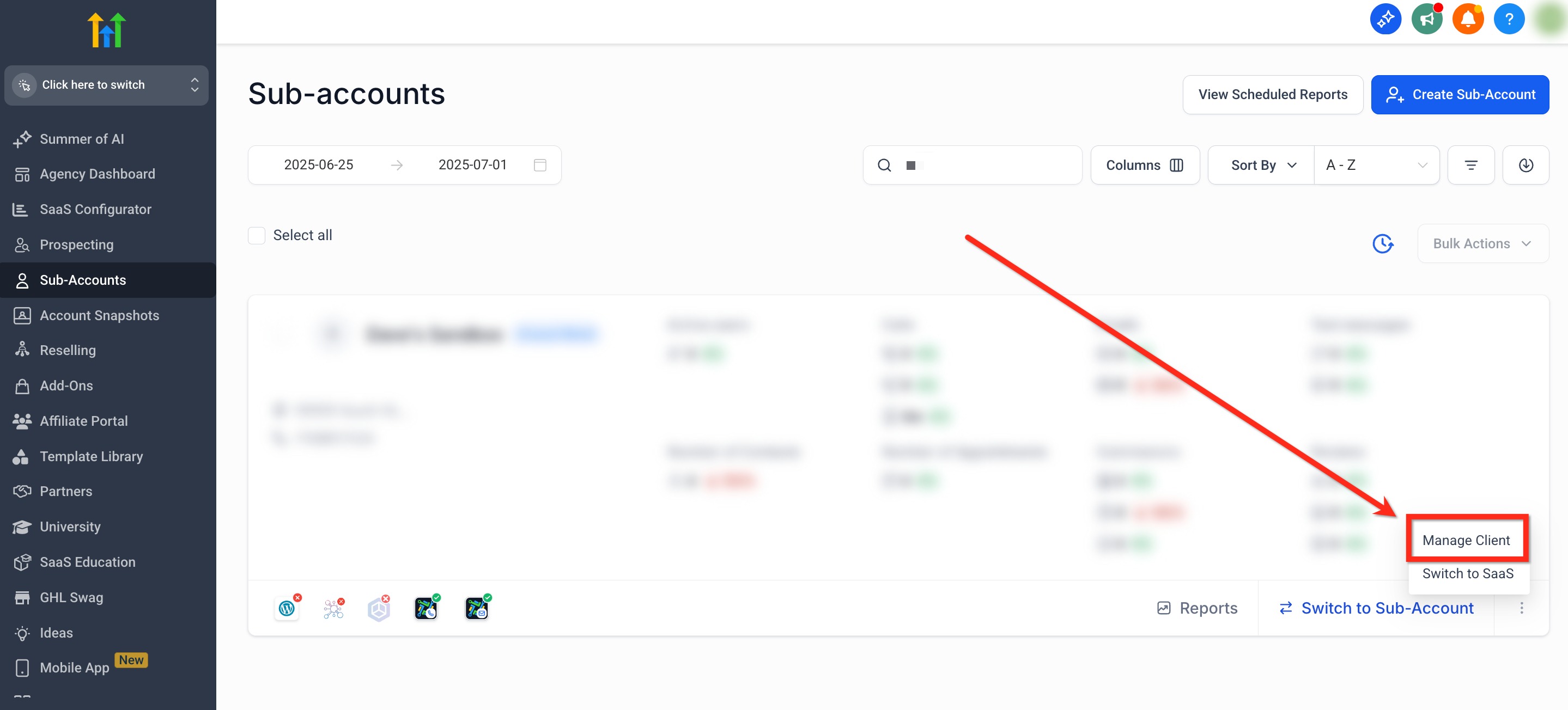
- Locate the desired sub-account
- Click the 3 dots (⋮) icon in the lower right corner and select Manage Client!(https://assets.patientcopilot.ai/9facf43862f9cde2.jpg) #### Step 2: Access Listings from the Reselling Tab - In the top navigation ribbon, select Reselling
- In the secondary left-side navigation bar, select Listings!(https://assets.patientcopilot.ai/a721bbd666e5fa12.jpg) #### Step 3: Enable “Deploy Listings Directly” - Scroll to the Deploy Listings Directly section
- Review the deployment terms and check the agreement box
- Click the blue Pay Now! button!(https://assets.patientcopilot.ai/cfcd3cf4f85b68a0.jpg)(https://help.patientcopilot.ai/en/support/solutions/articles/48001210774) * * * ## Understanding Listings Billing Listings reselling uses a two-layer billing structure: - Agency → Patient Copilot: You are charged monthly via your agency wallet - Client → Agency: Clients are charged via your Stripe integration!(https://assets.patientcopilot.ai/e5a361e2592752fc.png) * * * ## Understanding the Patient Copilot Invoice As your agency makes sales on different days during your billing period, your charges will get pro-rated on the next billing cycle. We do pro-rated billing to ensure you receive a single invoice in the same billing period, even though the sales are made on different days within the month. Each invoice adjusts for the sales made in the previous billing cycle + prepay for the next billing cycle. Example Invoice: !(https://assets.patientcopilot.ai/f96027db08c83227.png) * * * In some rare cases, the Online Listings might not work as expected. A few possible scenarios are covered below: ### My listings look wrong / my listings are waiting on customer / my listings are waiting on partner / all my listings are still processing In all such cases, the common reason is that you have a mistake in the form data that you or your client had submitted. The error could be in: - Address Field - PIN Code is written in the address line field - PO Box used instead of a real address - Only Street Address used (Suite number, shop number missing)
- Business Name is improper
- The phone number is not valid
- email ID is not a valid email As agency users, you can easily fix this issue by logging into the Listings account and fixing any errors. ### My listings are not live. I see an In-review message This happens when Listings has found a duplicate listing for the same address, phone number, or email ID. If you see an “in-review” message, follow the steps in this article: Resolving Listings Canceled or Duplicate States – Step-by-Step Guide ### How do I see which locations are signed up for Listings? To identify which sub-accounts have activated your Listings offer: 1. Go to your Agency Dashboard 3. Open the Advanced Filter option. 4. Select the filter for Listings to view which sub-accounts have Listings active ### How do I connect my Client’s Social Media to their Online Listing? To connect social media profiles (Facebook, Instagram, LinkedIn, etc.), follow thse steps: 1. In the client’s sub-account, navigate to Reputation > Listings. 2. If prompted, click Complete Required Information on the Listings dashboard taking you to the Social Profiles tab!(https://assets.patientcopilot.ai/19866d5fb6b452d3.jpg) 3. Enter the relevant links or usernames and save your changes !(https://assets.patientcopilot.ai/f66ca68178600b56.png) ### My listings are not live. I see a Cancelled message on the screen This happens when Listings has confirmed that your client is in a contract with their previous provider and Listings can not move the listing from the old provider to the new one because of legal reasons. In such cases, please reach out to Patient Copilot support. * * * ## Frequently Asked Questions Q: How long does it take for listings to sync? Typically 24-48 hours, but some platforms may take up to a week. Q: Can I cancel Listings mid-term? Yes, but charges are non-refundable for the current billing cycle. Q: How do I cancel a Listings subscription? To cancel Listings for a sub-account, follow the steps in this guide: Cancelling Listings for Your Sub-Account in Patient Copilot. Q: Does Listings conflict with manually created profiles? It may override manual entries, so allow Listings to manage profiles where possible. Q: What happens if the business info changes? Listings will update it automatically across all directories when updated within Listings Q: How can my clients connect their Google Business Profile (GMB) and Facebook page? To enable Listings to sync with Google Business Profile and Facebook, your clients will need to connect their respective accounts in the Listings setup process. For full details, refer to this article: Google Business Profile and Facebook Integration with Listings. Q: How do I use the Listings Suggestions feature? Listings Suggestions provide profile improvement tips based on best practices. Go to Reputation > Listings > Suggestions to view and apply them. For more, see How to Use the Listings Suggestions Feature. * * * ## Related Articles - **(https://help.patientcopilot.ai/en/support/solutions/articles/48001216623)**(https://help.patientcopilot.ai/en/support/solutions/articles/48001216623)[Getting Started with Listings](https://help.patientcopilot.ai/en/support/solutions/articles/48001216623)
- How to Resell Listings to Your Clients
- Rebilling, Reselling, and Wallets Explained
- Google Business Profile and Facebook Integration with Listings
- How to Use the Listings Suggestions Feature
- Deploy Listings without Directly Charging the Client
- (https://help.patientcopilot.ai/en/support/solutions/articles/155000001886)[Cancelling Listings for Your Sub-Account in Patient Copilot](https://help.patientcopilot.ai/en/support/solutions/articles/155000001886)(https://help.patientcopilot.ai/en/support/solutions/articles/155000001886)
(https://help.patientcopilot.ai/en/support/solutions/articles/48001210774)