Task Management
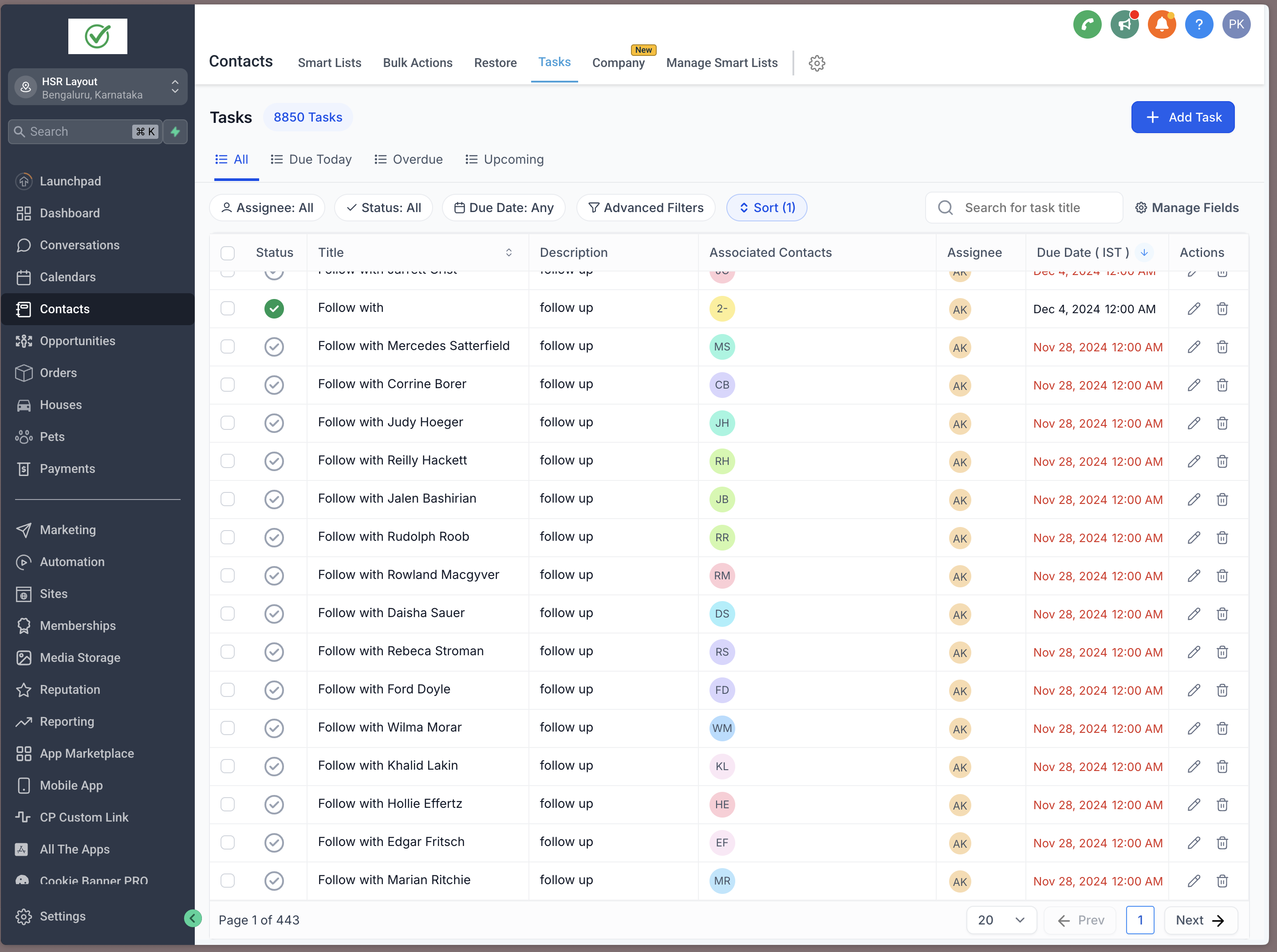
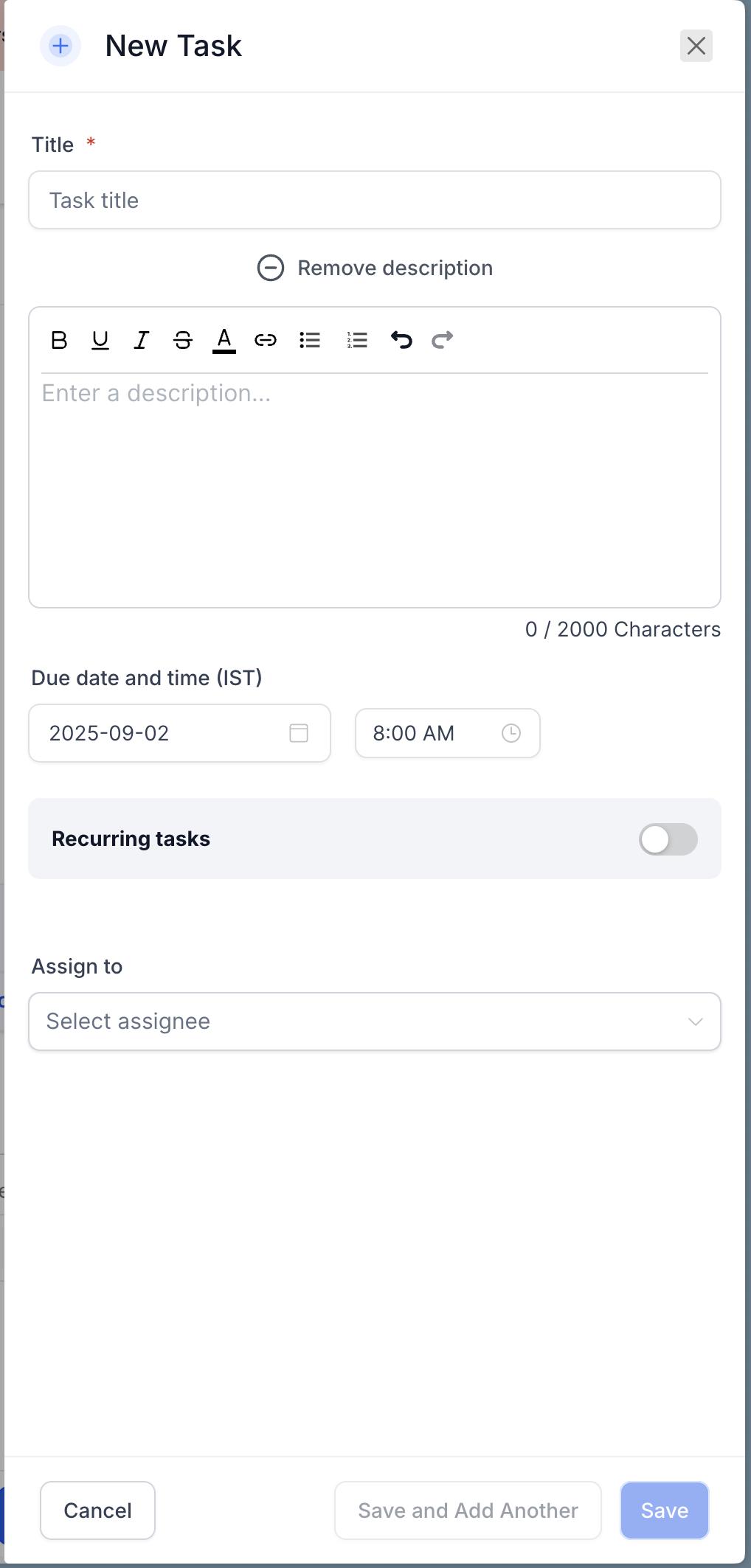
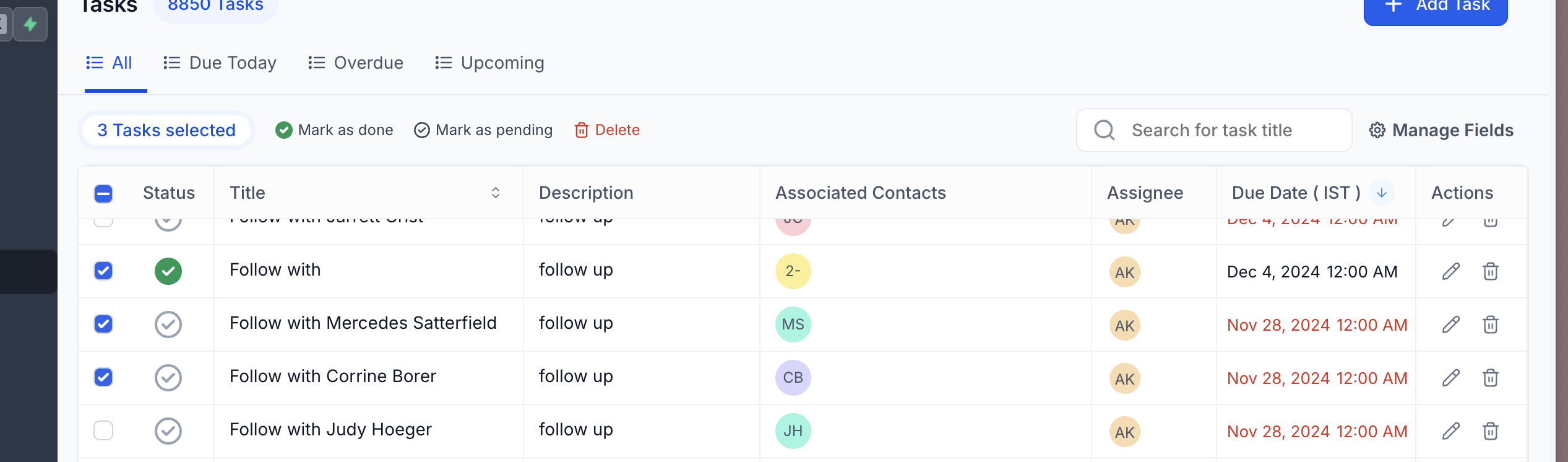
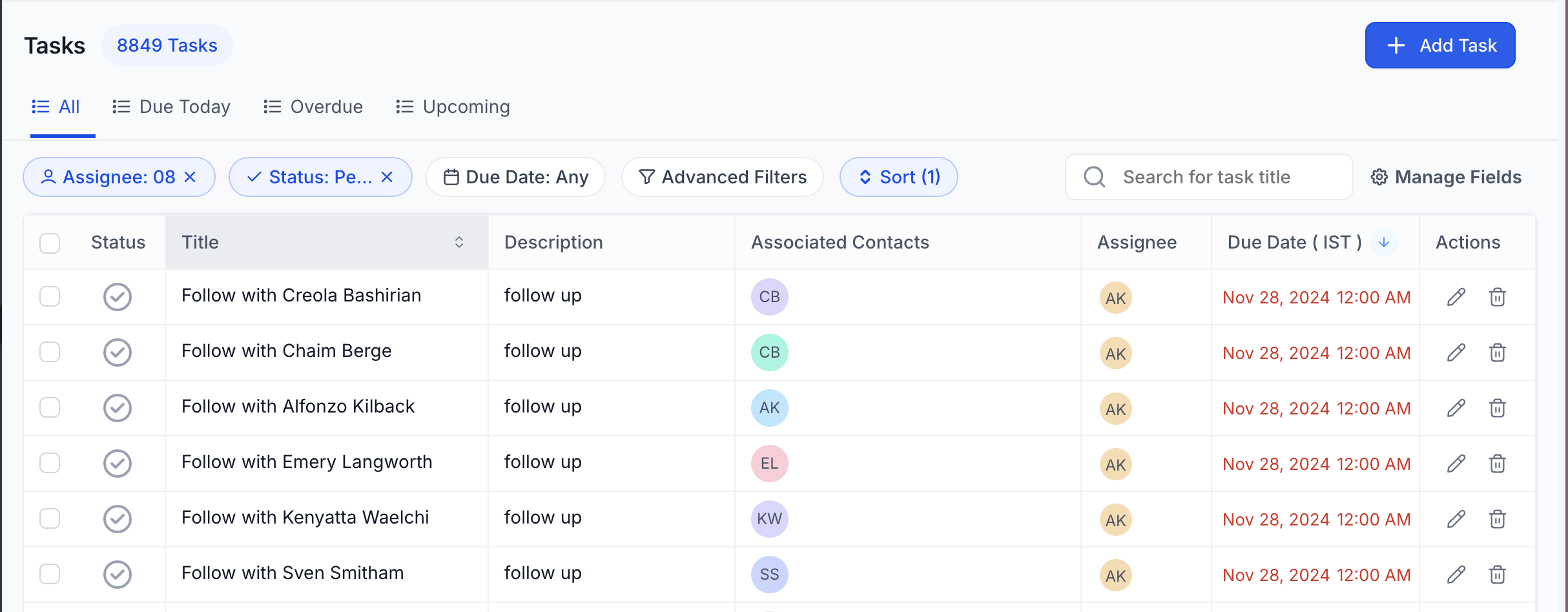
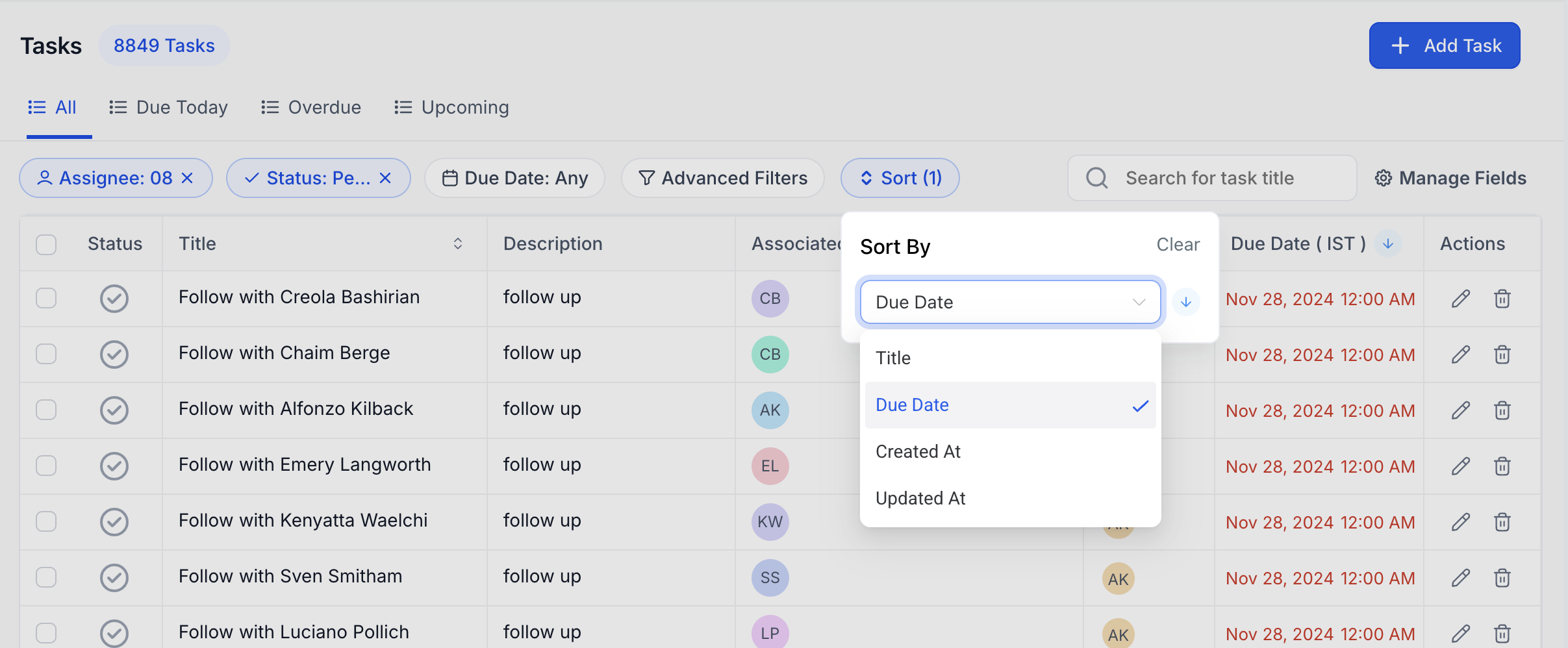
The Tasks List View introduces a range of enhancements designed to improve how you manage and track tasks within your account. With advanced filtering, customizable views, and a more intuitive interface, managing tasks has never been easier. ## Feature 1 - Accessing the Tasks List View!(https://assets.patientcopilot.ai/d7e7f3e9c03df5b5.png) 1. Navigate to Contacts > Tasks from the main menu. 2. Explore the enhanced view with filtering, sorting, and bulk actions available at the top of the list. ## Feature 2 - Creating a new task!(https://assets.patientcopilot.ai/2beac093c2c6cd5a.png) 1. Click + Add Task in the top-right corner. 2. Fill in the following fields: - Title: Add a brief description of the task. - Description (optional): Provide additional details about the task. Add rich text like bold, colored text, URLs. - Due Date and Time: Set a deadline for the task. - Recurring Task (optional): Toggle on to create a task that repeats based on a custom schedule. - Contact (optional): Assign the task to a specific contact. - Assignee (optional): Assign the task to a team member. 3. Click Save to save and move to edit flow or Save and Add Another to continue creating tasks. Note: Add Task creates a contact-less task when no contact exists at runtime; if a contact is present, the task automatically attaches to that contact. ## Feature 3 - Managing Tasks!(https://assets.patientcopilot.ai/7430344124faad56.png) - Edit Fields: Use the pencil icon in the Actions column or click on the title of the task to modify task details. - Delete Tasks: Select a task and click Delete. Deleted tasks can be restored within two months. - Bulk Actions: Select multiple tasks and perform bulk actions such as marking tasks as done or deleting them. Viewing contact-less tasks Workflows can create tasks without a contact. These display as standalone tasks in the Tasks list. Use filters to quickly find and work them. Deleted tasks can be restored within a span of 2 months. ## Feature 4 - Advanced Filters Click Advanced Filters to narrow down tasks by: - Assignee - Status (All, Due Today, Overdue, Upcoming) - Due Date - Custom fields (if applicable)!(https://assets.patientcopilot.ai/22aab8aae03dd39c.png) ## Feature 5 - Sorting Options Click Sort to reorder tasks based on: - Due Date - Title - Created At - Updated At!(https://assets.patientcopilot.ai/134659e53933f542.png) * * * ## Frequently Asked Questions How can I schedule a task due at a specific time from a workflow? Use the “Add Task” workflow action and switch the “Due In” field to Dynamic Mode. This allows you to input a specific date and time (e.g., 05-30-2025 03:00 PM) using a custom value or dynamic variable. Can workflows create contact-less tasks? Yes—Add Task will create a standalone task when no contact is present. How do I find them? Filter by Contact = Unassigned (or the “no contact” token) and optionally add Assignee + Due. Do reminders/notifications apply to contact-less tasks? Yes—add them via workflows (e.g., Task Reminder trigger + Internal Notification). They’re not sent automatically unless you configure them.