
Getting Started - Launch a Course
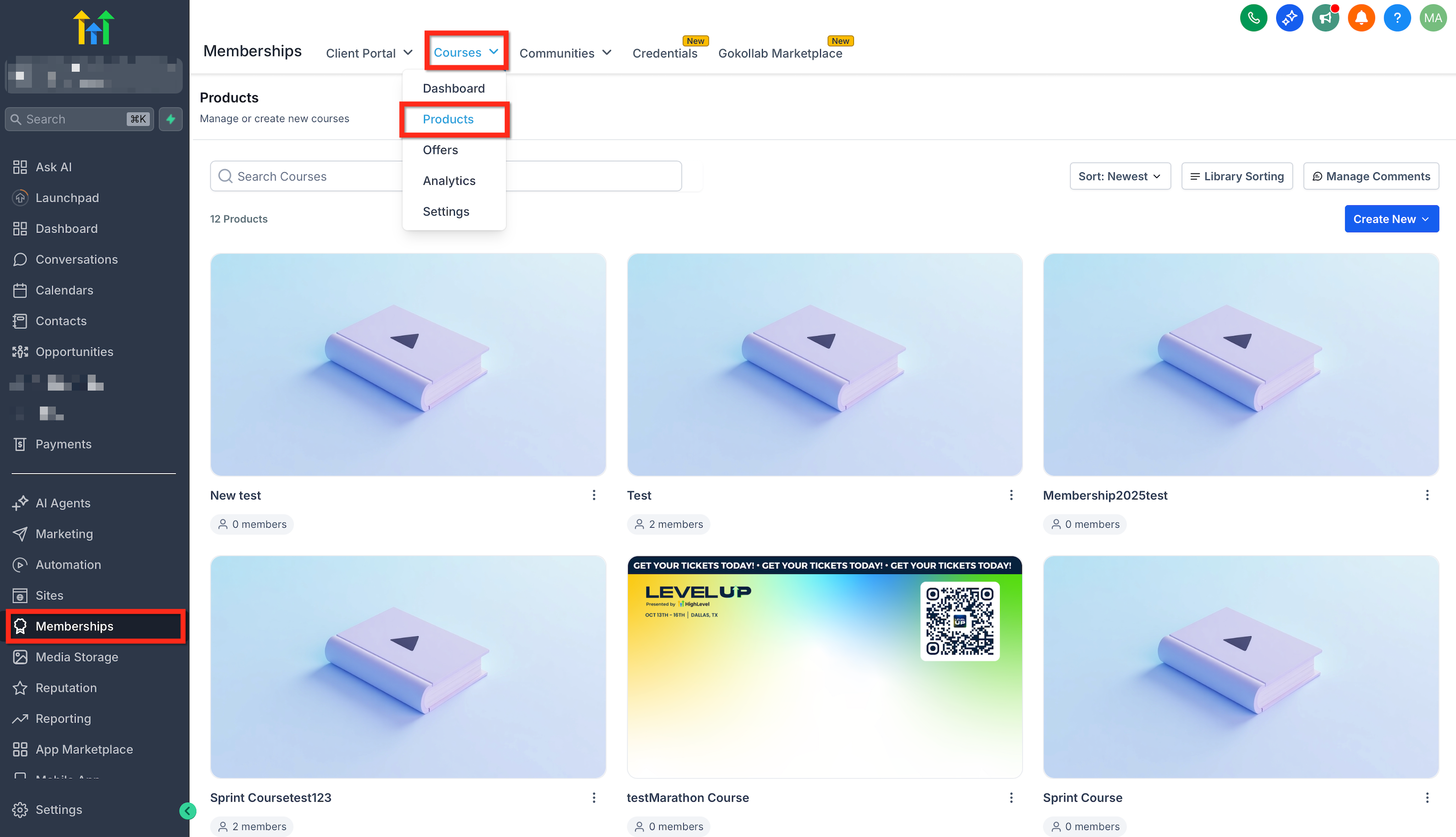
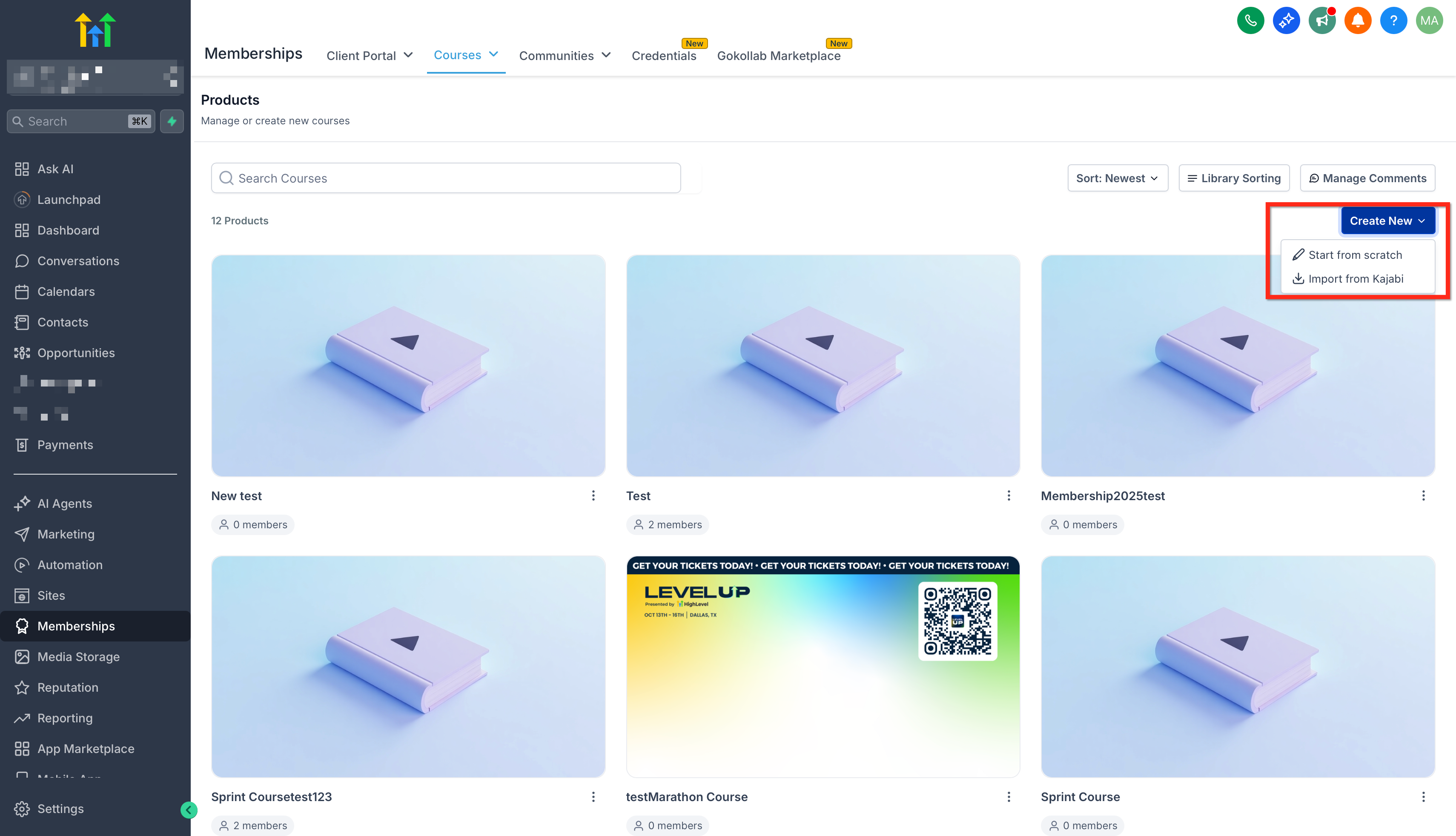
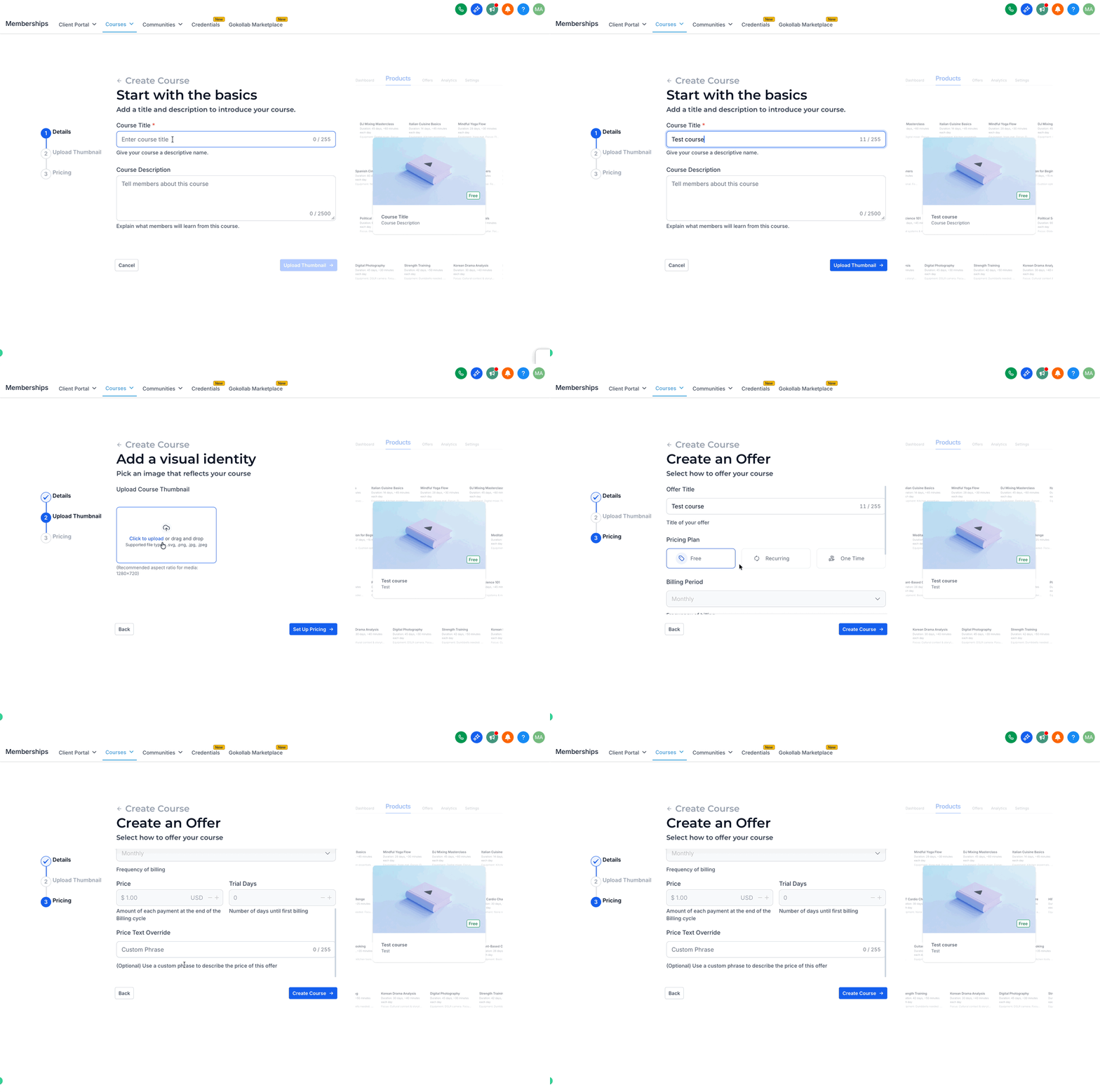
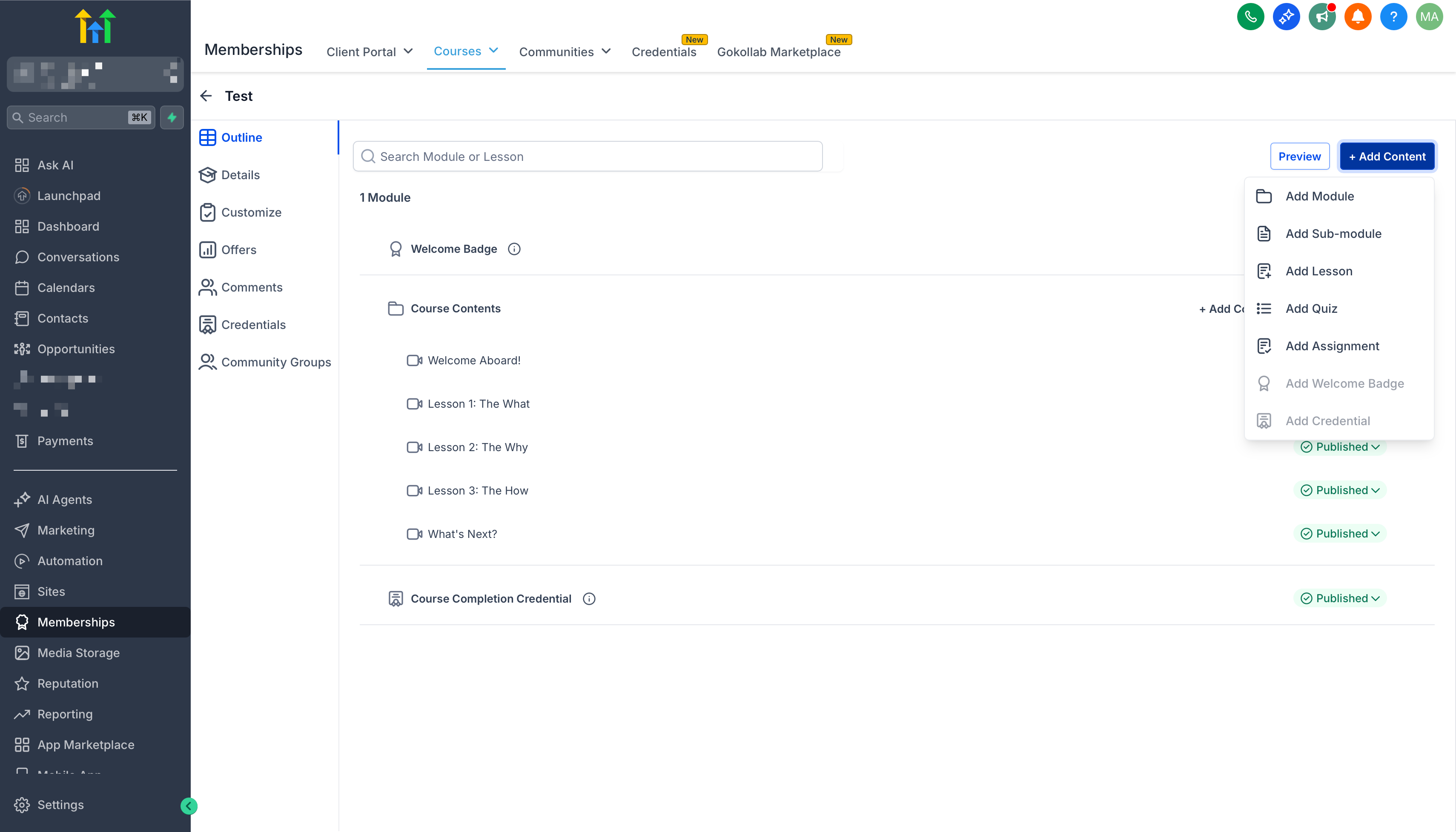
Setting up and launching your online course might seem daunting at first, but trust me—it’s simpler than you think! With just a few clicks, you’ll be on your way to sharing your expertise, building your audience, and even earning some income. Let’s dive in step-by-step. * * * ## Create a Course Creating your first course is like laying the foundation for your teaching empire. It’s exciting and easy—let’s walk through it together. 1. Navigate to Memberships > Courses > Products.!(https://assets.patientcopilot.ai/4da920fd7d5a50c3.png) 2. Click Create Product > Start from Scratch.!(https://assets.patientcopilot.ai/a85a8bf633383e29.png) 3. Add your course details, including the Course Title and Course Description. Upload a thumbnail image for your course. Set the pricing for your course by selecting Free, Recurring, or One Time, then click Create Course.!(https://assets.patientcopilot.ai/948b06bc1f9be31f.gif) 4. Build out your course content from scratch or edit the template. !(https://assets.patientcopilot.ai/b2d93379d4fead75.png) ### Use the course editor (New Layout) After you create the course, Patient Copilot opens the course editor in a large workspace so you can build content faster. What You Will See: - A left panel that shows your course structure (modules, lessons, quizzes, and assignments). - A main editor area for the item you selected. - Breadcrumbs at the top so you always know where you are in the course. Common Actions: - Select any lesson or quiz in the left panel to open it in the editor. - Drag and drop items in the left panel to reorder content. - Expand or collapse modules to focus on one section at a time. Note: UI labels and button names may vary by account rollout. Next step: Explore more ways to enhance your course: - How To Build Courses / Membership Sites
- Paid Courses inside Communities
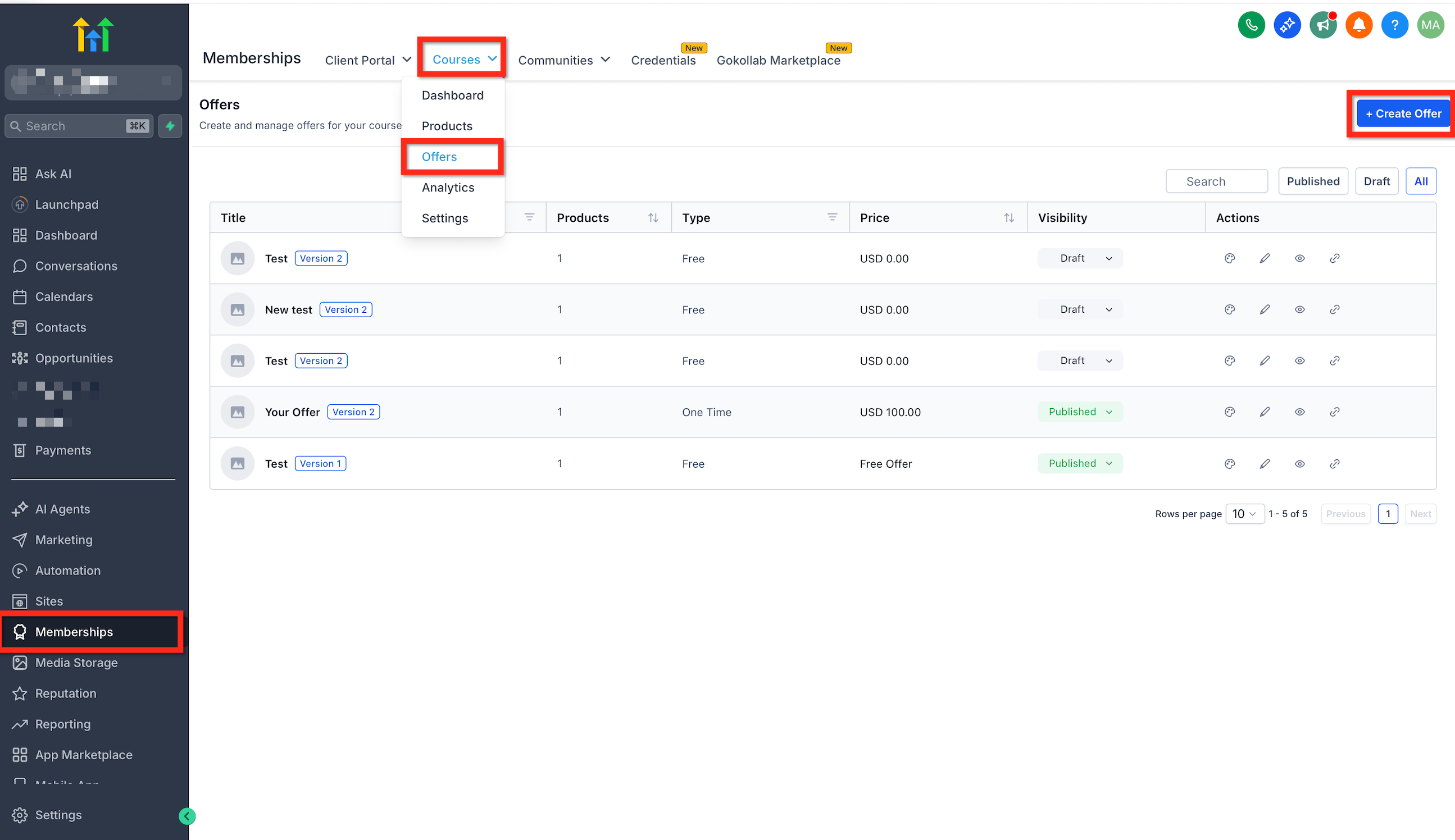
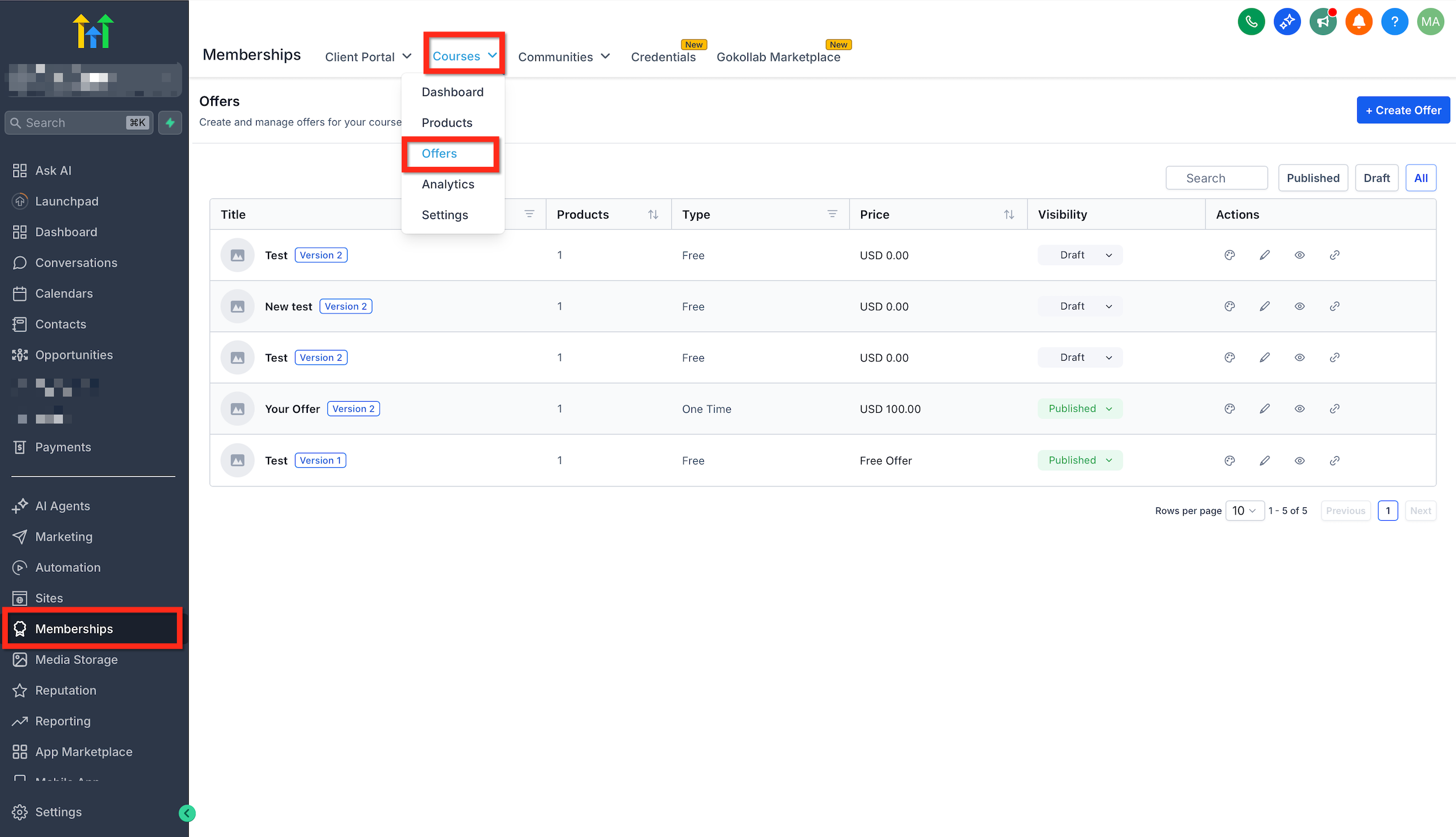
- Advanced Course Unlock Options in Communities * * * ## Create an Offer Once your amazing course is ready, creating an offer is like packaging a beautiful gift—enticing and clearly valuable. Here’s how to make it irresistible: 1. Navigate to Memberships > Courses > Offers.
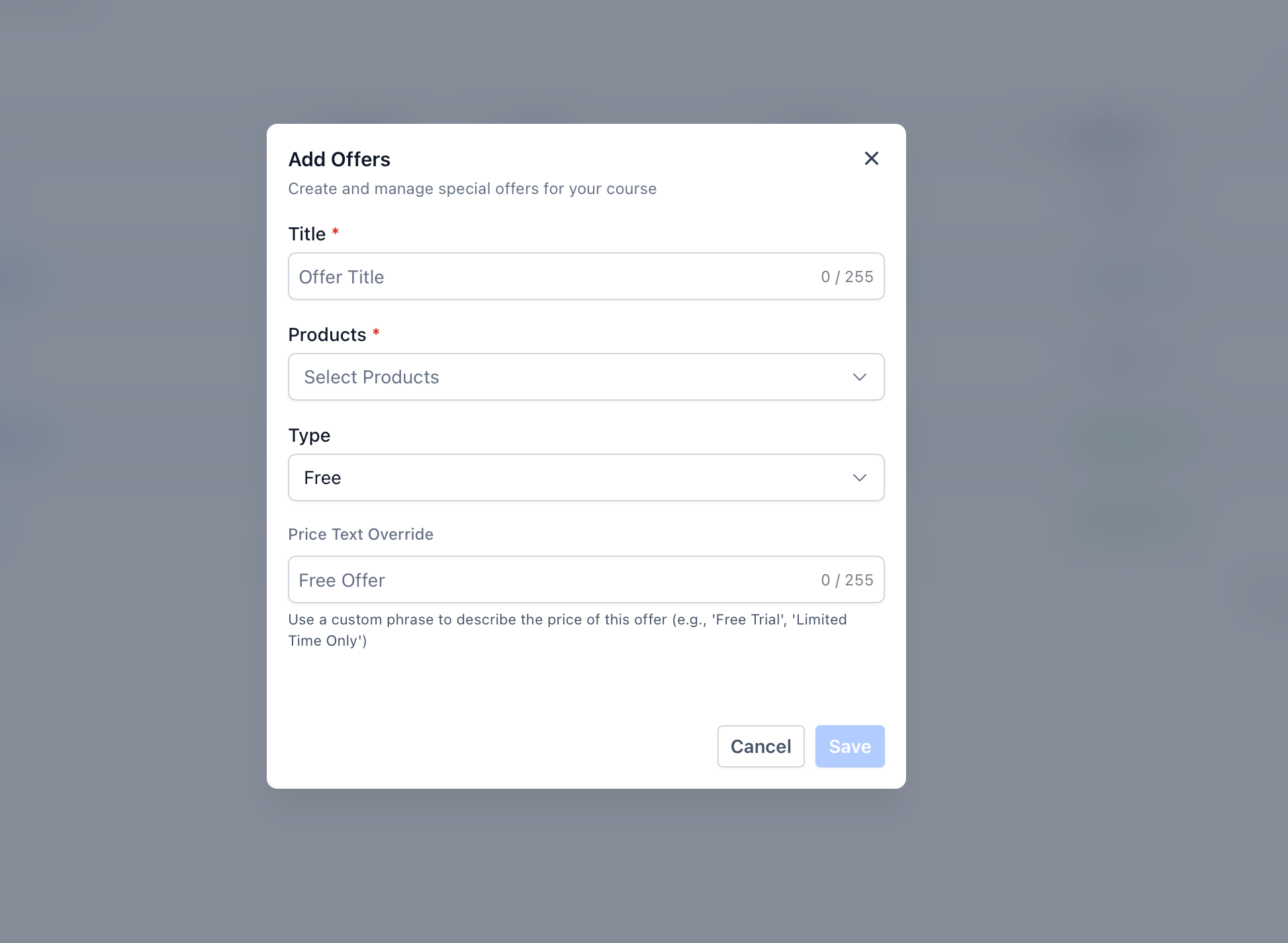
- Click Create Offer.!(https://assets.patientcopilot.ai/7919ee1f49843e8f.png) 3. Fill in your offer details to clearly communicate the value.
- Assign your newly created course product to the offer.
- Set your desired price.
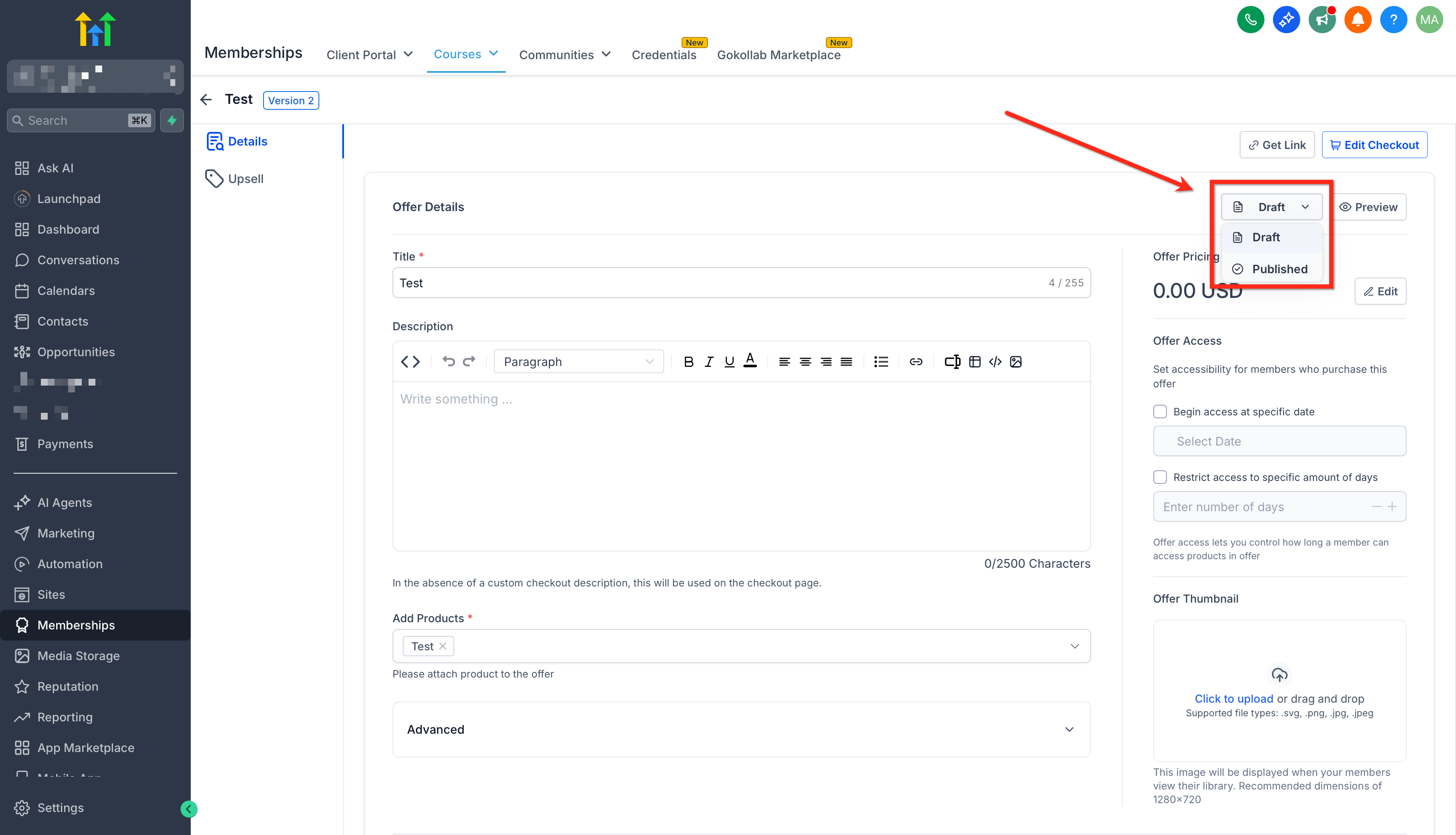
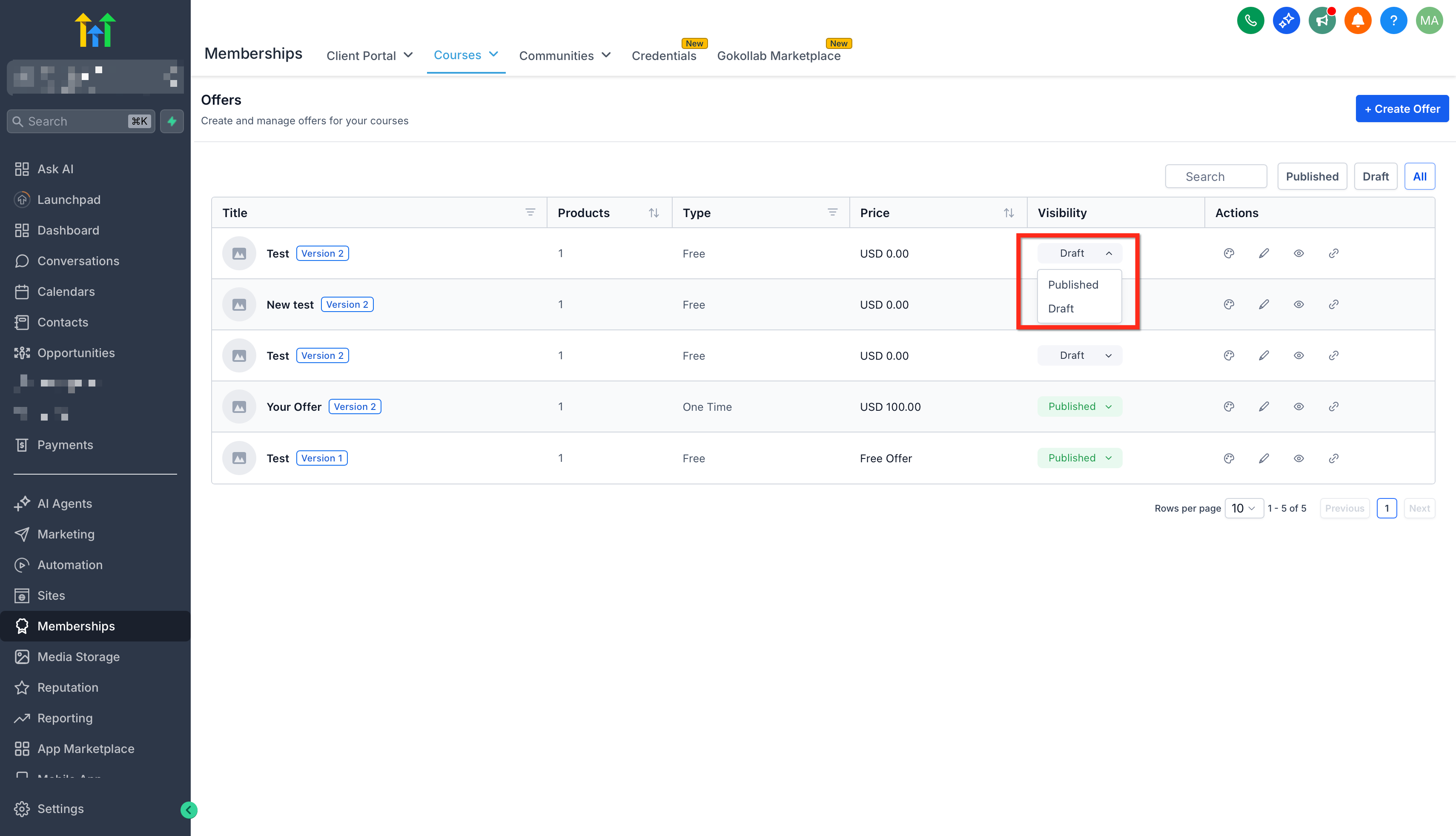
- Click Create.!(https://assets.patientcopilot.ai/f1cc5abfbd1e1fc8.png) 7. Switch your Offer from Draft to Published and click Save.!(https://assets.patientcopilot.ai/6e7c46fc699954dc.png) 8. Or switch between draft and published directly in the offers list.!(https://assets.patientcopilot.ai/fd1af63200d23883.png) Next you can: Consider bundling offers or creating discount codes to attract more learners. * * * ## Sell Offer Congratulations, your offer is ready to share with the world! The final step is all about connecting with your audience. Let’s quickly generate and share your offer: 1. Navigate back to Memberships > Courses > Offers.!(https://assets.patientcopilot.ai/5df80c775e02a8cf.png) 2. Click the link icon to get the link for an offer.
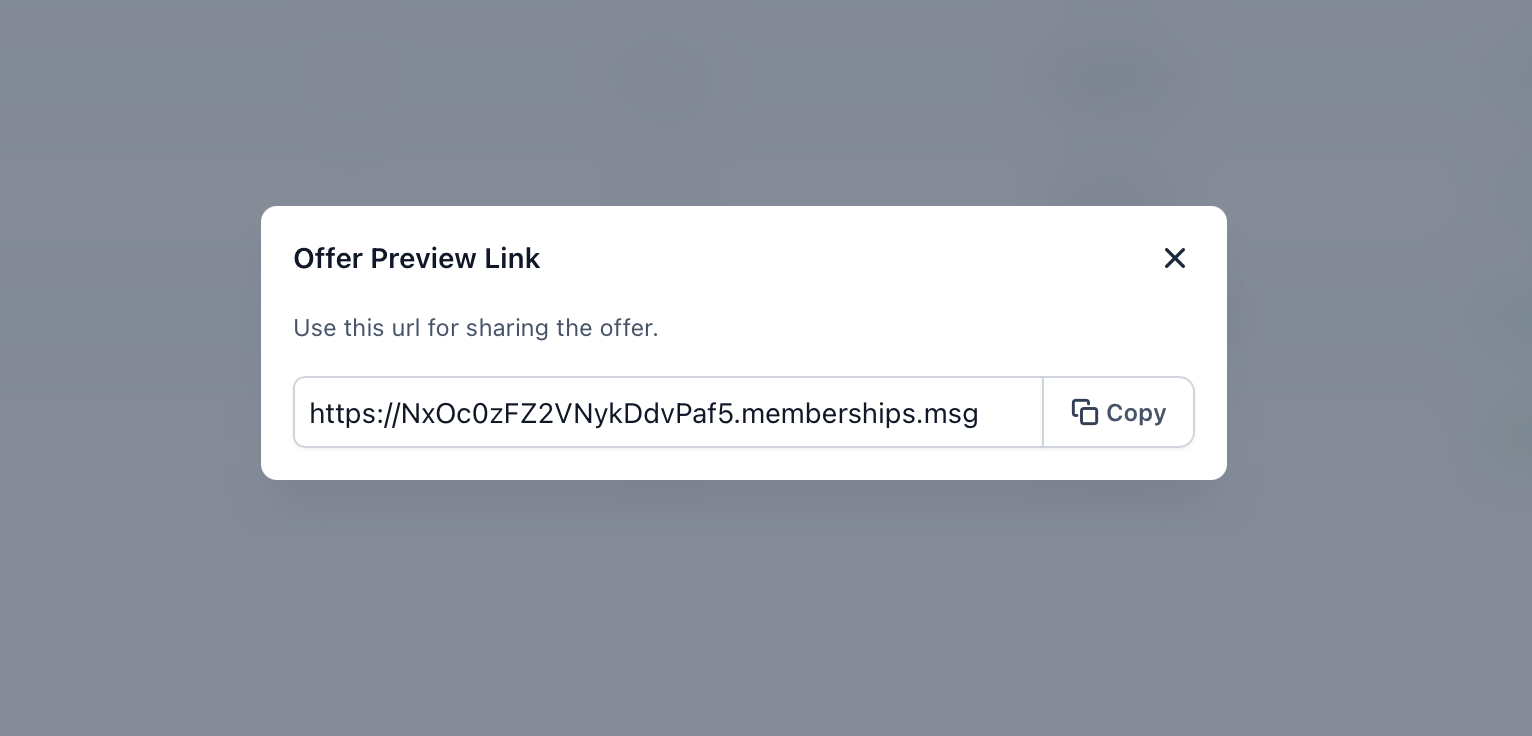
- Click Copy.!(https://assets.patientcopilot.ai/2aec83389aafb95a.png) 4. Share it across your channels—social media, emails, or your website. Next you can: Explore marketing strategies or launch a campaign to boost your course sales. * * * ## Related Articles - Learning Tab (Courses)
- Paid Courses inside Communities
- How to Grant Access to Membership Courses Using Workflows Was this article helpful? That’s Great! Thank you for your feedback Sorry! We couldn’t be helpful Thank you for your feedback Feedback sent We appreciate your effort and will try to fix the article