How to Collect User Inputs with Capture Tools in Agent Studio
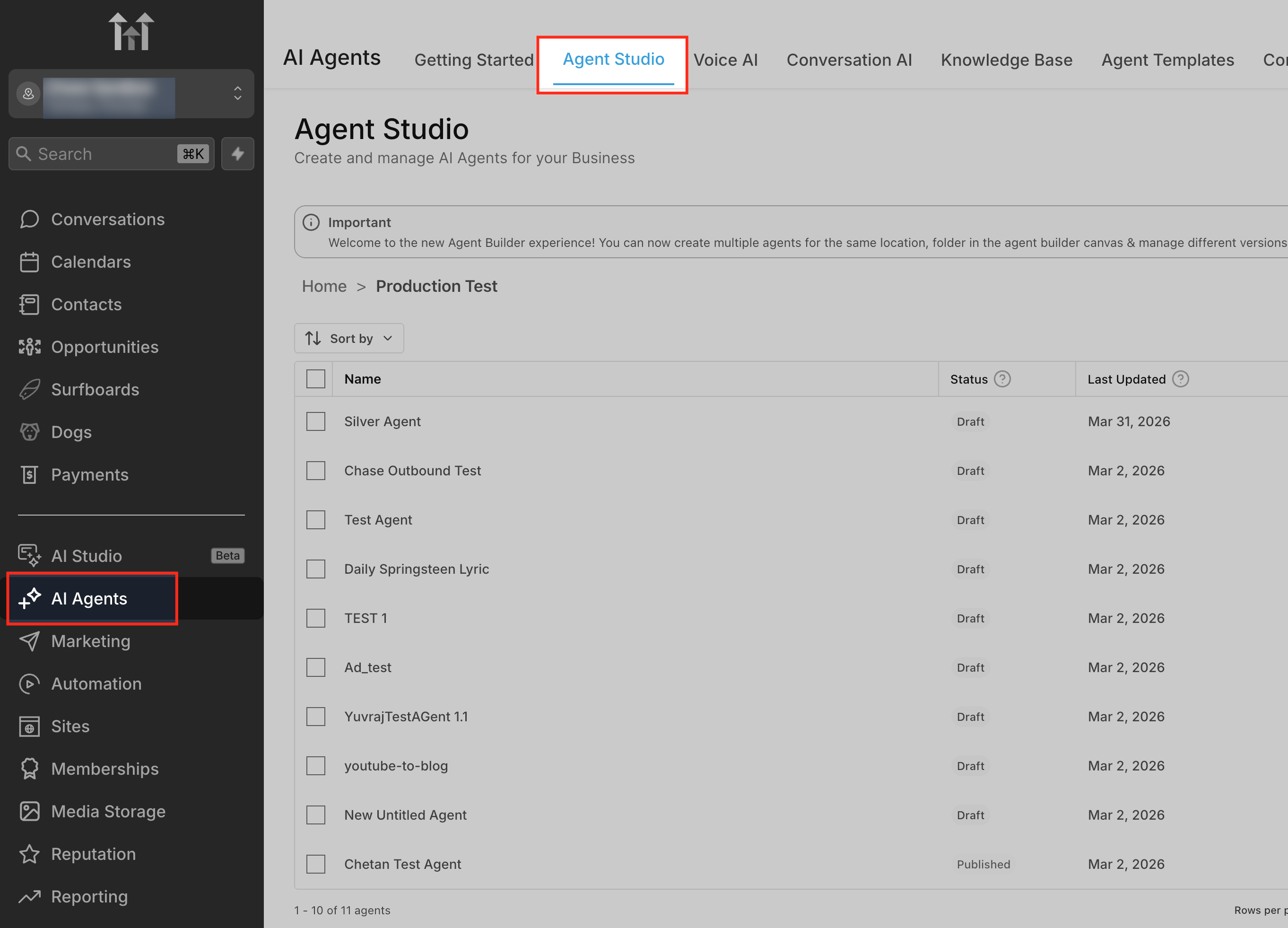
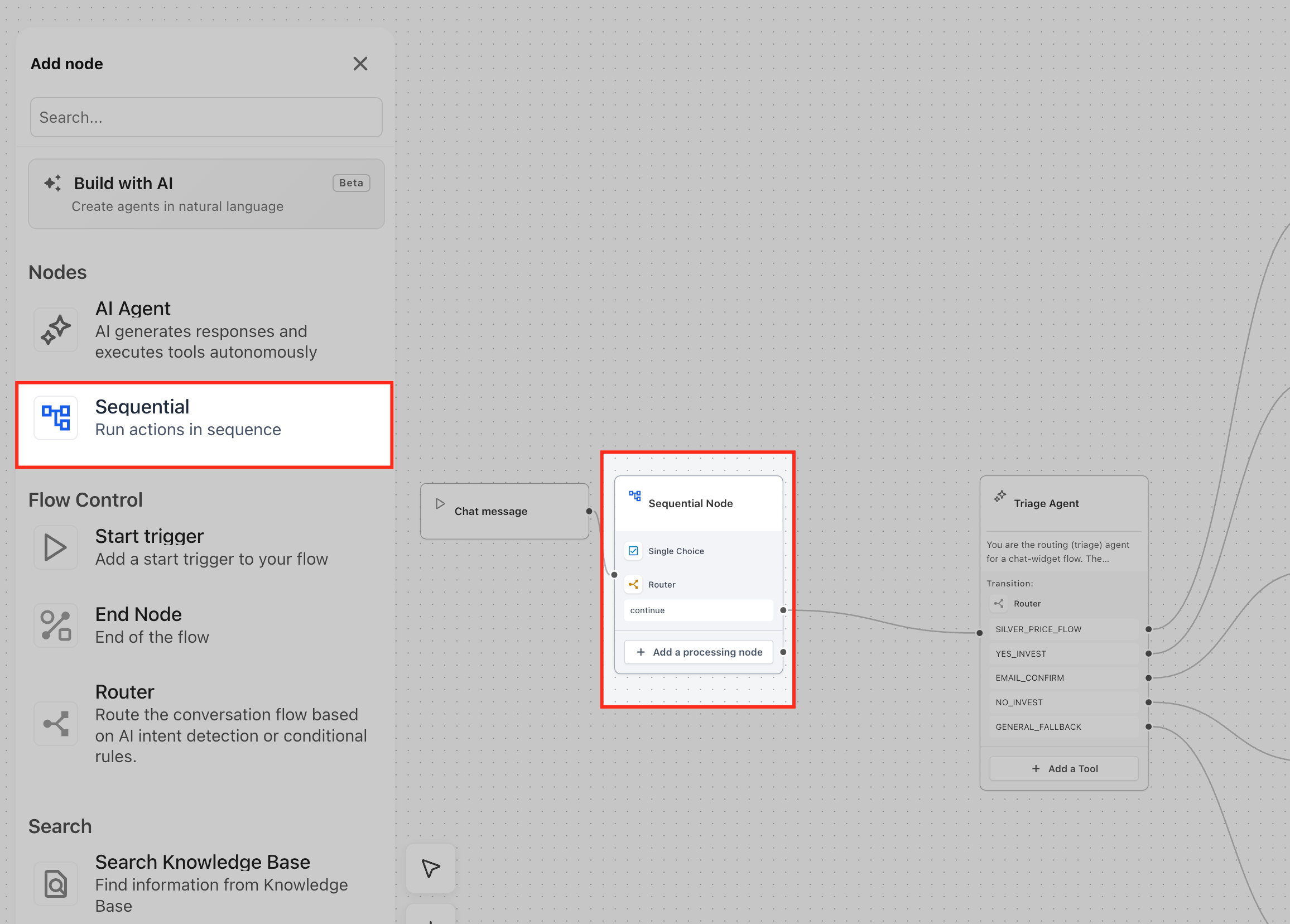
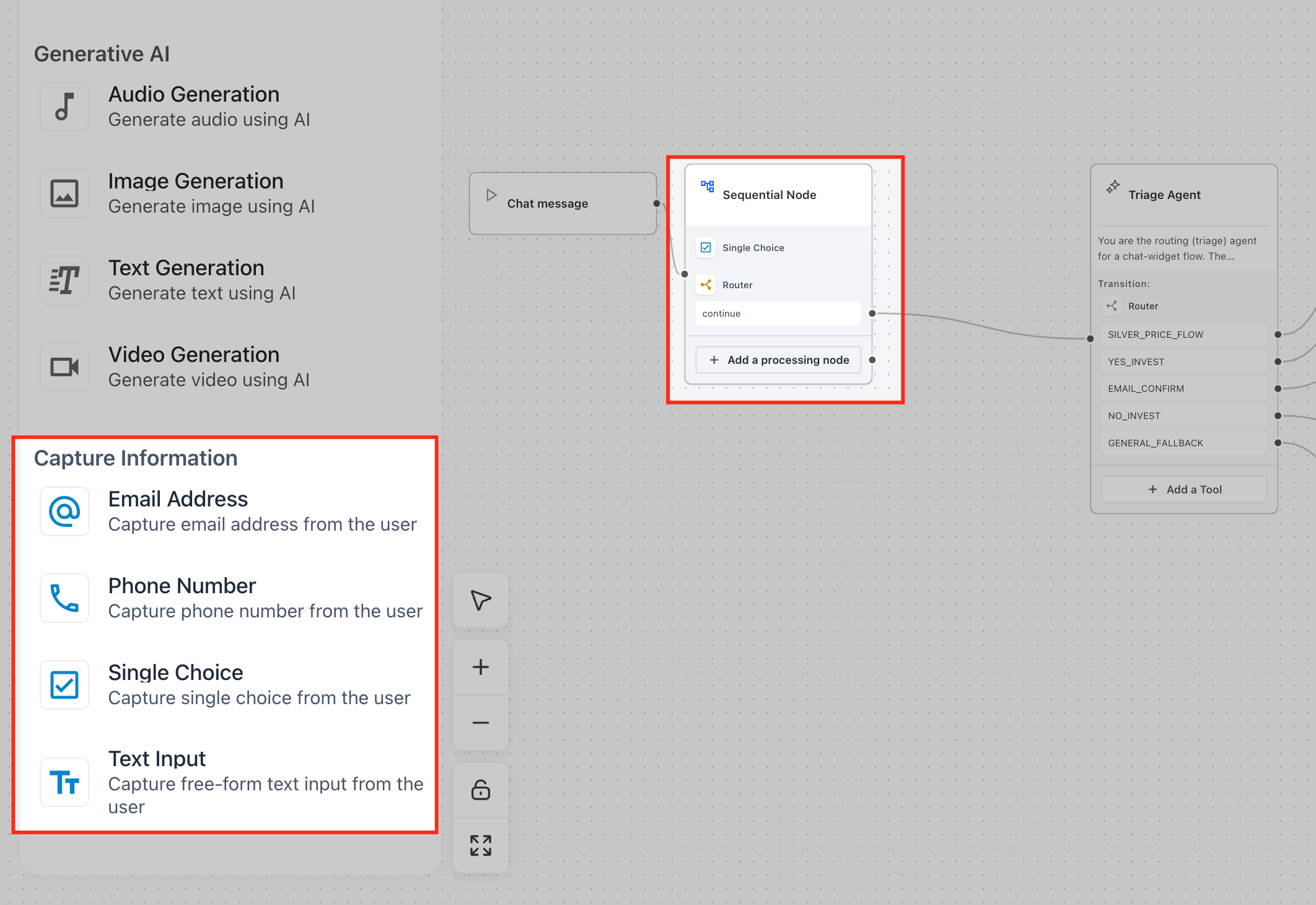
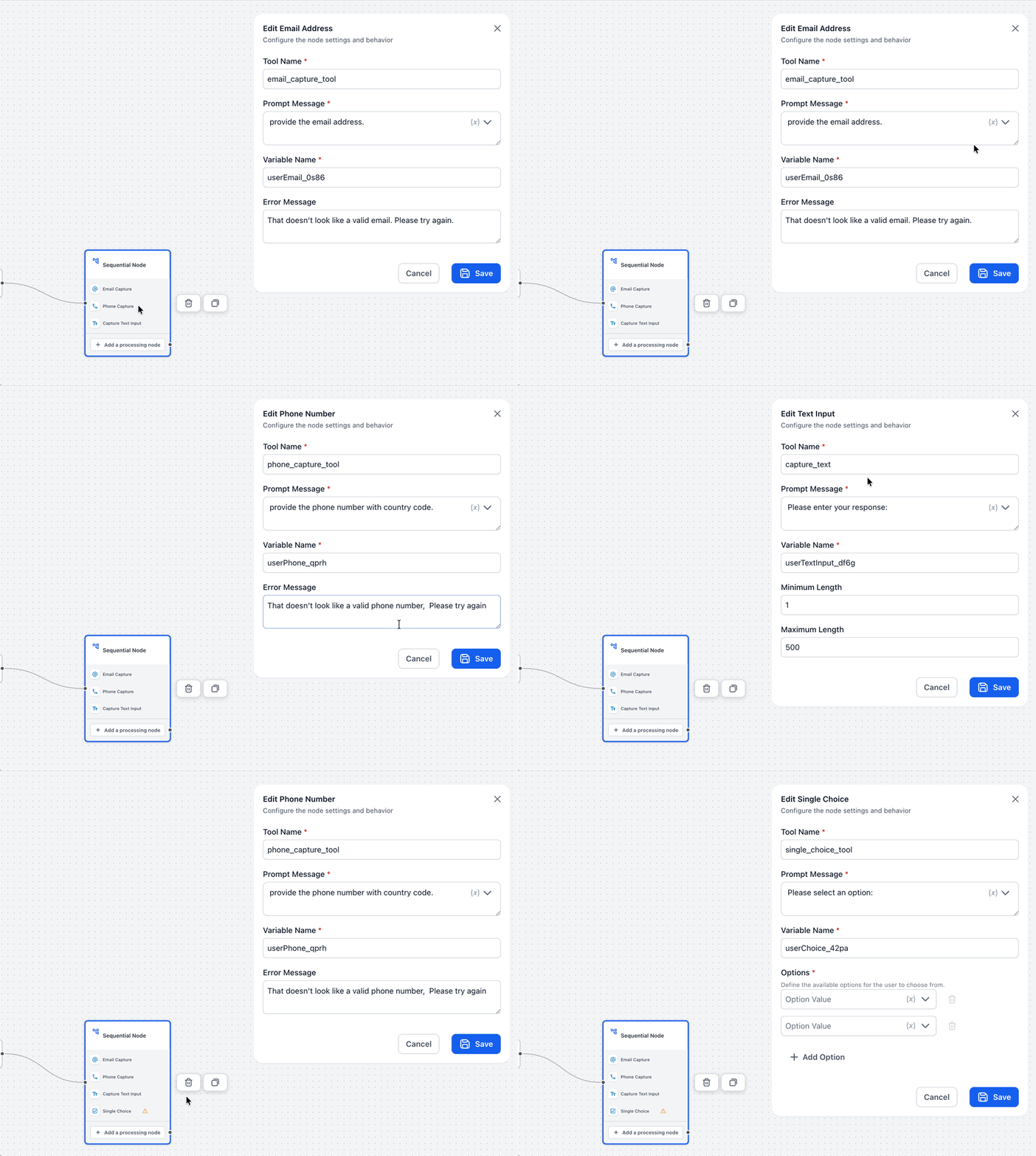
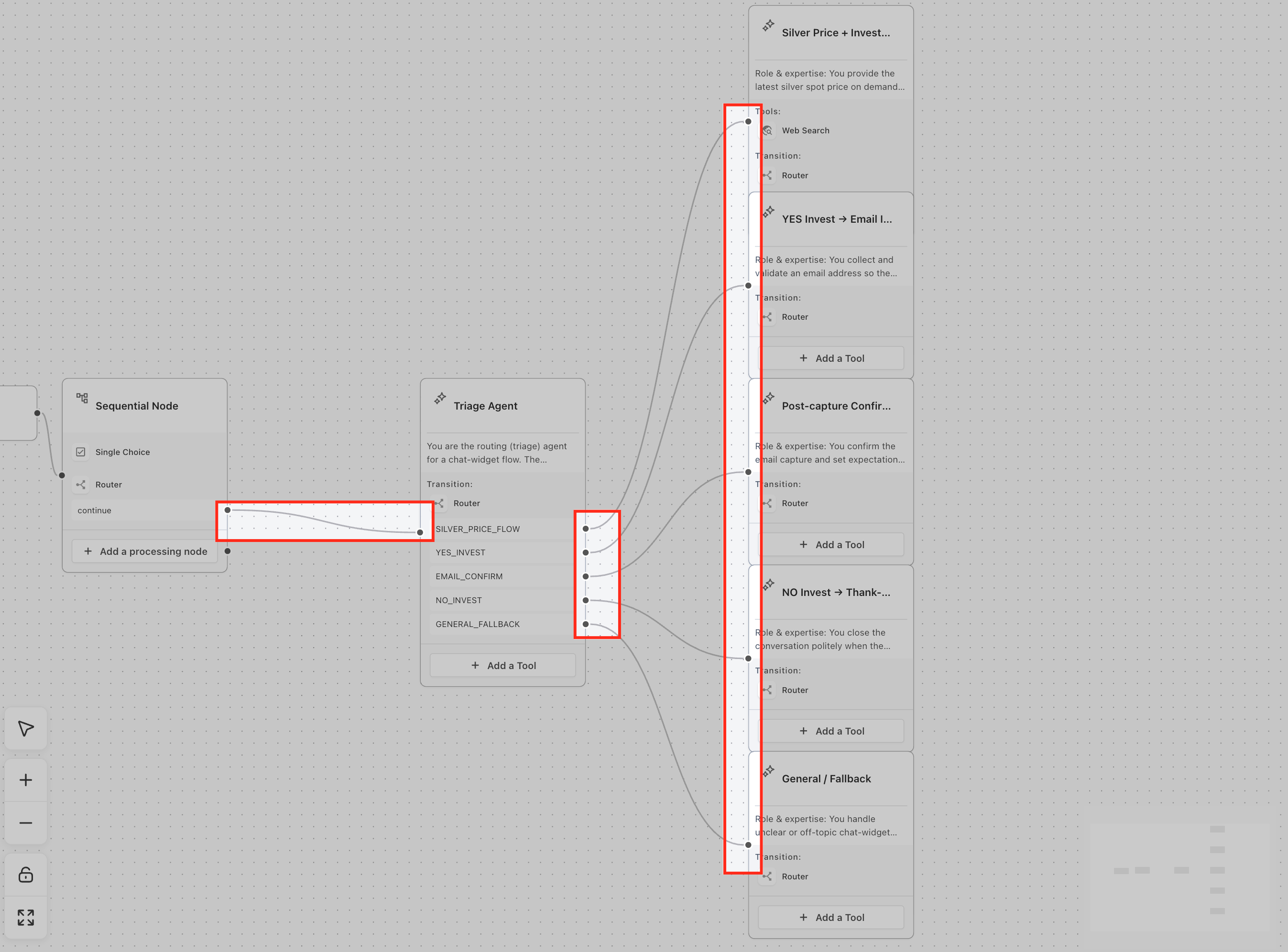
Patient Copilot’s Capture Information tools in Agent Studio help you collect specific user inputs during a conversation, such as an email address, phone number, selected option, or free-form text response. These tools are used inside a Sequential Node to gather structured information step by step before the agent continues to the next part of the flow. * * * ## How Capture Information Tools Work Capture Information tools work inside a Sequential Node. A Sequential Node runs each configured step one by one, allowing the agent to ask for information in a controlled order. For a detailed explanation of how Sequential Nodes work, see How to Build Structured Agent Flows Using Sequential Node in Agent Studio. When a Capture Information tool is added to a Sequential Node, the agent prompts the user for the required input. After the user responds, the answer is saved and can be used later in the flow. For example, you can create a sequence that asks: - What is your email address? - What is your phone number? - Who is the target audience? Once the user answers each question, the captured responses can be passed to another node, such as an AI Agent node, where they can be used to generate a personalized response or complete the next action. * * * Agent Studio currently includes four Capture Information tools. ### Email Address The Email Address tool captures an email address from the user. Use this when the agent needs a valid email before continuing, such as for sending confirmations, follow-ups, lead details, or application information. Example: Please provide your email address so we can send you the details. ### Phone Number The Phone Number tool captures a phone number from the user. Use this when the agent needs contact information for callbacks, sales qualification, appointment follow-up, or support routing. The tool helps ensure the user enters a valid phone number before the flow continues. Example: Please enter your phone number so our team can follow up with you. ### Single Choice The Single Choice tool lets the user select one option from a predefined list. Use this when the agent needs the user to choose from fixed options, such as a service type, interest level, audience category, support topic, or next step. The selected option can be used to route the conversation or personalize the next response. Example: What would you like help with? Pricing Booking a call Product support General inquiry ### Text Input The Text Input tool captures free-form text from the user. Use this when the user needs to type a custom answer, such as a topic, question, description, business name, goal, or special request. Example: What topic would you like the content to be about? * * * Capture Information tools should be added inside a Sequential Node. A typical setup looks like this: - Start with a trigger, such as a chat message,Lead Tag etc. - Add a Sequential Node. - Add one or more Capture Information tools inside the Sequential Node. - Configure the prompt for each tool. - Save the user’s response into a variable. - Use the captured value in the next node or route. In the shared example, the flow begins with a Chat message trigger. The conversation then moves into a Sequential Node that contains a Single Choice capture tool. After the user selects an option, the flow continues to a Router and then to a Triage Agent, which sends the user down the correct path based on the conversation design. This allows the agent to collect the required input before deciding what should happen next. * * * ## Using Captured Information Later in the Flow Captured information can be reused later in the agent flow as runtime variables. This means the response collected from the user can be inserted into later prompts, messages, or actions. For example, if a Sequential Node captures: Topic: AI in beauty Target audience: Older adults Email address: user@example.com Phone number: +1 555 123 4567 The next AI Agent node can use those values to generate a personalized output, such as: Generate a blog post about the captured topic for the selected target audience. Include the captured email address and phone number as contact details. This helps connect structured data collection with AI-powered actions while keeping the input process predictable. * * * Follow these steps to add Capture Information tools to an agent flow. ### Step 1: Open your agent Go to Agent Studio. Open the agent you want to edit.!(https://assets.patientcopilot.ai/292bab1042645f47.png) ### Step 2: Add or select a Sequential Node Add a Sequential Node to the canvas, or open an existing Sequential Node where you want to collect information.!(https://assets.patientcopilot.ai/1b9406da318bfd52.png) ### Step 3: Choose a Capture Information tool From the left panel, go to Capture Information. Choose one of the available tools: Email Address Phone Number Single Choice Text Input Drag the tool into the Sequential Node.!(https://assets.patientcopilot.ai/f6cc6d5cd3cbcdd2.png) ### Step 4: Configure the prompt Add the message or question you want the agent to ask the user. Examples: Please provide your email address. What phone number should we use to contact you? Which option best describes your request? What topic would you like the content to cover?!(https://assets.patientcopilot.ai/4615f5275b8927f5.gif) ### Step 5: Save the response as a variable Assign a variable name to the captured response so it can be referenced later. Examples: email phone_number selected_interest topic These variables work like reusable values in the rest of the agent flow. ### Step 6: Connect the next node After the Sequential Node collects the required information, connect it to the next step in your flow. This may be: A Router An AI Agent node A confirmation message Another action or processing node In the example screenshot, the Sequential Node is connected to a Triage Agent, and the Triage Agent’s router outputs are connected to different follow-up agent nodes based on the user’s selected response. This means once the capture step is completed, the flow can route the conversation to the correct next step, such as silver price details, investment interest, email confirmation, no-invest response, or a general fallback.!(https://assets.patientcopilot.ai/7ed47b28dbcb478d.png) ### Step 7: Test the flow Run a test conversation to confirm that: Each question appears in the correct order Email and phone number inputs validate correctly Single Choice options display as expected Responses are saved into the correct variables The next node uses the captured information correctly * * * ## Frequently Asked Questions **Q: Where can I find Capture Information tools? **Capture Information tools are available in the left panel of Agent Studio under the Capture Information section. **Q: Which Capture Information tools are available? **The available tools are Email Address, Phone Number, Single Choice, and Text Input. **Q: Do Capture Information tools use AI? **No. Capture Information tools are designed for structured input collection and do not require AI to collect the answer. **Q: Which node supports Capture Information tools? **Capture Information tools are used inside a Sequential Node. **Q: Can I use Capture Information tools inside an AI Agent node? **Capture Information tools are intended for Sequential Nodes. If you need AI reasoning, use an AI Agent node after the captured values are collected. **Q: Can captured information be used later in the flow? **Yes. Captured responses can be stored as variables and referenced in later nodes, prompts, messages, or actions. **Q: Can Single Choice route users to different paths? **Yes. The selected option can be used with a Router or later logic to send users to the correct path. **Q: Can the Phone Number tool validate the user’s number? **Yes. The Phone Number tool helps collect a valid phone number and can prompt the user again if the entered value is not valid. **Q: What is a good use case for Text Input? **Text Input is useful for collecting free-form answers, such as a topic, description, question, business name, or custom request. * * * ### Related Articles - AI Agent Studio Overview - Using Sequential Nodes in Agent Studio - Using AI Agent Nodes in Agent Studio - Using Runtime Variables in Agent Studio - Routers in Agent Studio