Categories in Services
Make your booking page effortless to browse with clearly labeled categories. This article covers how to use Categories to create, edit, share, delete, and reorder groups of related services so clients find what they need faster. * * * ## What are Categories? Categories are used to group similar or related services, making it easier for customers to navigate your offerings. Categories appear on your booking page as organized sections, with each service listed under its assigned category. For example, a spa might have categories like Massage, Hair, Skin, and Salon, with multiple services listed under each. * * * ## Key Benefits of Categories Understanding these benefits keeps your booking page tidy and ensures customers see the right services in the right place. - Organization: Group services into named sections that appear on the booking page.
- Faster Discovery: Help customers quickly scan to the services they care about.
- Direct Sharing: Use a Category URL (slug) to share a link that shows only that category’s services.
- Control Display Order: Control the order the categories are in on the customer‑facing booking page.
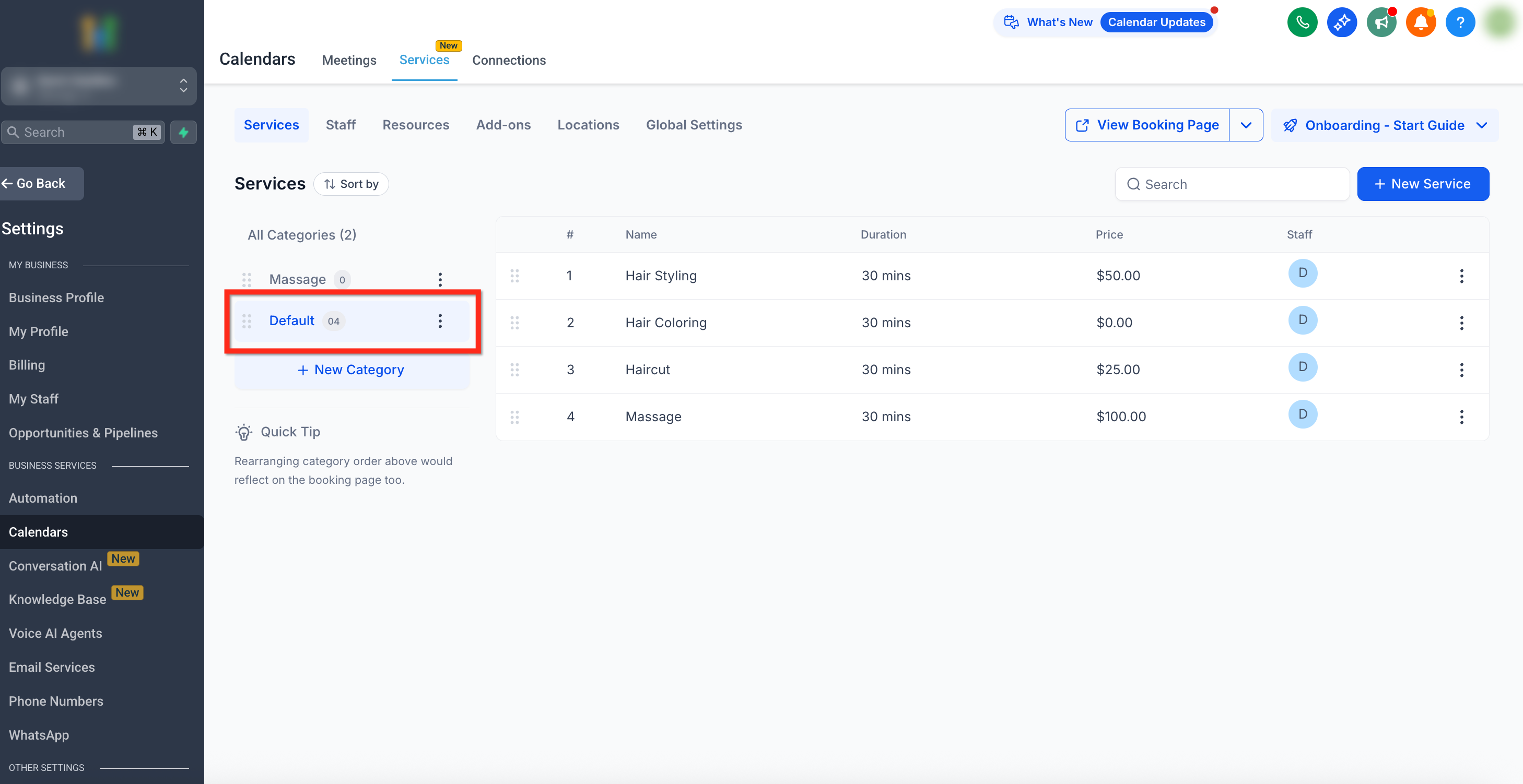
- Built‑in Fallback: A Default Category exists so deleted categories’ services (and unassigned new services) remain bookable. * * * ## Default Category Every account starts with a Default Category, which: - Cannot be deleted (but it can be renamed).
- Any new service that isn’t assigned a category will be placed into the Default Category by the system.
- If a category is deleted, all its services will be moved into the Default Category to ensure they remain bookable. This way, every service always belongs to a category, keeping your booking page organized and functional.!(https://assets.patientcopilot.ai/1f7146cbc6cc5794.png) * * * ## Creating a New Category Set up a category to group related services and generate a shareable link for that category. 1. Navigate to Calendar > Calendar Settings > Services.
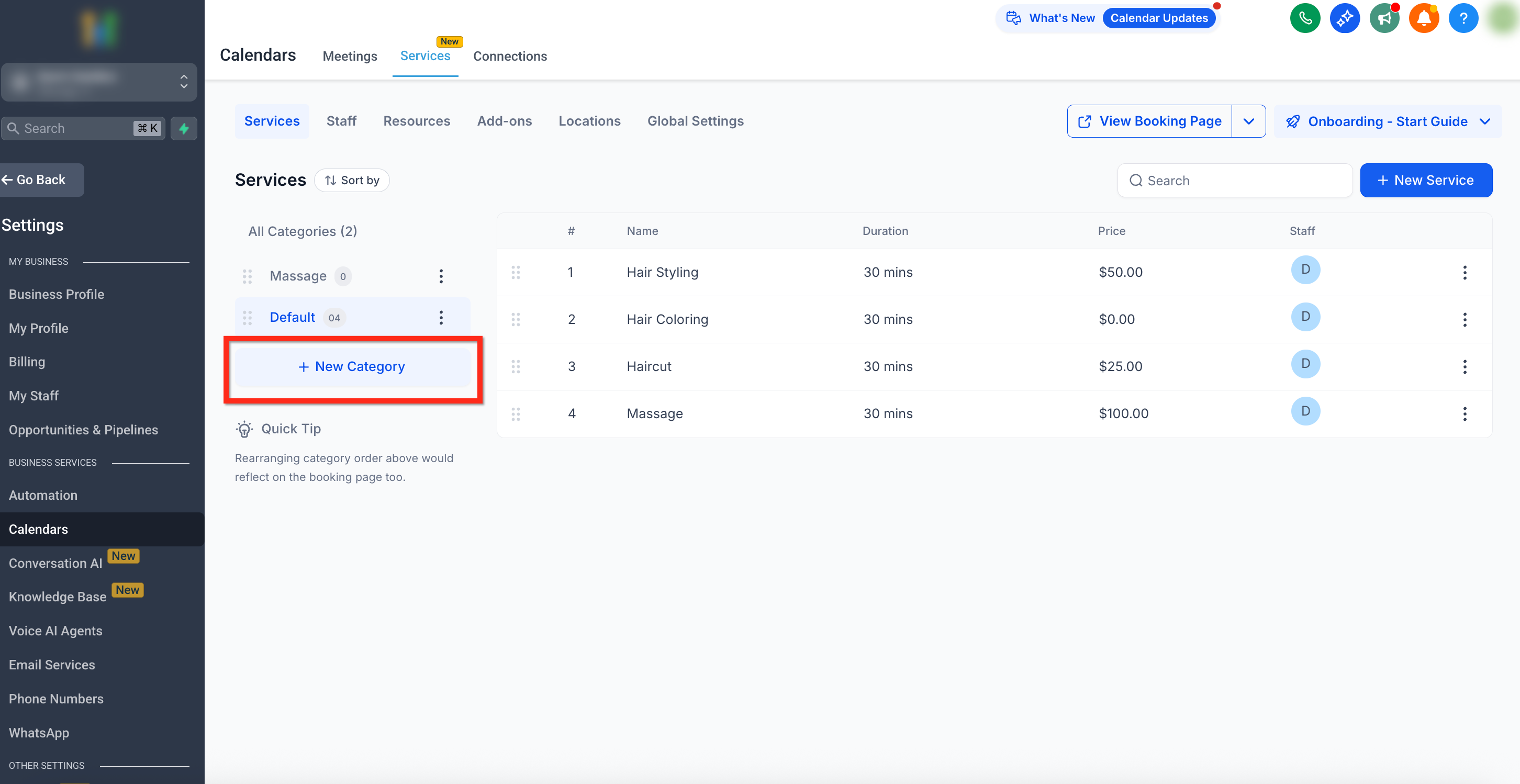
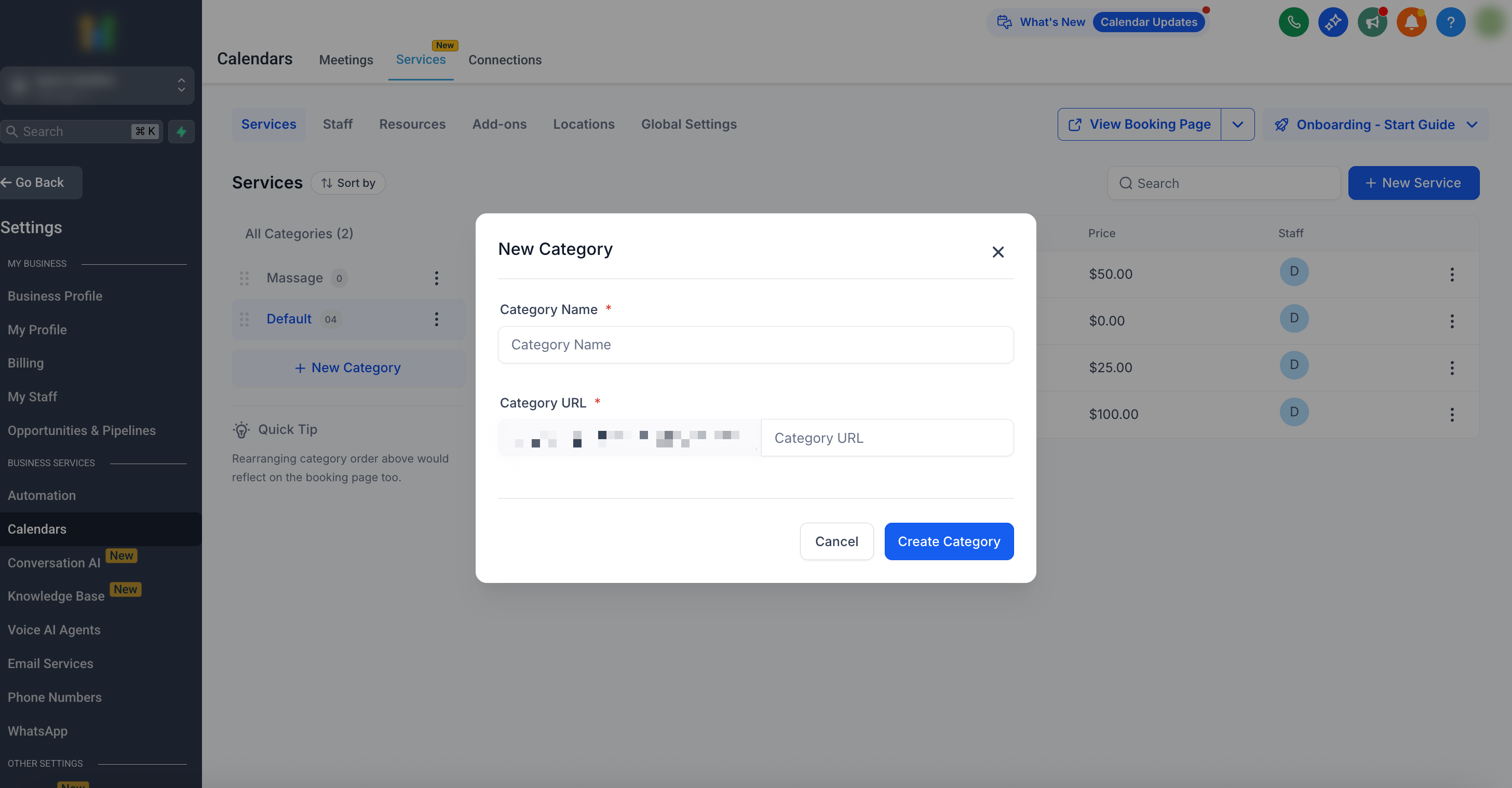
- In the left sidebar, click + New Category.!(https://assets.patientcopilot.ai/86631a6b70f7dfce.png) 3. Enter a Category Name.
- Define the Category URL (slug) — this creates a direct share link for the category.
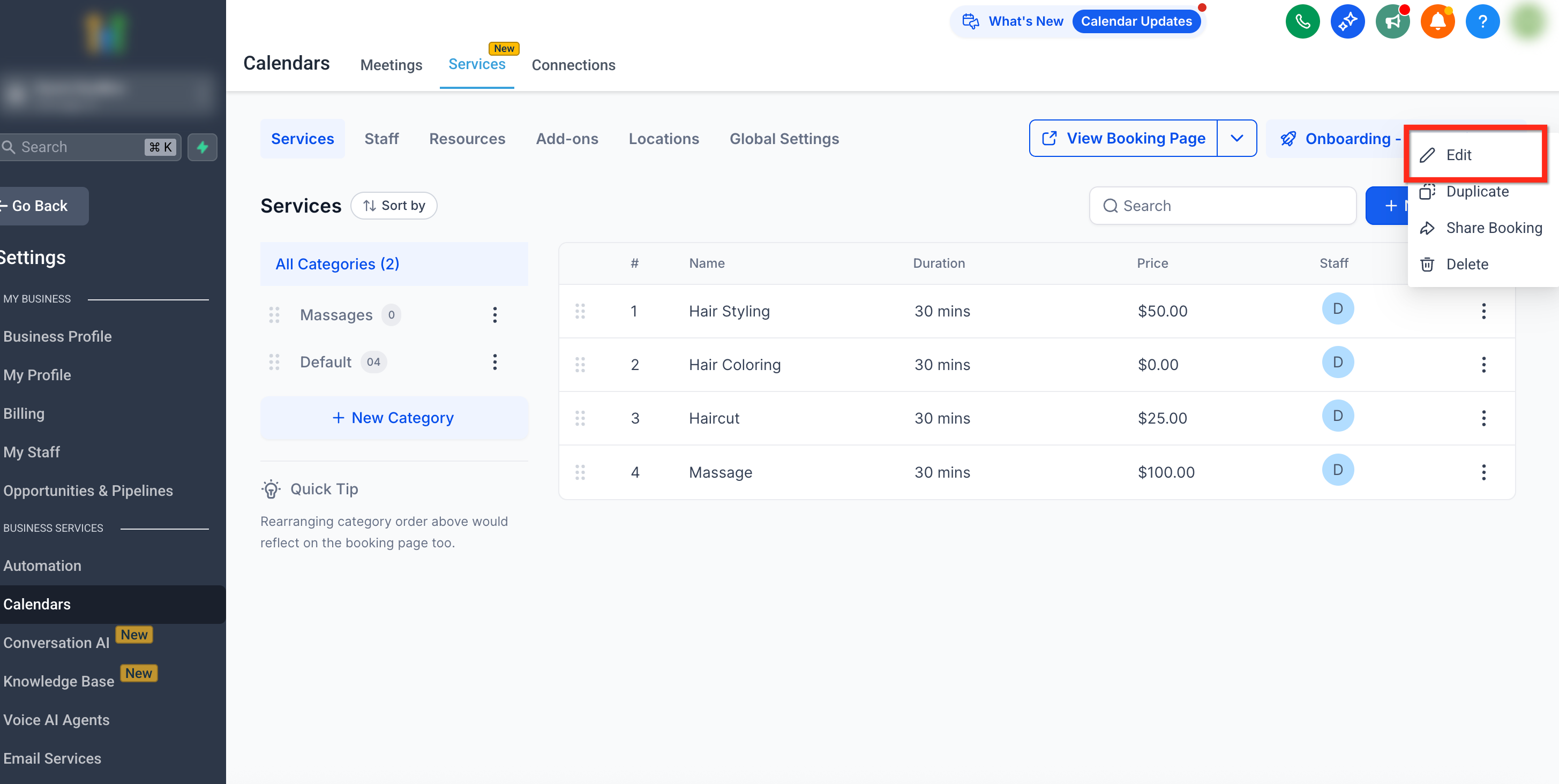
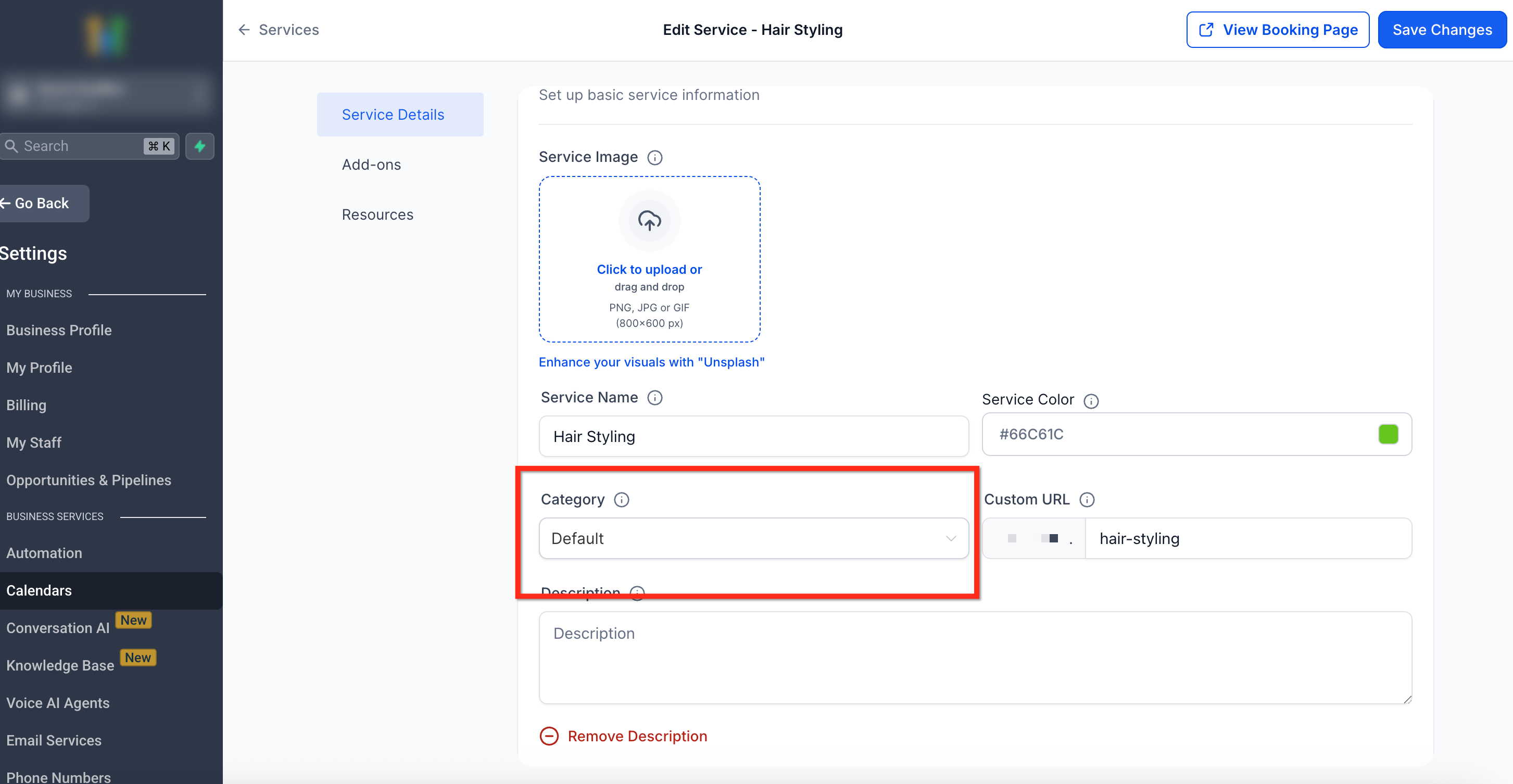
- Save your changes by clicking the blue Create Category button.!(https://assets.patientcopilot.ai/98a96834dd829fe0.png) If you already have services created, you can assign them to this new category after creation. * * * ## Assigning a Service to a Category Place each service under the right category so it appears in the correct section on your public booking page. Unassigned services live in the Default Category, and services from a deleted category are moved there automatically. You can reassign them whenever needed. 1. Click the three-dot menu next to a Service.
- Select Edit.!(https://assets.patientcopilot.ai/a30082cd29fe0d8a.png) 3. Use the Category dropdown to select the category the service will be assigned to.
- Save your changes by clicking the blue Save Changes button in the top right.!(https://assets.patientcopilot.ai/b270b34c999f66cc.png) * * * ## Editing a Category Rename a category or adjust its shareable URL as your offerings evolve. 1. Click the three-dot menu next to a category.
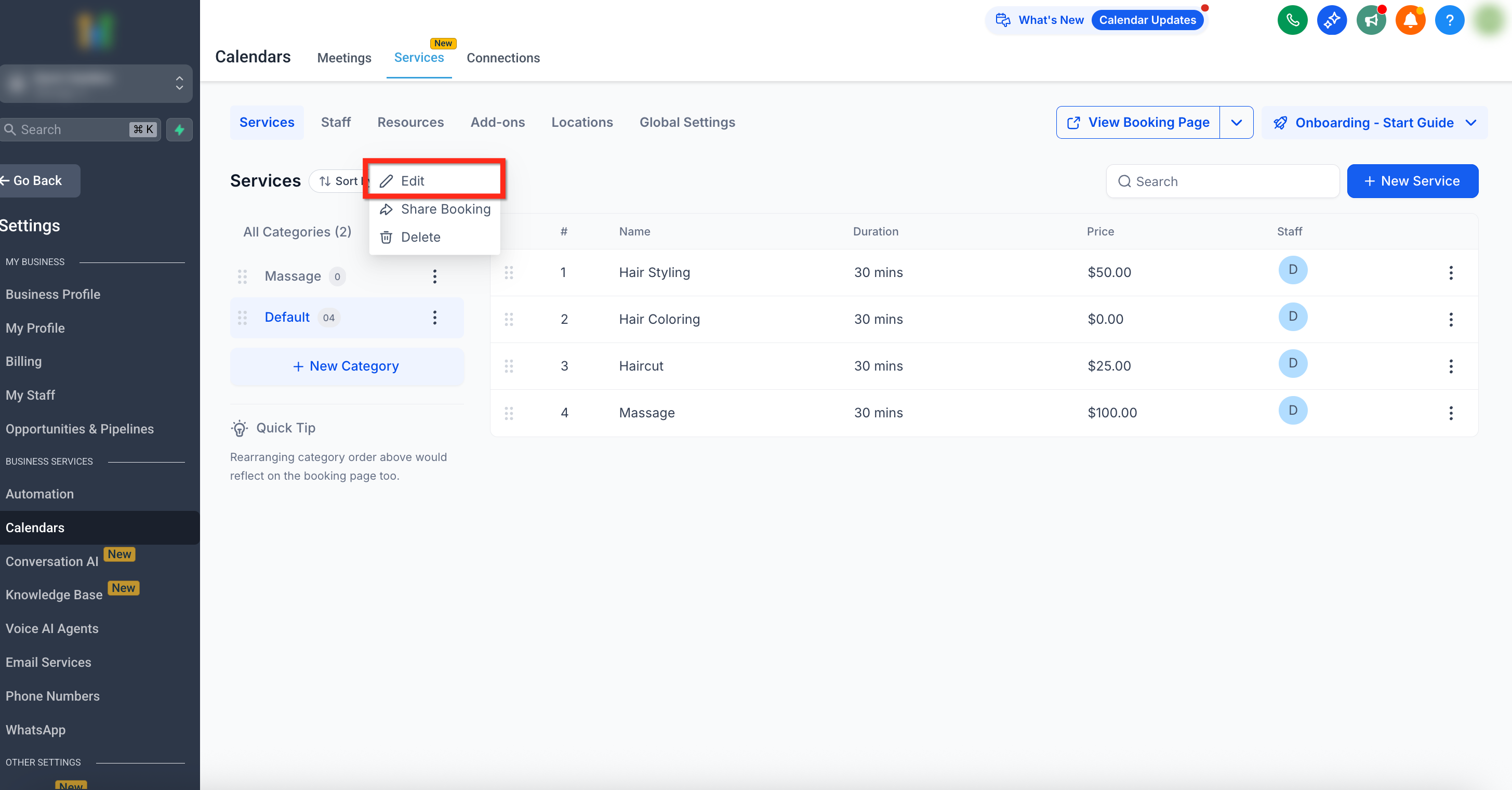
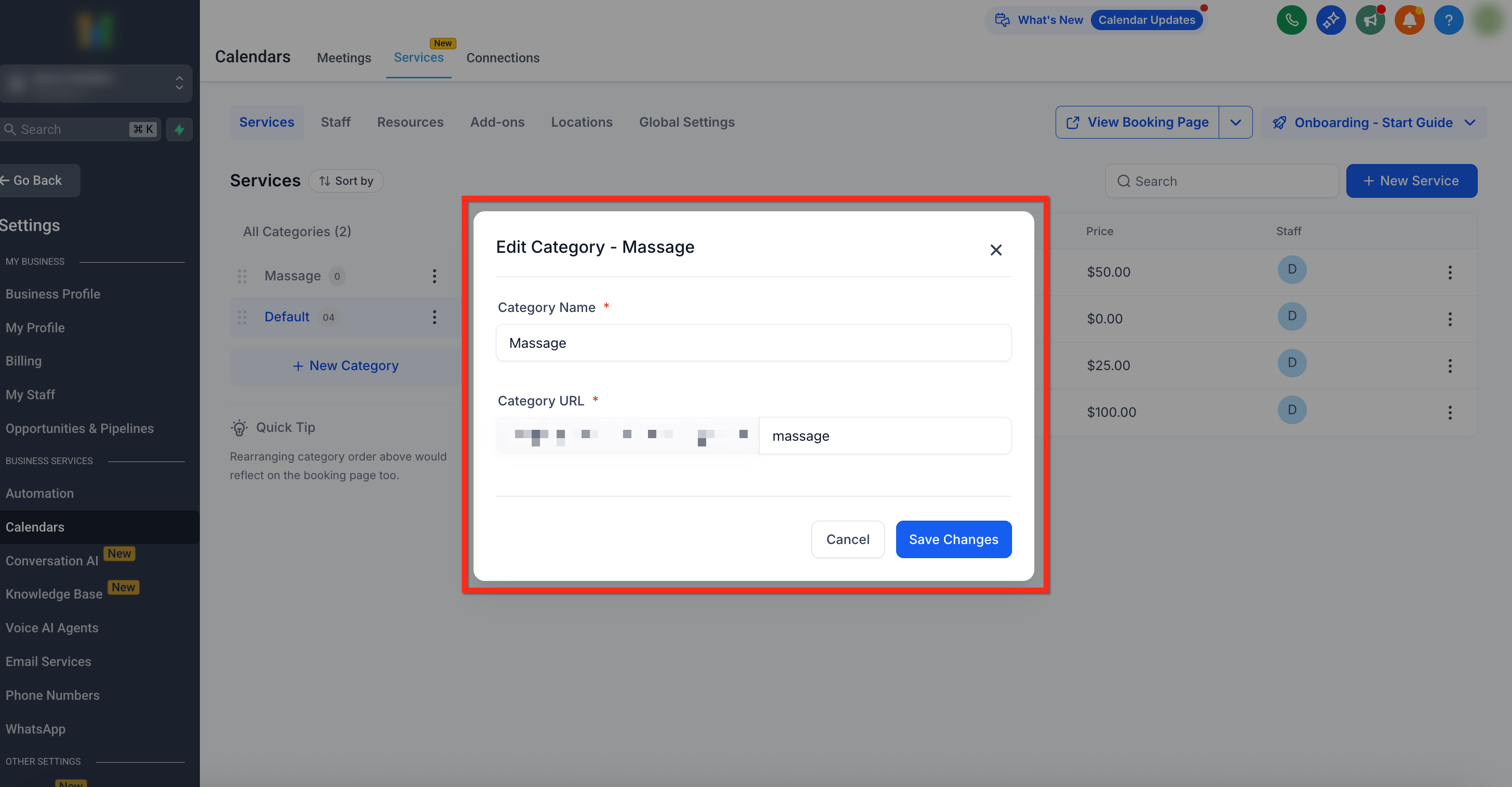
- Select Edit.!(https://assets.patientcopilot.ai/03650a5abc9ada78.png) 3. Update the Category Name or Category URL (slug).
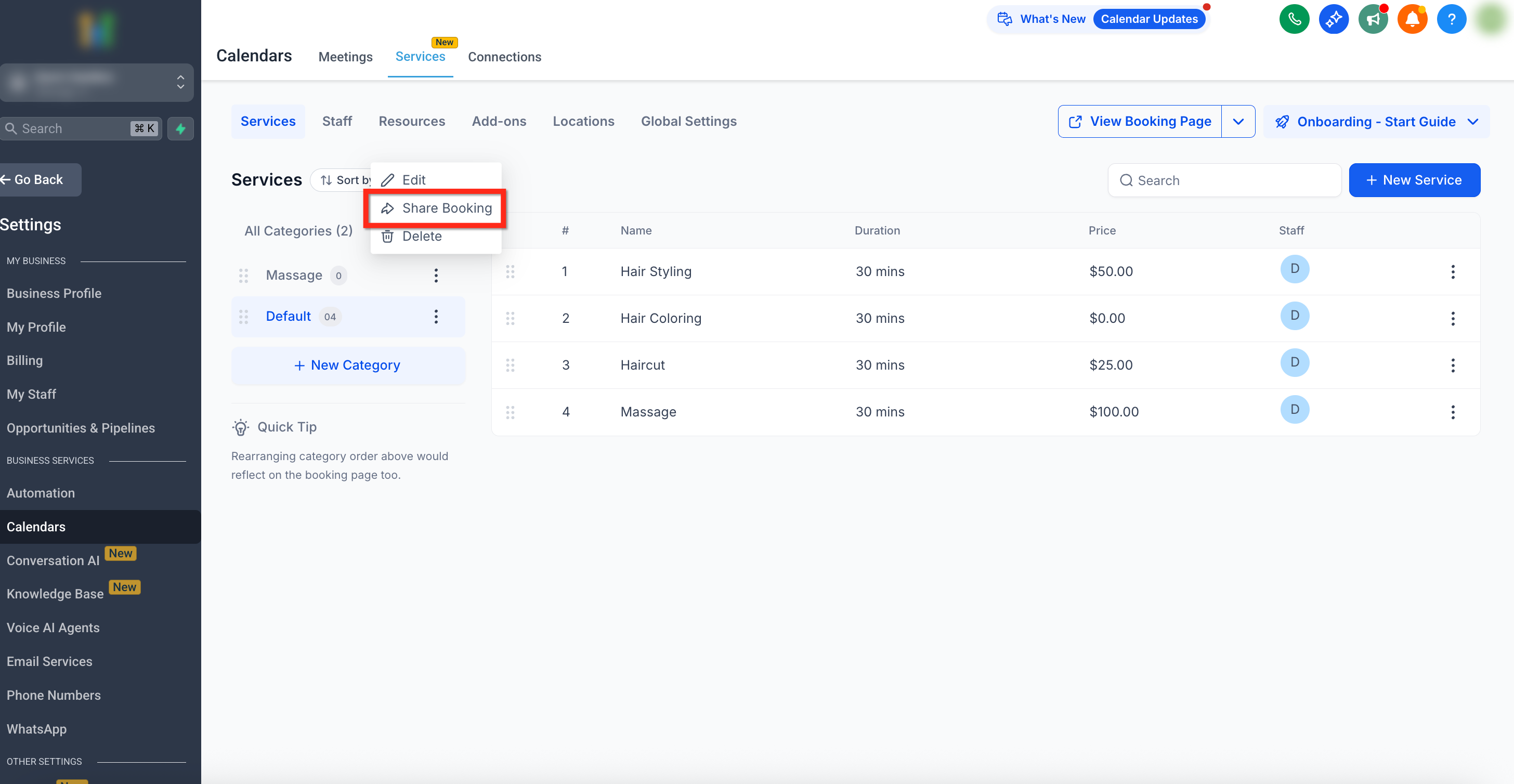
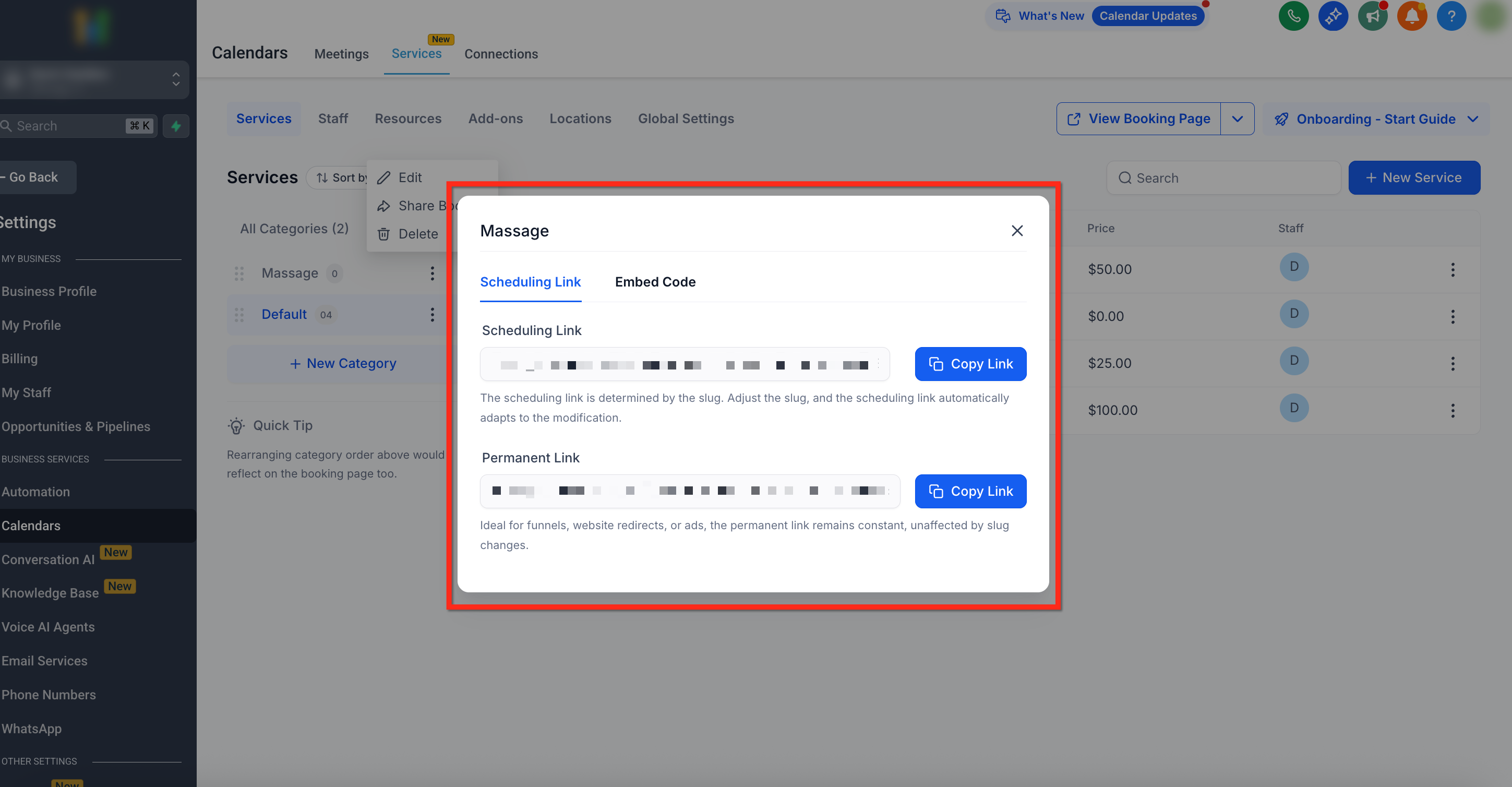
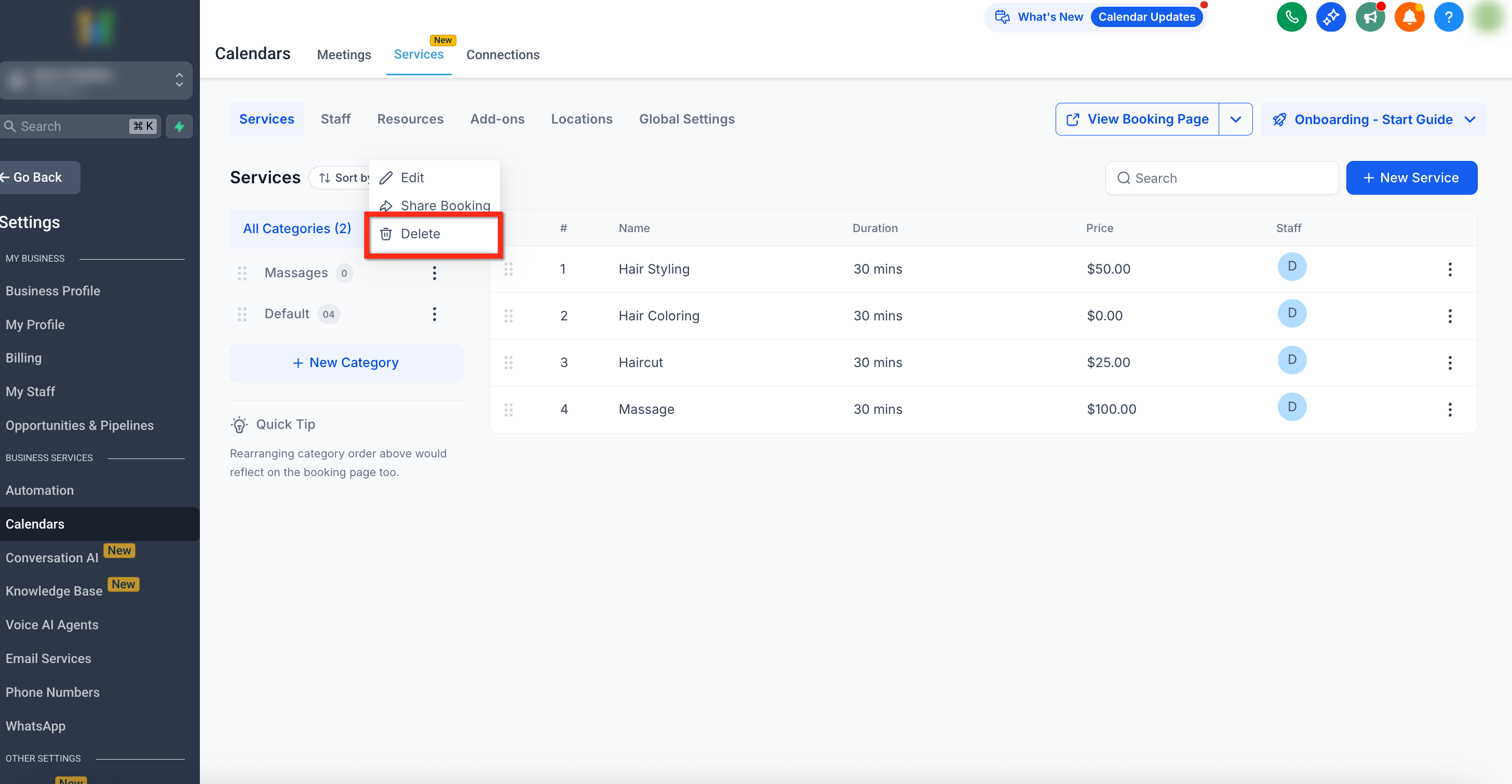
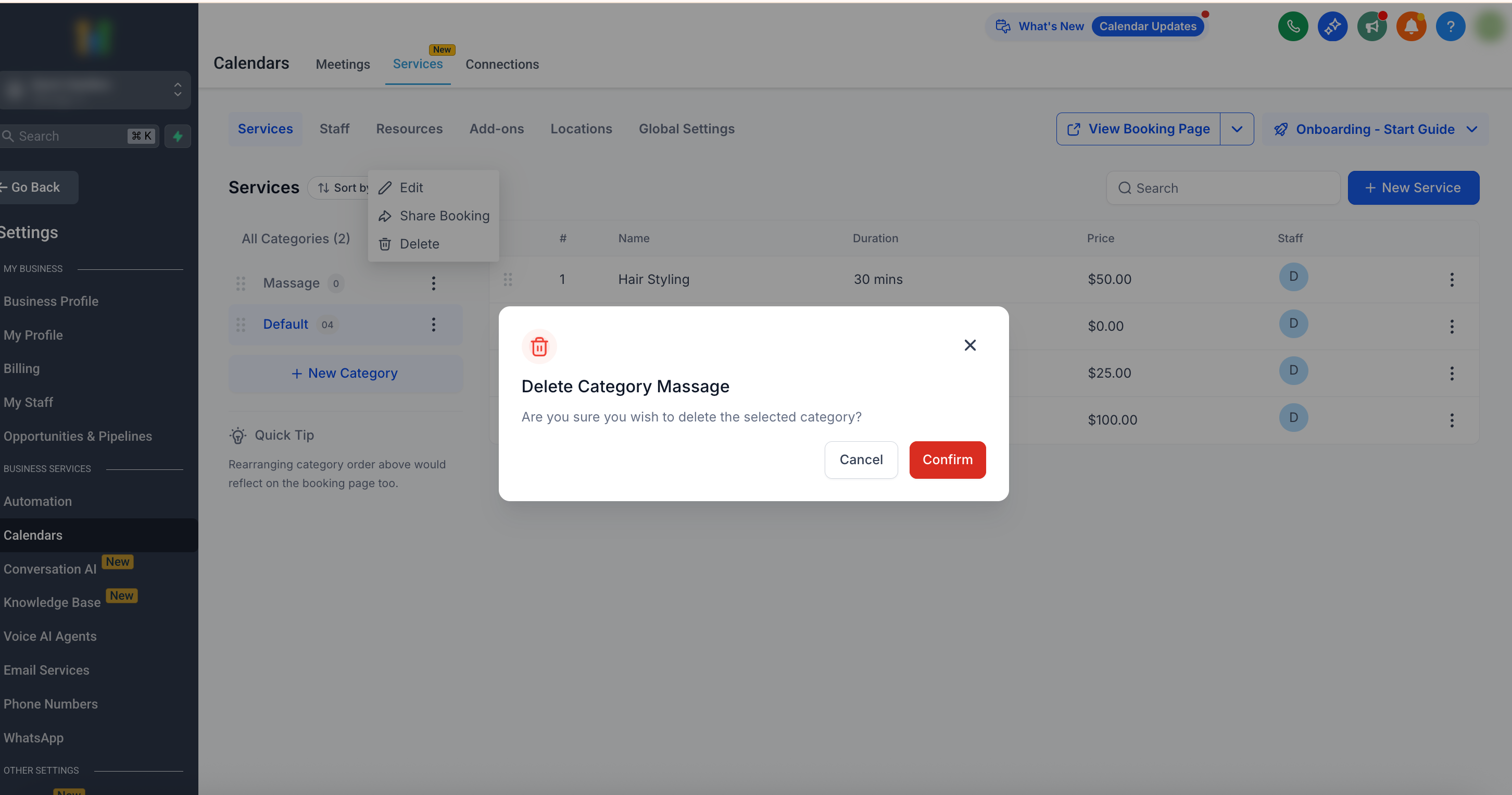
- Save changes.!(https://assets.patientcopilot.ai/99877f29ad74dce1.png) * * * ## Sharing a Category Categories have their own shareable booking link. This is useful if you want to promote a specific category (e.g., “All Hair Services”). 1. Click the three-dot menu → Share Booking.!(https://assets.patientcopilot.ai/8f693af85925bec3.png) 2. Share the link so customers see only the services within that category.!(https://assets.patientcopilot.ai/496290b1d89c1168.png) * * * ## Deleting a Category Remove categories you no longer need while keeping services accessible to customers. - Categories (except the Default Category) can be deleted. - When deleting a category: - All services in that category automatically move to the Default Category. - You can reassign those services to another category if needed. Follow these steps to to delete a category: 1. Click the three-dot menu → Delete.!(https://assets.patientcopilot.ai/4c1359cde2ad7d34.png) 2. Confirm the deletion by clicking the red Delete button.!(https://assets.patientcopilot.ai/976d594e4119faf5.png) * * * ## Reordering Categories Control the order your customers see categories on the booking page for a better browsing experience. - Drag and drop categories in the left sidebar to reorder them.
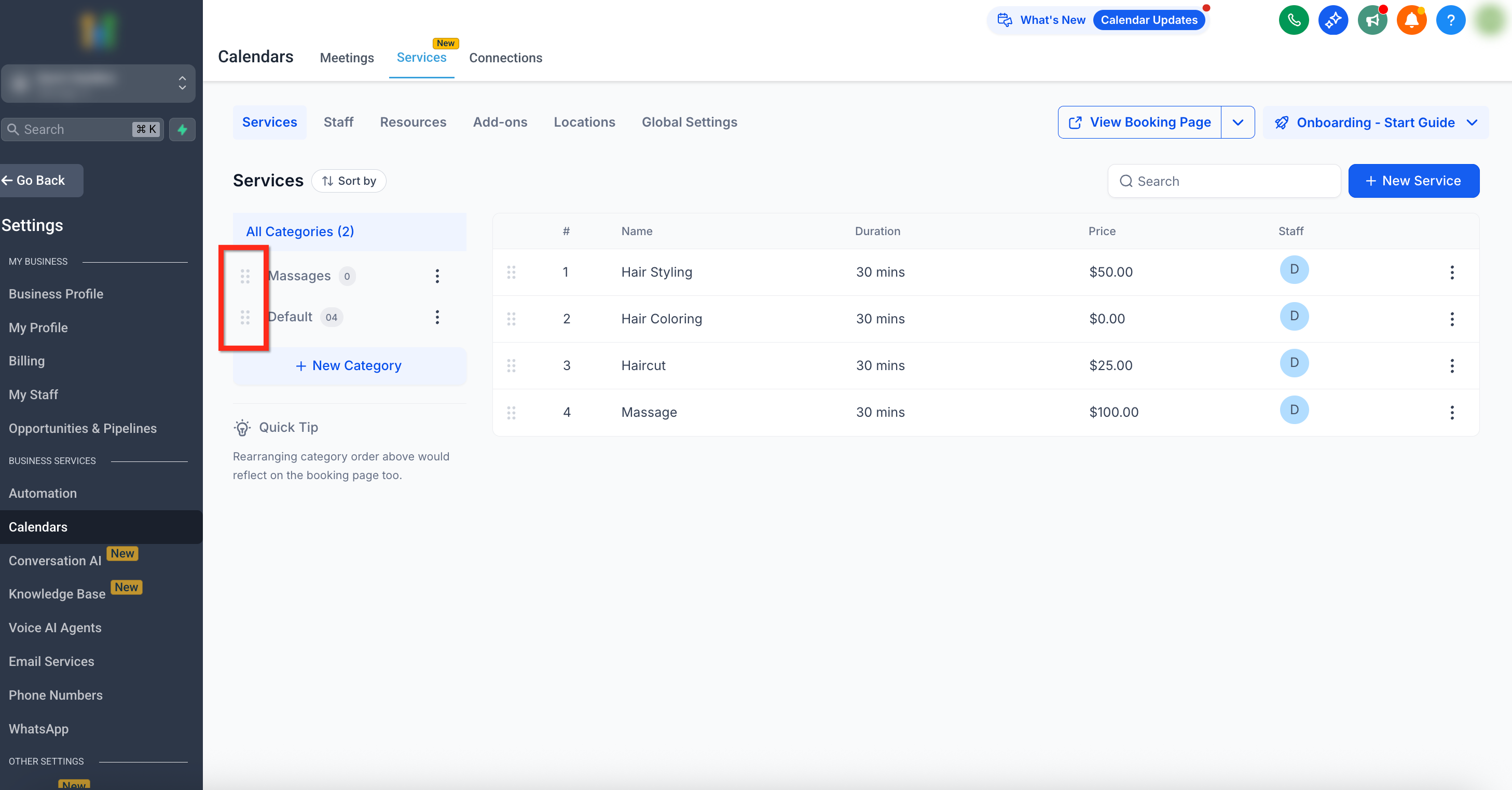
- The new order will automatically reflect on the customer-facing booking page.!(https://assets.patientcopilot.ai/4120677342b482ea.png) * * * ## Best Practices - Use meaningful category names (e.g., “Massage” instead of “Wellness”).
- Consider renaming the Default Category to something specific for your business.
- Share category-specific booking links for promotions or targeted campaigns. * * * ## Frequently Asked Questions Q: Can I change a category’s URL (slug) later? Yes. Use Edit from the three‑dot (⋮) menu to modify the Category URL (slug). Q: Do I need to enable Services before using categories? Yes. Enable Services for the sub‑account to access the Services panel, create categories, and share booking links. You can enable Services for one or multiple sub‑accounts from the Agency view. Q: Do Private services appear when I share a Category link? No. Private services are hidden from public category pages. If you need to share a Private service, copy and share the direct link. * * * ## Related Articles - (https://help.patientcopilot.ai/en/support/solutions/articles/155000006240)[Services - Overview & How to Get Started](https://help.patientcopilot.ai/en/support/solutions/articles/155000006240)(https://help.patientcopilot.ai/en/support/solutions/articles/155000006240)
- Global Settings in Services(https://help.patientcopilot.ai/en/support/solutions/articles/155000005330)
- How to Create Services
- Configuring Staff in Services
- Resources in Services
- Workflow Trigger – Service Booking(https://help.patientcopilot.ai/en/support/solutions/articles/155000006140)