Associations Between Opportunities, Companies & Custom Objects
With this feature, you can represent real-world relationships—for example, linking an Opportunity (deal) to Companies, Properties, or other Custom Objects—and also connecting Companies directly to Custom Objects. This creates a unified, contextual view across your business records, helping your team work faster and make more informed decisions. * * * Why This Matters - Key Highlights
- How to Create an Association
- Step 1: Open the Associations Tab(#Step-2%3A%C2%A0Configure-the-Association) - Step 2: Configure the Association - Managing Associations from Opportunities
- Viewing Associations in the CRM(#Opportunity-Details%E2%80%8B)
- Opportunity Details(#Kanban-View)
- Kanban View(#List-View)
- List View
- Tips
- Example Use Cases
- Frequently Asked Questions
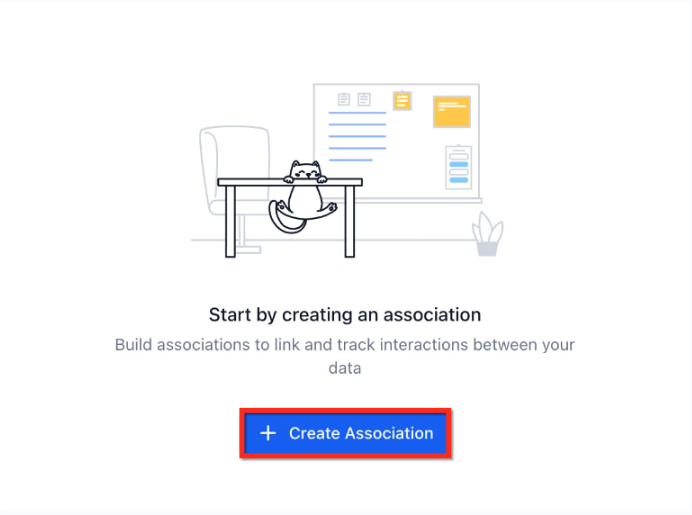
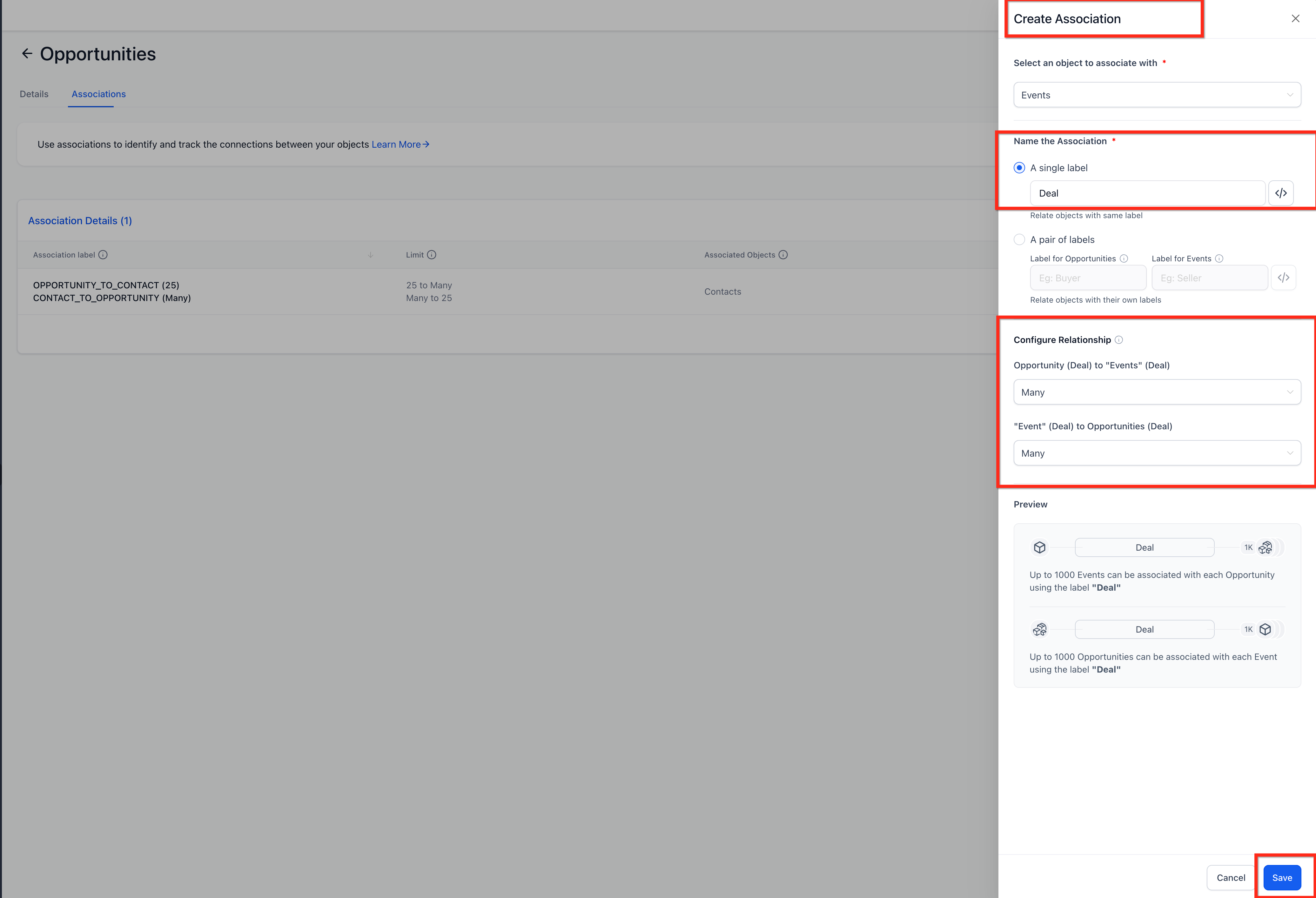
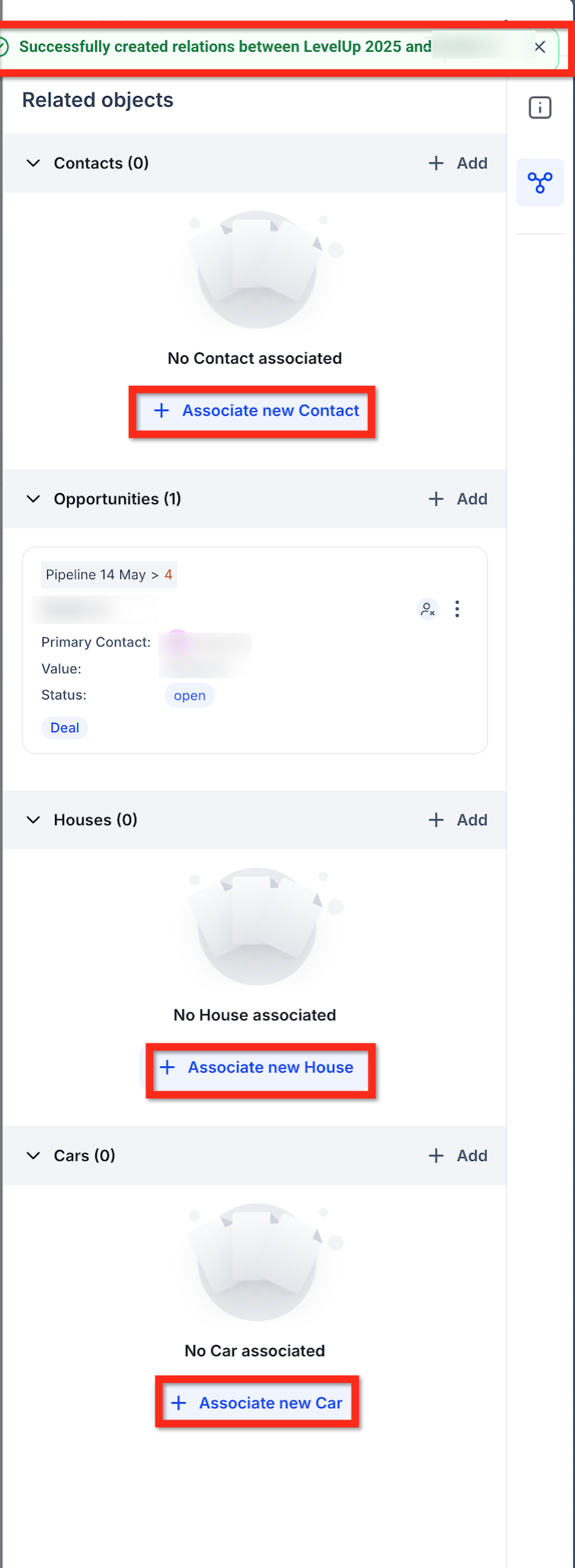
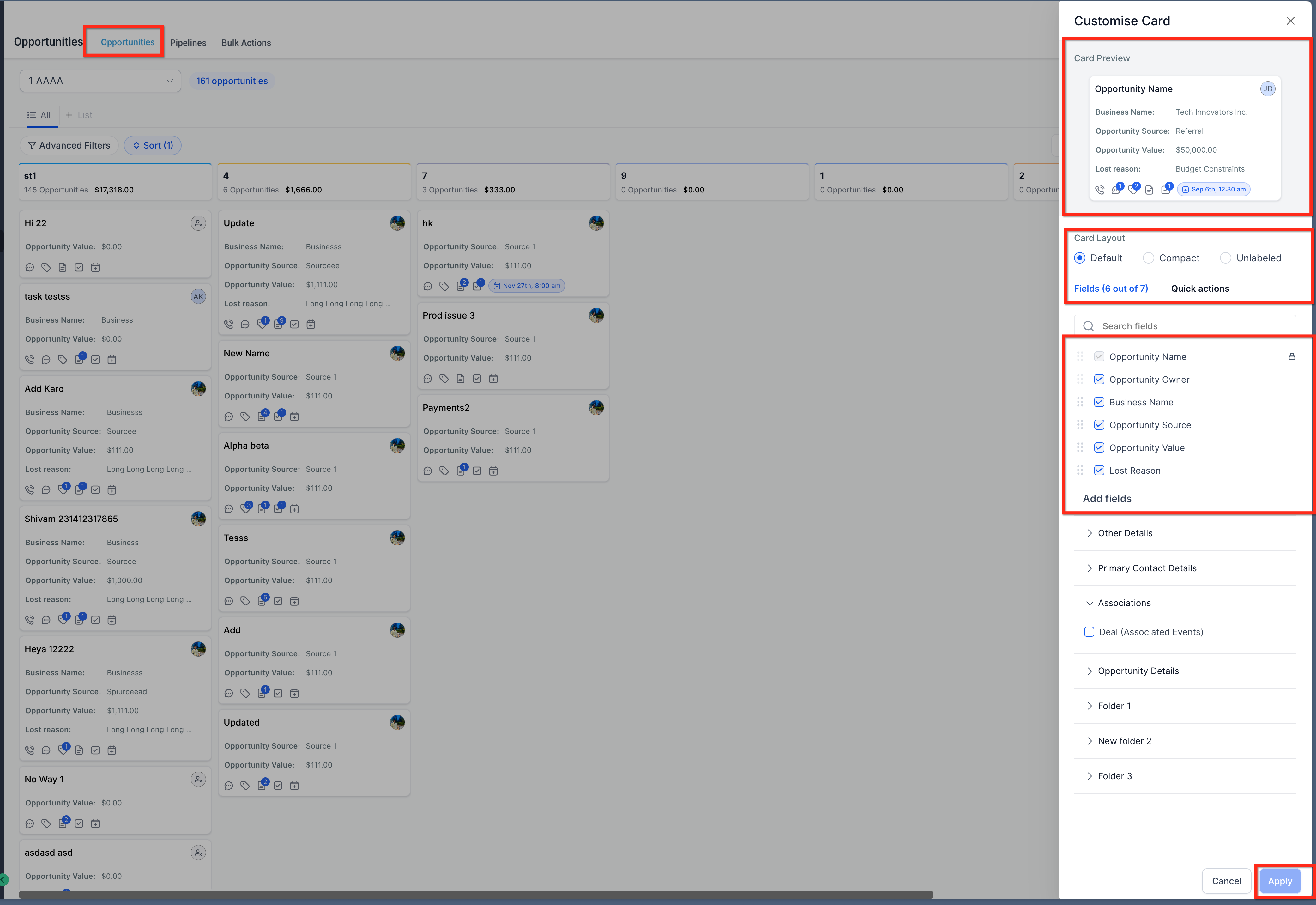
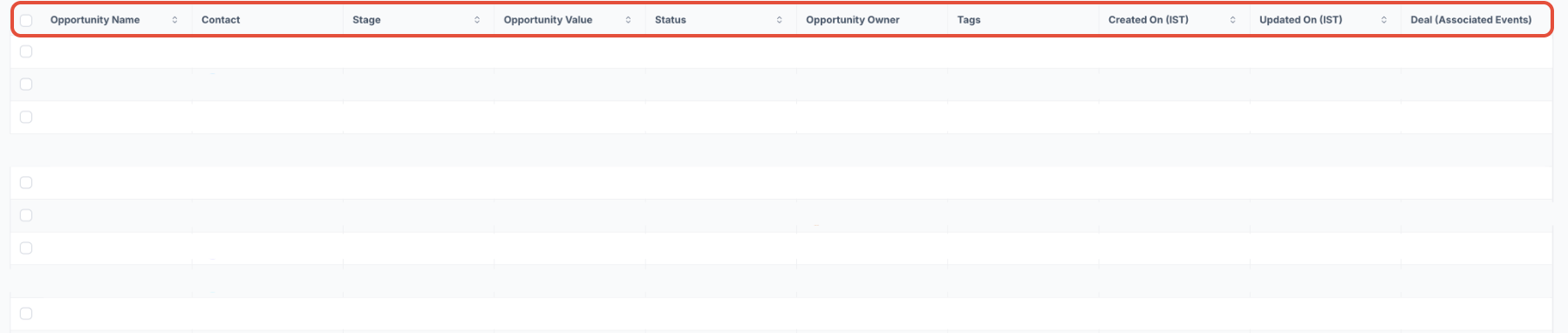
- Related Articles * * * ## Why This Matters Associations make your CRM more powerful and connected. Here’s why they matter: - Gain a 360° view across Opportunities, Companies, and Custom Objects - Mirror real business relationships (e.g., deals ↔ companies ↔ assets like properties or policies) - Reduce time spent navigating across records by managing related information from one place - Use association data in workflows, reports, and exports for better tracking and personalization * * * ## Key Highlights - Supports associations between: - Opportunities ↔ Custom Objects - Companies ↔ Custom Objects - Companies ↔ Opportunities - Supports one-to-one, one-to-many, many-to-one, and many-to-many relationships - Create and manage associations directly from record panels - Search and link existing records instantly without leaving your workflow - View associated records across record details, Kanban cards, and List Views - Add association fields via Manage Fields → Association Label (Object Types) * * * ## How to Create an Association #### Step 1: Open the Associations Tab 1. #### Step 1: Open the Associations Tab - Go to Settings → Custom Objects → [Your Object] - Click on the Associations tab - Click Create Association !(https://assets.patientcopilot.ai/a106f6d1e088a9d5.png) #### Step 2: Configure the Association - Select the object to associate with (Opportunities or Companies) - Name your association: - Single Label (e.g., “Deal”) - Pair of Labels (e.g., “Buyer ↔ Seller”) - Configure the relationship type: - One-to-One - One-to-Many / Many-to-One - Many-to-Many - (Optional) Set record limits (up to 1,000) - Review preview → Click Save !(https://assets.patientcopilot.ai/3508039d234c847e.png) * * * ## Managing Associations from Records You can manage associations from any supported record type: #### From Opportunities - Open an Opportunity - Go to Associated Objects - Click + Associate - Select Company or Custom Object #### From Companies - Open a Company - Go to Associations / Related Objects - Link Opportunities or Custom Objects #### From Custom Objects - Open a Custom Object record - Add associated Opportunities or Companies All associations appear instantly and can be edited anytime. !(https://assets.patientcopilot.ai/f020a47f97f1bed9.png) * * * ## Viewing Associations in the CRM #### Record Details - All linked records (Opportunities, Companies, Custom Objects) appear in the Associated Objects panel - Open any linked record in a side panel without leaving your current screen #### Kanban View (Opportunities) - Go to Opportunities → Manage Fields - Add Association Label (Object Type) to cards - View linked Companies or Custom Objects directly on cards !(https://assets.patientcopilot.ai/c1dcdf96a2fac6b2.png) #### List View - Add Association fields as columns - View all linked records in one place - Useful for filtering, bulk actions, and exports !(https://assets.patientcopilot.ai/aab996a348af9086.png) * * * ## Tips - Create up to 10 labels per object pair - Each label supports up to 1,000 linked records per side - Associations are automatically removed if a record is deleted - Add association fields to reports and exports via Manage Fields - API and automation support is coming soon * * * ## Example Use Cases Real Estate Link Properties (Custom Objects) ↔ Opportunities ↔ Companies to track buyers, listings, and agencies in one place Events Connect Events (Custom Objects) ↔ Companies ↔ Sponsorship Opportunities Insurance Associate Policies/Quotes (Custom Objects) ↔ Opportunities ↔ Companies for full lifecycle tracking * * * ## Frequently Asked Questions Q: Can I limit relationships? Yes — use One-to-One or set limits in configuration Q: Will renaming labels break associations? No — only the display label changes Q: Can I bulk import associations? Not yet Q: Can I use this in reporting? Yes — via association fields Q: What happens on delete? Associations are automatically removed * * * ## Related Articles - (https://help.patientcopilot.ai/en/support/solutions/articles/155000004033-associations-for-custom-objects)[Associations for Custom Objects](https://help.patientcopilot.ai/en/support/solutions/articles/155000004033) - (https://help.patientcopilot.ai/en/support/solutions/articles/155000003999-customize-opportunity-cards-in-board-view)[Customize Opportunity Cards in Board View](https://help.patientcopilot.ai/en/support/solutions/articles/155000003910) - (https://help.patientcopilot.ai/en/support/solutions/articles/155000004005-using-custom-fields-for-opportunities) Using Custom Fields for Opportunities * * *