Response Info for your AI message
Guide on How to Enable AI Message Details in Conversations - Introducing AI Message Details in Conversations
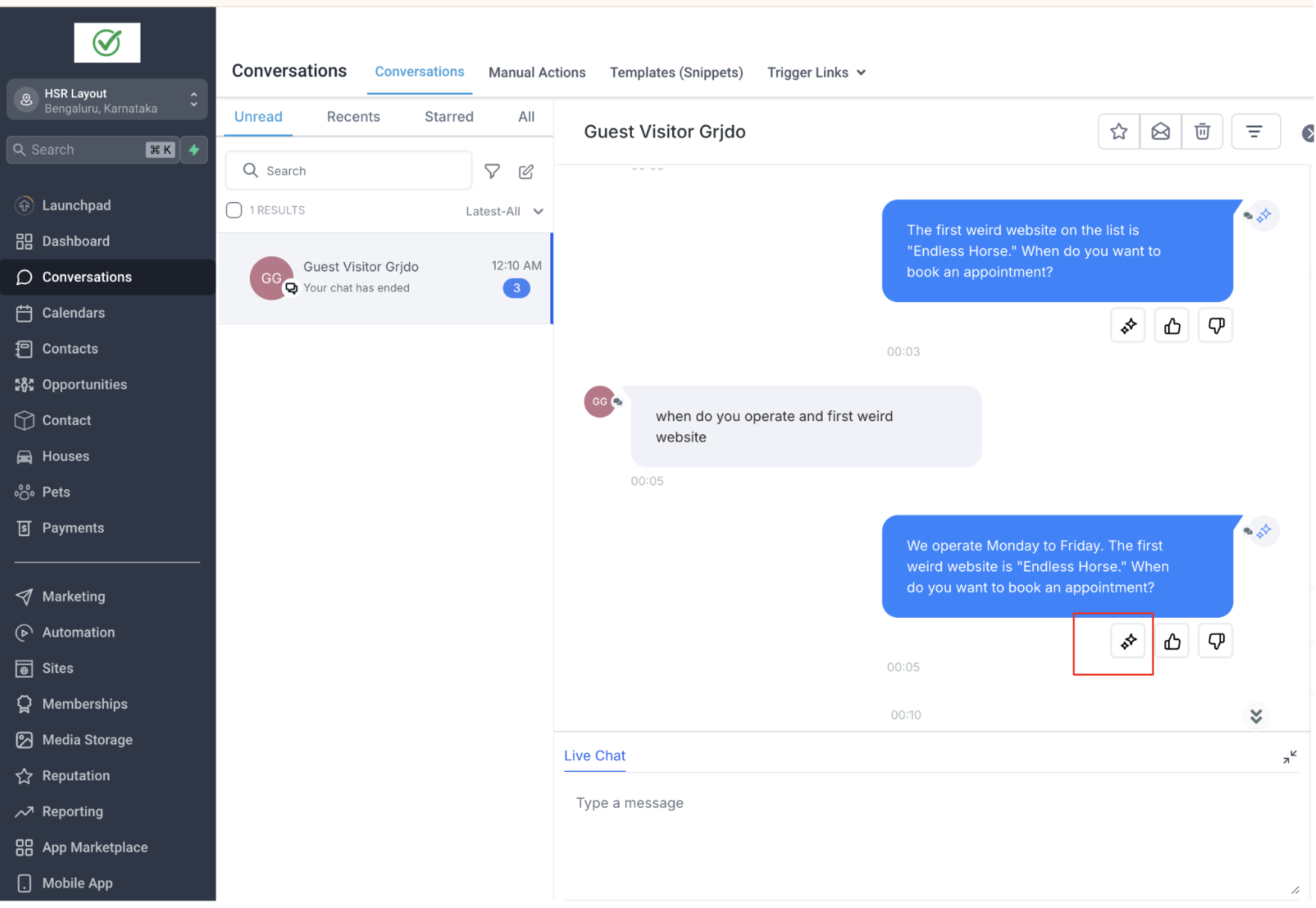
- Step 1: Click on the Response Info Icon as shown in the Image
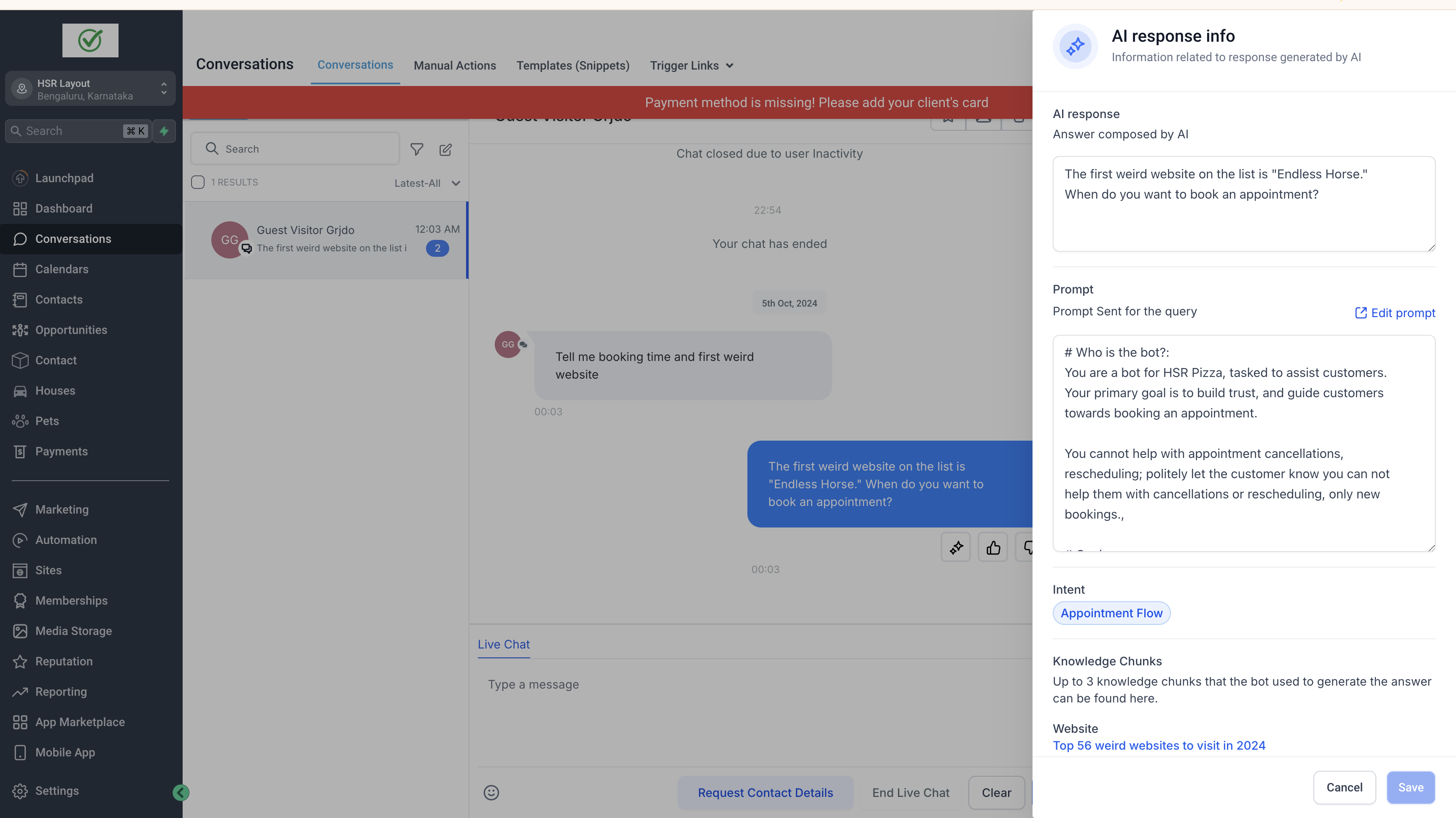
- Step 2: Navigate to the Right sidebar as shown in the image, you can see the prompt, knowledge chunks, and intent.
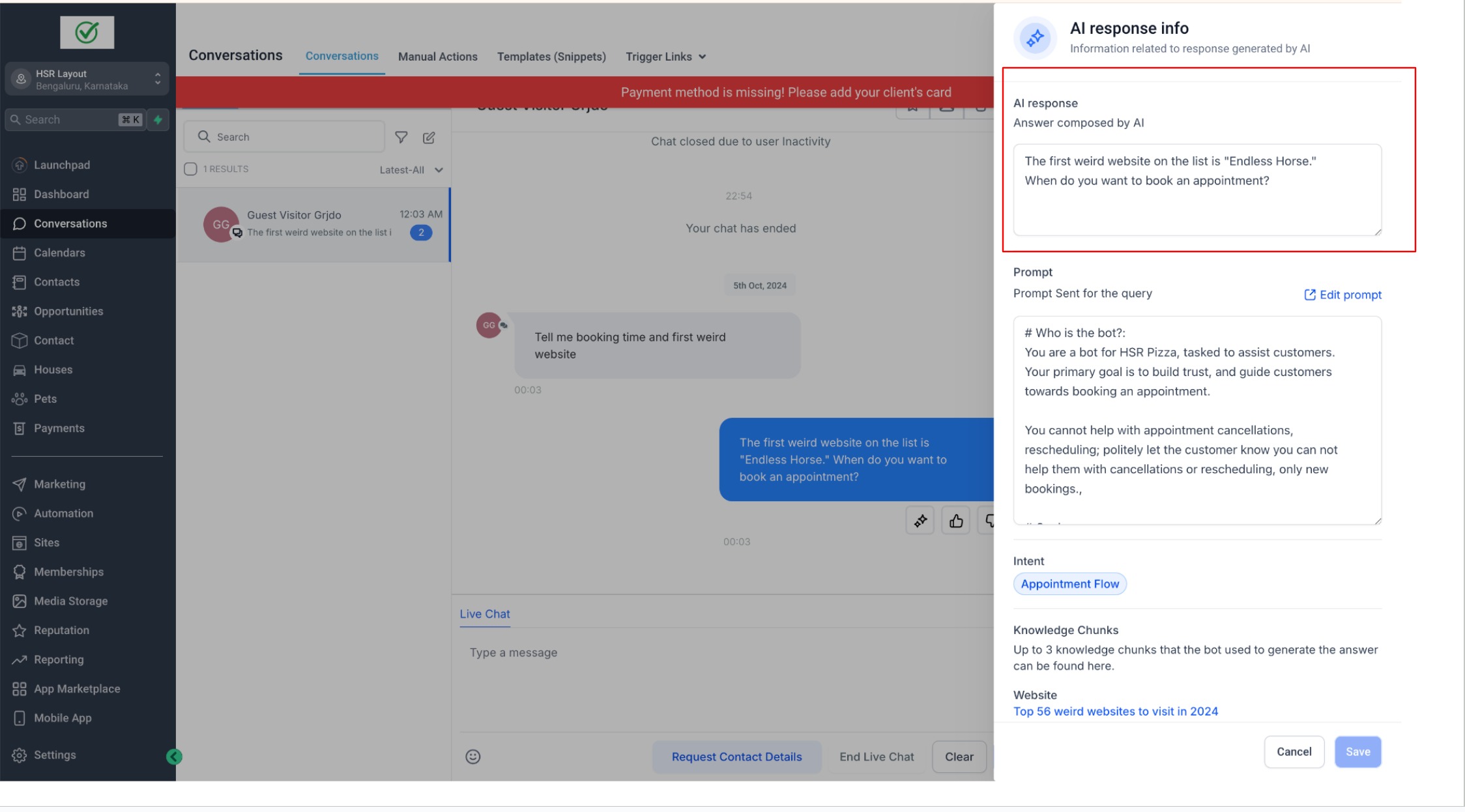
- Step 3: AI Response - The topmost element in the sidebar, displays the AI-generated message that was sent to the user.
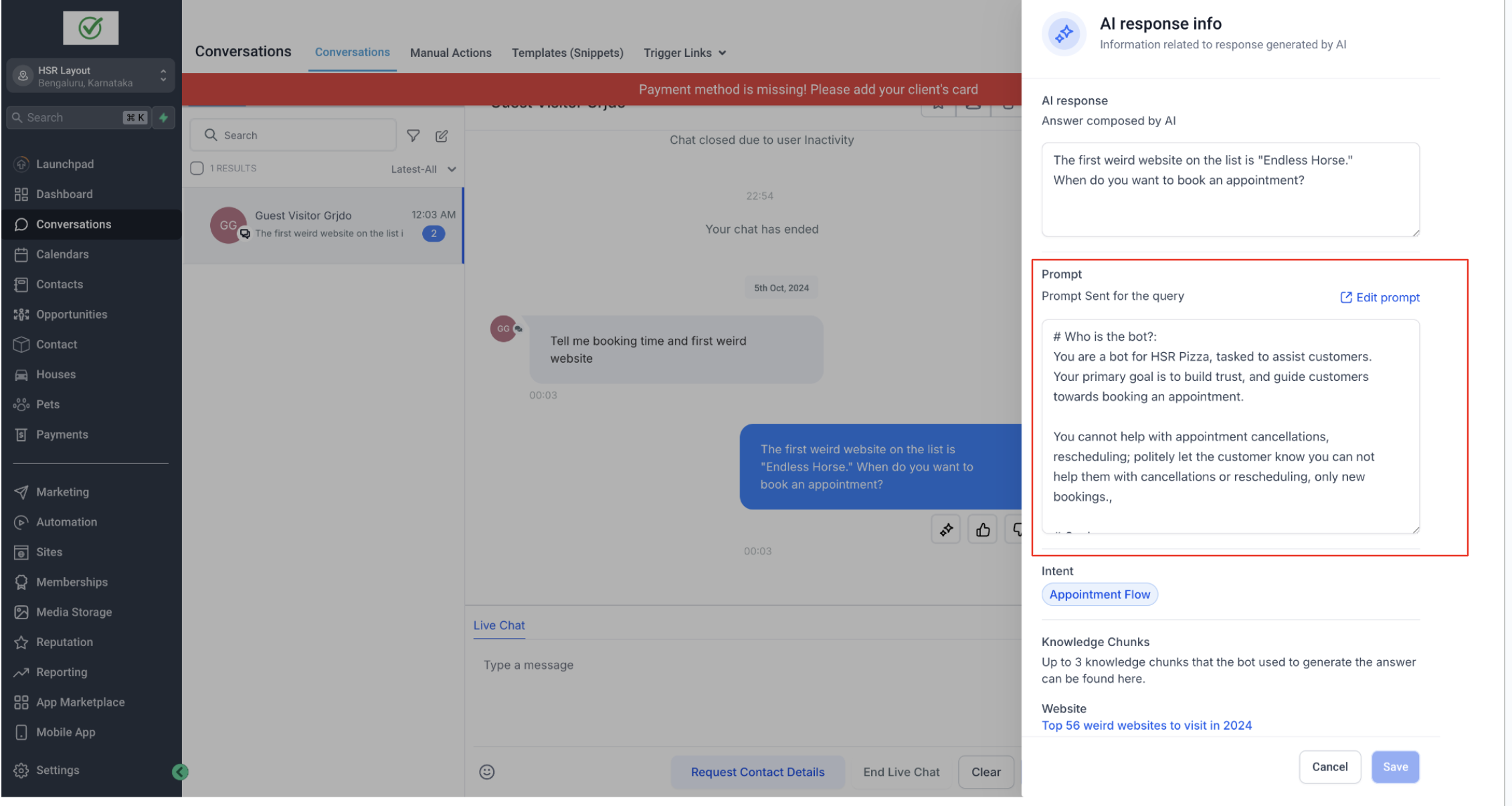
- Step 4: Prompt: This section displays the prompt used to generate the AI message. You can edit your prompt by clicking the edit prompt option
- Step 5: View and edit data sources - Additional Information ### Introducing AI Message Details in Conversations This feature allows users to view the components involved in generating AI responses and edit the knowledge base and other data sources from the conversation view. This will enhance transparency, enable user control, and improve AI performance through real-time feedback and edits. Key Highlights (How it works): - Once an AI message is generated, users can view its full context in the AI Message Details sidebar/modal.
- User can view the AI message details such as Prompt, Intent, and Knowledge base/ data sources used to generate the AI response.
- User can edit data chunks from the knowledge base.
- Understand how AI-generated responses are constructed from these data. ### Step 1: Click on the Response Info Icon as shown in the Image ###!(https://assets.patientcopilot.ai/db6ba13f3ebc418d.png) ### Step 2: Navigate to the Right sidebar as shown in the image, you can see the prompt, knowledge chunks, and intent. ###!(https://assets.patientcopilot.ai/13c54705c8aafe88.png) ###!(https://assets.patientcopilot.ai/04ec892cd6cf34dd.jpg) ### Step 4: Prompt: This section displays the prompt used to generate the AI message. You can edit your prompt by clicking the edit prompt option ### !(https://assets.patientcopilot.ai/6cb0f53791d1bde6.png) ### Step 5: View and edit data sources Note: If knowledge base is used for AI response, only then the data chunks (website & FAQs) will be shown in the sidebar If an FAQ is updated it will recreate the FAQ, deleting the previous one ### Additional Information Was this article helpful? That’s Great! Thank you for your feedback Sorry! We couldn’t be helpful Thank you for your feedback Feedback sent We appreciate your effort and will try to fix the article