How to Create & Manage Smart Lists
This guide provides everything you need to know about Smart Lists in Patient Copilot. Learn what Smart Lists are, how to configure and use them, best practices for optimizing their potential, and solutions to common issues. * * * ## Why Use Smart Lists? - Save Time – Automate segmentation instead of manually updating lists.
- Enhance Targeting – Group contacts based on behavior, lead status, or engagement.
- Improve CRM Organization – Keep your contact list structured and searchable.
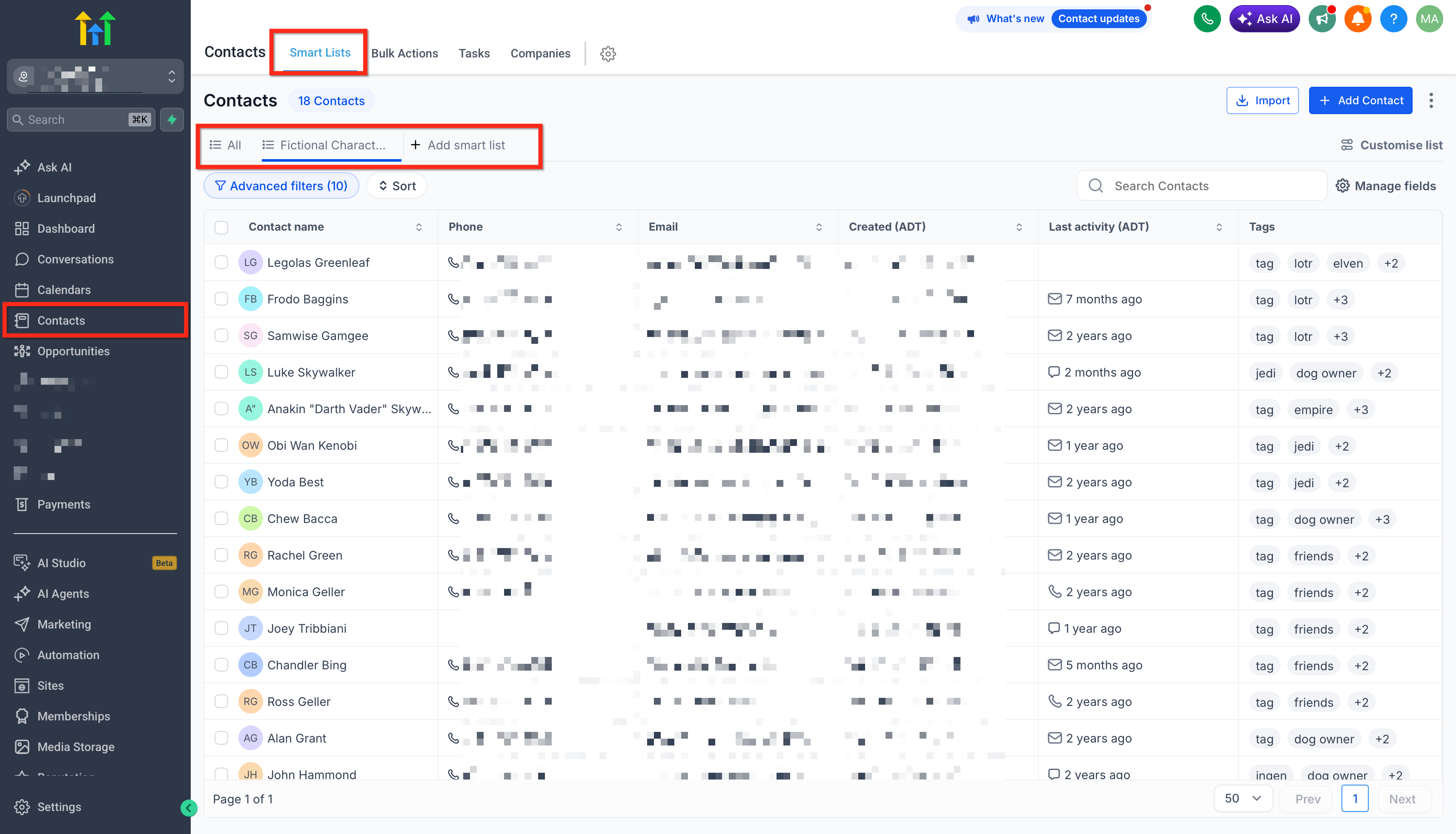
- Power Automation – Use Smart Lists in workflows for automated actions. * * * ## What are Smart Lists? A Smart List is a dynamic contact list in Patient Copilot that updates automatically based on predefined filters and conditions. Unlike static lists, which remain unchanged unless manually updated, Smart Lists continuously adjust as new contacts meet (or no longer meet) the specified criteria. It allows users to customize and filter contacts based on specific conditions, such as custom fields. You can select which columns to display, and the Smart Lists update in real-time as contact data changes. This feature can be found under the Subaccount → Contacts tab → Smartlists!(https://assets.patientcopilot.ai/9d3330527f4c0b37.png) * * * ## How Do Smart Lists Work? - Real-Time Updates: Contacts are automatically added or removed based on filters like tags, custom fields, engagement activity, or opportunity stages.
- Automated Segmentation: Easily create lists of leads, active customers, or prospects without manual updates.
- Advanced Filtering: Smart Lists allow you to apply multiple filters simultaneously (e.g., “Opened an email in the last 30 days” + “Has an open invoice”).
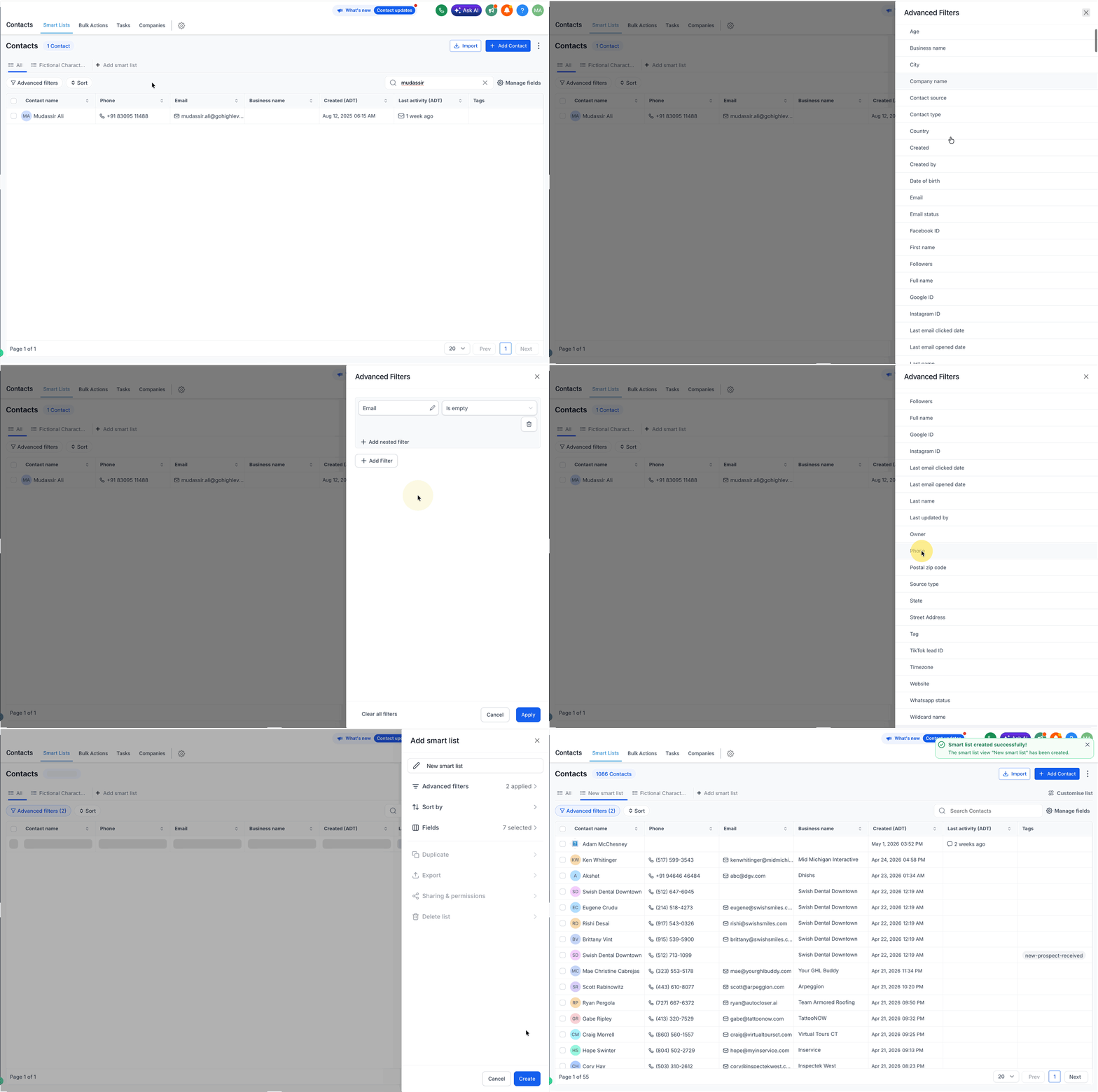
- Workflow Integration: Smart Lists can trigger automated workflows, ensuring personalized engagement at scale. * * * ## Setting Up Smart Lists Creating a Smart List in Patient Copilot is a simple process that allows you to automatically segment contacts based on specific criteria. Instead of manually updating lists, Smart Lists ensure your contact groups stay organized and updated in real-time. Follow these steps to create your first Smart List: 1. Go to Contacts > Contacts/Smart Lists and hit ”+ Add smart list”
- Pick one or multiple filters from the dropdown menu on the right side of your screen.
- After choosing a filter, input the necessary details and click “Apply” to secure your filter.
- To add more filters, select the “AND” option.
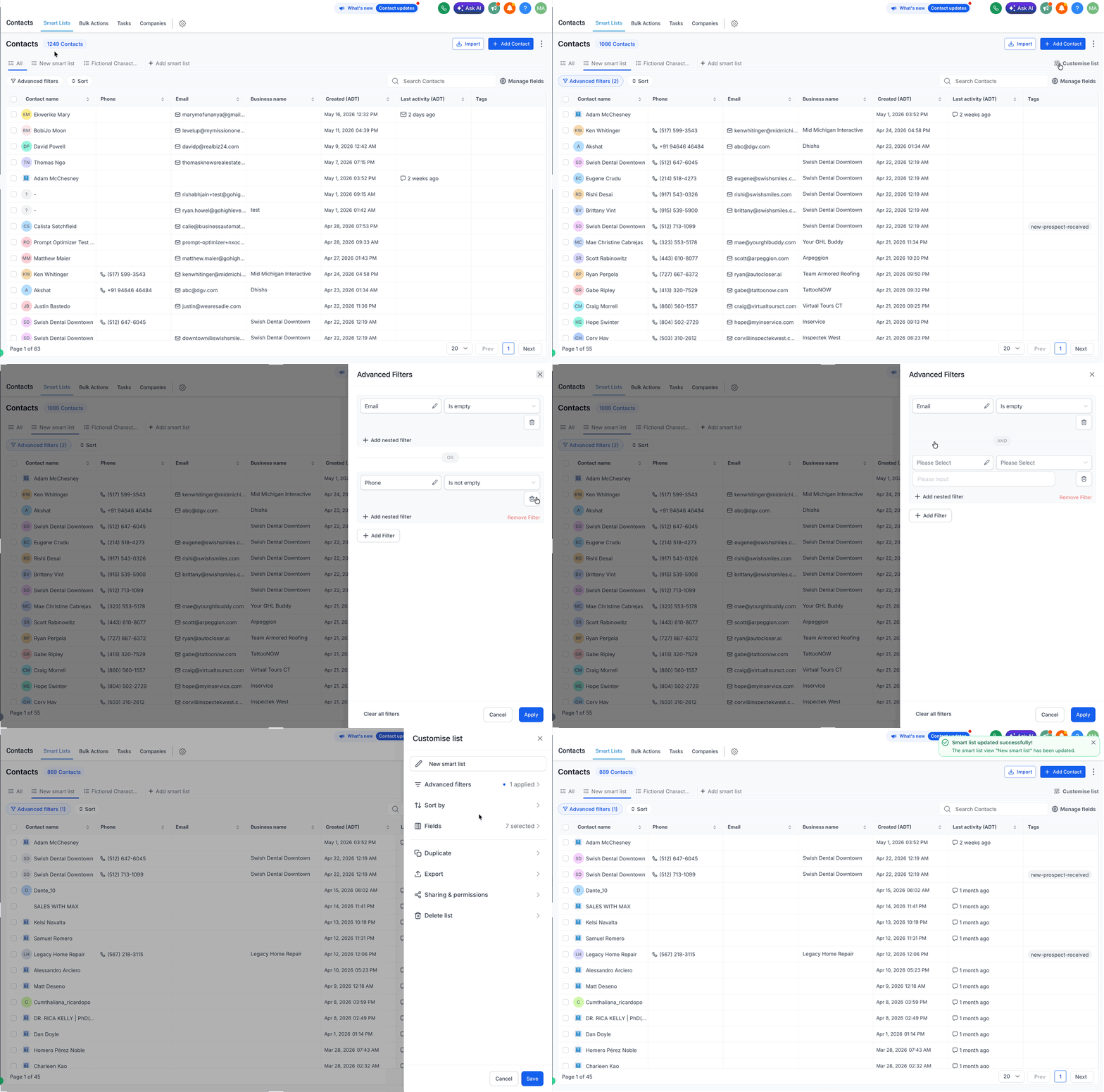
- Click “Create” at the bottom of your screen to save the smart list.!(https://assets.patientcopilot.ai/12342c5b530960ef.gif) * * * ## Modifying Smart Lists Smart Lists can be modified, filtered, and managed to better align with your business needs. You can apply different filters, adjust conditions, or even duplicate existing lists for more refined segmentation. 1. To access your Smart Lists, go to the Contacts section and select a Smart List name from the top to open it.
- If you want to modify an existing Smart List, open it, and you’ll see the Customise List for that list on the right-hand side.
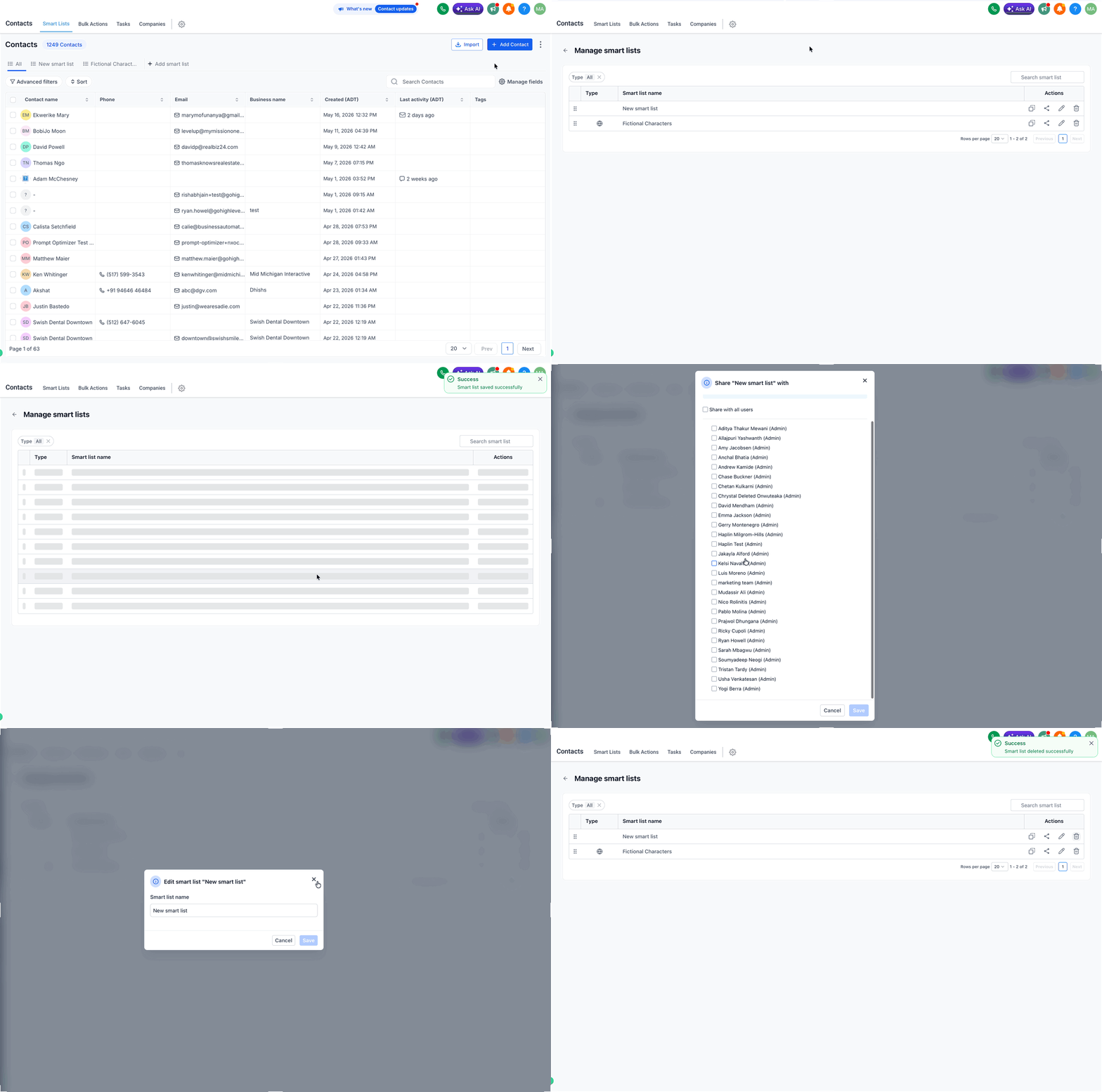
- Click on Advanced Filters to make changes. To modify a filter, click the pencil icon or the dropdown arrow to remove a filter. Use the Save icon to store your changes.!(https://assets.patientcopilot.ai/6af2ea9ce6ca9e67.gif) * * * ## Managing Smart lists 1. Go to Contacts → Smart Lists. Click the three-dot (⋮) menu next to Add Contact.
- Select Manage Smart List.
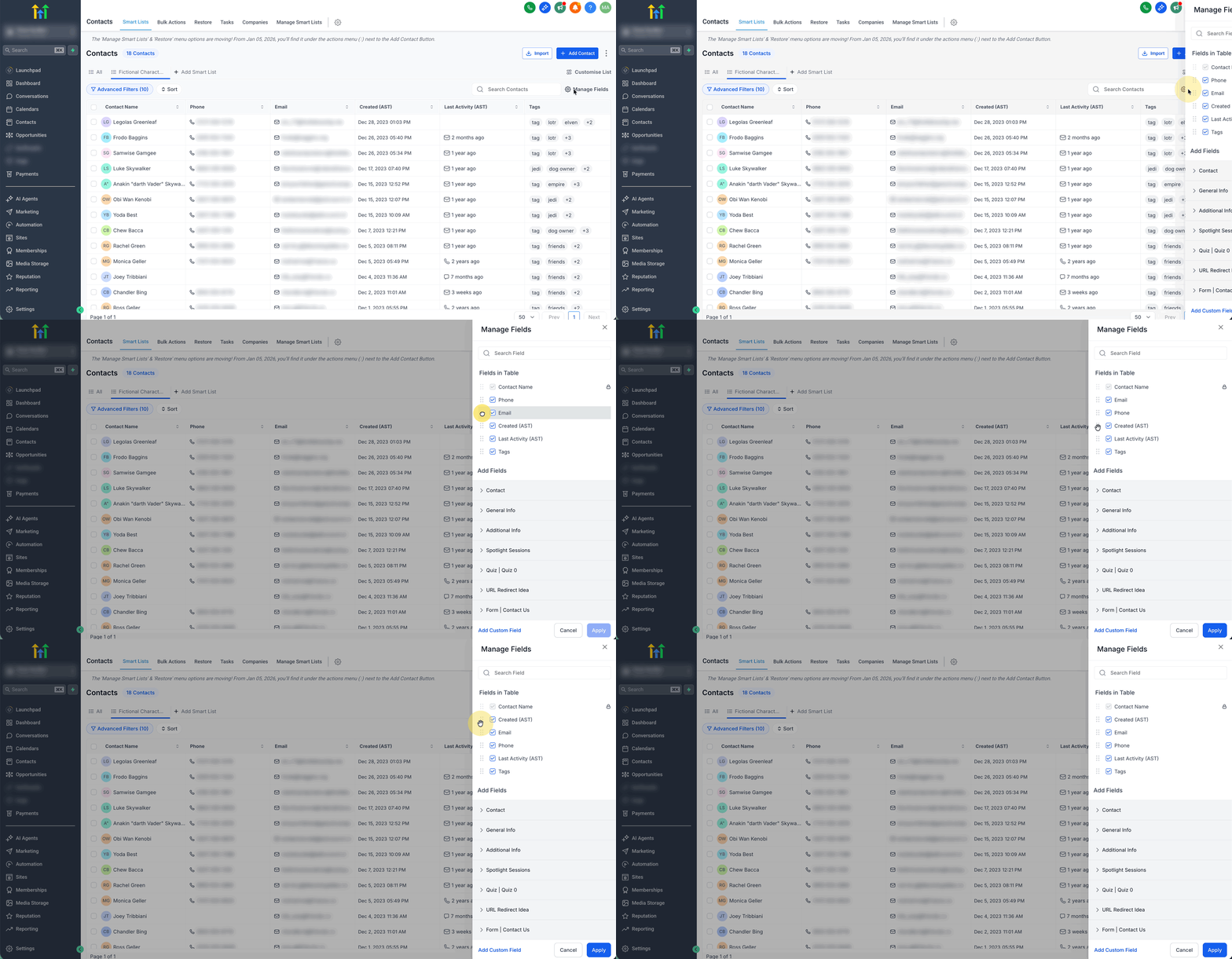
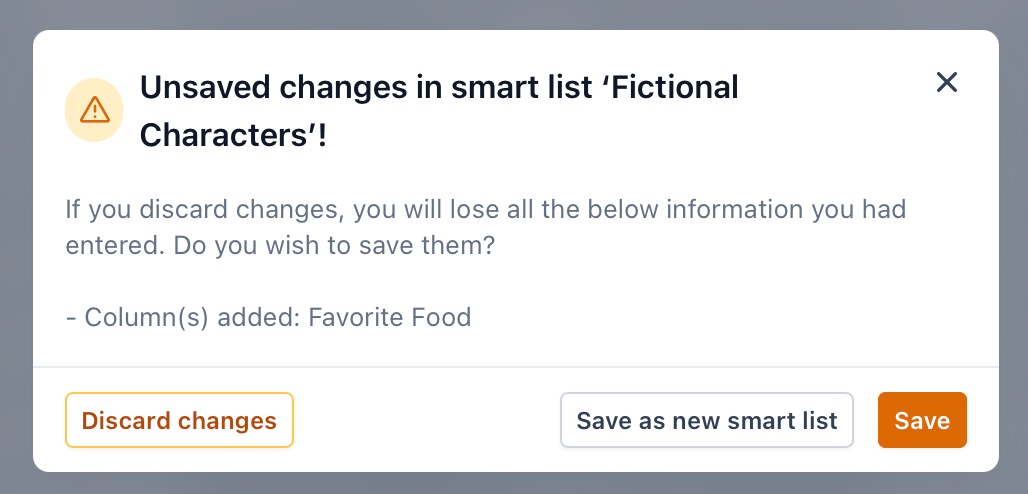
- In the Actions column, use the icons next to a Smart List to: - Create a copy (copy icon) - Share with admins (share icon) - Edit the Smart List name (pencil icon) - Delete the Smart List (trash icon)!(https://assets.patientcopilot.ai/43eae7f4b8e72950.gif) * * * ## Reorder Columns in Smart Lists Smart Lists support drag-and-drop column management, so you can quickly rearrange your list view and keep the most important fields front and center. 1. Navigate to Contacts → Smart Lists, then open the Smart List you want to edit. 2. In the list view, open the column/field management option (this is typically found near the top of the table and lets you manage which fields display). 3. In the column manager, drag and drop the columns into your preferred order. 4. Close the column manager to return to your Smart List, the new column order is reflected immediately.!(https://assets.patientcopilot.ai/1ab8cdf32ee50326.gif) Note: Your Smart List saves the most recently saved column order and visibility. If you reorder columns or show/hide fields later, make sure to save the Smart List again to keep those changes. Otherwise it will continue using the last saved layout.!(https://assets.patientcopilot.ai/d452fff71bfde5e3.png) * * * ## Frequently Asked Questions Q: Can I manually add existing contacts to an existing Smart List? No, contacts are not manually added to Smart Lists. They are added automatically based on the filters and conditions set for that Smart List. If you add a tag to a contact that matches a filter condition for a Smart List, they will automatically be added to that Smart List. Q Can users manage smart lists without having ‘settings’ access? Users cannot manage their smart lists without having ‘settings’ access. This issue has been added to Patient Copilot’s roadmap for future updates. Q: Is there a way to see who created and shared a smart list? Patient Copilot does not log information about who created and shared a smart list. Q: Can all users see Smart Lists or just the user that created them? Smart Lists are created at the user level, not at the location level. However, with “global versus local” Smart Lists, users can now push their Smart Lists to the full account, making them visible to all users. Q: Can Smart Lists be transferred between accounts or moved into a snapshot? As of the time of writing, no feature allows moving Smart Lists from one account to another or importing them into a snapshot. Q: If I schedule an email campaign to a Smart List, will the list update before sending? Yes. Smart Lists are dynamic, so the recipient list is generated at the time of sending, not when the campaign is scheduled. This means, new contacts that meet the filter conditions before the scheduled send will be included. Contacts that no longer meet the conditions will be excluded. **Q: How do I show 100 contacts per page in a Smart List instead of 20? **A: Use the bottom-right contacts-per-page selector and choose 100 (options: 20, 50, 100). * * * ## Related Articles - Bulk Actions for Contacts & Smart Lists