Funnels & Websites: Number Counter Widget
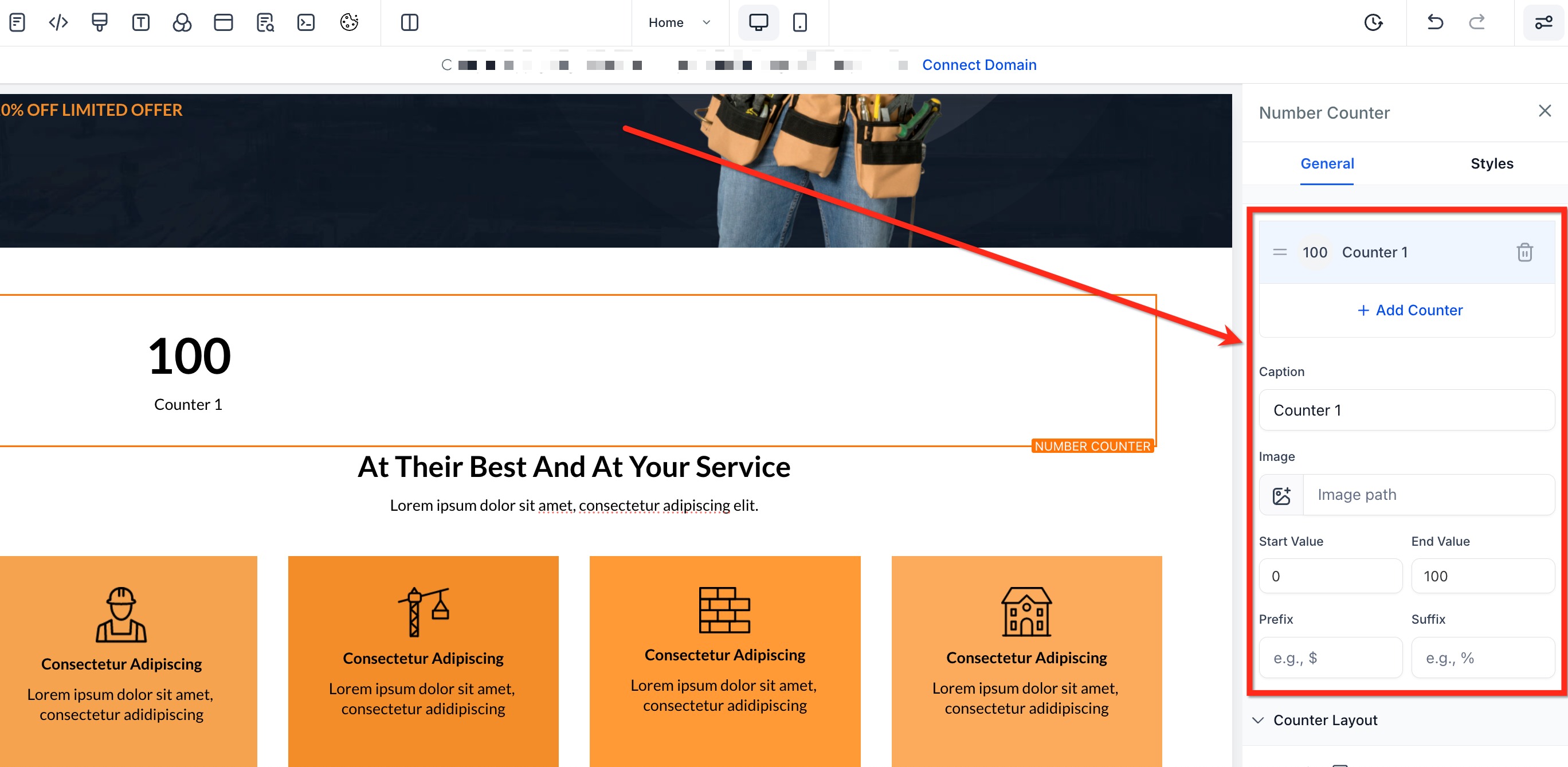
This article will show you how to use the Number Counter Widget to highlight your most important metrics in a bold, animated way! From revenue milestones to happy clients and social-proof stats, the Number Counter transforms plain numbers into dynamic visuals that grab attention and reinforce your brand story. * * * ## Setting Up Each Counter Metric (Configuration Values) After the widget is on your canvas, you can shape each counter to fit your needs. Add new metrics, remove any you don’t need, and customize every detail directly from the settings panel. - Add/Remove Counters: Click Add Counter to create more metrics or the trash icon to delete one.
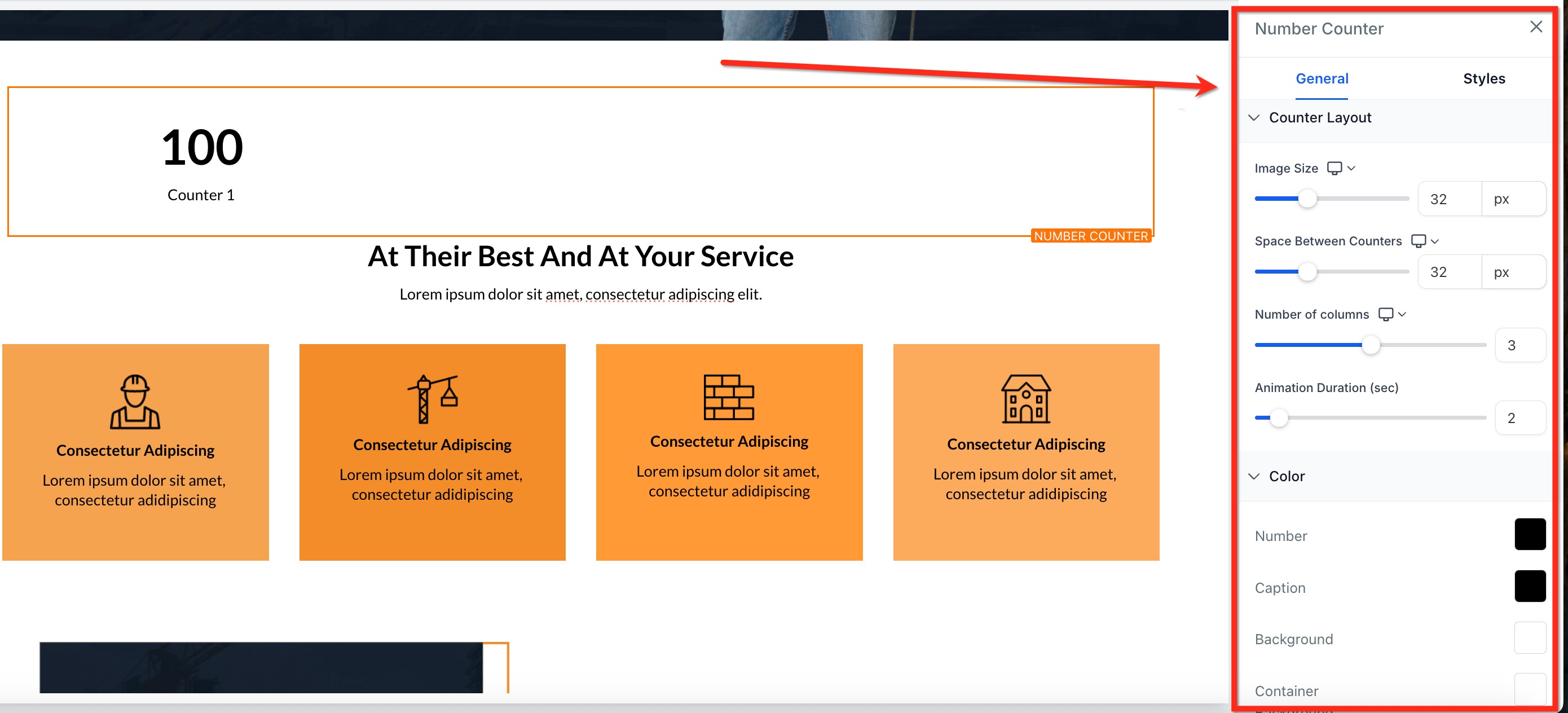
- Caption: Type a label such as “Total Sales” so visitors know what the number represents. - Image: Upload a PNG, JPEG, or SVG icon and adjust its size with the slider. - Start & End Values: Define where the animation begins (e.g., 0) and ends (e.g., 10 000). - Prefix/Suffix: Add context with €, %, +, or custom text placed before or after the value.!(https://assets.patientcopilot.ai/28bc6e22b89faf77.jpg) * * * After configuring your metrics, use the options under Counter Layout to refine spacing, colors, animation speed, and overall layout so the counters blend perfectly with your brand. Key style controls include: - Image Size: Adjust icon dimensions - Space Between Counters: Adjust horizontal gaps to fine-tune spacing between counters for a polished look.
- Number of Columns: Choose how many counters appear per row (1-5) - Animation Options: Define animation duration (1 s – 15 s) to control how quickly numbers count up. Use the viewport trigger so numbers animate only when scrolled into view.
- Colors: Select individual swatches for Number, Caption, Background, and Container Background. Add borders and shadows to align with your brand aesthetic.!(https://assets.patientcopilot.ai/beec0a936936b833.jpg) * * * ## Important Notes - Performance: Keep counters ≤ 20 per widget for optimal load times
- Image formats: Supported types are PNG, JPEG, and SVG
- Smart Formatting: Numbers are auto-formatted (e.g., “2500000” becomes “2.5 M”) to keep large stats clean and easy to read.
- Images: Images are optional and can be toggled on or off per counter - Animation: The animation triggers only once per page load to maintain smooth performance. * * * ## Frequently Asked Questions Q: Can I add different colors to each individual counter? Currently, global styles apply to all counters for consistency. You can adjust background or container color globally. Q: Can counters include decimals? Yes! You can include decimal points in start and end numbers. Q: Will the animation restart if I scroll back up? No. The counters animate once when they first enter the viewport. Q: Do I have to use images for each counter? No. Images are completely optional and can be added only where needed. Q: How many counters can I add in one widget? Technically unlimited. For best performance, keep it to 20 counters or fewer; beyond that, animations may appear sluggish on low‑powered devices. Q: Will the counters adjust automatically on mobile? Yes. Column settings and gap spacing respond to screen size so counters remain legible on any device. Q: How can I replay the animation while editing? Within the Number Counter settings panel, click Preview Animation to watch the count‑up again without leaving the editor. * * * ## Related Articles - Sites Overview
- Getting Started - Launch A Funnel
- Animation Customizations in Funnels & Websites
- How to use Countdown Timers in Funnels? Was this article helpful? That’s Great! Thank you for your feedback Sorry! We couldn’t be helpful Thank you for your feedback Feedback sent We appreciate your effort and will try to fix the article