
Create and Customize Prospecting Widgets for Your Website in Patient Copilot
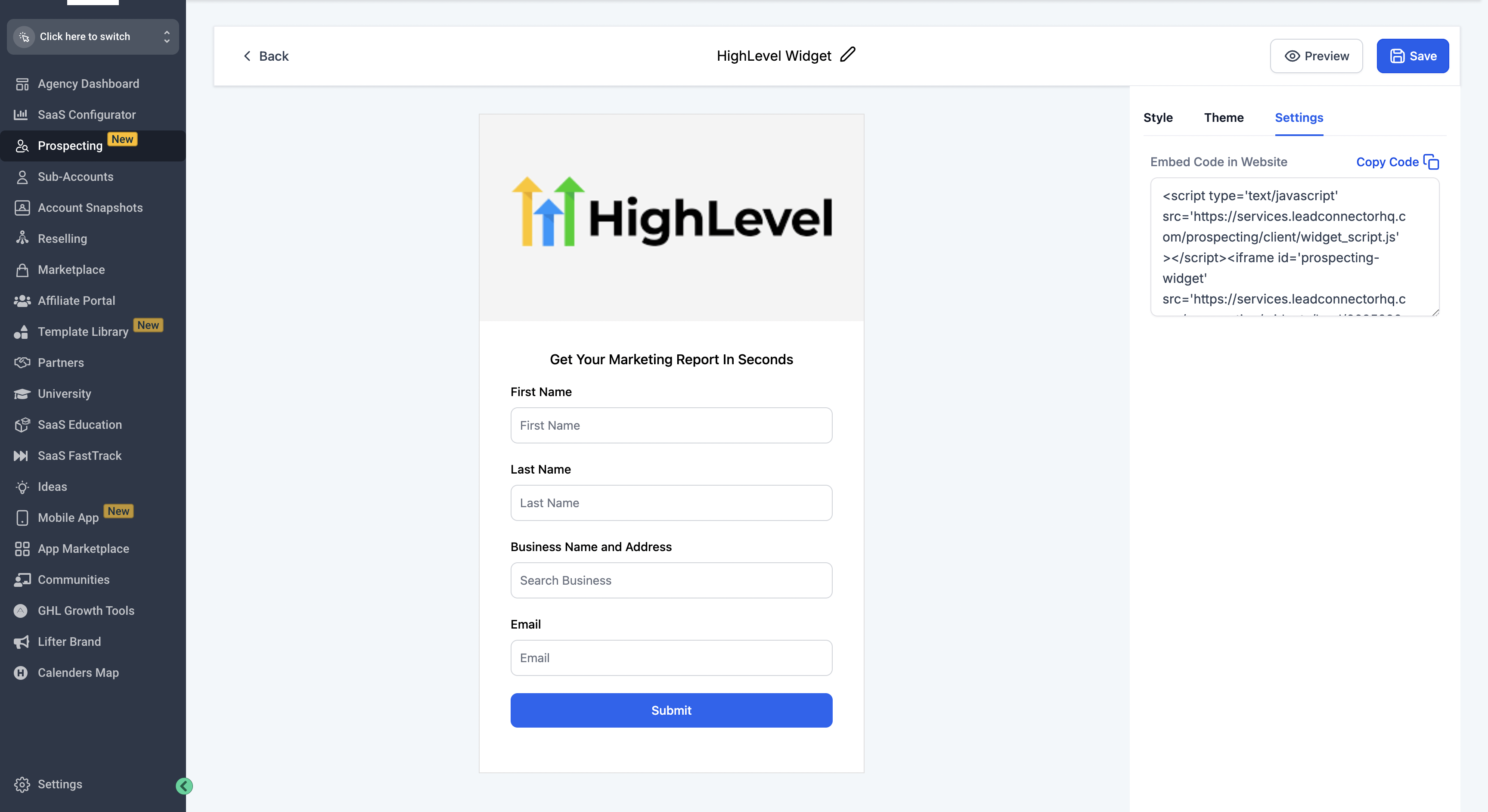
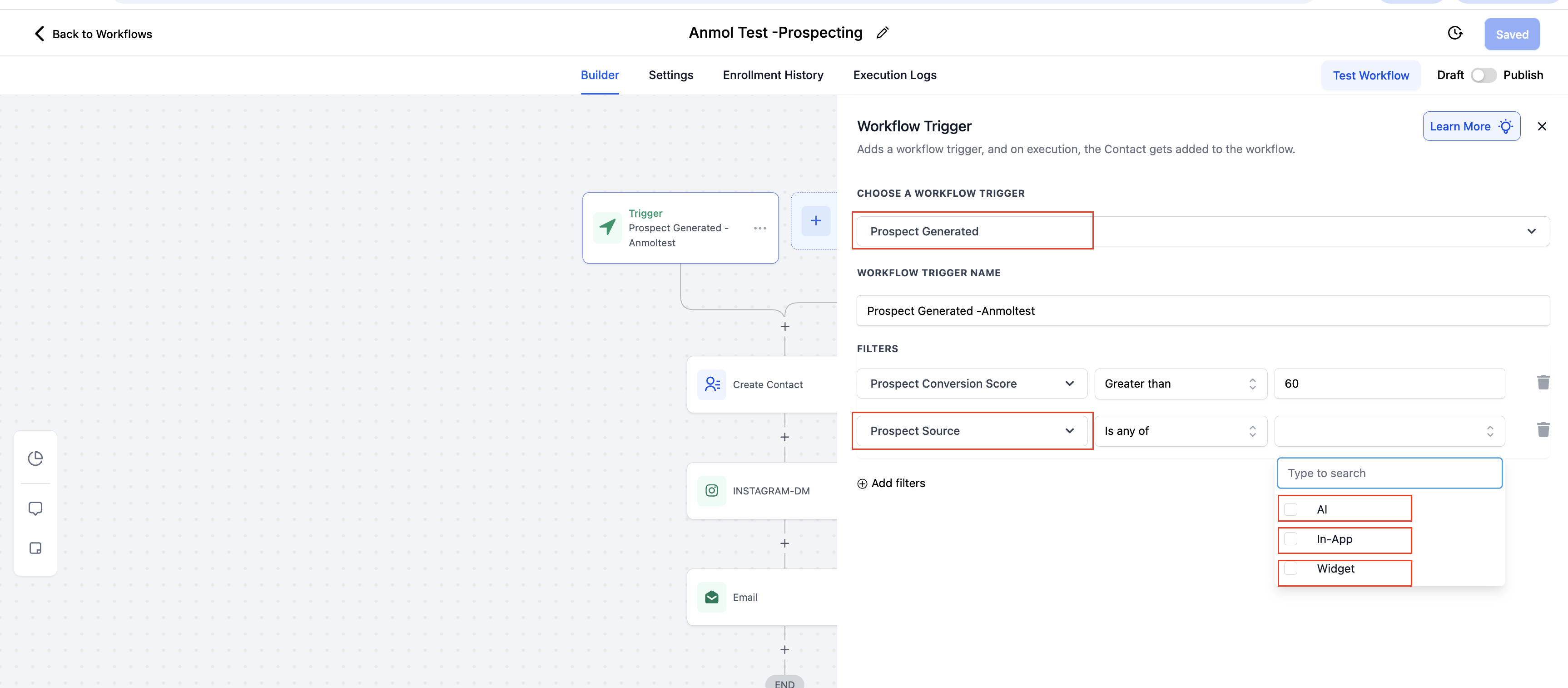
IMPORTANT: This feature is only available after upgrading to the paid version of the prospecting tool inside of your Patient Copilot agency account. Prospecting widgets are fully customizable lead capture forms you can embed on your website to visitors can generate instant Marketing Audit Reports. You can now create multiple widgets, control field behavior, apply custom branding, and automate lead follow-up — all from inside your Prospecting dashboard. When a visitor fills out the form, their details are automatically added to your CRM, tagged for segmentation, and can trigger workflows to send welcome messages, assign them to pipelines, and enrol them into nurture sequences — turning every form submission into a conversion-ready opportunity (only when Prospecting done in Sub Accounts). ## Embed Widget in your website - Once you are satisfied with the widget design and settings, generate the embed code in the settings tab. - Log in to your website’s backend or CMS. This could be WordPress, Joomla, Drupal, or any other platform your website is built on. - Navigate to the page or section where you want to embed the Prospecting Tool Widget. This could be a dedicated lead generation page, a sidebar, or any other suitable location. - After embedding the code, visit the page on your website to ensure the Prospecting Tool Widget is displaying and functioning correctly. Check for the following: - The widget loads without errors. - The widget’s dimensions fit well within the page layout. - All interactive elements of the widget work as expected.!(https://assets.patientcopilot.ai/4a2ab0e442db4316.png) * * * ## Leads and Automation Make Your Widget Work for You — Automatically When a prospect fills out your widget form (inside a Sub-Account with Premium Prospecting enabled): 1. The contact is automatically saved to your Contacts (doesn’t requires workflow setup for this) 2. The lead is tagged (e.g., “New Prospect Received”) 3. You can trigger Workflowsto: - Send a welcome email or SMS - Add them to Opportunities or Pipelines - Launch long-term nurture sequences!(https://assets.patientcopilot.ai/f19879df24572d59.png) > Learn how to automate prospect follow-up using workflows → Preview Mode Use Preview Mode to test widget customizations before embedding the widget on your website. Preview Mode allows you to: Review styling and branding updates Test field visibility and form behavior Validate the user experience before publishing * * * ## Monitor Leads in the Prospect Dashboard - Log in to the Prospecting Tool Dashboard: Access your Prospecting Tool account.
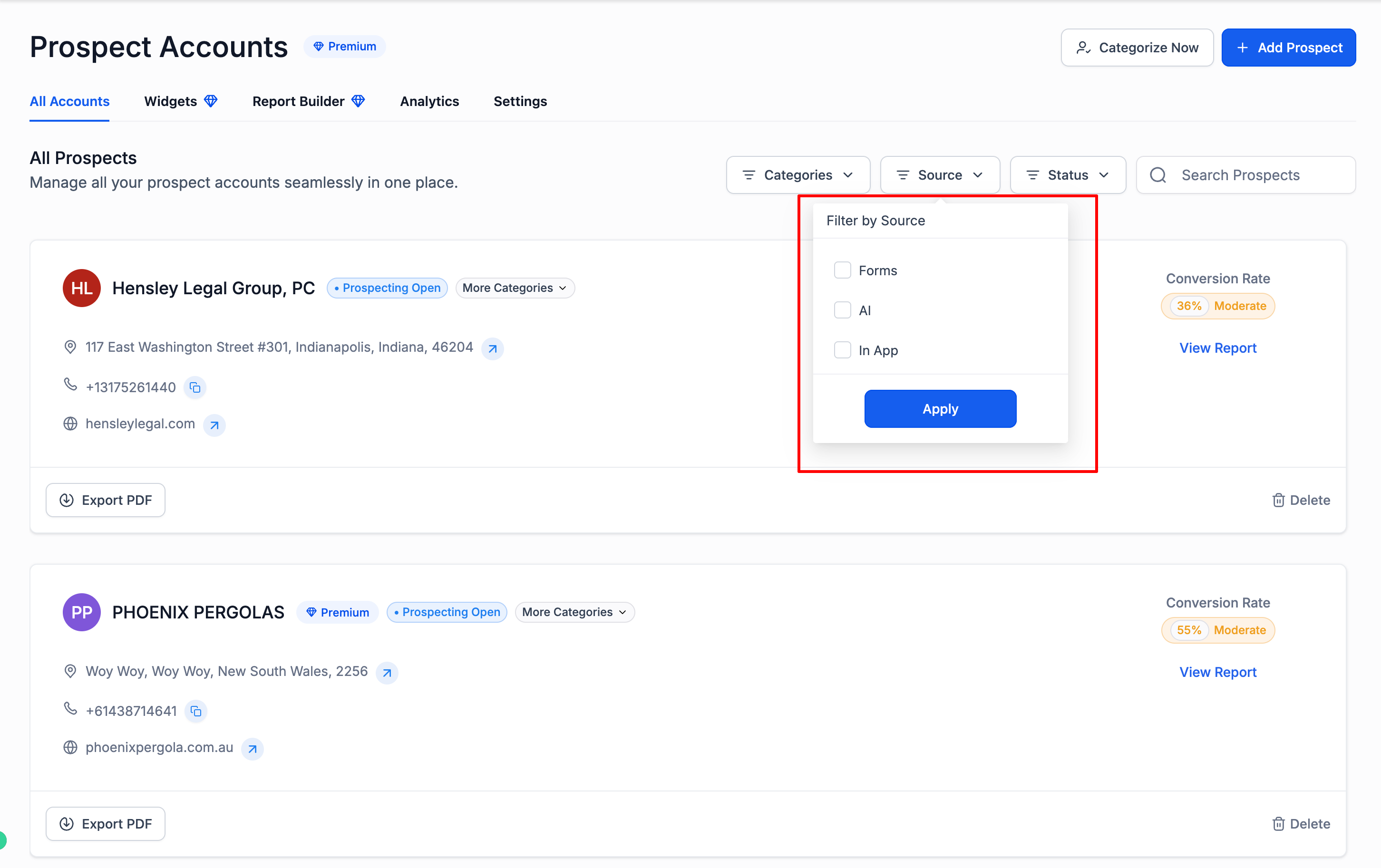
- View Lead Details: Navigate to the prospect dashboard to view the details of the leads who filled out the widget form. The Leads will have “Forms tag” across their name.
- Connect with Leads: Use the contact information and business details provided by the leads to reach out and convert them into successful clients.!(https://assets.patientcopilot.ai/60f2976a828c7e9e.png) * * * ## Benefits for Agencies 1. Enhanced Lead Generation: Capture high-quality leads directly from your website using branded, interactive forms — helping convert casual visitors into qualified prospects. 2. Streamlined Client Acquisition Reduce manual effort by automating the identification, capture, and nurturing of potential clients, accelerating your sales cycle. 3. Improved Client Engagement: Offer a personalized, value-driven experience that encourages visitors to interact with your agency and explore your services further. 4. Data-Driven Prospecting: Use real-time analytics and reporting to optimize your lead generation strategies and make smarter client acquisition decisions. 5. Scalable Growth: Easily manage multiple widgets and workflows across clients or campaigns, making your prospecting process adaptable as your agency expands. * * * ## Benefits for SaaS Sellers 1. Targeted Outreach: Identify and engage with potential customers who are actively seeking solutions that your SaaS product offers.
- Higher Conversion Rates: Prioritize leads based on their engagement and interest levels, focusing your efforts on the most promising prospects.
- Streamlined Sales Process: Automate key aspects of the sales process, from initial contact to follow-up, allowing your sales team to focus on closing deals.
- Insightful Analytics: Gain valuable insights into your prospecting efforts, enabling you to refine your approach and improve overall effectiveness.
- Enhanced Customer Experience: Provide a seamless and personalized journey for potential customers, increasing their likelihood of choosing your SaaS solution. * * * ## Frequently Asked Questions Q: How many Prospecting Widgets can I create? A: You can create up to 8 Prospecting Widgets for different websites, campaigns, or use cases. Q: Can I customize the widget submit button? A: Yes. You can customize the submit button background color, text color, and label text. Q: Can I control which form fields are displayed? A: Yes. Input fields can be shown, hidden, marked optional, or marked required. Q: What is Preview Mode? A: Preview Mode allows you to test widget styling, field behavior, and overall appearance before publishing the widget live on your website. Q: Can leads manually enter business information? A: Yes. Manual business entry is supported for businesses that are not listed on Google or operate virtually. Q: Are leads automatically added to the CRM? A: Yes. When a lead submits the widget form inside a Sub-Account with Premium Prospecting enabled, the contact is automatically added to the CRM. Q: Can widget submissions trigger workflows? A: Yes. You can use workflows to automate follow-ups, pipeline creation, tagging, emails, SMS, and nurture campaigns. Q: Can I customize widget fonts and branding? A: Yes. You can customize font family, font size, colors, backgrounds, and images to match your branding. * * * ## Related Articles - Prospecting Tool: Create Prospecting Widgets For Your Websites