Disable Contact Timezone - How to Remove Ability to Adjust Timezones When Scheduling
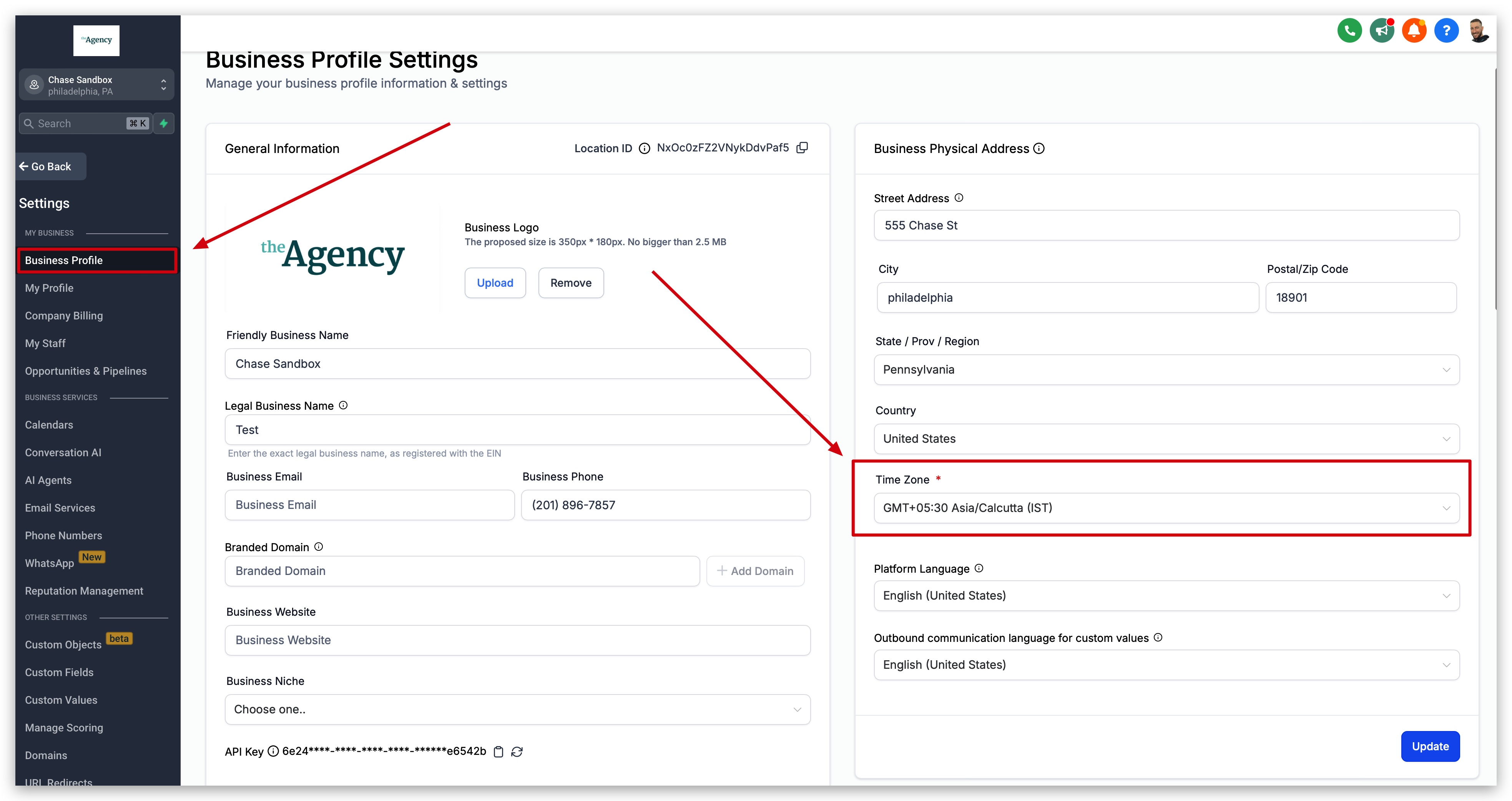
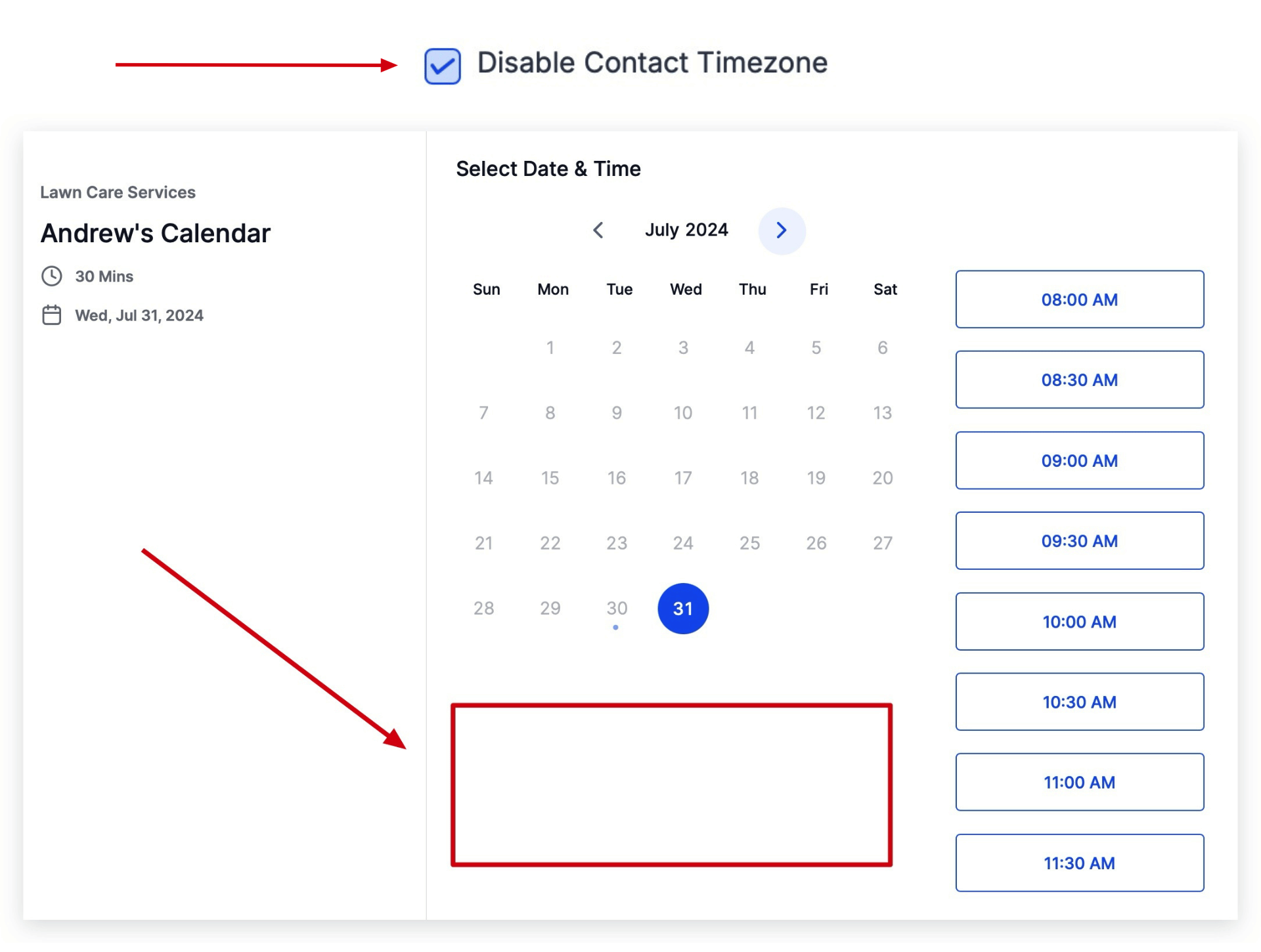
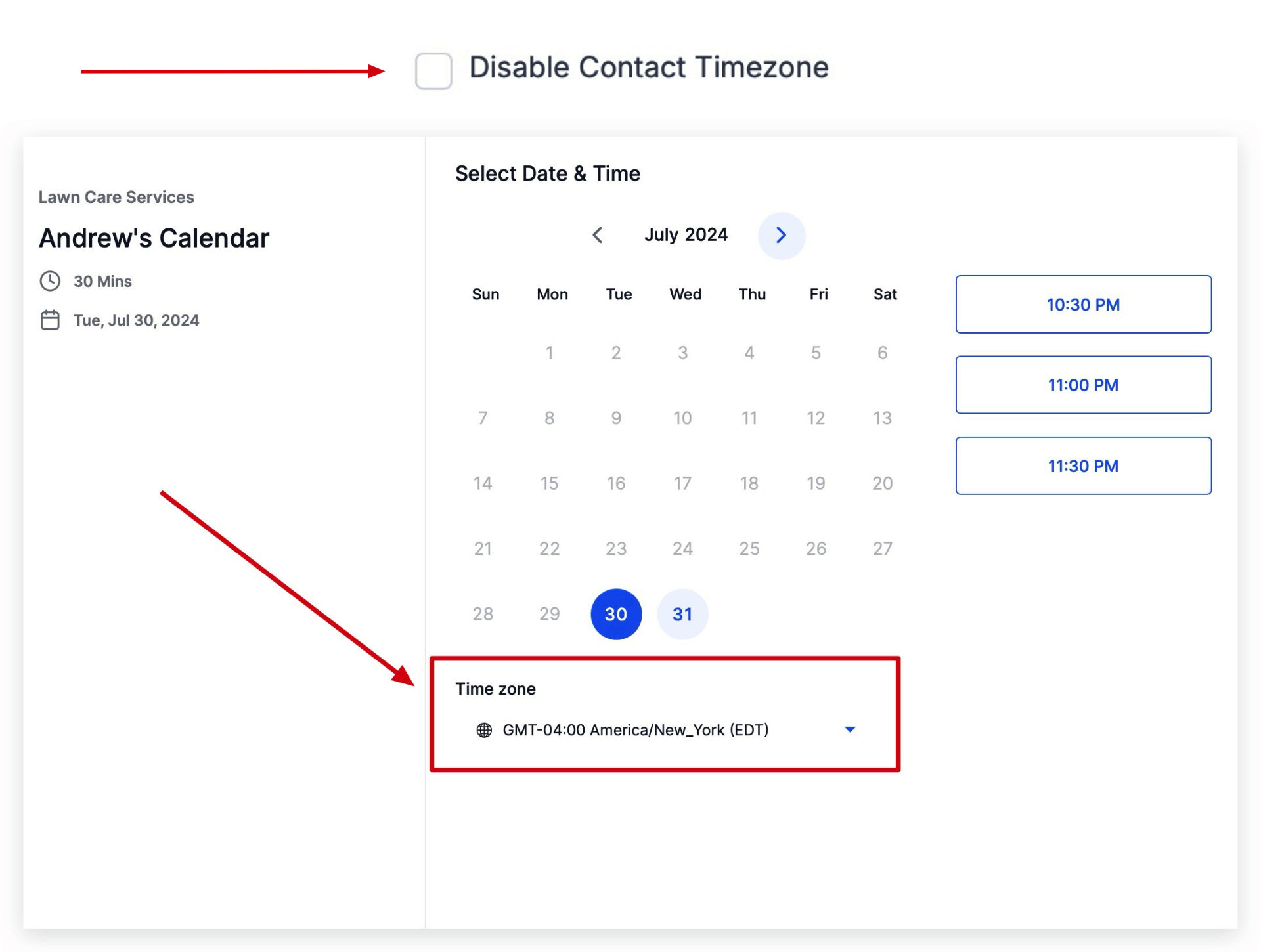
**How to Set Your Business’ Timezone (**Sub-Account) It is very important to have your sub-account’s timezone set properly, especially if you are not allowing contacts to adjust the timezone manually when scheduling. To view and/or adjust your sub-account’s timezone, navigate to Settings > Business Profile and find the “Time Zone” field located on the right side of the screen under the “Business Physical Address” options.!(https://assets.patientcopilot.ai/f42ab86427eebdbd.jpg) Click Here To learn more about BUSINESS PROFILE settings * * * The screenshots below are examples of when your calendars will look like depending on whether you have enabled or disabled the Contact Timezone feature. ### Contact Timezone DISABLED With the “Disable Contact Timezone” box selected, users will no longer see the time zone dropdown selector in the calendar widget (see screenshot below), and all appointments will be made in whatever time zone is set within the location settings.!(https://assets.patientcopilot.ai/d9ca4a9ef52cc9d7.png) ### Contact Timezone ENABLED (default setting) This screenshot shows the default calendar widget with the timezone preference. By default, the contact timezone is enabled, giving your contacts the ability to change the timezone where the appointment is being scheduled.!(https://assets.patientcopilot.ai/2ee39513178b121f.png)