Tasks Across Multiple Objects
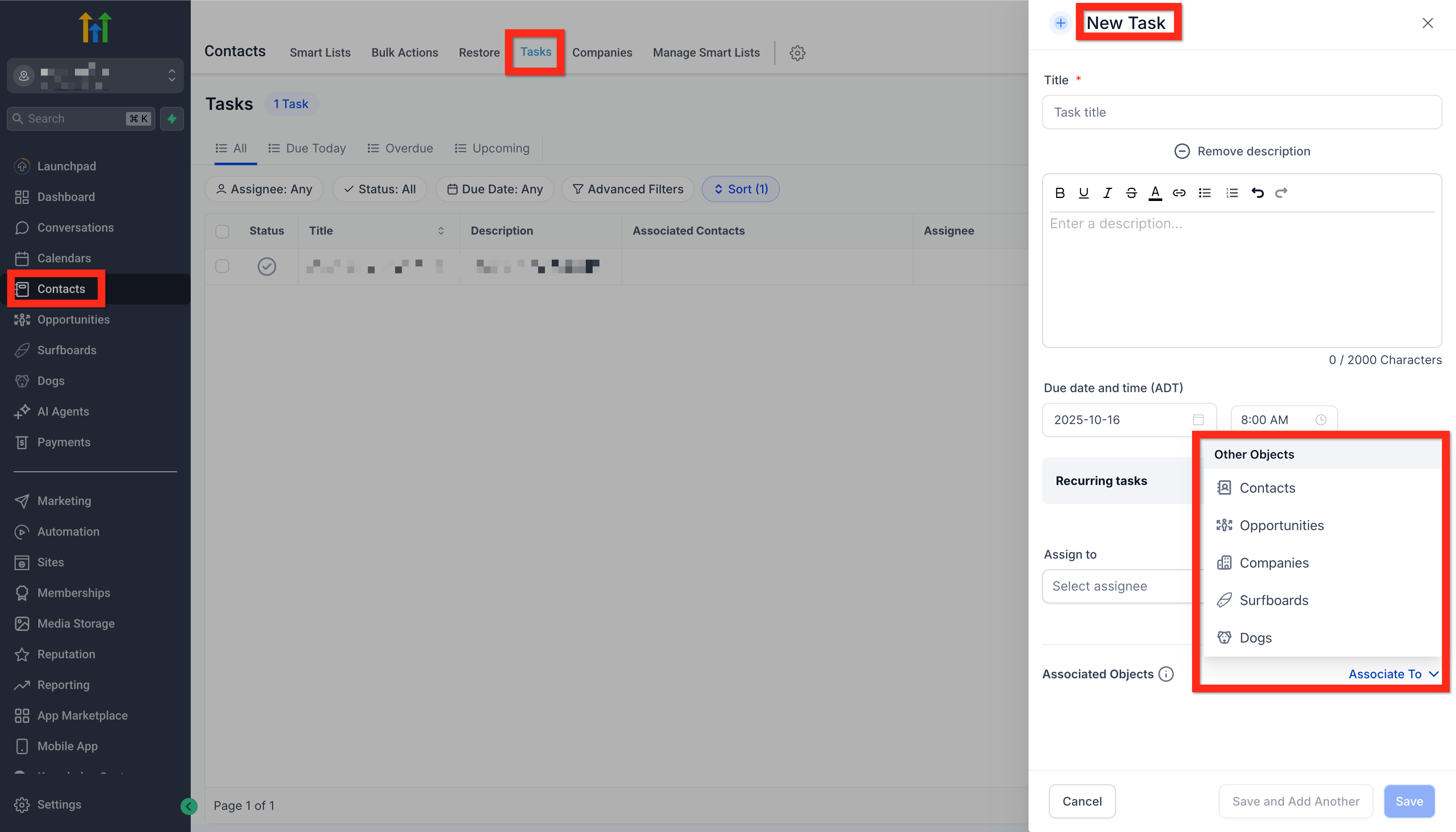
Manage follow-ups where the work really happens. Multi-Object Task Associations let you link a single task to Contacts, Opportunities, Companies, and Custom Objects—up to ten records of each type—so your team never loses context again. * * * ## What is Multi-Object Task Associations? Multi-Object Task Associations is an enhancement to Patient Copilot Tasks that removes the previous “contacts-only” limitation. You can now connect one task to multiple objects—contacts, deals, companies, or any custom object—giving every stakeholder instant visibility into the same to-do item. This foundation supports true cross-object task management and cleaner data by letting you attach tasks exactly where they belong. Connect a Task with up to 10 associations per Object type. That means one Task can be connected to 10 Contacts, and 10 Opportunities, and so on. * * * ## Key Benefits of Multi-Object Task Associations Multi-Object Task Associations helps teams stay organised and accountable by: - End-to-end visibility – the same task shows inside each linked record’s Associated Objects panel.
- Cross-team collaboration – sales, success, and operations can all follow the same action item, even if they work in different modules.
- Less duplication – one task replaces multiple “clone tasks” that previously had to be created for every record.
- Flexible limits – associate up to 10 contacts, 10 opportunities, 10 companies, and 10 custom objects with a single task.
- Powerful list filters – quickly narrow task lists by assignee, status, or any linked Contact or Opportunity. * * * ## Default Association Behavior Patient Copilot applies smart defaults to save you clicks while still giving you full control. - Tasks page ➜ starts with no associations; pick whatever records you need.
- From a Contact ➜ pre-links that contact plus its primary company (if any).
- From an Opportunity ➜ pre-links the opportunity, its primary contact, and that contact’s primary company.
- From a Company ➜ pre-links the company. Edit, add, or remove associations at any time using the Associate To drop-down. * * * ## Viewing Associated Objects Every Contact, Opportunity, Company, and Custom Object record now includes an “Associated Objects” section. Hover the chain-link icon in any task row to preview all linked records instantly. Click any record name to open it in a new tab. * * * ## Filtering Tasks by Association Use the filter icon on the Tasks page or inside a record’s task panel to: - Show only tasks linked to a specific Contact or Opportunity.
- Combine filters with status (Open, Completed, Overdue) and assignee for laser-focused lists. These filters pull from the same association data that powers the new feature, so you can slice and dice tasks any way your workflow demands. * * * ## How To Setup Multi-Object Task Associations Proper setup ensures tasks appear everywhere your team expects them. 1. Navigate to any Contact, Opportunity, Company, Custom Object—or open the main Tasks page.
- Click + Add Task.
- Confirm or modify the default associations in the Associate To field.
- (Optional) Click + Add Association to link additional records—up to 10 per object type.
- Complete the rest of the task form (title, assignee, due date, etc.).
- Click Save.
- To edit associations later, open the task, click the pencil icon next to Associated Objects, adjust, and Save.!(https://assets.patientcopilot.ai/f84e5c7f6ca83543.png) * * * ## Frequently Asked Questions Q: Does this affect existing tasks? A: No. Tasks created before the release remain linked to their original contact only. You can edit them to add more associations. Q: Is there a way to exceed the 10-per-object-type limit? A: The limit is enforced platform-wide to keep data manageable. For larger projects, consider splitting work into multiple tasks. Q: Can I automate associations in Workflows? A: Not yet. Associations are currently managed in the UI, but workflow actions for tasks are on the product roadmap. Q: Will recurring tasks respect the same associations? A: Yes. When a recurring instance is generated, it inherits all associations from the original task. Q: Do permissions follow object ownership? A: A user can see a task if they have access to any one of the associated records. * * * ## Related Articles - Unified Task Management Across Contacts and Opportunities - Association Limits - How to Decouple Owners for Contacts and Opportunities - Opportunity Notes – Link Notes Across Contacts & Opportunities