
Getting Started - Automatic Email and SMS Followup
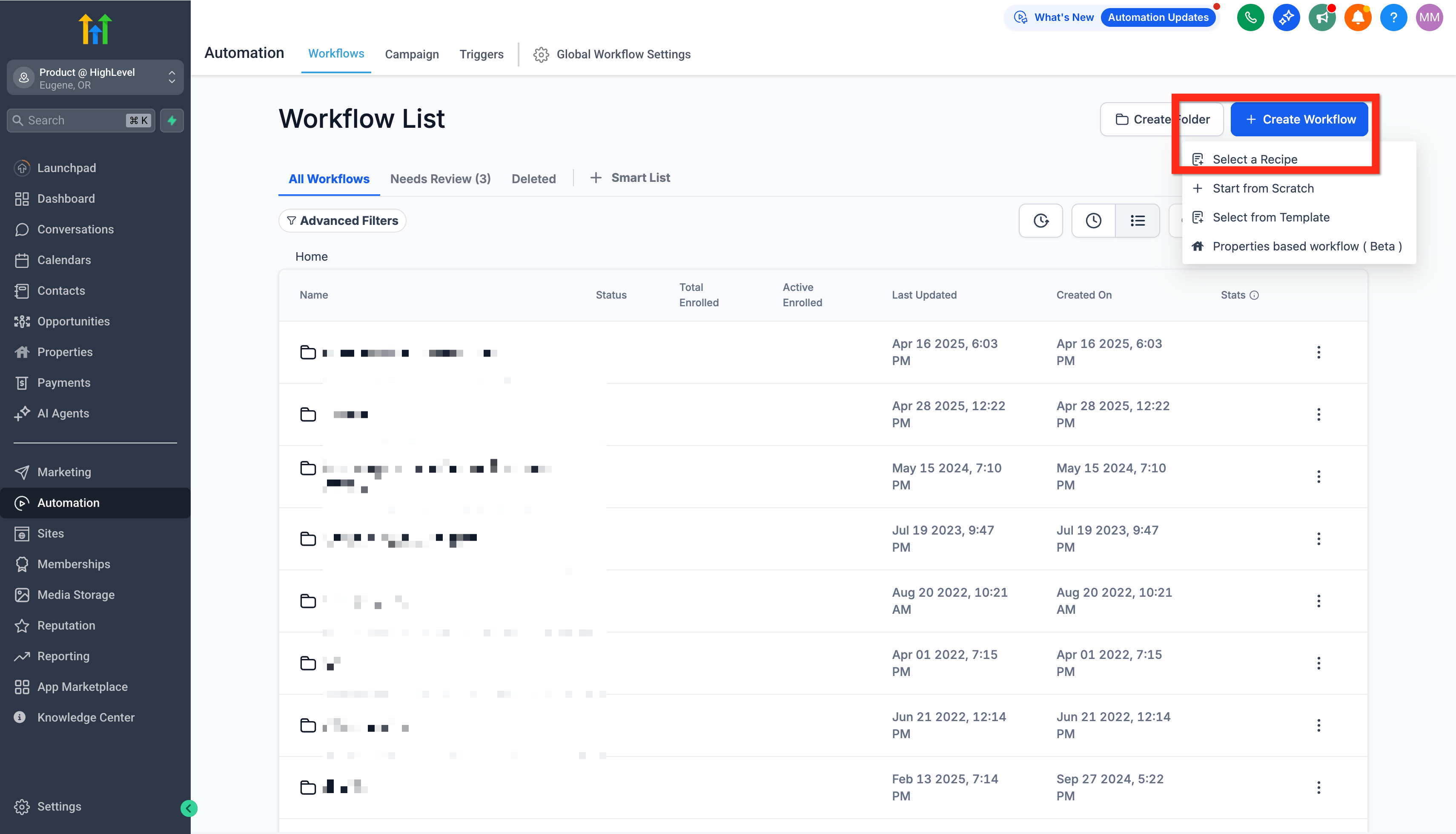
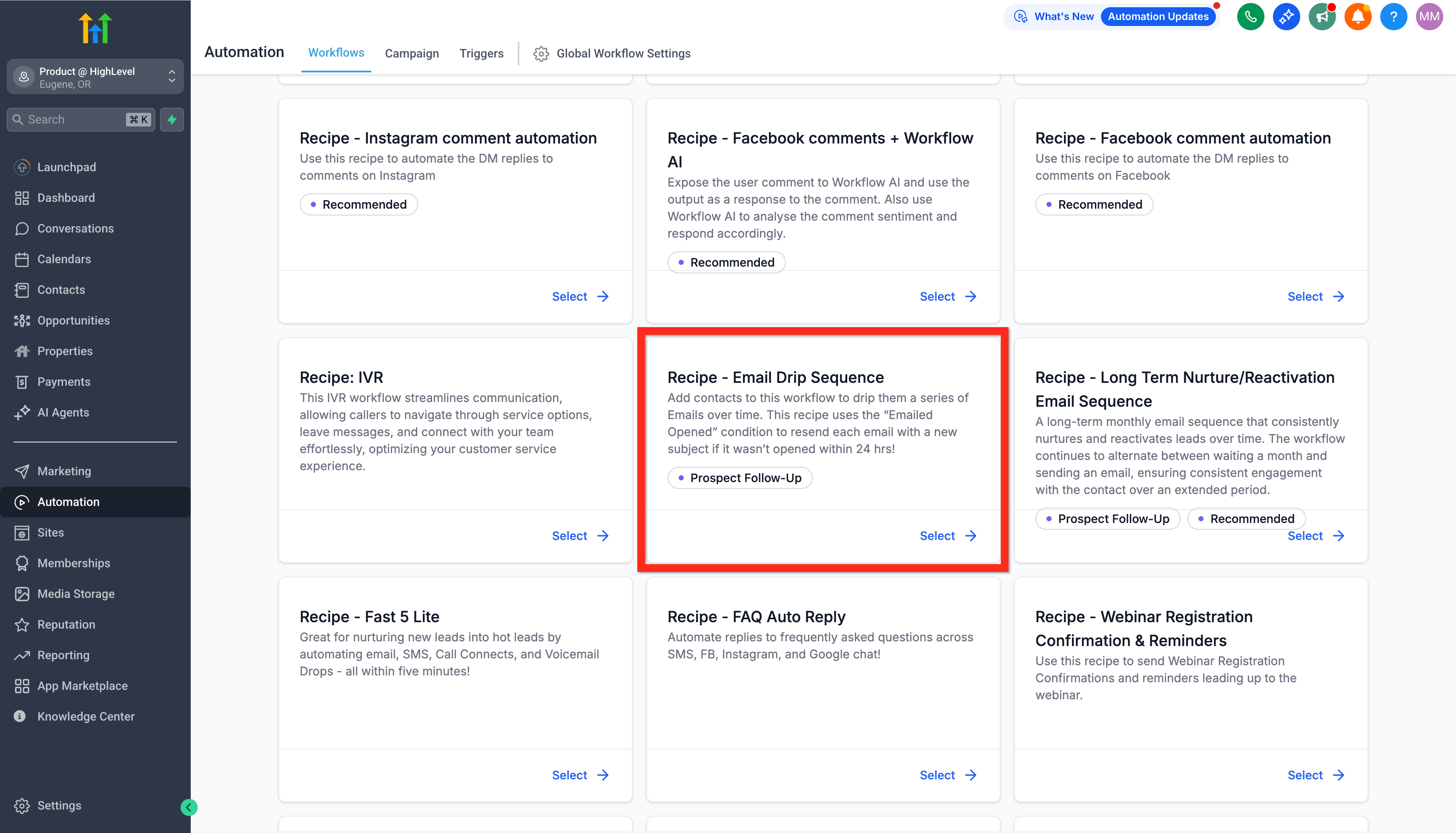
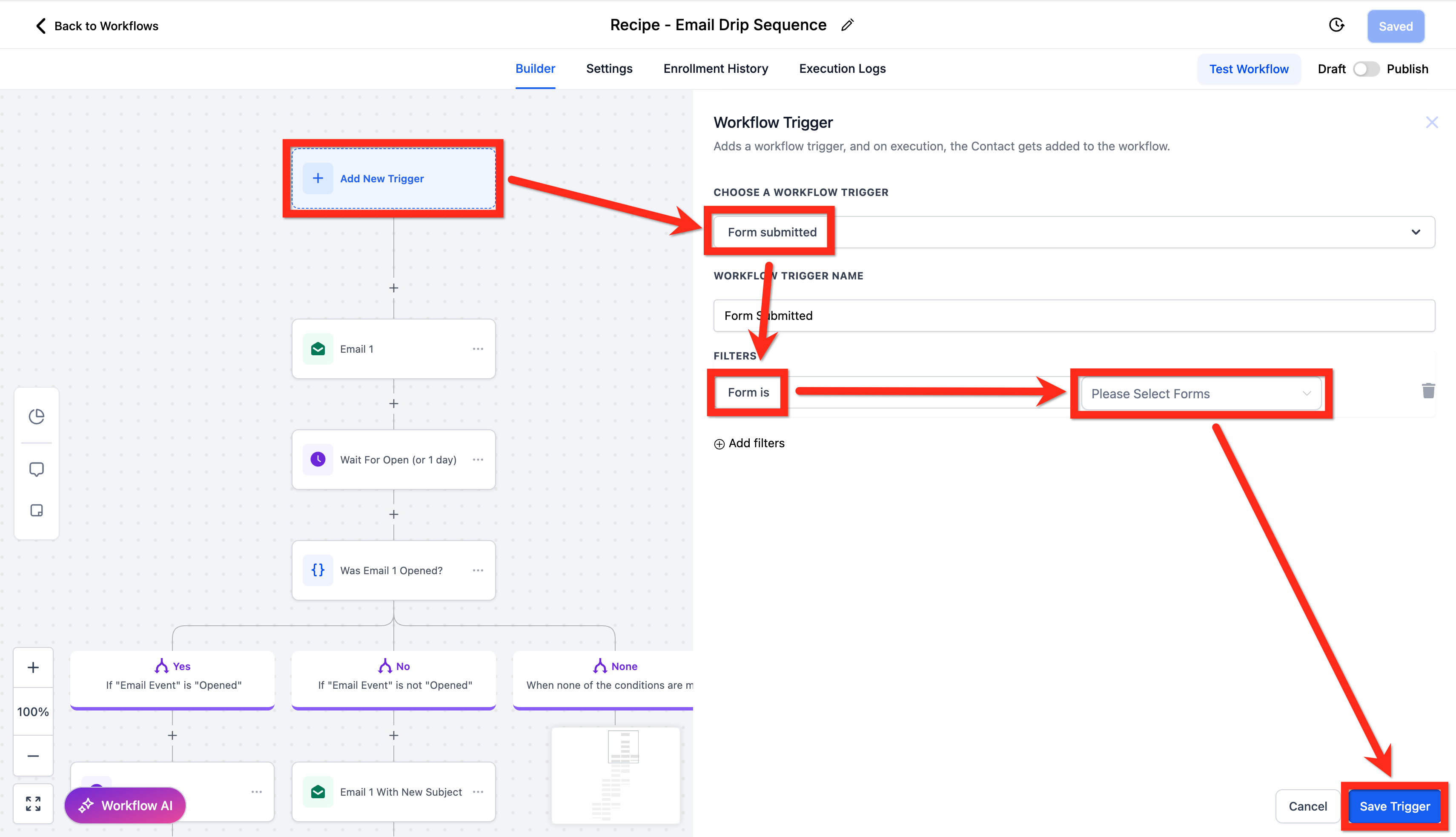
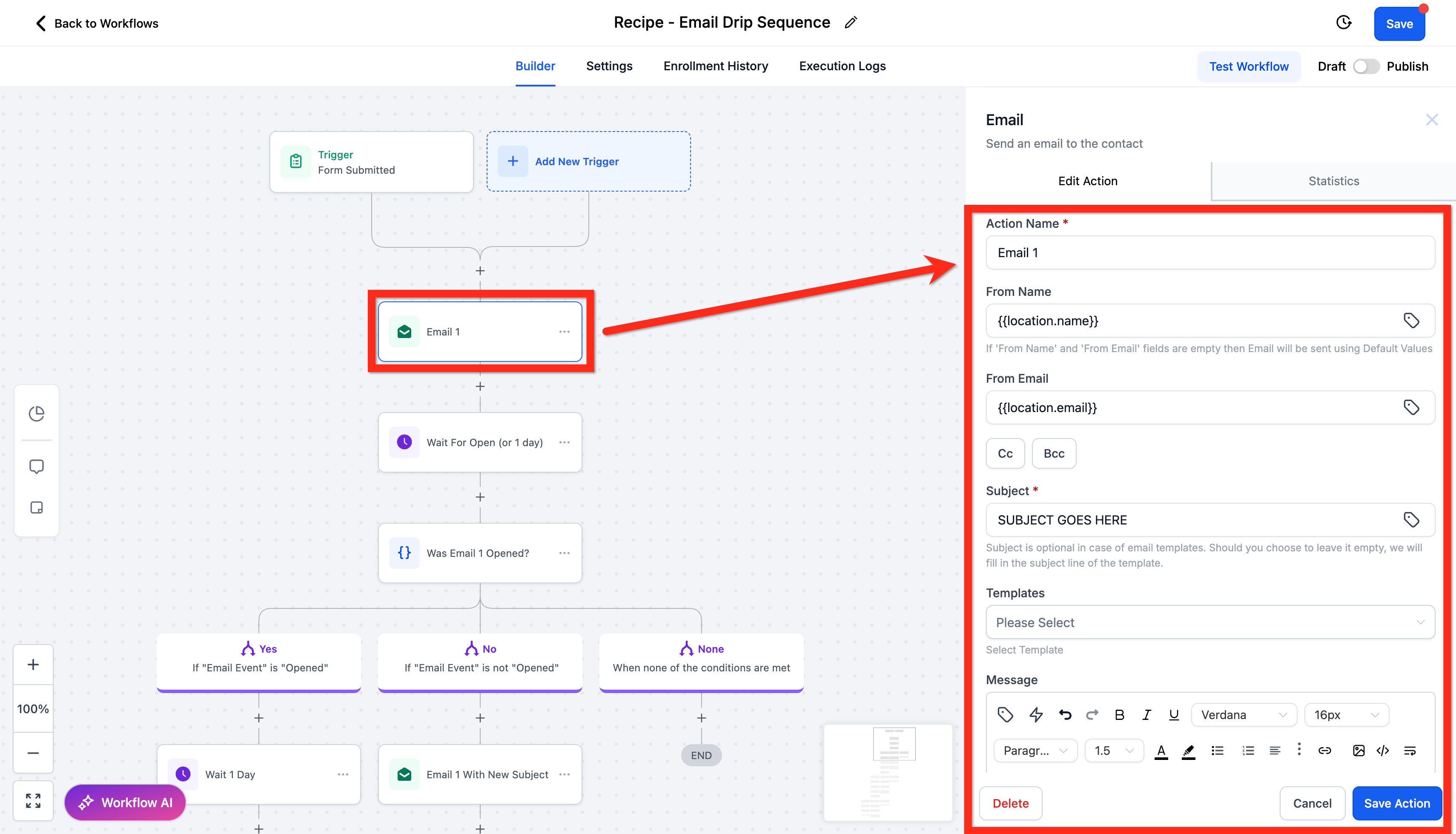
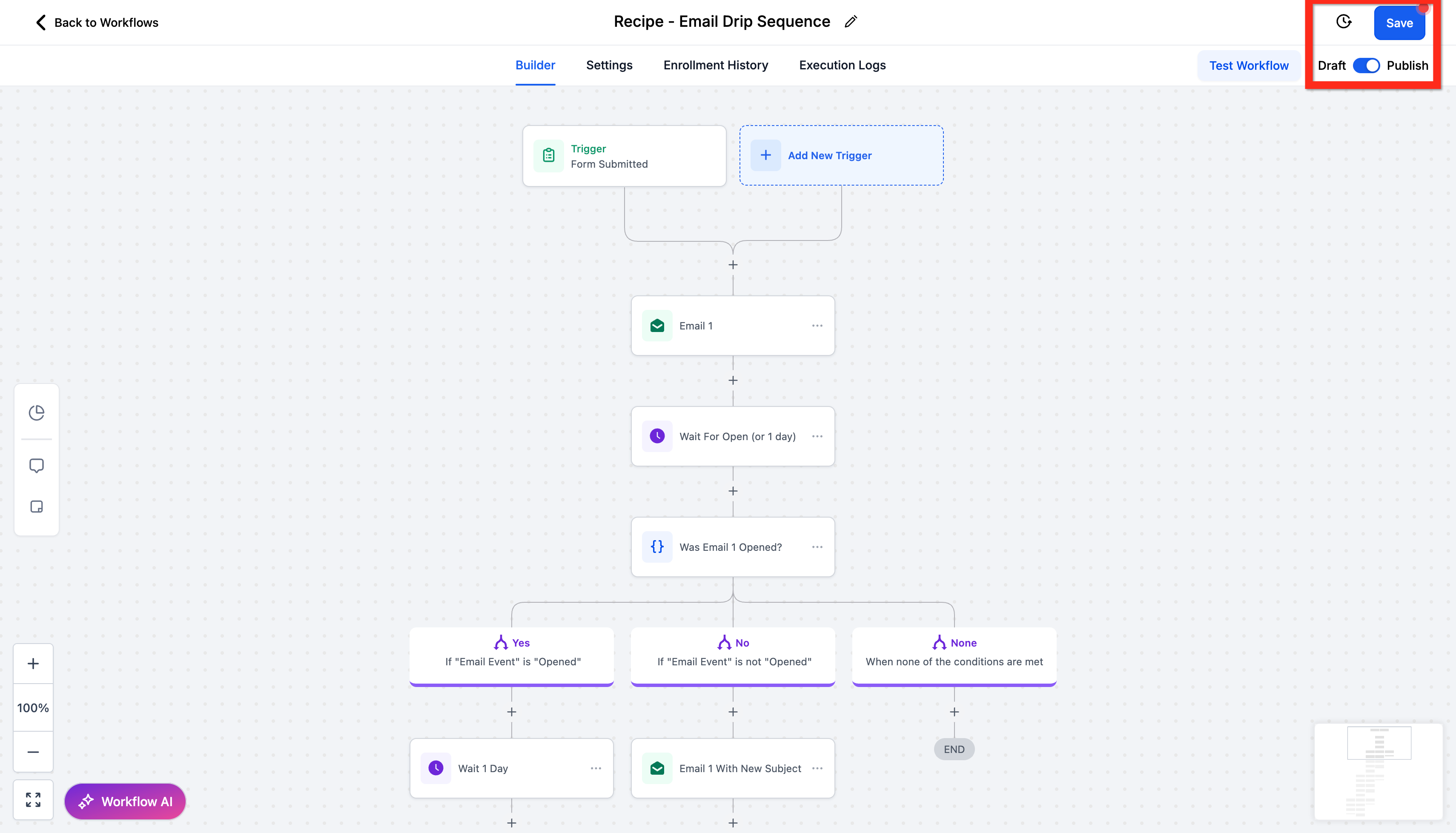
Set up automated email and SMS drip campaigns to nurture 100+ leads over time. Boost your conversion rates by ensuring consistent follow-up without spending your precious time doing it manually. * * * ## Create Automated Form Submission Email Followup Automated email follow-ups can transform your lead nurturing strategy. Think of this as your virtual assistant, handling responses seamlessly so you can focus on growing your business. Let’s dive right in! 1. Navigate to Automation. 2. Click Create Workflow > Select a Recipe.!(https://assets.patientcopilot.ai/1bc37c2750ece934.png) 3. Select the recipe Email Drip Sequence.!(https://assets.patientcopilot.ai/6e9a5a37d9d6e6a9.png) 4. Add the trigger Form Submitted: Click Add filter, choose Form is, select the relevant form, then click Save.!(https://assets.patientcopilot.ai/e4730d118580123c.png) 5. Edit the email actions by customizing the subject, message content, attachments, and other details. Then click Save Action.!(https://assets.patientcopilot.ai/1d69b222ea40cf86.png) 6. Click Publish. 7. Click Save.!(https://assets.patientcopilot.ai/4062bdd841ca66f5.png) Learn More - Workflow Action – Send Email
- Workflow Trigger – Form Submitted (https://help.patientcopilot.ai/en/support/solutions/articles/155000002550)
- Getting Started With Workflows Now that you’ve automated your email follow-up, next you can explore how SMS can add an extra layer of personalized engagement! * * * ## Create Automated Form Submission SMS Followup Sending SMS follow-ups alongside your emails can greatly enhance your communication effectiveness. With texts typically opened within minutes, this approach ensures you’re always top-of-mind. Here’s how you do it: 1. Navigate to Automation.
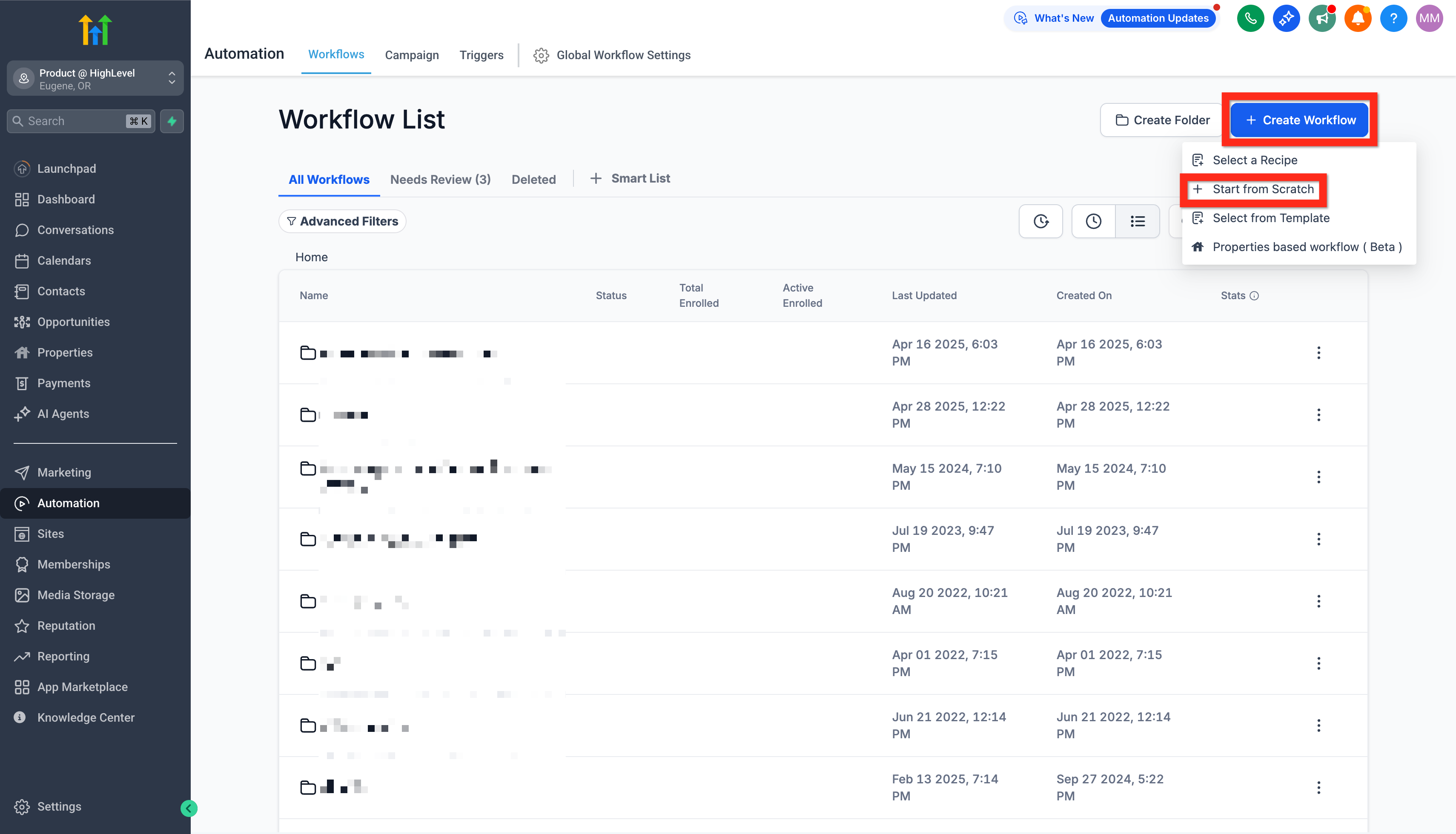
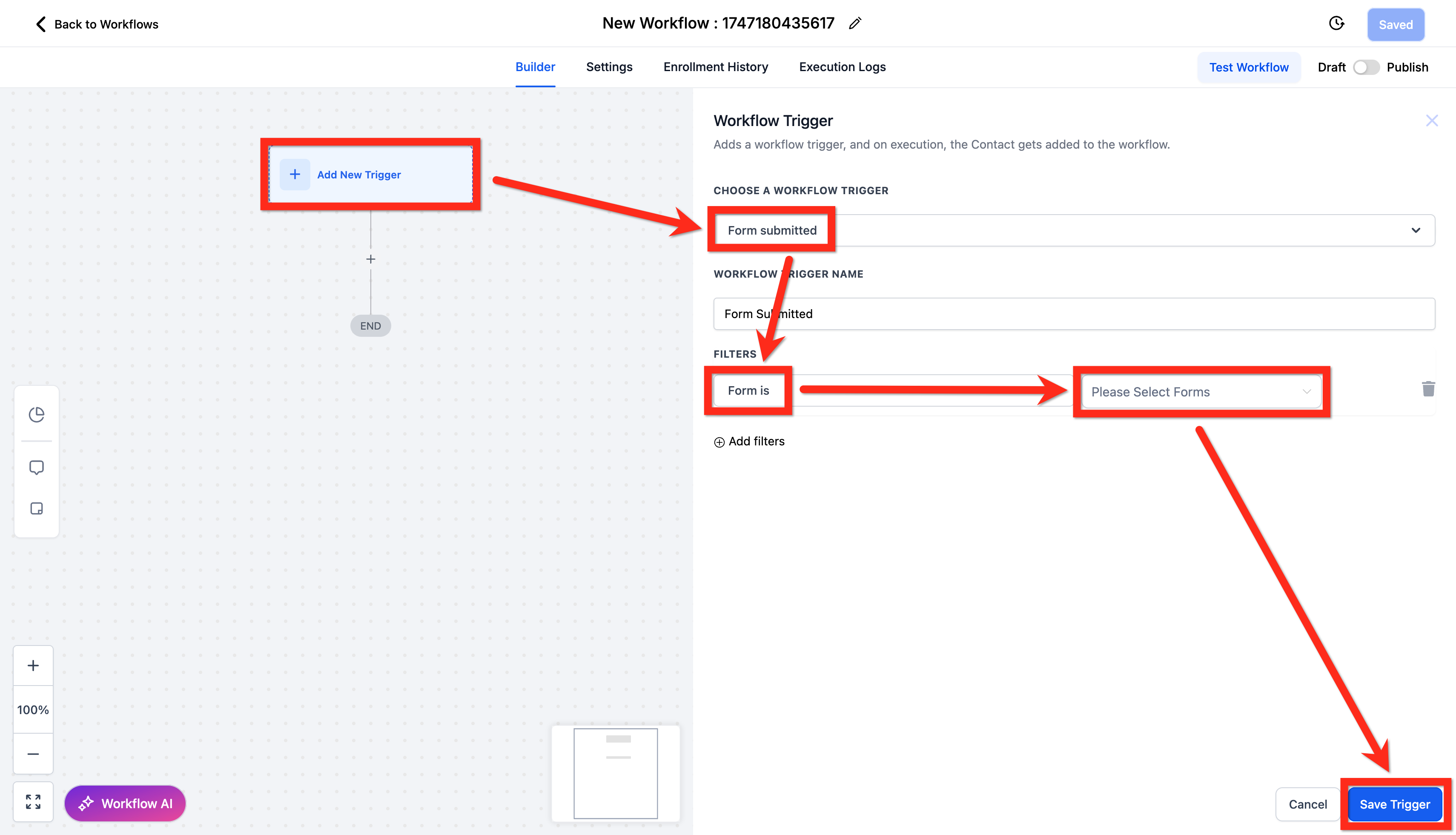
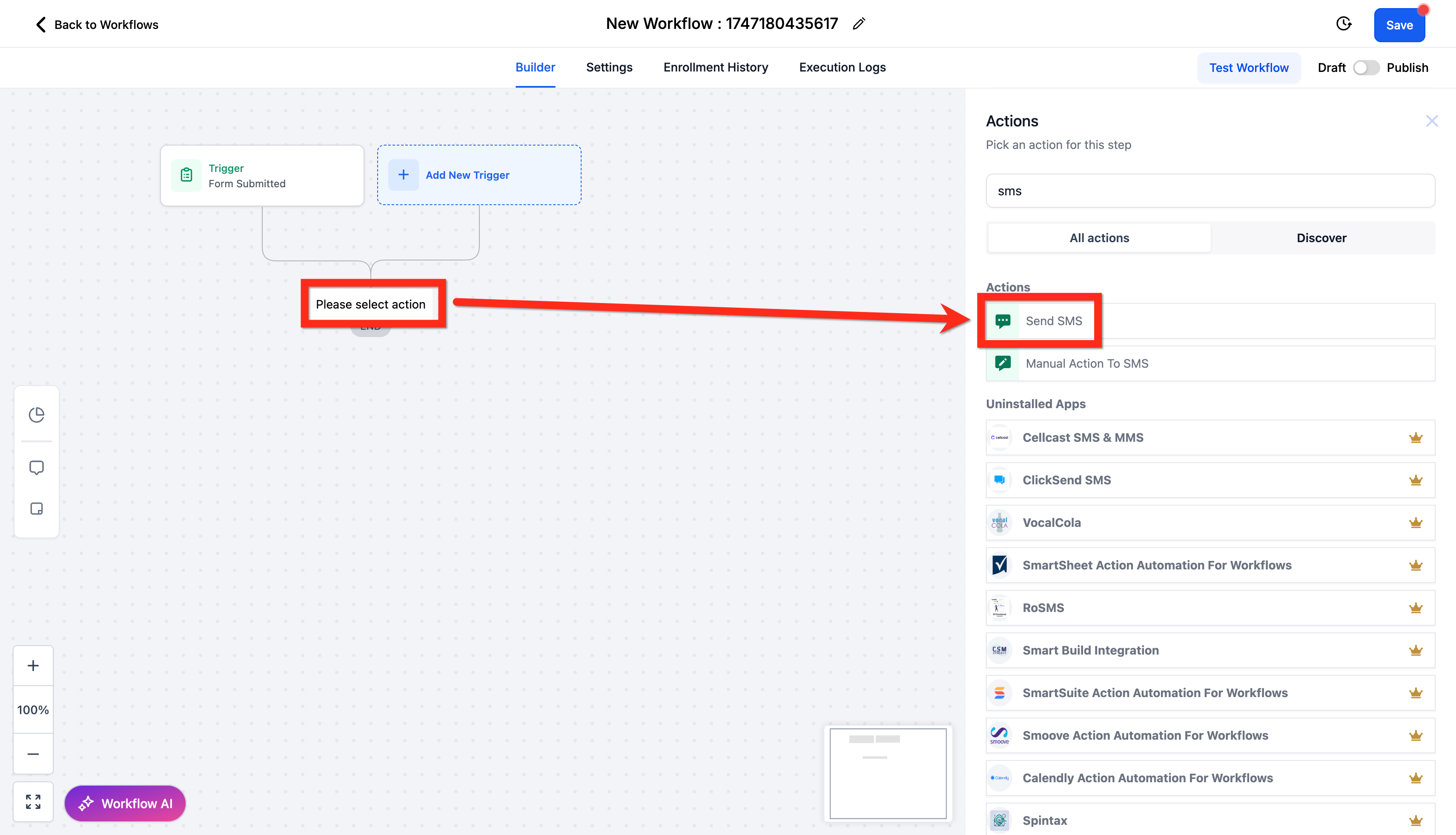
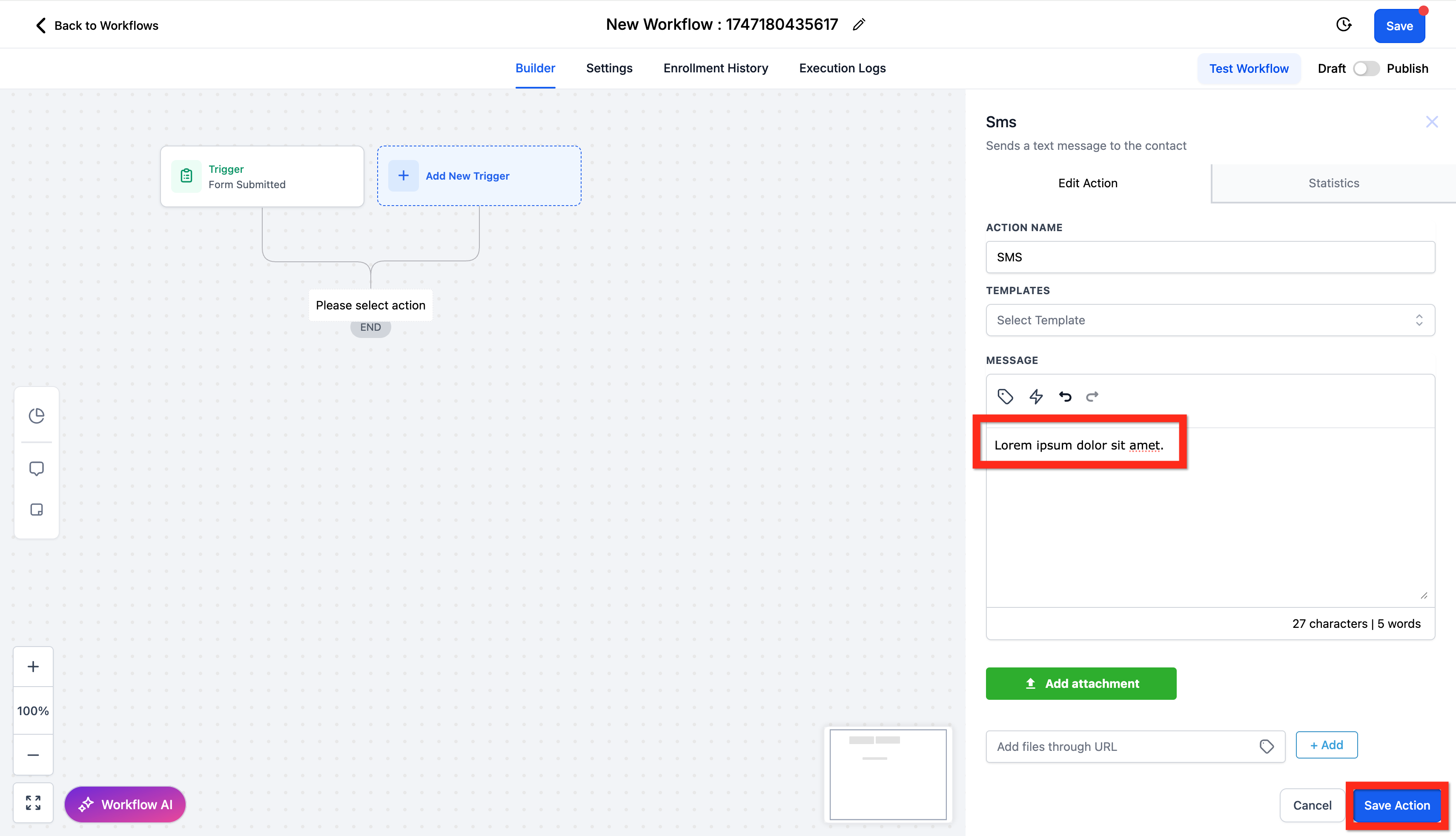
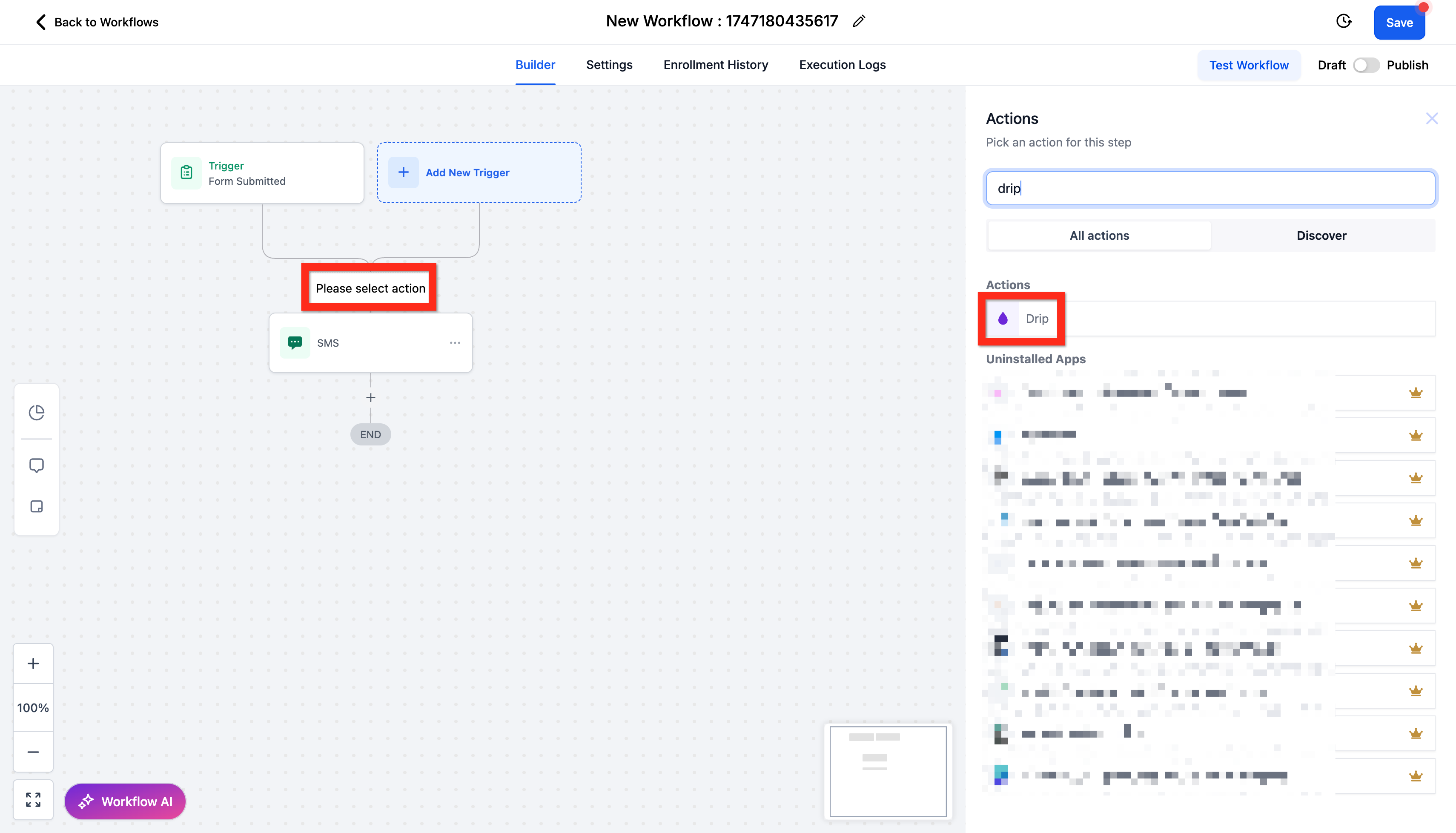
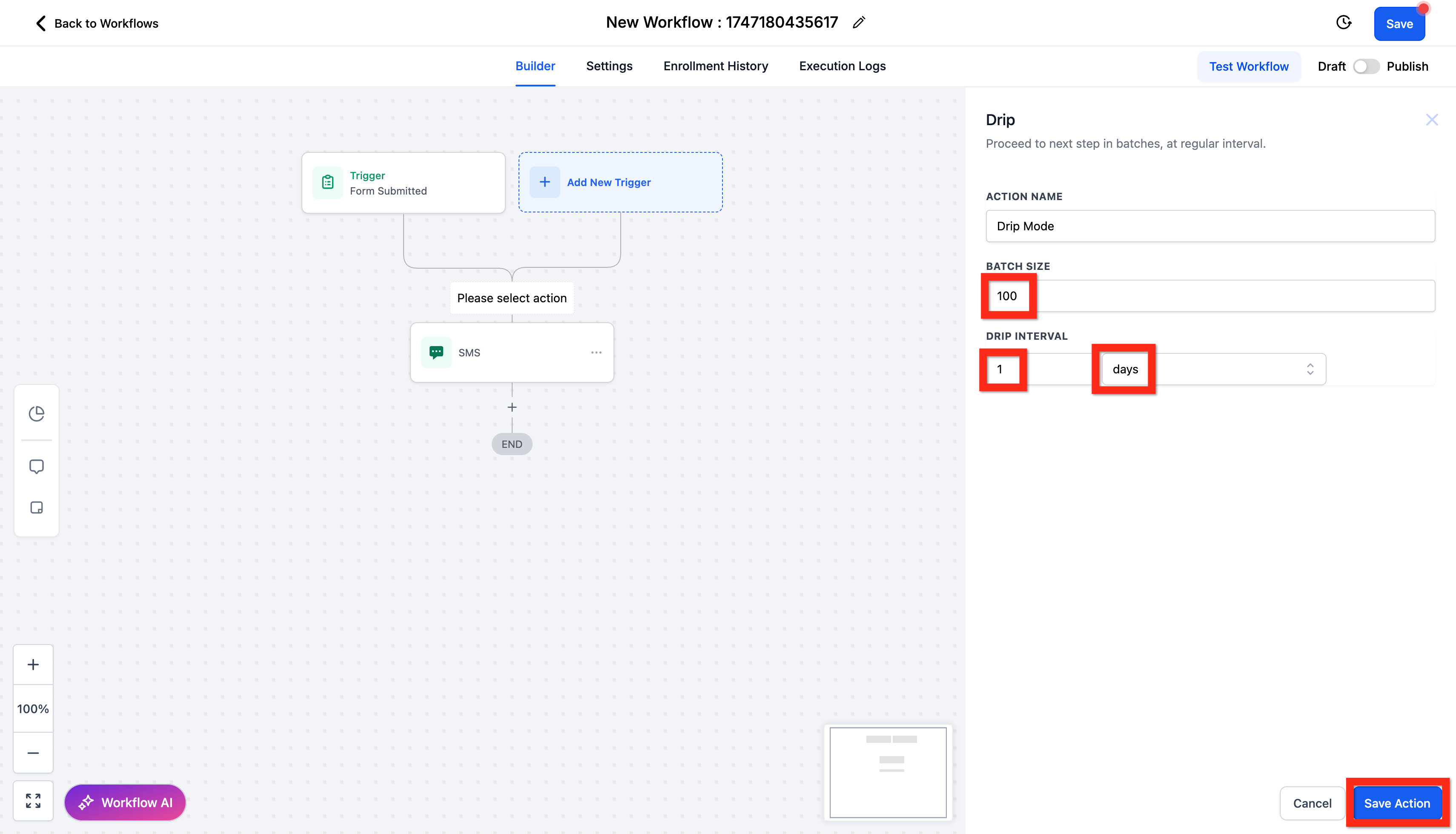
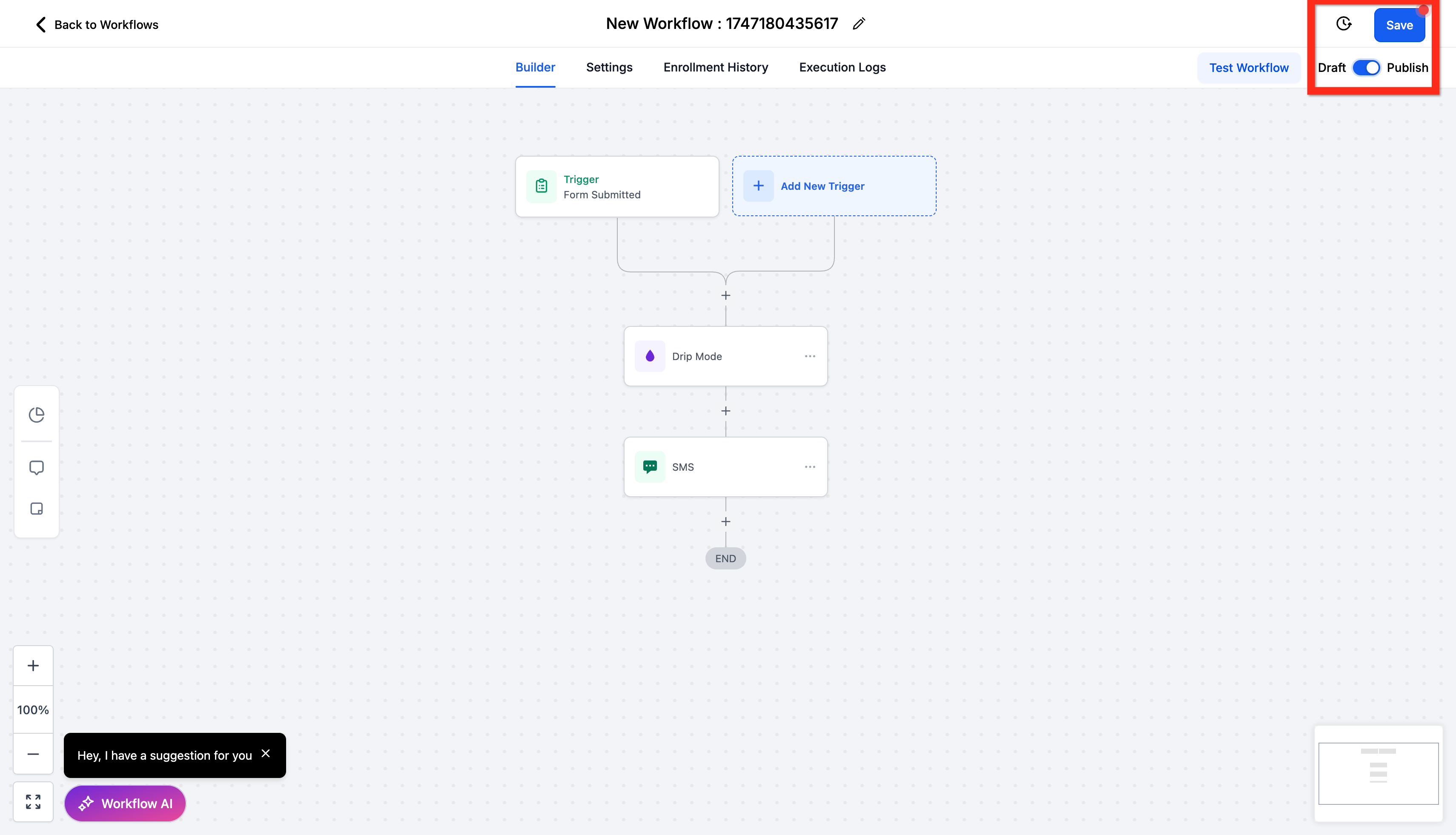
- Click Create Workflow > Select Start from scratch.!(https://assets.patientcopilot.ai/9d12be170e3cebba.png) 3. Add the trigger Form Submitted: Click Add filter, choose Form is, select the desired form, and click Save.!(https://assets.patientcopilot.ai/c51a5e5362f14844.png) 4. Add the Send SMS action.!(https://assets.patientcopilot.ai/d0fab081f06ab57e.png) 5. Write your engaging message clearly and succinctly, then click Save Action. !(https://assets.patientcopilot.ai/ea6c713bcc90613e.png) 6. Add the Drip action BEFORE your Send SMS action. !(https://assets.patientcopilot.ai/b54edd4d888be184.png) 7. Set your batch size to 100. Choose the drip interval as every 1 day. Click Save Action.!(https://assets.patientcopilot.ai/fa3f7d41a254c933.png) 8. Click Publish.
- Click Save.!(https://assets.patientcopilot.ai/873374f8a7534296.png) Learn More - Workflow Action – Send SMS (https://help.patientcopilot.ai/en/support/solutions/articles/155000002474)
- A List of Workflow Actions Great job! Next, you might consider checking out additional workflow actions to further streamline your processes. Was this article helpful? That’s Great! Thank you for your feedback Sorry! We couldn’t be helpful Thank you for your feedback Feedback sent We appreciate your effort and will try to fix the article