"Add Contact" Form Upgrade and Customizations
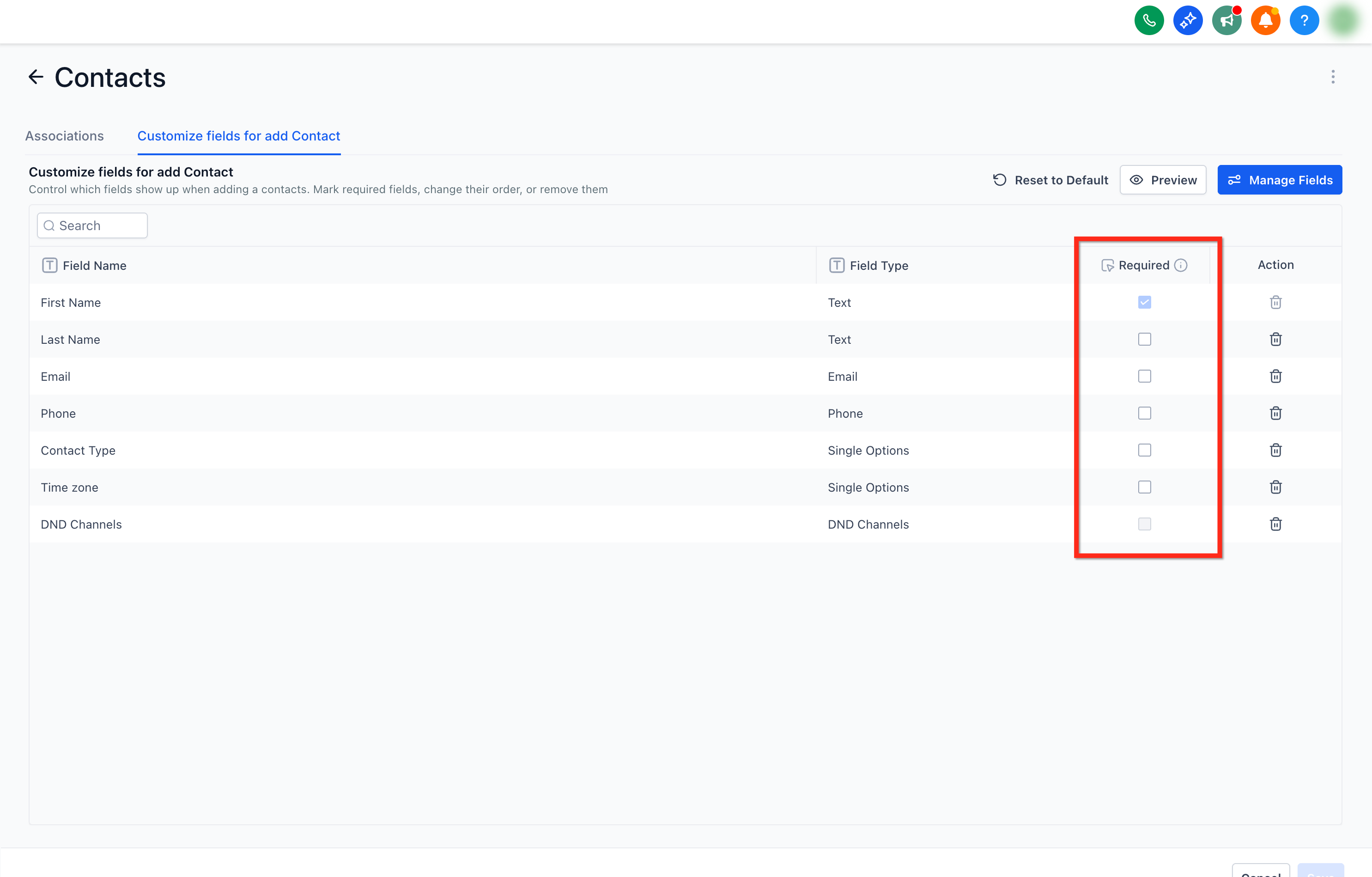
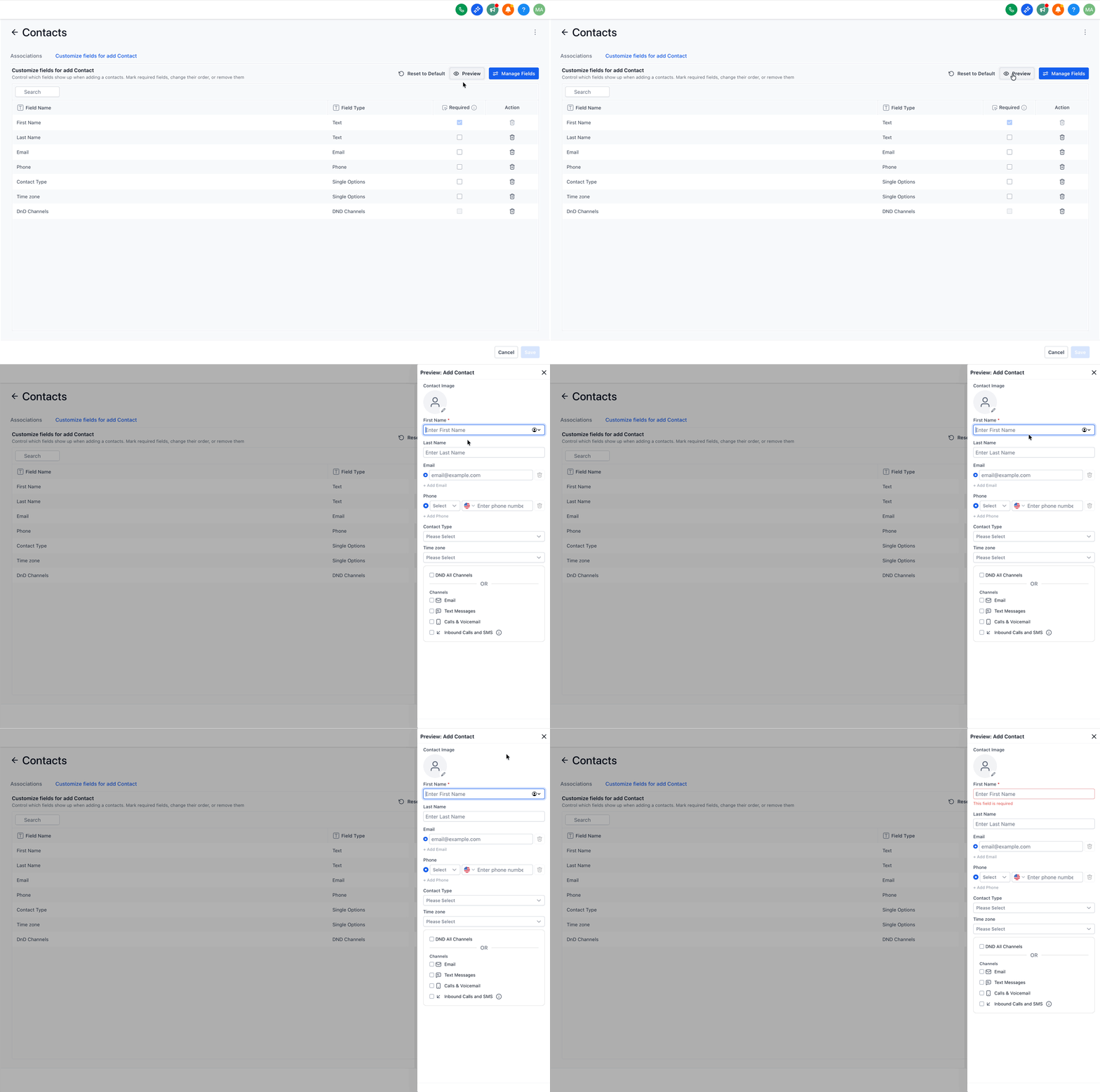
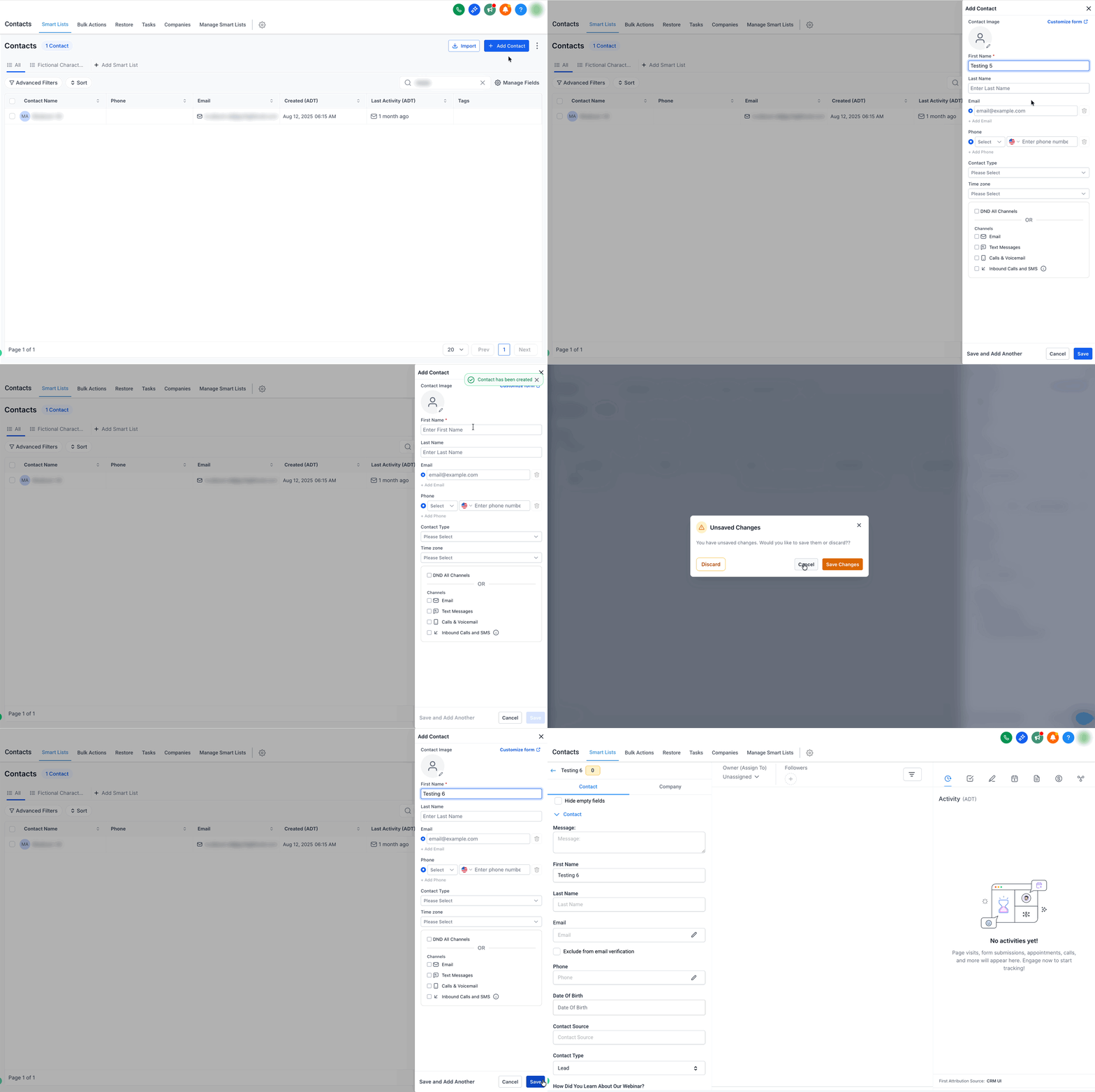
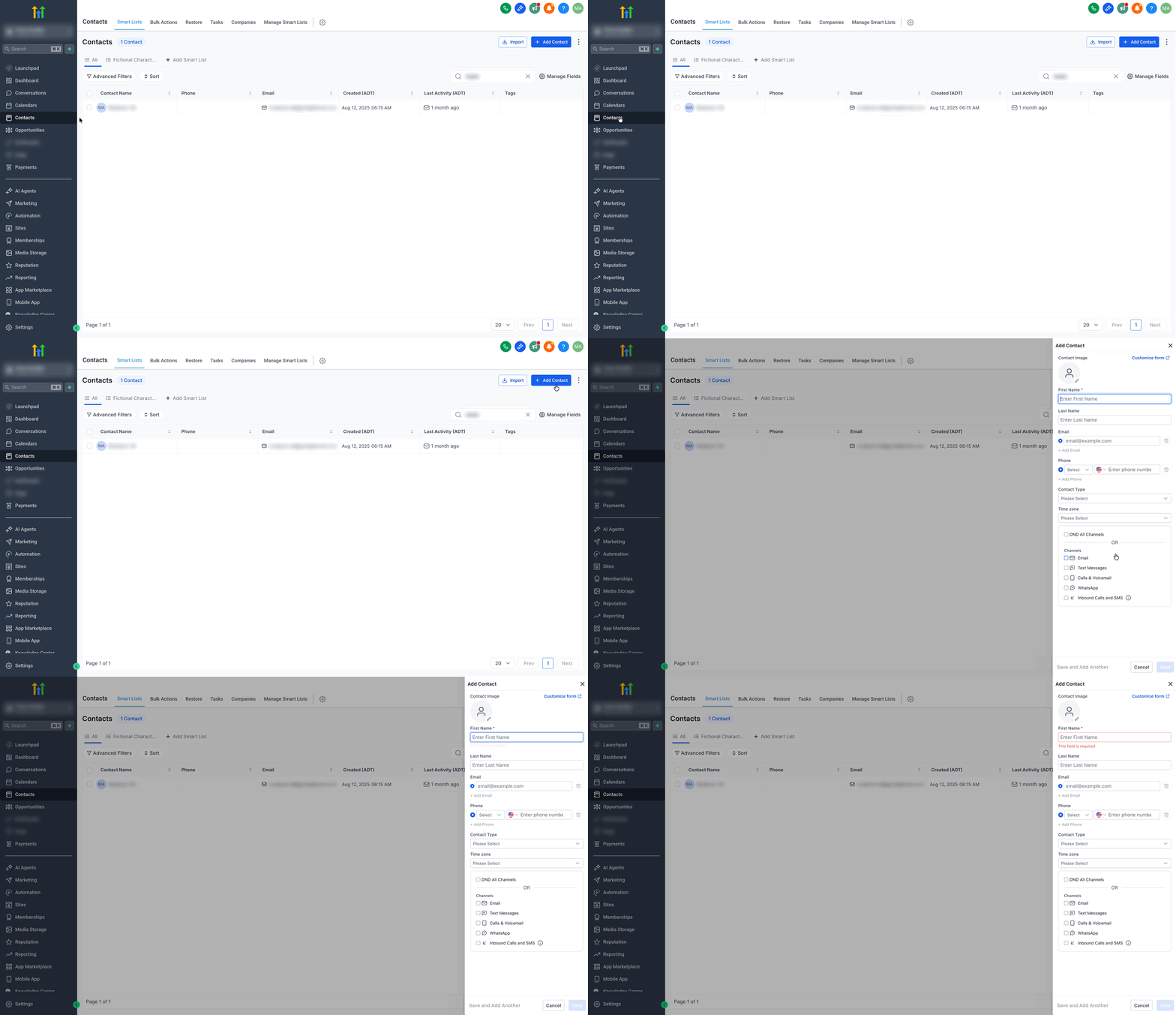
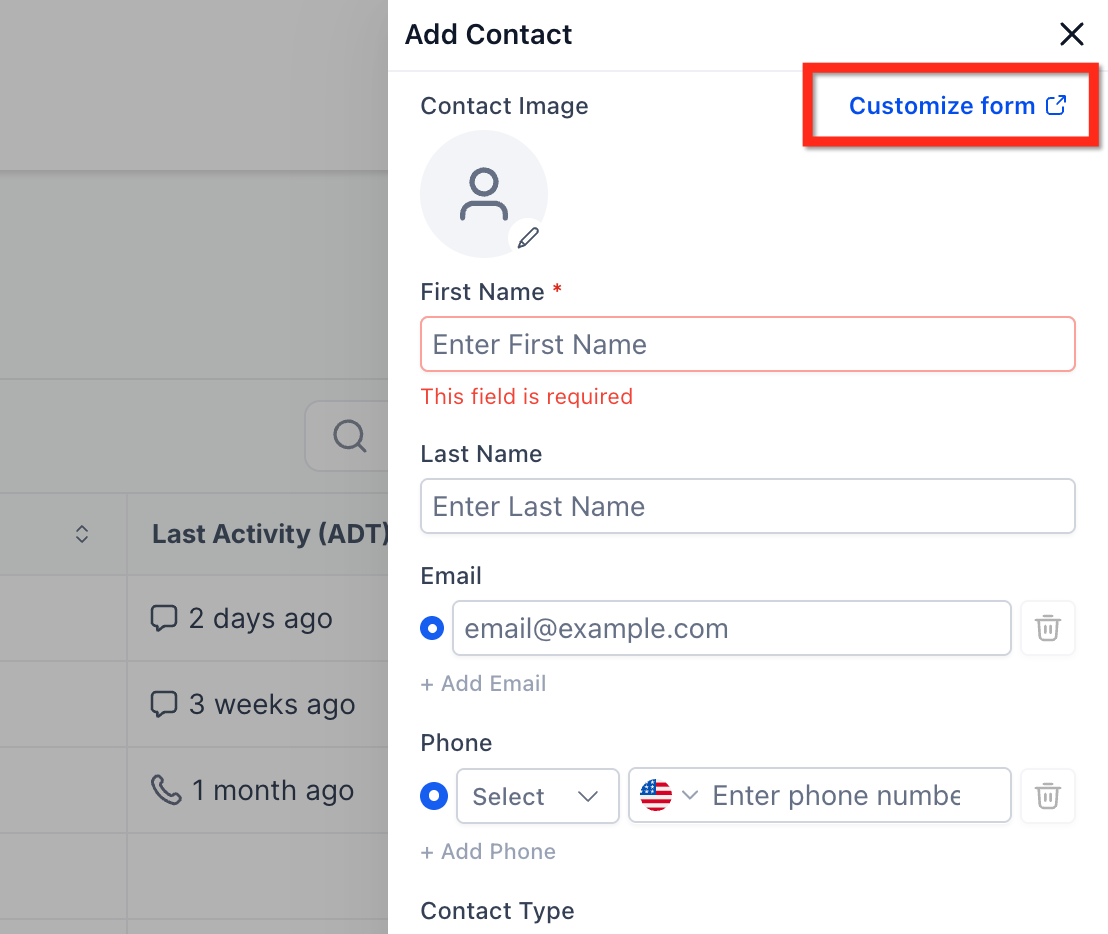
Patient Copilot’s upgraded Add Contact sidebar streamlines contact creation and keeps your CRM consistent. Admins can choose which fields appear (including custom fields), set required fields, and reorder the form to match team workflows. The result is faster data entry, better data quality, and a consistent experience across desktop and mobile. IMPORTANT: Add Contact Modal — Upgrade & Customization is currently available in Labs. If you don’t see it, ask an admin to enable it at Agency settings > Labs. For more, refer to Labs features - Complete overview * * * ## Admin Permissions & Access Limiting layout control to admins protects your data model while allowing end users to focus on selling and support. - Who can customize the layout? Admin-level users in the sub-account (via Roles & Permissions). - Who can create contacts? Any user with access to the Contacts area can open Add Contact and use the configured form. * * * ## Duplicates & Data Quality Tips Contact intake quality depends on how duplicates are handled. Configure deduplication preferences so new entries behave the way you expect. - Configure Settings → Business Profile → Contact Deduplication Preferences to control matching behavior (choose primary/secondary match fields like Email or Phone). - CSV imports always check email/phone and merge matches—duplicates cannot be created via CSV. - If duplicates slip in from forms or integrations, you can merge up to 10 contacts and choose a master record. * * * A short, sequenced setup prevents rework and ensures your team starts in a smooth, consistent state. Step 1: Open the Add Contact sidebar In your Sub-Account, Go to Contacts → Smart Lists → + Add Contact to launch the modal.!(https://assets.patientcopilot.ai/44d9712c02239d7a.gif) Step 2: Customize the form (admins) Click Customize Form → Add/Remove standard and contact-level custom fields; drag to reorder.!(https://assets.patientcopilot.ai/352e0c4b9b9de769.png)!(https://assets.patientcopilot.ai/df39859663b39a87.gif) Step 3: Set required fields Turn on Required for any field that must be completed before saving the contact form. !(https://assets.patientcopilot.ai/f6b77e6d874a107c.png) Step 4: Preview & Save Use Preview to validate, then save the layout for your team. !(https://assets.patientcopilot.ai/a3984c7eb10d2af4.gif) Step 5: (Optional) Automate next steps via Workflows Use a Contact Created trigger in a Workflow to send welcomes, assign owners, or tag new contacts automatically. * * * The Manage Smart Lists and Restore options have moved from the page header into the actions menu beside the Add Contact button. To access these options: 1. Navigate to: Contacts → Smart Lists 2. Click the three-dot (⋮) actions menu beside Add Contact 3. Select: - Manage Smart Lists - Restore This update keeps Smart List management actions grouped together while simplifying the header layout. * * * ## Accessing the Add Contact Modal Everyone on your team uses the same entry point to create new contacts, ensuring a consistent, predictable experience. 1. Go to Contacts → Smart Lists → + Add Contact to launch the slide-out modal. 2. Complete the required fields, then choose an action: - Save to create the contact - Save & Add Another for rapid back-to-back entries, or - Cancel to exit without saving Note**:** If you try to close the modal without saving changes, you’ll get an unsaved-changes prompt to confirm. ##!(https://assets.patientcopilot.ai/934da444d633ec9b.gif) * * * ## Frequently Asked Questions Q: Who can customize the Add Contact form layout? Admin-level users in the sub-account (via Roles & Permissions). Regular users use the configured form. Q: Can I include custom fields on the Add Contact form? Yes. Any contact-level custom field can be added, reordered, and marked required. Manage fields in Settings → Custom Fields. Q: How do I prevent duplicate contacts during intake? Configure Contact Deduplication Preferences (choose email/phone matching). CSV imports auto-merge by email/phone and can’t create duplicates. Q: What automations pair well with this? Start with a Contact Created workflow to assign owners, tag by source, and send welcomes; use Create Contact and Update Contact Field actions as needed. Q: Does “Save & Add Another” keep the previous values? It creates the contact and reopens a blank form for the next entry. Use workflows to auto-apply tags/owners if you need consistency. **Q: Do modal-required fields affect CSV imports or API creates? **No. Required rules in the Add Contact modal apply to manual entry only. CSV imports and API requests have their own validations. **Q: Will users see my layout changes immediately? **Yes for new sessions; existing users may need to refresh the Contacts page to load the latest configuration. Q: Where did the Manage Smart Lists option move? It is now located inside the actions menu (⋮) beside the Add Contact button. Q: How long can deleted contacts be restored? Contacts can be restored for up to 60 days after deletion. Q: Did Smart List permissions change? No. Only the location of the menu options changed. * * * ## Related Articles - Workflow Trigger - Contact Created
!(https://assets.patientcopilot.ai/df39859663b39a87.gif)