Customizing Patient Copilot Menus: A Guide to Custom Menu Links
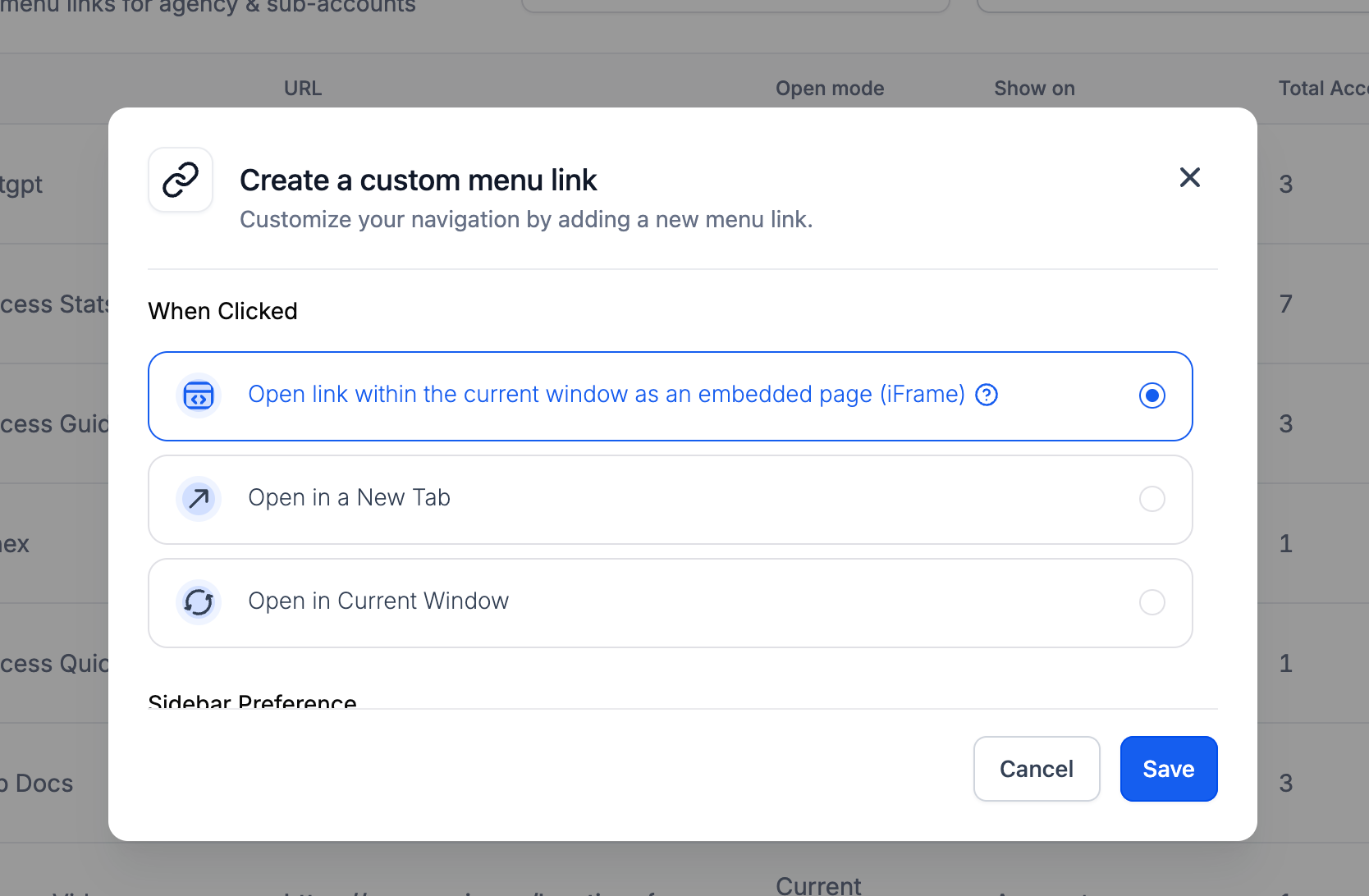
This article explains how to create, manage, and optimize Custom Menu Links in Patient Copilot to enhance platform navigation and integrate external tools directly into the user interface. * * * * * * ## How to Create and Manage Custom Menu Links Learn how to add and configure custom menu links that appear in the navigation sidebar for agency and sub-account users. These steps will help you seamlessly integrate external tools and resources directly into your Patient Copilot workspace. Follow these steps to create a new Custom Menu Link: Step 1: Navigate to Settings > Custom Menu Links in the left-hand menu and click on the Create New button at the top right.!(https://assets.patientcopilot.ai/b1b07f66f604139e.png) Step 2: Fill in the required details: - Link Icon: Click to select an icon. - Link Title: Enter the name of the menu link. - IMPORTANT: The Link URL is the web address where the menu item will direct users. It must begin with http:// or https://. Make sure the destination page allows embedding if using the Embedded Page (iFrame) option. Step 3: Choose the opening method: - Open in an Embedded Page (iFrame): Displays the linked content directly within the Patient Copilot dashboard, keeping users in the same interface. Ideal for tools that support embedding.
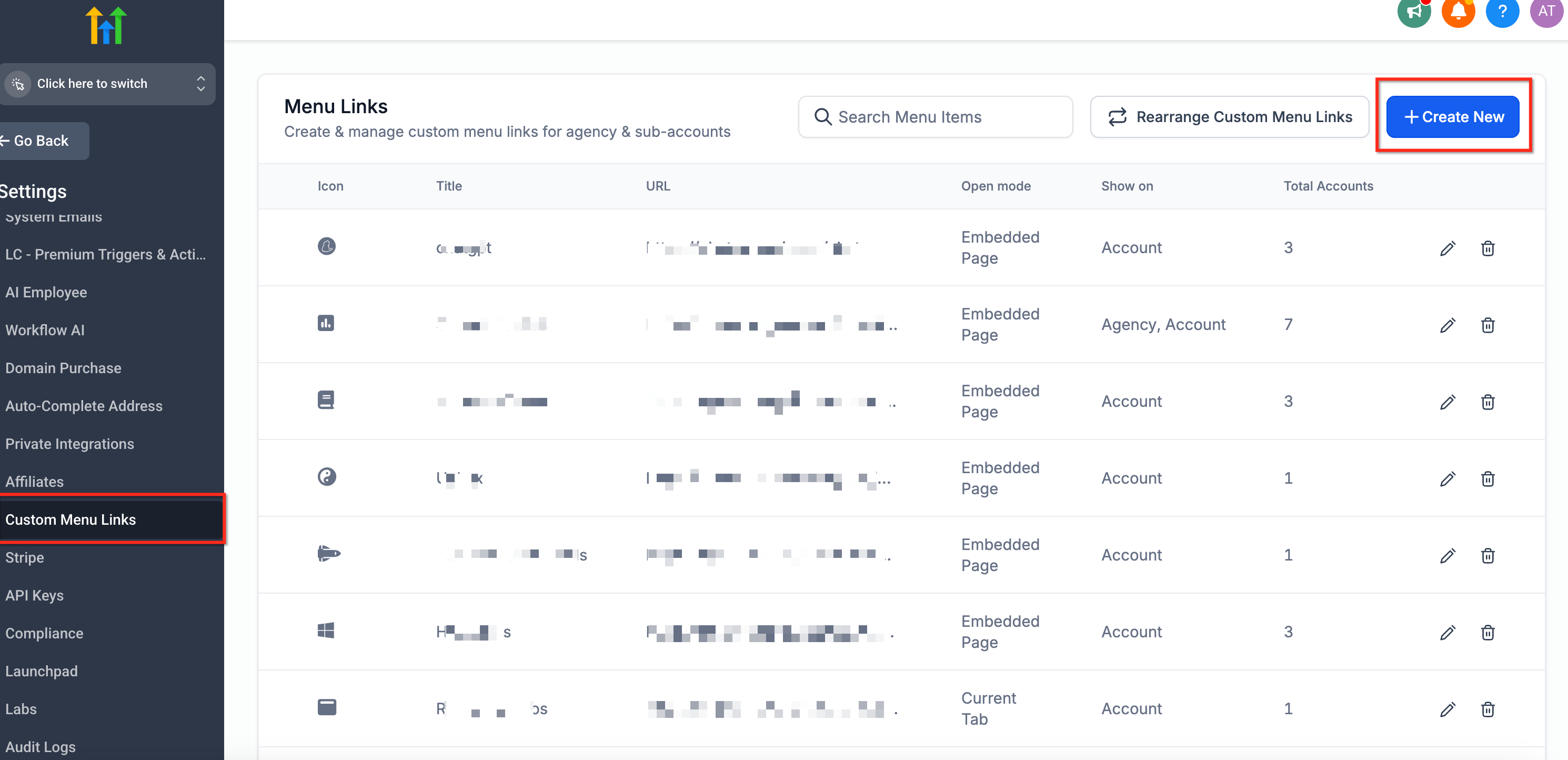
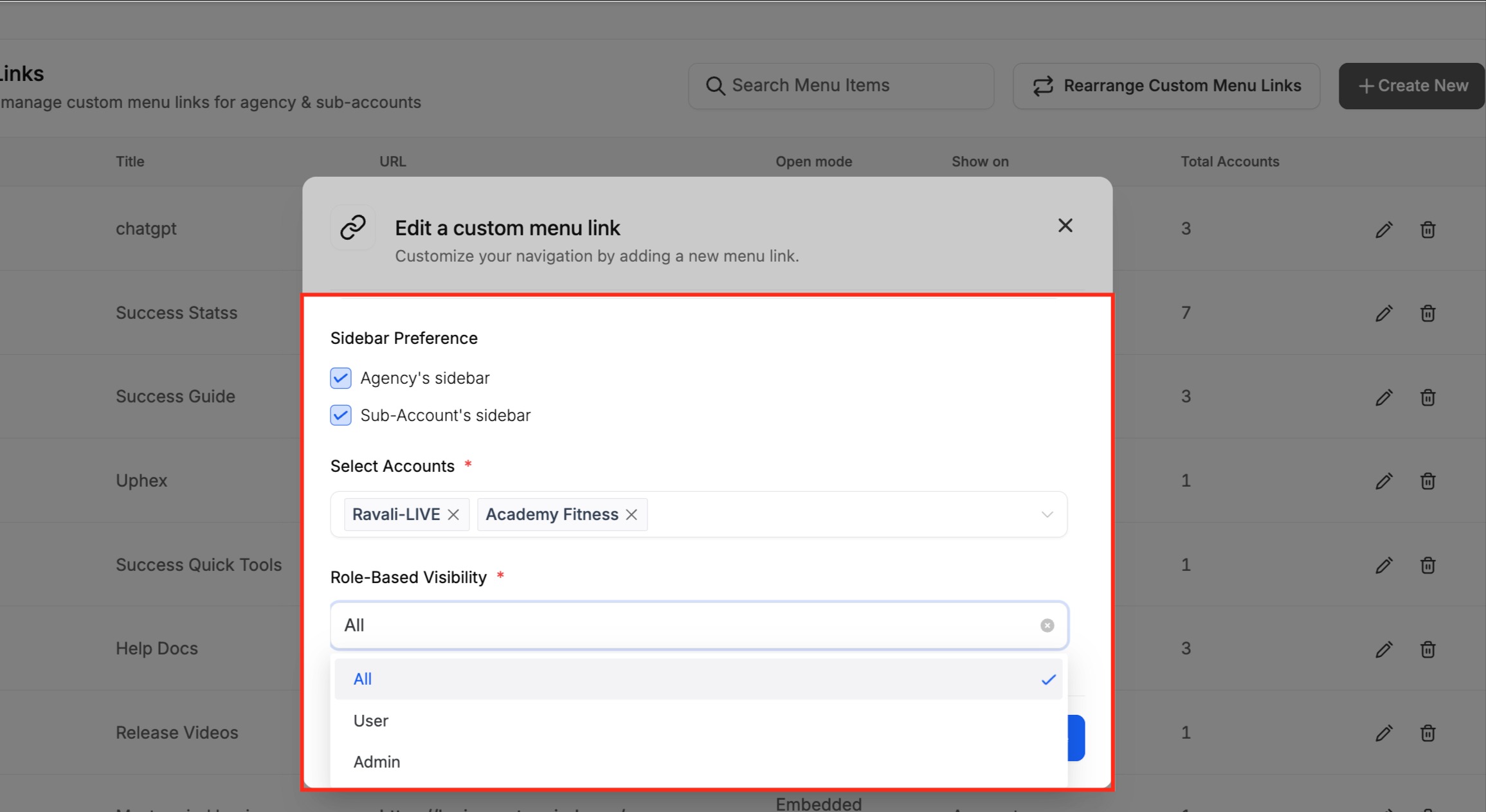
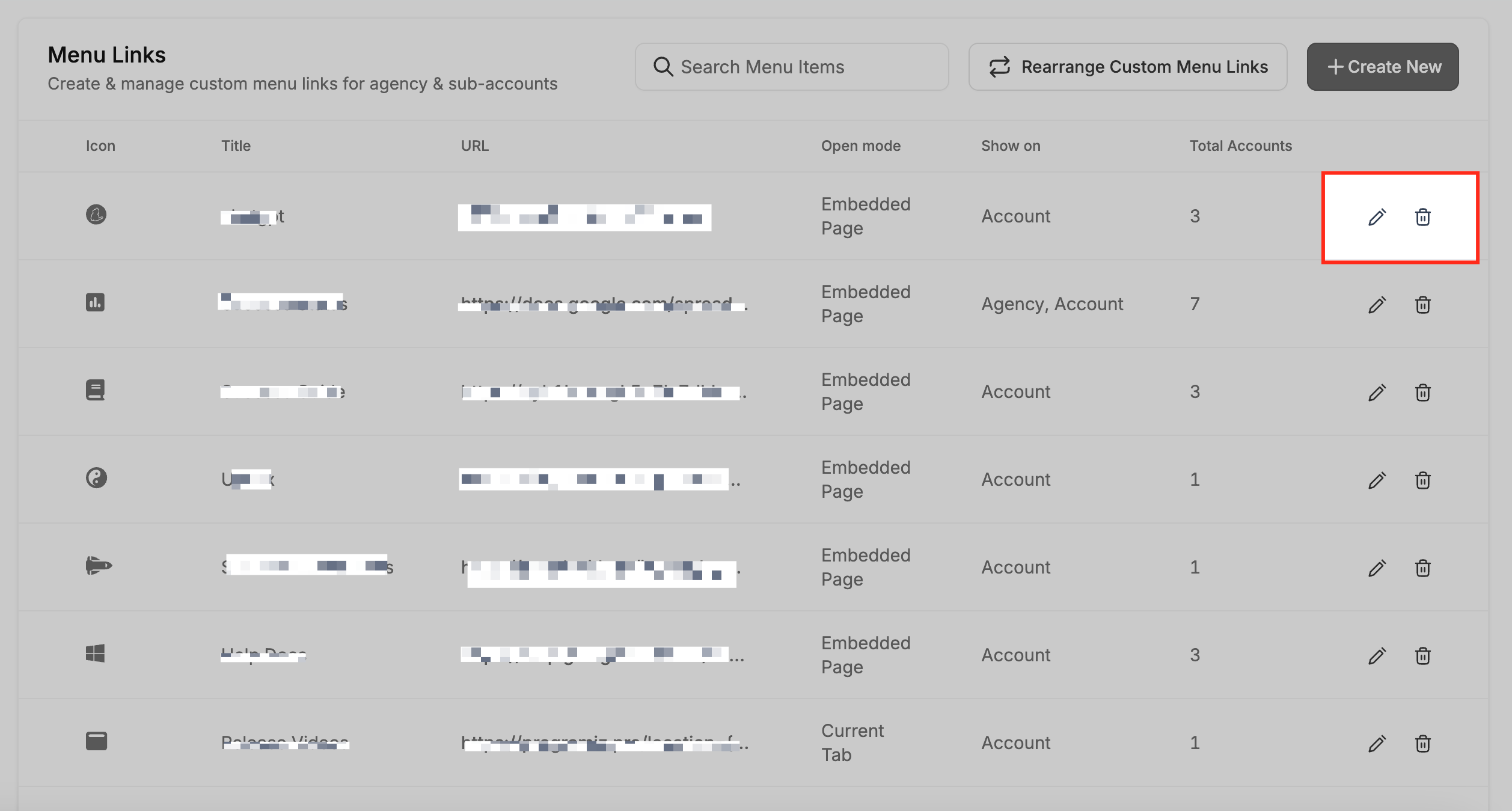
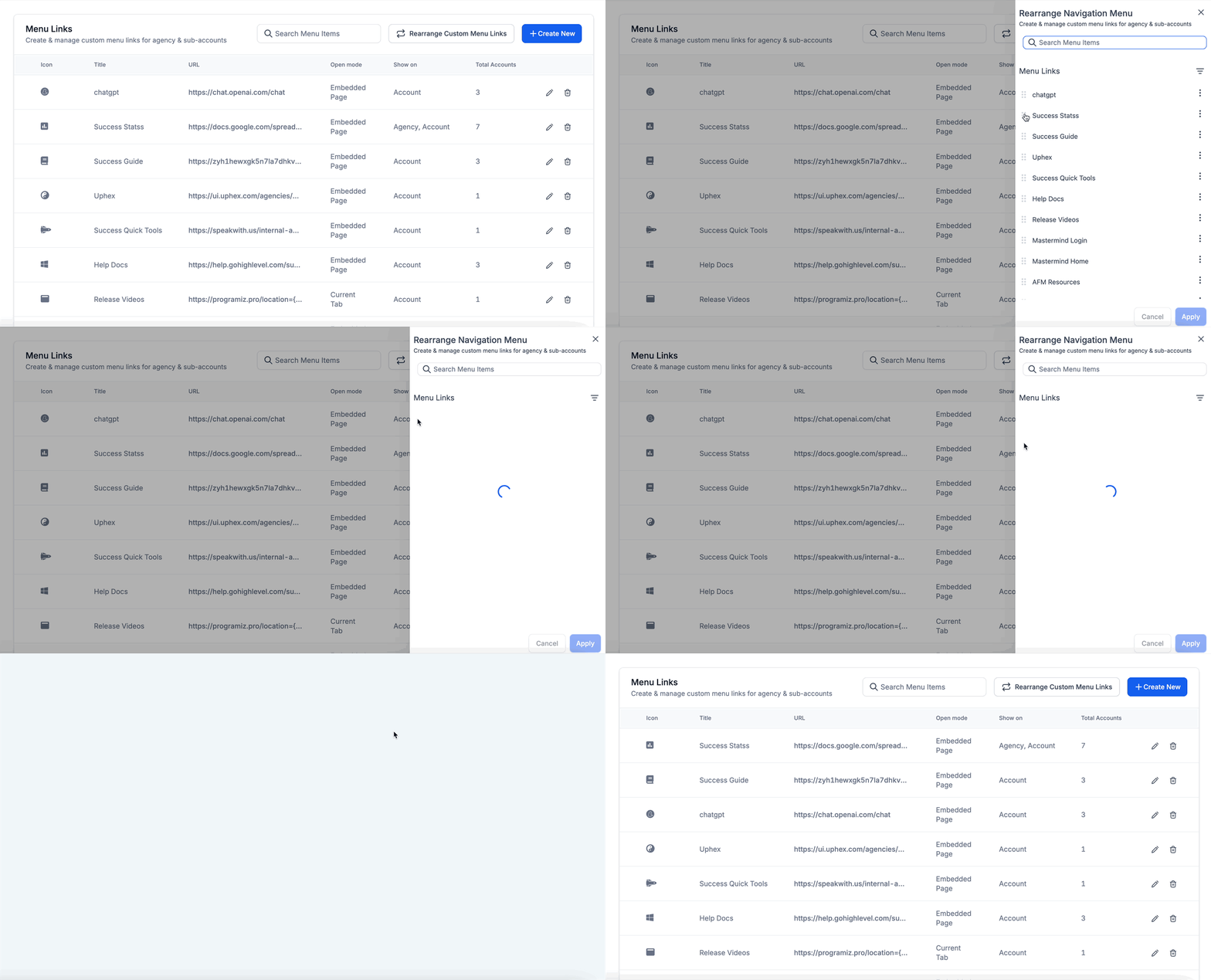
- Open in a New Browser Tab: Opens the link in a separate tab, allowing users to access the resource without leaving their current Patient Copilot view. - Open in the Current Tab: Redirects the current Patient Copilot tab to the linked URL. Best used when users are expected to complete tasks outside the platform.!(https://assets.patientcopilot.ai/44cca72631c3b208.png) Step 4: Set Sidebar Preference and Role-Based Visibility Set the Sidebar Preference and Role-Based Visibility to define where the link appears and who can access it. The Sidebar Preference allows you to choose whether the link appears in the Agency sidebar, the Sub-Account sidebar, or both: - Selecting the Agency sidebar will make the link visible to agency-level users. - Selecting the Sub-Account’s sidebar enables you to assign the link to specific sub-accounts only. Once selected, you can choose which subaccounts should display the custom menu link. - Role-Based Visibility lets you control which types of users can see the custom menu link:All: The link will be visible to all roles. User: Only users with the User role will see the link. Admin: Only Admins will have access to the link.!(https://assets.patientcopilot.ai/1b6e523fad9cd162.jpg) * * * While creating the Custom Menu Link, you can set the URL like this: https://test.com/test?fname={{user.first\_name}}&lname={{user.last\_name}}&location\_id={{location.id}}&custom\_value\_example={{custom\_values.example\_field\_name}} This way, when a user clicks on the link, Patient Copilot will dynamically replace the param variables with actual values based on the user’s context. You can extract these params from the URL and get the user’s context. Supported params to CML user.first_name user.last_name user.name user.phone user.email location.id location.name location.city location.state location.country location.address location.email location.phone location.postal_code location.full_address location.website location.logo_url location_owner.first_name location_owner.last_name location_owner.email custom_values.{CUSTOM_VALUE_NAME} Make quick updates or remove outdated custom menu links as your agency evolves. This section shows you how to keep your sidebar navigation clean and relevant by editing or deleting existing links. - Navigate to Settings > Custom Menu Links and find the desired link and click the Edit (pencil icon) or Delete (trash icon) button. Make the necessary updates or confirm deletion. These changes include updating the name and icon of the existing link. Changes will immediately reflect in the navigation menu for all users.!(https://assets.patientcopilot.ai/6c05c6d3ca1e7f34.png) - Click on the Rearrange Custom Menu Links button at the top right and drag and drop menu links to the desired order. Finally click Save to finalize the changes.!(https://assets.patientcopilot.ai/6ddc7960281ee464.gif) * * * To maximize the effectiveness of Custom Menu Links, consider the following: - Keep It Organized: Avoid adding too many links that might clutter the navigation menu. - Use Clear Titles & Icons: Ensure that menu items are easily recognizable and intuitive for users. - Test iFrame Compatibility: Some external websites may have restrictions preventing them from being embedded in an iFrame. - Regularly Review & Update Links: Ensure that all links remain relevant and functional over time. * * * ## Frequently Asked Questions Q: Can subaccounts create their own Custom Menu Links? No, only agency users with the necessary permissions can manage Custom Menu Links. Q: Can I embed any website using the iFrame option? Not all websites allow embedding via iFrame. Test the link before deploying it to users. Q: Can I restrict Custom Menu Links to specific users or roles? Yes, you can control visibility based on user roles and permissions in the Team Settings. Q: How do I reorder Custom Menu Links? Click Rearrange Custom Menu Links, drag and drop the links, and save the new order. * * * ## Related Articles - Agency | Managing user roles & permissions
- How to Use Custom Menu Links in SaaS Plans