How to Access the All-in-One Dashboard for Email Marketing
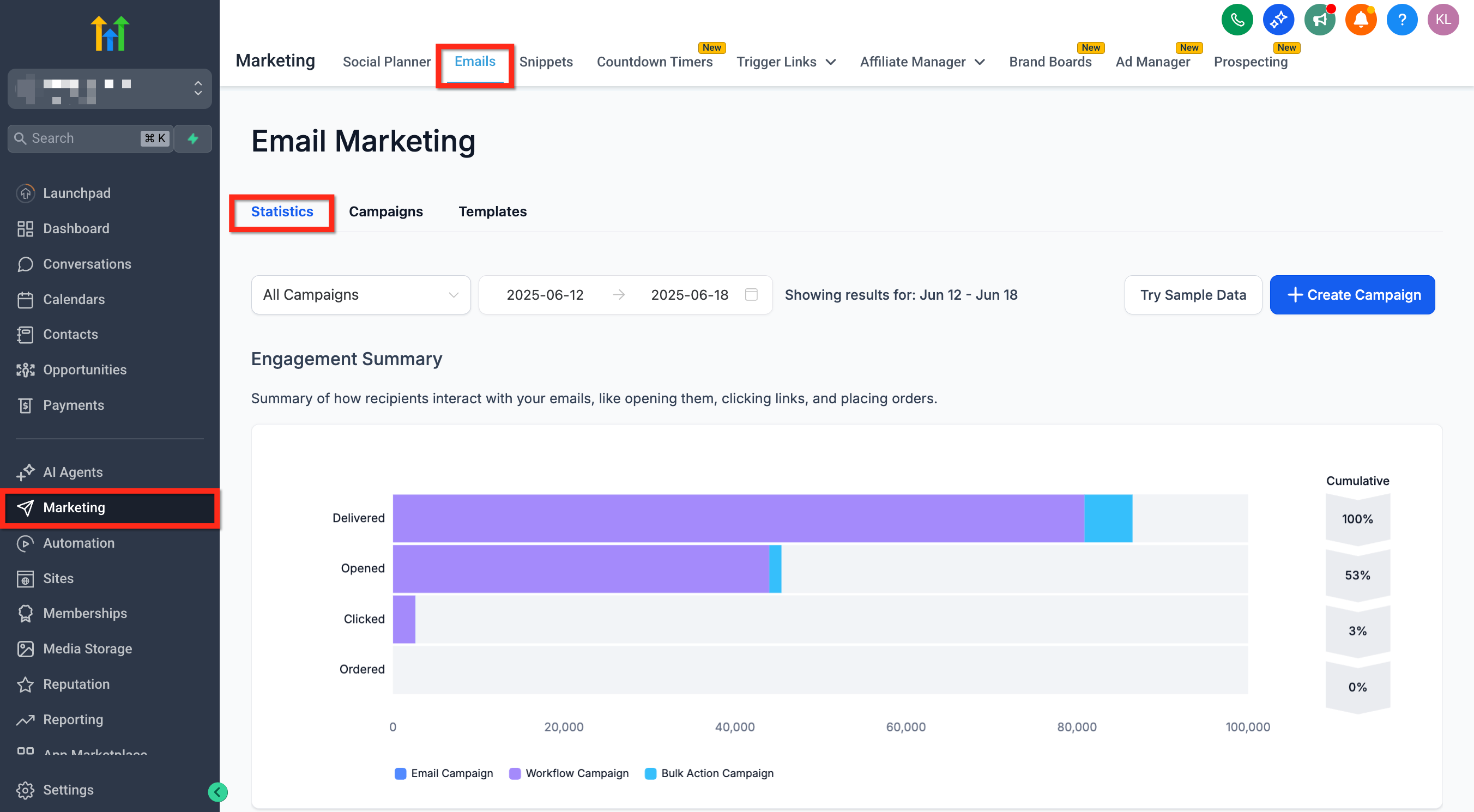
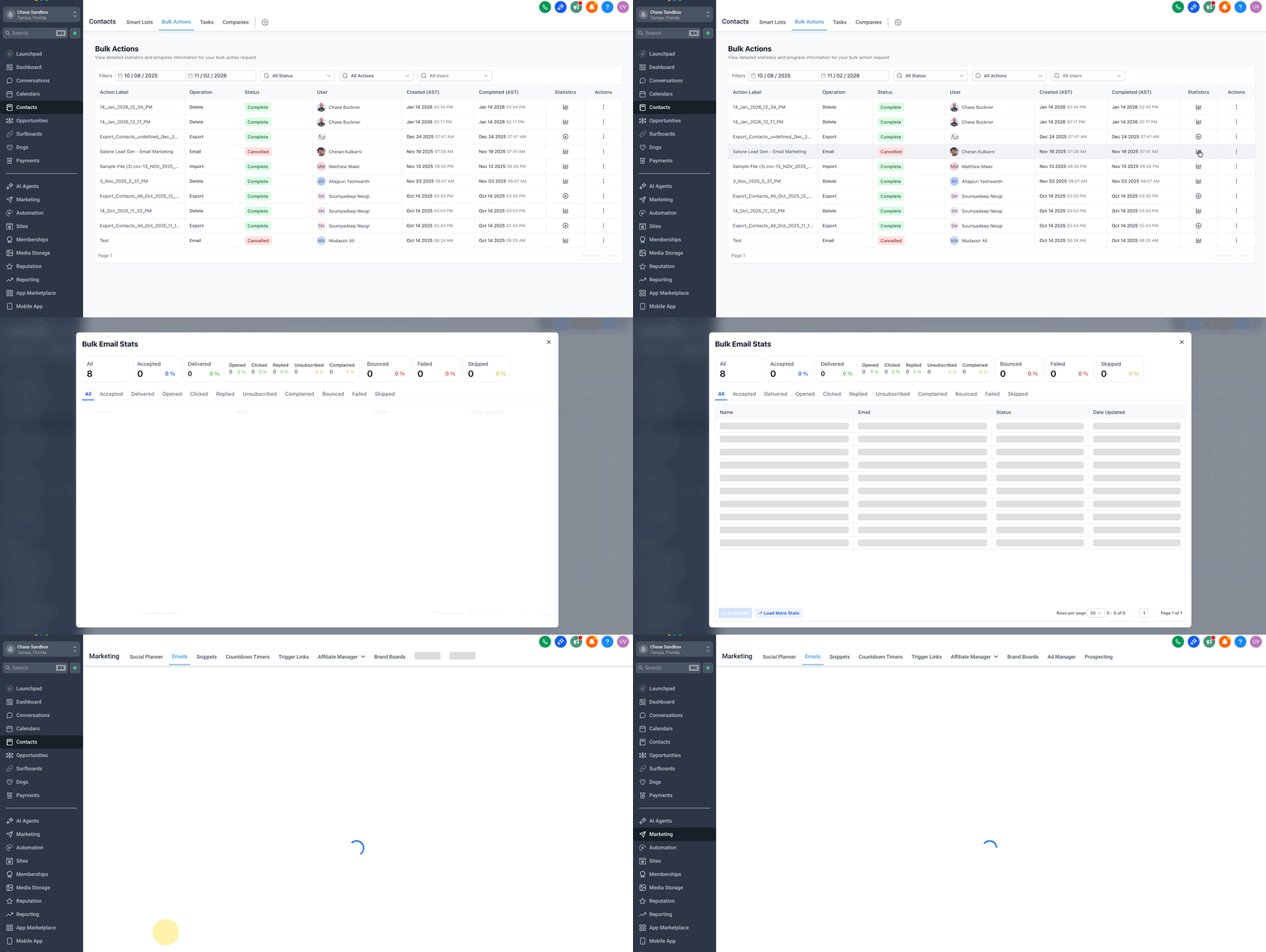
This article will show you how to use Patient Copilot’s All-in-One Dashboard for Email Marketing. This powerful dashboard gives you a unified view of all email activity — including emails sent through Campaigns, Workflows, and Bulk Actions — making it easier to monitor performance and make data-driven decisions. * * * ## What is the All-in-One Dashboard for Email Marketing? The All-in-One Dashboard is a centralized hub in Patient Copilot where you can view performance metrics for every email sent through Campaigns, Workflows, and Bulk Actions. Rather than switching between tools, you now have a consolidated view that streamlines email performance tracking and planning. * * * ## Key Benefits of the All-in-One Dashboard A centralized dashboard simplifies monitoring and planning by combining all email metrics into one place. - See performance for Campaign, Workflow, and Bulk Action emails in one view - Gain insights from Top Performing Emails by type - Use filters to isolate data by channel - Scroll to explore detailed stats including open/click rates - Improve decision-making with all relevant data at your fingertips * * * ## How To Use the All-in-One Dashboard Learn how to navigate and interact with the dashboard to monitor your email marketing efforts effectively. 1. Go to Marketing > Emails > Statistics !(https://assets.patientcopilot.ai/843953ec49b618b4.png) 2. View the unified stats displayed by default 3. Use the dropdown in the top-left to filter by email channel. (Emails sent via Contacts → Bulk Actions are grouped under Bulk Action Campaigns in the dashboard filter) 4. Scroll down to explore deeper performance metrics including Top Performing Emails Tip: If you started from Contacts → Bulk Actions → Show Statistics, you can use Load More Stats to open this same Email Statistics dashboard with Bulk Action reporting.!(https://assets.patientcopilot.ai/33d71ee22ea3b6c3.gif) * * * ## Feature Highlight: Top Performing Emails This section helps identify which email content drives the most engagement, broken down by type. Top Performing Emails displays the most effective individual emails: - For Campaigns and Bulk Actions: tracks entire email sends - For Workflows: highlights performance at the individual email action level, not the full workflow * * * ## Frequently Asked Questions Q: Can I export data from the dashboard? Currently, export functionality is not available directly from the dashboard. Q: Does the dashboard include SMS or other messaging stats? No, the dashboard currently focuses on email activity only. Q: Can I compare performance across different email types? Yes, use the dropdown to filter by channel, and visually compare performance metrics. Q: Are automated emails from triggers included? Yes, emails sent through Workflow triggers are included and tracked. * * * ### Next Steps - Start planning campaigns using insights from top performers - Customize filters to compare email performance by source - Consider optimizing underperforming emails based on these metrics