How to Use Web Search Tool in Agent Studio for Real-Time Responses
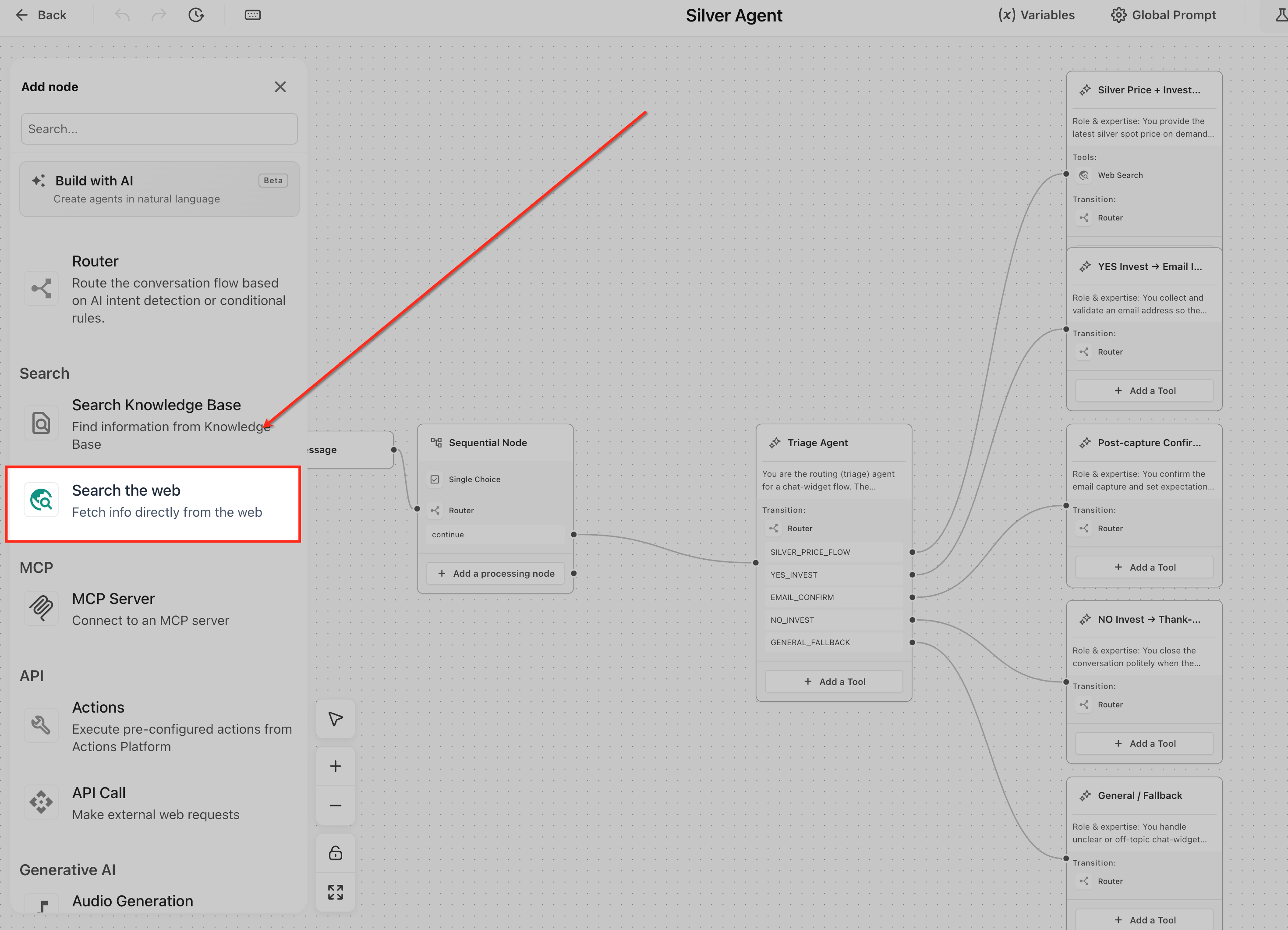
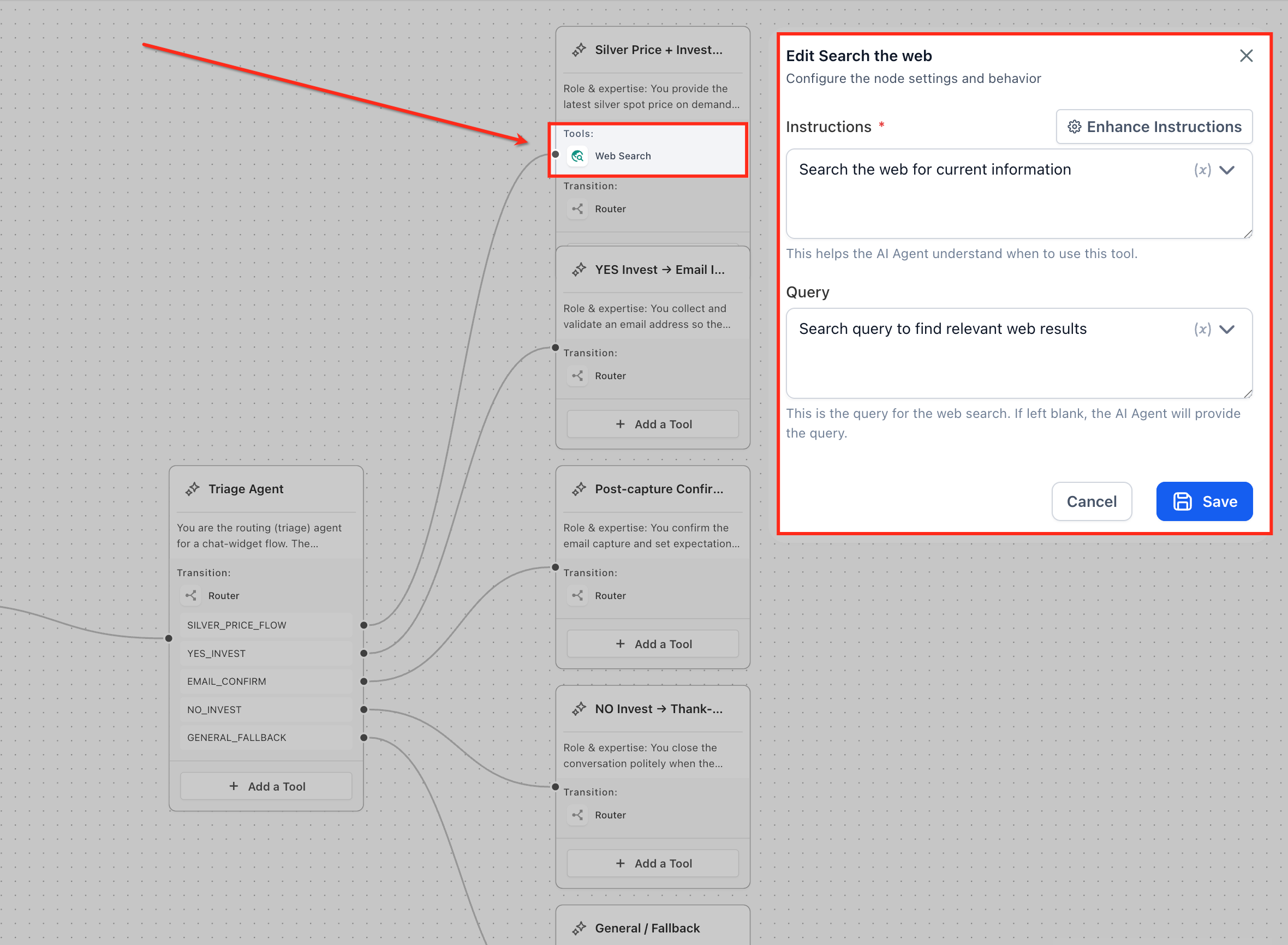
This article explains how the Web Search Tool works within Agent Studio and how to use it to fetch real-time information from the internet. You will learn when to use it, how to configure it correctly, and how to control its behavior for accurate and reliable responses. By the end, you’ll understand how to combine Web Search with other tools to build more intelligent and responsive AI agents. * * * ## Using Variables in Web Search The effectiveness of the Web Search Tool depends on how the query is defined. Instead of using fixed queries, it is recommended to use runtime variables so the search adapts based on user input. When a user asks a question, that input is captured and stored as a runtime variable. This variable is then used as the query for the Web Search Tool, allowing the agent to perform dynamic searches. Example: - User asks: “Find Nike running shoes” - Input is stored as a variable - That variable is used as the search query This ensures that the agent retrieves relevant results based on the user’s request rather than returning the same output every time. * * * ### Step 1: Add Tool Open the AI Agent Node, click Add a Tool, and select Search the Web from the list.!(https://assets.patientcopilot.ai/7b6f682283451f13.png) ### Step 2: Configure Web Search Tool #### Add Instructions Define how the agent should use the tool. For example, you can instruct the agent to use Web Search only when the Knowledge Base does not contain the answer. #### Define Query Specify what the agent should search for. This can be a fixed query or a dynamic value using variables. #### Use Variables Insert runtime variables using the {} picker to make the query dynamic based on user input. In the example below, the Web Search Tool is added to an AI Agent and configured to fetch real-time information from the internet. The Instructions field is used to guide the agent on when to use the tool, such as “Search the web for current information,” which helps the agent understand the purpose of the search. The Query field defines what the agent should search for. This can either be a fixed query or a dynamic value using variables. In most cases, this should be connected to user input so that the agent searches based on what the user asks. The {} variable picker (shown inside the fields) allows you to insert runtime variables. This is important because it makes the search dynamic — instead of returning the same result every time, the agent uses the user’s input as the search query. In this configuration: - The agent is instructed to search the web only when needed - The query is set up to retrieve relevant information - Variables can be used to pass user input into the search When the agent receives a question, it uses these settings to perform a web search and return results based on the user’s request. Note: Instructions and Query shown in the screenshot are only for demo purpose. Keep your instructions clear and use variables in the query to ensure the Web Search Tool returns relevant and context-aware results.!(https://assets.patientcopilot.ai/5751f3788c07e4d9.png) ### Step 3: Test Test the agent with different inputs to ensure the Web Search Tool returns relevant and accurate results. * * * ## Frequently Asked Questions Q: Why are Web Search results sometimes inconsistent? Web Search relies on external data sources, which can change over time. The results depend on the query and the available information on the internet, so responses may vary. Q: When should I use Web Search instead of Knowledge Base? Use Knowledge Base for controlled, consistent information. Use Web Search when the information is not available internally or requires real-time updates. Q: How can I control when the agent uses Web Search? You can control tool usage through prompt instructions. Clearly define when the agent should use Web Search, such as only when internal data is insufficient. Q: Can I limit what the Web Search Tool looks for? Yes, you can guide the search using instructions and queries, including restricting it to specific types of sources or topics. * * * ## Related Articles - How to Build Smarter AI Agents Using AI Agent Node in Agent Studio - How to Use Custom Values and Variables in Agent Studio