How to send Images, Video, Audio and Document via WhatsApp
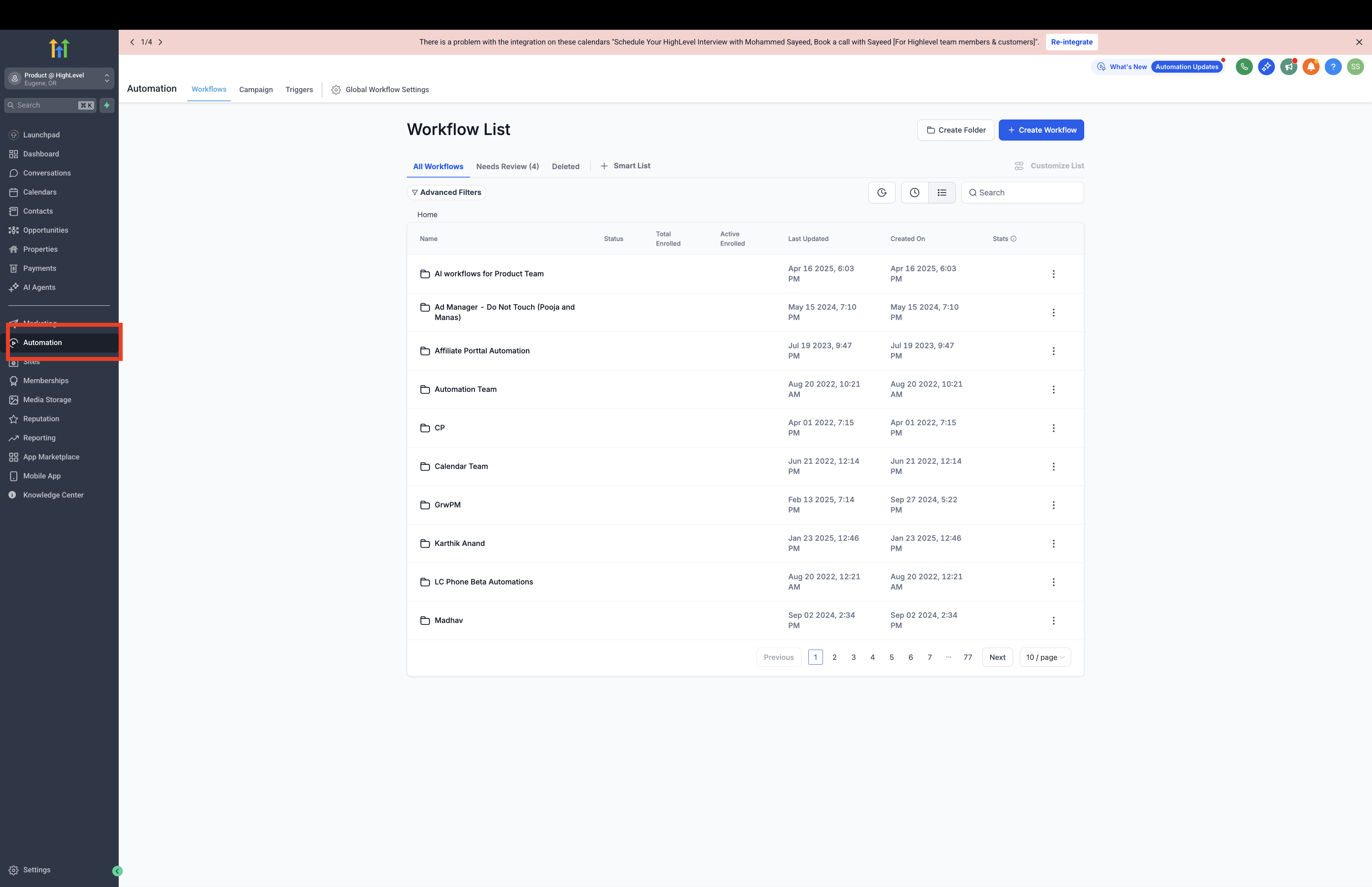
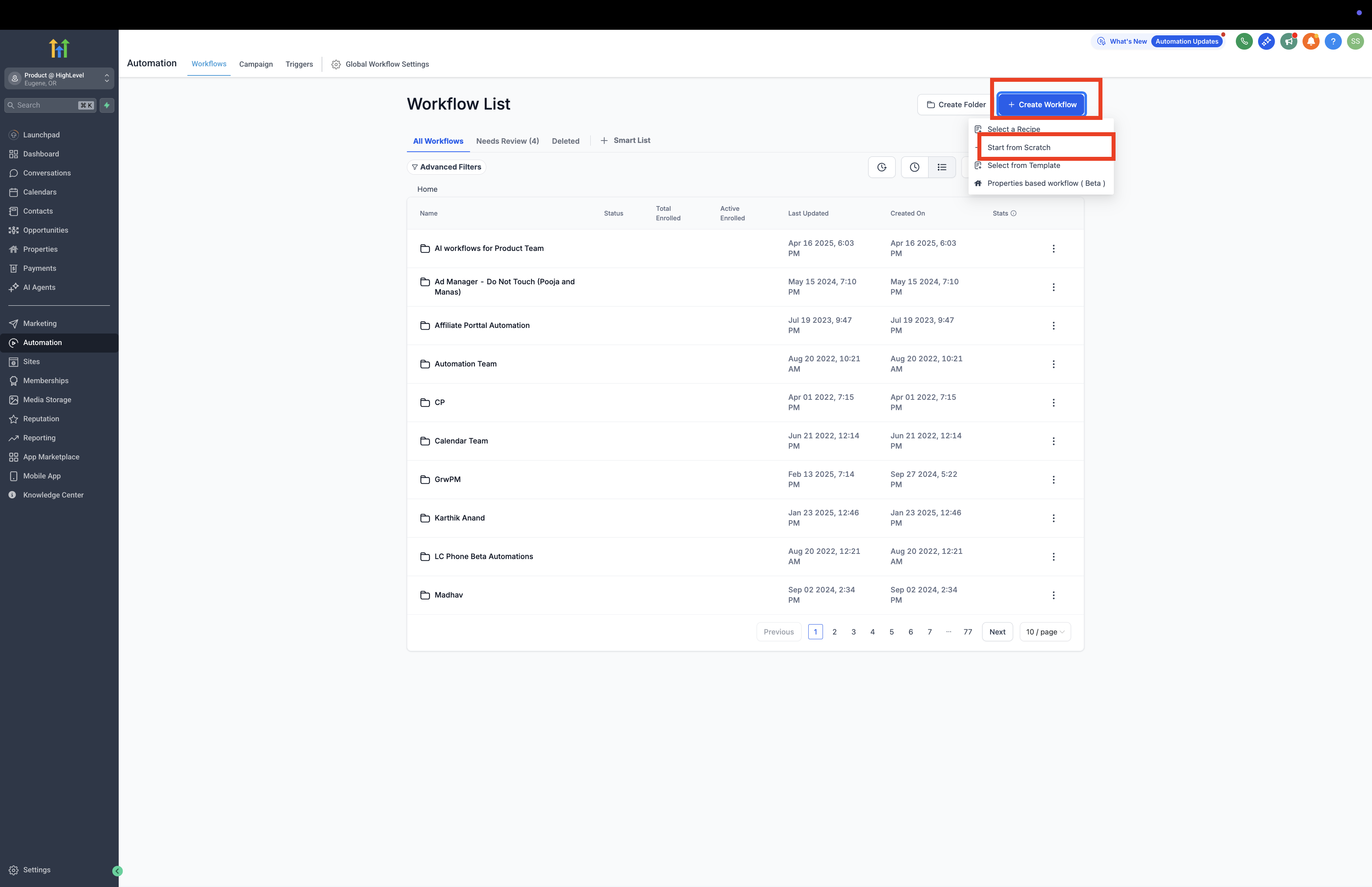
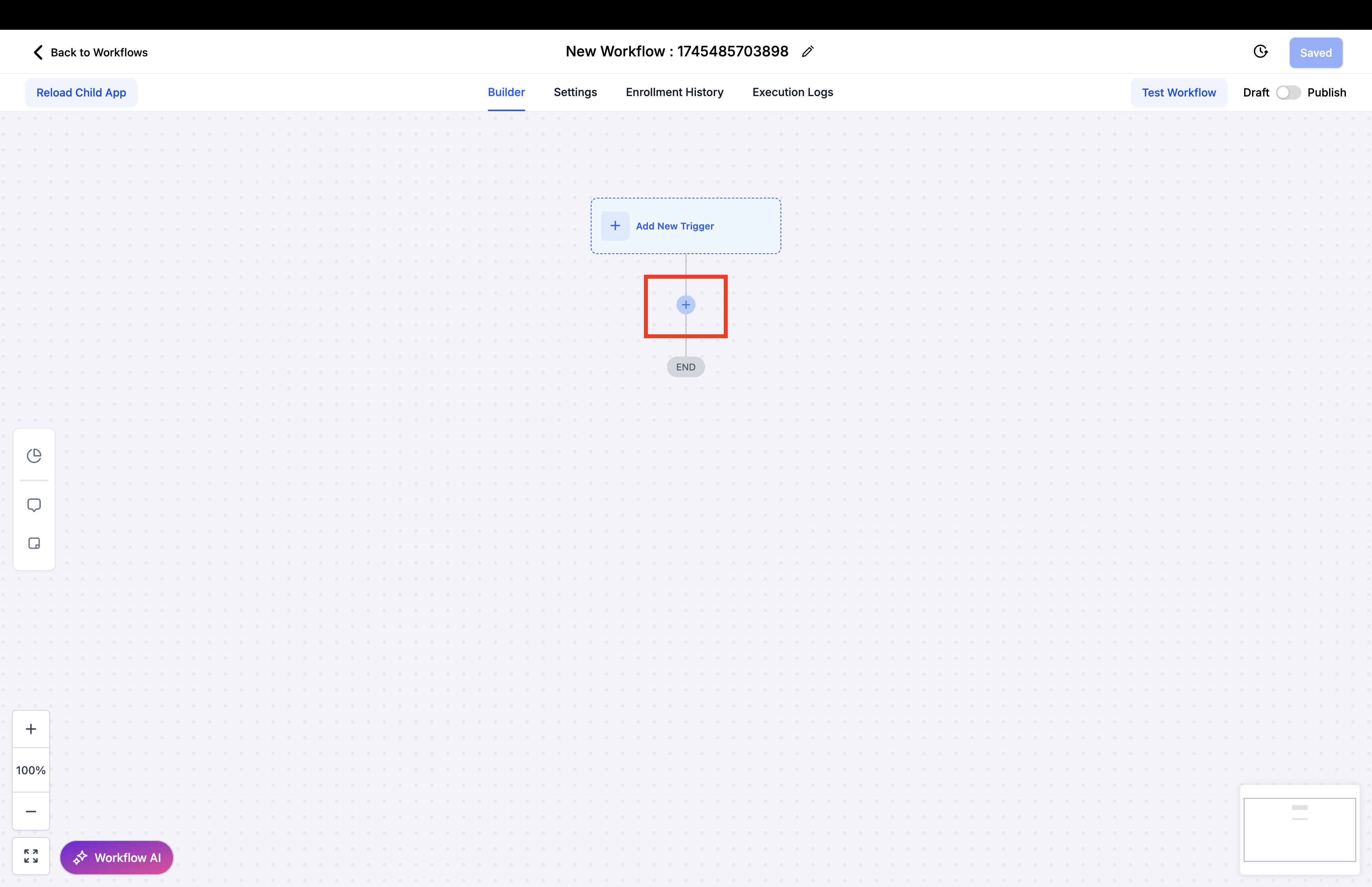
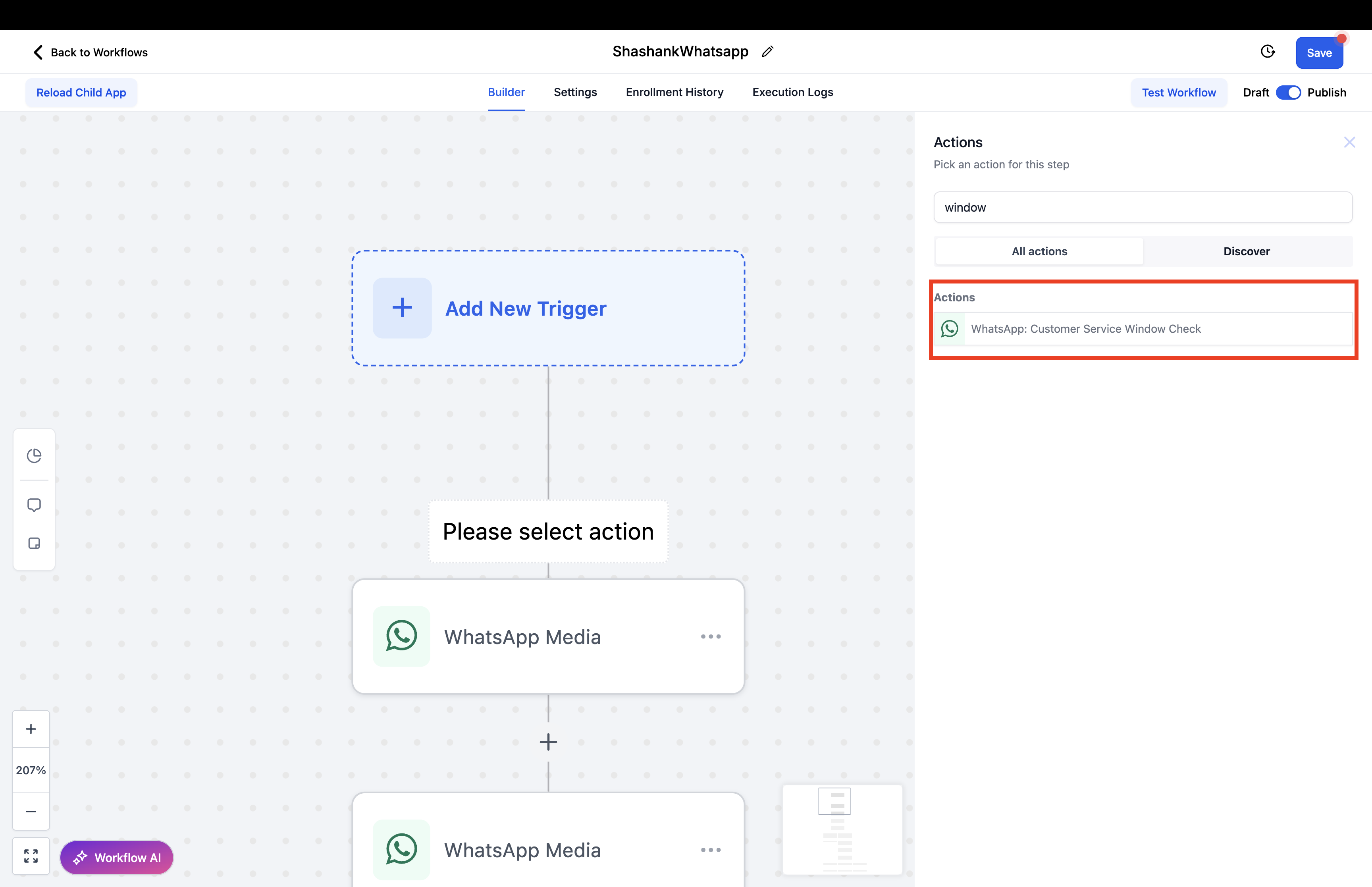
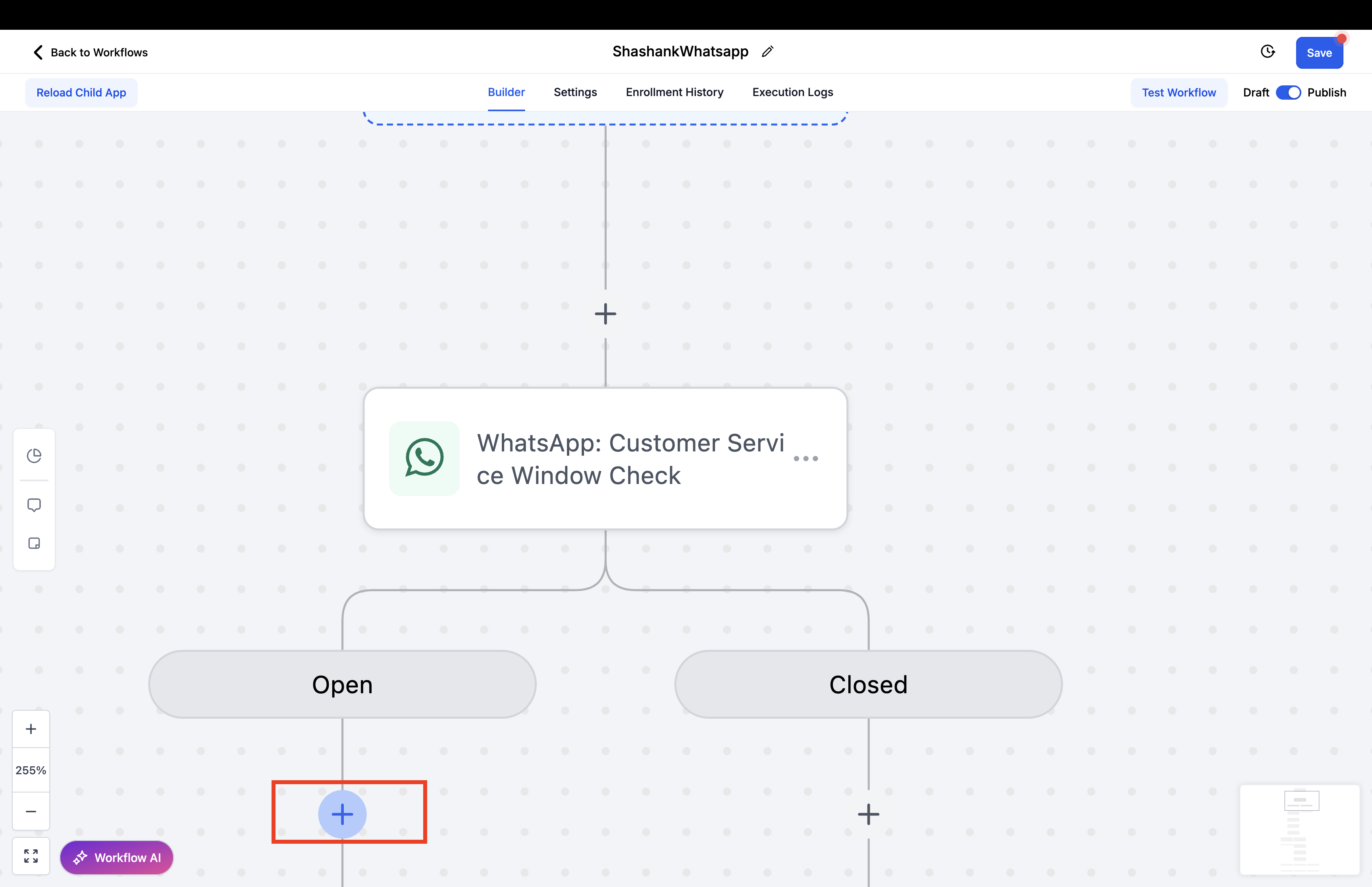
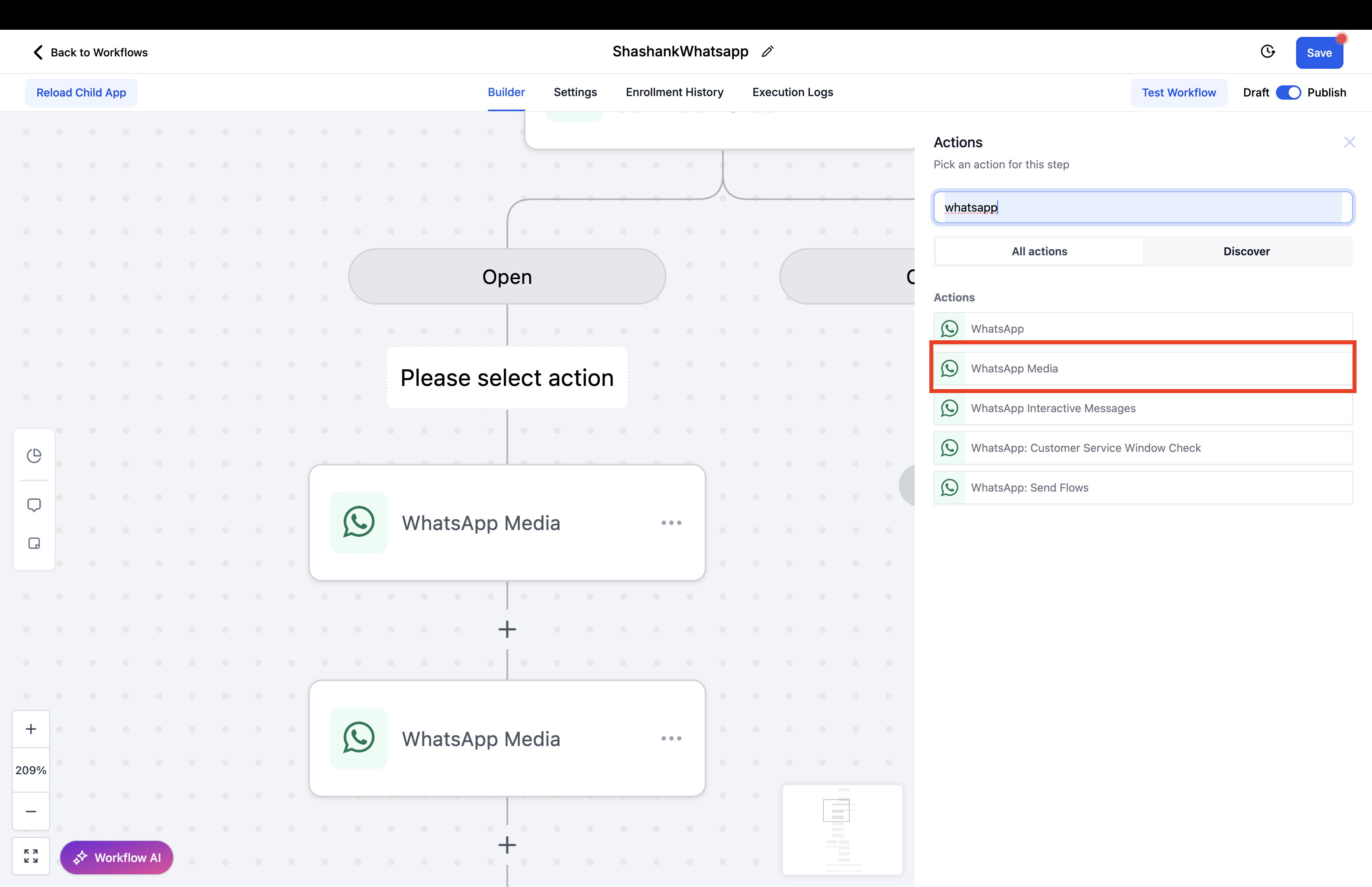
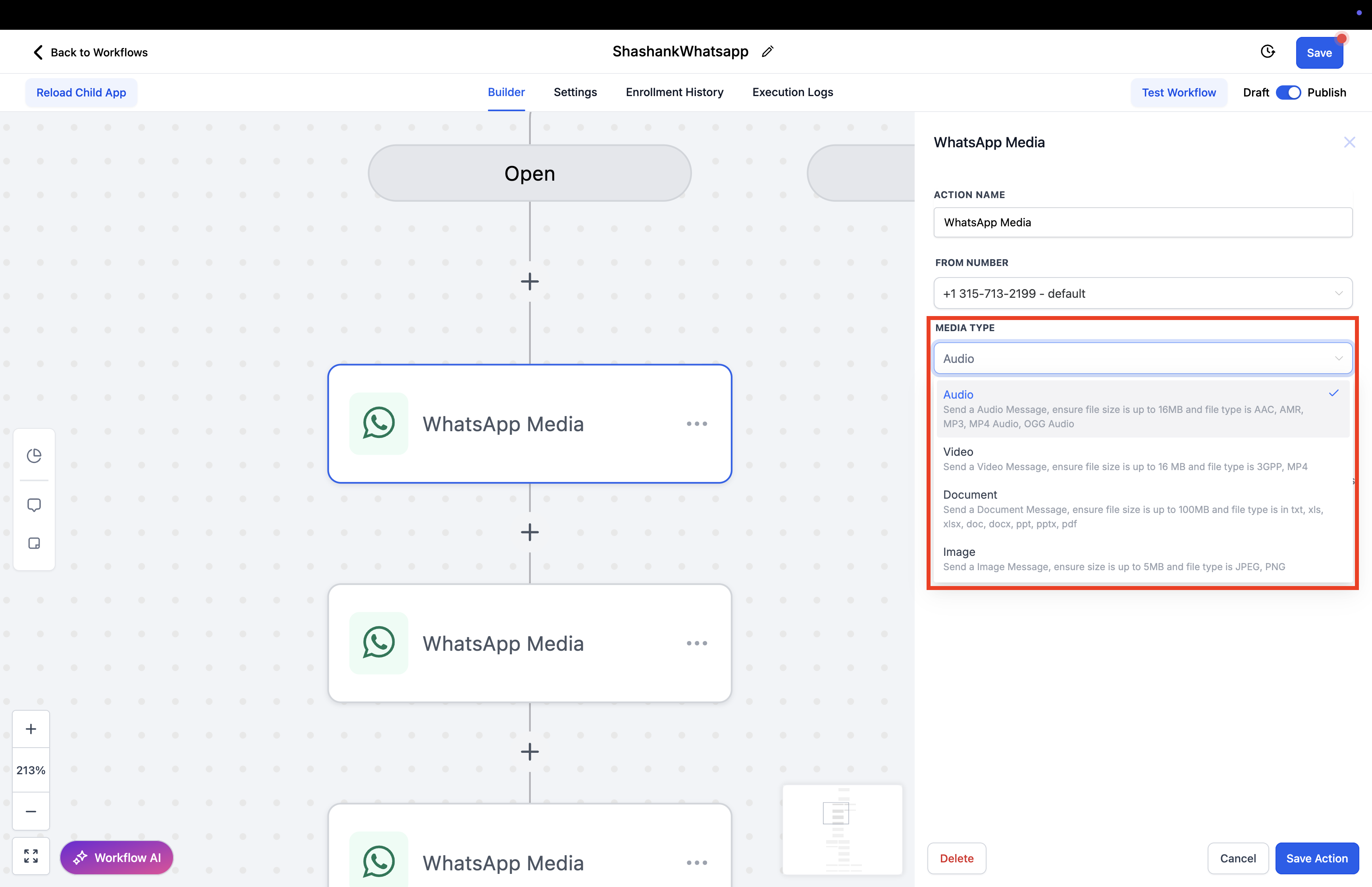
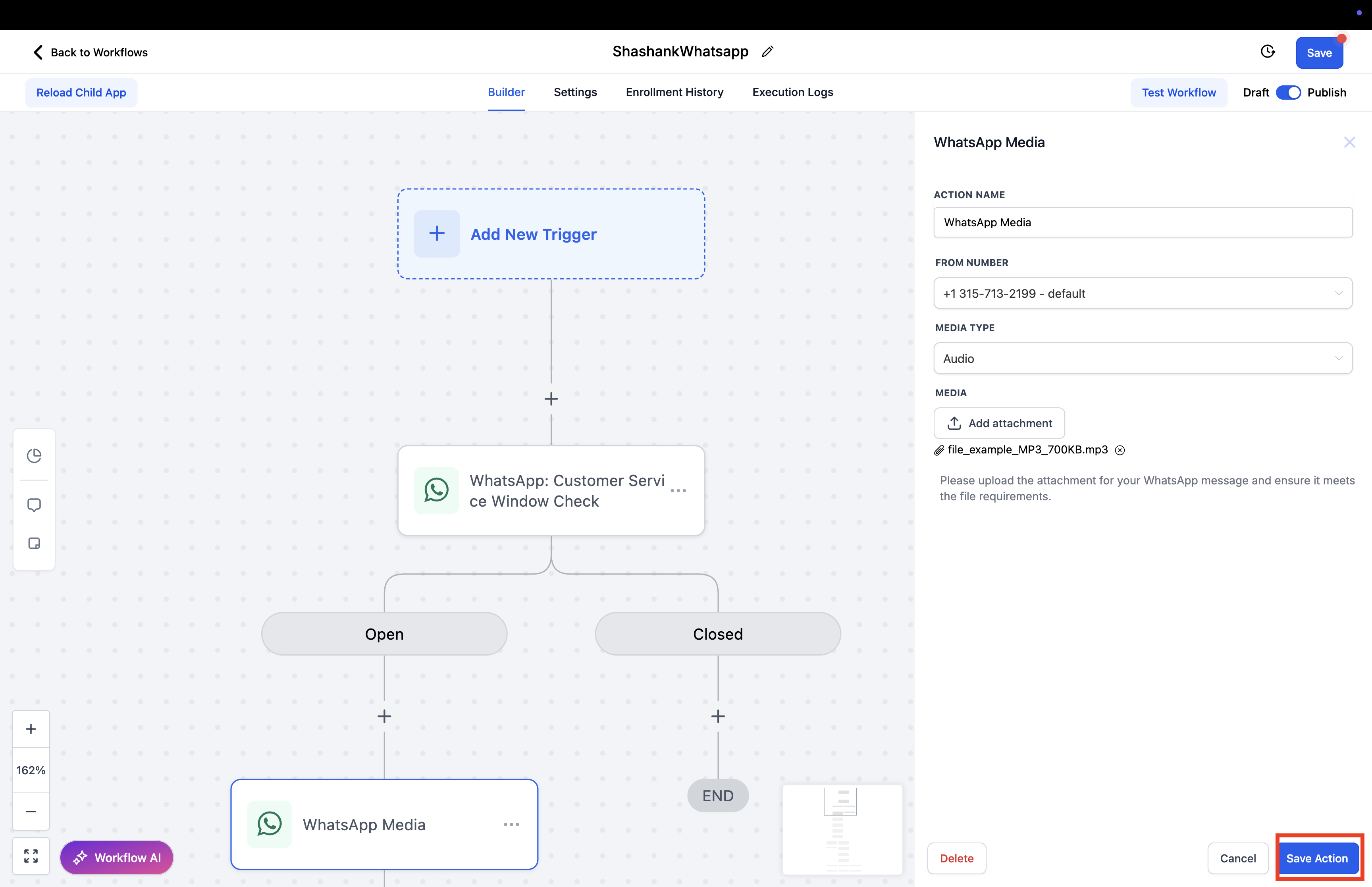
How to send Images, Video, Audio and Document via WhatsApp **Step 1:**Go to the Automation tab in your dashboard.!(https://assets.patientcopilot.ai/601e81119a2cd30d.png) Step 2: Click on Create Workflow, then select Start from Scratch.!(https://assets.patientcopilot.ai/d996d7b07e11438f.png) Step 3: Click on the “+” icon to add a new workflow step.!(https://assets.patientcopilot.ai/c7b5a02aa2ec8280.png) Step 4: Search for “WhatsApp: Customer Service Window Check” and select it.!(https://assets.patientcopilot.ai/78436c16a2c4f6f1.png) Step 5: Under the Open section, click on the “+” icon to add the next step.!(https://assets.patientcopilot.ai/01fbf5a293f162dc.png) Step 7: Choose the From Number and specify the Media Type (e.g.,Audio, image, video, document).!(https://assets.patientcopilot.ai/d9f2358c7f0e90d9.png) Step 7: Select the from number and Media type.!(https://assets.patientcopilot.ai/44b205df1de7a8d8.png) Step 8: Click on Save Action to complete the step.!(https://assets.patientcopilot.ai/57aed27d8cc1815b.png) ## FAQ Q: How do I ensure the workflow is within the active customer window? After starting your workflow, click the “+” icon and search for: “WhatsApp: Customer Service Window Check” This step ensures the message is sent only when the customer’s 24-hour response window is open. * * * Q: Can I test the media message in real-time? Yes! Once your workflow is set up and published, you can trigger it under test conditions to ensure the media sends correctly. * * * Q: What media options can I send via WhatsApp? You can send Audio files, images, videos, documents, and other supported file types through the Media Type dropdown in the action settings. * * * Q: How do I choose the sending number for the media message? In the WhatsApp Media action, select the desired From Number that’s already connected to your account.