
Why Are My Emails Going To Spam?
Email Deliverability Why Are My Emails Going to Spam? Complete Troubleshooting Guide A practical guide to why emails land in spam — from authentication and reputation to content and list hygiene — plus a step-by-step diagnostic workflow with header inspection and Postmaster checks. What You’ll Learn Mailbox providers like Gmail, Outlook, and Yahoo weigh dozens of signals before deciding whether a message reaches the inbox. This guide covers the most common reasons your emails end up in spam — and exactly how to fix each one. It also includes a diagnostic workflow: how to read the email header, what SPF/DKIM/DMARC failures look like, and how to use Google Postmaster Tools to assess domain reputation. 1 ## Sending From a Public Domain If you’re sending messages from a free provider like gmail.com, yahoo.com, or outlook.com, most mailbox providers will route your emails to spam — because their DMARC policies forbid anyone except them from sending on behalf of those domains. 2 ## Missing SPF, DKIM, or DMARC Authentication If your sending domain has a DMARC policy but you haven’t authenticated it with your SMTP provider, messages will almost certainly fail alignment and land in spam. SPF and DKIM are how mailbox providers verify that the platform is authorized to send on your behalf. | Record | What It Does | | --- | --- | | SPF | Lists which servers are allowed to send mail from your domain. | | DKIM | Cryptographically signs your mail to prove it wasn’t altered in transit. | | DMARC | Tells receivers what to do when SPF/DKIM fail (none, quarantine, or reject). | How to Fix Verify your domain in the platform’s Email Services settings, add the SPF and DKIM records to your DNS, and confirm DMARC alignment with your SMTP provider. 3 ## List Health & List Collection Once the technical pieces are in place, list quality becomes the biggest deliverability factor. A dirty or unconsented list will sink even a perfectly authenticated sender. - Everyone on your list gave direct consent to receive email marketing.
- Cold or unengaged subscribers are cleaned from your list on a regular cadence.
- Forms are secured with double opt-in and/or reCAPTCHA to prevent bot abuse. How to Fix Never buy lists. Remove hard bounces immediately. Suppress subscribers who haven’t engaged in 90+ days, and run win-back campaigns before deleting. Read the Introduction to Email Deliverability for more. 4 ## Sending Internal Mail Sending from and to the same domain — for example,
info@exampledomain.com→susan@exampledomain.com— often lands in spam. Your mailbox sees a message “from itself” that it didn’t actually send (the platform did), so it treats the message as spoofing. How to Fix For testing, use a free inbox like Gmail. For legitimate internal sends, ask your mail administrator to whitelist the IP address of your SMTP provider. 5 ## Sending Volume or Frequency Issues Mailbox providers watch how often and how much you send. Sudden spikes — especially from a new or dormant domain — read as spammy and tank inbox placement. How to Fix - Warm up your sending domain gradually by increasing volume over time. - Keep a consistent sending schedule — no dormant periods followed by massive blasts.
- Segment large lists and ramp sends in batches rather than dispatching everything at once. 6 ## Content Triggers Spam Filters Even with perfect authentication, the content of your email can still trip filters — especially on newer or low-reputation domains. Things that commonly cause issues: - Overuse of promotional words (e.g., “Free $$” “Act Now,” “Limited Time,” “Guaranteed”)
- Too many images with very little text (image-heavy emails are a classic spam signal)
- Link shorteners like
bit.lyortinyurl - Large attachments or unsupported file formats
- Broken HTML, unclosed tags, or inline styles copied from Word
- ALL CAPS subject lines, excessive punctuation (!!!), or emoji overload How to Fix - Write in a clear, conversational tone.
- Balance images and text — if images fail to load, your message should still make sense.
- Always link directly to your website instead of using shorteners.
- Test your email in a spam checker before hitting send. 7 ## Poor Sender Reputation & High Complaint Rates Every domain and IP has a reputation score that mailbox providers calculate from past sending behavior. If your spam complaint rate exceeds roughly 0.3%, or your bounce rate creeps above 5%, providers start filtering aggressively. How to Fix - Monitor reputation via Google Postmaster Tools and Microsoft SNDS.
- Immediately suppress contacts who mark you as spam.
- Only send to engaged contacts — shrink audience size if complaints spike.
- Check your domain against blacklists using MXToolbox. 8 ## Misleading Subject Lines & Missing From Name Gimmicky subject lines like “Re: Your Order #2095642” may boost opens briefly, but they quickly erode trust — leading to complaints and long-term deliverability damage. A missing or generic From name has the same effect. How to Fix - Use a clear, honest subject that reflects the actual email content.
- Set a recognizable From name (e.g., “Sarah from Acme” rather than “noreply”).
- Keep subject lines under ~50 characters for best mobile rendering. 9 ## Missing Unsubscribe Link or List-Unsubscribe Header Gmail and Yahoo now require bulk senders to include a one-click List-Unsubscribe header. Without it (or without a visible unsubscribe link in the footer), your messages get throttled or dropped into spam. How to Fix Ensure every marketing email includes a visible unsubscribe link in the footer. The platform automatically adds the List-Unsubscribe header for LC Email sends — verify it’s enabled in your Email Service settings. 10 ## Sending to Role-Based or Spam-Trap Addresses Role-based addresses like
info@,admin@,sales@, andsupport@often belong to distribution lists that never opted in. Spam traps — dormant addresses reactivated by mailbox providers to catch senders with stale lists — do even more damage. How to Fix - Filter out role-based addresses from your list or require explicit opt-in for them. - Validate your list with an email verification service before large sends.
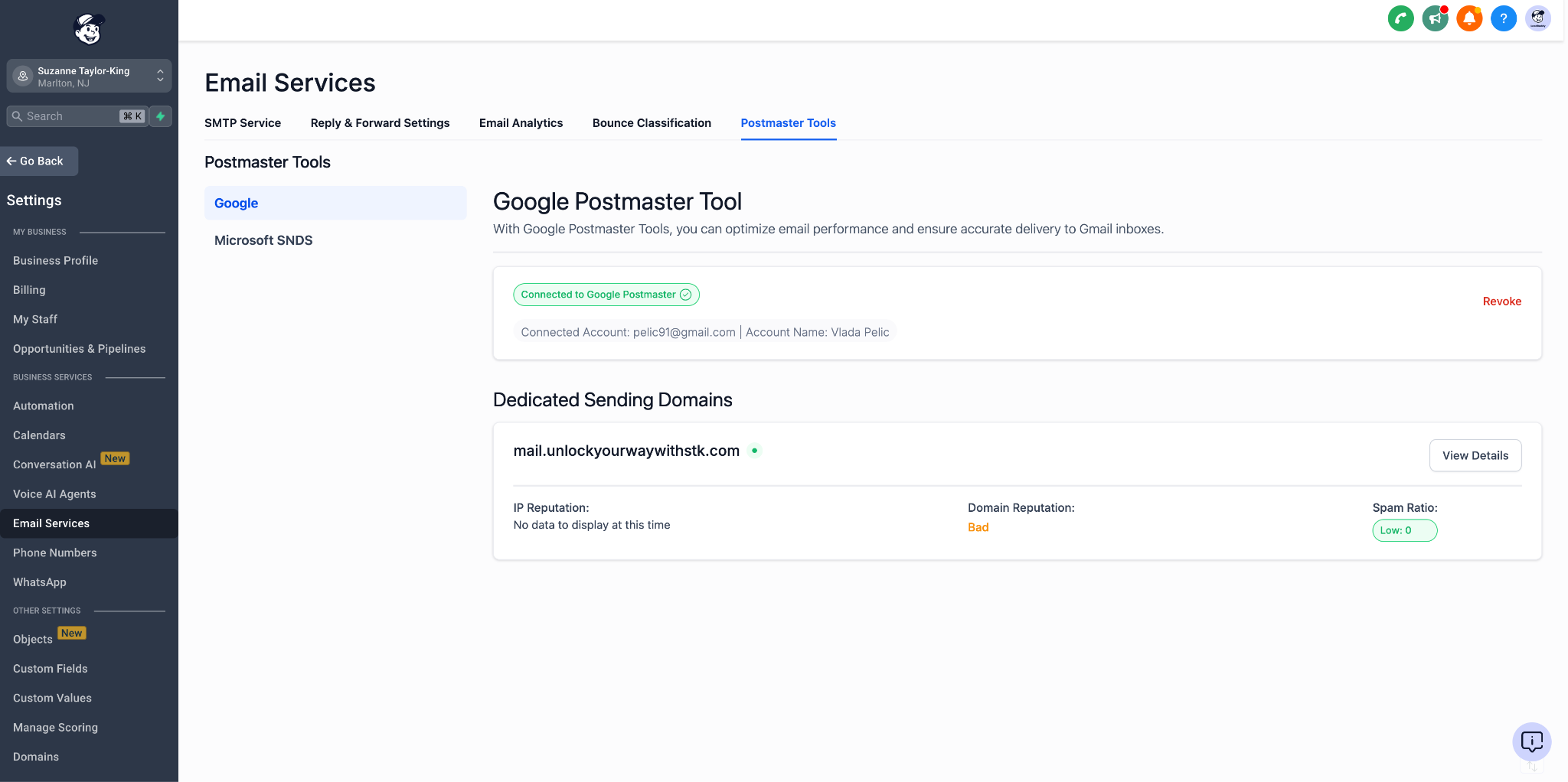
- Never import lists you didn’t collect yourself. Diagnostic Workflow Still landing in spam? Run these checks next. Inspect the email header to confirm authentication, then verify domain reputation with Google Postmaster Tools. 13 ## Check Domain Reputation with Google Postmaster Tools If authentication passes but emails still land in spam, the next step is checking your domain reputation. A bad or low reputation will route messages straight to the spam folder regardless of authentication status. Full setup instructions are in the Google Postmaster Tools guide. Step 1 Navigate to the Google Postmaster Tool Go to Settings → Email Service → Postmaster Tools → Google Postmaster Tool.
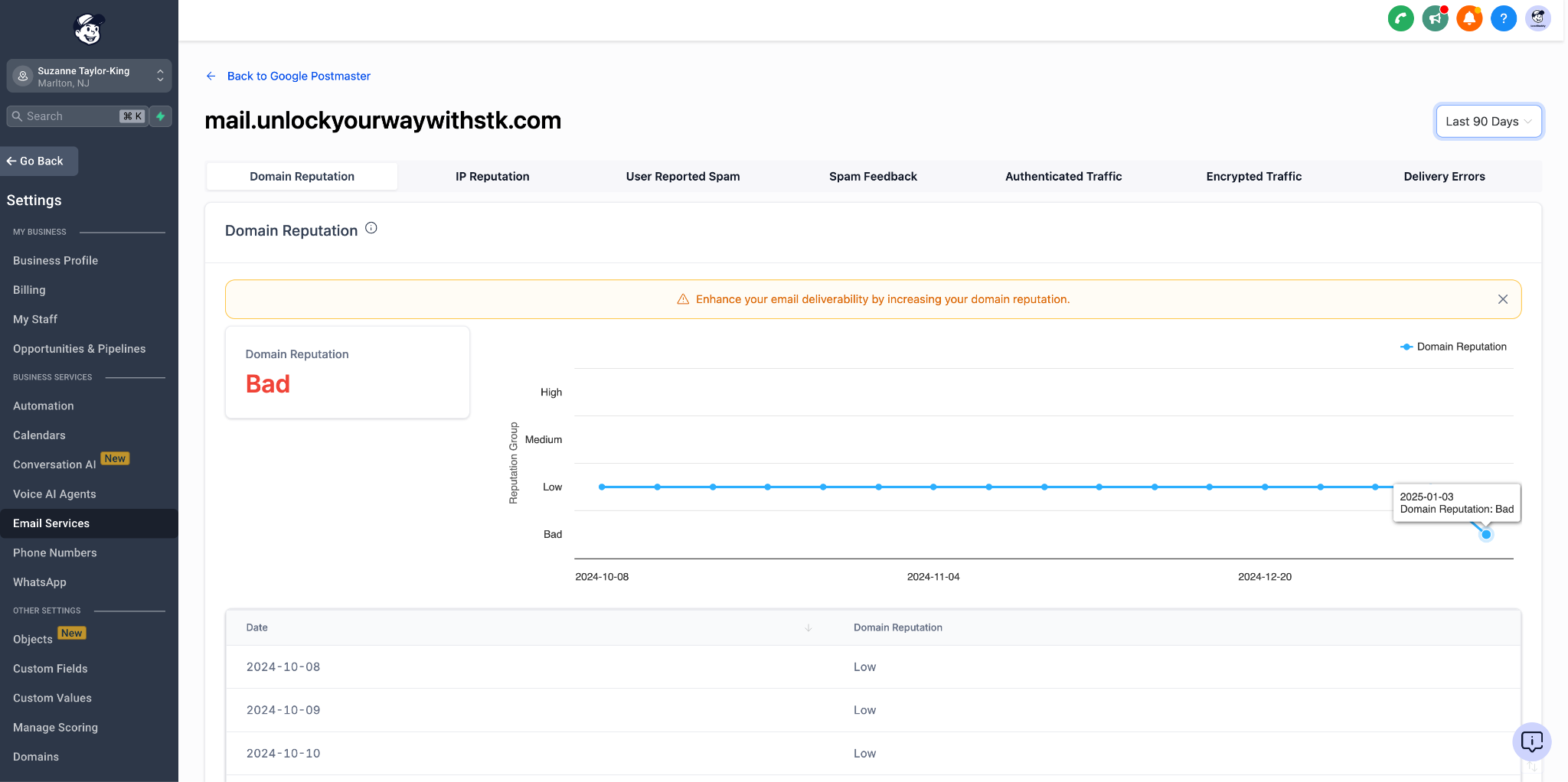
 Step 2 Review the complete reputation data Explore the Postmaster dashboard: domain reputation, IP reputation, spam rate, authentication results, and delivery errors. Look for anything in the Bad or Low category.
 Common Cause — High Spam Report Rate A frequent reason for “Bad” reputation: recipients are marking your emails as spam at an elevated rate. This is the single most damaging signal for sender reputation.
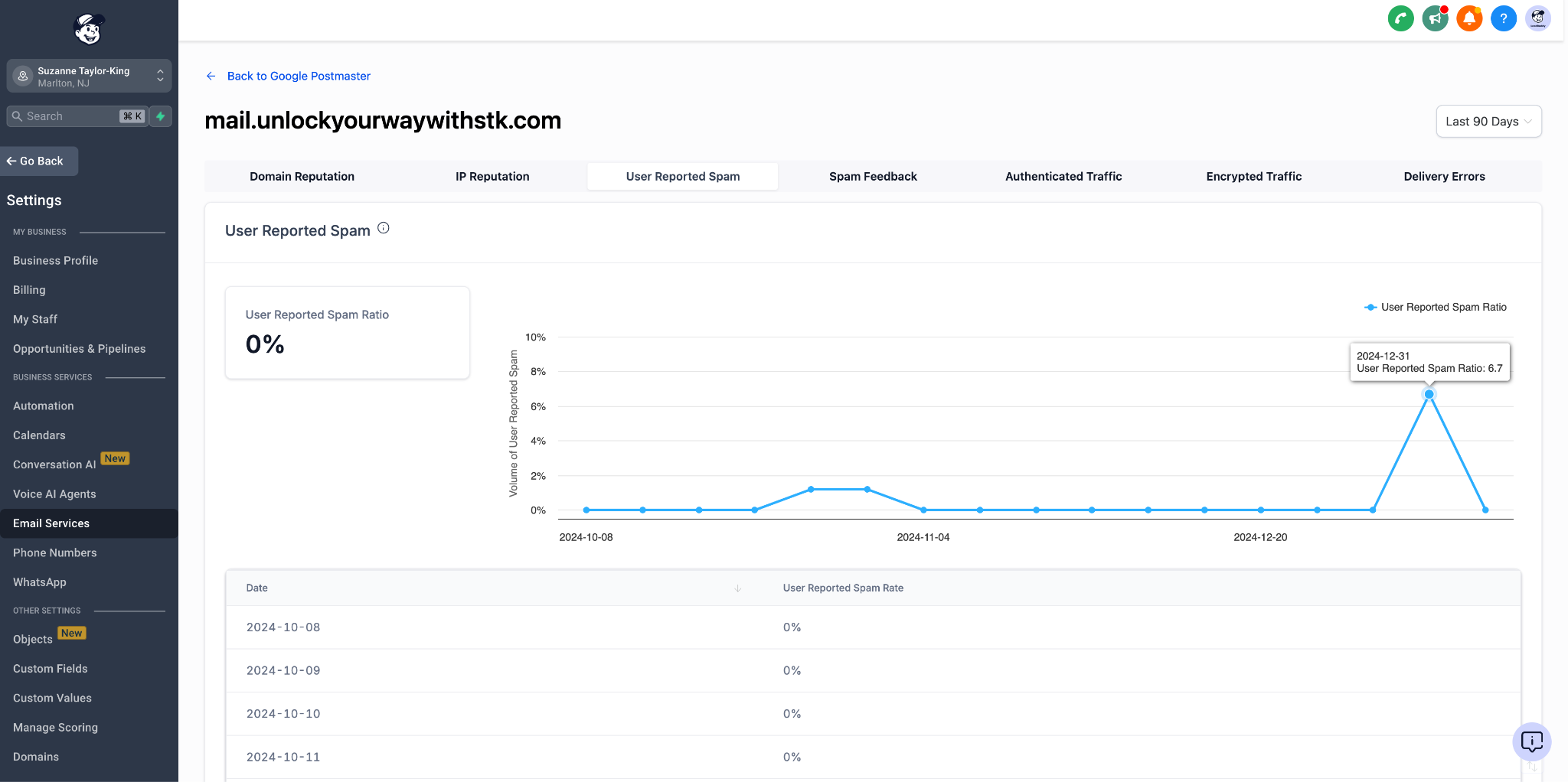 How to Fix - Stop all cold email immediately — cold sends are the most common cause of spam complaints.
 - Warm up the domain following the Email Sending Guide: Best Practices & Warm-Up.
- Send only to engaged recipients for several weeks while reputation recovers.
- Audit content for anything that might invite complaints (misleading subject lines, no unsubscribe link, frequency too high). 14 ## Frequently Asked Questions Q: How can I test if my emails are going to spam before sending them to my list? Use email testing tools like Mail-Tester, GlockApps, or Litmus to analyze content and sender reputation. Also send test messages to multiple providers (Gmail, Yahoo, Outlook) to see where each one lands. Q: What steps can I take if my domain has a poor sender reputation? Gradually ramp up your sending volume, clean inactive subscribers, and focus on driving engagement (opens, clicks, replies). Monitor your reputation via Google Postmaster Tools and expect several weeks for scores to recover. Q: How often should I clean my email list to avoid spam issues? Clean your list every 6 to 12 months at minimum. Remove unengaged subscribers (no opens/clicks in 90+ days) and hard bounces. Regular hygiene keeps your list healthy and your reputation strong. Q: My authentication is correct — why are my emails still going to spam? Authentication is necessary but not sufficient. Check engagement metrics, content quality, list hygiene, and sending consistency. Also check if your domain is on a blacklist via MXToolbox. Q: How long does it take to recover from being marked as spam? Recovery typically takes 4–8 weeks of consistent good sending behavior. Slow down your volume, send only to engaged subscribers, and focus on content that invites replies and clicks. There’s no shortcut — you have to earn trust back. Q: Where do I check SPF, DKIM, and DMARC results for a specific test email? Send a test email to Gmail, open the message, click the three vertical dots next to the Reply button, and choose “Show original.” The header view lists SPF, DKIM, and DMARC results — all three should read PASS. Q: Is Google Postmaster Tools integration mandatory before escalating? Yes. Without Postmaster Tools integration the deliverability team cannot inspect domain reputation or spam-rate signals from Gmail. Connect it under Settings → Email Service → Postmaster Tools before opening an escalation. Was this article helpful? That’s Great! Thank you for your feedback Sorry! We couldn’t be helpful Thank you for your feedback Feedback sent We appreciate your effort and will try to fix the article