Understanding UTM parameters for email campaigns
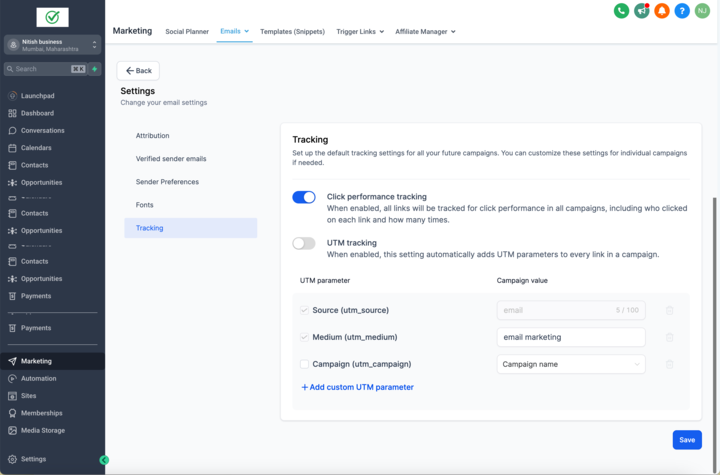
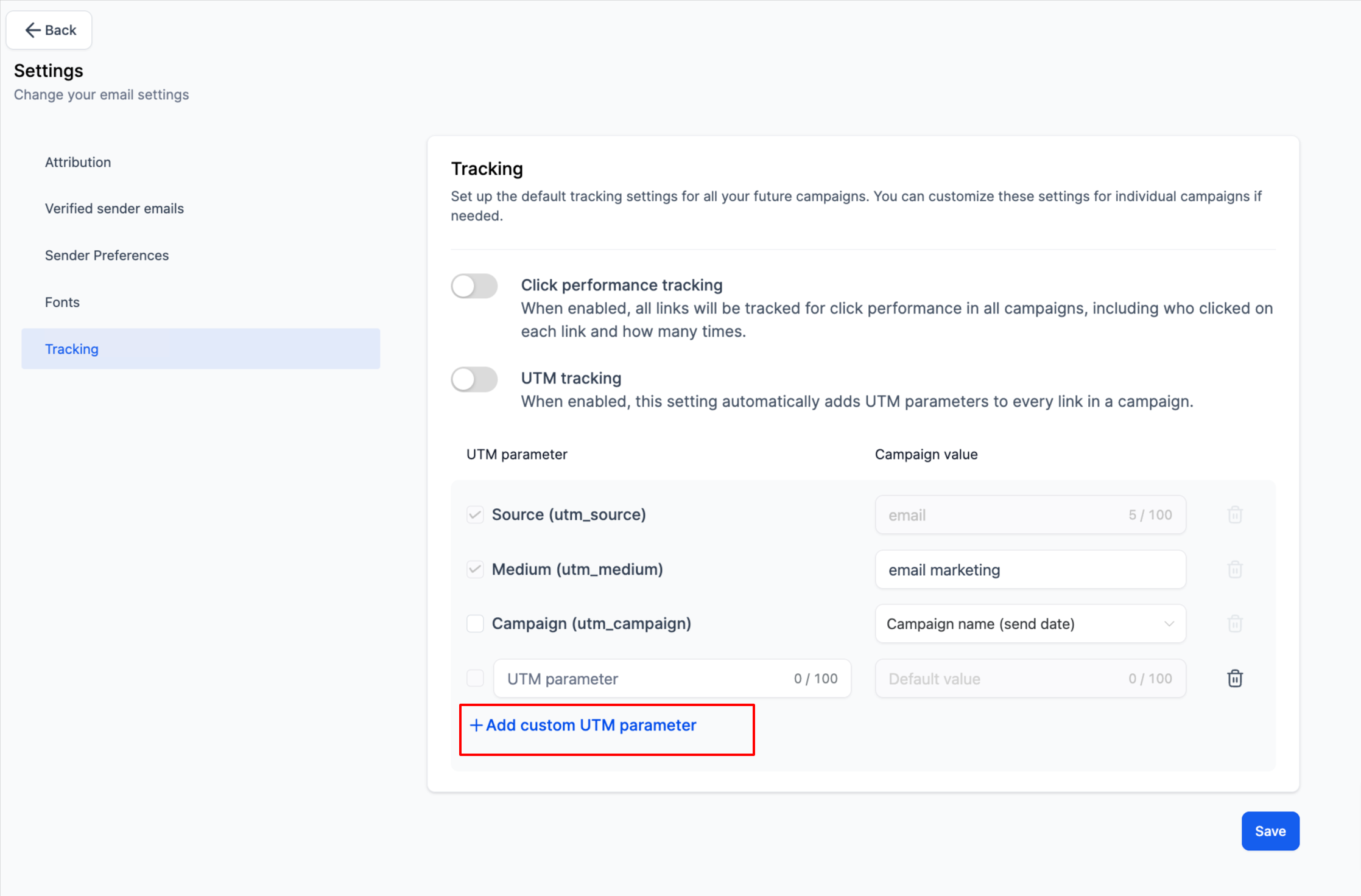
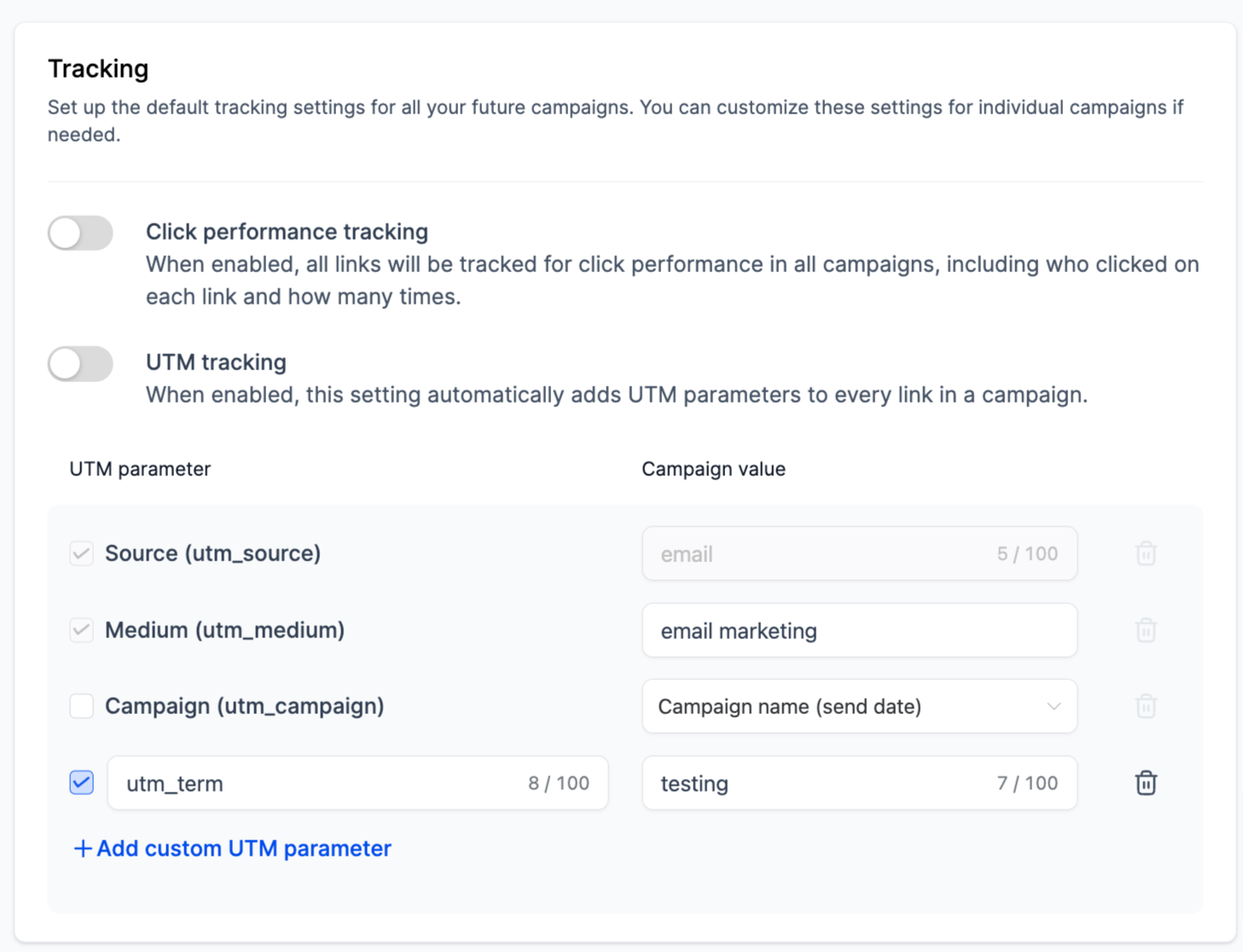
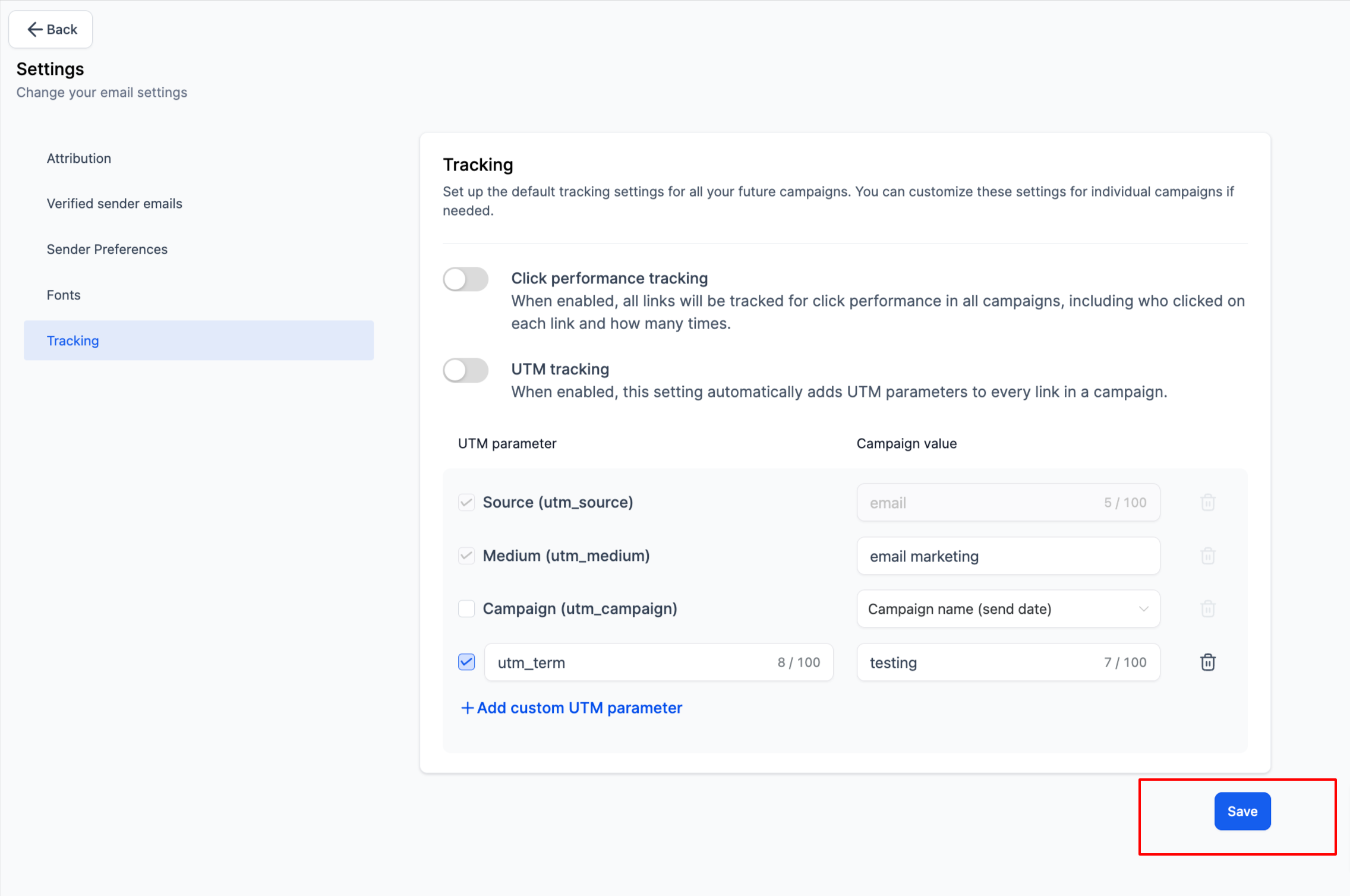
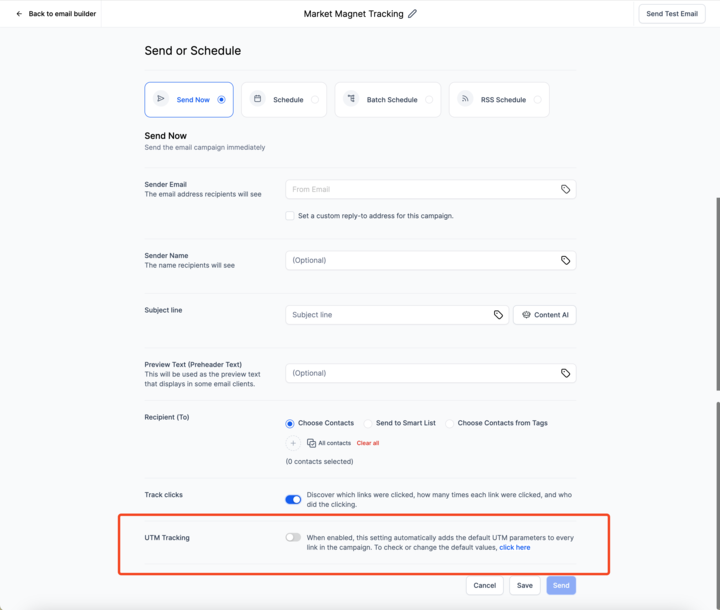
utm_medium or utm_campaign as needed. 6. Add Custom Parameters: Click on Add Custom Parameter to specify additional parameters and their values.!(https://assets.patientcopilot.ai/58cb6523e4f766f8.png) 7. Select Parameters: Check the boxes next to the UTM parameters you wish to add to your campaigns.!(https://assets.patientcopilot.ai/de0502a55266ddc6.png) 8. Save Changes: Click Save to apply your settings.!(https://assets.patientcopilot.ai/8b667160914f1a96.png) 9. Disable for Specific Campaigns: To disable UTM parameters for a particular campaign, turn off the tracking option on the Send or Schedule page.!(https://assets.patientcopilot.ai/ae5a6c9b12c3b851.png) Was this article helpful? That’s Great! Thank you for your feedback Sorry! We couldn’t be helpful Thank you for your feedback Feedback sent We appreciate your effort and will try to fix the article