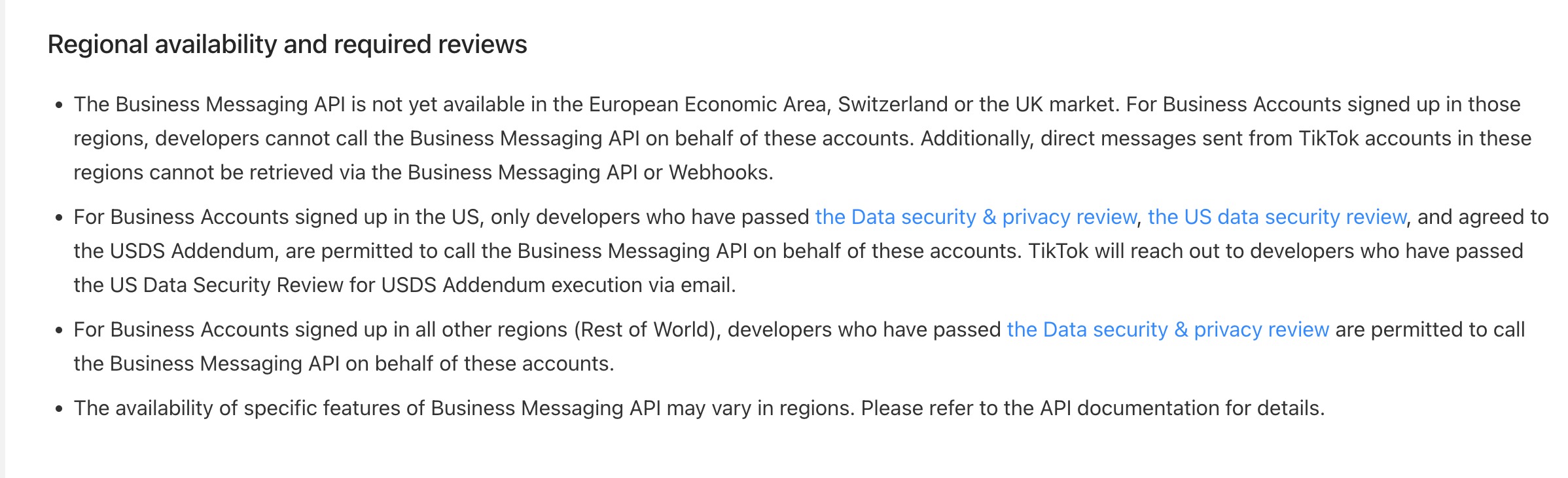
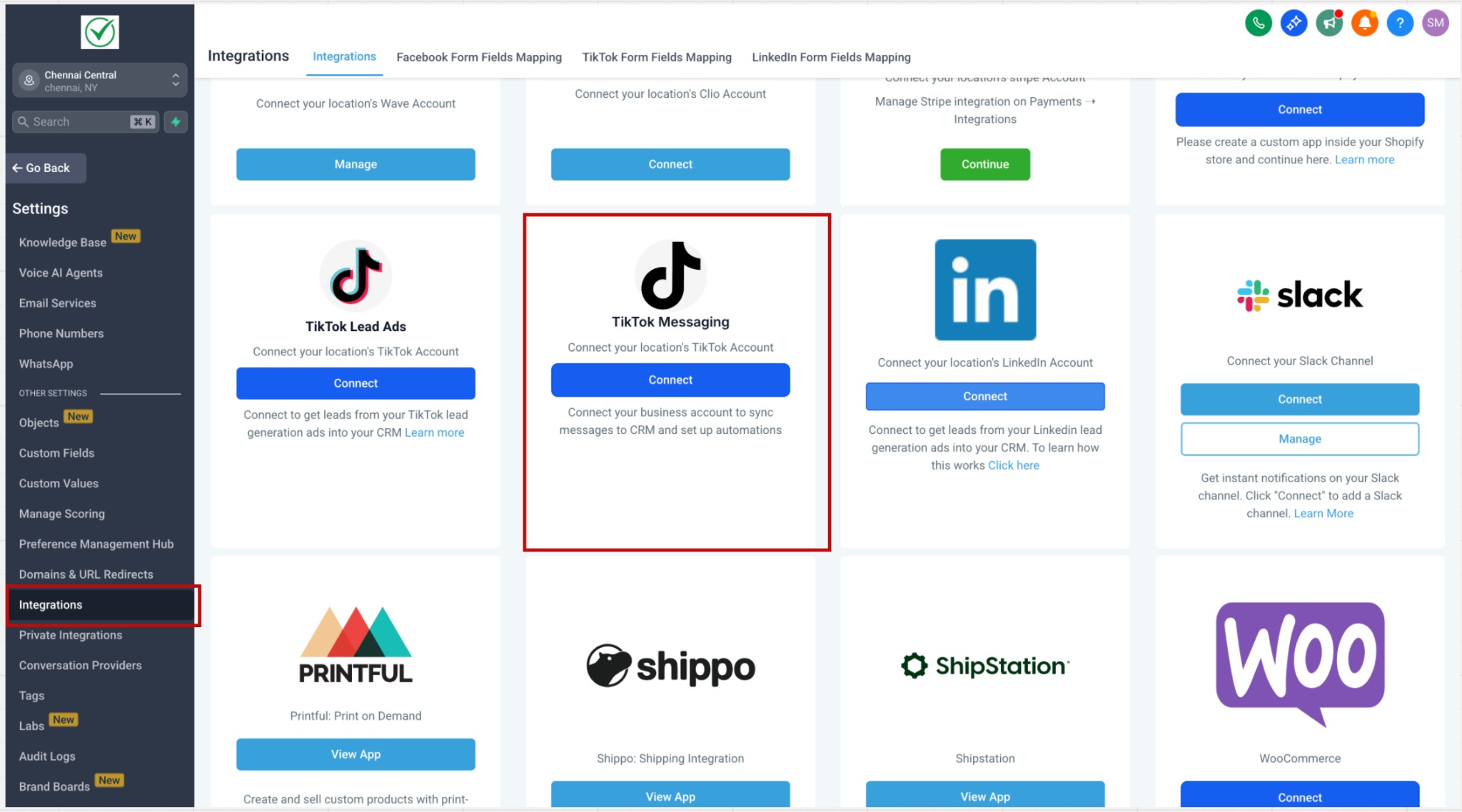
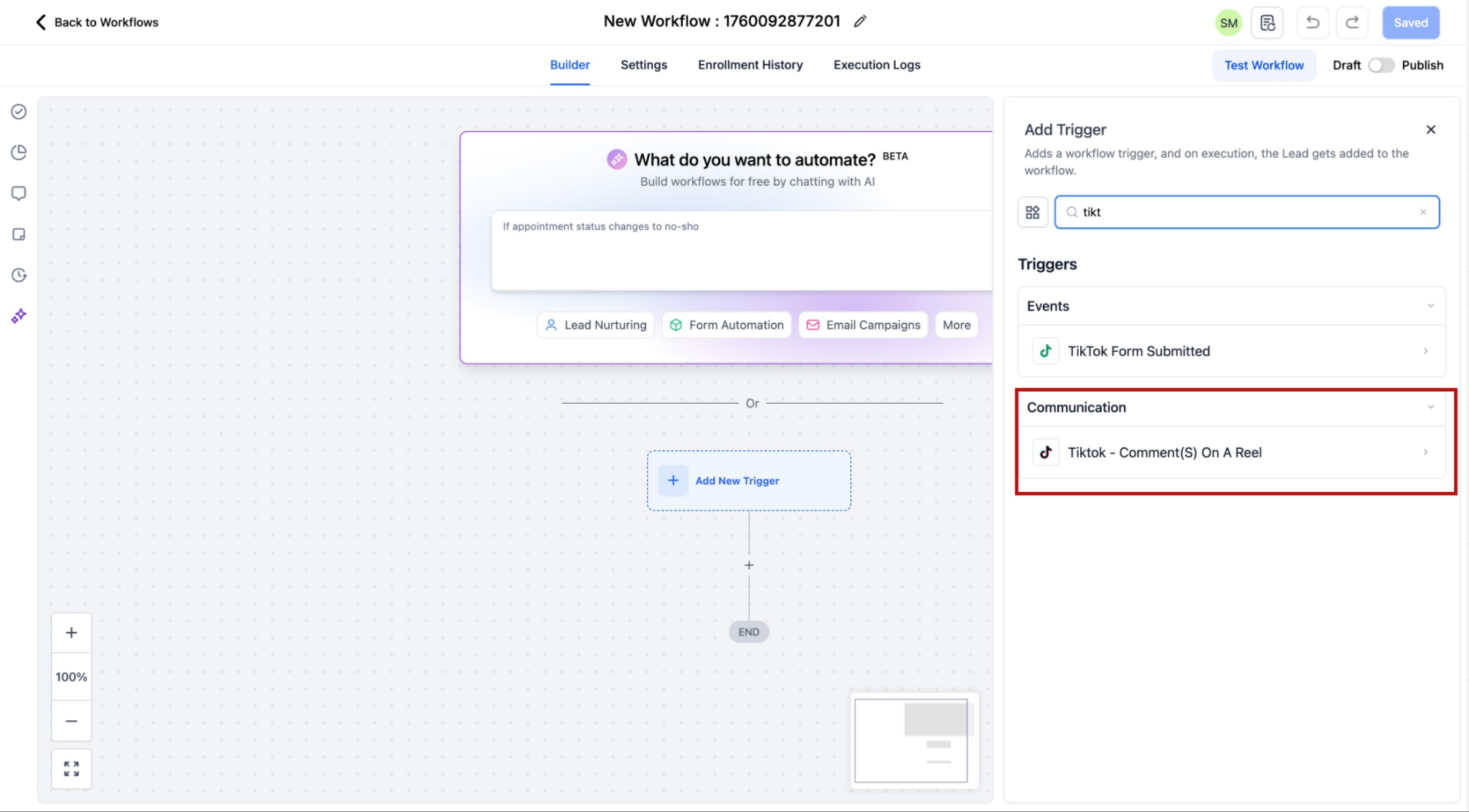
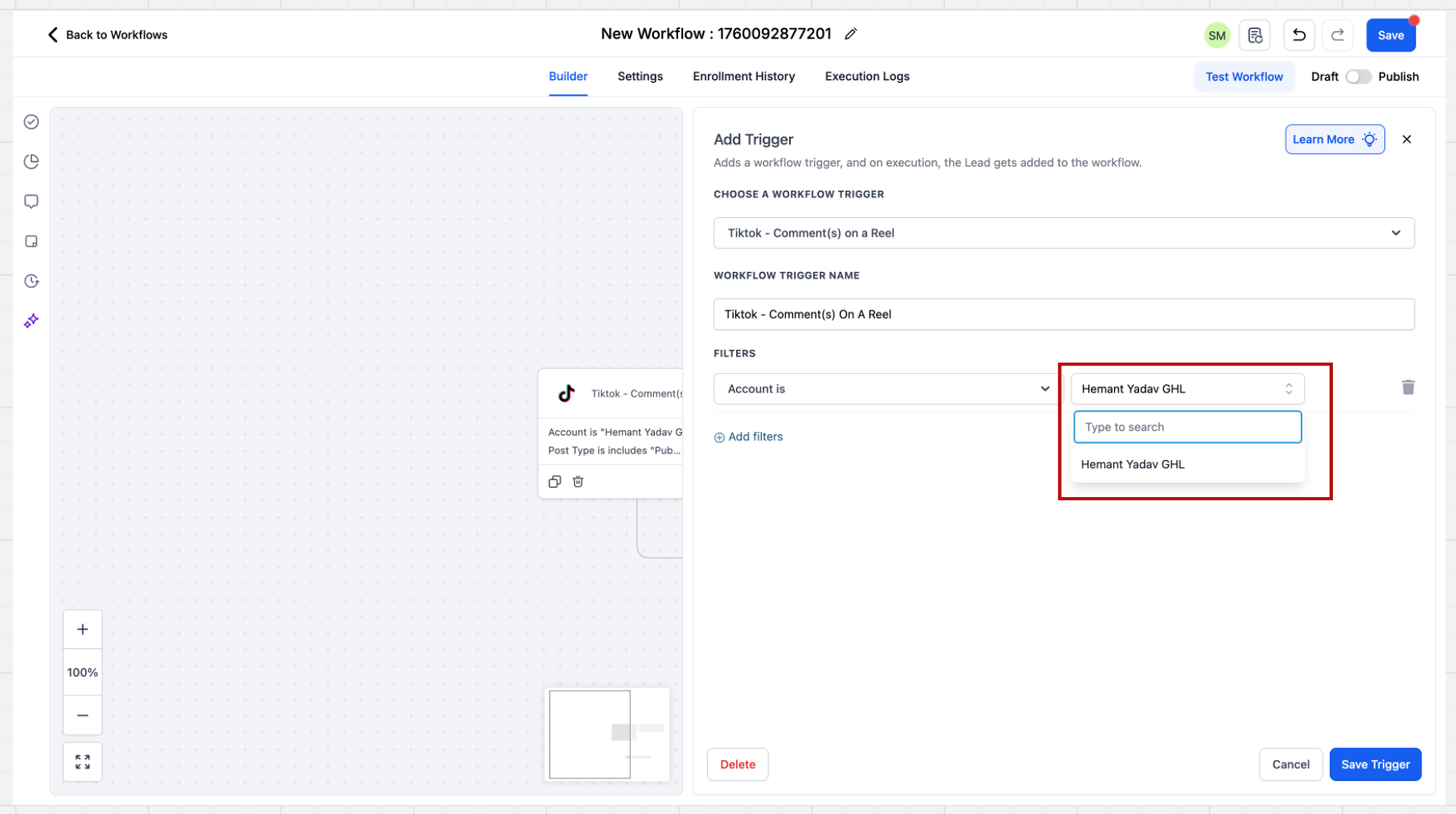
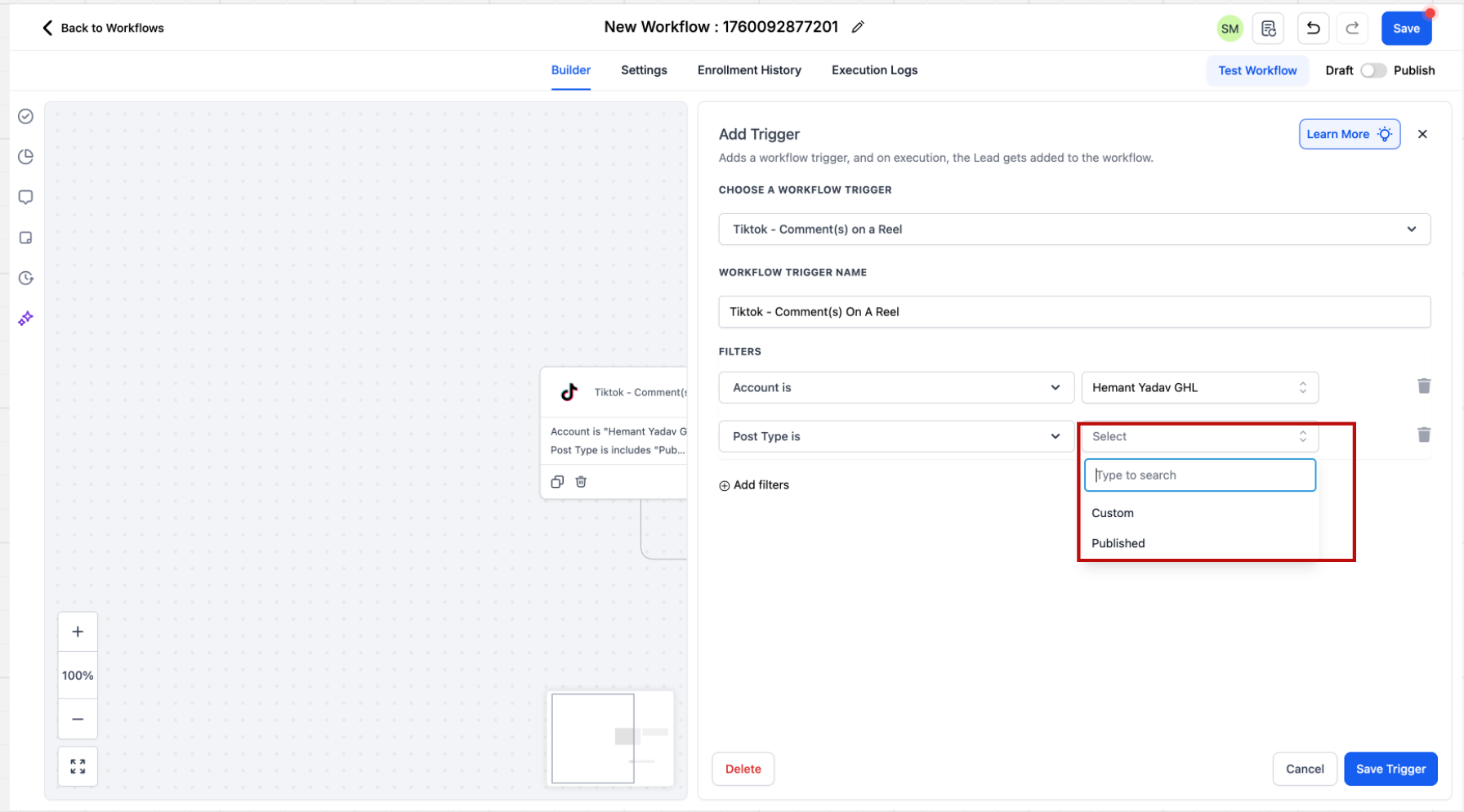
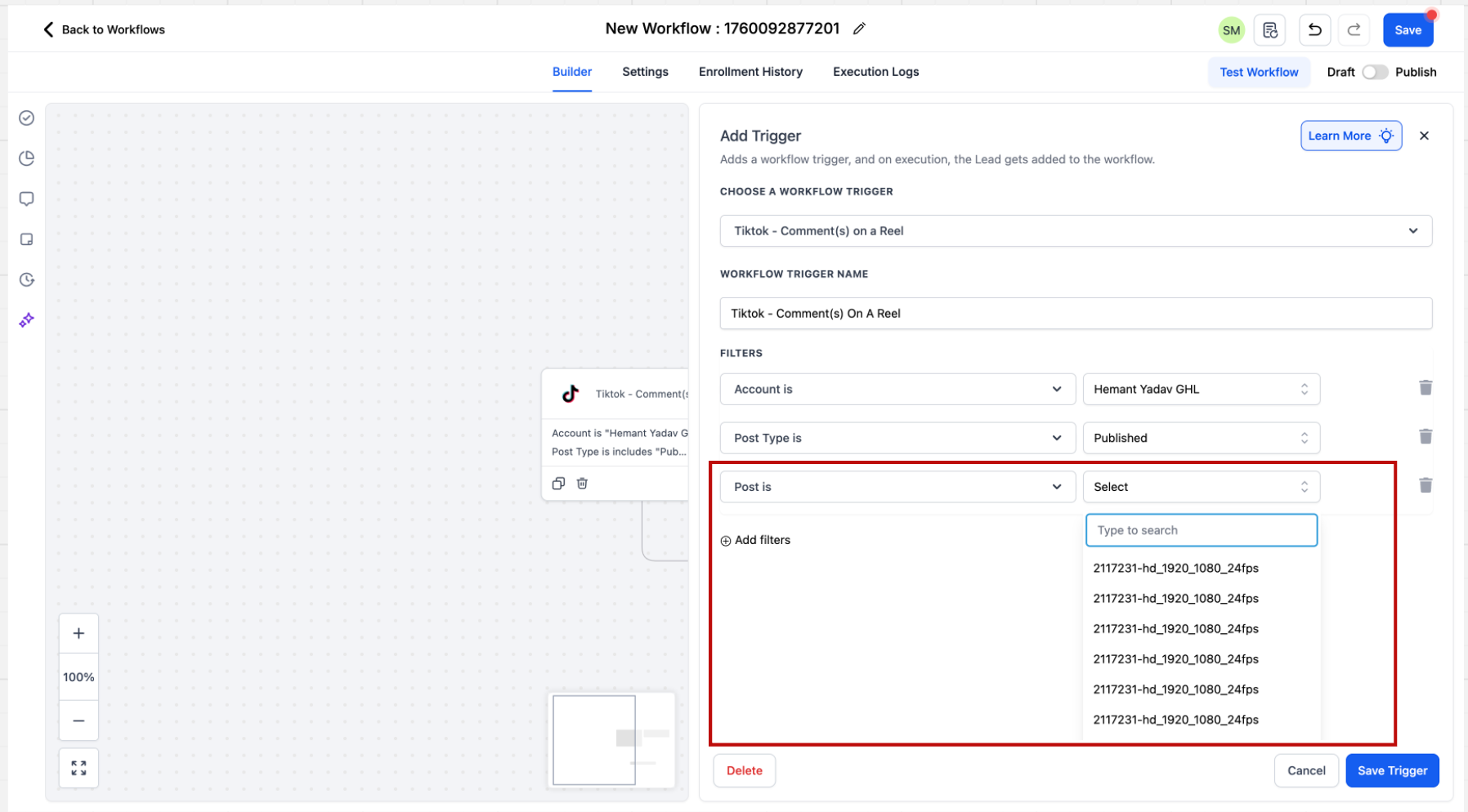
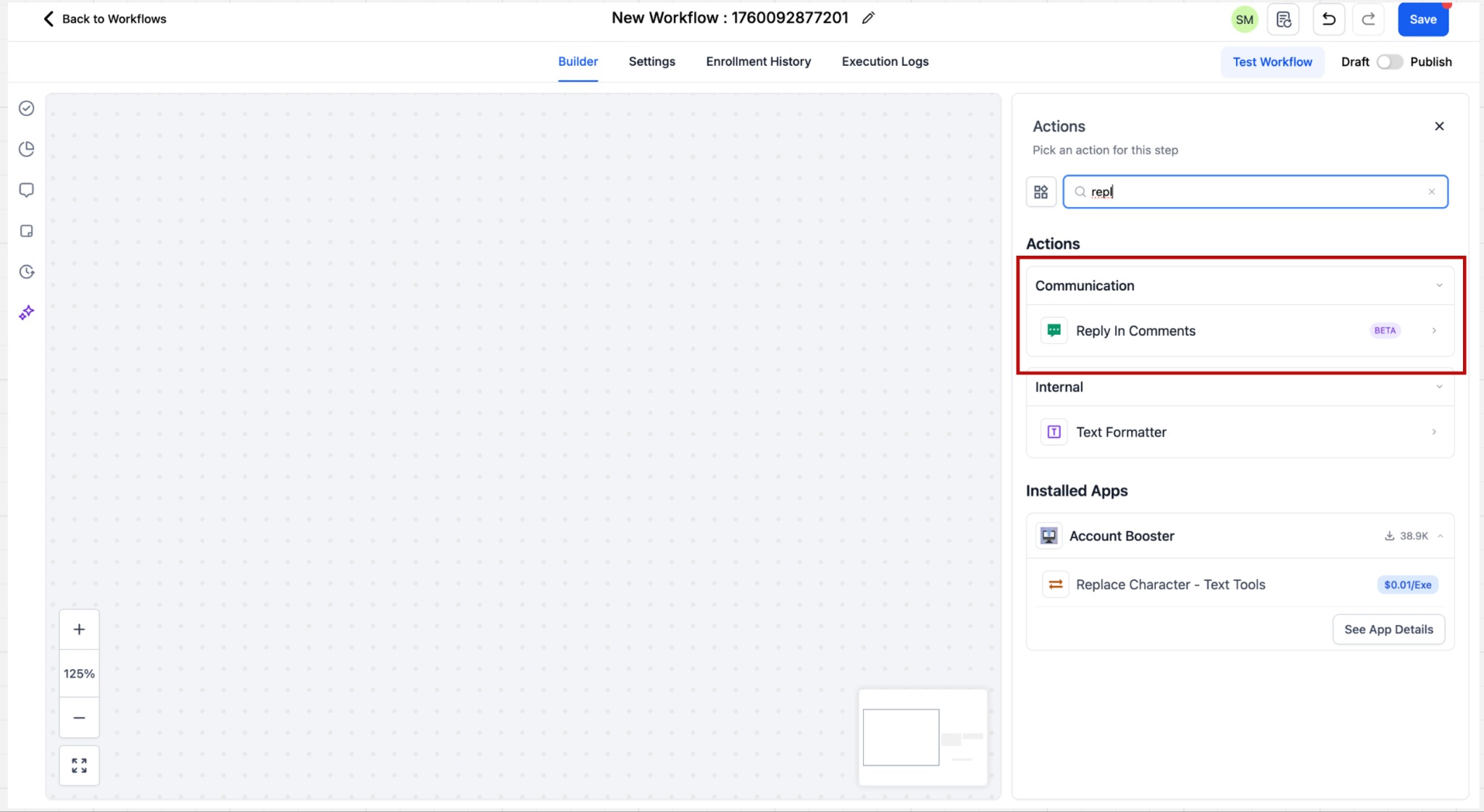
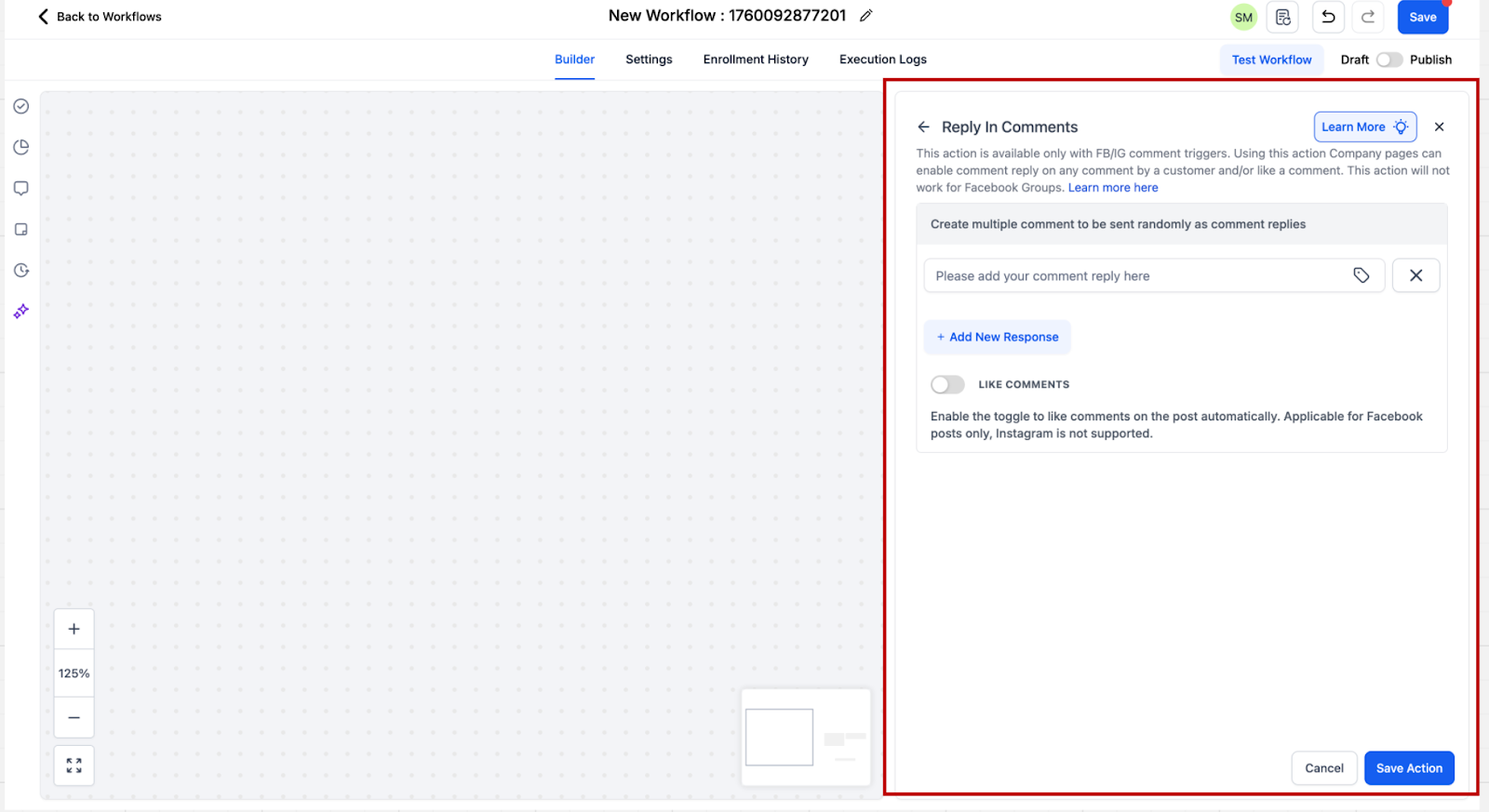
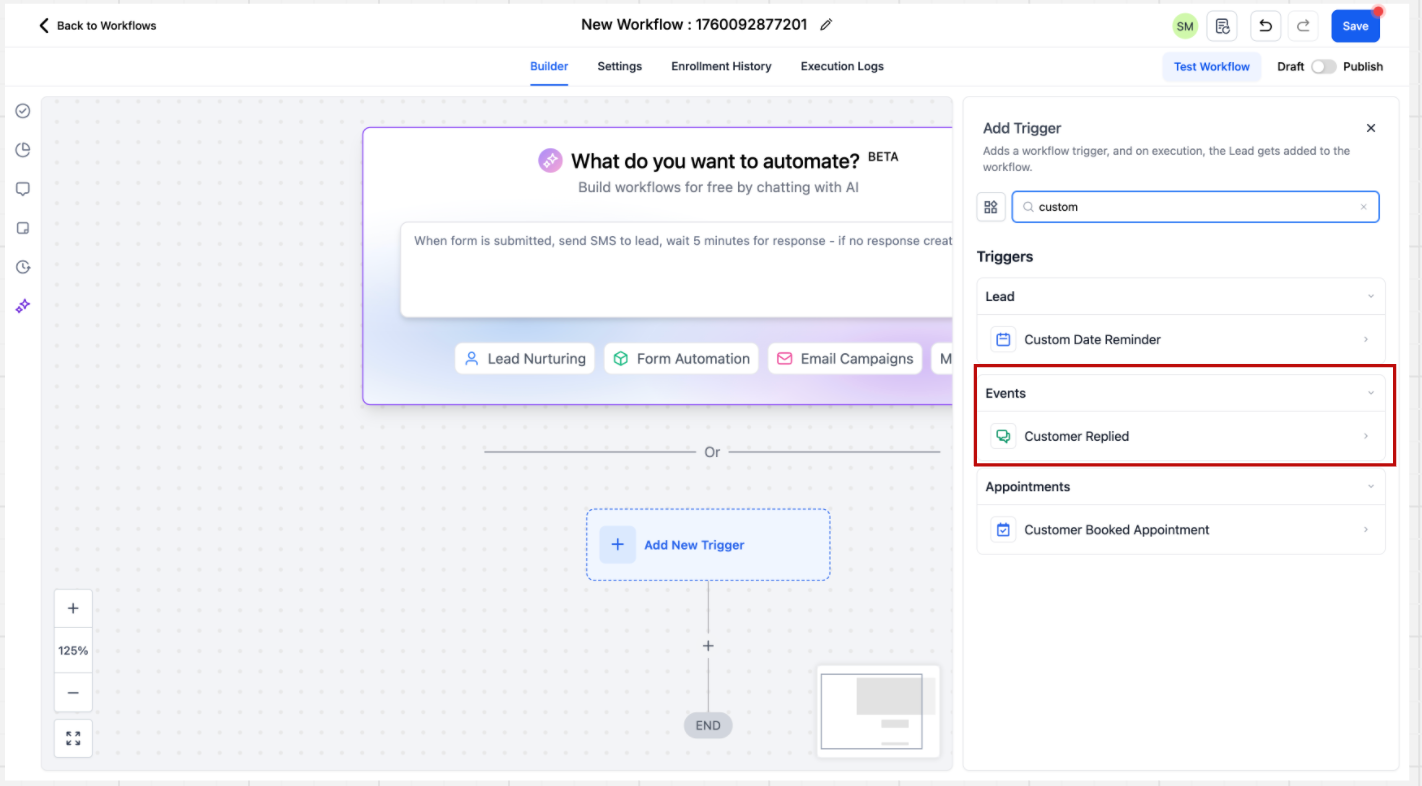
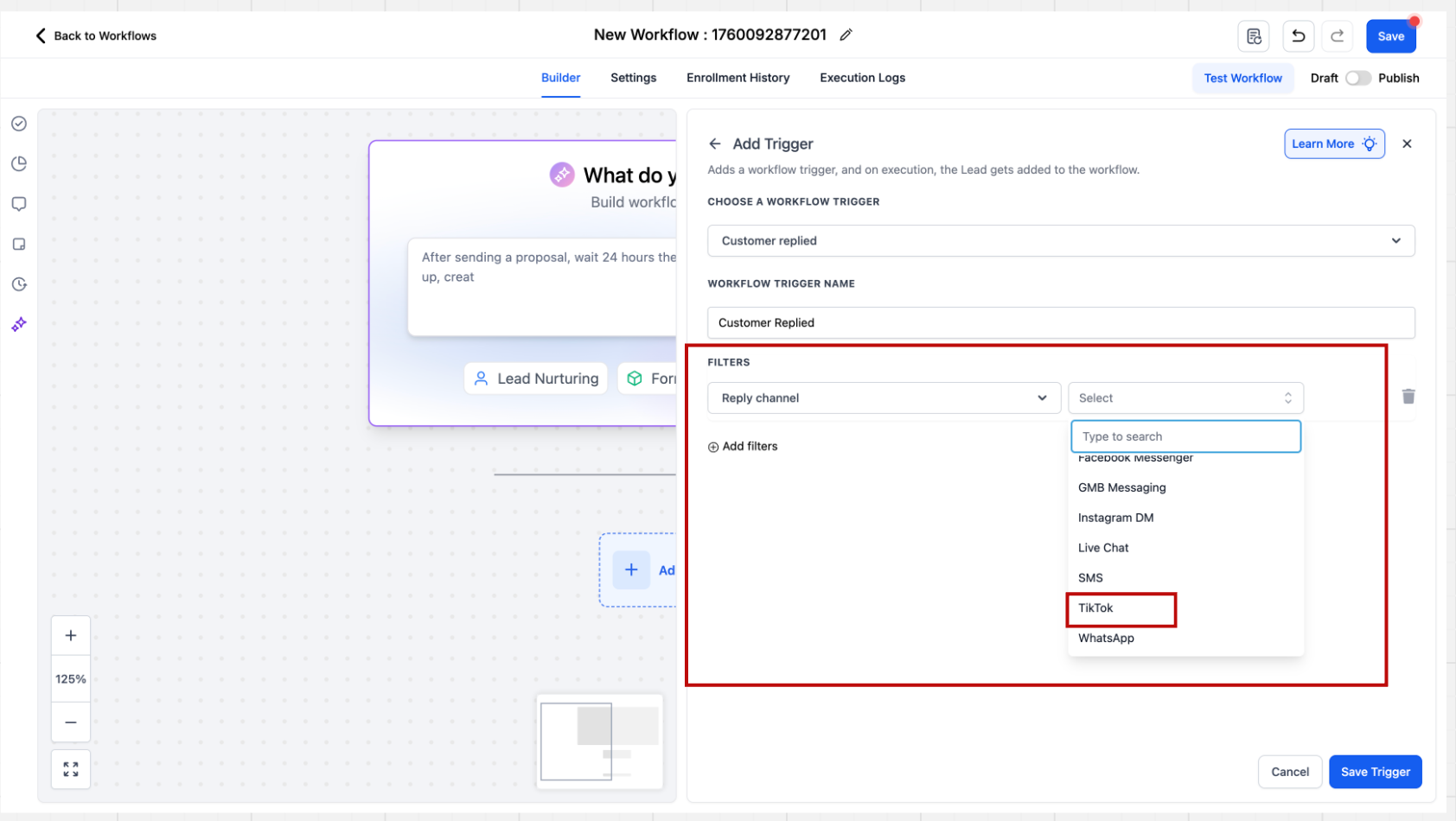
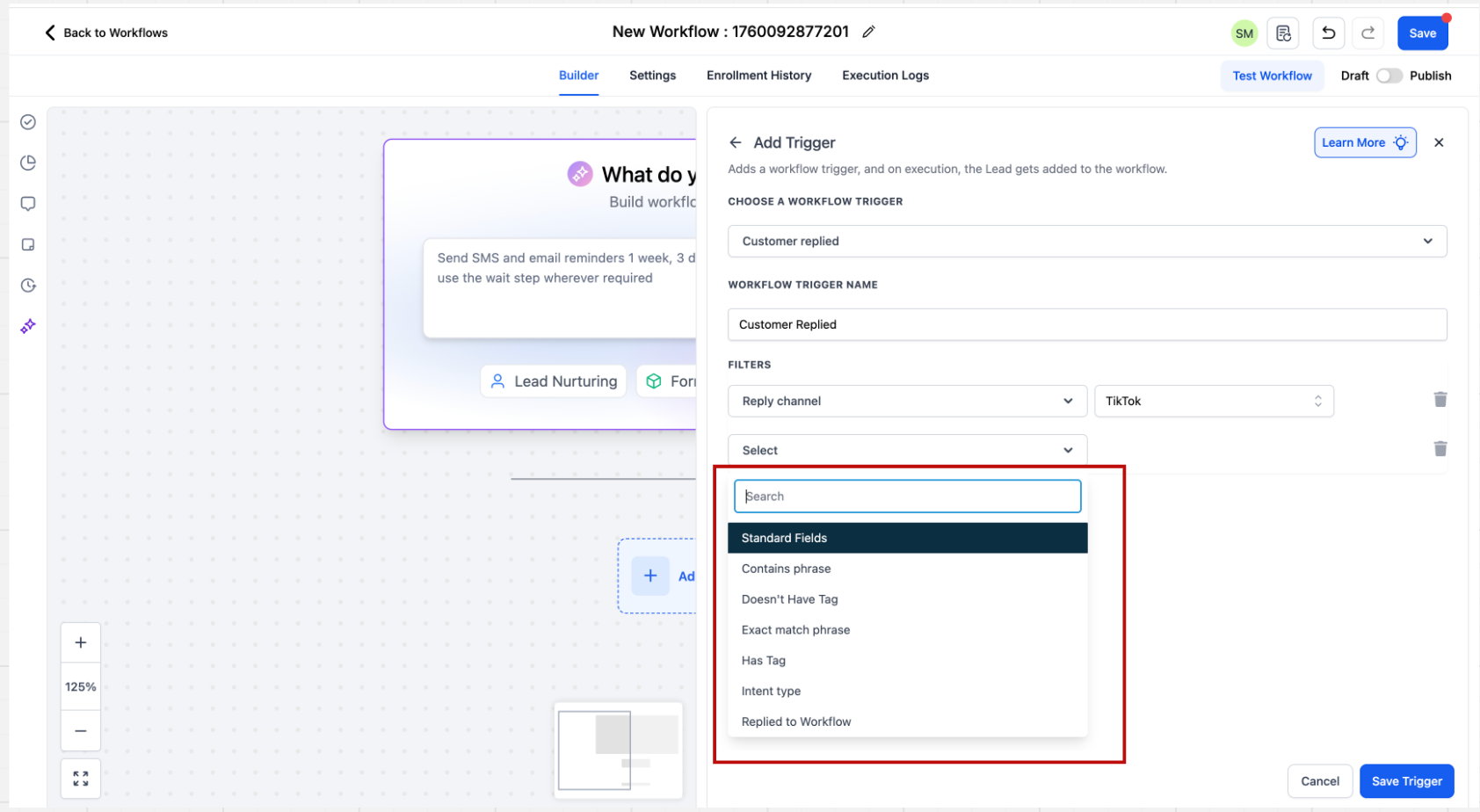
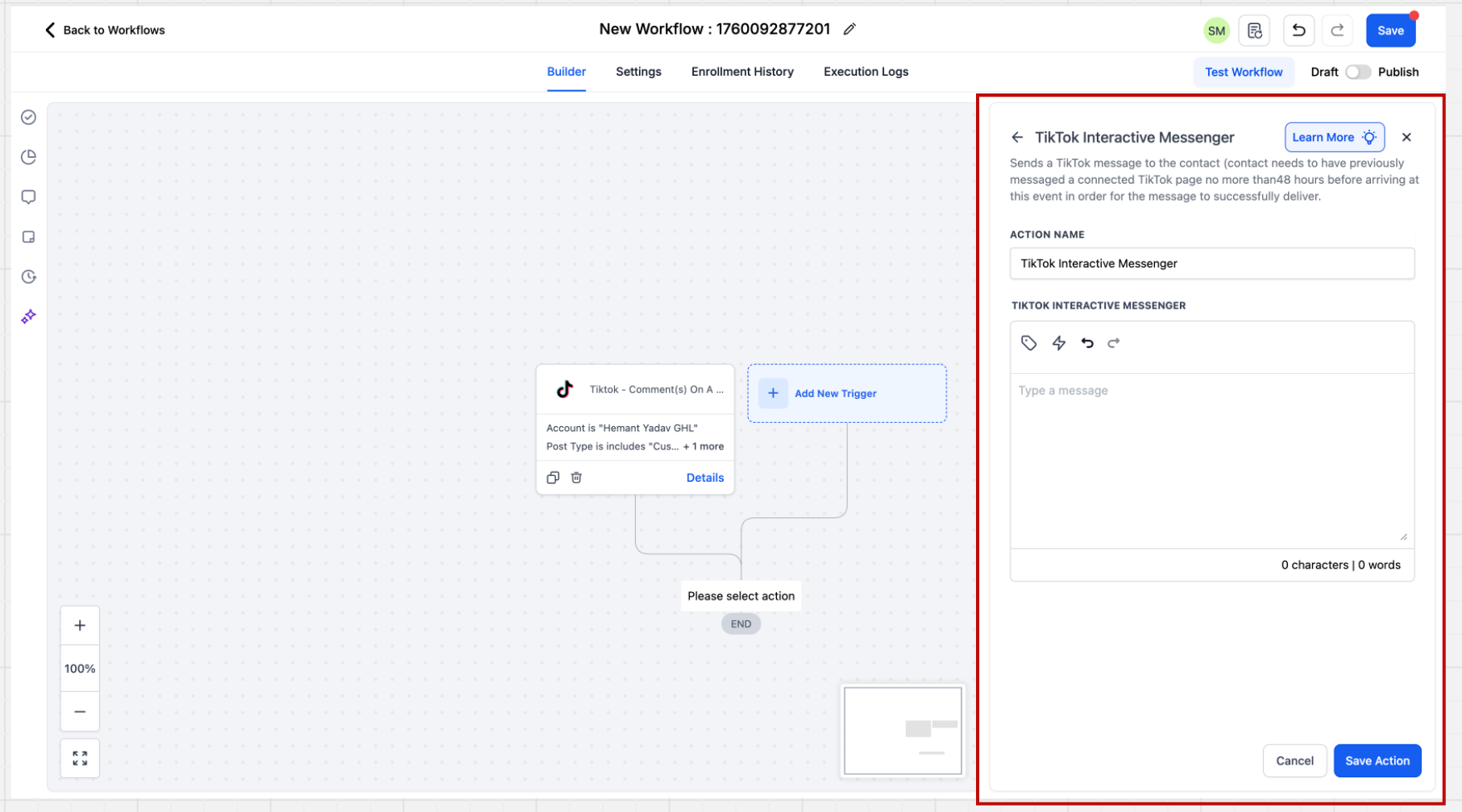
Eligible Geographies The TikTok Messaging & Comment Automation feature is not yet available in the European Economic Area (EEA), Switzerland, or the United Kingdom (UK). Currently, this feature is available only for business accounts registered in the United States. This limitation is due to restrictions within TikTok’s public APIs.!(https://assets.patientcopilot.ai/73e34dbb510b942a.jpg) ## Integrating your TikTok account Before proceeding, make sure your TikTok accounts are integrated with your Subaccount. Go to Subaccount > Settings > Integrations > TikTok card.!(https://assets.patientcopilot.ai/34092d1b1eb6a6f2.jpg) Components Triggers: - TikTok Comment on a Reel - workflow starts when there is a new comment on your TikTok post. Click here for more info on this Trigger. - Customer Replied - select a reply channel like TikTok messenger. Click here for more info on this Trigger Actions: - Reply In Comments: reply to a comment with a comment under it. Click here for more info on this action - TikTok Interactive Messenger When creating a workflow click on “Add Trigger”. The triggers related to comment automation are present in the Communication category. You can directly search for the trigger or scroll down to the category. 1. Go to triggers and select from the available triggers based on your use case. Here you should select TikTok - Comment(s) on a Post!(https://assets.patientcopilot.ai/12cb9b60ac86bcab.jpg) 2. After clicking on the trigger the sidebar will open. There are multiple filters present here. The first step is to select the Account. Account Selection for TikTok Comments If a specific account is not selected in the filter, the system will automatically consider all accounts that are integrated at the location level. The automation will then execute across all these connected accounts.!(https://assets.patientcopilot.ai/f49fc9866750457e.png) 3. After selecting the Page you have to select the Post Type. Post type can be “Published” or “Custom” a. Published Post - ‘Published Posts’ tab fetches all posts on your business page - basis this selection, all the posts from your account comes as a dropdown. Post label behavior: If a TikTok post does not have a caption, the workflow trigger dropdown shows the Post ID and Posting Date so you can still select the correct post reliably.!(https://assets.patientcopilot.ai/d6488d3fa763fcf1.png) b. Custom Post - Custom Post tab allows you to define the post you want to consider by providing an URL Post Selection Behavior If a specific post is not selected, the system will automatically include all posts associated with the connected TikTok account. 4. In the next step, you should select the post or provide the URL, you would like to run the automation on. If you do!(https://assets.patientcopilot.ai/4a56d2fe6cfdd901.png) 5. After selecting the post you have to enter what are you looking for in the comment. You can select from 2 options “Contains Phrase” and “Exact Match”. Below are some examples to understand these 2 dropdown better. Exact Match - Price Inbound message - Price Result - Pass Exact Match - Share the Price Inbound message - Share the Price Result - Pass Exact Match - Share the Price Inbound message - Please share the Price Result - Fail Contains Exact Phrase - I bought from you Inbound message - I bought from you Result - Pass Contains Exact Phrase - I bought from you Inbound message - I bought from you yesterday Result - Pass Contains Exact Phrase - I bought from you Inbound message - I bought one from you Result - Fail When the contact will be saved? When a contact is coming through the trigger, it will be saved as a contact and First Name and Last Name of the contact will be stored. 1. Go to actions. Here you can select the action from the Communications section, “Reply in Comments”!(https://assets.patientcopilot.ai/08fcb1244f1cdc16.jpg) 2. Users can configure up to 10 reply comments, which will be randomly selected during execution.!(https://assets.patientcopilot.ai/cf1052d91f09c803.png) ## How will TikTok DM automation work? ## Trigger:Customer replied When creating a workflow click on “Add Trigger”. The trigger related to DM automation “Customer replied” is present in the Events category. You can directly search for the trigger or scroll down to the category. 1. Go to triggers and select from the available triggers based on your use case. Here you should select Customer replied trigger!(https://assets.patientcopilot.ai/f2ef8ea239e3d0e7.png) 2. After clicking on the trigger the sidebar will open. There are multiple filters present here. The first step is to select the “Reply channel” filter where filter value = TikTok!(https://assets.patientcopilot.ai/9ed9d391be69d331.png) 3. Users can configure automation rules for direct messages by setting specific matching conditions, such as ‘Contains Phrase’ or ‘Exact Match Phrase.’!(https://assets.patientcopilot.ai/279a7fbae2310d5e.png) 4. Based on the above configurations, you can define the trigger for the automation. ## Setup Action:Tiktok Interactive messenger There is 1 new action in the “Communications” category - Tiktok Interactive messenger On selecting the action, the sidebar will open where you can capture all the relevant details.!(https://assets.patientcopilot.ai/79f6f4bc2ead98b2.png) The TikTok Interactive Messenger is fairly straightforward. Here you have to provide the message you want to send to the inbound trigger defined and save the action. ## Important Points to Noted 1. The TikTok Interactive Messenger action, unlike FB & IG does not support a “Reply Type” field where users could have defined values “Reply as DM”, “Reply to Comment via DM”. It will be enabled as soon as TikTok APIs starts supporting it. 2. The TikTok Interactive Messenger action, unlike FB & IG, does not support Templates. It will be enabled incrementally 3. The TikTok Interactive Messenger action does not support Attachments, Buttons, Quick Replies. It will be enabled as soon as TikTok APIs start supporting it.