Add Messaging & Social Channels to Your Google Business Profile (GBP)
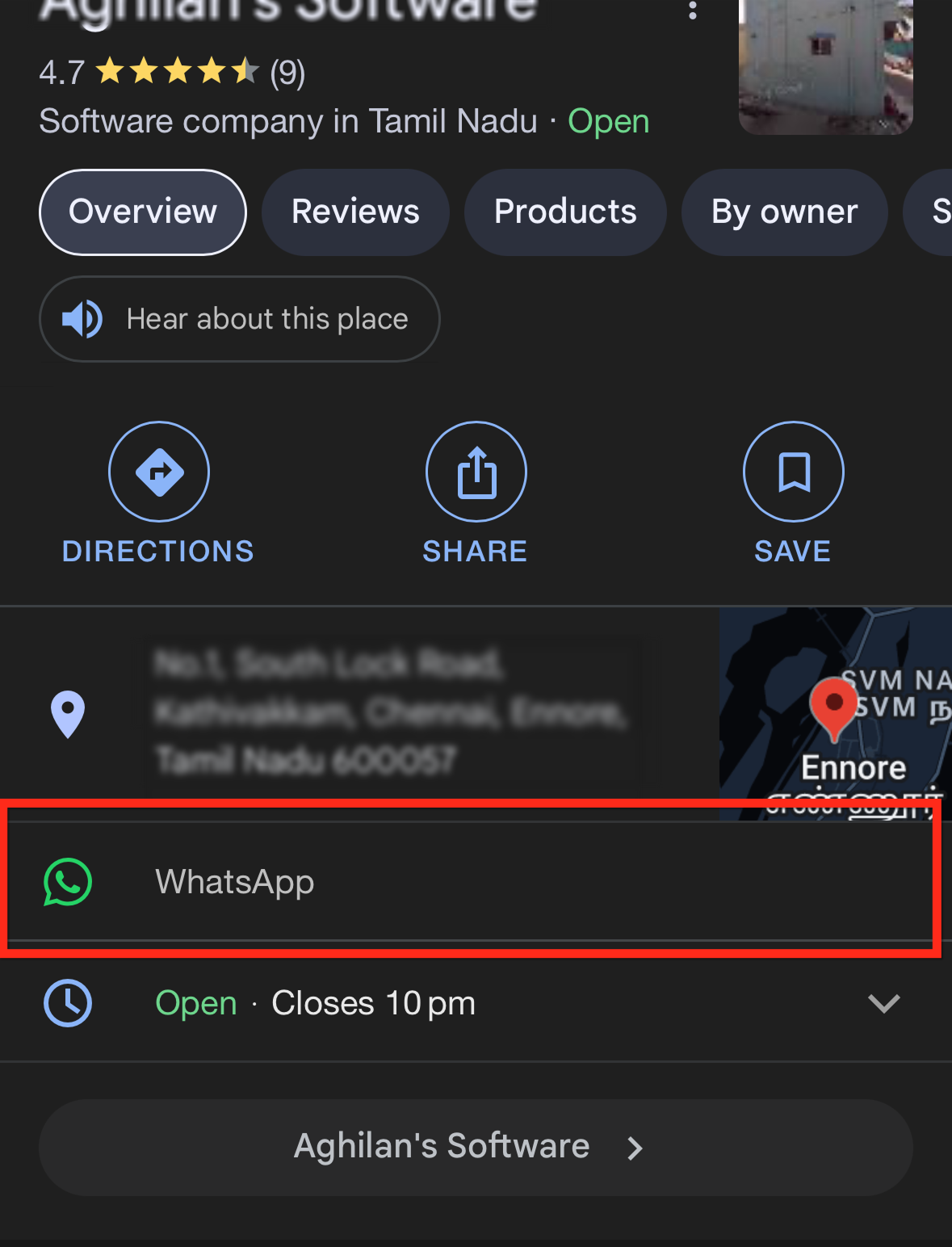
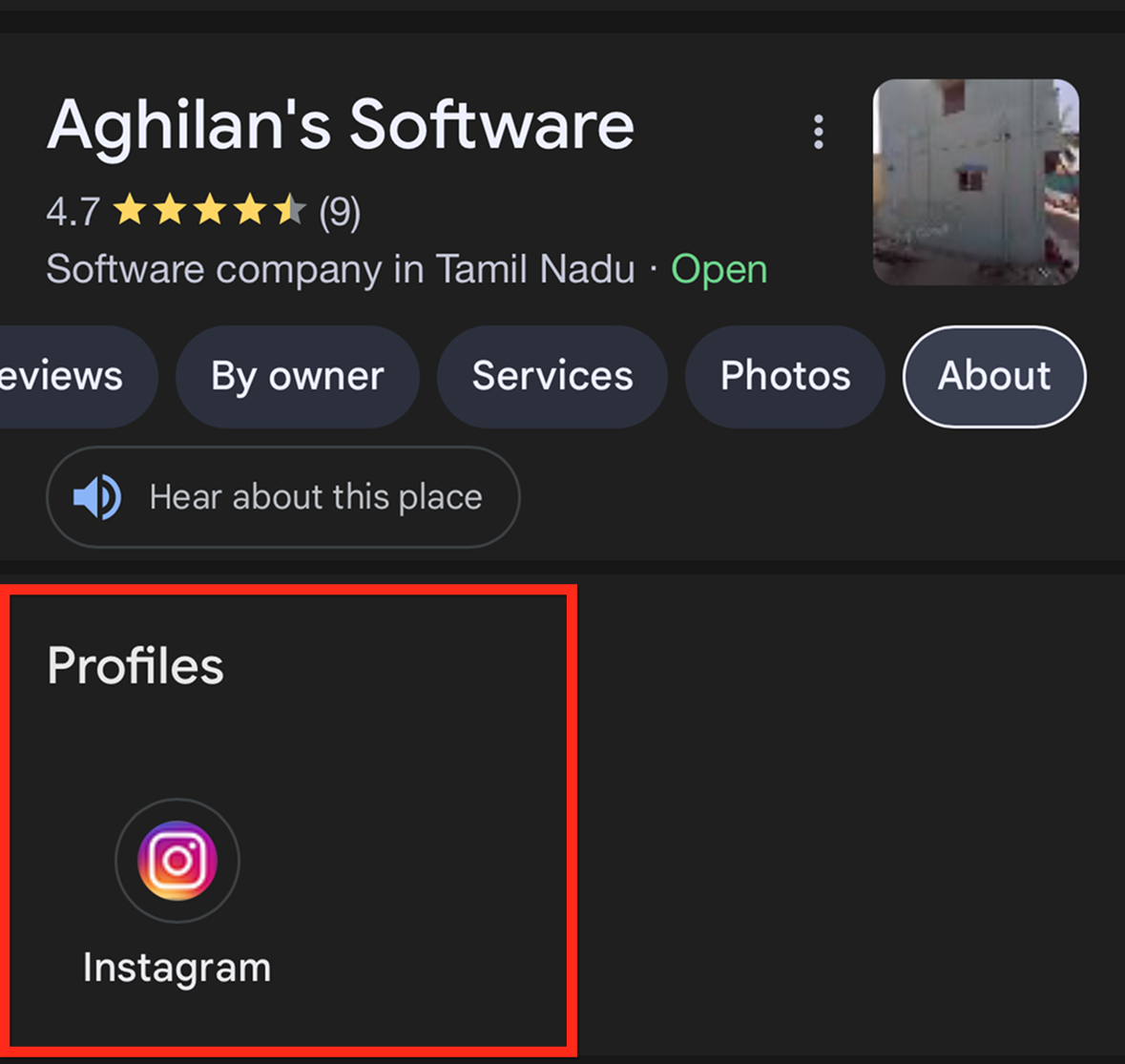
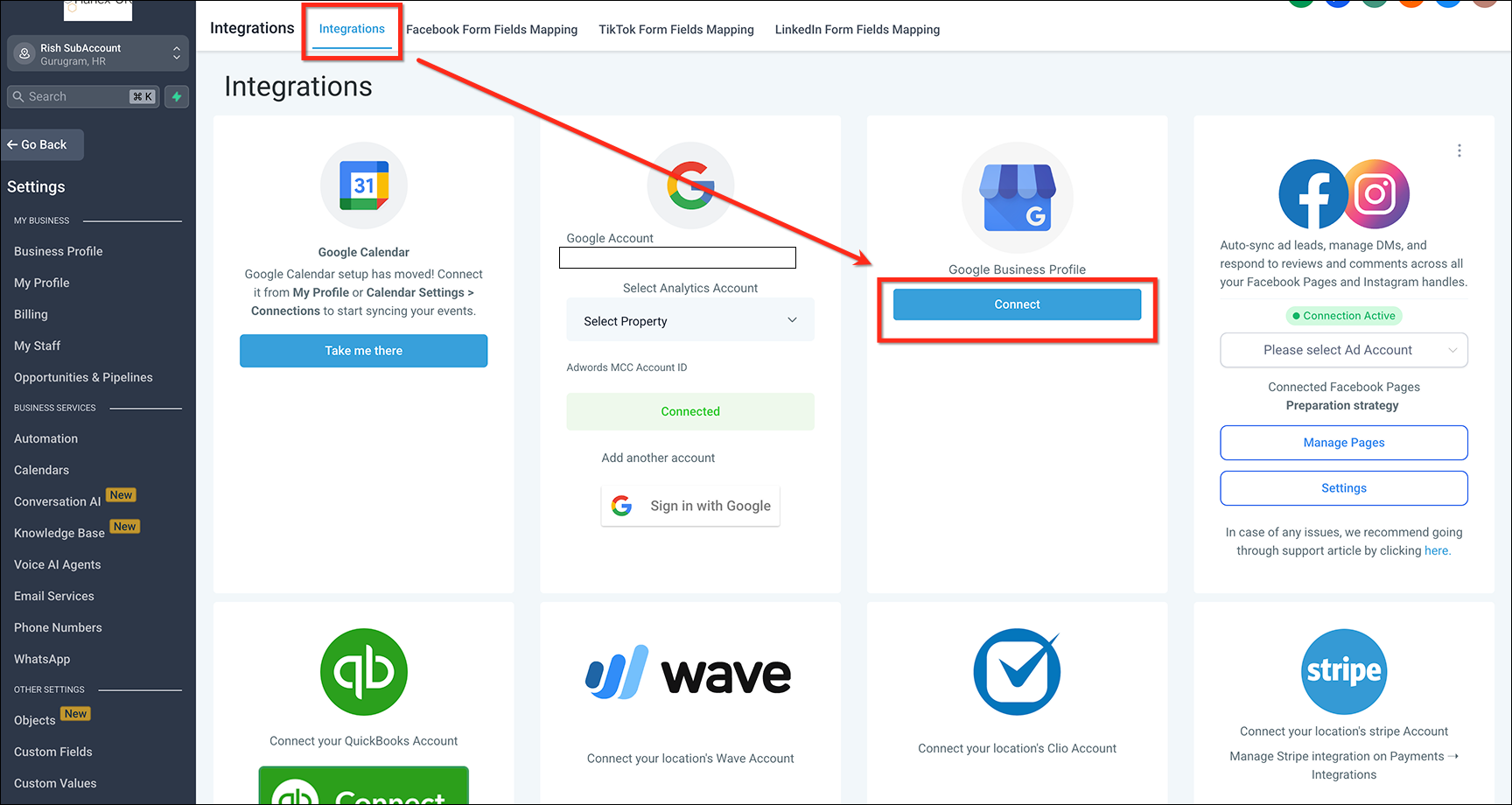
You can now attach messaging (WhatsApp, Text/SMS) and social channels (Facebook, Instagram, LinkedIn, YouTube, TikTok, X, Pinterest) to your Google Business Profile pages—giving customers more familiar ways to reach you and creating additional paths for engagement and lead capture. * * * ## Linking WhatsApp & Text to GBP Connecting WhatsApp and Text/SMS channels directly in the GBP flow gives you the flexibility to reach customers using their preferred methods. You are able to pick an existing Patient Copilot‑integrated number for WhatsApp/Text or Or enter a different number in E.164 format (example for US: +15551234567). Only one of the messaging channel will be displayed on GBP results though both can be connected. When both WhatsApp and Text (SMS) numbers are added, Google displays Text by default on the public listing; WhatsApp appears only if Text is not provided. Sync & automations require Patient Copilot-connected channels: Messages can be synced and automations set up only when the phone number or social profile is connected to Patient Copilot (CRM) and linked to your GBP. Non-Patient Copilot numbers can be shown on GBP but won’t sync or trigger automations.!(https://assets.patientcopilot.ai/0c2e7faca52cb33e.png) * * * Linking your social profiles on GBP strengthens brand presence and gives customers familiar touch points. If the social account is also connected to Patient Copilot, DMs for those platforms can be handled in Patient Copilot; the GBP link itself serves as the public path for visitors. Supported Platforms: Facebook, Instagram, LinkedIn, YouTube, TikTok, X (formerly Twitter), Pinterest. All the social channels connected will be displayed on GBP page result under about section.!(https://assets.patientcopilot.ai/42c7fcf852ade56e.png) * * * Social media links in Google Business Profile should respect the below formats. * * * ## How To Add Messaging Channel and Social Profiles to Your Google Business Profile (GBP) #### S****tep 1: Go to GBP Module - From sub-account dashboard page, click on Settings and go to I****ntegrations.
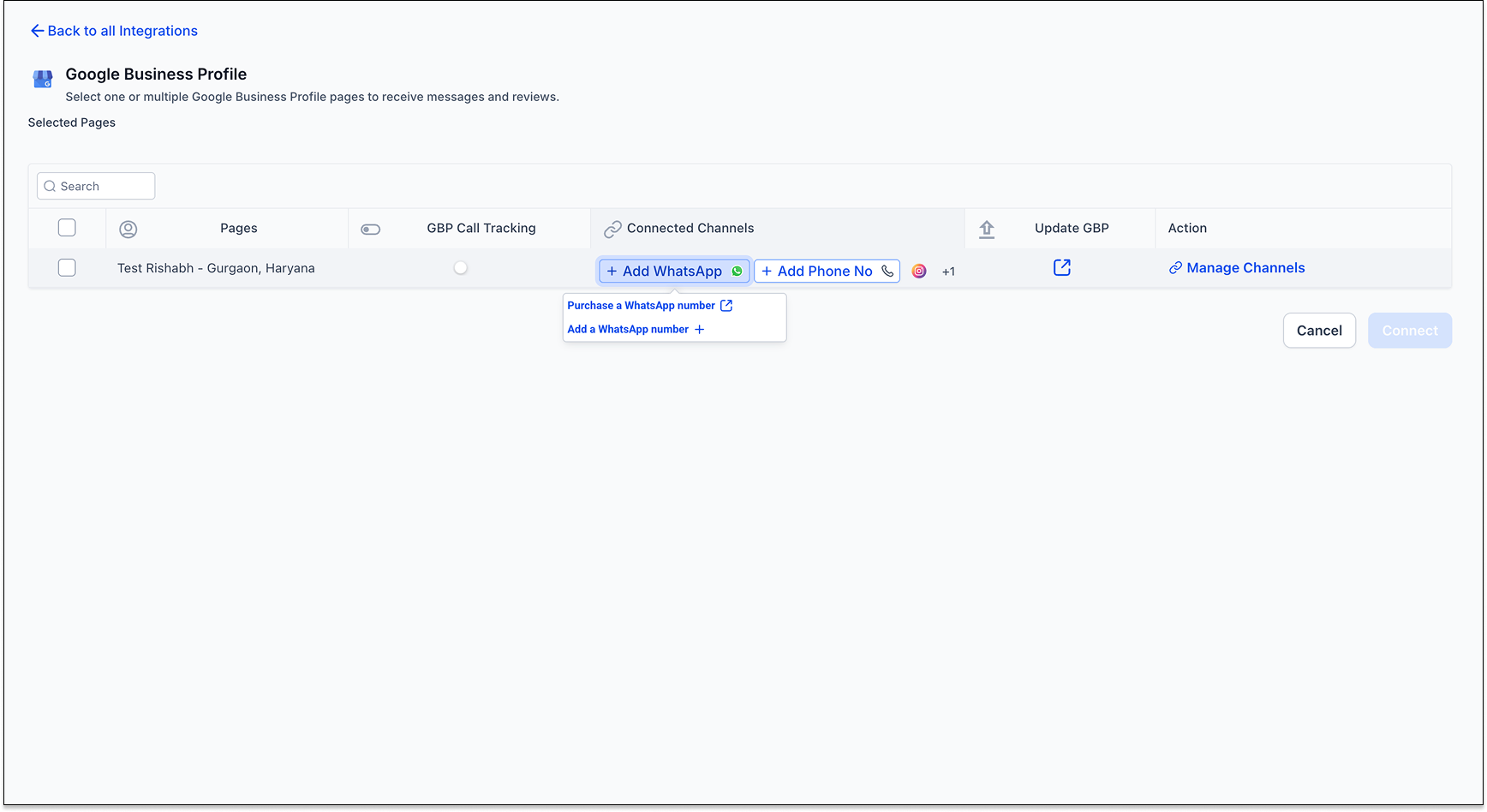
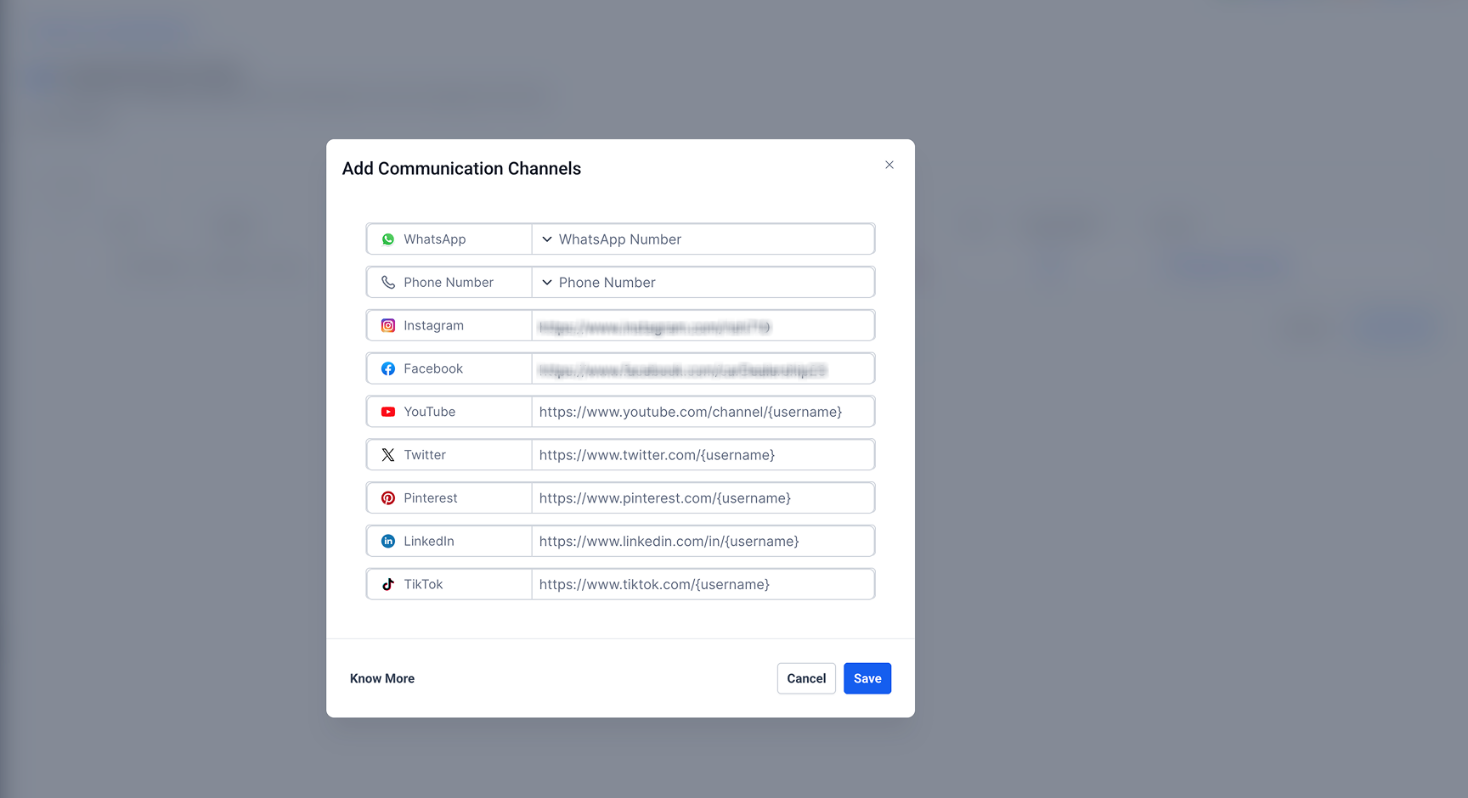
- From the Google Business Profile card, Connect GBP account & go to page selection modal.!(https://assets.patientcopilot.ai/eb4fc44d1a3ba177.png) #### Step 2: Connect Channels Click on WhatsApp & Message tabs to connect messaging channels or click on connect channels !(https://assets.patientcopilot.ai/77f131a4c6bc56ab.png) #### Step 3: Select Channels User can select CRM linked LC phone number and WhatsApp number from dropdown, or add numbers via free text typing. User can also add links to any social channel. After adding all channels, click the blue Save button to save changes.!(https://assets.patientcopilot.ai/c378c8803a6f0943.png) #### Step 4: Connect Click on the blue Connect button to connect the accounts. * * * ## Text/WhatsApp Message Option is Not Visible on GBP Results I have added text & WhatsApp channel but these are not visible in GBP results. This may primarily be due to Google’s validation for each number being added. Please follow below steps: 1. Go to GBP page setup by either clicking on Update GBP over page selection module in CRM or by going to edit page on google console.
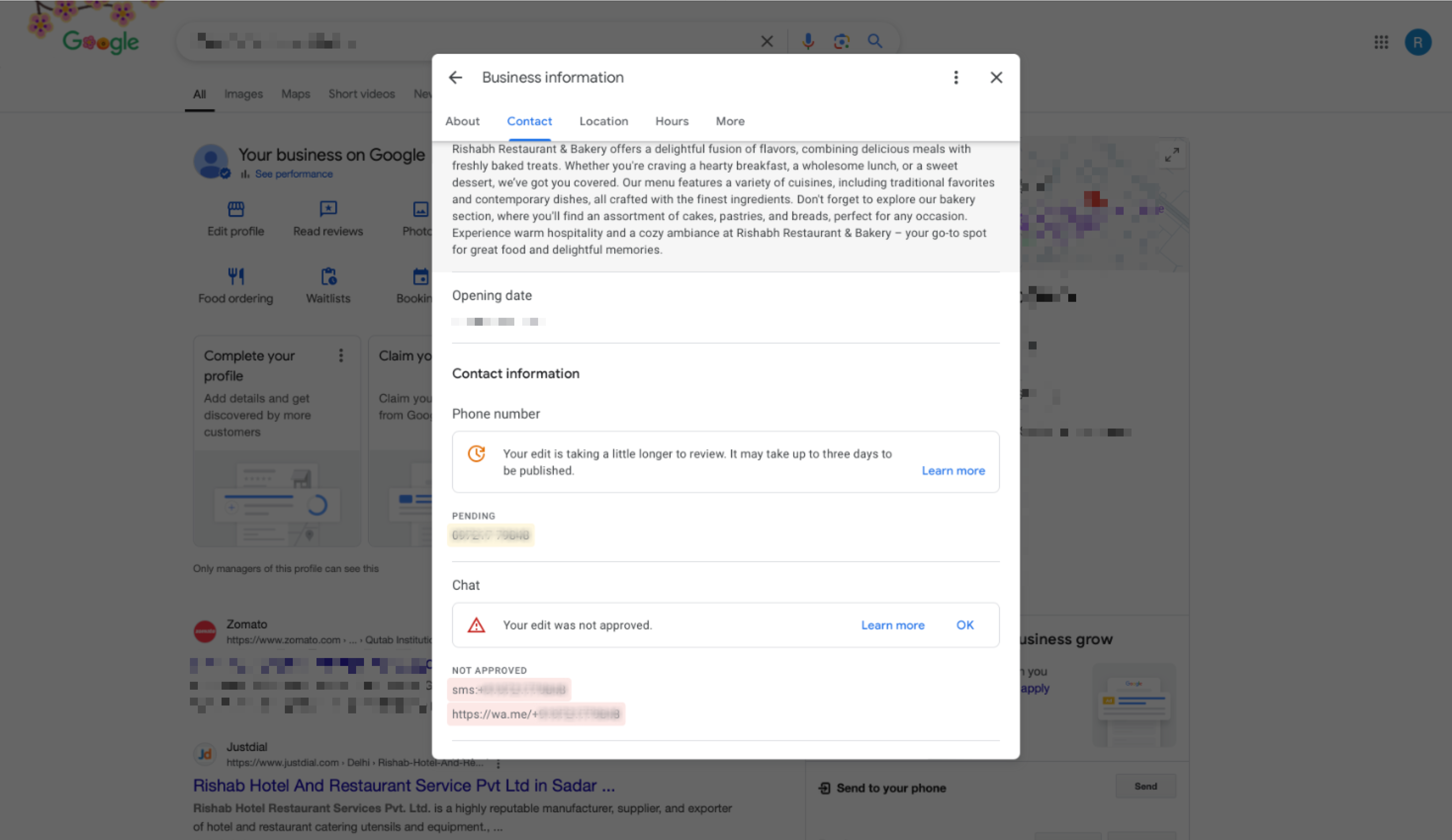
- Check if edit was approved. Approval is handled by Google team with no influence from our side. In case edit is not approved you can raise a ticket to google directly.!(https://assets.patientcopilot.ai/fae65f197af6c89a.png) * * * ## Frequently Asked Questions Q: What happens if I add a non-Patient Copilot number? A warning is shown because automations and syncing are available only for numbers integrated with Patient Copilot. Q: Which social channels can I connect to my GBP page? You can connect Facebook, Instagram, LinkedIn, YouTube, TikTok, X, and Pinterest. Q: How does Google display WhatsApp versus Text numbers? Google prioritizes the Text (SMS) number by default when both are added; WhatsApp will only appear if a Text number isn’t provided. Q: Where can I manage or remove my connected channels? All channel settings can be updated or removed from the Google Business Profile integration card in your Patient Copilot settings. Q: Are the changes immediately visible on my GBP page? No, Google may take additional time to review and approve changes before they are reflected. Q: Can I trigger automations with these linked channels? Automations and sync are available only for channels that are connected to Patient Copilot. * * * ## Related Articles - Integrate Google Business Profile with Patient Copilot