
How to Enable and Resell Ad Manager
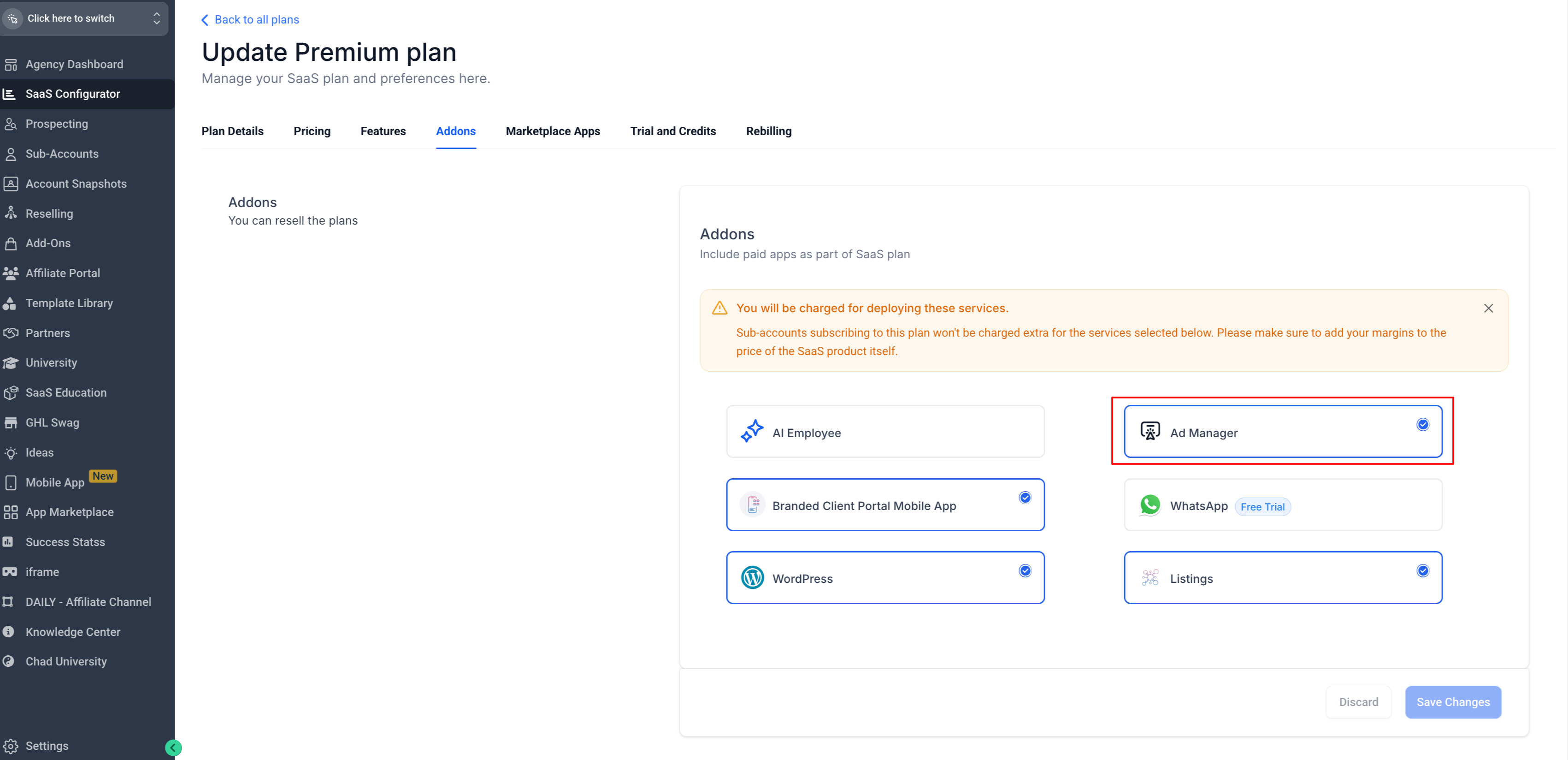
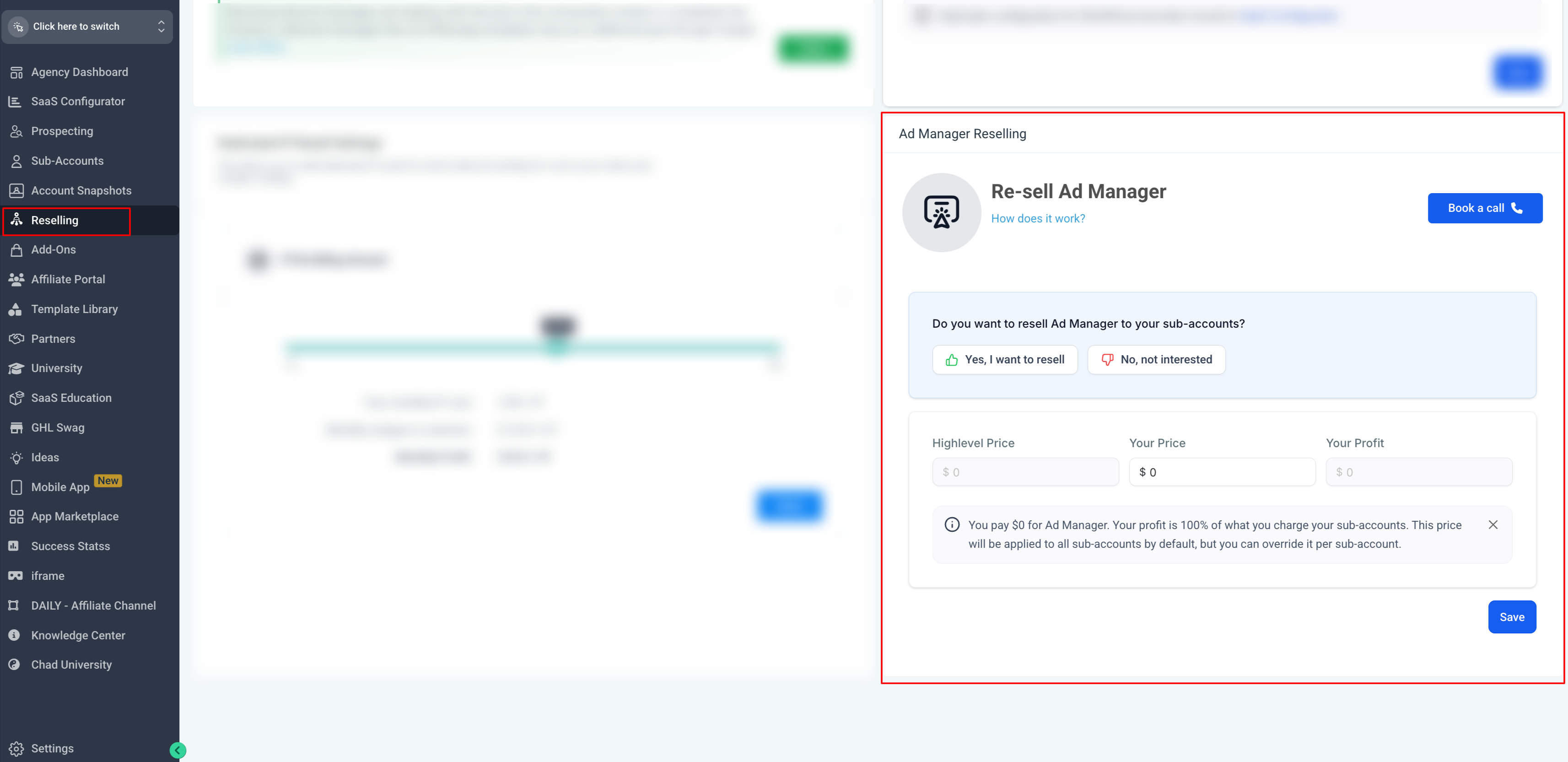
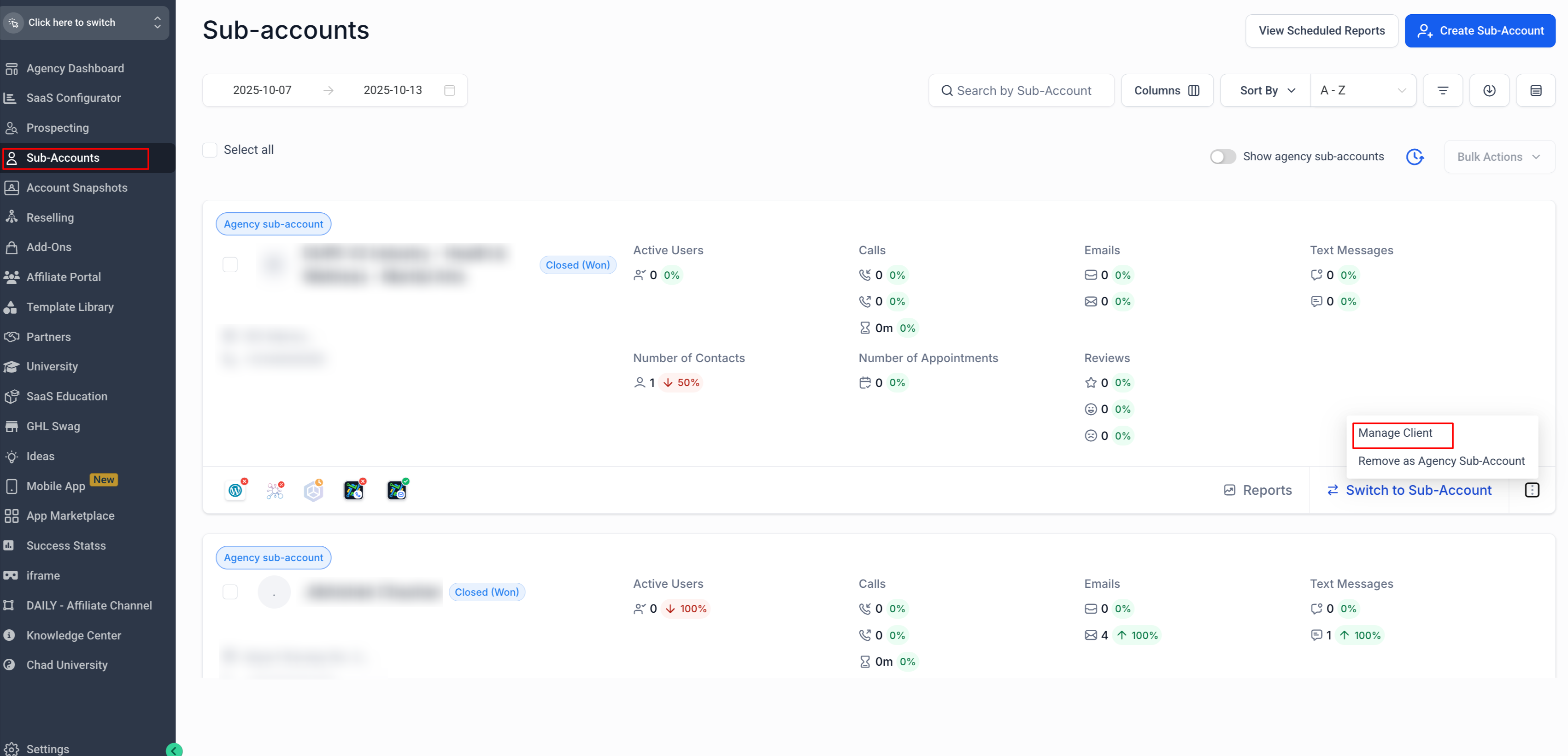
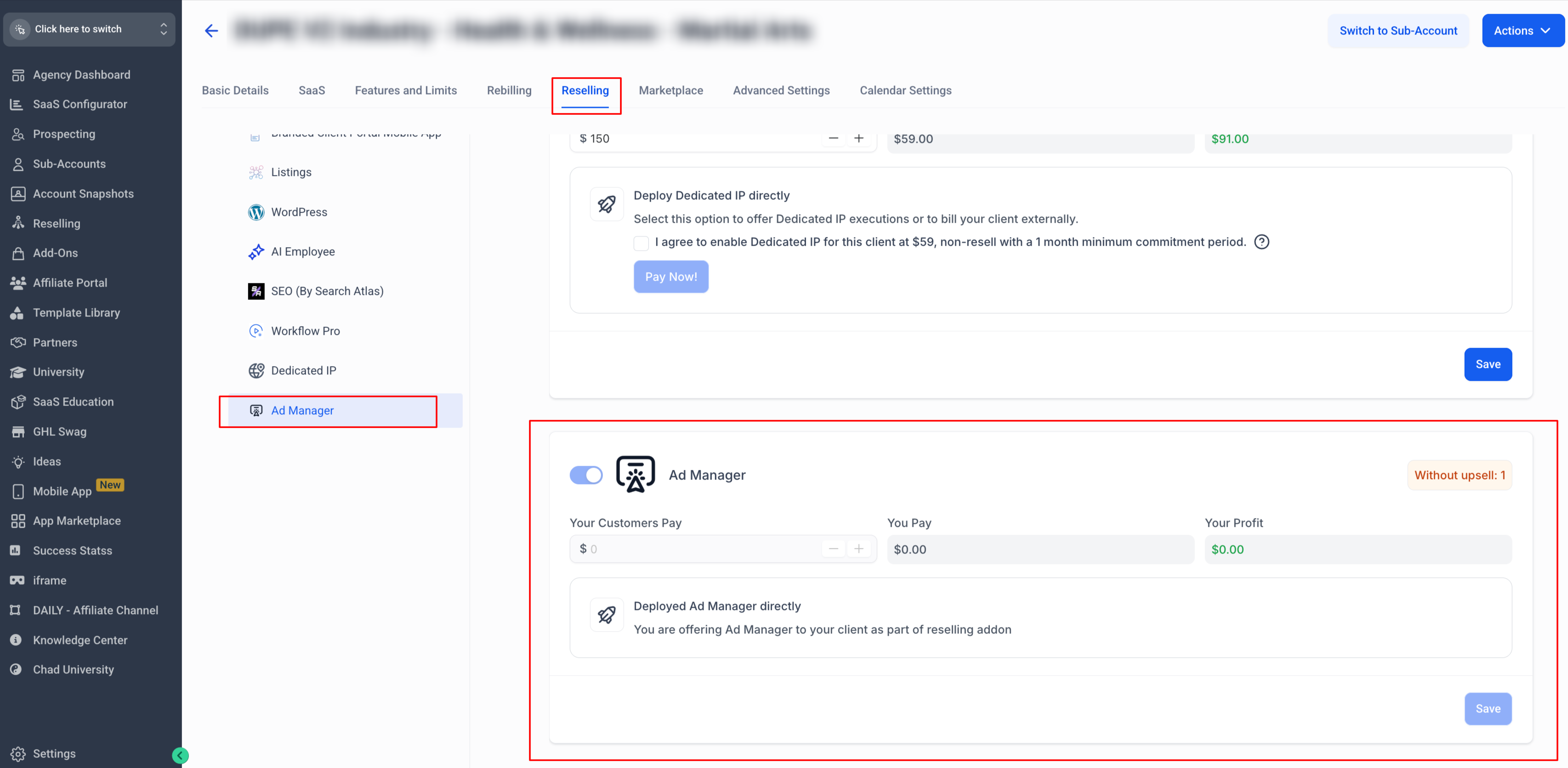
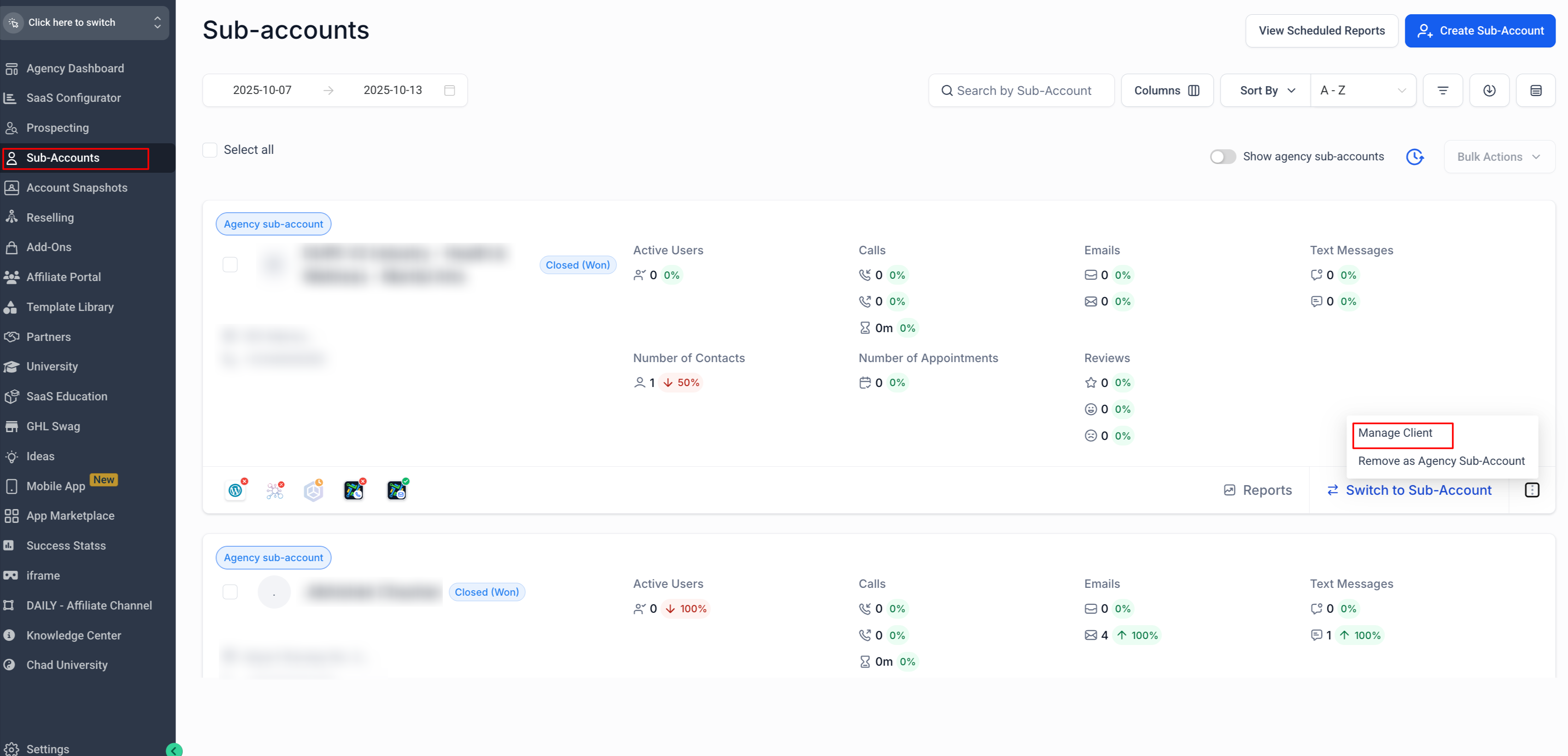
This article explains how agencies can enable and resell Ad Manager for their sub-accounts in Patient Copilot. It covers setup steps, resale pricing options, client onboarding flow, and billing details to help you efficiently monetize advertising services through the Patient Copilot platform. * * * ## ## Pre-requisites Before setting up Ad Manager for your clients, make sure: - Your Agency Stripe Account is connected. - This is required to collect monthly subscription payments from your clients. - Learn How To Connect Stripe To Your Agency Dashboard Once Stripe is connected, you can manage resale pricing and subscriptions through the Reselling tab in your Agency Settings. * * * 1. If you offer SaaS services, go to Agency view > SaaS Configurator. 2. Select your active SaaS plans and click Edit Details. 3. Open the Addons Tab and ensure Ad Manager tile is checked. 4. Click Save to apply changes.!(https://assets.patientcopilot.ai/1835599225b03082.png) Note: All agencies have access to Ad Manager at no cost. “You Pay” is fixed. * * * You can choose to offer Ad Manager to your sub-accounts for free or resell it at your own price. ### At the Agency Level 1. Go to Agency view > Reselling tab. 2. Locate the Ad Manager section/card. 3. Choose your resale preference using the thumbs icons: -? Yes: You plan to resell Ad Manager. -? No: You don’t plan to resell. 4. In the Your Price field, enter the resale price you’d like your sub-accounts to pay. - Default value is **** (free for sub-accounts). 5. Click Save.!(https://assets.patientcopilot.ai/baf92619d20738db.png) This price will automatically apply to all sub-accounts unless you customize it at the sub-account level. * * * ## Personalizing offers for certain clients/sub-accounts You can personalize Ad Manager pricing for specific clients to match their plan or package. 1. Go to Agency view > Sub-Accounts. 2. Select the client (sub-account) you want to customize. 3. Click Manage Client > Reselling Tab.!(https://assets.patientcopilot.ai/e82b0832cbc41d29.png) 4. Scroll to the Ad Manager section.!(https://assets.patientcopilot.ai/07376b1f6514243f.png) 5. Set a custom Your Customers Pay amount for this client. 6. Save your changes. Note: - If the client already has Ad Manager active, pricing changes will apply to new subscriptions only — existing subscriptions remain on their current rate.
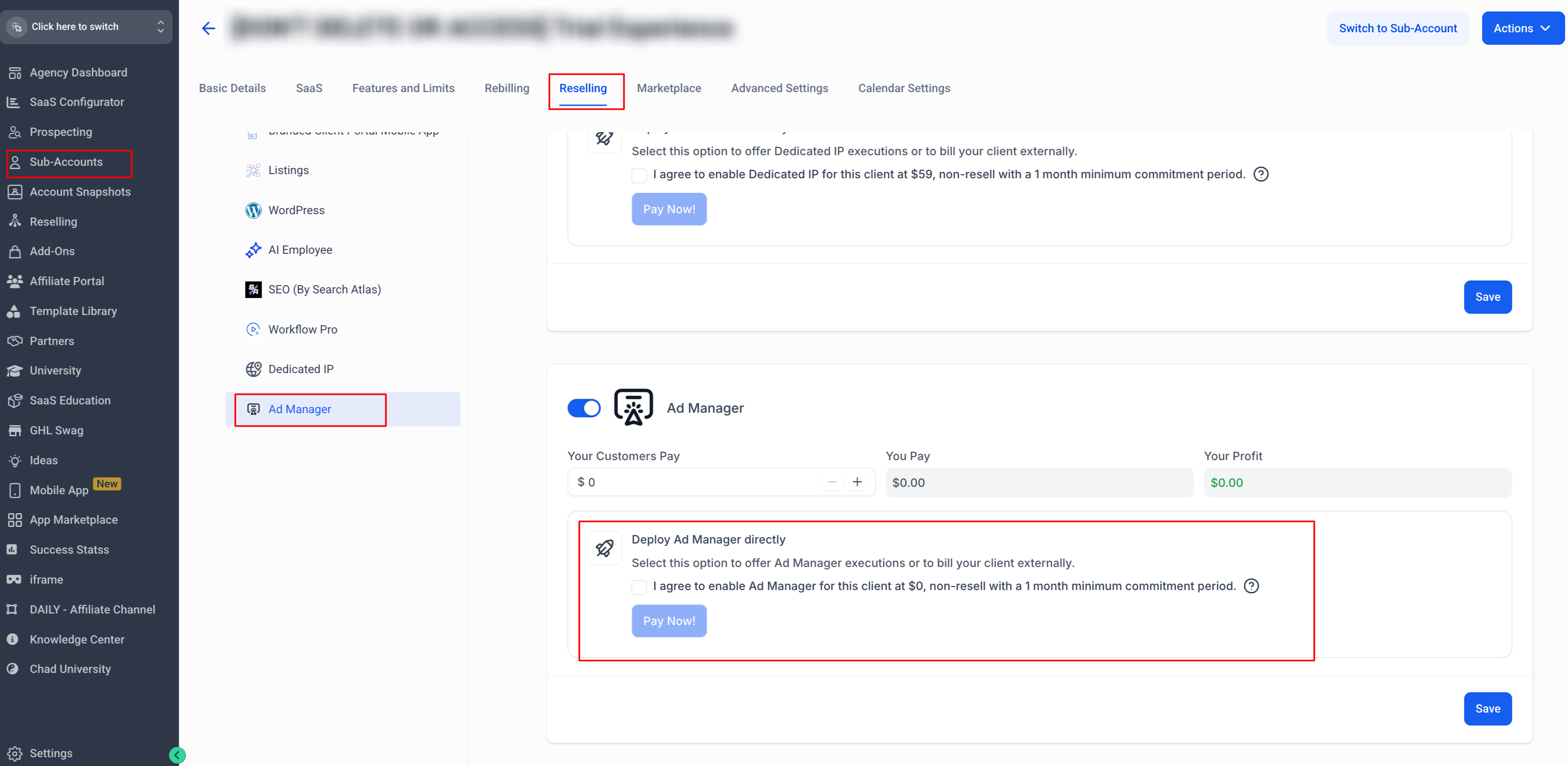
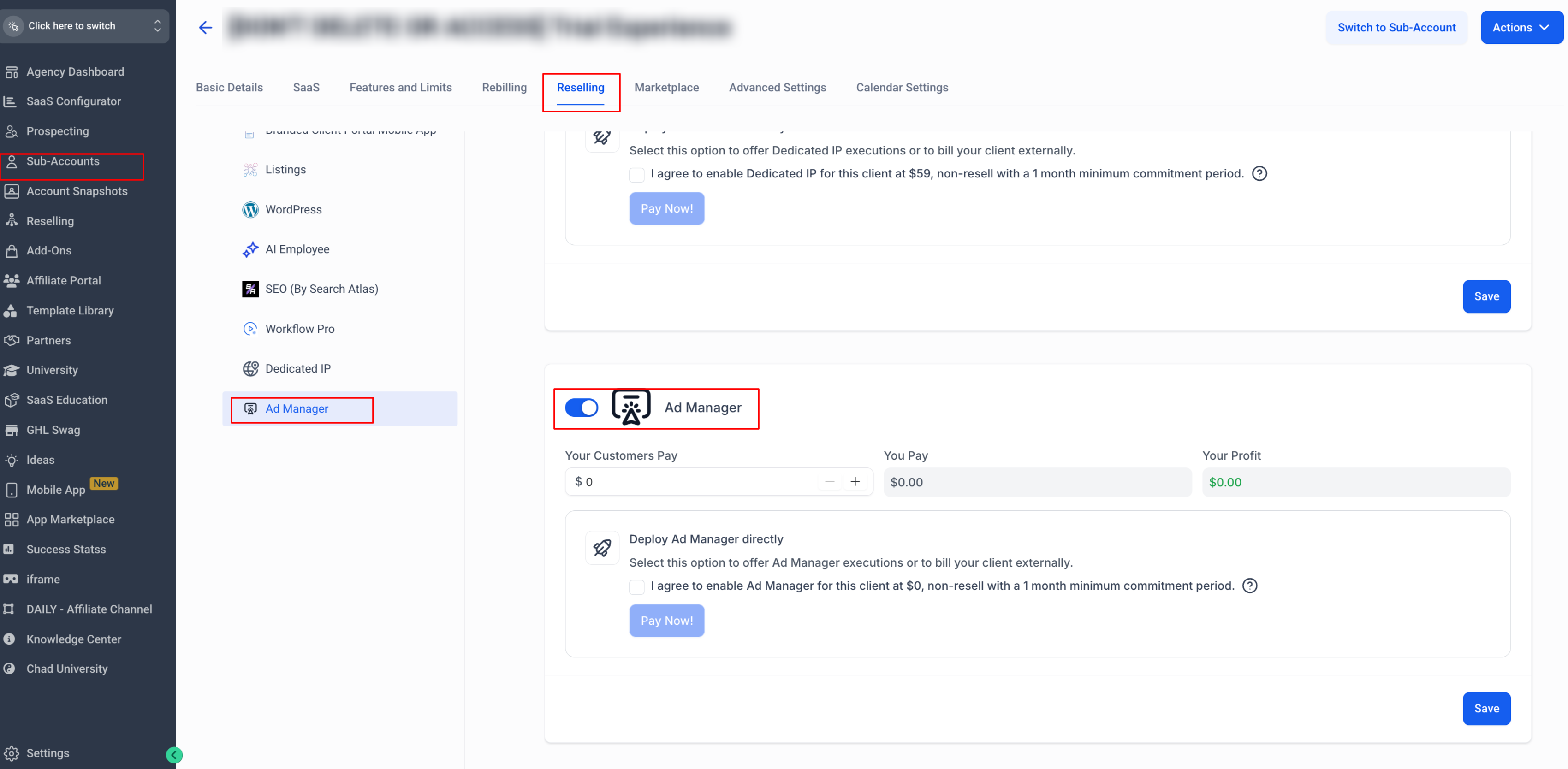
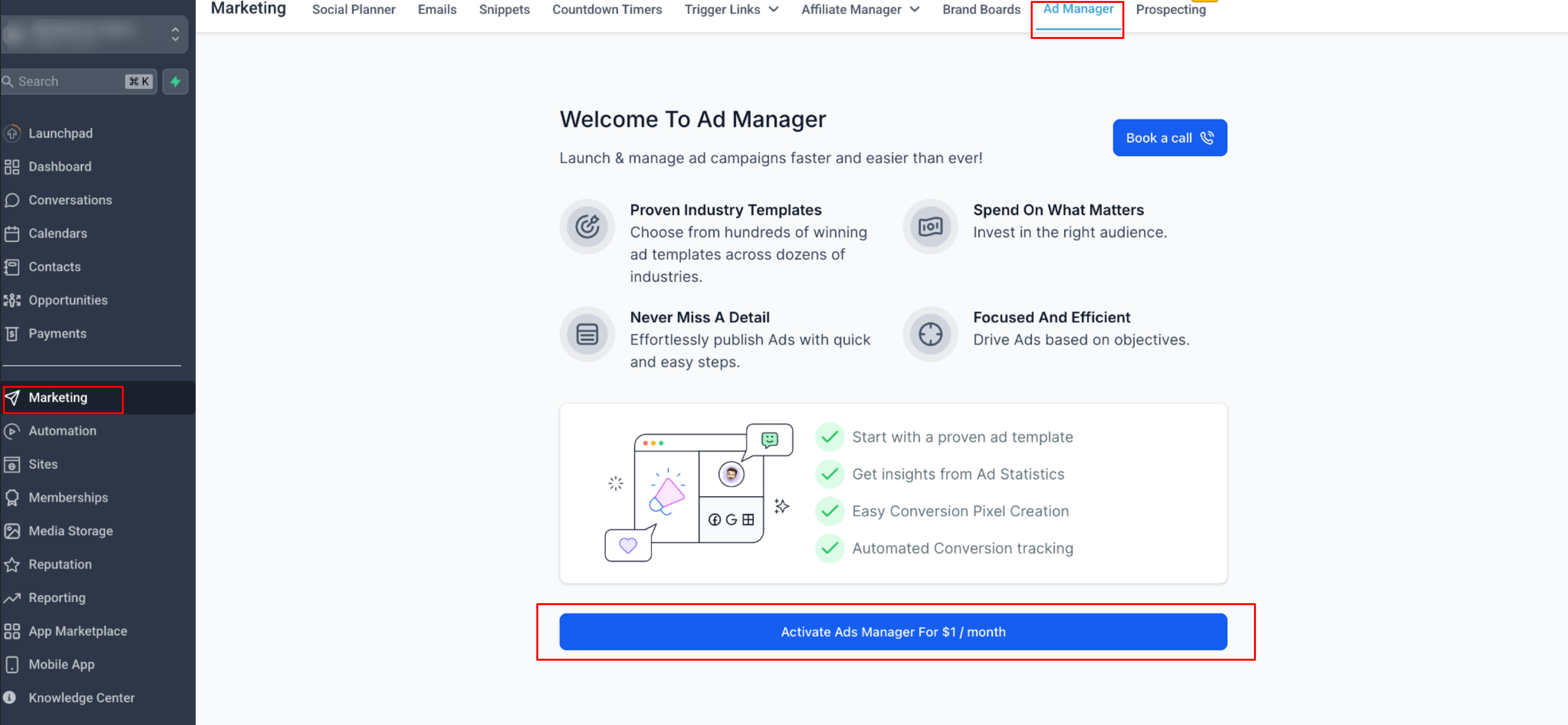
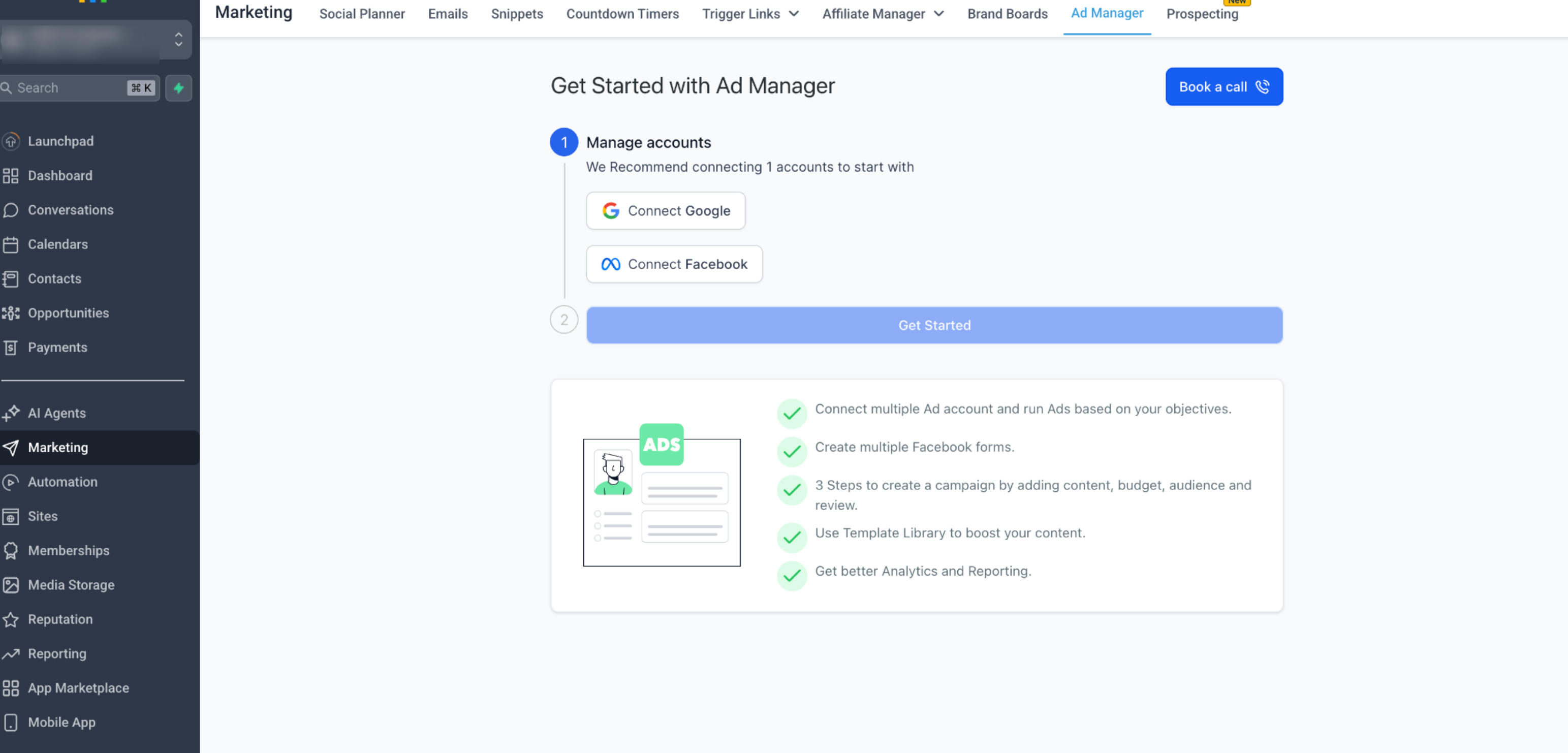
- Once price is set and customer subscribes to that price, the reselling amount cannot be changed unless subscription is canceled and customer resubscribed with the new price. * * * If you wish to include Ad Manager as a free add-on for some clients: 1. Go to Agency view > Sub-Accounts. 2. Select the client you want to offer Ad Manager to. 3. Click Manage Client > Reselling Tab.!(https://assets.patientcopilot.ai/a3916d7cb5479667.png) 4. Under Ad Manager, check the checkbox for Deploy Ad Manager Directly which automatically sets Your Customers Pay =.!(https://assets.patientcopilot.ai/b00ea9398f55e2ad.png) 5. Click Save. That sub-account will have instant access to Ad Manager without a paywall. * * * To remove or prevent Ad Manager access for a specific sub-account: 1. Go to Agency View > Sub-Accounts. 2. Open Manage Client > Reselling Tab. 3. Under Ad Manager, toggle OFF. 4. Click Save.!(https://assets.patientcopilot.ai/dfe81e88ee1b1cf6.png) Note: Once a client has purchased or activated Ad Manager, the feature cannot be disabled retroactively for that account. * * * Your clients can find and activate Ad Manager from their account directly: 1. Log in to their sub-account. 2. Go to Marketing > Ad Manager from the left menu. 3. Depending on your resale configuration, they’ll see one of the following CTAs: - “Activate Ad Manager for $X/month”: if resale price >.!(https://assets.patientcopilot.ai/4f7168de53f441e6.png) - “Get Started”: if resale price =. This is directly the one time onboarding screen which customers will see.!(https://assets.patientcopilot.ai/625ffa2936d9b14f.png) When a client activates Ad Manager: - A subscription is automatically created between their payment method and your agency’s Stripe account. - The client is then guided through the Ad Manager onboarding flow. * * * ## Understanding Billing and Subscriptions ### For Agencies - Agencies no longer pay Patient Copilot for Ad Manager — the agency cost is. - Agencies can freely define resale pricing for sub-accounts. - Existing agencies with sub-accounts already using Ad Manager under Utility or Founder’s plans will continue to see those plan cards — no cancellations or billing changes have been made.!(https://assets.patientcopilot.ai/01774dc8321e092a.png)!(https://assets.patientcopilot.ai/f15c6f17975f4361.png) ### For Sub-Accounts - Sub-accounts paying agencies for Ad Manager will continue at their current rate. - New sub-accounts will follow the agency’s resale price setup (either or custom). To view billing details: 1. Go to Agency Settings > Billing. 2. Locate the Ad Manager card. 3. See what each sub-account is currently paying under your resale setup. * * * ## Final Notes: - Ad Manager is always free for agencies — “You Pay =.” - Agencies can monetize through reselling at their chosen rate. - Existing subscriptions remain untouched — continuity and stability are maintained. - Use the? /? icons to share whether your agency plans to resell Ad Manager. * * * ## Related Articles - Overview of Ad Manager - How to Resell Ad Manager with Your SaaS Plan - Ad Manager - Affiliate Tracking - Best Practices For Using Stripe With Your Agency Dashboard
!(https://assets.patientcopilot.ai/f15c6f17975f4361.png)