
Getting Started - Import Existing Contacts
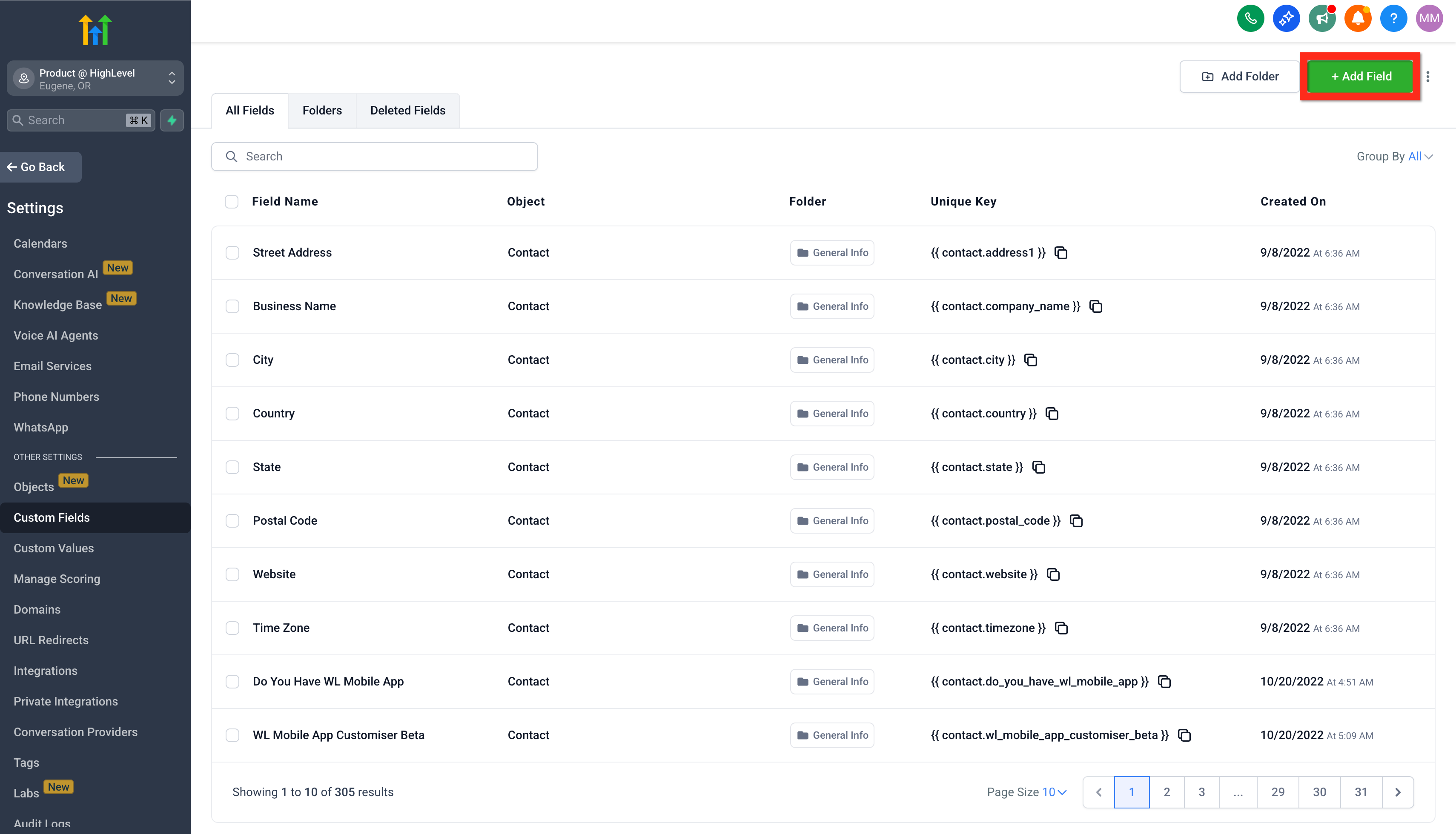
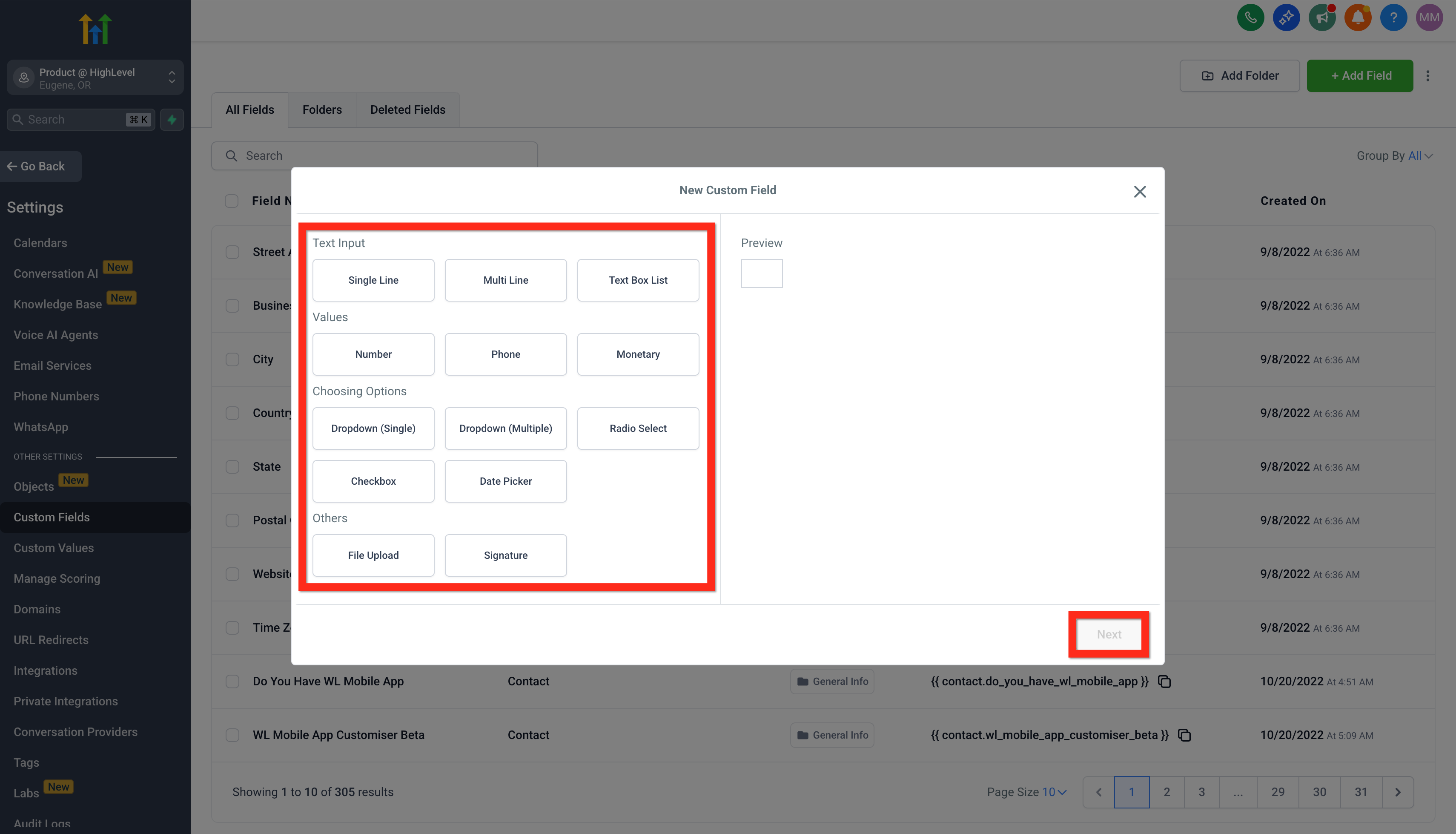
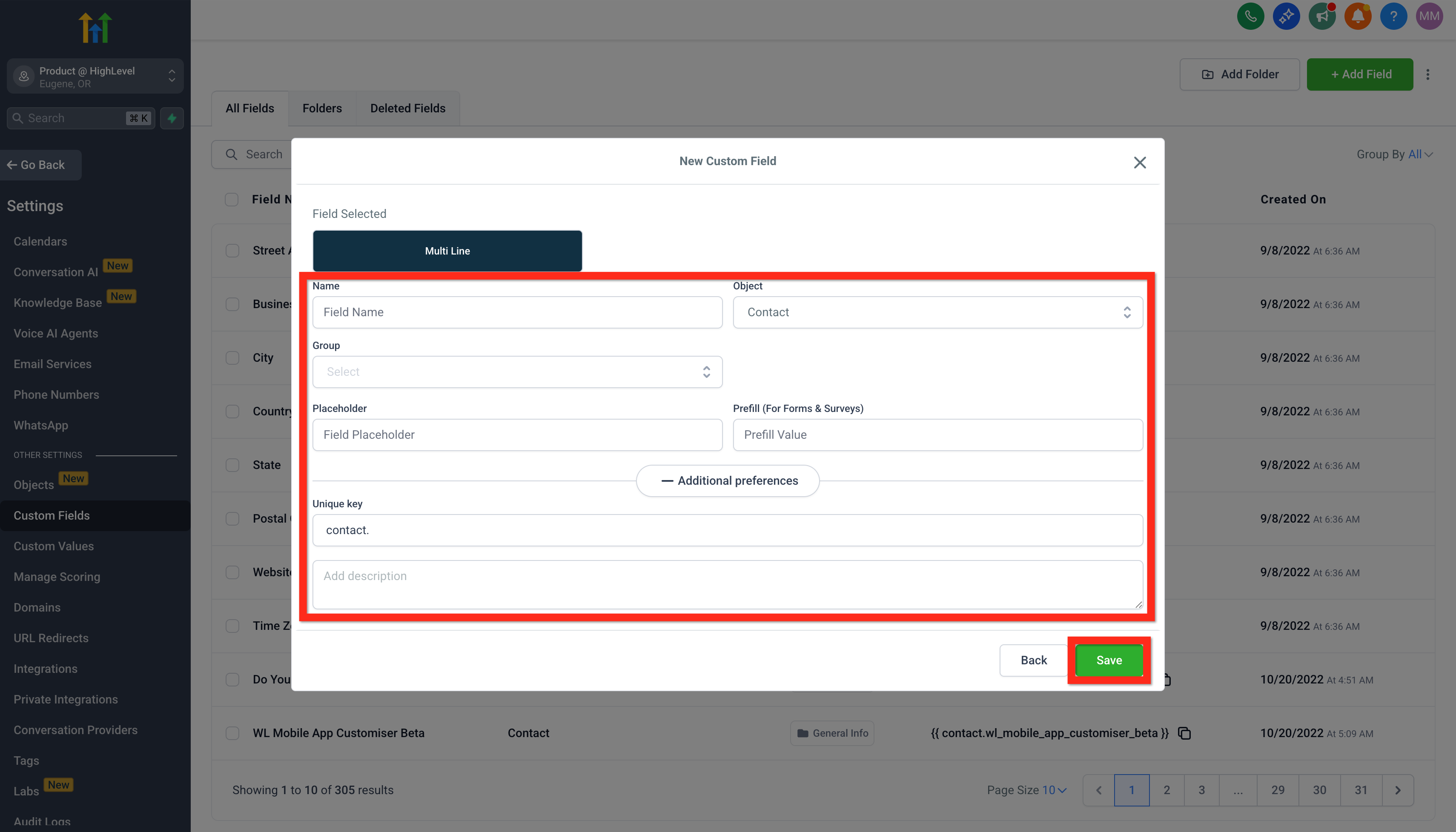
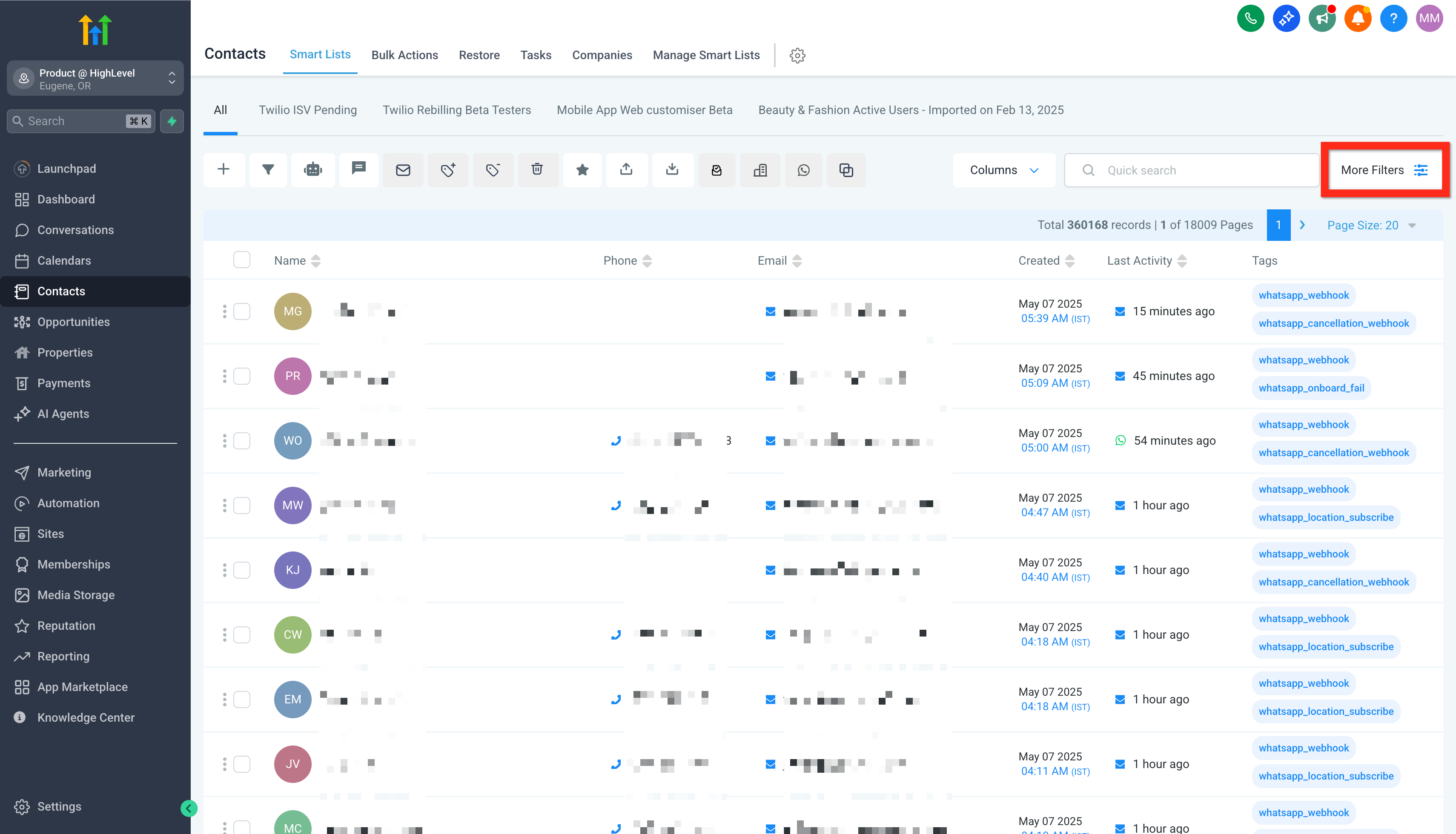
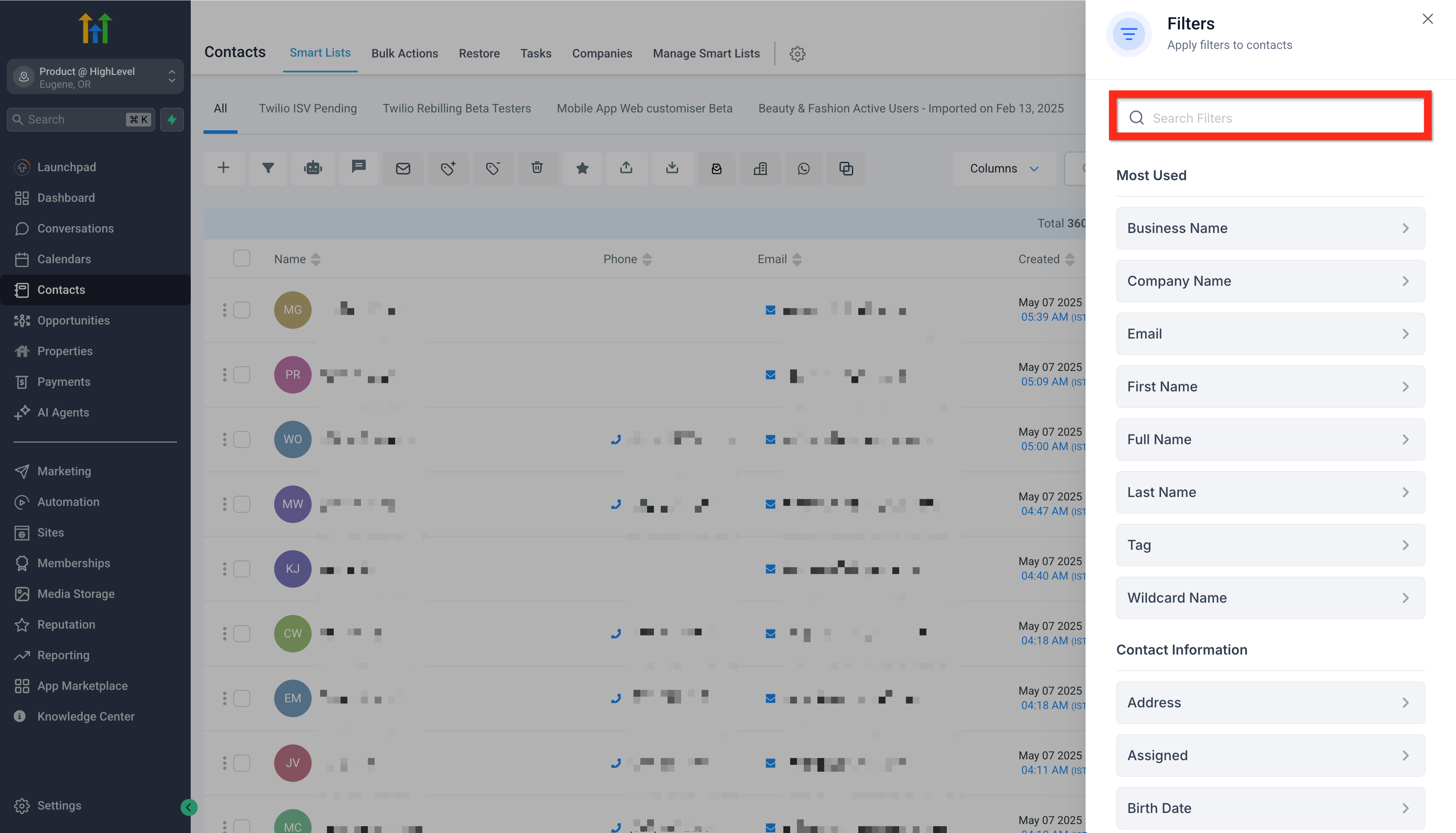
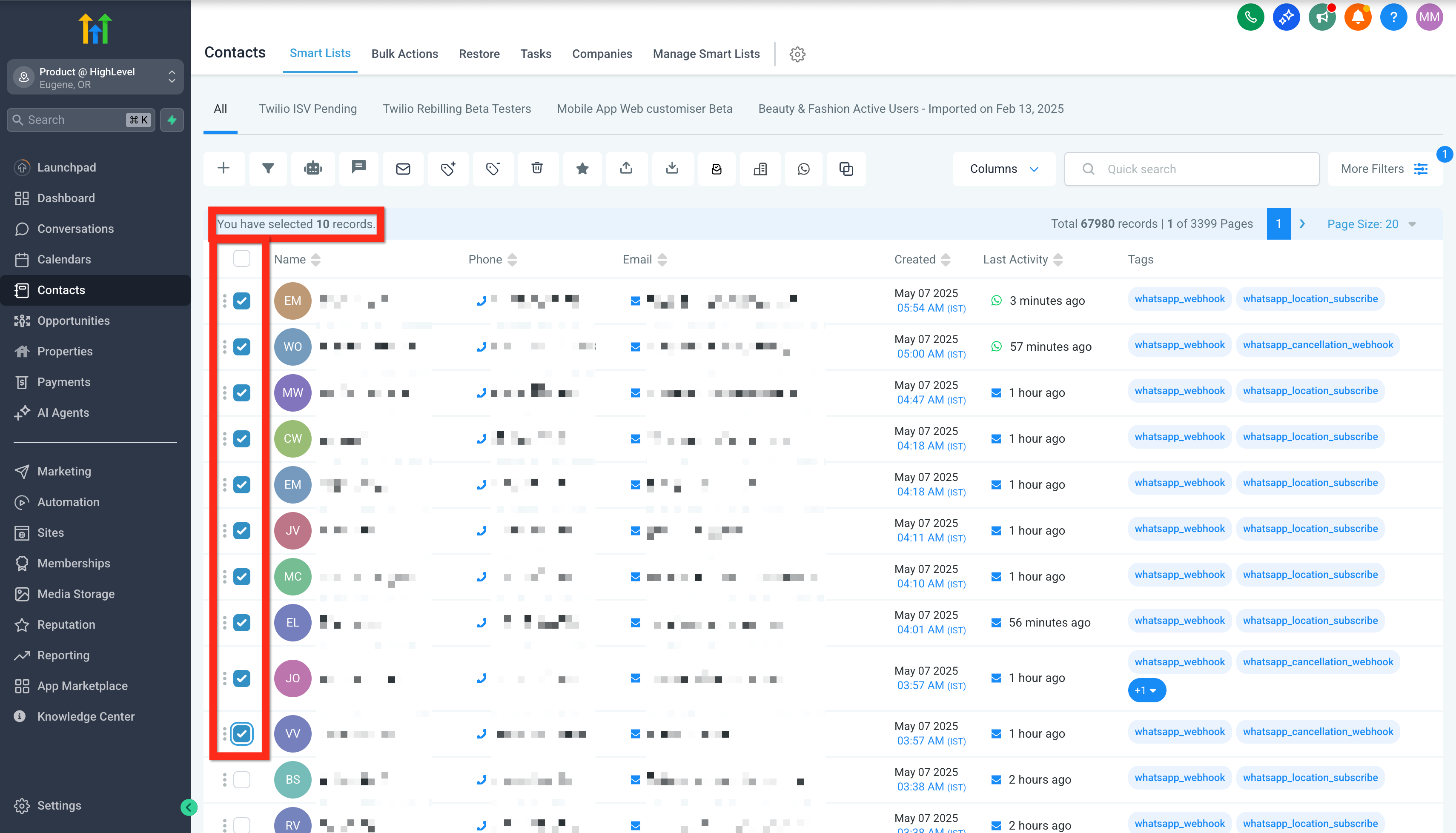
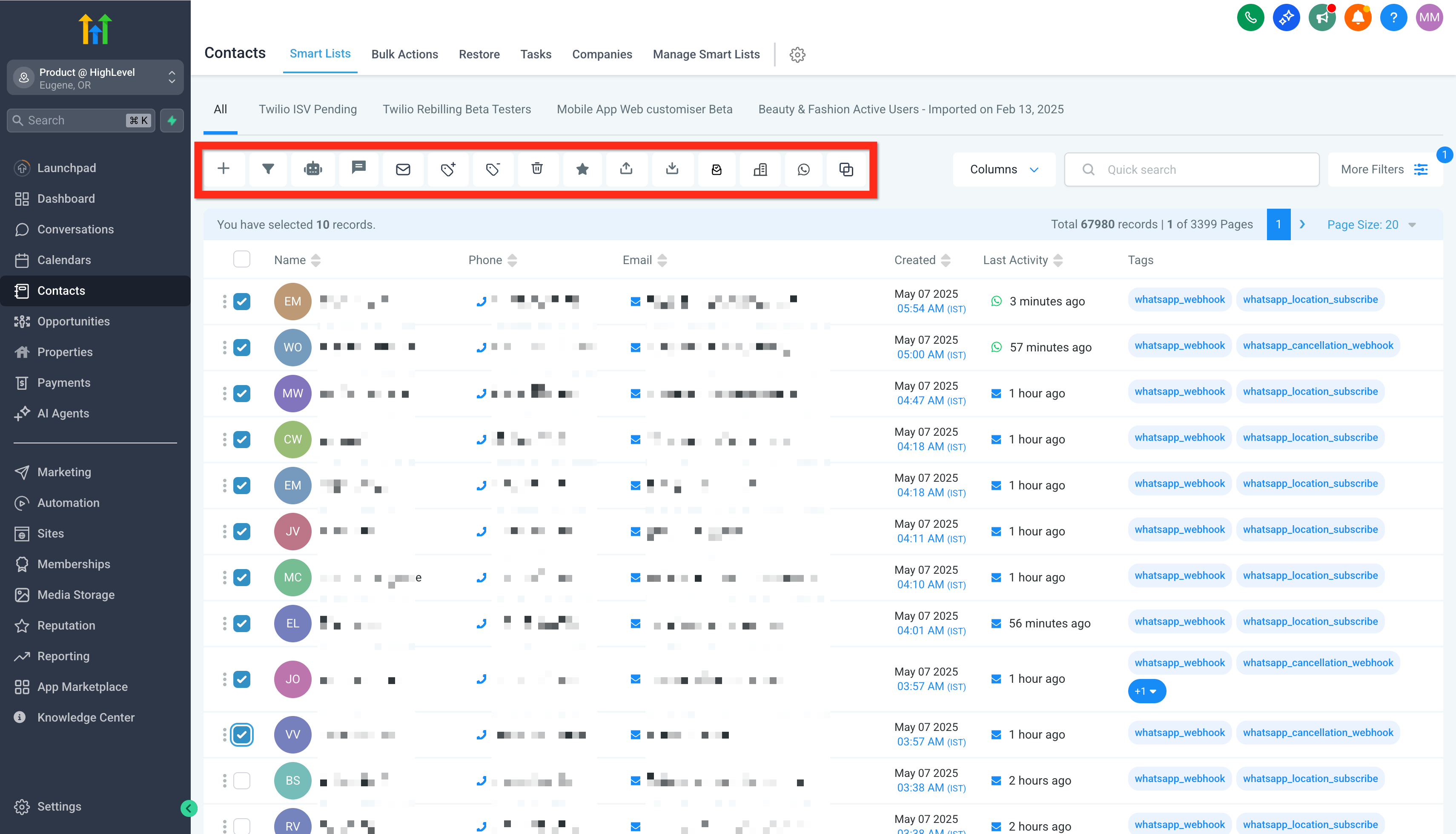
Your audience is the heartbeat of your business. Quickly import your existing contacts from various platforms into one convenient space and start engaging immediately. Having all your contacts together means less hassle, more effective outreach, and building stronger relationships right away. * * * ## How to Create New Custom Fields Personalize your contact data to match your unique business needs. Creating custom fields lets you capture exactly the information you find valuable, allowing for precise targeting and richer insights. Here’s how to set up your custom fields: 1. Navigate to Settings > Custom Fields. 2. Click Add Field.!(https://assets.patientcopilot.ai/e8cb951bc1b4cd12.png) 3. Select the type of field you need.!(https://assets.patientcopilot.ai/c483e4d8677fdf9b.png) 4. Fill in the field details (name, group, placeholder, etc.).!(https://assets.patientcopilot.ai/747974bedd29e383.png) 5. Click Save. - How to Use Custom Fields Next, leverage your custom fields to enhance your campaigns and messaging! * * * Effortlessly manage large groups of contacts with powerful bulk actions. Whether you’re adding tags, sending emails, or initiating automations, bulk actions save you time and amplify your efficiency. Here’s how you do it: 1. Navigate to Contacts.!(https://assets.patientcopilot.ai/76644e3516ed7d74.png) 2. Apply filters to narrow down your audience.!(https://assets.patientcopilot.ai/10fbff77f0fb2e0a.png) 3. Select checkboxes next to your chosen contacts.!(https://assets.patientcopilot.ai/fe45ce82a3e708ab.png) 4. Click a bulk action button (e.g., Add to Automation, Send SMS, Send Email).!(https://assets.patientcopilot.ai/08ed60e59339cc09.png) - Bulk Activities: Adding Contact Tags to Multiple Contacts * * * Below is a list of the standard contact fields that can be used when importing contacts: - Contact ID
- Name
- First Name
- Last Name
- Date of Birth
- Contact Owner
- Contact Source
- Contact Type
- Business Name
- Phone
- Business Name
- Address
- State
- City
- Postal Code
- Country
- DND
- Time Zone
- Website
- Additional Email
- Additional Phones
- Notes * * * Next, explore automation tools to supercharge your outreach! Was this article helpful? That’s Great! Thank you for your feedback Sorry! We couldn’t be helpful Thank you for your feedback Feedback sent We appreciate your effort and will try to fix the article