Workflow Triggers- Abandoned Checkout Trigger for E-commerce Stores
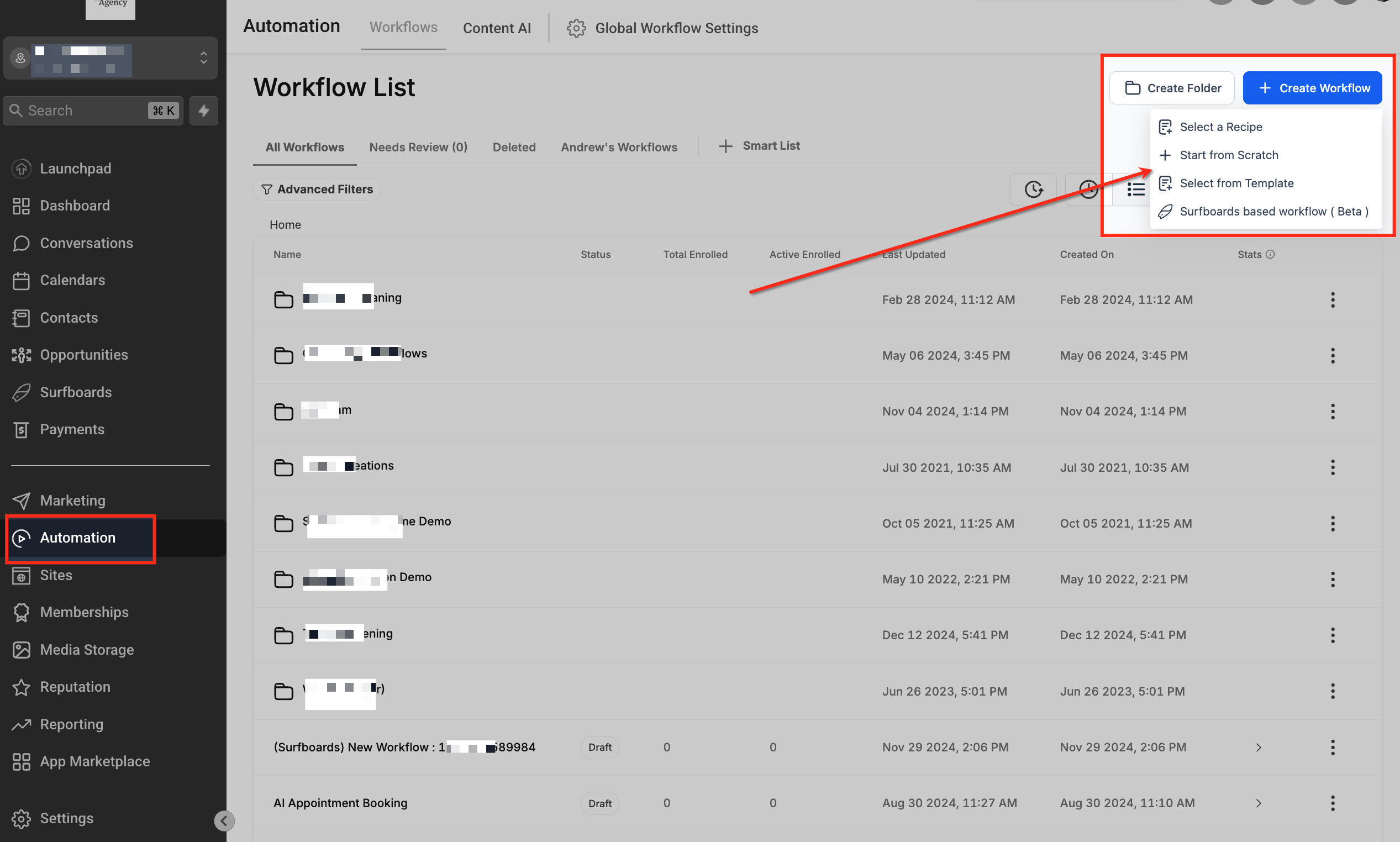
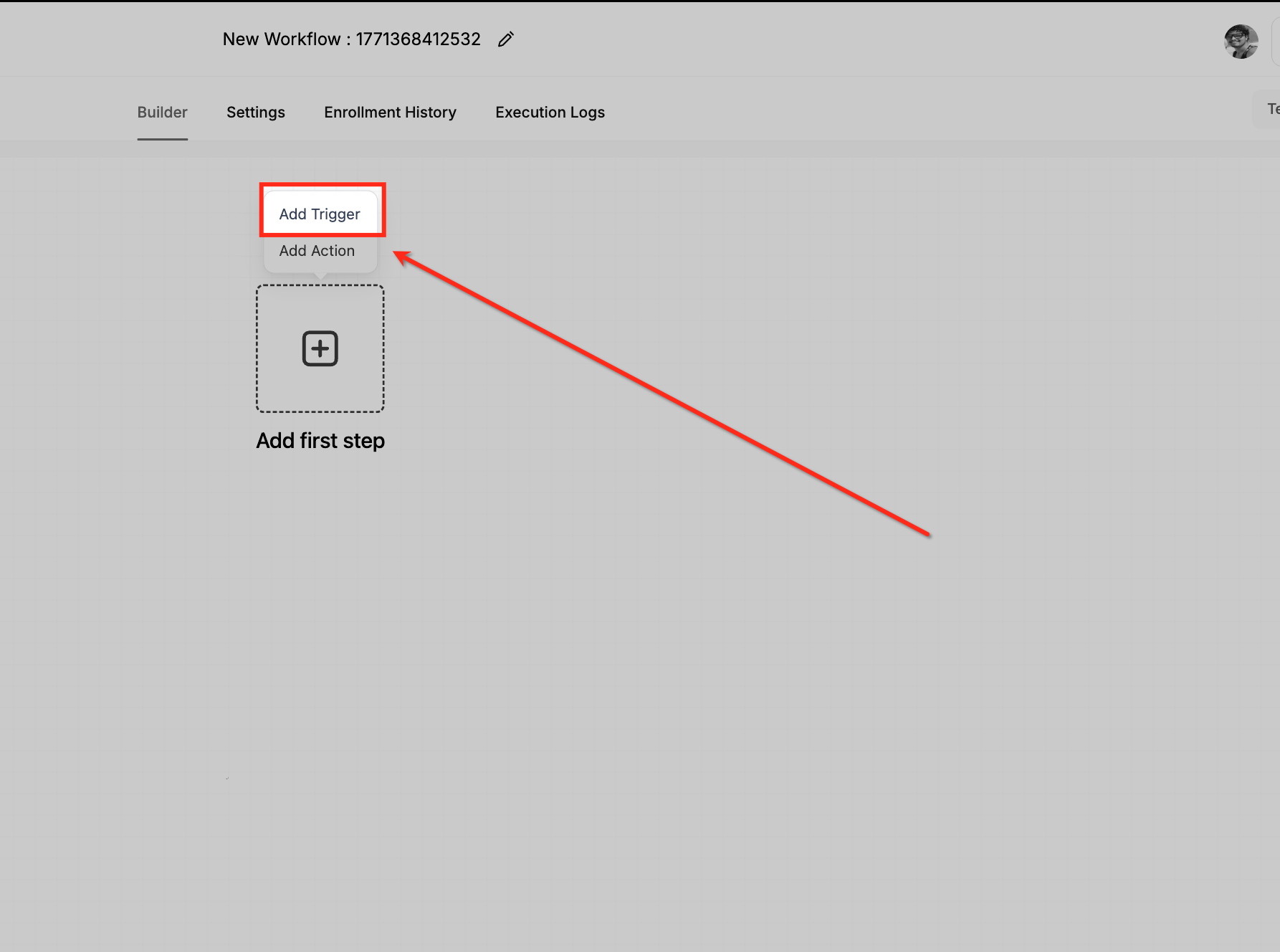
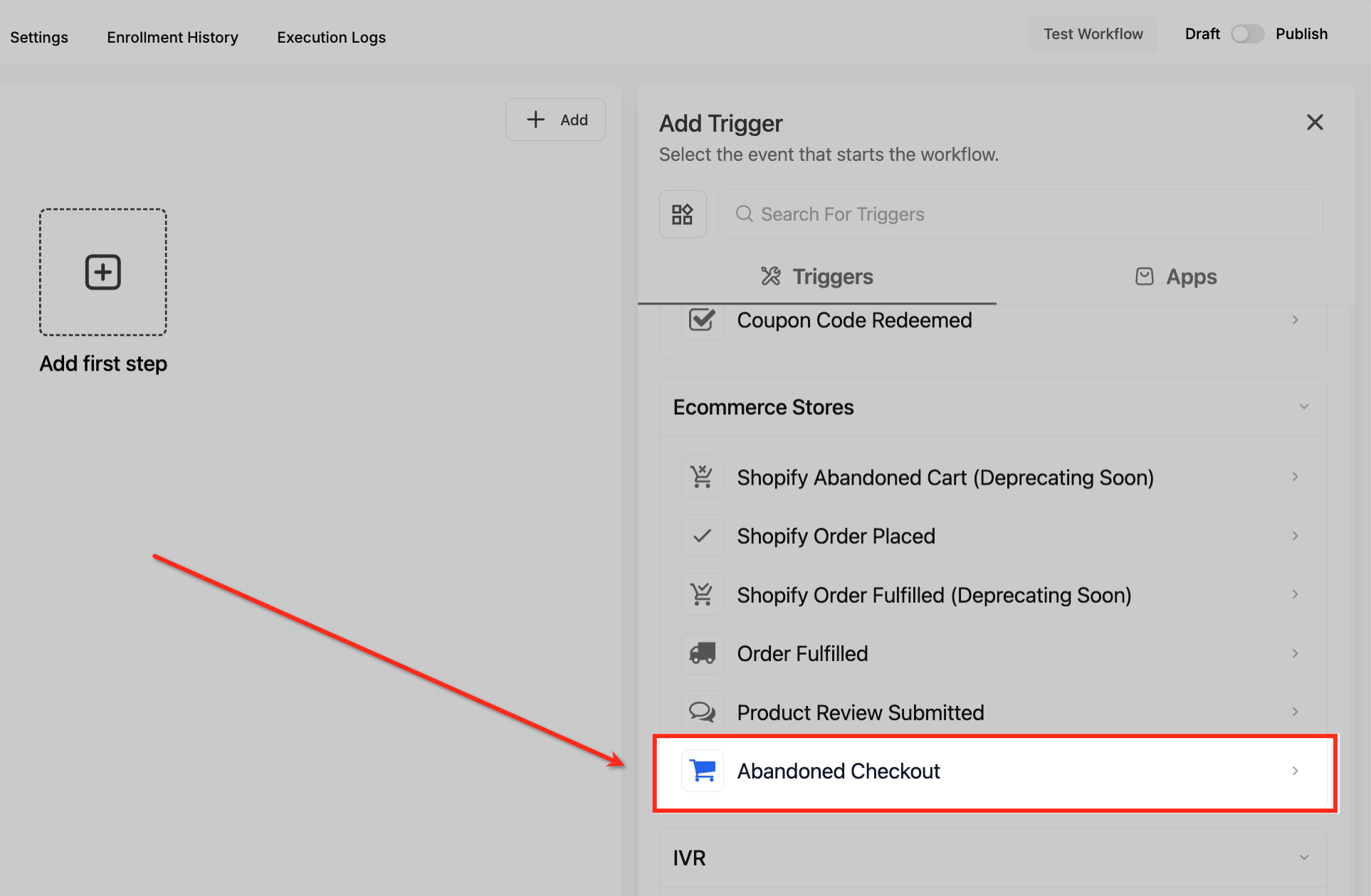
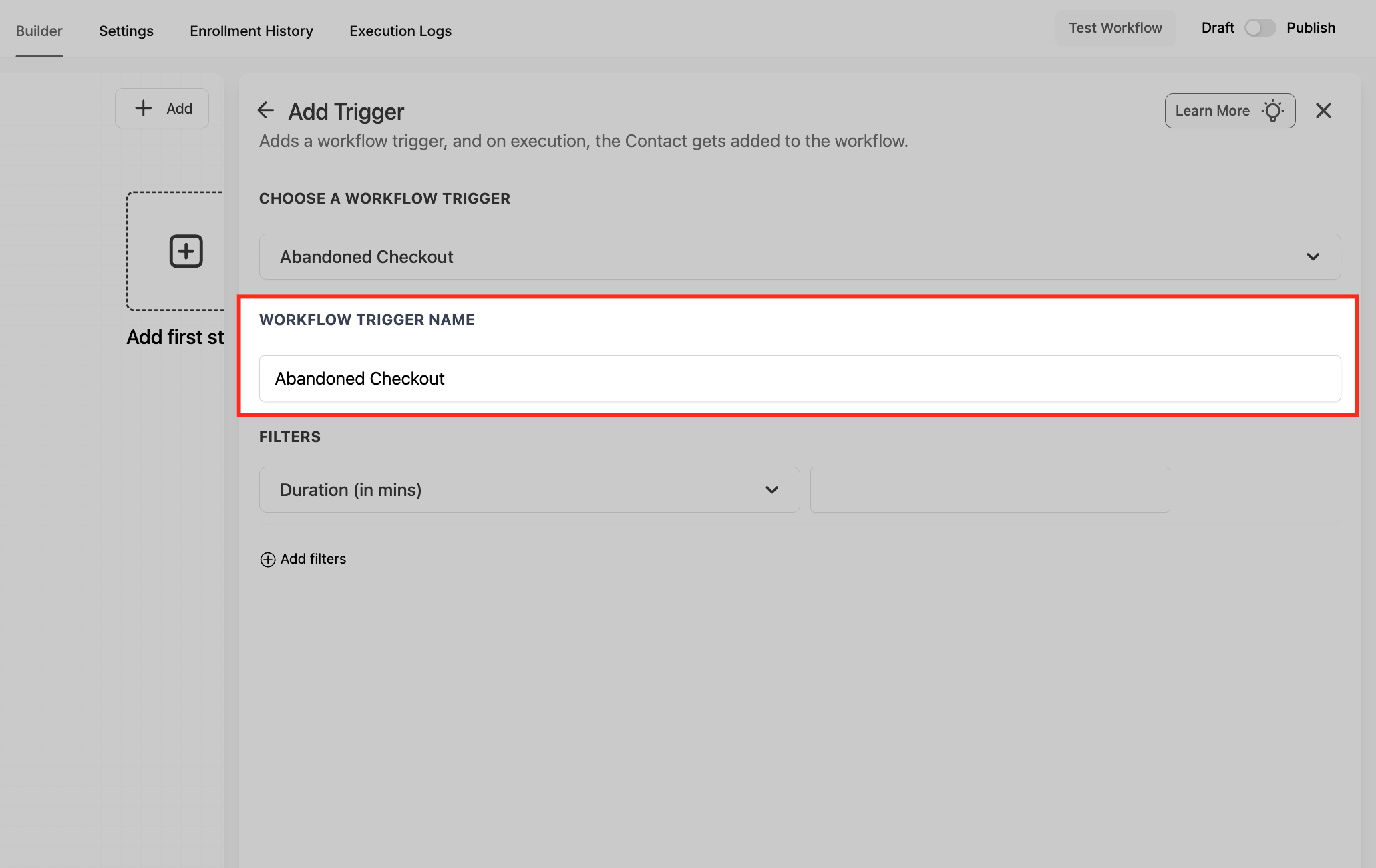
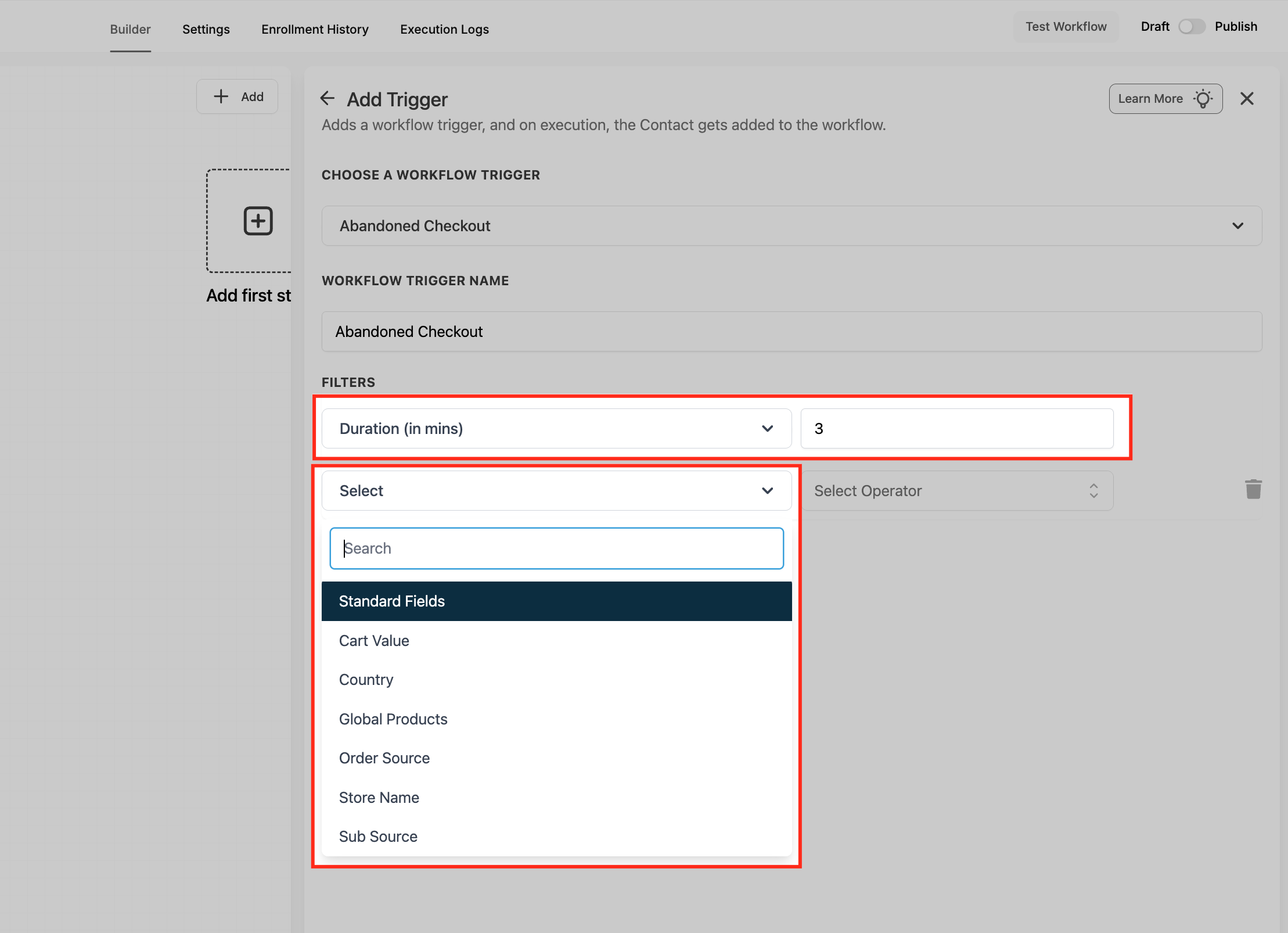
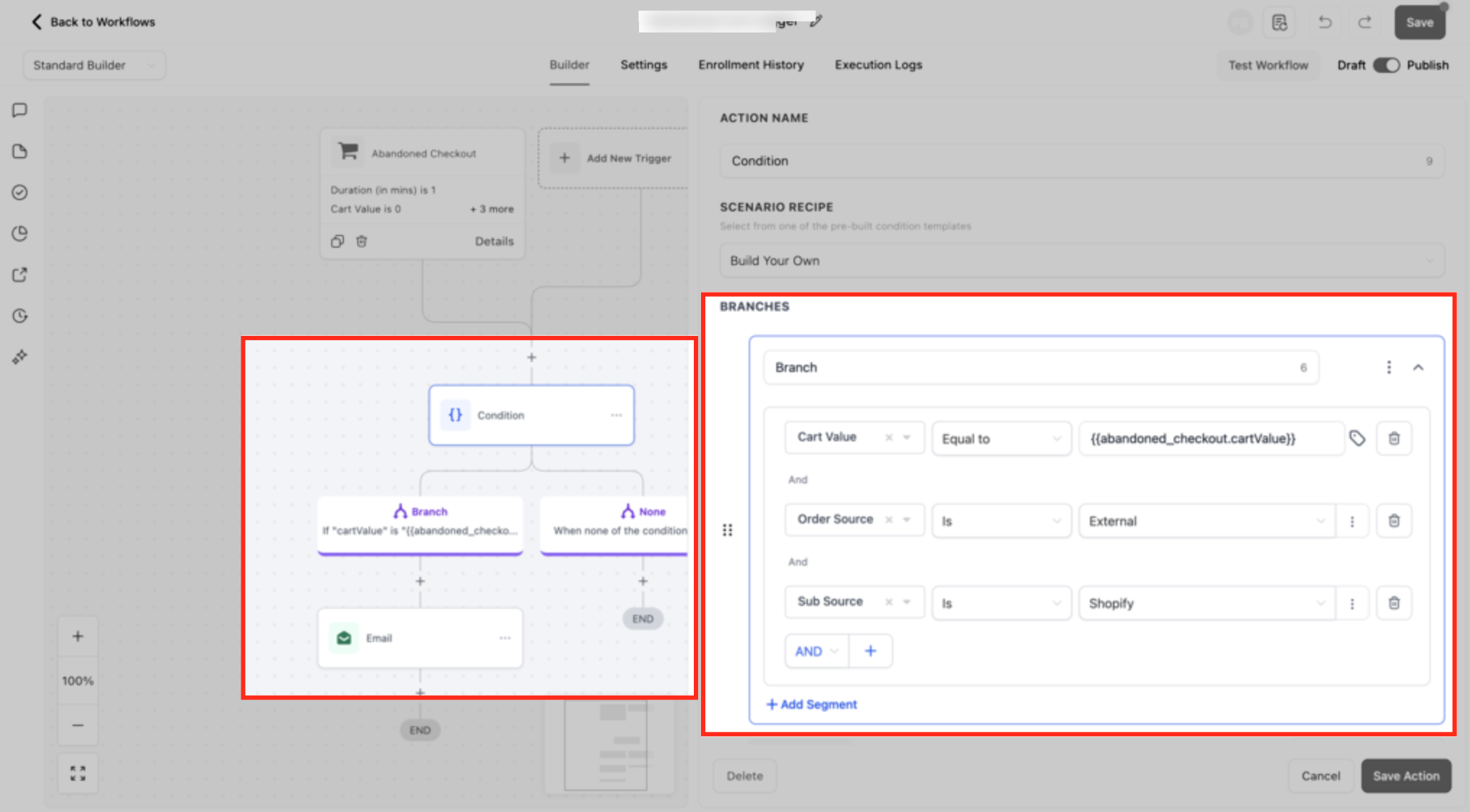
Boost your revenue recovery with Patient Copilot’s new Abandoned Checkout workflow trigger a single, unified trigger that detects carts abandoned in your Patient Copilot store or an external platform like Shopify and lets you automate perfectly-timed follow-ups. * * * ## What is the Abandoned Checkout Trigger? The Abandoned Checkout trigger fires when a shopper adds items to the cart, enters a valid email address, but doesn’t finish paying within the “abandonment window” you define. It works for both native Patient Copilot Ecommerce Stores and connected external stores (e.g., Shopify), giving you one consistent automation entry-point for all recovery campaigns. * * * ## Key Benefits of the Abandoned Checkout Trigger Automate recovery while focusing on sales: - Unified across platforms: No need to juggle separate Shopify-only or Patient Copilot-only triggers. - Smarter segmentation: Filter by cart value, country, products, and order source for laser-focused messaging. - Flexible timing: Decide exactly how many minutes must pass before a cart is considered abandoned, preventing premature or late reminders. - Scalable: Future-proofed to support additional external platforms as they’re added. - Higher conversions: Timely, personalized nudges routinely reclaim 10-30 % of would-be lost orders. * * * ## Shopify Abandoned Cart Trigger (Deprecating Soon) The legacy “Shopify Abandoned Cart” trigger has been renamed “Shopify Abandoned Cart (Deprecating Soon).” Existing workflows keep working, but all new recovery automations should use the Ecommerce Stores → Abandoned Checkout trigger for maximum flexibility and future support. * * * ## How To Set Up the Abandoned Checkout Trigger Follow these steps to start recovering lost sales right away. ### Create Workflow Navigate to Automation → Workflows from the left sidebar to open the Workflow List page. Click the + Create Workflow button in the top-right corner and select Start from Scratch to begin building a new automation.!(https://assets.patientcopilot.ai/0c345f9612cc41cf.png) ### Add Trigger Inside the workflow builder, click Add Trigger to define the event that will start the automation. This opens the trigger selection panel where you can choose the workflow entry condition.!(https://assets.patientcopilot.ai/fcb2ed9eb8e1e9a5.png) ### Select Abandoned Checkout In the trigger list, scroll to the Ecommerce Stores section and select Abandoned Checkout. This ensures the workflow activates when a customer leaves the checkout process without completing their purchase.!(https://assets.patientcopilot.ai/96a7d9707e0c8f23.png) ### Name Trigger Confirm that Abandoned Checkout is selected under Choose a Workflow Trigger and review the Workflow Trigger Name field. You can keep the default name or customize it for easier identification if managing multiple triggers.!(https://assets.patientcopilot.ai/acfd4a1627a3018d.png) ### Configure Filters Set the Duration (in mins) to define how long the system should wait before marking the checkout as abandoned. Use the Select dropdown under Filters to refine the trigger further with conditions such as Cart Value, Country, Global Products, Order Source, Store Name, or Sub Source. - Duration (minutes): Choose the exact wait time before a cart counts as abandoned. - Cart Value: Set minimum, maximum, or range-based amounts to trigger only high-value (or low-value) carts. - Country: Limit automation to shoppers in specific locations, ideal for localized shipping or tax rules. - Global Products: Multi-select any product(s) to trigger only when they’re in the cart—great for promotions on flagship items. - Order Source: Pick Store (Patient Copilot) or External. - Sub-Source: Appears when Order Source = External; choose Shopify today, with more platforms coming soon.!(https://assets.patientcopilot.ai/9db5a52b670702fd.png) ### Using Conditional Branch (Optiona This example demonstrates how a Condition action can be added after the Abandoned Checkout trigger to further segment contacts before sending recovery messages. In this sample setup, filters such as Cart Value, Order Source, and Sub Source are used to control which abandoned checkouts move down a specific branch, helping you tailor follow-ups based on cart details or store origin rather than sending the same message to every contact.!(https://assets.patientcopilot.ai/e30dbfebafc375c8.png) * * * ## Frequently Asked Questions Q: Does the trigger work if the shopper never enters an email? No. An email address is required to mark the checkout as abandoned and start the workflow. Q: What’s the best abandonment window to use? Fast-moving, low-ticket stores usually choose 15-30 minutes; high-ticket or build-to-order products often extend to several hours. Test different windows to see what converts best. Q: Can I vary the follow-up message by cart value? Yes. Use the Cart Value filter or an If/Else step after the trigger to send different incentives to high- vs. low-value carts. Q: Will my existing Shopify Abandoned Cart workflows break? No. They continue to function, but we recommend migrating to the new trigger for future-proofing. Q: Can I trigger based on specific products only? Absolutely use the Global Products filter to select one or more SKUs. Q: How do I include dynamic cart items in my reminder email? Use the Shopping Cart element in the Email Builder to automatically list the abandoned products. Q: Is SMS supported for external (Shopify) stores? Yes. Once the trigger fires, you can add any workflow action email, SMS, call, task, etc. regardless of store type. Q: What analytics are available for abandoned-cart recovery? Check the Workflow “Analytics” tab for sent/open/click stats and saved revenue, and the Payments → Orders screen for recovered orders. * * * ### Related Articles