Subscription Settings - Failed Payment Retries
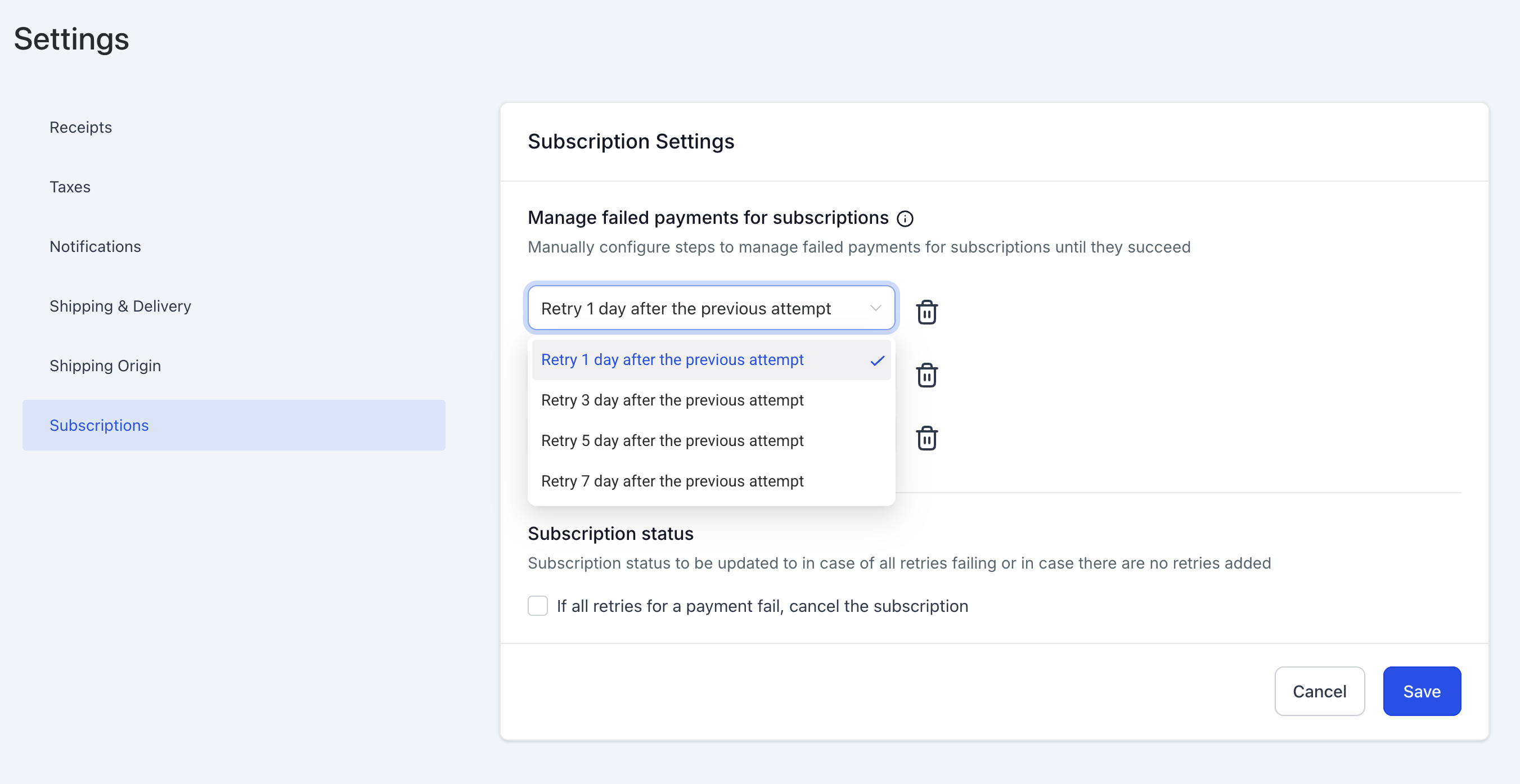
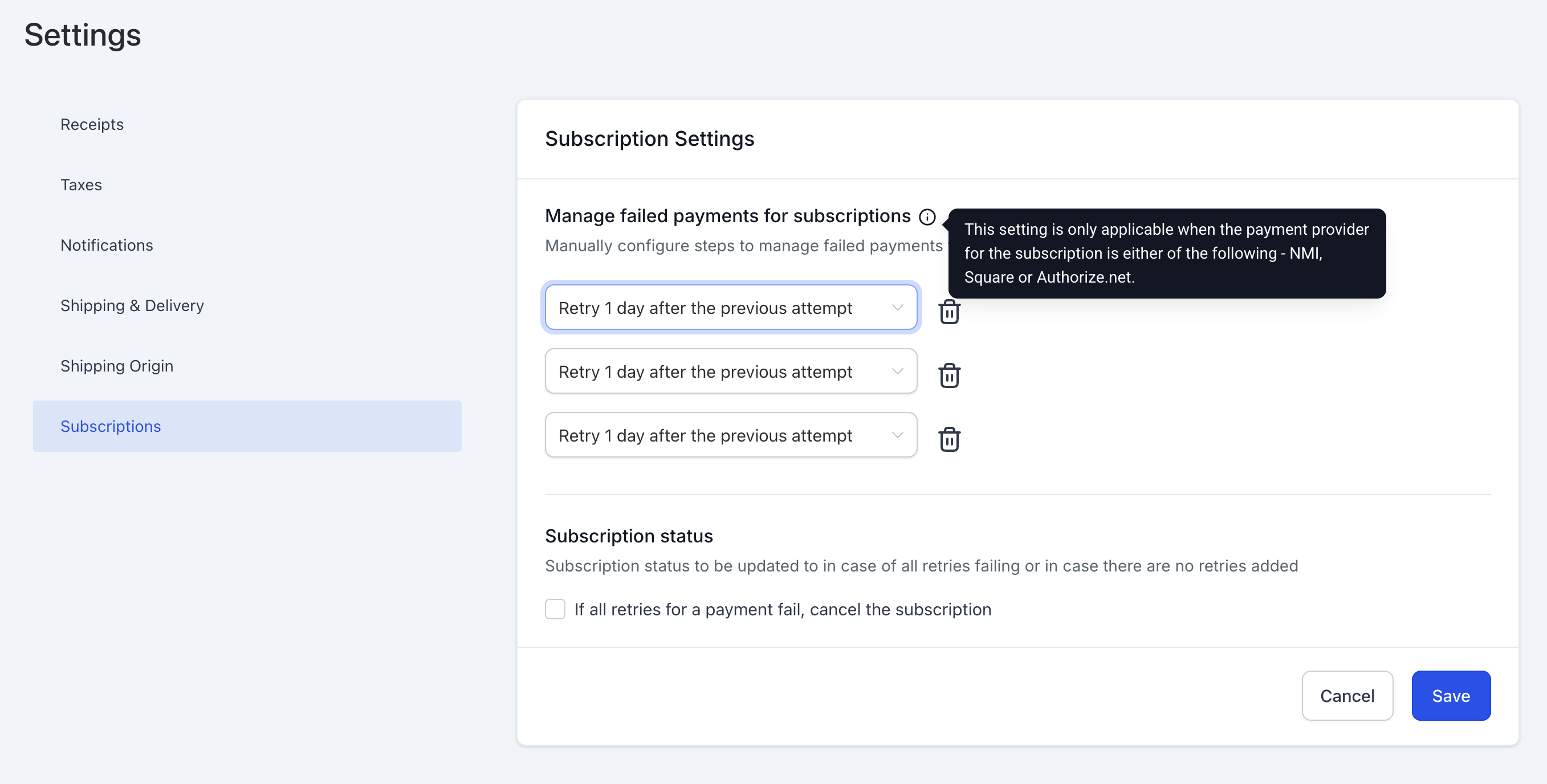
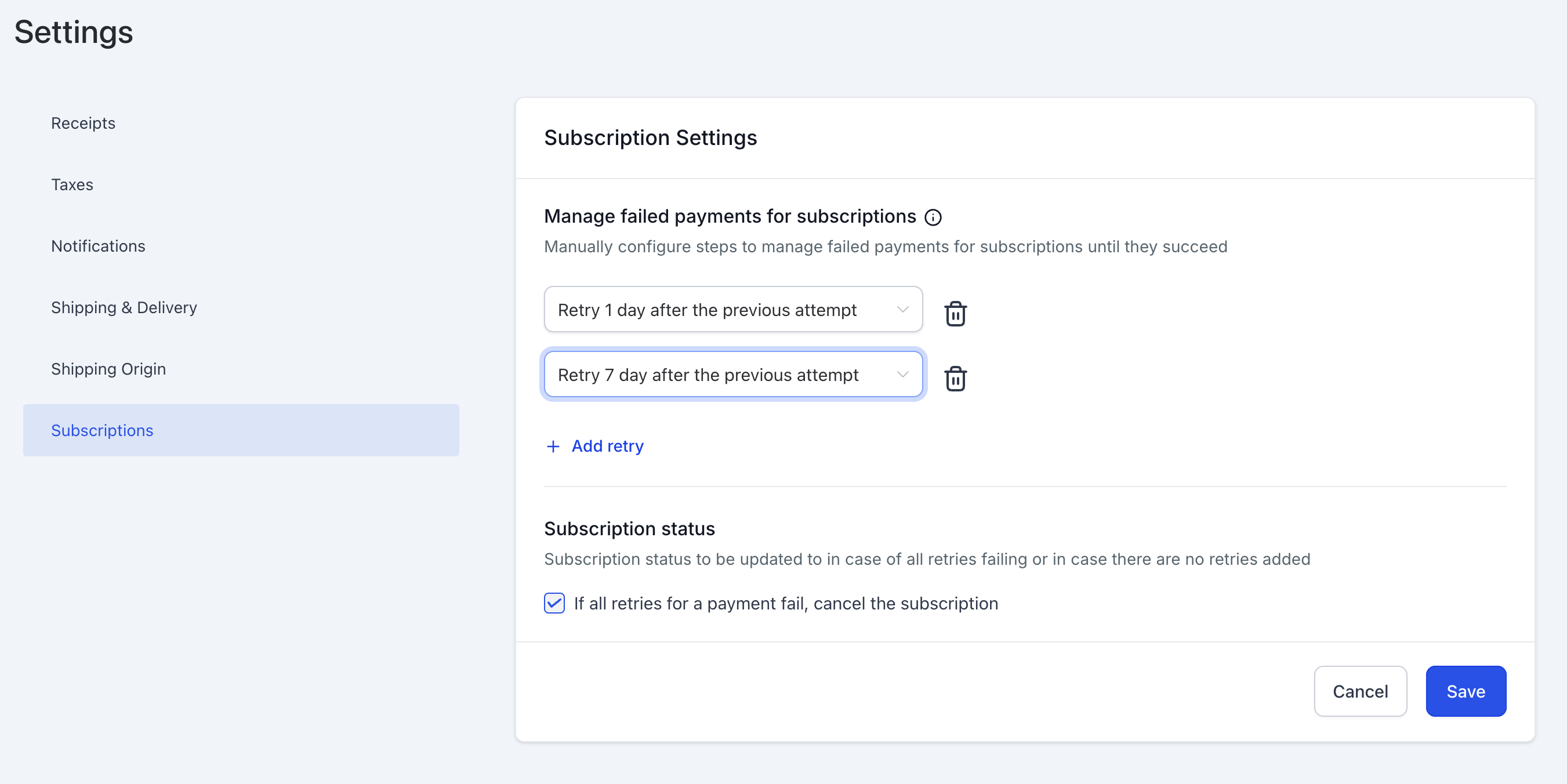
Payments > Settings > Subscription in your account. 2. Define Retry Attempts – Select the number of retries (up to 3) based on your business requirements.!(https://assets.patientcopilot.ai/3cfc11636db94933.png) 3. Set Retry Gaps – Choose the gap duration between retries (1, 3, 5, or 7 days).!(https://assets.patientcopilot.ai/730b976d41bd113b.png) 4. Modify Existing Configurations – Any changes to retry settings will be applied to both new and ongoing subscription retries. 5. Manage Subscription Status on Final Failure – Enable or disable the option to move failed subscriptions to the ‘Cancelled’ state automatically.!(https://assets.patientcopilot.ai/90058a3ae4459266.png) 6. Save Settings – Once configured, save your settings to apply changes immediately. ## Example Scenario If a subscription is set to ‘3 retries with a gap of 3 days for each retry’ and one retry has already been attempted, but before the second retry, the settings are updated to ‘2 retries with a gap of 3 and 5 days respectively,’ then: - The second retry will occur after 5 days instead of 3. - No third retry will take place. ## Supported Payment Providers This feature is available for the following payment providers: - NMI - Authorize.net - Square * * * ## Frequently Asked Questions Q: How many retries can I configure for a failed payment? A: You can configure up to 3 retries, with gaps of 1, 3, 5, or 7 days between each retry. Q: Will changes in retry settings apply to existing subscriptions? A: Yes, changes will be applied to both new and ongoing subscriptions, including those already in the retry process. Q: What happens if all retries fail? A: You can choose to either keep the subscription in the ‘Unpaid’ state or automatically move it to the ‘Cancelled’ state by selecting the appropriate option in settings. Q: Where can I configure failed payment retries? A: Navigate to Payments > Settings > Subscription to access the retry configuration options. Q: Which payment providers support this feature? A: Currently, this feature is supported by NMI, Authorize.net, and Square. ### Q: Why was my customer not charged for their monthly subscription? A: This usually occurs when the product linked to the subscription is renamed or modified in Payments > Products, which can break the sync with Stripe. - ### Go to Payments > Subscriptions. - ### Locate the subscription, click the three dots, and select Update Subscription. - ### Add the updated product and remove the old one. - ### Save to restore future billing. ### Note: Missed payments are not charged automatically. To collect them, send a manual invoice or a one-time payment link. * * * ## Related Articles - How to Set Up Subscription Payments ## Next Steps Ensure your failed payment retries are configured correctly to maintain seamless subscription payments. Navigate to Payments > Settings > Subscription and customize the retry settings based on your business needs today!