LC Email:Sub-account Rampup: Smart Sending Graduation & Shared Domain Reputation Protection
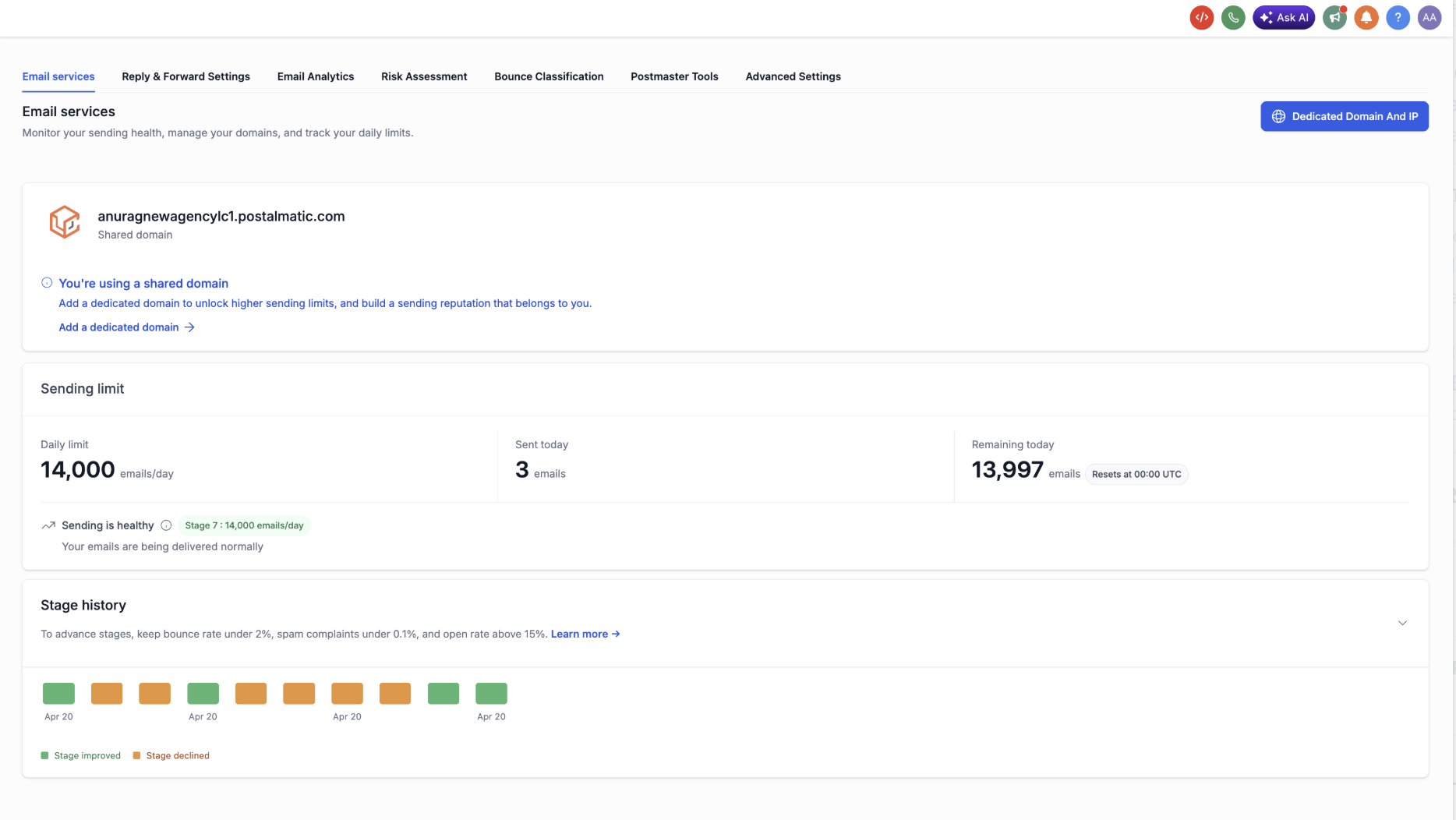
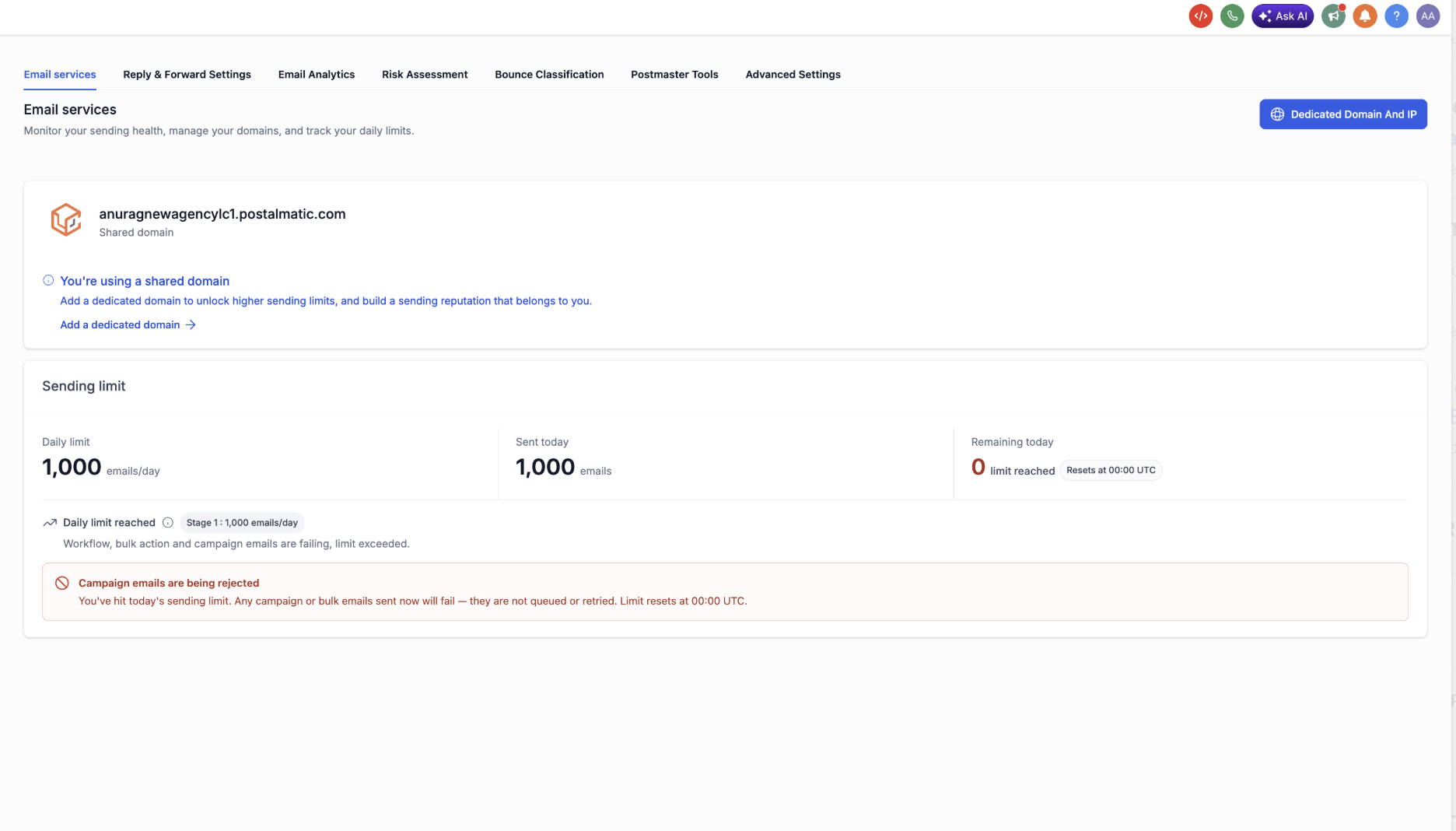
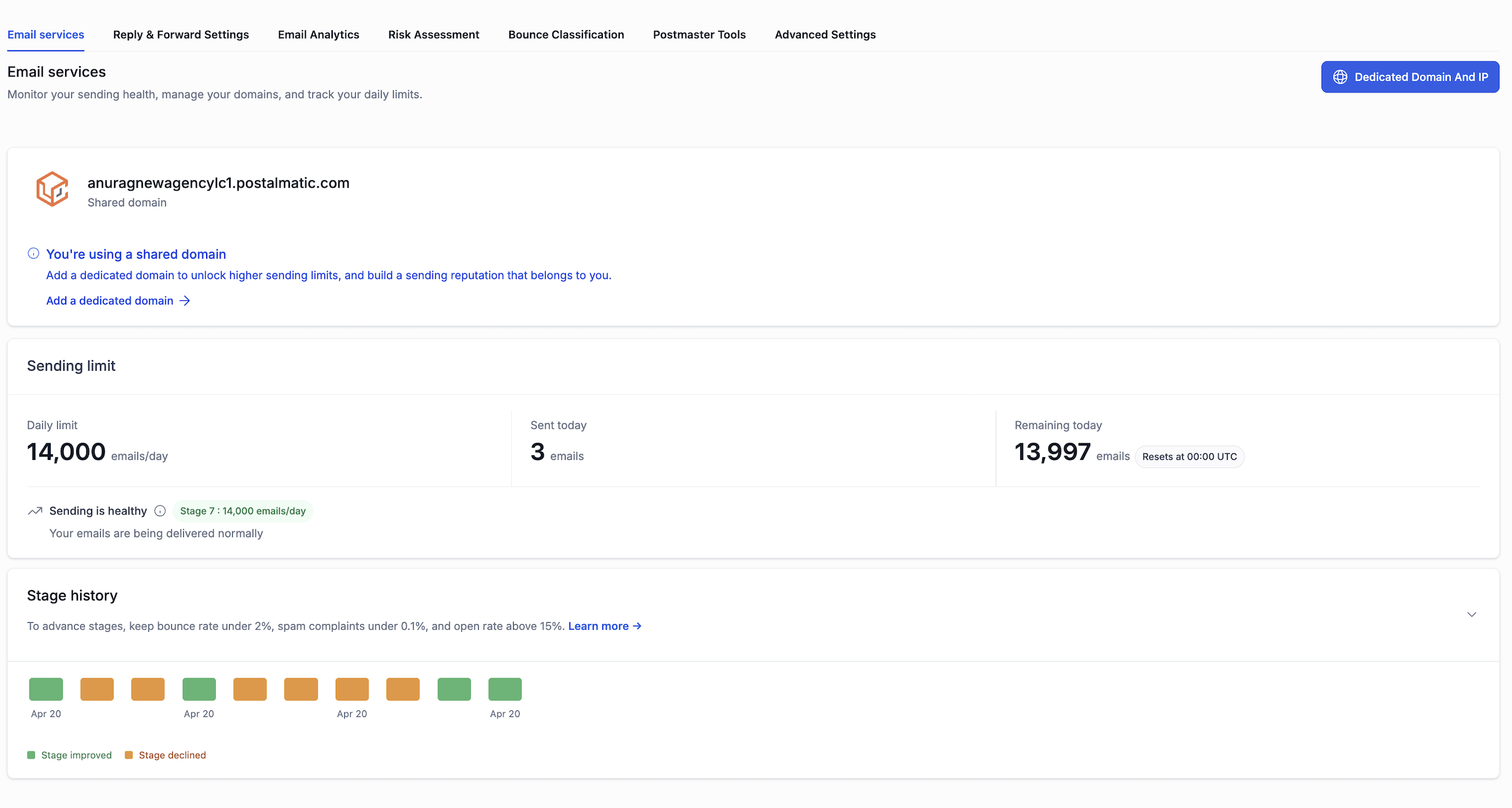
Email · What’s New LC Email — Sub-account Rampup: Smart Sending Graduation & Shared Domain Reputation Protection Sub-accounts on a shared sending domain now see exactly where they stand — daily limit, today’s usage, current stage, and a complete history of every stage change — directly on the Email Services page. Availability Available for new agencies created on or after 27 April 2026 on Patient Copilot Shared or Agency Shared domains. Existing agencies are unaffected. Watch the Walkthrough Until now, sub-accounts on a shared domain had a daily sending limit but no real visibility into it — no usage counter, no context for why the limit was set the way it was, and no way to see how it would change over time. That has changed. The Email Services page now shows live limit data, the current sending stage, plain-language alerts when something needs attention, and a timeline of every stage change. This article is a tour of what’s new on the screen. Sub-account user Sections explain what end users will see and what the new states mean for day-to-day sending. Agency admin Sections explain what’s changed in agency Advanced Settings and the support portal. 1 ## The New Sending Limit Panel Sub-account user On any sub-account using a Patient Copilot Shared or Agency Shared domain, the Email Services page now shows a dedicated Sending Limit panel at the top. It surfaces three numbers side by side, with no extra clicks required. - Daily Limit — the maximum emails this sub-account can send today, based on its current stage.
- Sent Today — a live counter of campaign and bulk emails sent so far.
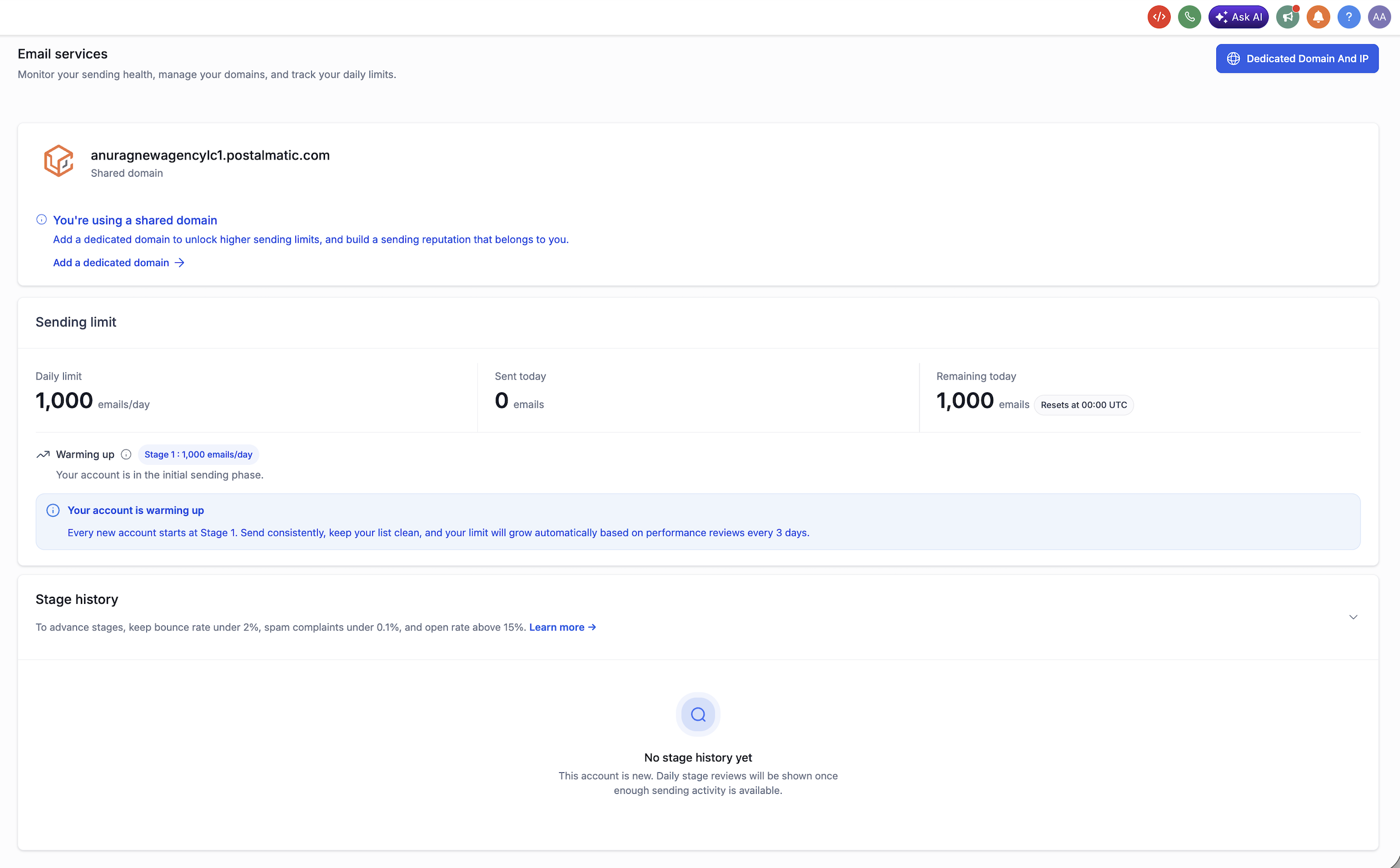
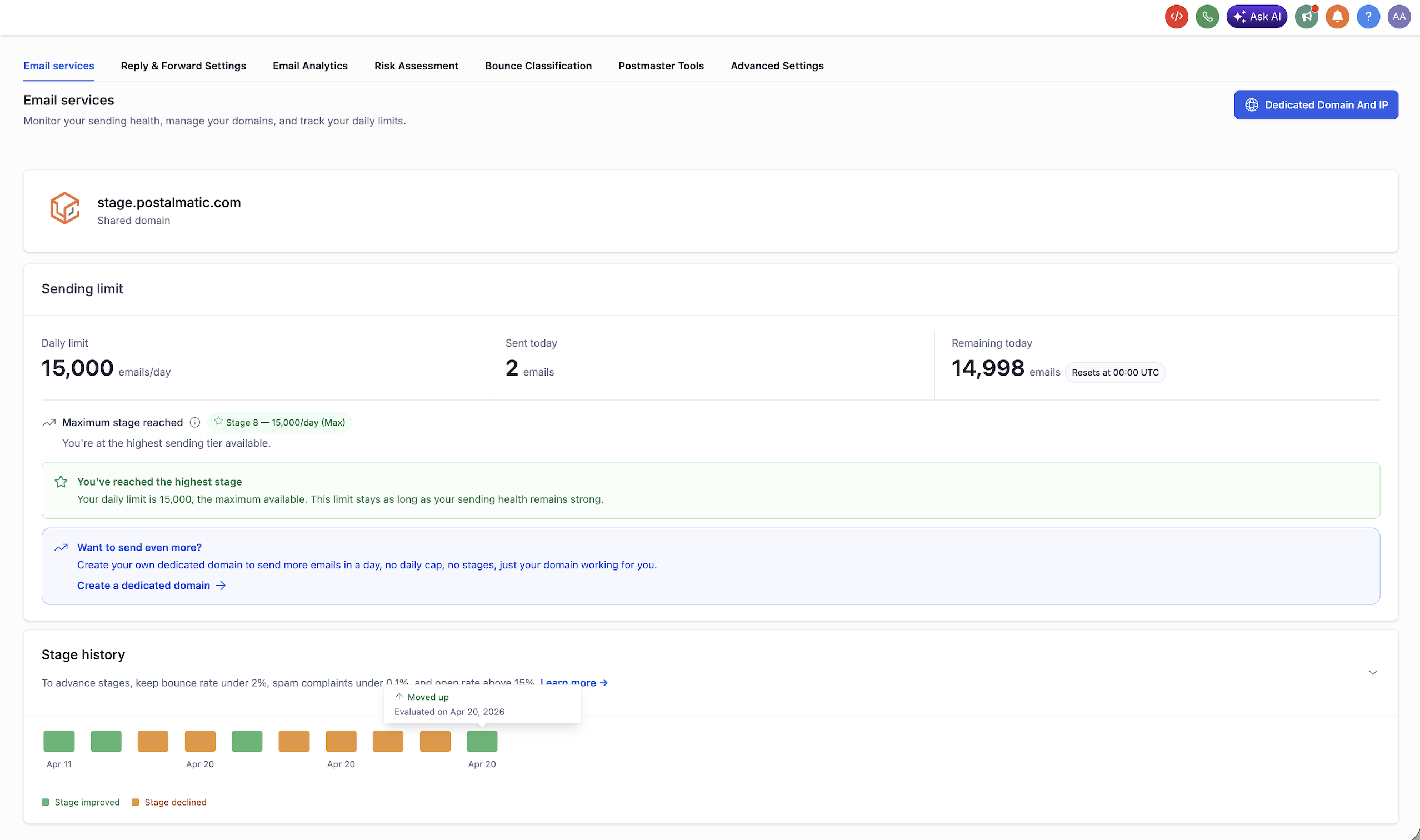
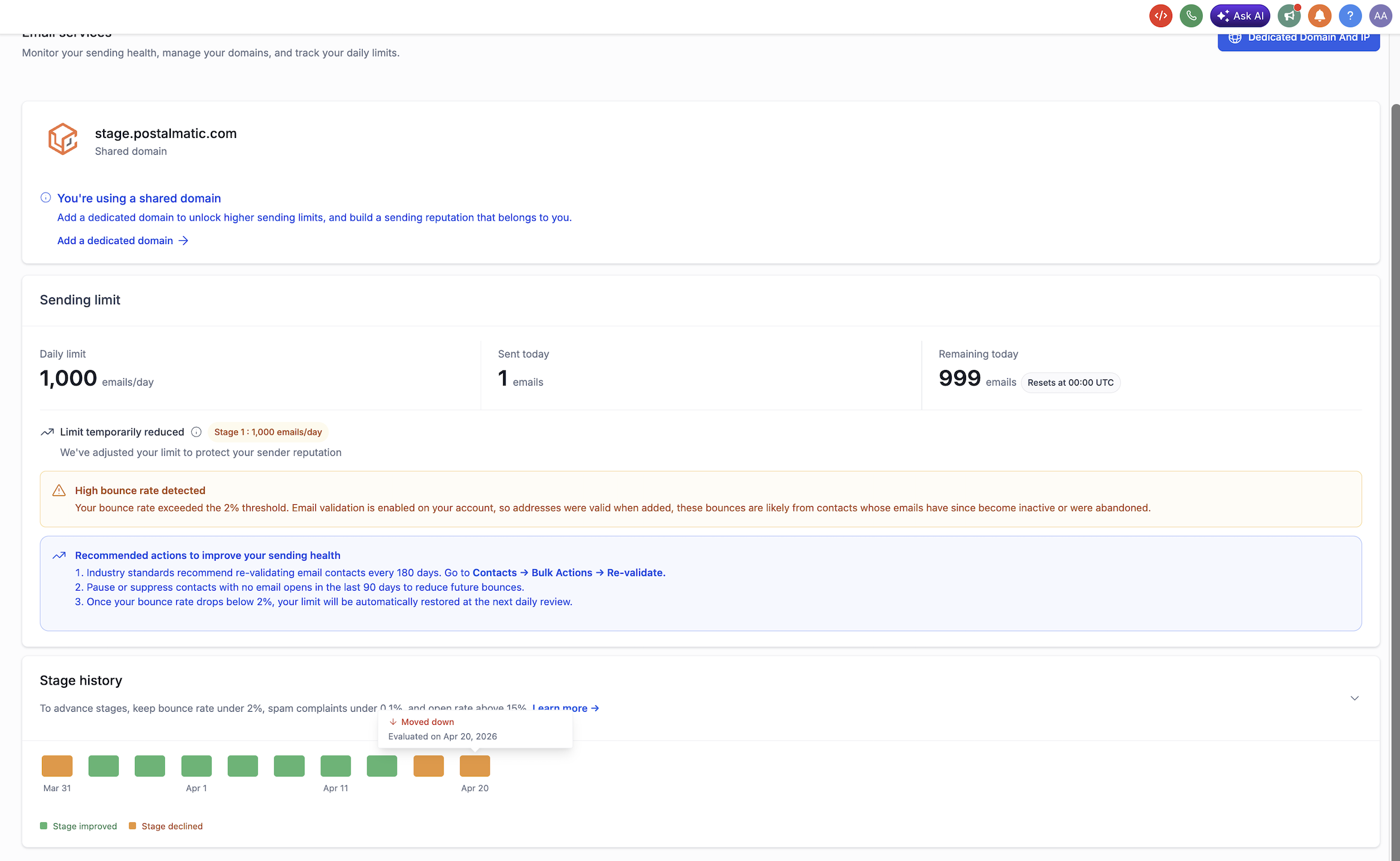
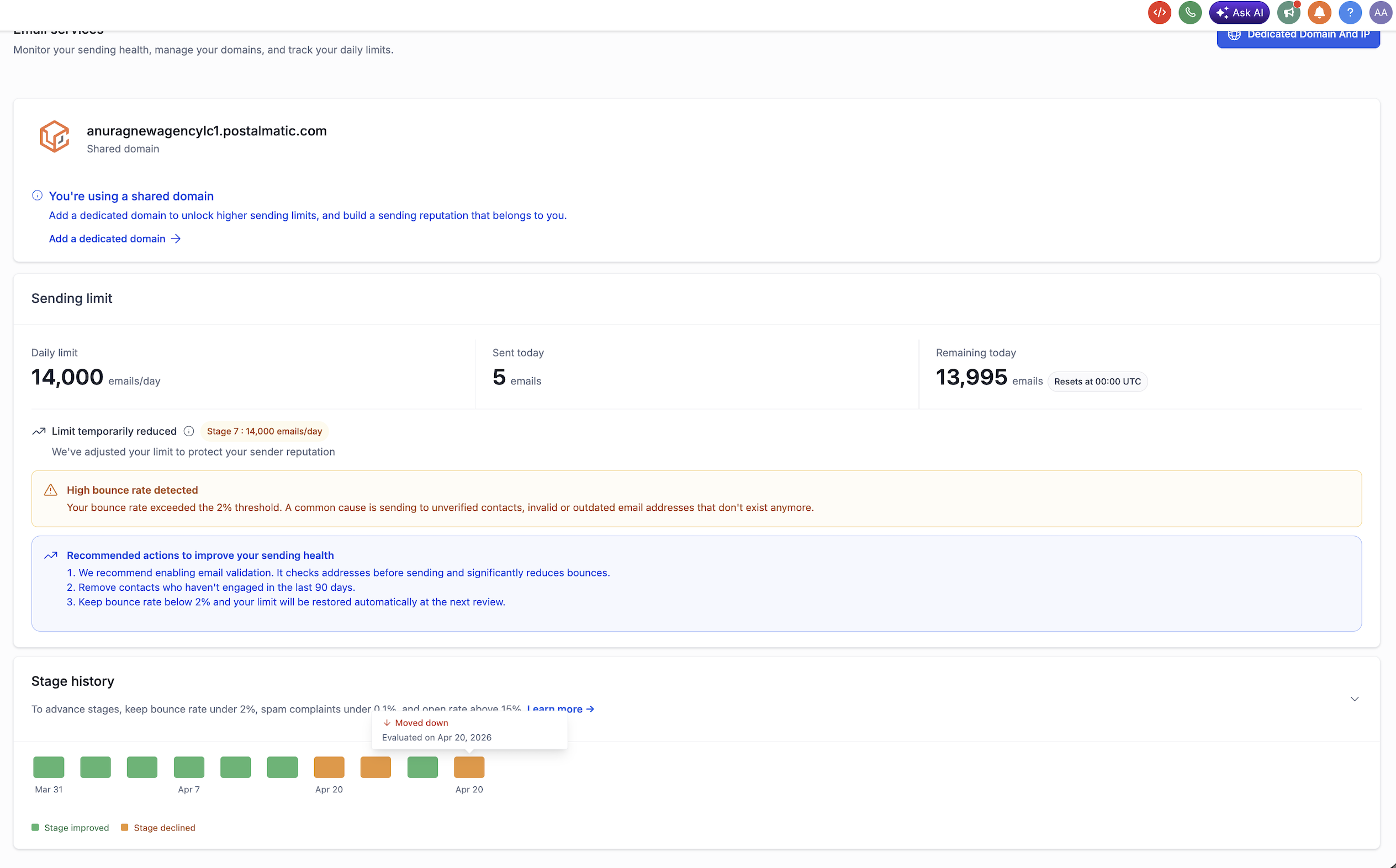
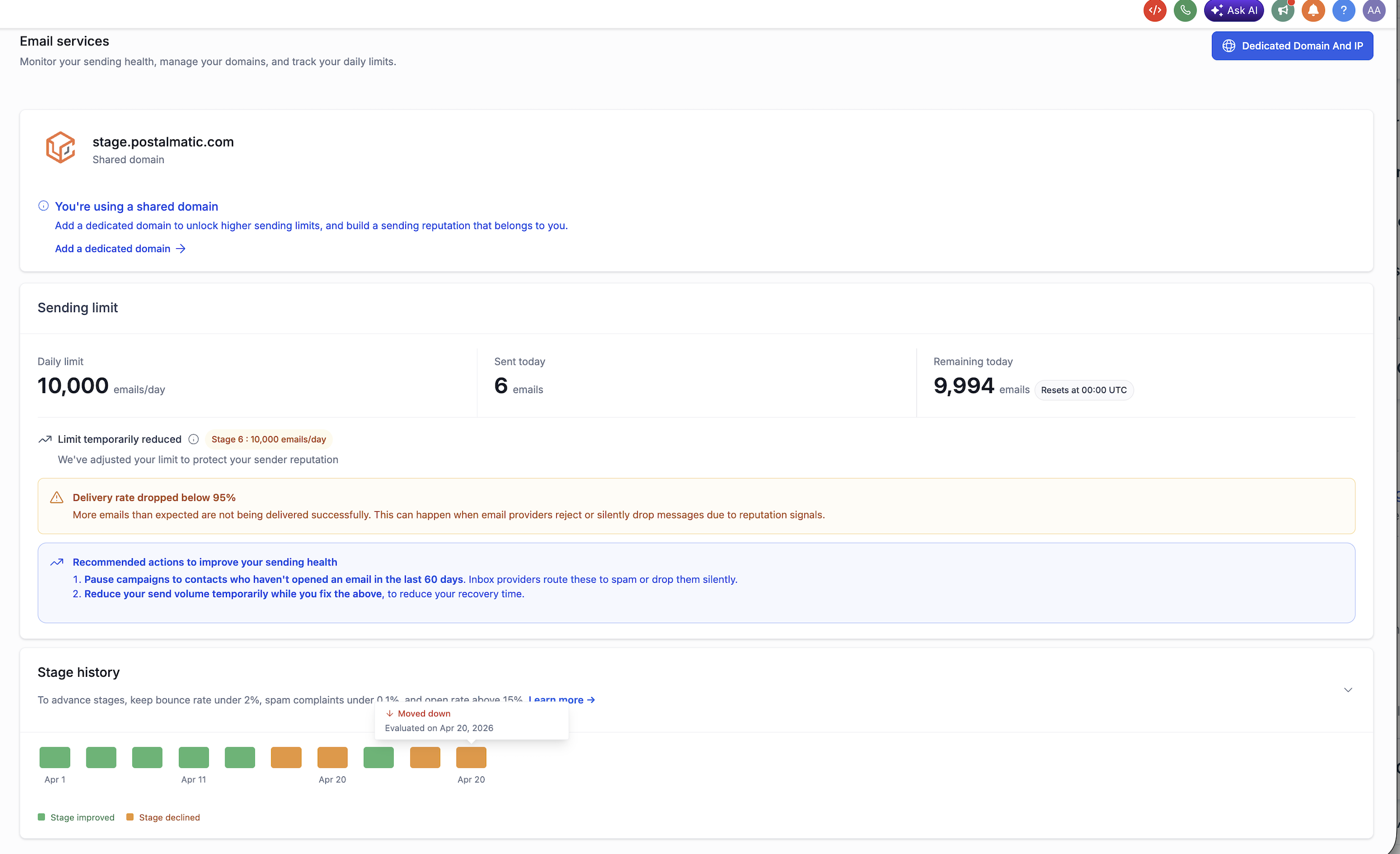
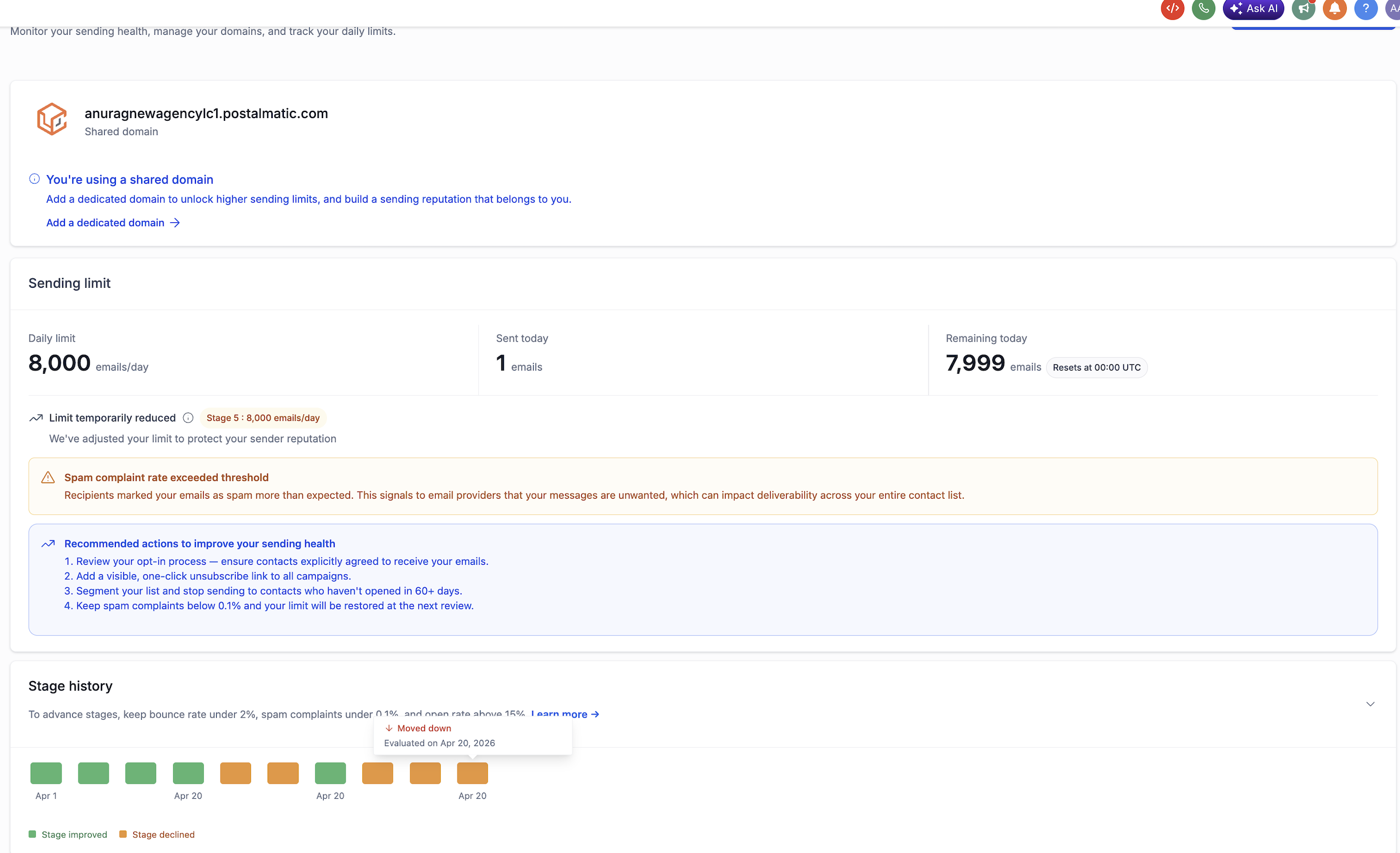
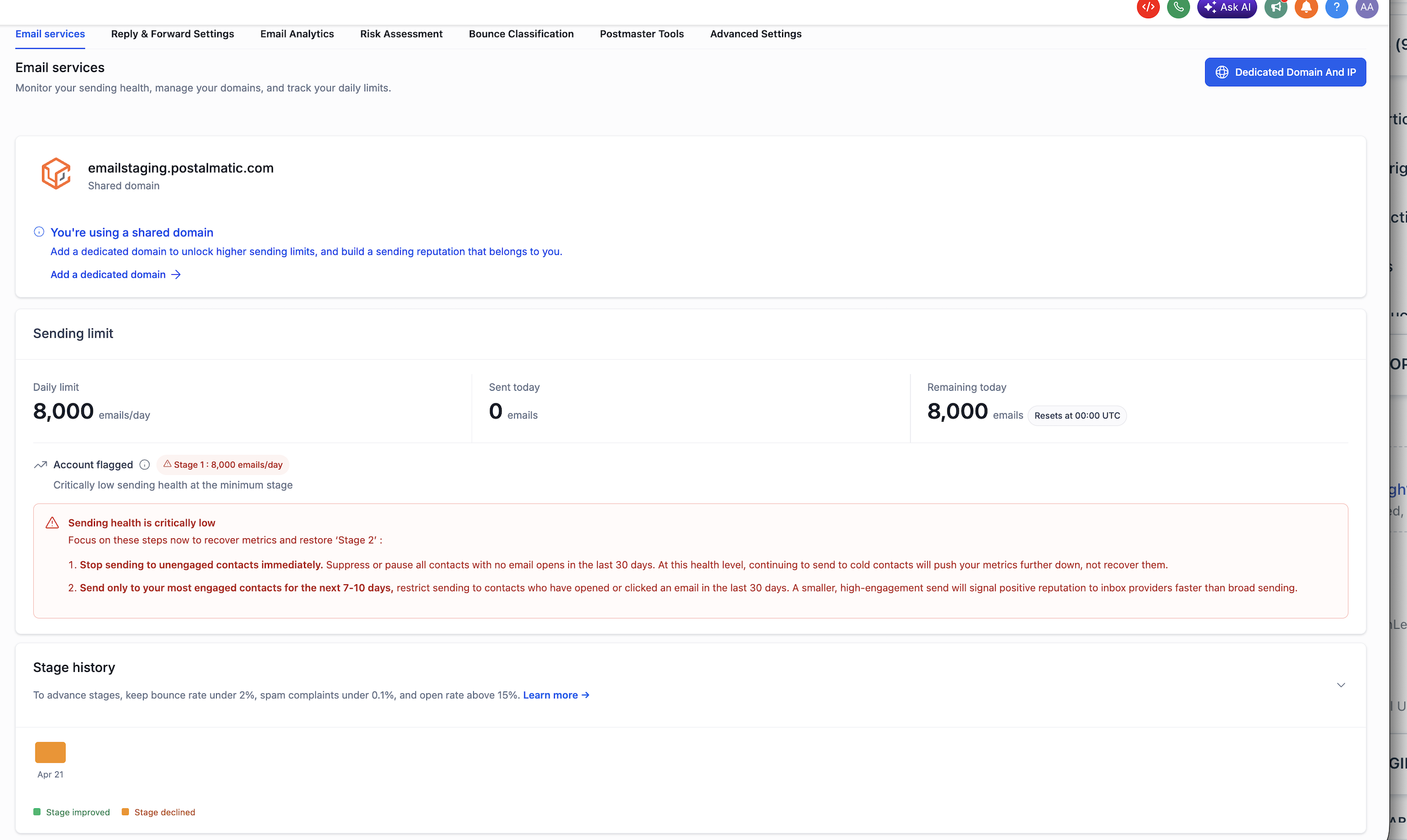
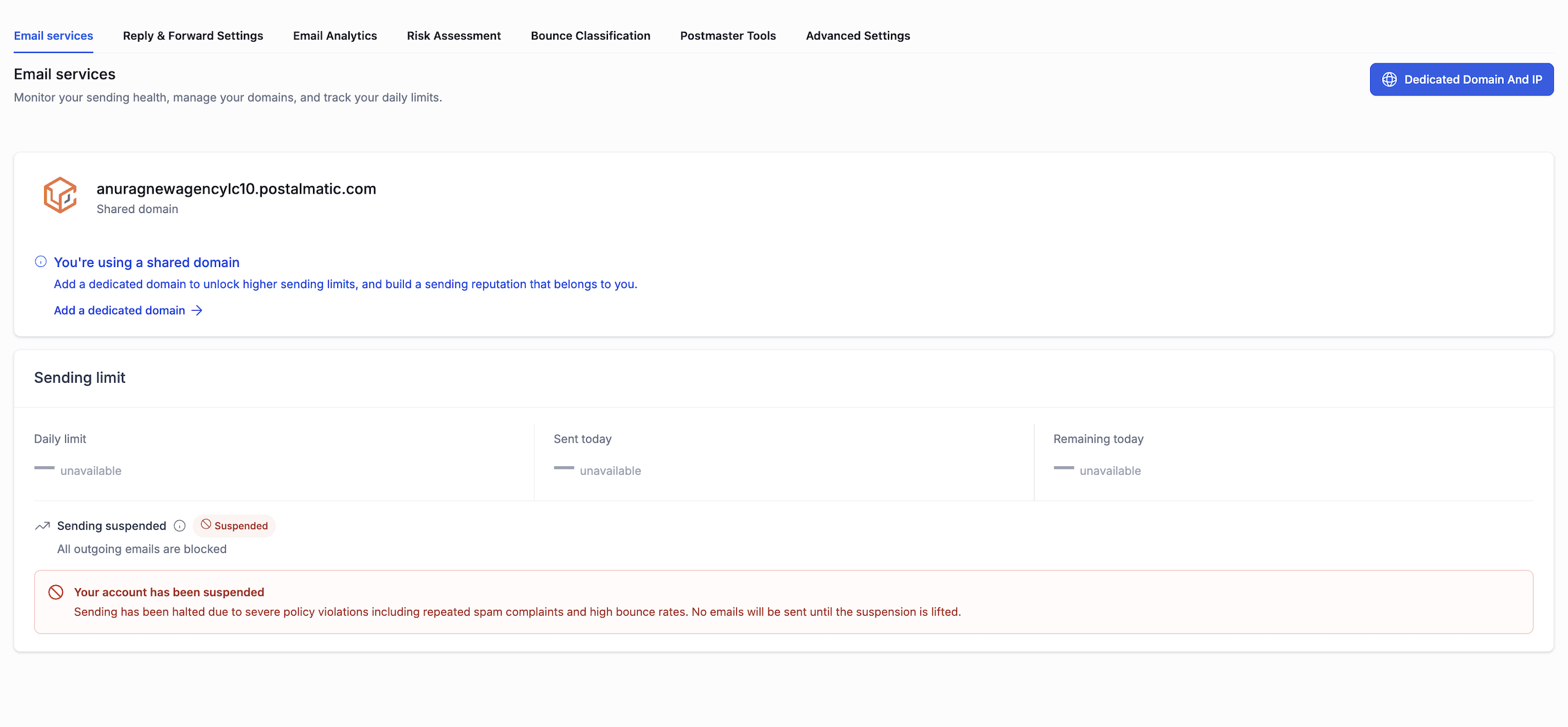
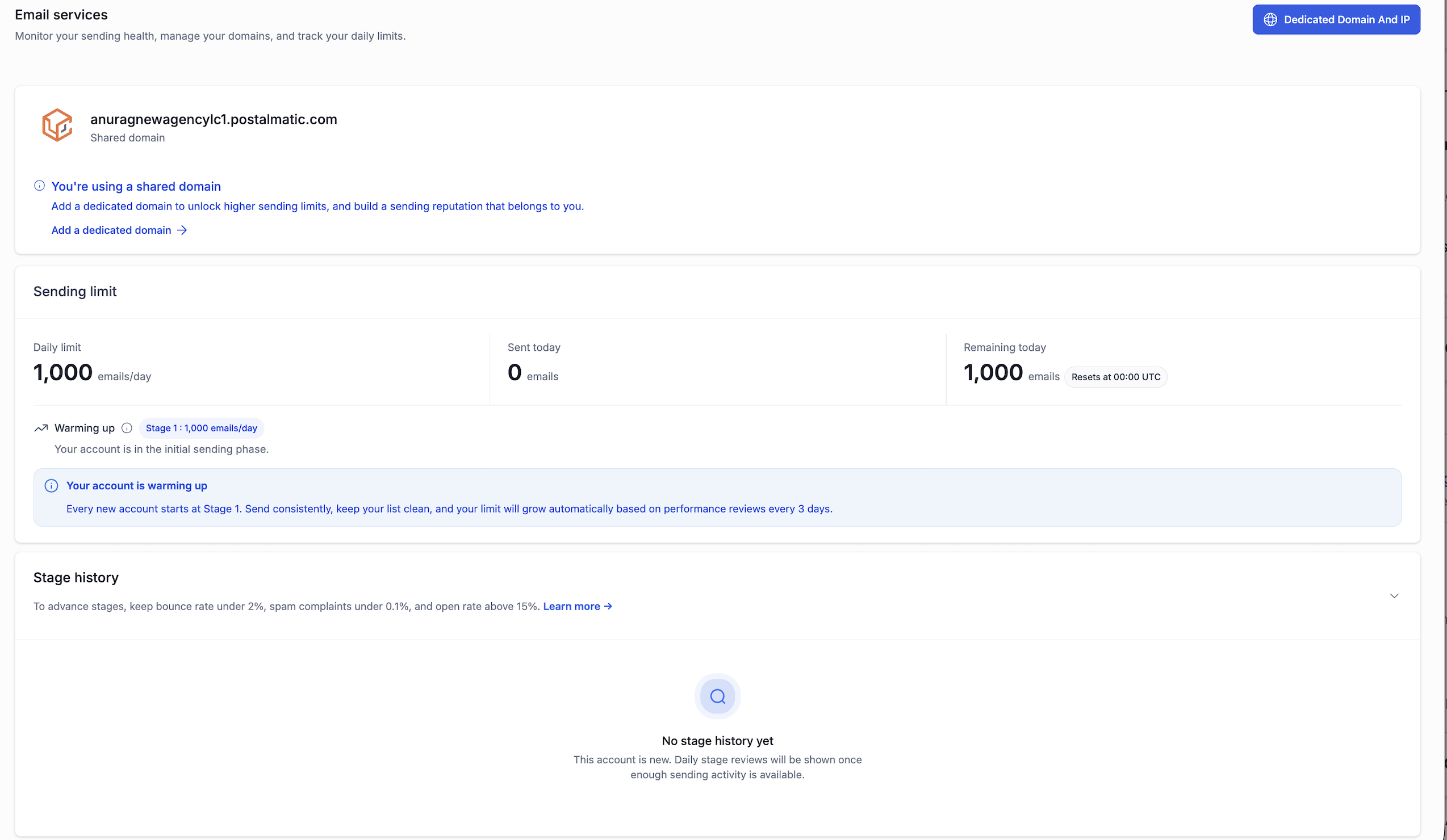
- Remaining — the difference between the two, updated in real time.!(https://assets.patientcopilot.ai/2ce61edab26fef55.png) Healthy state: Sending Limit panel with live usage, current stage, and “Sending is healthy” status. When the daily ceiling is hit, the panel switches to a red Daily limit reached state with a clear “Resets at midnight UTC” note, and the top of the page surfaces a blocking banner so it cannot be missed.!(https://assets.patientcopilot.ai/a4d57e091c6a807f.png) Daily limit reached: the page now blocks campaign sends and tells users exactly when the limit resets. Note for users 1-to-1 emails, payment confirmations, calendar invites, and system notifications are not counted against the daily limit and continue to deliver normally even when the limit is reached. 2 ## Stage and Status Badge Sub-account user Every shared-domain sub-account is on a stage from 1 (starting) to 8 (maximum). The panel shows the current stage as a badge alongside the daily limit, so users always know which tier they’re on. A small “Why do we use stages?” tooltip next to the badge explains, in plain language, how the system protects shared-domain reputation. The eight stages and their daily limits are: | Stage | Daily limit | Batch size | | --- | --- | --- | | 1 — Starting | 1,000 | 50 | | 2 | 2,500 | 60 | | 3 | 5,000 | 85 | | 4 | 6,500 | 110 | | 5 | 8,000 | 140 | | 6 | 10,000 | 170 | | 7 | 14,000 | 240 | | 8 — Maximum | 15,000 | 250 |!(https://assets.patientcopilot.ai/a1a5430c14619815.png) New account view: “Warming up” state at Stage 1 with an explanation of how the stage will grow. Brand-new sub-accounts open at Stage 1 with the Warming up status. As sending performance stays healthy, the badge automatically rolls forward through the stages!(https://assets.patientcopilot.ai/54eee00d492cf8c2.png) Stage 8 — Maximum: 15,000/day with a CTA to create a dedicated domain for unlimited sending. 3 ## Contextual Alerts and Recommendations Sub-account user The page now adapts to the sub-account’s actual sending health. Instead of one generic screen, it renders a different banner and recommendation block for each state. Every alert is paired with concrete, step-by-step actions the user can take to recover. State A Bounce downgrade A red High bounce rate detected banner appears when the sub-account’s hard bounce rate goes above the threshold. The recommendations differ depending on whether email validation is already enabled, so the guidance is always relevant.!(https://assets.patientcopilot.ai/fad6e387ff206090.png) With email validation enabled.!(https://assets.patientcopilot.ai/858994f92615f8da.png) Without email validation enabled. State B Delivery downgrade A “Delivery rate dropped below 95%” banner appears with recommendations to pause campaigns to unengaged contacts and tighten audience targeting.!(https://assets.patientcopilot.ai/e5a93d481a1eb46d.png) Delivery rate has slipped: actionable steps to pause low-engagement campaigns and reduce volume. State C Spam complaint downgrade When spam complaints exceed the threshold, recommendations focus on opt-in quality, list hygiene, and unsubscribe visibility.!(https://assets.patientcopilot.ai/23e7f9d730185cc9.png) Spam complaints crossed the threshold: guidance focuses on opt-in quality, list hygiene, and unsubscribe visibility. State D — Stage 1 Flagged If a sub-account at Stage 1 also has critical health issues, the page elevates to an Account flagged state. The warning explains exactly which contacts to suppress and reassures the user that transactional and 1-to-1 emails will continue to deliver.!(https://assets.patientcopilot.ai/05b0e31fd3c87685.png) Stage 1 flagged: targeted recovery steps plus a reminder that transactional emails are unaffected. State E — Suspended Usage tiles read “unavailable” and the page makes it clear sending is fully halted pending review.!(https://assets.patientcopilot.ai/3fb8baa5e78b9e96.png) Suspended: usage tiles read “unavailable” and the page makes it clear sending is fully halted pending review. What changed under the hood AUP enforcement emails now use clearer, state-specific subject lines so it’s immediately obvious whether an account is on a first-strike 12-hour block, a second-strike 24-hour block, or a permanent lock awaiting manual review. 4 ## Stage History Timeline Sub-account user Agency admin The Email Services page now includes an expandable Stage History section that lists every upgrade and downgrade with the date and the reason. This is the first time both end users and agencies have an in-product audit trail of how a sub-account’s sending capacity has evolved. - Upgrade entries are tagged “Stage improved” and include the new daily limit.
- Downgrade entries are tagged “Stage declined” and surface the trigger — bounce spike, sustained delivery issue, or spam spike.
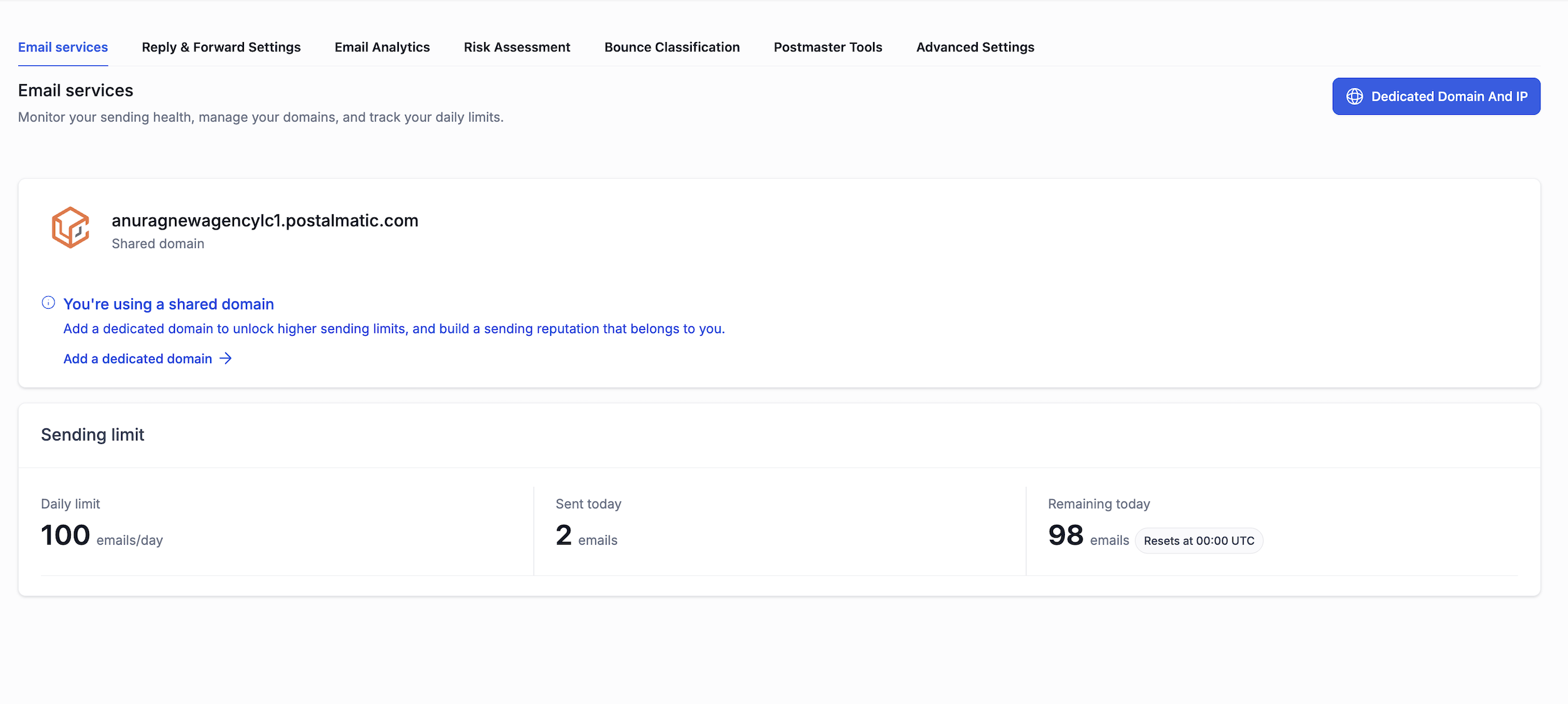
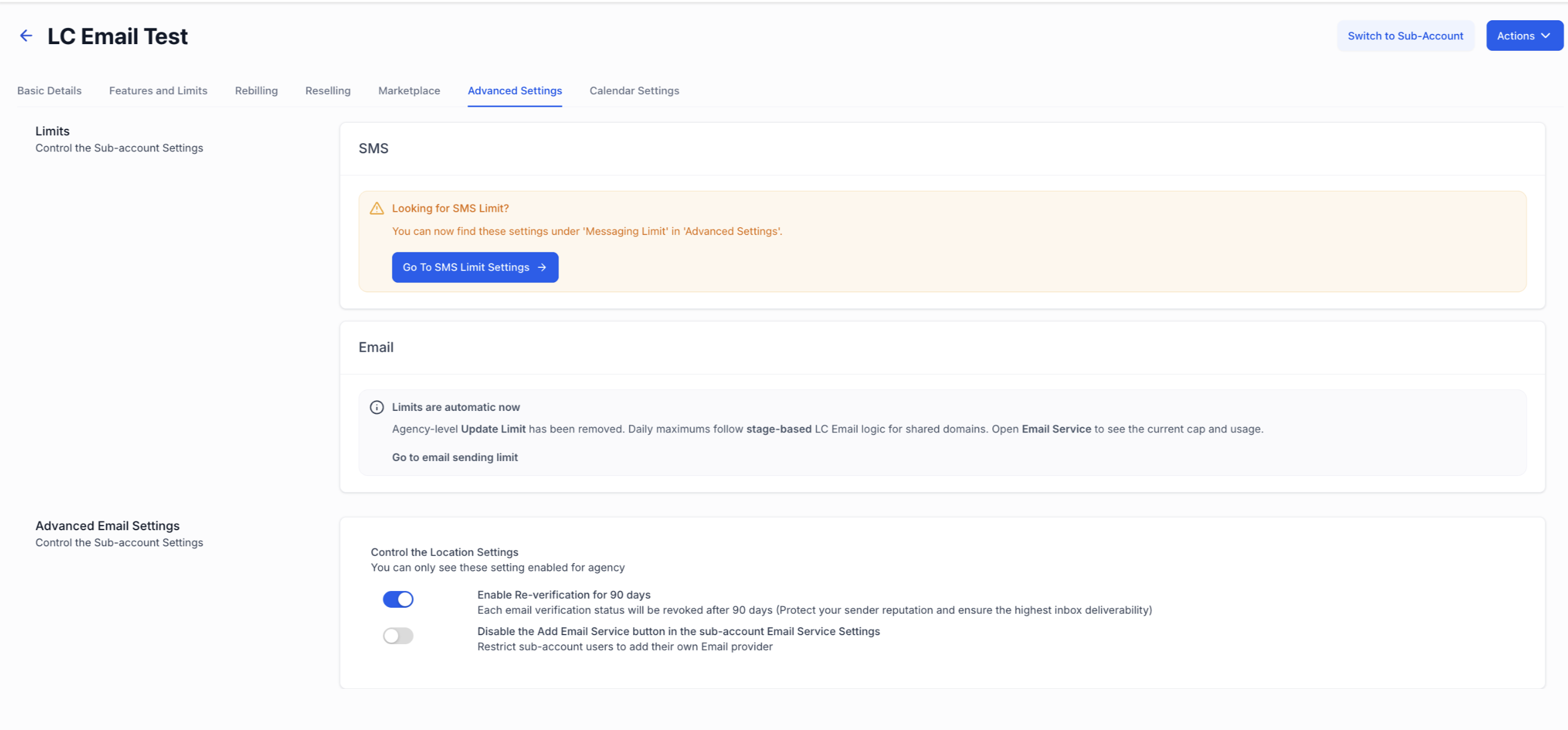
- Brand-new accounts see a friendly empty state until enough sending activity is recorded.!(https://assets.patientcopilot.ai/a2e96b22b5cc9b2f.png) Stage History: each transition shown chronologically with the reason and the resulting limit.!(https://assets.patientcopilot.ai/2d698abc587d45df.png) Empty state: shown for new accounts that haven’t yet been evaluated. 5 ## Dedicated Domain Nudge Sub-account user A persistent, dismissible banner now sits on the Email Services page for every shared-domain sub-account, encouraging an upgrade to a dedicated domain for higher throughput and a sender reputation tied to the user’s own domain. The banner automatically disappears once the account reaches Stage 8 — at which point a similar nudge appears in the Maximum Stage card instead.!(https://assets.patientcopilot.ai/6d7dce4534c0162a.png) Shared-domain banner: “You’re using a shared domain” with an “Add a dedicated domain” CTA. 6 ## For agencies:The Update Limit control is now automatic Agency admin For new agencies (created on or after 27 April 2026), the manual Update Limit control on the agency Advanced Settings screen has been replaced with an informational banner that reads “Limits are automatic now” and links directly through to the sub-account’s Email Services page. - The Update Limit panel and footer button are hidden entirely from Agency Advanced Settings.
- Existing agencies are completely unaffected and keep the manual control.!(https://assets.patientcopilot.ai/c7751247aa66cb2d.png) Why this changed Shared-domain reputation is shared across every sub-account on it. Manual overrides on a single account could pull the reputation down for everyone else. Stage-based progression replaces overrides with an automatic, transparent path to higher limits — earned through clean sending behavior. 7 ## Trial Agency View: A flat 100/day cap Agency admin Sub-account user Sub-accounts under a trial agency don’t enter the rampup system at all. They run on a dedicated trial view with a 100 emails/day cap, no Update Limit control, and a streamlined panel that shows only the domain card and the trial limit. The moment the parent agency converts to a paid plan, the trial UI is replaced with the full Sending Limit panel and Stage History — and the rampup engine activates automatically from Stage 1.!(https://assets.patientcopilot.ai/4a6c22cde1c7bed7.png) 8 ## Quick FAQ Q: Will my existing sub-accounts change? No. All agencies created before 27 April 2026 are completely unaffected same limits, same controls, same UI. A migration plan for existing agencies will be communicated separately by end of Q2 2026. Q: Where do I see my current stage? Open Email Services from the sub-account’s left navigation. The Sending Limit panel shows the current stage badge alongside Daily Limit, Sent Today, and Remaining. Expand Stage History on the same page for the full timeline. Q: Can I request a manual limit increase? For new agencies on shared domains, no limits are governed entirely by the rampup engine. The fastest path to a higher daily limit is consistent, healthy sending, which will move the sub-account up the stages automatically. Sub-accounts that need limit change sending should add a dedicated domain. Q: What happens if my limit is reached? Campaign and bulk emails sent after the daily ceiling will fail they are not queued or retried. 1-to-1 emails, payment confirmations, calendar invites, and system notifications continue to deliver as normal. The limit resets at 00:00 UTC. Q: Why did my account move down a stage? The Stage History entry for the downgrade includes the trigger bounce spike, sustained delivery issue, or spam spike alongside the date. The banner on the page will also show targeted recommendations for that specific issue. Was this article helpful? That’s Great! Thank you for your feedback Sorry! We couldn’t be helpful Thank you for your feedback Feedback sent We appreciate your effort and will try to fix the article