Using SendGrid As The SMTP Provider
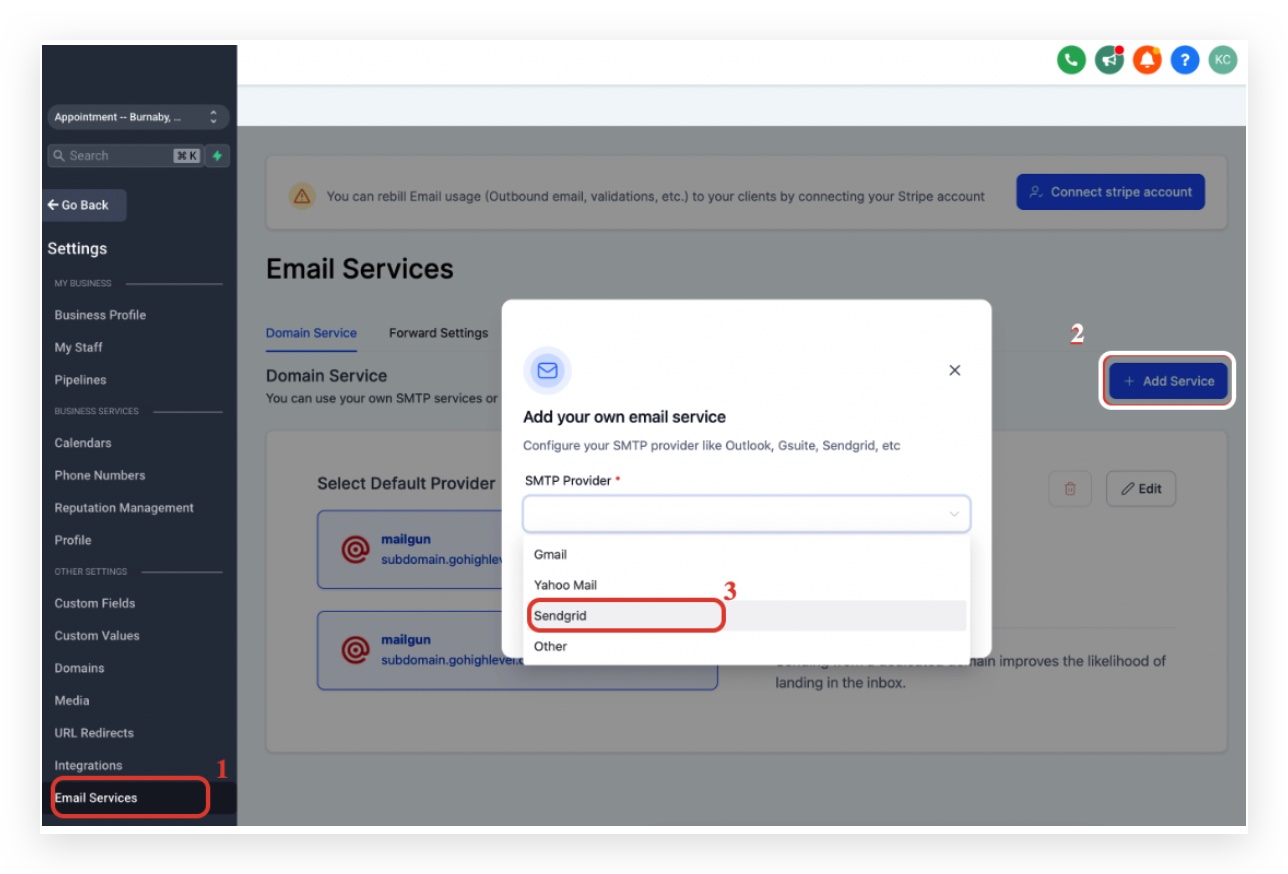
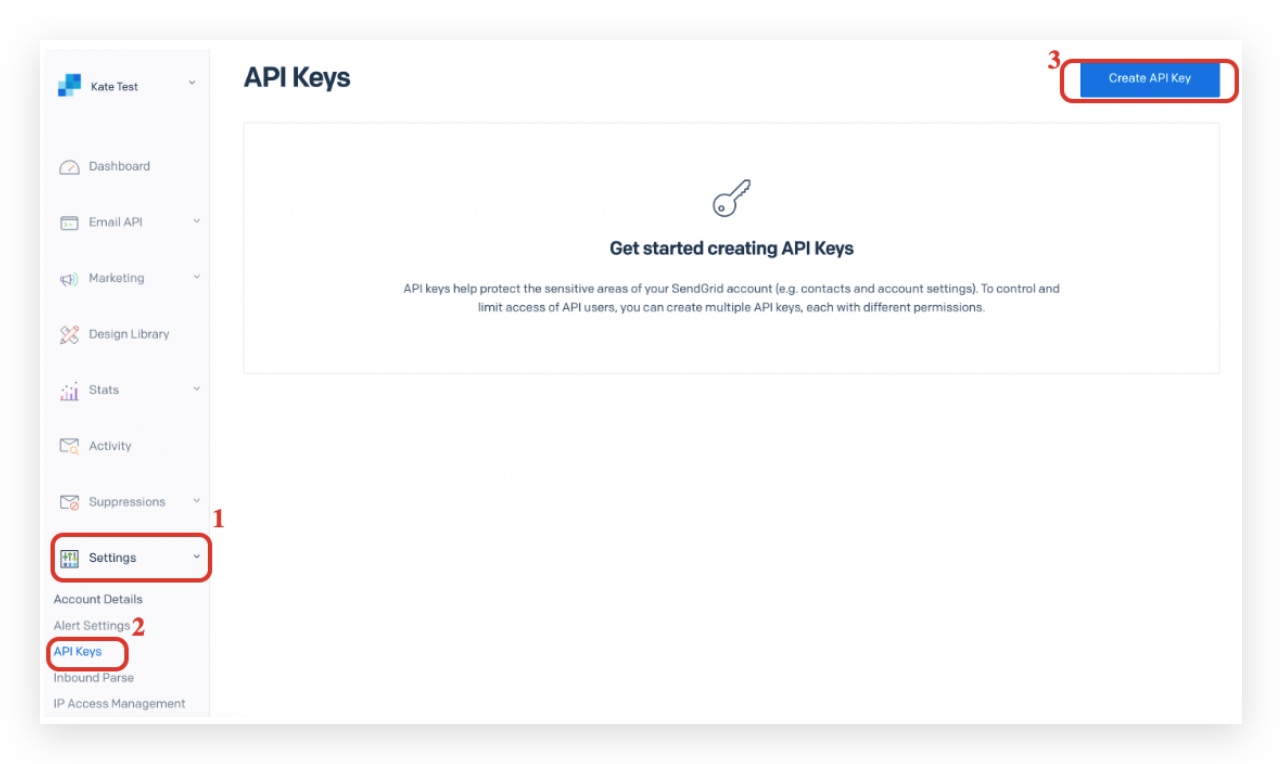
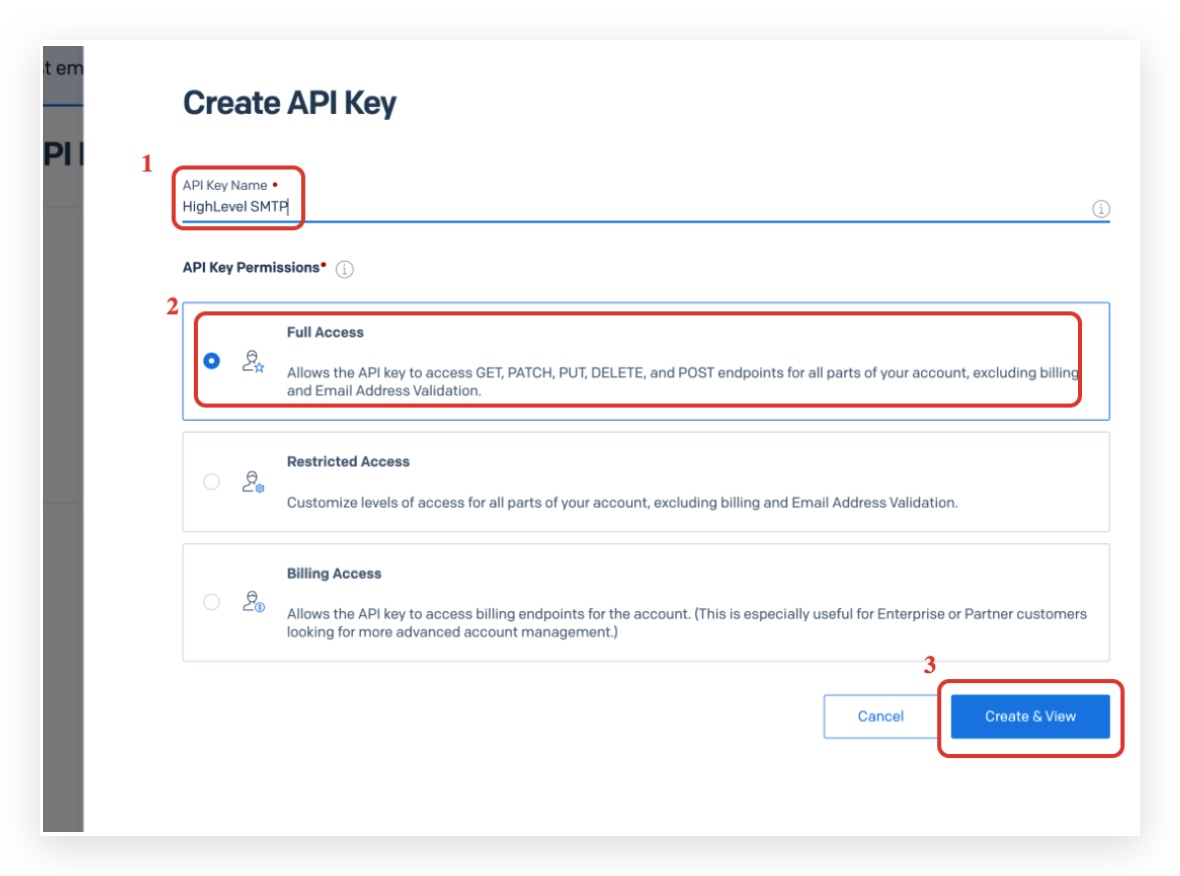
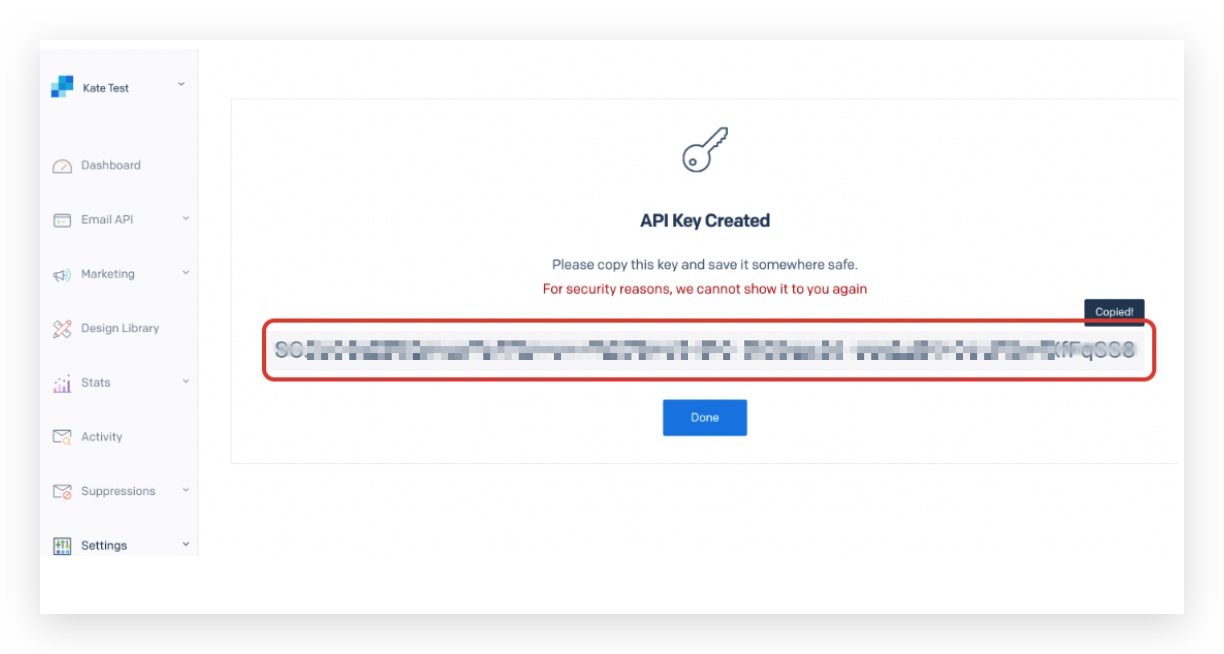
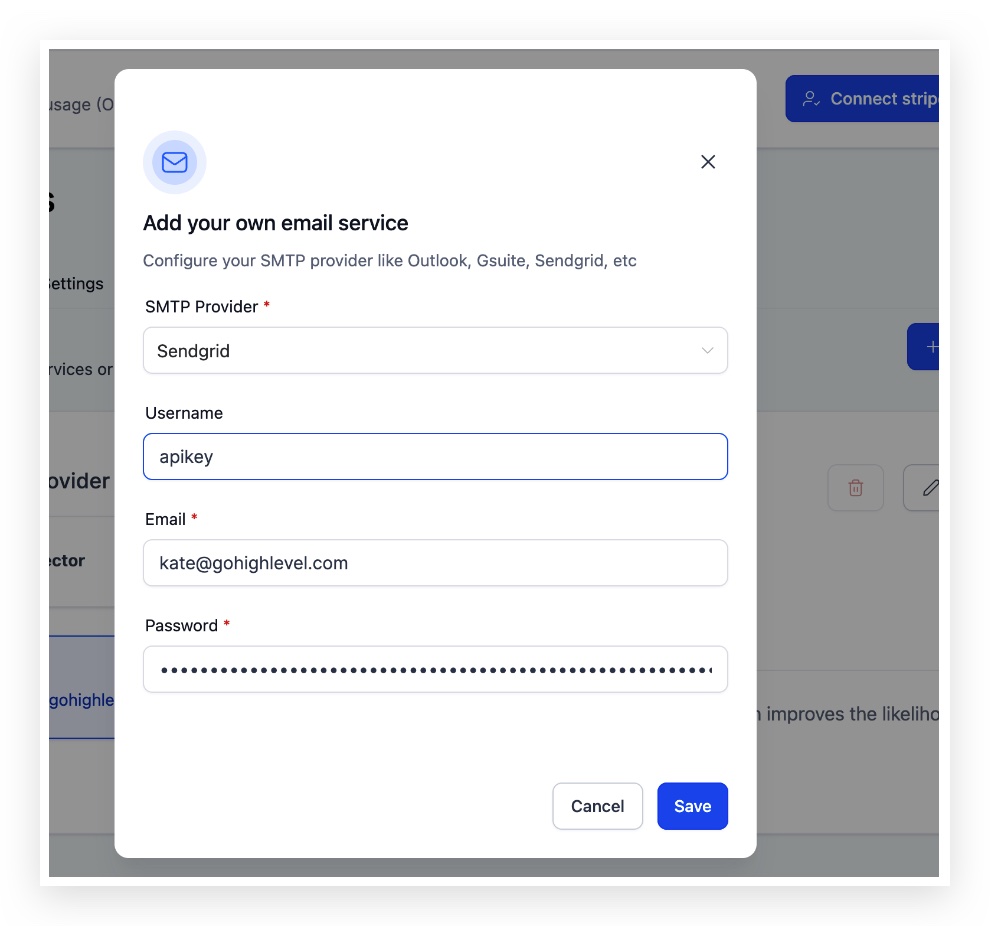
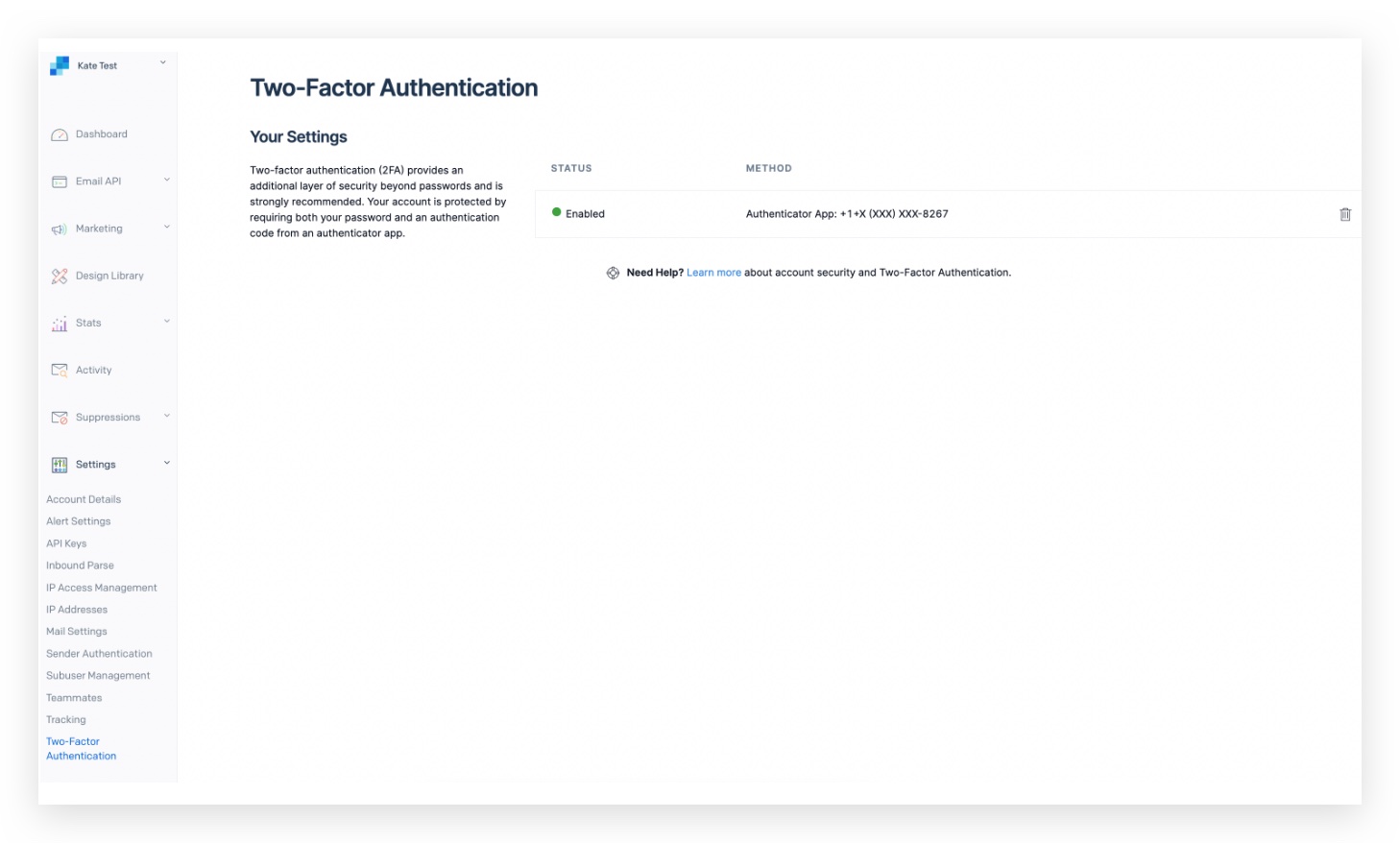
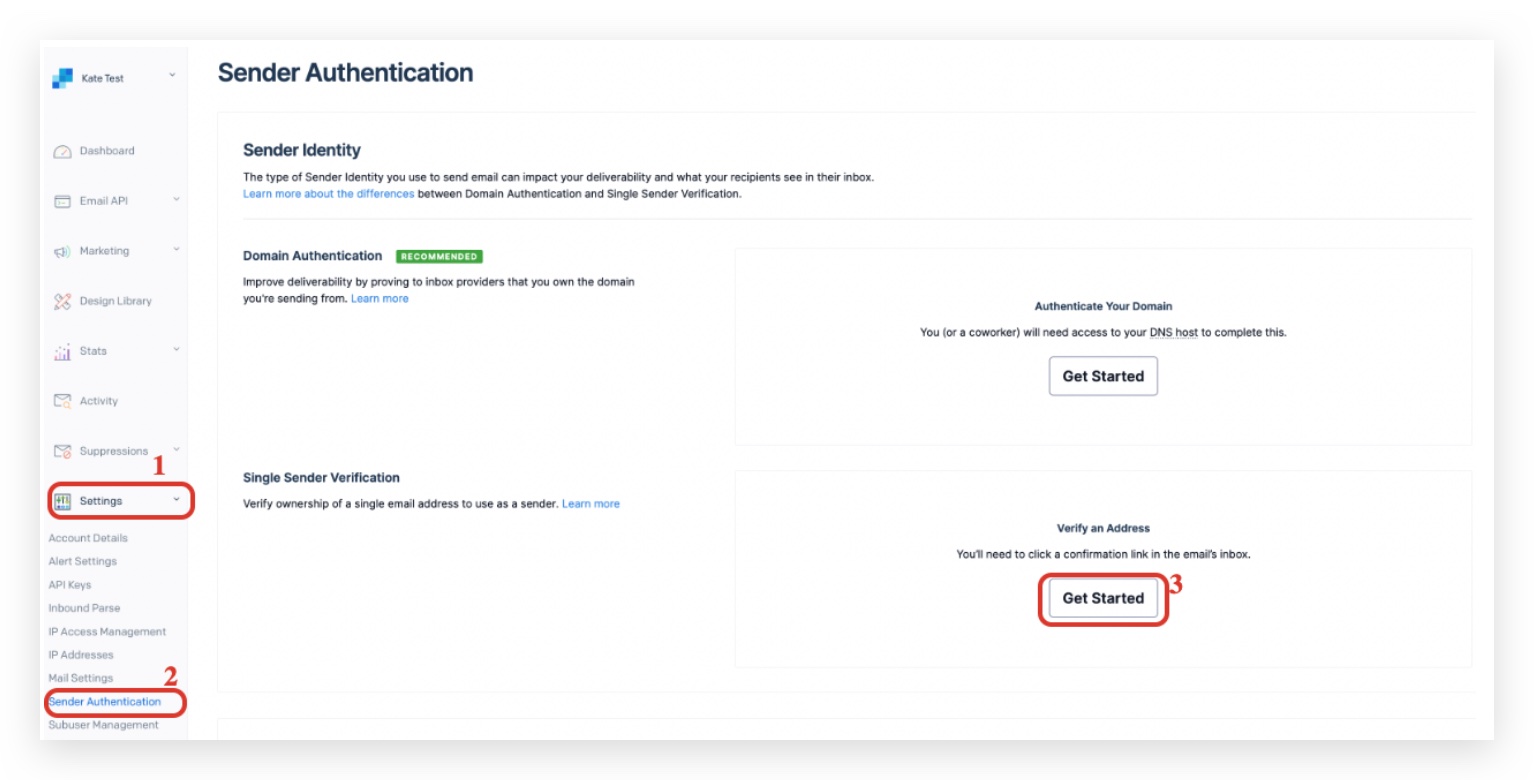
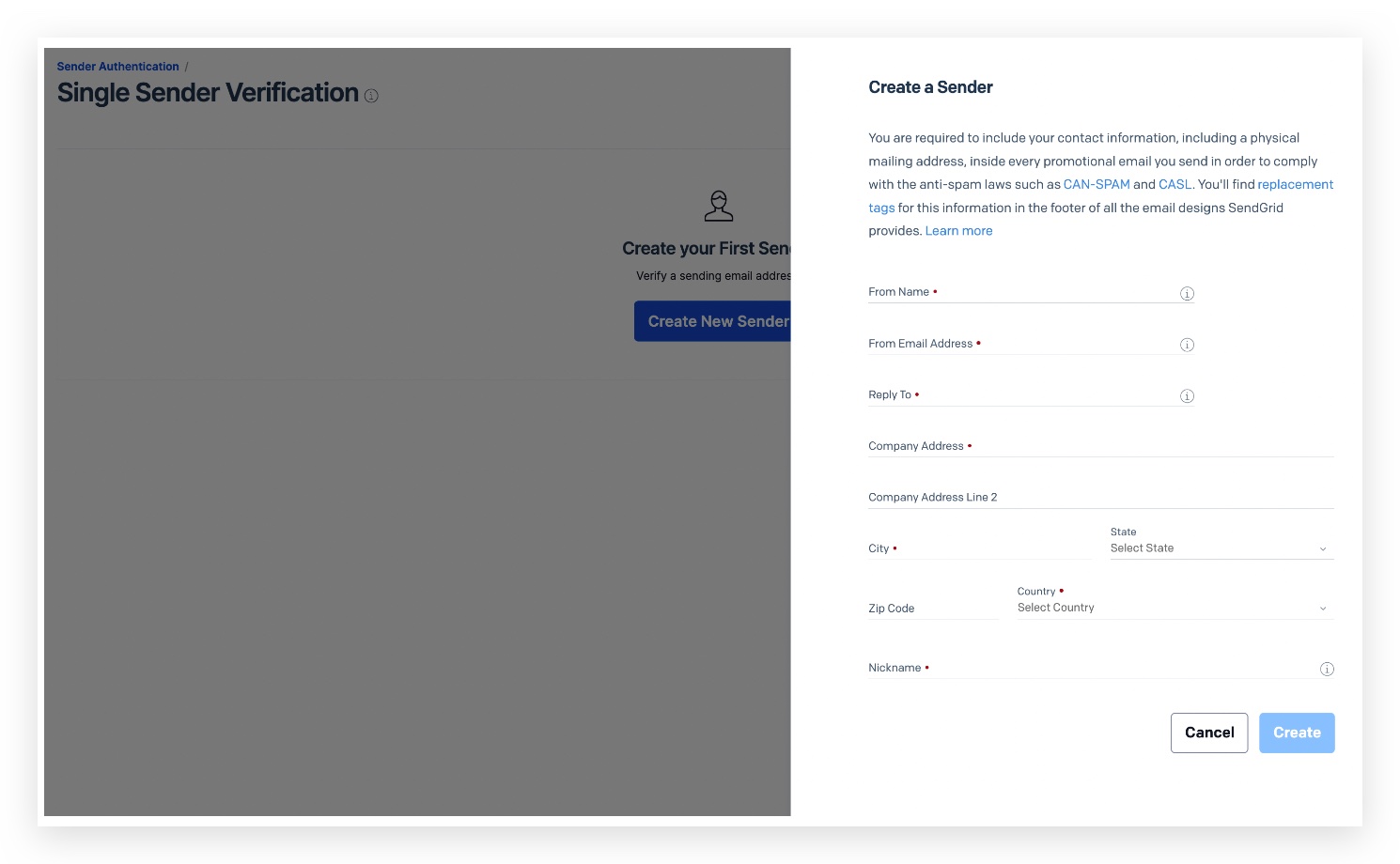
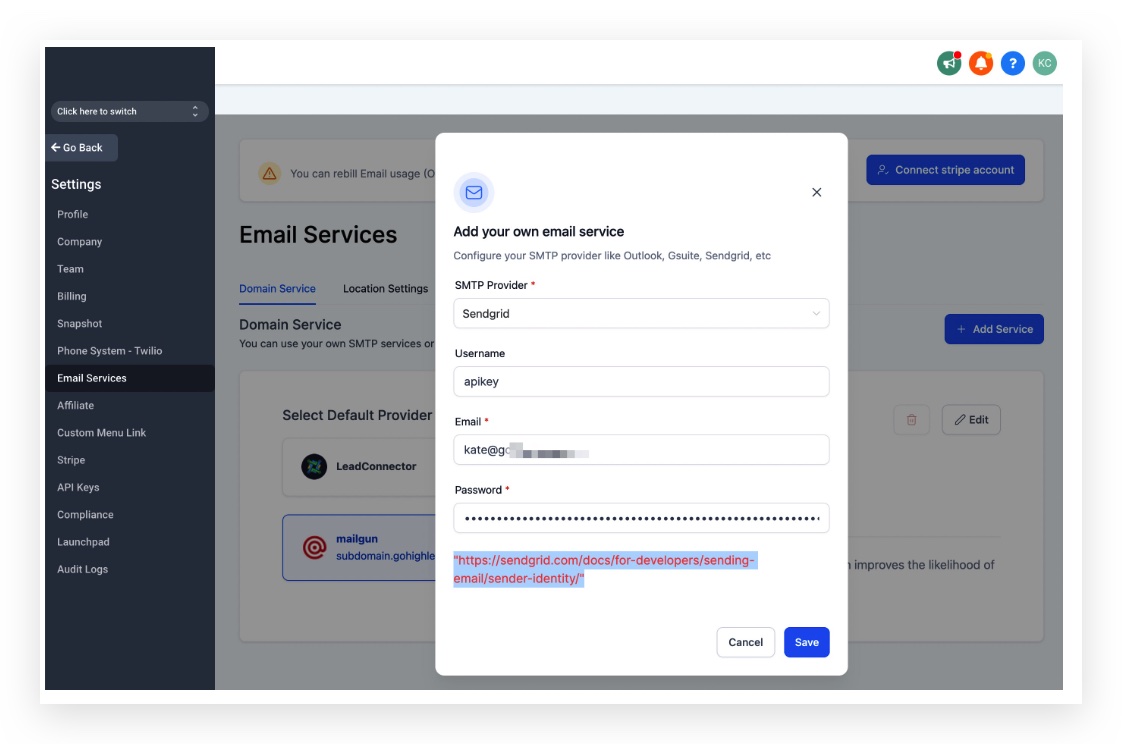
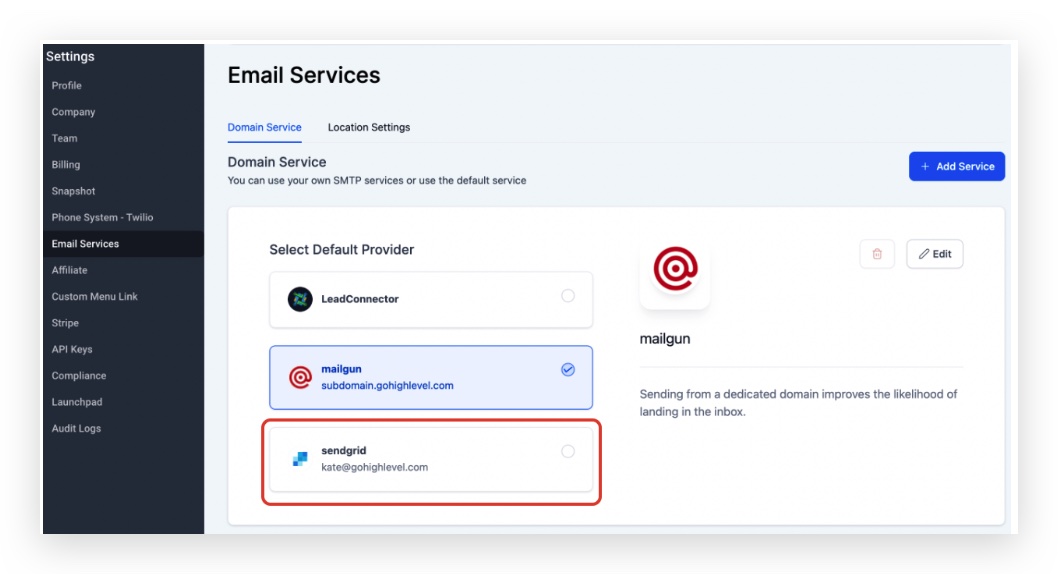
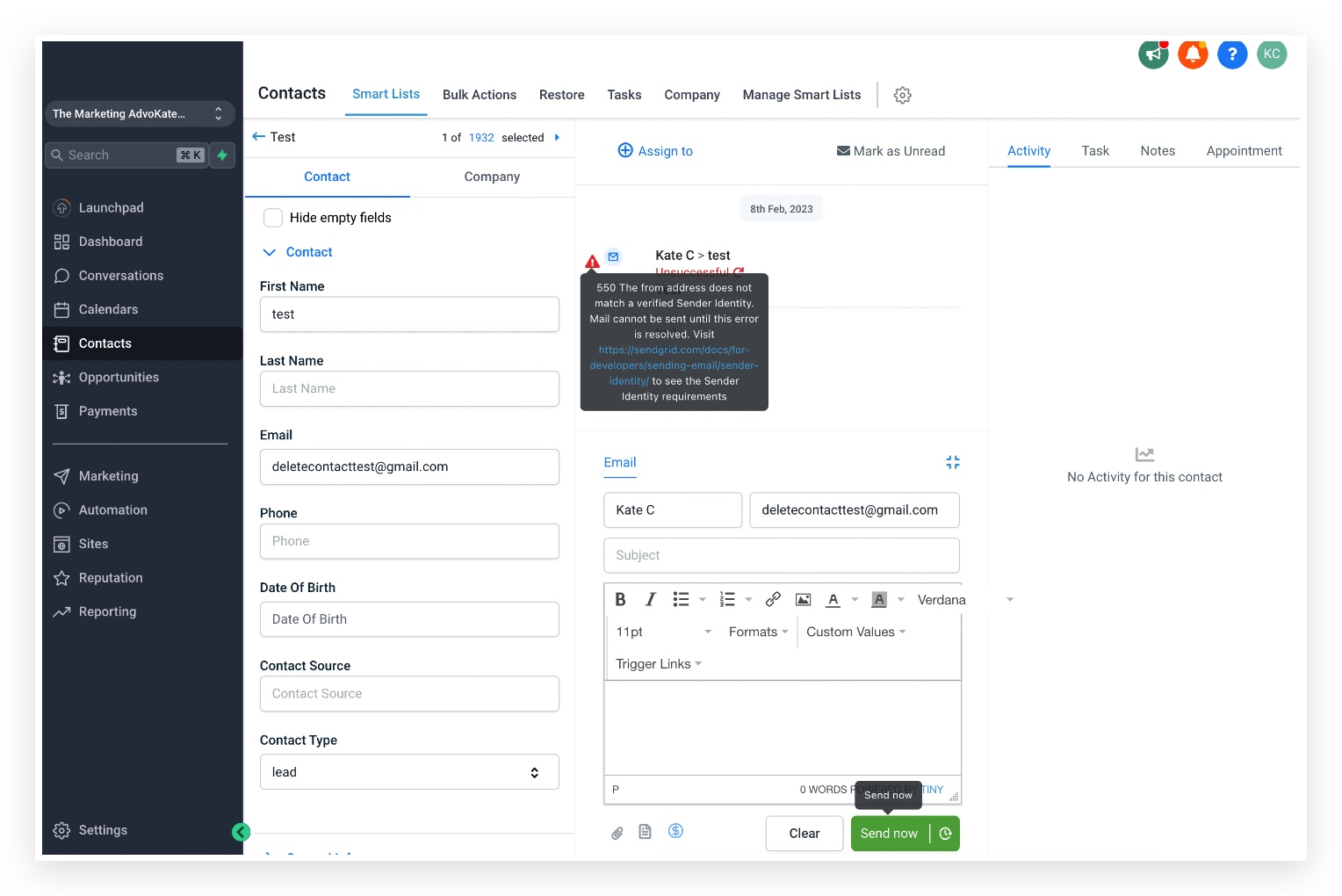
This help article provides a guide for integrating SendGrid as your SMTP provider within the Patient Copilot platform. It details the necessary configurations and settings to enable seamless email delivery through SendGrid. The article covers the technical steps required to properly configure SendGrid, ensuring optimal performance and reliability of your email communications. For any advanced troubleshooting or specific queries, please refer to the detailed instructions provided within the article. ## Step 1. Sign up for SendGrid https://signup.sendgrid.com/ ## Step 2. Go to Location Settings in your sub-account Click on Email Services > Add Service > Select Sendgrid from the dropdown If you want to integrate Sendgrid for all locations, you can set this up in the agency view: https://app.patientcopilot.ai/settings/email_services!(https://assets.patientcopilot.ai/d70dd76d3e72712a.jpg) ## Step 3. Get your SendGrid API Click on Settings > API keys > create API Key!(https://assets.patientcopilot.ai/f0982be0a1032ead.jpg) ### Type an API Key Name Make sure API Key Permissions is Full Access Click Create & View!(https://assets.patientcopilot.ai/e2d8c24d934f88b7.jpg) ### Copy the highlighted API Key Created!(https://assets.patientcopilot.ai/bb093deed4251068.jpg) ## Step 4. Add your API key to Patient Copilot Username: apikey Email: Your Sendgrid Login Email Password: Paste the highlighted copied API Key here Click Save!(https://assets.patientcopilot.ai/a4558288718fb705.jpg) ## Step 5. Setup 2FA with SendGrid!(https://assets.patientcopilot.ai/cdcf4ea963724e52.jpg) ## Step 6: Verify SendGrid email account as a single sender!(https://assets.patientcopilot.ai/19466782abd1ba48.jpg) Create a sender here with your Sendgrid Login Email!(https://assets.patientcopilot.ai/0d8b952e32bba9a7.jpg) ## Step 7: Integrate again by clicking Save again in Patient Copilot:!(https://assets.patientcopilot.ai/317fe09986a6eb99.jpg) Now you will see SendGrid as your SMTP Provider in Patient Copilot!(https://assets.patientcopilot.ai/ca10fa5fb9a25b46.jpg) If you are getting an error when you send a test email in the Conversation click the ⚠️(red triangle) icon to view more details about the error in the conversation!(https://assets.patientcopilot.ai/4a64ef51256c2064.jpg) 550 The from address does not match a verified Sender Identity. Mail cannot be sent until this error is resolved. Visit https://sendgrid.com/docs/for-developers/sending-email/sender-identity/ to see the Sender Identity requirements When you mask the sender email, make sure the sender email matches with the SMTP integrated email, or make sure th sender email is verified with Sendgrid: https://docs.sendgrid.com/ui/sending-email/senders * * * ## Frequently Asked Questions Currently no frequently asked questions. Submit feedback on this article to help is add questions to this section! * * * ## Related Articles