Integrating Outlook with Patient Copilot Calendars
This article guides you through connecting your Outlook Account to Patient Copilot Calendars for seamless event syncing and efficient calendar management. * * * ## What is Outlook Calendar Integration? Integrating your Outlook calendar with Patient Copilot helps you sync your bookings from Outlook Calendar to the system and vice versa. This ensures correct availability, prevents double bookings, and facilitates seamless scheduling and booking management. * * * ## Key Benefits of Integrating Outlook Calendar - Seamless Integration: Connect your existing Outlook (Microsoft) account in just a few clicks.
- Smart Availability: Automatically reflect your Outlook calendar availability in Patient Copilot scheduling.
- Avoid Double-Booking: Events from Outlook can be displayed as busy slots inside Patient Copilot.
- Streamlined Management: Centralize appointment handling while staying synced with external tools. - Automatic catch-up syncing: Appointments created while disconnected sync automatically after reconnect. Connecting a new calendar or switching the selected calendar resyncs upcoming appointments automatically. * * * ## Prerequisites for Outlook Calendar Integration 1. You must have an active Outlook (Microsoft) account.
- You need to be logged into your Patient Copilot user profile.
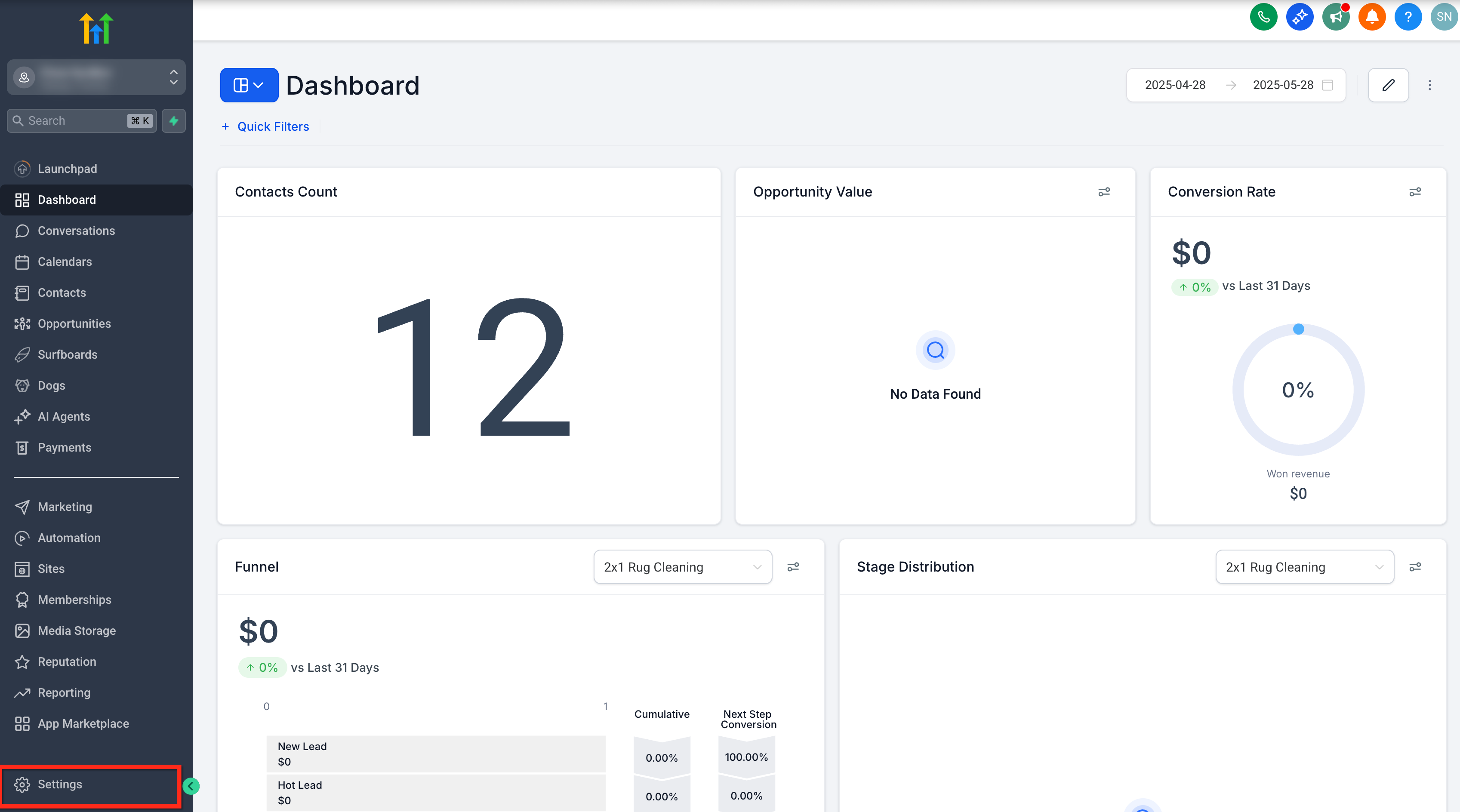
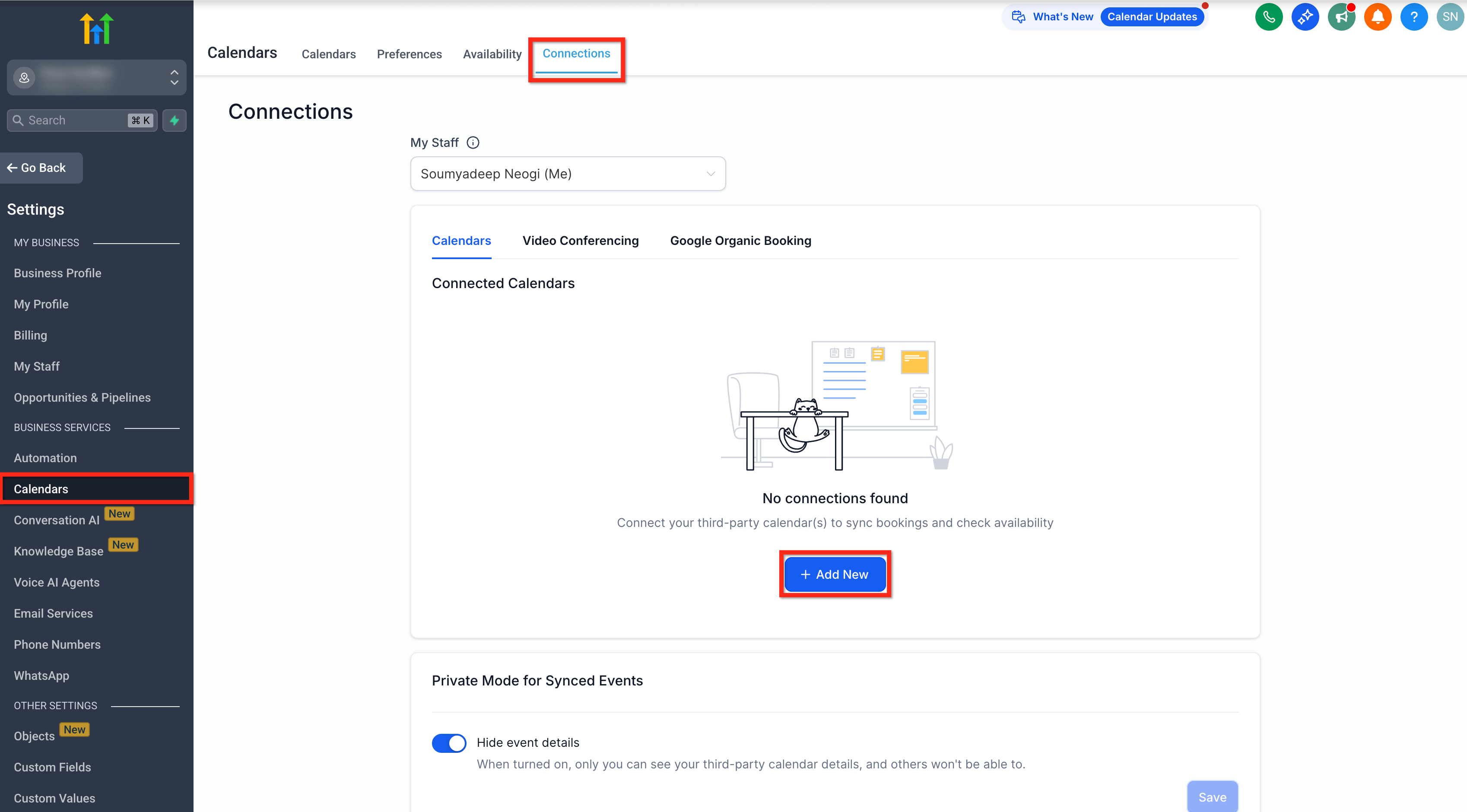
- Writer access is required to send events to Outlook. * * * ## Steps to Connect Outlook Calendar ### Step 1: Navigate to Calendar Connections 1. Go to your sub-account Settings.!(https://assets.patientcopilot.ai/88f4932ec739cdd9.png) 2. Select Calendars under Business Services.
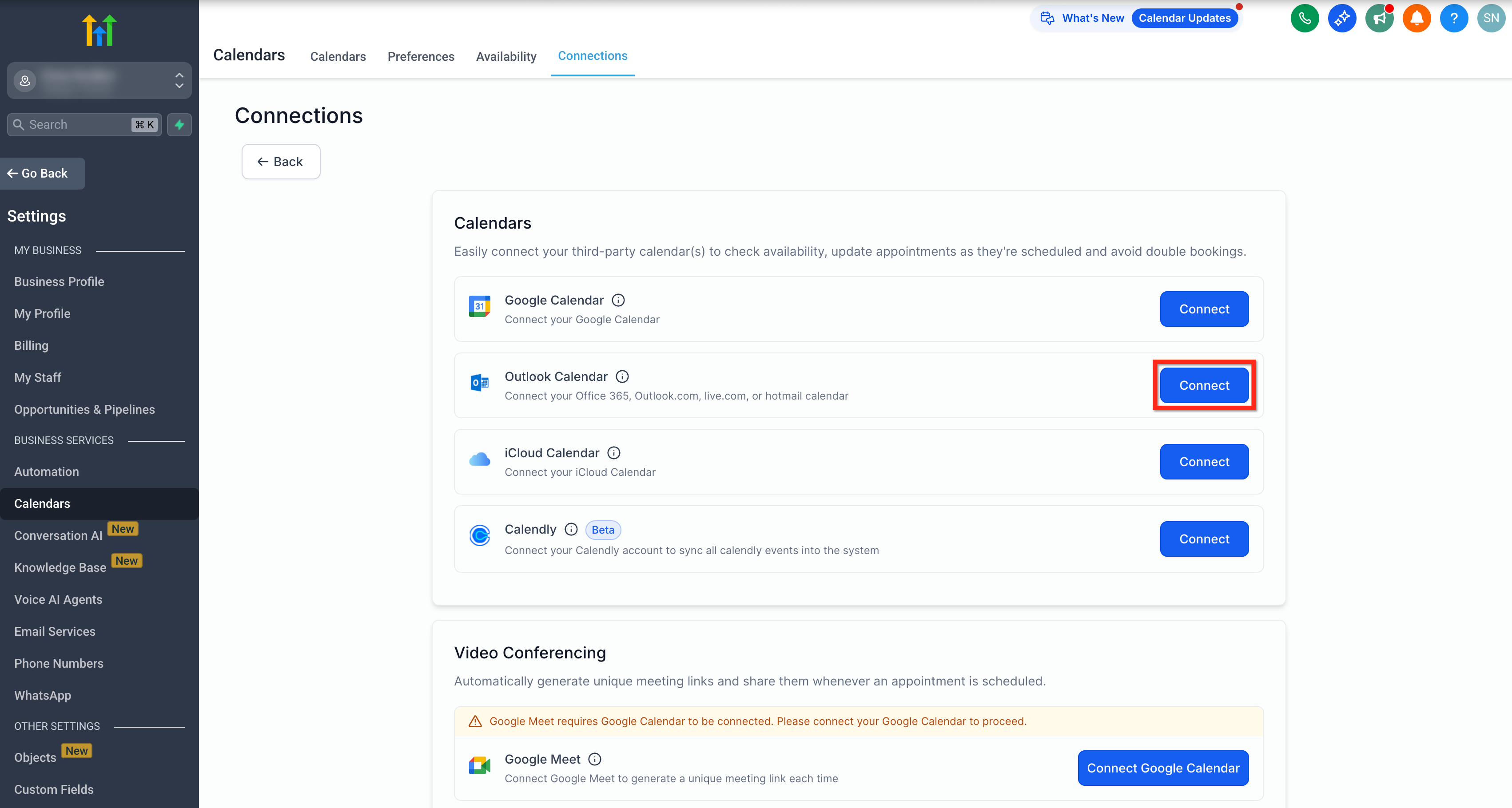
- Click on the Connections tab and then + Add New button to add a new calendar.!(https://assets.patientcopilot.ai/6ec92f4966612ee7.png) ### Step 2: Authenticate with Outlook 1. From the Connections page, click on the Connect button beside Outlook****Calendar.!(https://assets.patientcopilot.ai/2d55b068235d46b3.png) 2. Sign in to your Outlook Account.
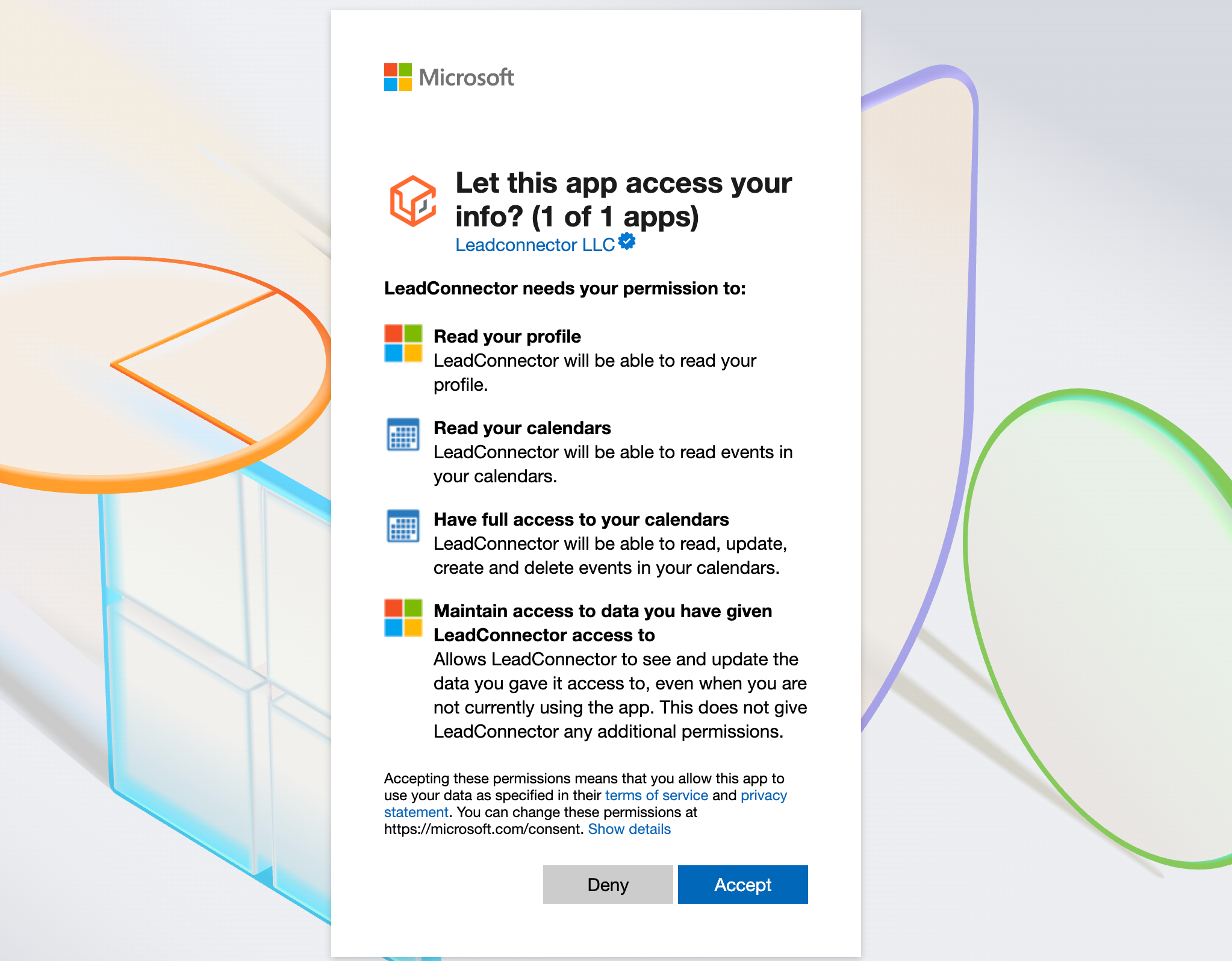
- Accept the necessary permissions to complete the authentication process.!(https://assets.patientcopilot.ai/17fefdb8f23bf820.png) Supported: Microsoft 365 / Exchange Online accounts. Not Supported: Stand-alone or on-premises Microsoft Exchange servers. * * * ## Frequently Asked Questions Q: Does Outlook integration work with event calendars? No, Outlook integration does not work with event calendars. Event calendars support only Google Integration. Q: Can I integrate multiple Outlook accounts? Yes, with the latest enhancements you can integrate more than one outlook account. Q: What happens if I disconnect Outlook? Patient Copilot will no longer receive availability or event data from Outlook, and calendar-based scheduling may be impacted. **Q: What if my Outlook calendar was deleted and Patient Copilot shows an error banner?**Click Fix This on the banner to review deleted calendar instances and where they’re connected in Patient Copilot. Then select Remove Deleted Calendars to remove broken connections and restore an error-free setup. Q: Are there any limitations to Outlook integration across accounts? No. With the latest enhancement, the same Outlook account can be connected across multiple sub-accounts. Q: What types of Outlook accounts are supported? Patient Copilot supports Office 365, Outlook.com, live.com, and hotmail calendar. Q: What scenarios are not supported by this integration? If you use Outlook Desktop and your events are not synced to the cloud, those events will not be visible to Patient Copilot. We also do not support Outlook accounts hosted on on-premise Exchange servers. * * * ## Related Articles - How to sync Patient Copilot Calendars With Outlook - Two Way Email Sync for Outlook - (https://help.patientcopilot.ai/en/support/solutions/articles/155000002374)[Setting Up Linked Calendars & Conflict Calendars](https://help.patientcopilot.ai/en/support/solutions/articles/155000002374)