Introduction to Ask AI Assistant
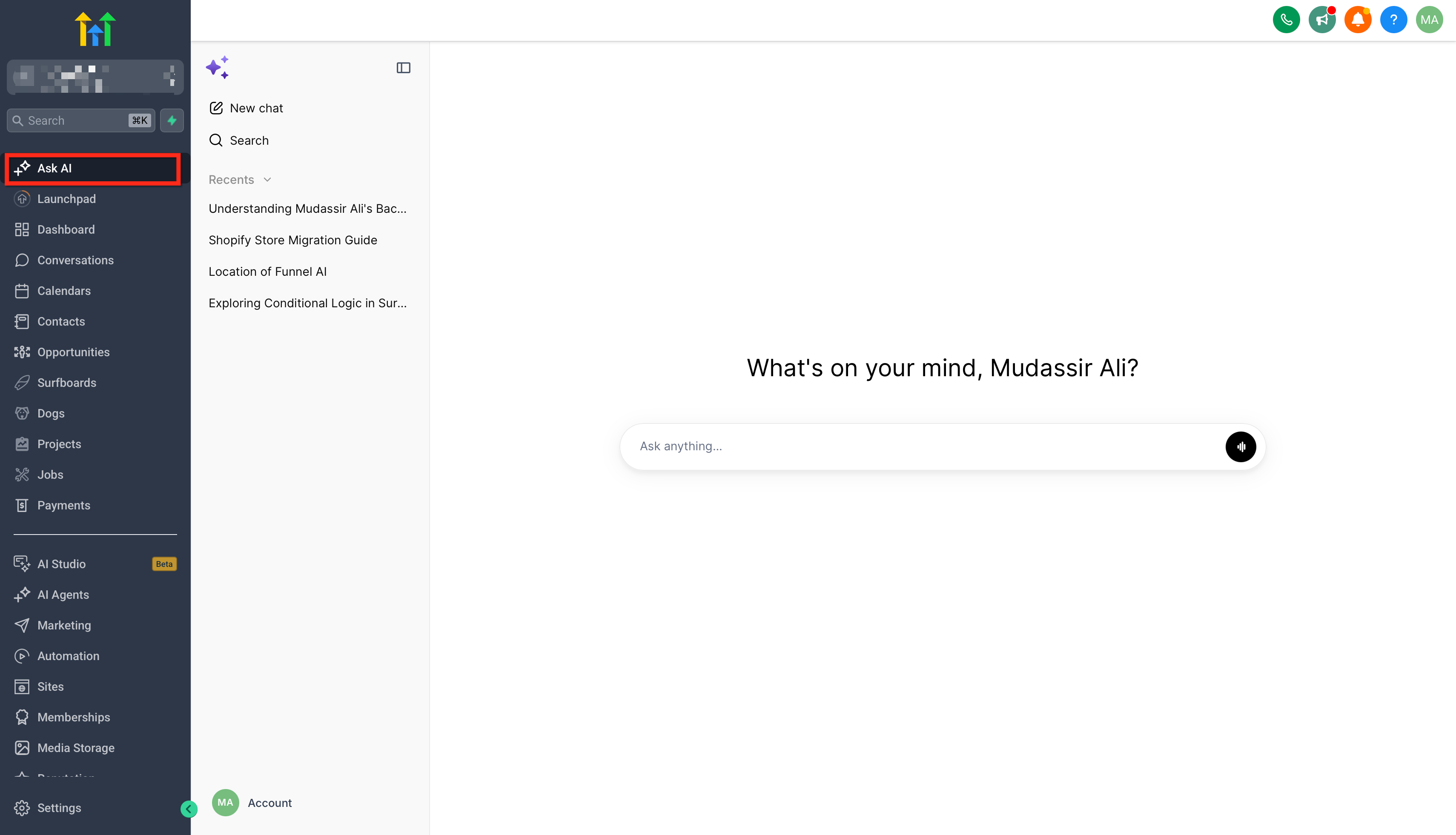
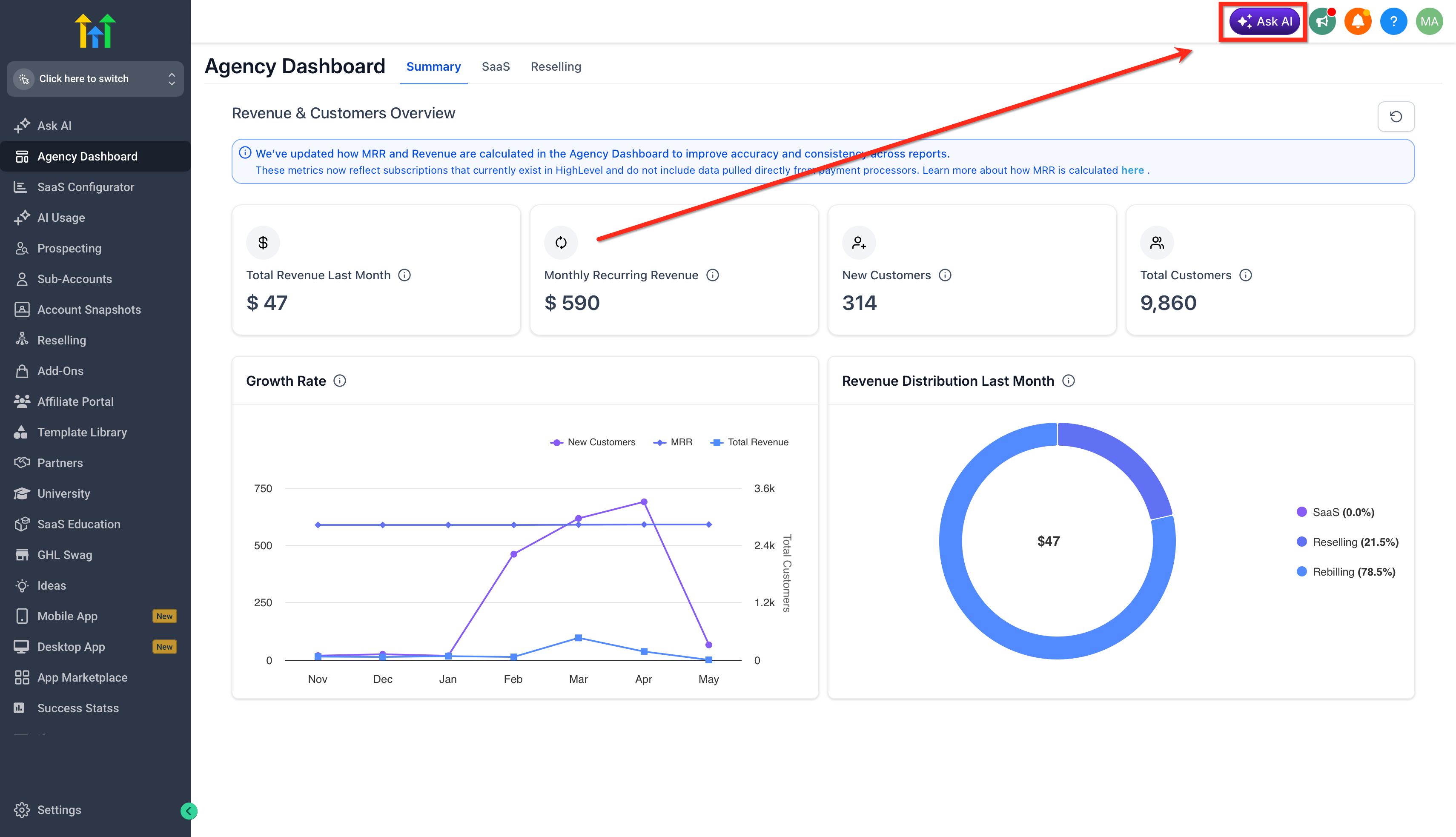
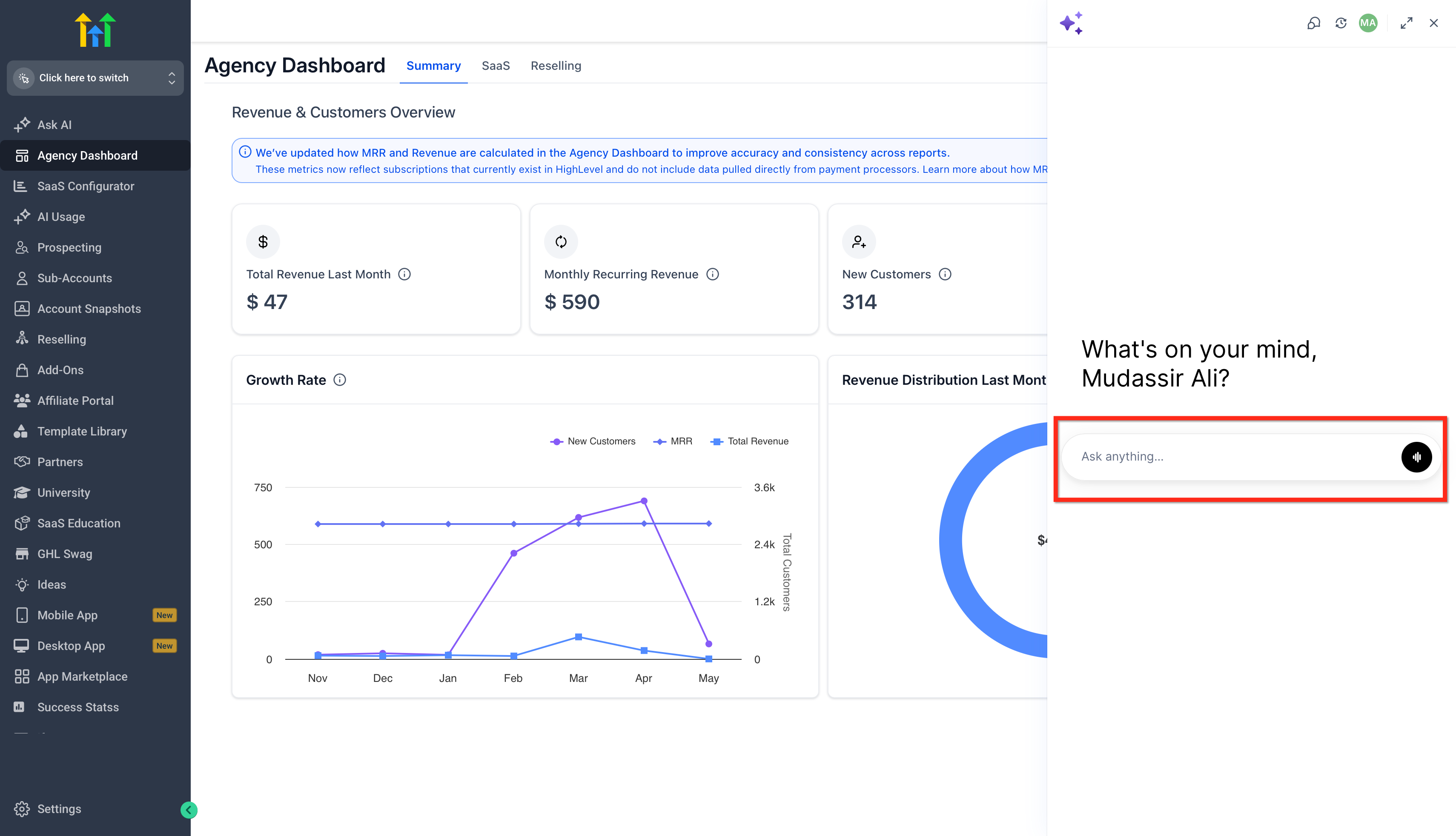
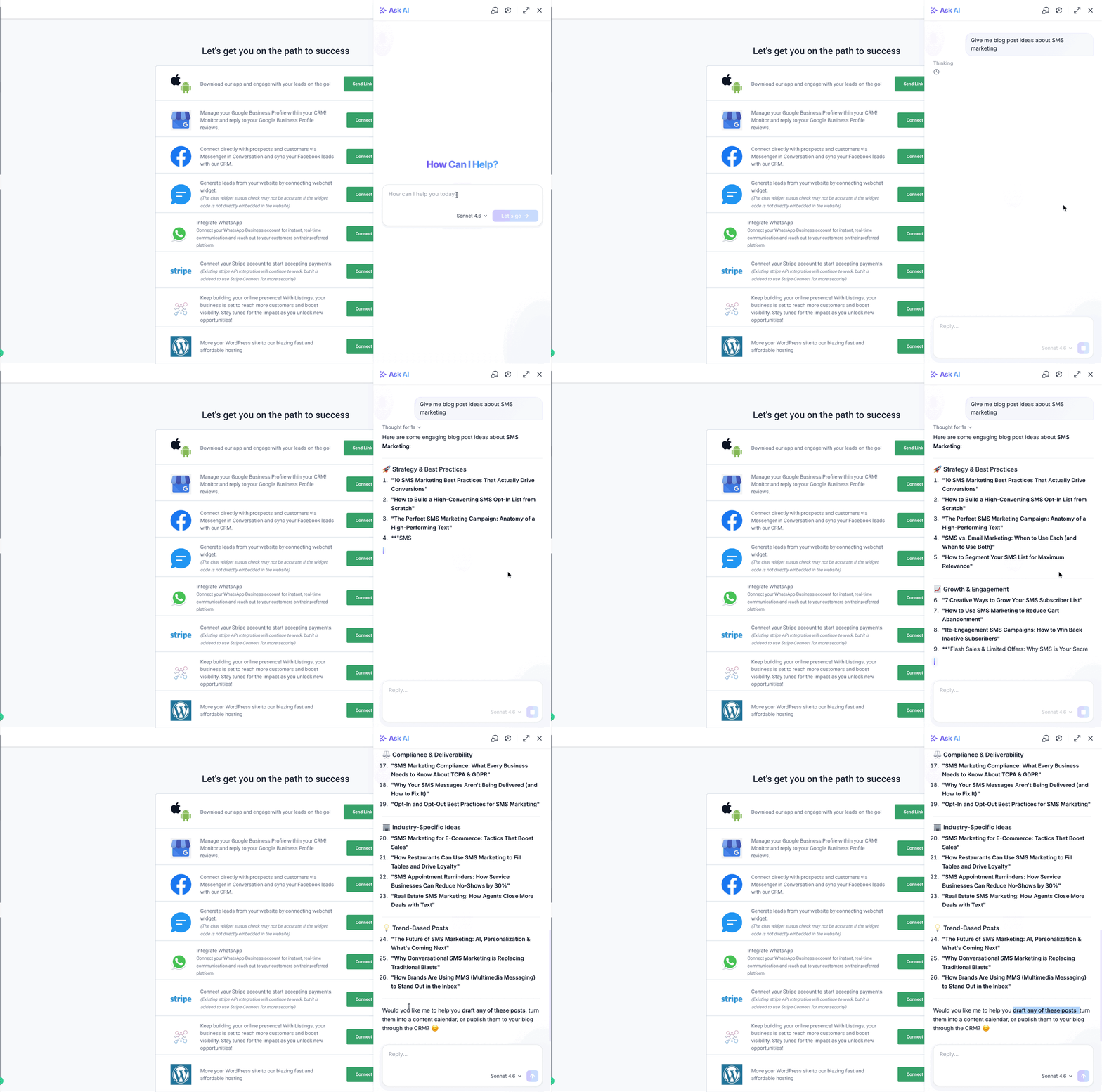
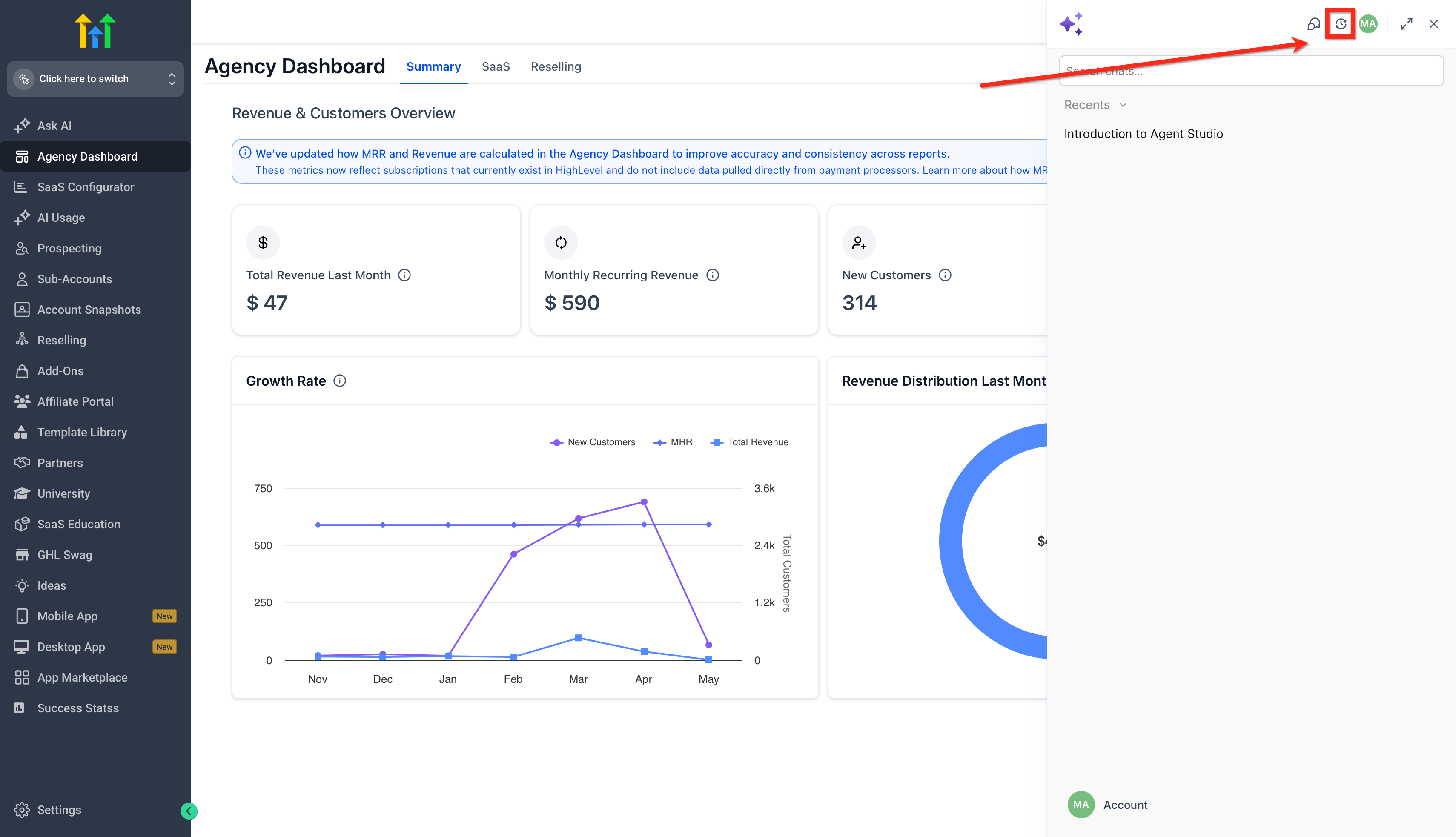
We’re excited to roll out a new AI-powered assistant inside Patient Copilot, Ask AI. Whether you need content written in your brand voice, want to create a new community, or just need quick answers, Ask AI is here to help. No need to jump between tools or tabs. IMPORTANT: Ask AI Voice is currently available in Labs. If you don’t see it, ask an admin to enable it at Agency Settings > Labs. For more, refer to Labs Features - Complete Overview. * * * ## Who can use Ask AI? Currently Ask AI is available to all Agency Admins and Agency Users but only available to Sub-account Admins and Sub-account Users on the 97$ Unlimited AI Employee Plan. It can be found and used in the top navigation bar, click on the icon and enter your prompts. * * * ## Core Capabilities of Ask AI Assistant Here’s a closer look at what Ask AI currently supports: | Capability | Description | Example Prompts | | --- | --- | --- | | Branded Content Generation | Generate content using your Brand Voice settings to create more consistent messaging across emails, social posts, ads, and campaigns. | “Write a Facebook ad post using my brand voice.” “Create a social media caption for our spring promotion.” | | Create Communities | Set up a new community through guided chat instead of navigating through multiple menus. Ask AI walks you through the setup process step by step. | “Help me set up a community for local business owners.” “Create a community for my coaching clients.” | | Answer Questions and Generate Ideas | Get quick answers, campaign inspiration, content ideas, CTA suggestions, or guidance on how to approach a task in Patient Copilot. | “Give me blog post ideas about SMS marketing.” “Suggest CTA ideas for a lead magnet campaign.” | | CRM Actions and Data Retrieval | Find, review, and act on CRM information faster using supported actions and natural language requests. | “Show me tomorrow’s booked appointments.” “Create a contact named John Doe with phone number 555-1234.” | | Contact Summary Agent | Summarize contact records, including communications, payments, appointments, and tasks, without reviewing multiple tabs manually. | “Summarize this contact.” “What should I know before following up with this lead?” | | Funnel Creation Agent | Create funnels through a guided AI experience using business details, templates, brand personalization, and native Patient Copilot elements. | “Generate a lead magnet funnel.”“Create an appointment funnel for a dental practice.” | | Image Generation and Editing | Generate and edit images for campaigns, websites, emails, and social posts directly inside Patient Copilot. | “Generate an image for a summer sale campaign.” “Edit this image to make it brighter and more modern.” | | MCP-Powered Actions | Complete supported Patient Copilot actions from chat, such as creating contacts, updating opportunities, listing appointments, rescheduling appointments, applying tags, or making supported bulk updates. | “Tag all contacts from last week’s webinar as Webinar-2025.” “List opportunities lost this week.” | * * * ## How to Use Ask AI Assistant Ask AI can be opened from both Agency and Sub-account views, giving users quick access to AI-powered assistance wherever they are working in Patient Copilot. Users can launch Ask AI from the top navigation bar for fast access or from the left sidebar when they want to open the dedicated Ask AI workspace. ### Access Ask AI from the Top Navigation The top navigation route is useful when users want quick access to Ask AI from anywhere in Patient Copilot. This is the fastest way to open the assistant while working in another area of the platform. 1. Click on the Ask AI Bot icon in the top navigation bar.!(https://assets.patientcopilot.ai/d09bf72c8a8e0ca0.png) 2. Type in or Speak what you need: content, a new community, ideas, or questions.!(https://assets.patientcopilot.ai/979e326be60971a0.png) 3. The bot will guide you or respond instantly with what you asked for.!(https://assets.patientcopilot.ai/fbabd9e846aa30f3.gif) You can start with something like: 1. “Give me blog post ideas about SMS marketing.” 2. “Write a Facebook ad post using my brand voice.” 3. “Help me set up a community for local business owners.” 4. You can also view the chat history, and go back to older chats directly by toggle next to the full-screen toggle.!(https://assets.patientcopilot.ai/9cea8ec6f3cdcd76.png) Ask AI opens in a full-screen workspace, so it is not a chatbot tucked in a corner. Use it to focus on real work and complete higher-volume tasks without leaving Patient Copilot. You can access Ask AI from the left navigation at both the Agency level and the Sub-account level. 1. In your account, look at the left navigation panel. 2. Click Ask AI (it appears as a dedicated menu item). 3. In the Ask AI workspace, you can: - Click New chat to start a fresh thread.
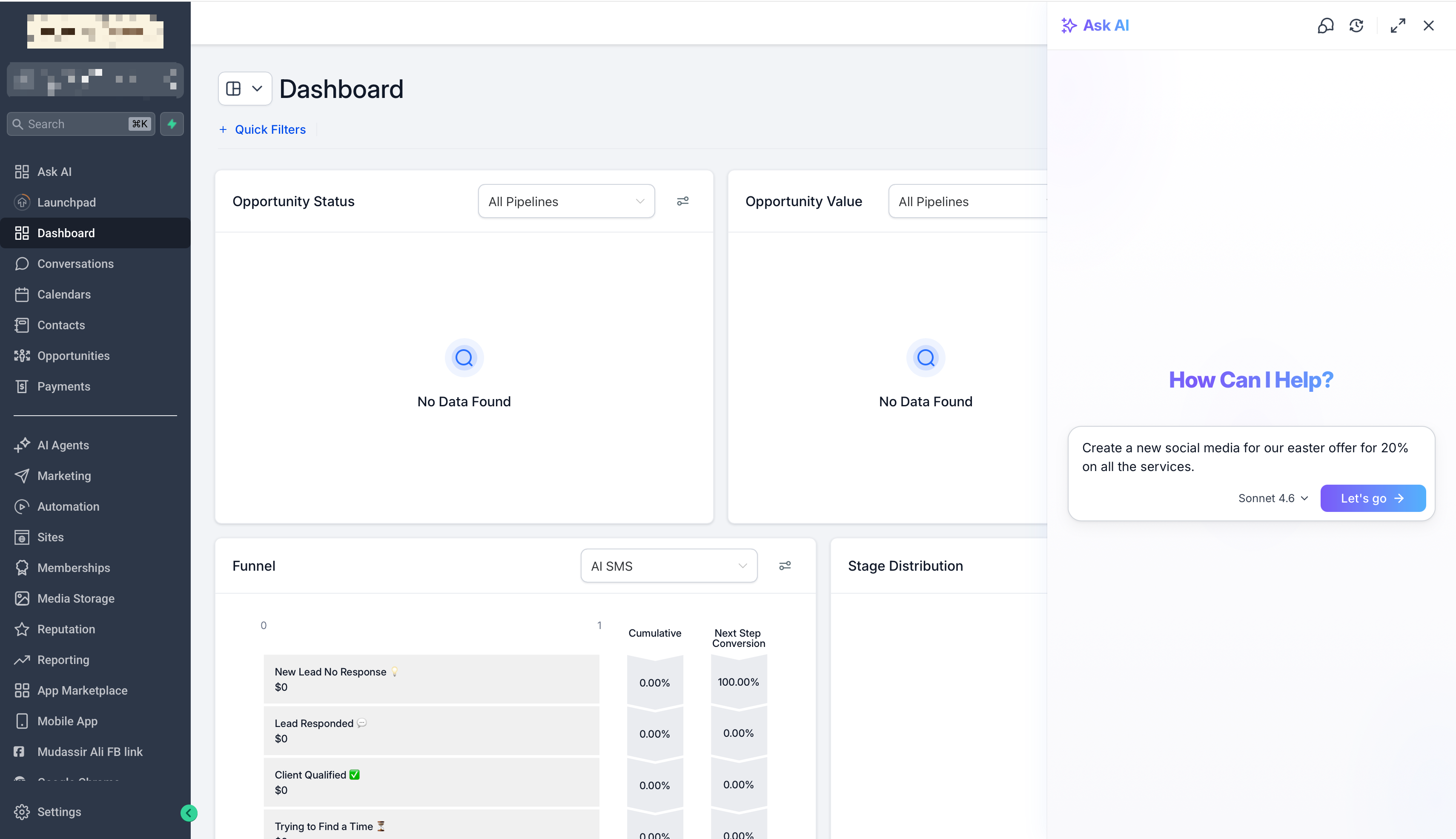
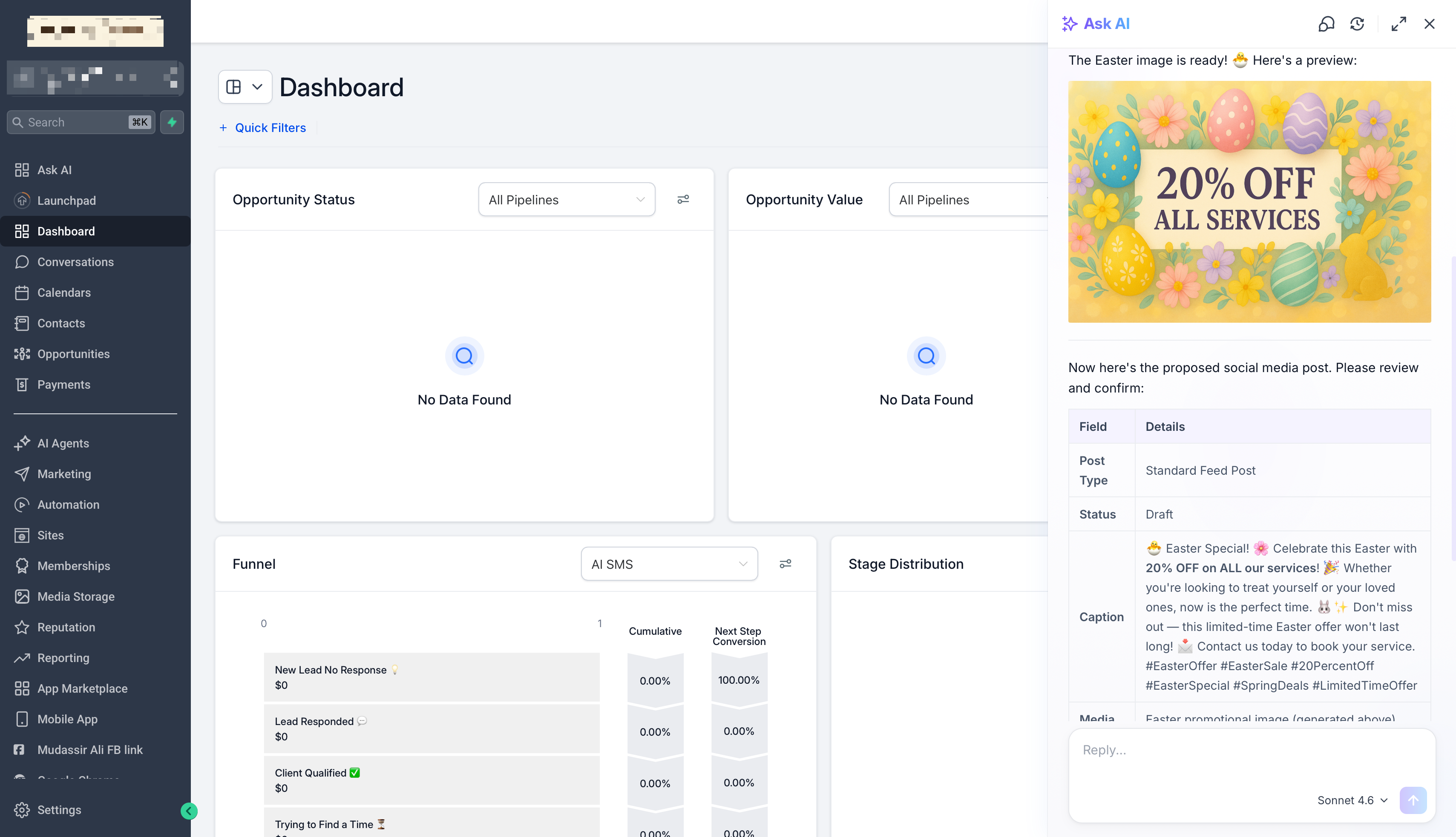
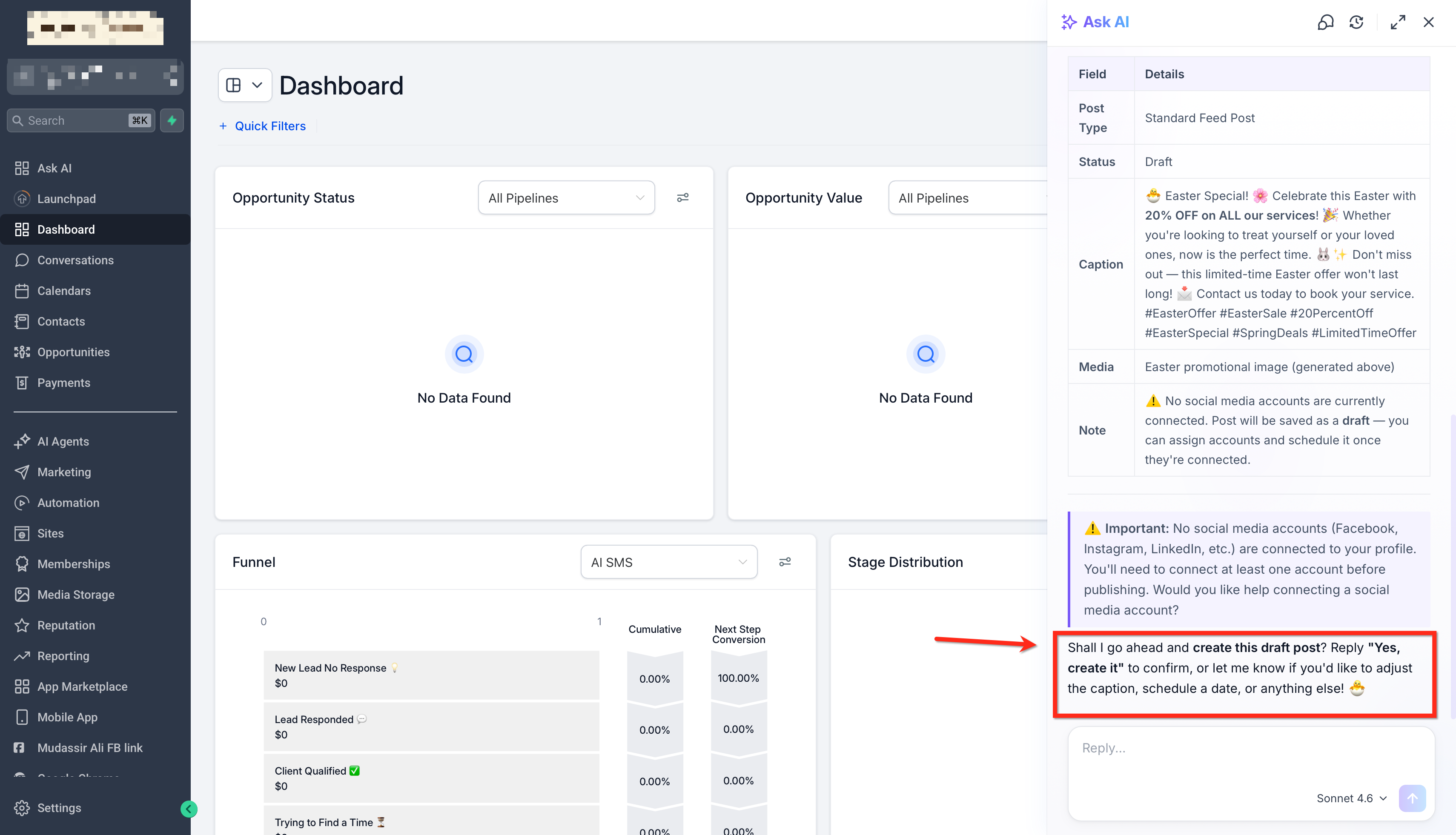
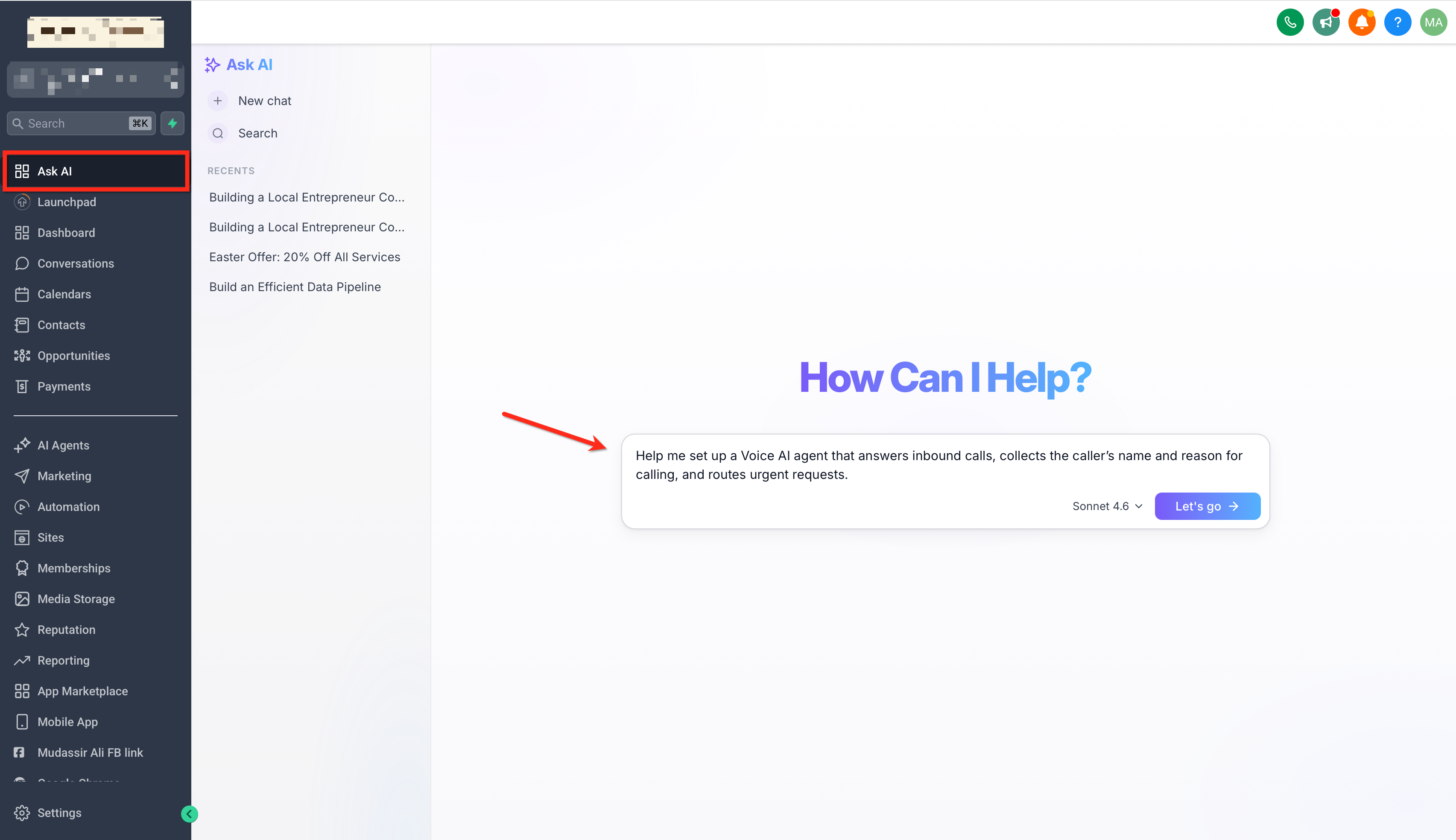
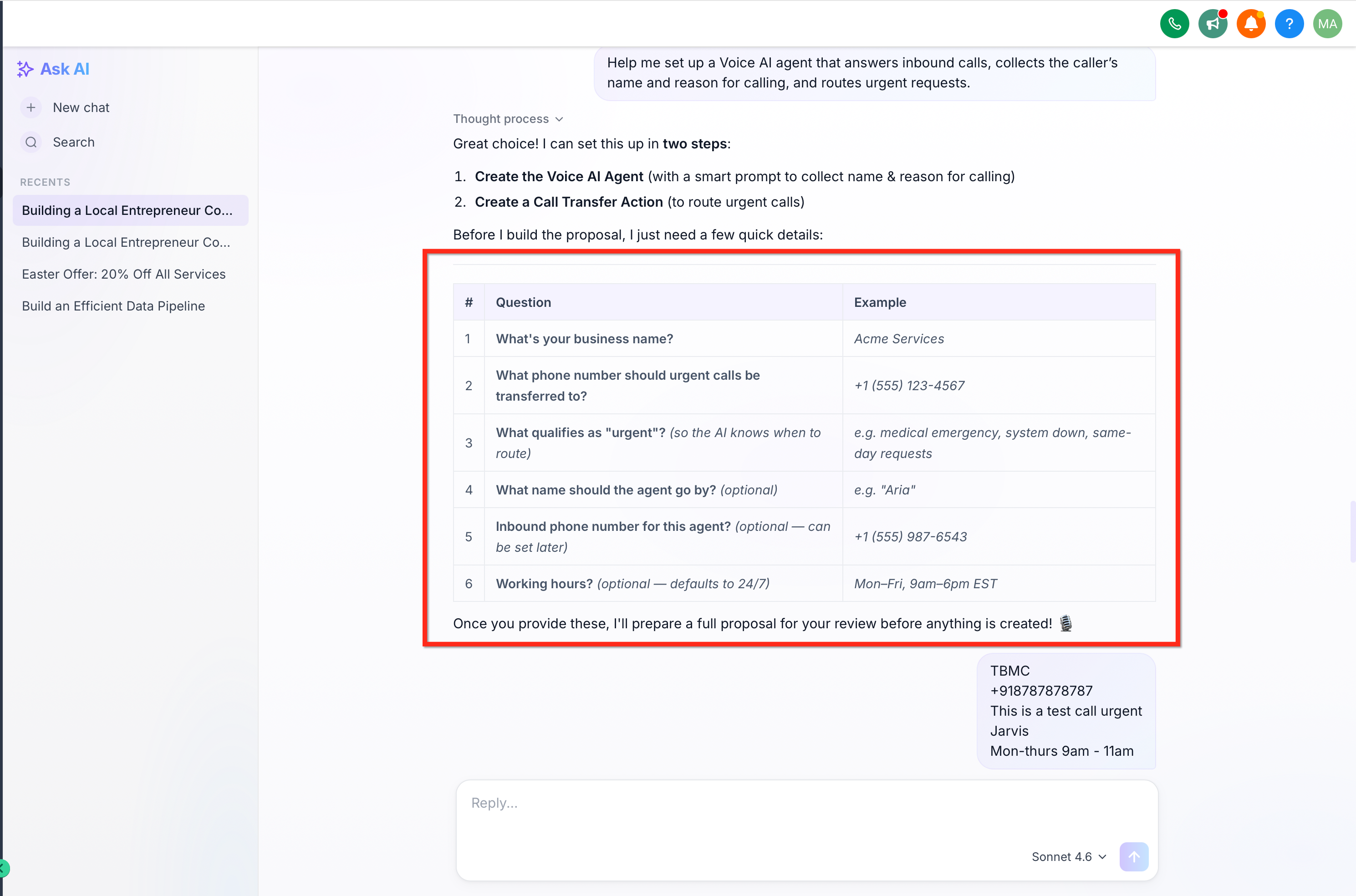
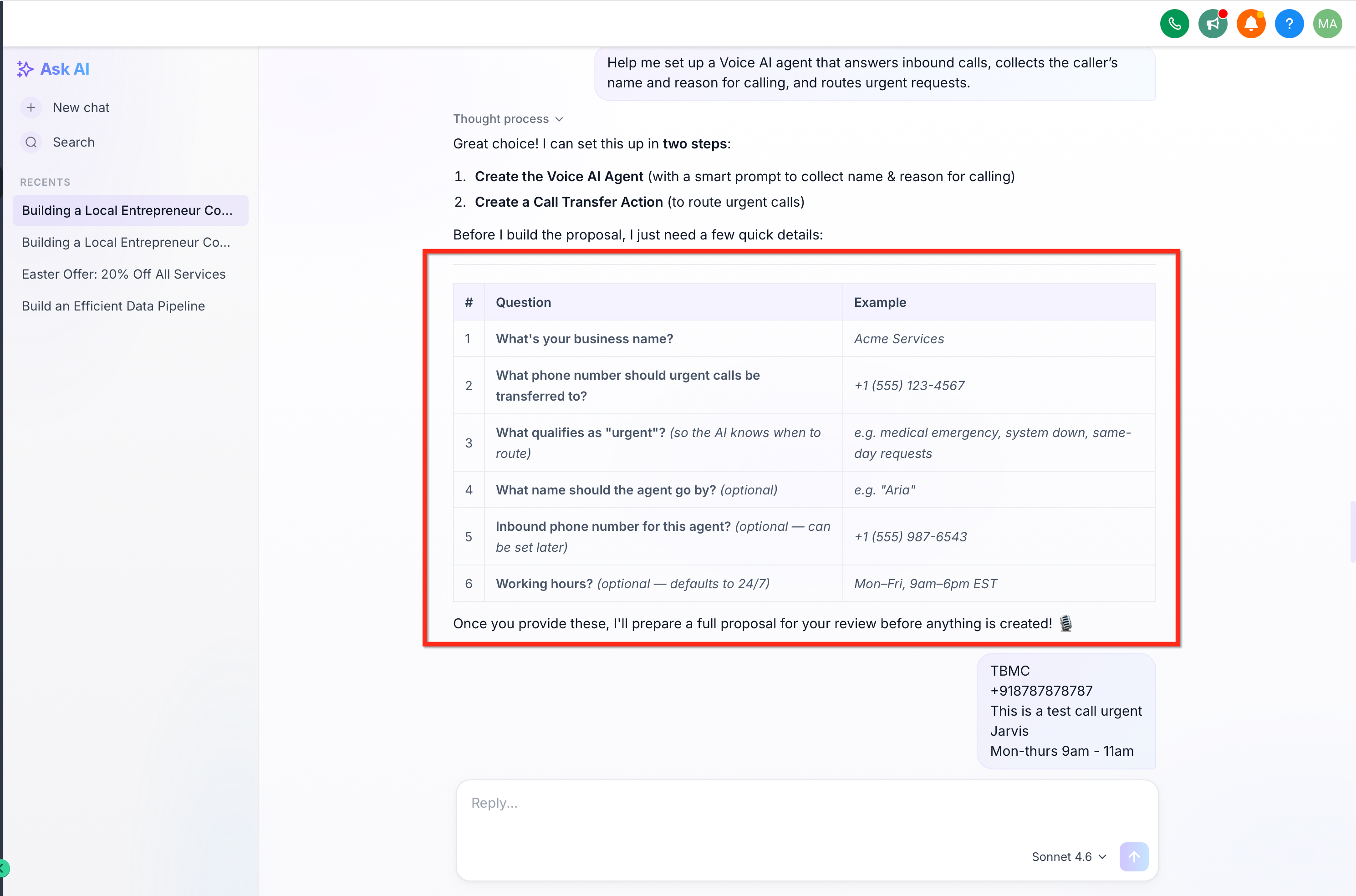
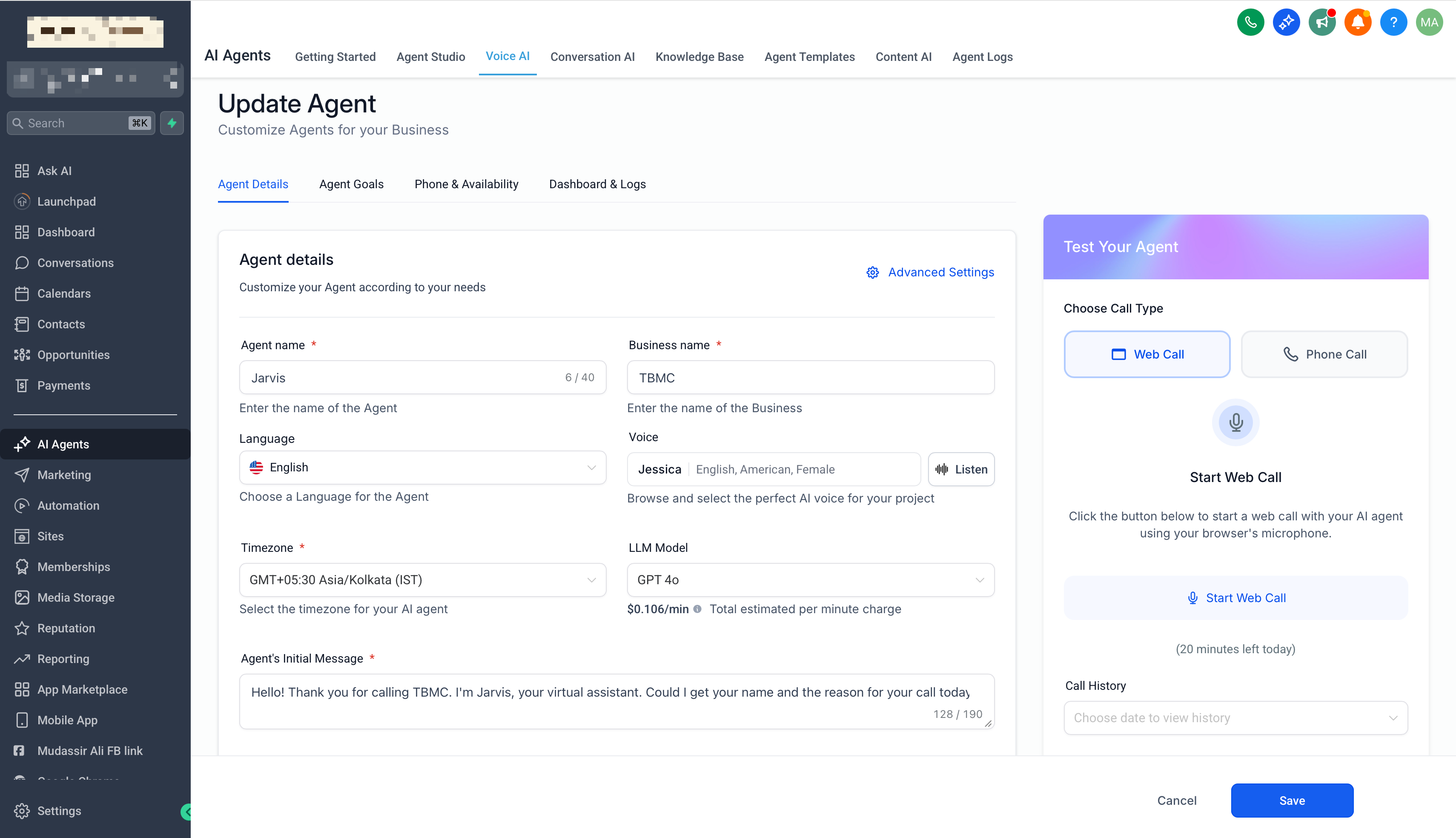
- Use Search to find previous conversations (if available).!(https://assets.patientcopilot.ai/5b74d6e508c9aebd.png) * * * ## Ask AI Assistant Examples Practical examples help users understand how Ask AI turns simple prompts into guided actions. These examples show how users can generate branded content and create a Voice AI Agent directly from Ask AI. ### Example 1: Generate Branded Content 1. Click on the Ask AI Bot icon in the top nbar. 2. Type your request, for example: “Create a new social media for our easter offer for 20% on all the services.” Note: Make sure you have setup Brand Voice, to ensure personalized content.!(https://assets.patientcopilot.ai/7adb7190e9b328ba.png) 3. The assistant will pull in your brand voice settings and return a ready-to-use draft, the assistant can refine the provided text and modify it to meet your specific needs.!(https://assets.patientcopilot.ai/ac37c6e4fa263b00.png) 4. Click on create draft or make changes as per your need and then execute accordingly.!(https://assets.patientcopilot.ai/c52af3eaaa9db93a.png) ### Example 2: Create a Voice AI agent Use Ask AI to set up a Voice AI agent and route urgent calls using a Call Transfer Action. 1. Open Ask AI and Enter a prompt like: “Create a Voice AI agent that answers inbound calls, collects the caller’s name and reason for calling, and routes urgent requests.”!(https://assets.patientcopilot.ai/bb3745a6ba829bcd.png) 2. Answer the setup questions the assistant asks. The assistant collects a few quick details before it creates anything such as your business name, the phone number to transfer urgent calls to, what counts as “urgent” (so it knows when to route), the agent’s name, etc. Enter the details as prompted.!(https://assets.patientcopilot.ai/b2ec78f74e5cc9c1.png) 3. Review the proposal, then confirm creation. Once you provide the details, the assistant prepares a proposal for your review. After you confirm, it creates the Voice AI Agent.!(https://assets.patientcopilot.ai/4453f5f4784b9d49.png) 4. You can then test the setup with an inbound call or Test Your Agent to confirm urgent calls route correctly.!(https://assets.patientcopilot.ai/19759bf403292f31.png) * * * ## Frequently Asked Questions Q: What changed with Ask AI list-based updates? Ask AI now updates list-based elements at the item level instead of rewriting the entire list. Only the specific item being modified is updated. Q: Which elements support item-level updates? New support includes Testimonials, Pricing Tables, Logo Showcase, and Number Counters. Existing elements like FAQs, Image Sliders, Photo & Video Gallery, and Navigation Menus also benefit from improved updating behavior. Q: Will Ask AI overwrite my entire FAQ or Pricing Table when I make a small change? No. With this update, Ask AI modifies only the specific list item requested, reducing the risk of unintended overwrites. Q: Can I speak prompts instead of typing them? Yes, when voice input is available, users can speak prompts directly into Ask AI. This helps users create content, ask questions, or request supported actions faster without manually typing each prompt. Q: Can Ask AI create communities? Yes. Ask AI can help guide users through creating a community by asking for the required details and assisting with setup. Q: Can Ask AI summarize contacts? Yes. Ask AI can summarize contact details such as conversations, appointments, payments, and tasks to help users quickly understand contact history. * * * ## Related Articles - Contact Summary Agent in Ask AI
- Funnel Creation Agent in Ask AI
- MCP Server within Ask AI
- Ask AI Upgrades