How to find your Affiliate Customers and Commission in your Affiliate Portal
Sent your affiliate link to a new Patient Copilot customer but don’t know where to check if they are under you? Here we will show you all the steps you can take to find your affiliate customer! Covered in this article - [Log into Patient Copilot to view your Affiliate Dashboard!](#Log-into-Patient Copilot-to-view-your-Affiliate-Dashboard!) - 1. Click on Affiliate Portal - 2. Start on your Affiliate Dashboard - 3. Click on Referrals - 4. Leads - 5. Click on Free / Trial - 6. Paying & Cancelled
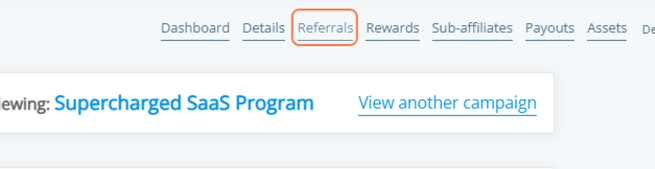
- Super Charged SaaS Campaign - 1. Click “View Campaign” under Supercharged SaaS Program - 2. Click on Referrals - 3. Referral tabs in the Supercharged SaaS Program
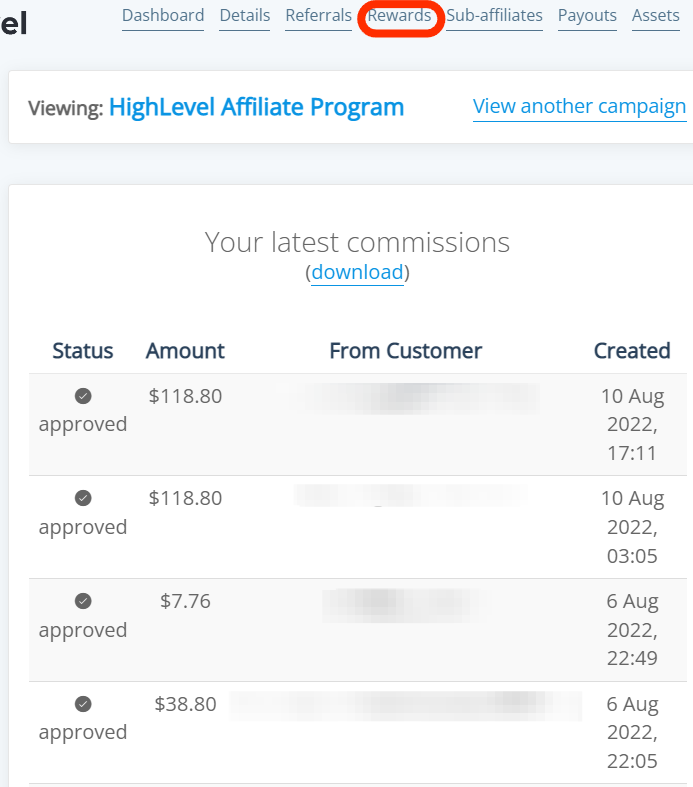
- Finding Commission in the Rewards tab!
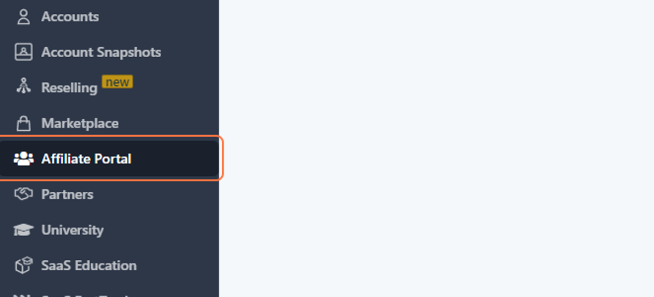
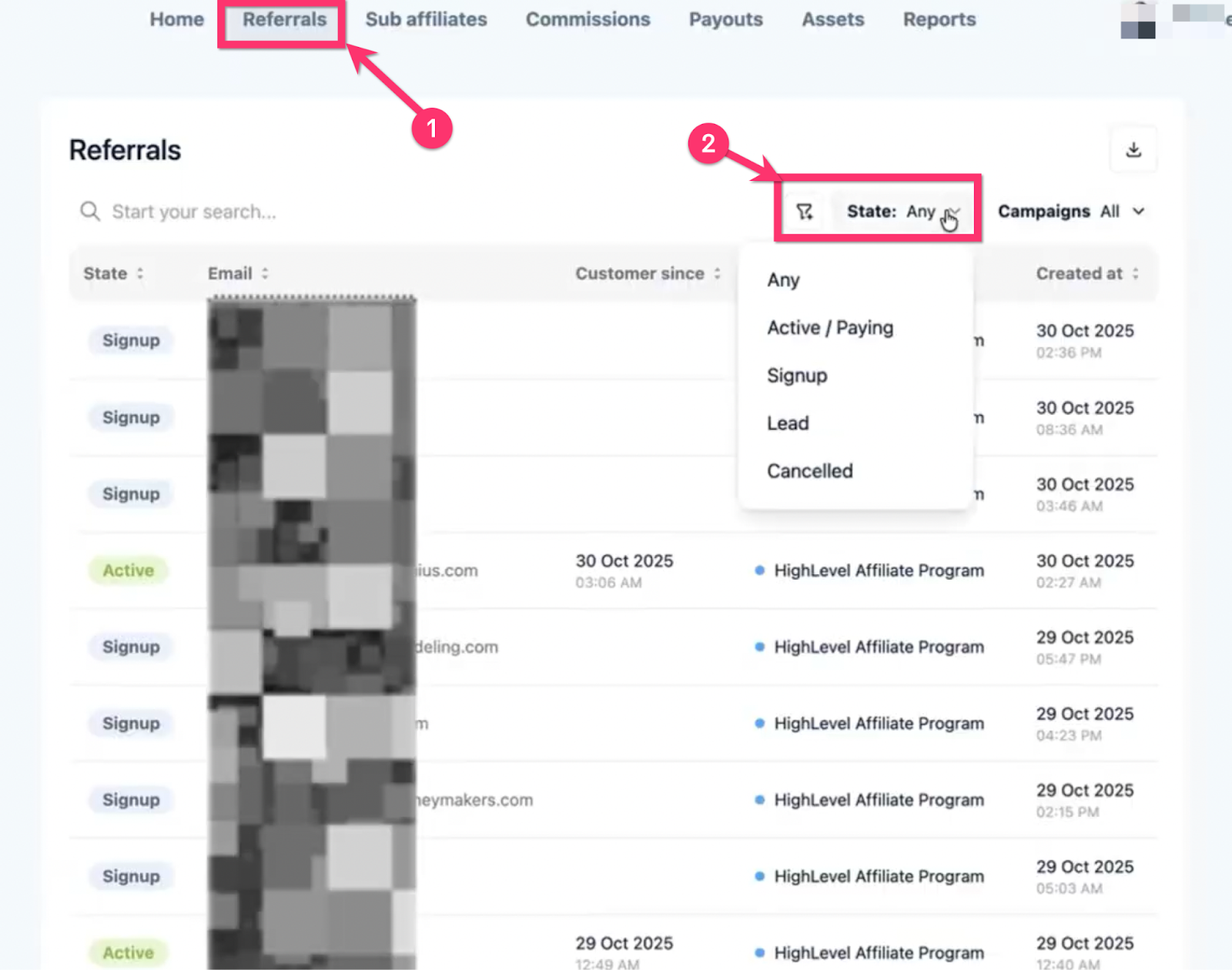
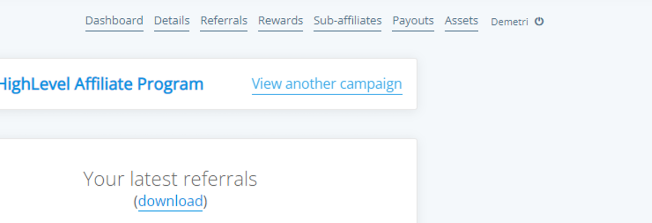
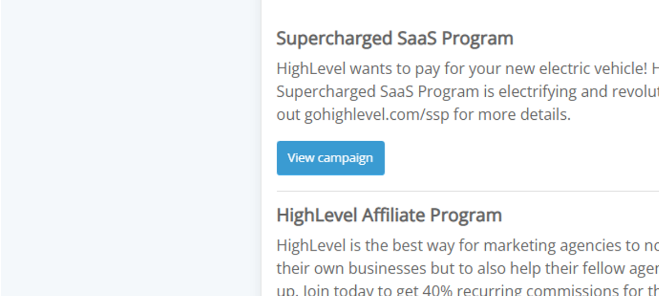
- FAQ - Want to learn more about the Referrals tab? Heads up: we’re currently rolling out updates to the Affiliate Portal, so you may notice that some videos and images in this article don’t exactly match what you’re seeing on your screen just yet. Everything will be updated very soon to reflect the latest version. In the meantime, if anything feels unclear, reach out to your Affiliate Manager with any questions. ## (https://app.tango.us/app/workflow/906b2686-d0a6-4637-9db0-0086a290fcba?utm_source=magicCopy&utm_medium=magicCopy&utm_campaign=workflow%20export%20links) ## Log into Patient Copilot to view your Affiliate Dashboard! The Affiliate Dashboard organizes your referrals into different stages so you can track their progress. Click here for assistance finding and navigating your Affiliate Dashboard Note if you do not have a Active Patient Copilot Agency you can follow along by logging into first promoter here: gohighlevel.firstpromoter.com/login * * * ## 1. Click on Affiliate Portal!(https://assets.patientcopilot.ai/74c3fba0963dd48a.png) ## 2. From your Affiliate Dashboard, Click on Referrals!(https://assets.patientcopilot.ai/bcc95beabc402cf2.png) Your Referral Categories 1) Any 2) Active / Paying 3) Signup 4) Lead (or, “Subscribed”) 5) Canceled 1) Any This shows all your affiliate customers from every referral category. 2) Active / Paying These are your current active affiliate customers who are paying a Patient Copilot subscription. You are earning a commission on these customers every time they renew their subscription! Note: You will only earn a commission on customers who pay thier subscriptions. If customers pause, cancel, or request a refund you will not get a commission for those customers. 3) Signup These customers have completed the sign-up, and they have active go Patient Copilot accounts on a free trial These customers will have a status that says Not A customer yet. This means they are in trial and will become a customer when they pay their first subscription. 4) Lead (or, “Subscribed”) These are customers that have only completed step one of the free trial sign-up. These are potential customers who have started the signup process using your referral link, but did not complete it to begin their free trial. * For referrals in this state, you might notice a discrepancy between State Filter (Lead) and State (“Subscribed”). “Subscribed” and “Lead” are interchangeable in this context. 5) Canceled These customers have canceled Patient Copilot subscriptions. You are currently not getting a commission on these customers. When these customers renew their subscription they will switch back to the paying category. * * * ## Super Charged SaaS Campaign Got an email stating that you have a reward/commission from the Super Charged SaaS Campaign? To see that reward/customer you need to “View another Campaign” (This is also a good place to check if a customer “disappeared” from your Patient Copilot Affiliate Program view after upgrading)!(https://assets.patientcopilot.ai/1d817069f4e00951.png) ## 1. Click “View Campaign” under Supercharged SaaS Program (These are your customers that upgraded to the 497/month also known as the SaaS plan or Pro plan. They will be moved over to this campaign.)!(https://assets.patientcopilot.ai/48f420b745007f18.png) ## 2. Click on Referrals Click referrals and check if your customer can be found under the tabs shown here!!(https://assets.patientcopilot.ai/ce126393b5fdae4a.png) * * * ## 3. Referral tabs in the Supercharged SaaS Program The Supercharged SaaS program campaign shows the same tabs under referrals as the Patient Copilot Affiliate Program Campaign!(https://assets.patientcopilot.ai/aeb824c4e0a73d4f.png) ## Finding Commission in the Reports tab! Click on “Rewards” to view your earned commissions. Commissions earned from the Patient Copilot Proplan will be placed in the Super Charged SaaS Program Campaign. Click “View another campaign” to see those Commissions ##!(https://assets.patientcopilot.ai/80a8c5f7982a6cfa.png) FAQ Q: I referred an existing customer to Patient Copilot pro. Why aren’t they showing in my referrals? A: When you refer an existing customer to Patient Copilot Pro they become a split customer. They will not show in your referrals because you are not the original affiliate that brought them to Patient Copilot. However, when they pay their subscription for Patient Copilot pro you will see the commission from that customer in your rewards tab along with that customer’s email. If you want to confirm that you are a split affiliate for a customer you referred to pro. Reach out to support, with the link above! ## Want to learn more about the Referrals tab? Click here for a more detailed explanation about each tab! Still can’t find your referral? Click here to contact support and get more help!