
Ad Manager - Configure Google Ads Additional Assets at Campaign Level
Configure Business Logos, Image Assets, Call Extensions, and Sitelinks at the campaign level in Patient Copilot Ad Manager. This guide explains prerequisites, setup steps, fallback behavior, supported placements, and measurement—so you can launch faster and keep assets consistent across ads. * * * ## What is Campaign‑Level Google Ads Additional Assets? Campaign‑level assets are add‑ons that enhance your Google Ads (e.g., sitelinks, call buttons, logos, images). Configured at the campaign level in Patient Copilot, they apply across all ad groups and ads in that campaign, helping improve visibility, engagement, and CTR without repeating setup per ad group. These assets provide richer formats for Google Ads and improve performance across Search, Display, and YouTube placements. In Patient Copilot Ad Manager, you can add the following campaign‑level assets for Google Ads: - Business Logo
- Image Assets
- Call Extensions
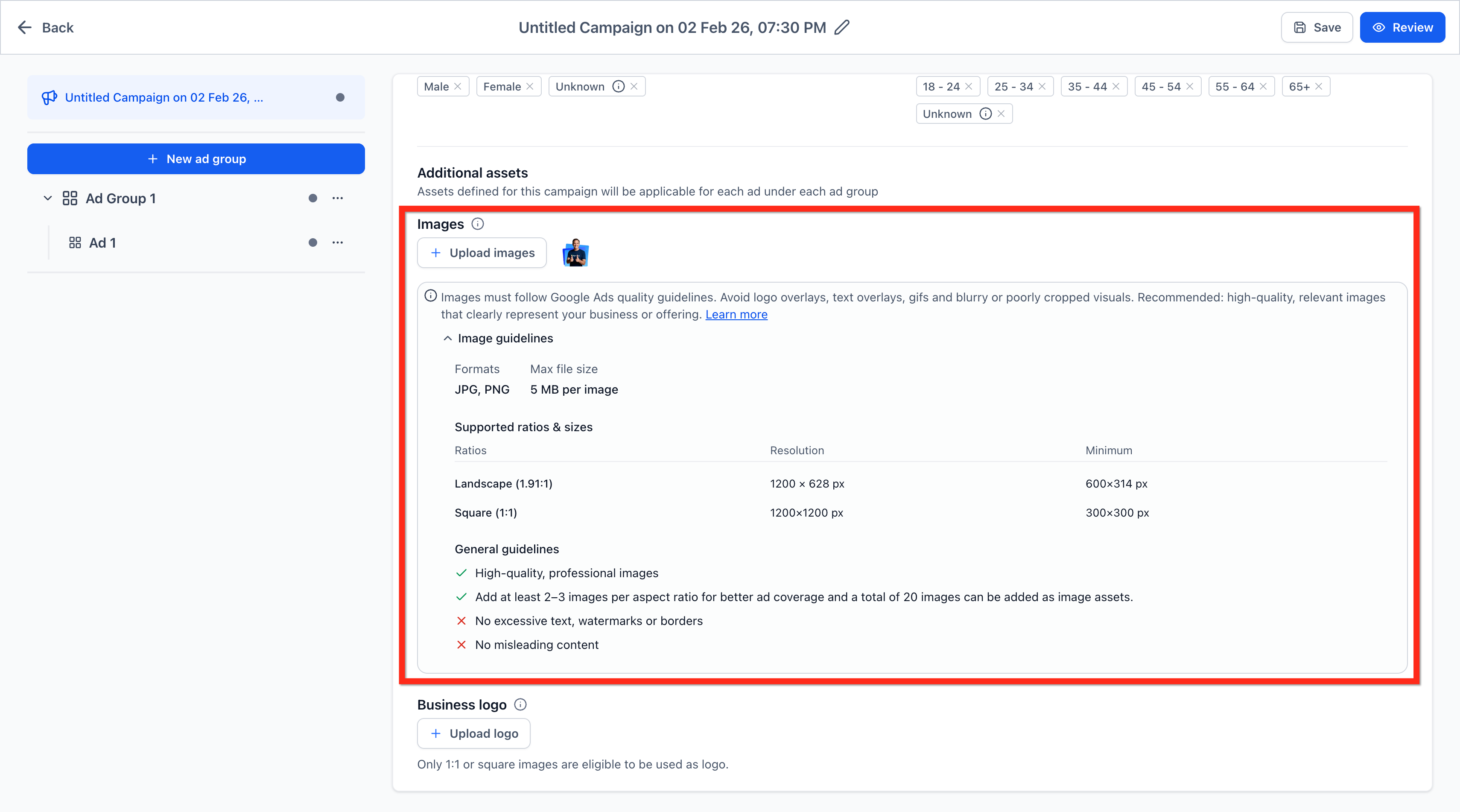
- Sitelinks * * * ## Additional Asset Limits | Asset Type | Supported Formats | Aspect Ratios | Limits per Campaign | Notes | | --- | --- | --- | --- | --- | | Business Logo | JPG, PNG | 1:1 (square) | 1 logo | Used across Search, Display, YouTube | | Image Assets | JPG, PNG | 1:1 (square), 1.91:1 (landscape) | Up to 20 images | Max file size: 5 MB per image. Recommended: 2–3 per ratio | | Call Extensions | Phone numbers | N/A | Multiple | Must be Google-approved | | Sitelinks | Text + URL | N/A | 2–20 (recommended 4) | Supports descriptions (optional) | * * * ## Key Benefits of Campaign‑Level Additional Assets - Consistency: ensures all ads in a campaign share the same branding and CTAs. - Relevance: tailors sitelinks/images to a campaign’s offer or funnel stage. - Speed: centralizes setup so you avoid repeating steps per ad group. - Control: overrides account defaults to test variations by campaign. - Visibility: can improve ad prominence and CTR across eligible placements. * * * ## How to Configure Google Ads Additional Assets at Campaign Level ### Step 1: Add Image Assets Notes: Avoid low-quality visuals, gifs, overlays, or misleading content. Uploading unsupported ratios (e.g., 4:5) will trigger a warning message prompting you to crop/resize. If some images fail, your campaign will still publish with valid text ads and other assets. - In the Additional Assets section, click Upload****Images.
- Choose one or more images from the media library or upload new files.
- You can add up to 20 images per campaign.
- Supported Guidelines: - Formats: JPG, PNG - Aspect****Ratios: 1:1 (square) and 1.91:1 (landscape) - File****Size: Up to 5 MB per image - Recommended: Add at least 2–3 images per aspect ratio for better coverage.!(https://assets.patientcopilot.ai/e7cd74afd2d0f372.png) ### Step 2: Add Business Logo Note: Only 1:1 or square images are eligible. 1. Click + Upload Logo.
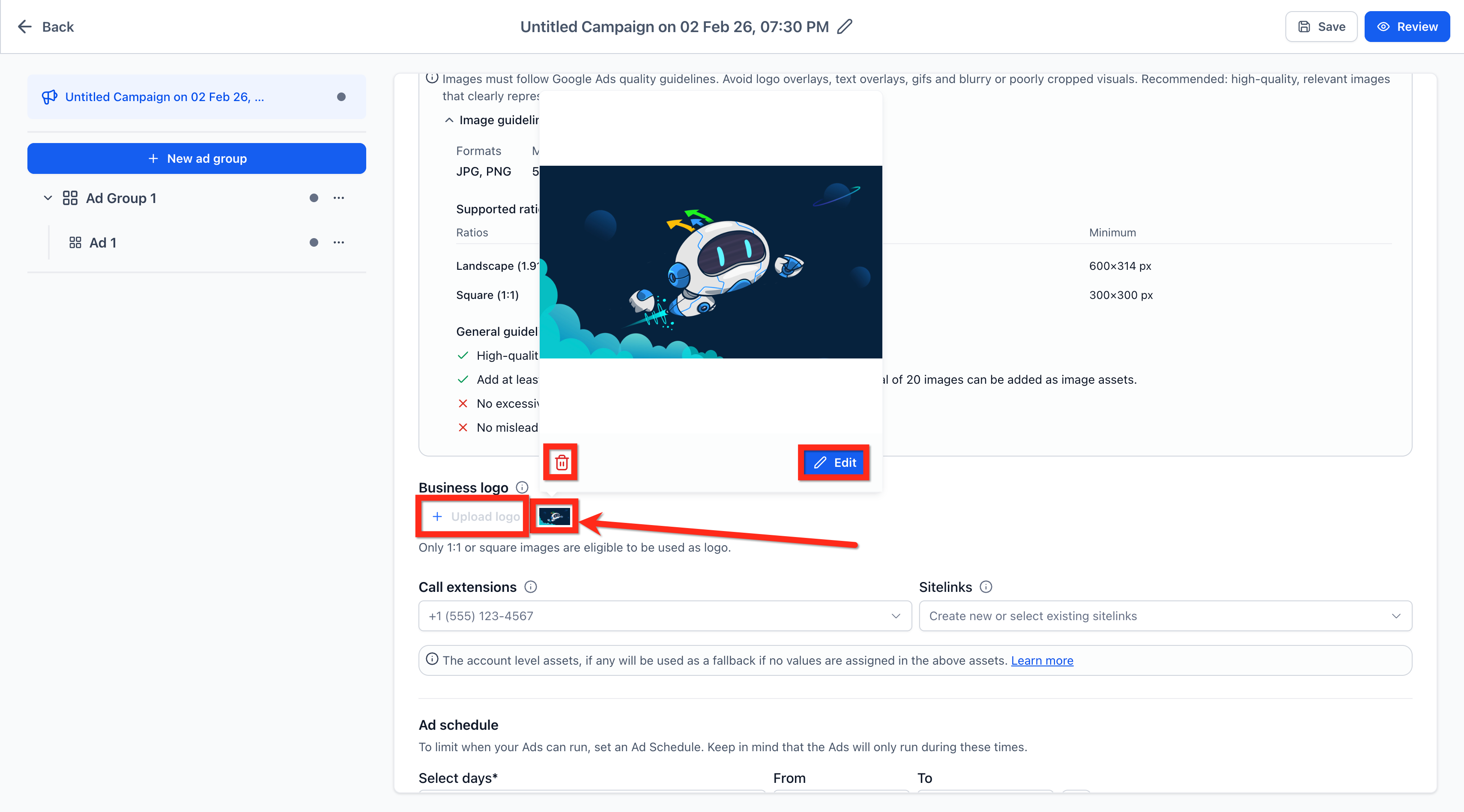
- Choose an existing image or upload a new one from the media library.
- Once uploaded, click the logo to open editing options like cropping.
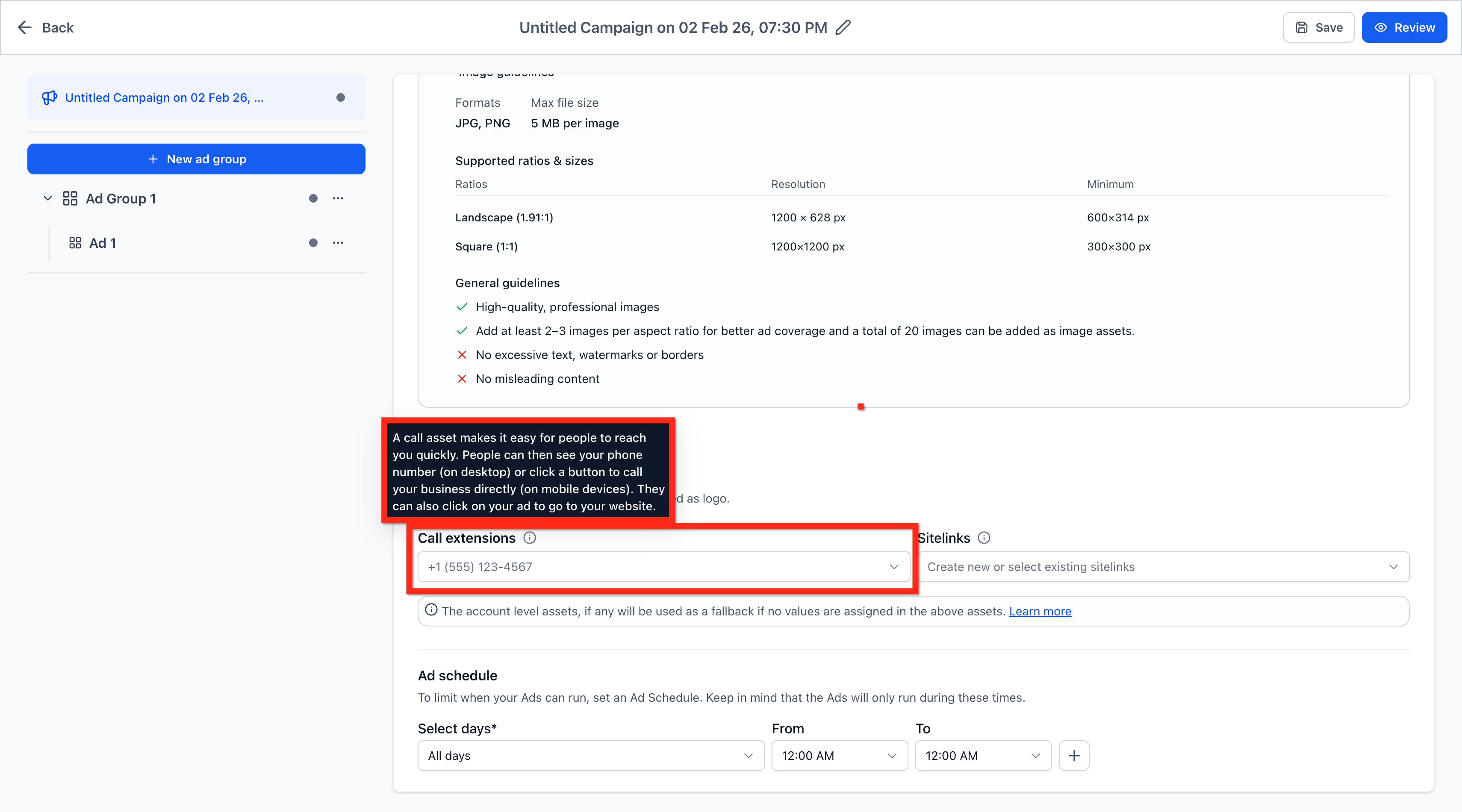
- This logo will appear across placements.!(https://assets.patientcopilot.ai/8fb9c7c9051afe76.png) ### Step 3: Configure Call Extensions Note: Call extensions are mobile-friendly and improve CTR by offering instant dial capabilities. Learn more on how to create a ‘Call from ads’ conversion action here. 1. Click on the Call Extensions dropdown.
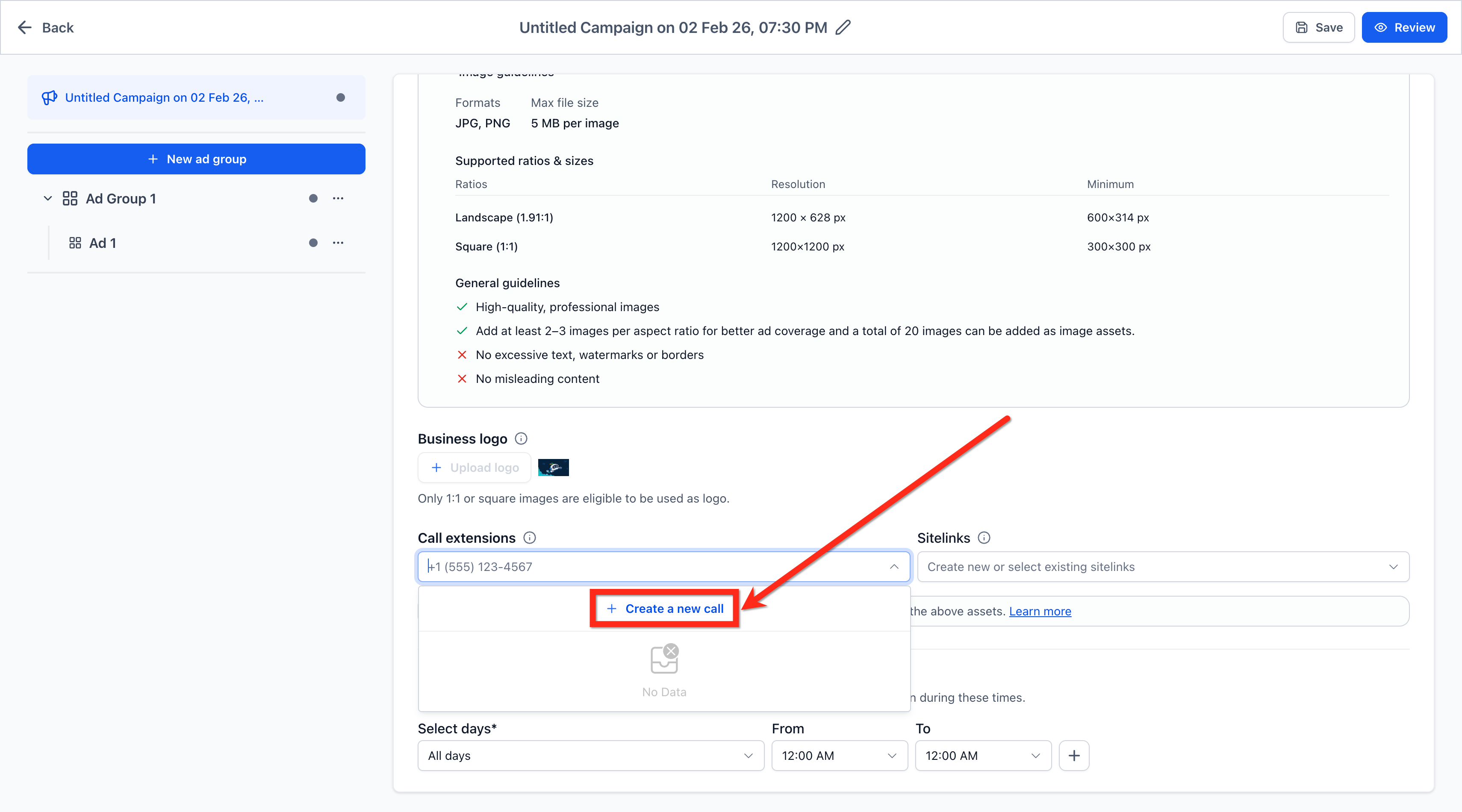
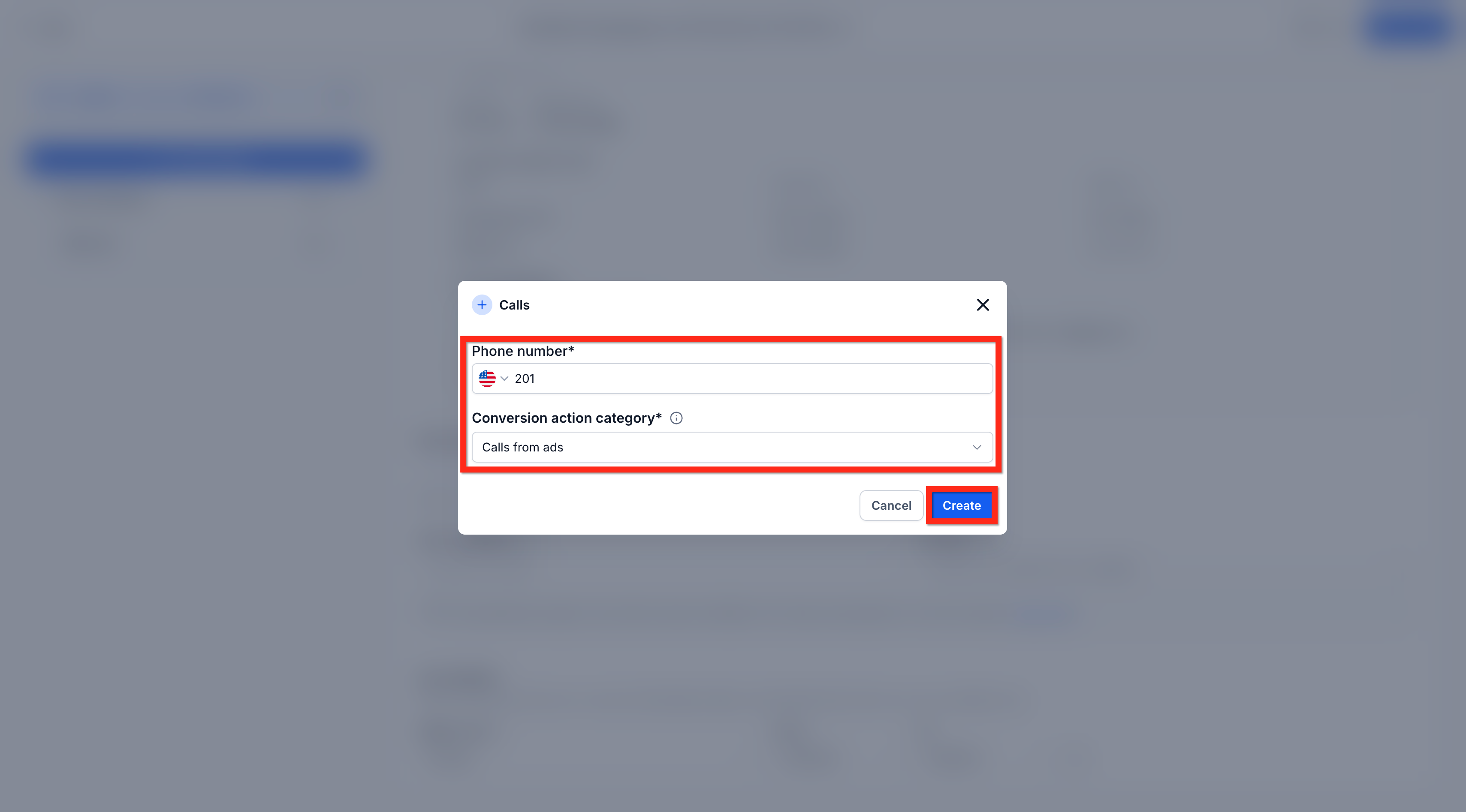
- Choose one or more previously added phone numbers.!(https://assets.patientcopilot.ai/a97ab7daa3720f8f.png) 3. or click on + Create a New Call button from the selection dropdown to add a new number.!(https://assets.patientcopilot.ai/a106b89f418e3cae.png) 4. Select country and add a valid number and click Create.!(https://assets.patientcopilot.ai/d1c5d969ef92d9a4.png) ### Step 4: Configure Sitelinks Note: Minimum 2, maximum 20 and recommended 4 sitelink assets should be added for optimal delivery. 1. Click the Sitelinks dropdown.
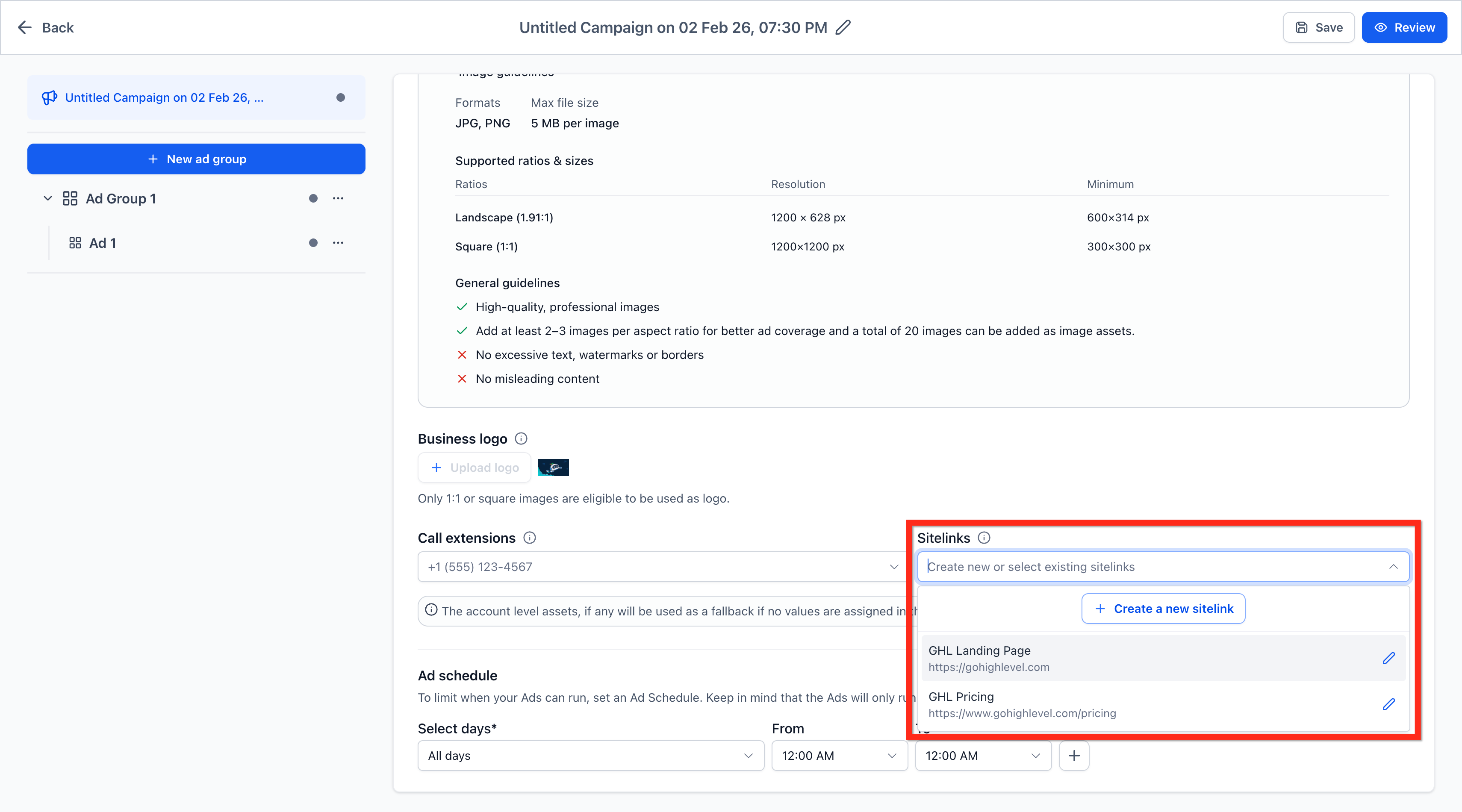
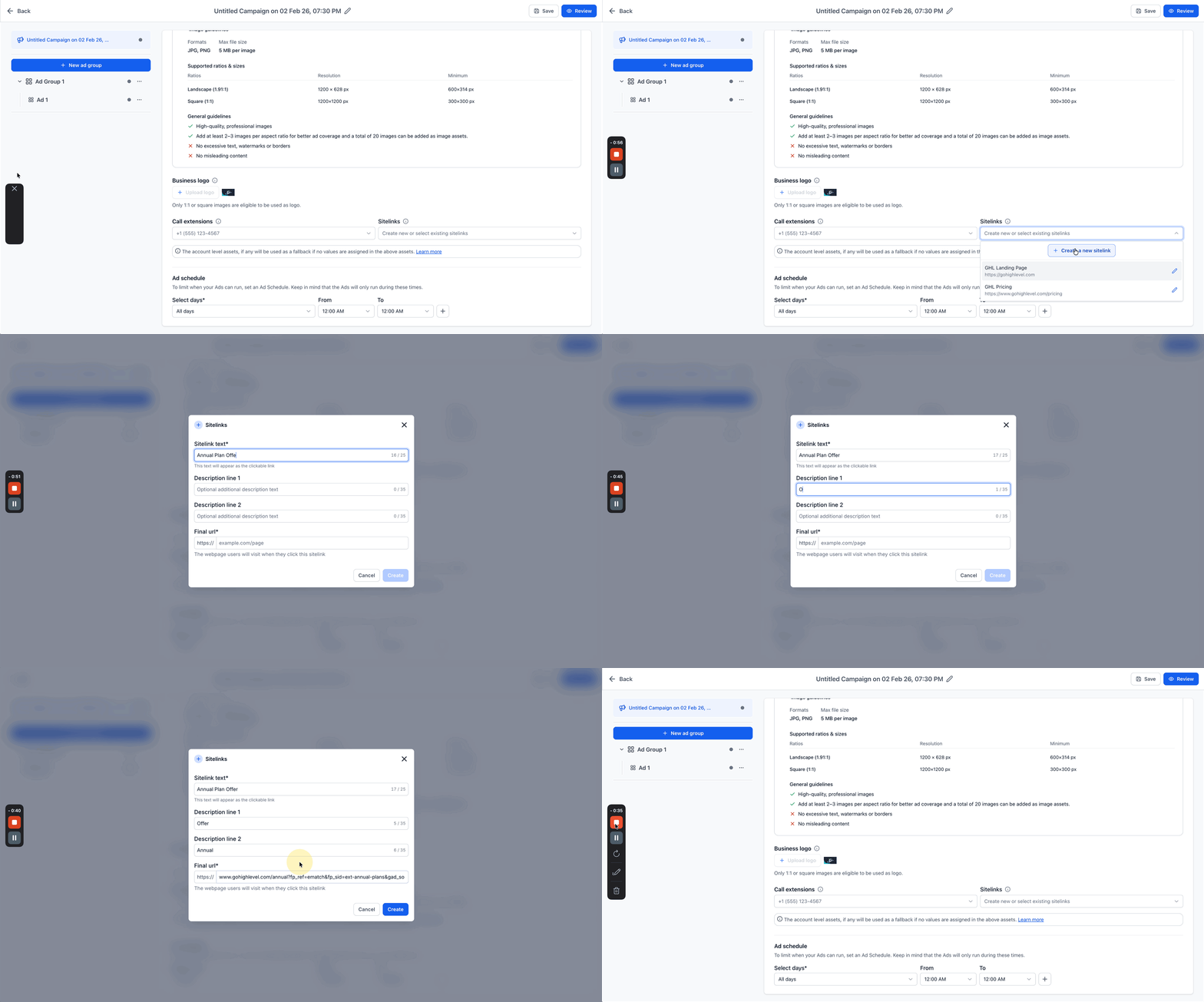
- Select one or more existing sitelinks.!(https://assets.patientcopilot.ai/be666bfe1a7c7428.png) 3. To add a new sitelink, click + Create a new sitelink and fill in: - Sitelink****Text (max 25 characters) - Optional Description Line 1 & 2 - Final URL
- Click Create.!(https://assets.patientcopilot.ai/608938640d680fa0.gif) Add Image Assets Adding images makes your Search ads more eye-catching across Google surfaces. Upload brand-safe visuals once and let Google place them where they perform best. Specifications Quantity: up to 20 images per campaign Formats: JPG, PNG Aspect ratios: Square (1:1) and Landscape (1.91:1) only Max size: 5 MB per image Steps 1. In the campaign builder, open Image Assets.
- Click Upload and select your images.
- Confirm each file meets the ratio and size requirements.
- Click Save. Behavior: Google automatically selects relevant images for placements across Search, Display, and YouTube. If some images fail checks, your text ads still publish. ### Validation & Errors - The builder shows clear messages for policy, aspect-ratio, or file-size issues.
- Failed assets are skipped; valid assets remain eligible. Best Practices - Add 2–3 images per ratio to maximize coverage.
- Avoid heavy text overlays, watermarks, GIFs, or misleading content.
- Use crisp, uncluttered imagery that complements headlines/descriptions. * * * ## Fallback Logic If no assets are added at the campaign level: - The system will default to account-level assets (if available).
- If neither is present, the ad may run without these enhancements. Note: Learn more about account-level assets: Google Ads Support * * * ## Frequently Asked Questions **Q: What happens if I upload a non-square logo? **Only 1:1 (square) images are eligible. Non-square logos will be discarded. Use the built-in cropping tool to adjust. **Q: Can I add multiple phone numbers as call extensions? **Yes. You can assign multiple approved numbers. Google will rotate them based on location, device, and availability. **Q: Why is my call extension marked “Disapproved”? **Call extensions must meet Google Ads policies. Disapproval reasons include invalid/unverified numbers, country code mismatches, or formatting issues. **Q: How many site links can I add? **You can add 2–20 site links, but 4 is recommended for optimal performance. **Q: Can I edit an existing site link or phone number? **Yes. Use the pencil/edit icon next to the entry to update it. Q: What are the benefits of campaign-level assets? - Saves time by applying assets across all ad groups and ads.
- Maintains brand consistency.
- Ensures rich ad formats (logos, images, site links, calls) are always included. **Q: Will these settings override account-level assets? **Yes. Campaign-level selections take precedence. If absent, account-level assets are used. **Q: What happens if I upload images in an unsupported ratio (e.g., 4:5)? **Unsupported ratios will trigger a warning message. The system will prompt you to crop or resize the image to either 1:1 or 1.91:1. The rejected image will not be published. **Q: Do failed image uploads stop my campaign from publishing? **No. Even if individual images fail, your campaign will still publish with valid text ads and other approved assets. * * * ### Related Articles - Overview of Ad Manager
- Ad Manager - Create & Manage Google Ads Offline Conversions
- Ads Manager - Audience Segments for Google Ads
- Create a new Google Search Ad Campaign
- How to view Google Ad Campaign Statistics in Ad Manager