Create a New Sub-Account Using Snapshot
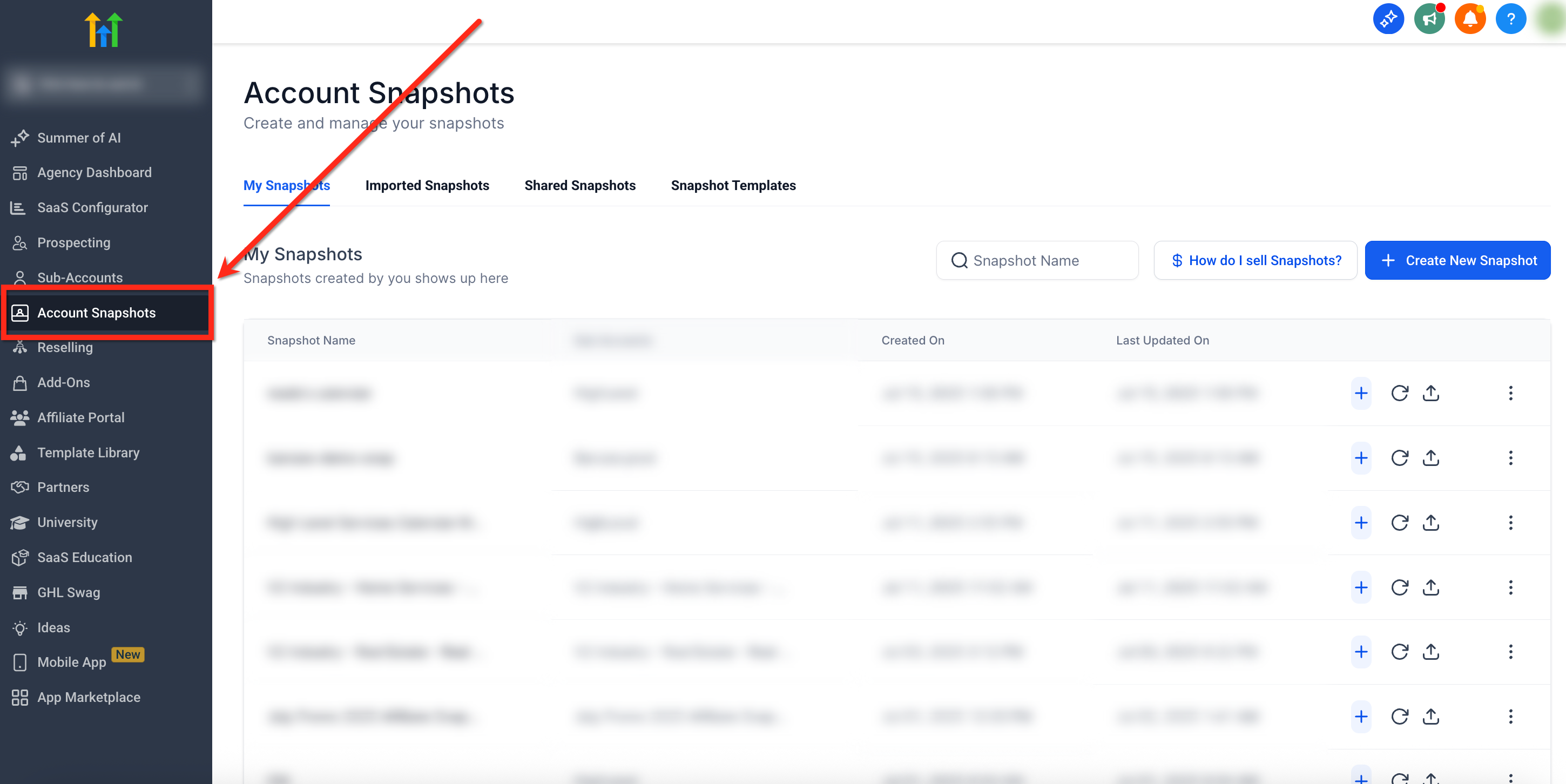
This article will show you how to quickly create a new sub-account in Patient Copilot using a snapshot. This process automatically loads assets like funnels, workflows, and settings into the new account, saving you setup time and ensuring consistency across sub-accounts. * * * ## Overview of Creating a Sub-Account Using a Snapshot Creating a sub-account using a snapshot allows agencies to easily create a new account that includes all the tools, workflows, settings, and assets packaged in the selected snapshot. Once the sub-account is created, the snapshot is automatically loaded into it, eliminating the need for manual loading of a snap-shot after creation. This streamlines the onboarding process and ensures the new account starts with a consistent, prebuilt setup. * * * ## Key Benefits of Creating a Sub-Account Using a Snapshot Using snapshots to create sub-accounts helps agencies set up standardized sub-accounts faster. - Faster onboarding: Pre-loads all essential assets and settings, reducing manual setup. - Consistency Across Accounts: Ensures desired accounts include the same assets and settings. - Time savings: Eliminates repetitive configuration for each new sub-account after creation. - Error reduction: Reduces the risk of setup mistakes or missing assets. * * * ## Prerequisites Understanding the setup requirements helps ensure the process is successful the first time. - Must have Agency Admin access - Snapshot must already exist in your account - Snapshot should include the key assets you want duplicated (funnels, triggers, calendars, etc.) - Optionally, import or create the snapshot beforehand: - How to Create a Snapshot * * * ## How To Create a New Sub-Account Using a Snapshot These steps will walk you through creating a new sub-account based on the desired snapshot. #### Step 1: Navigate to Account Snapshots - From your Agency Dashboard, click Account Snapshots on the left-hand menu!(https://assets.patientcopilot.ai/d31f881937bdfcf4.png) #### Step 2: Select Snapshot - Locate the snapshot you’d like to use as the base for the new sub-account
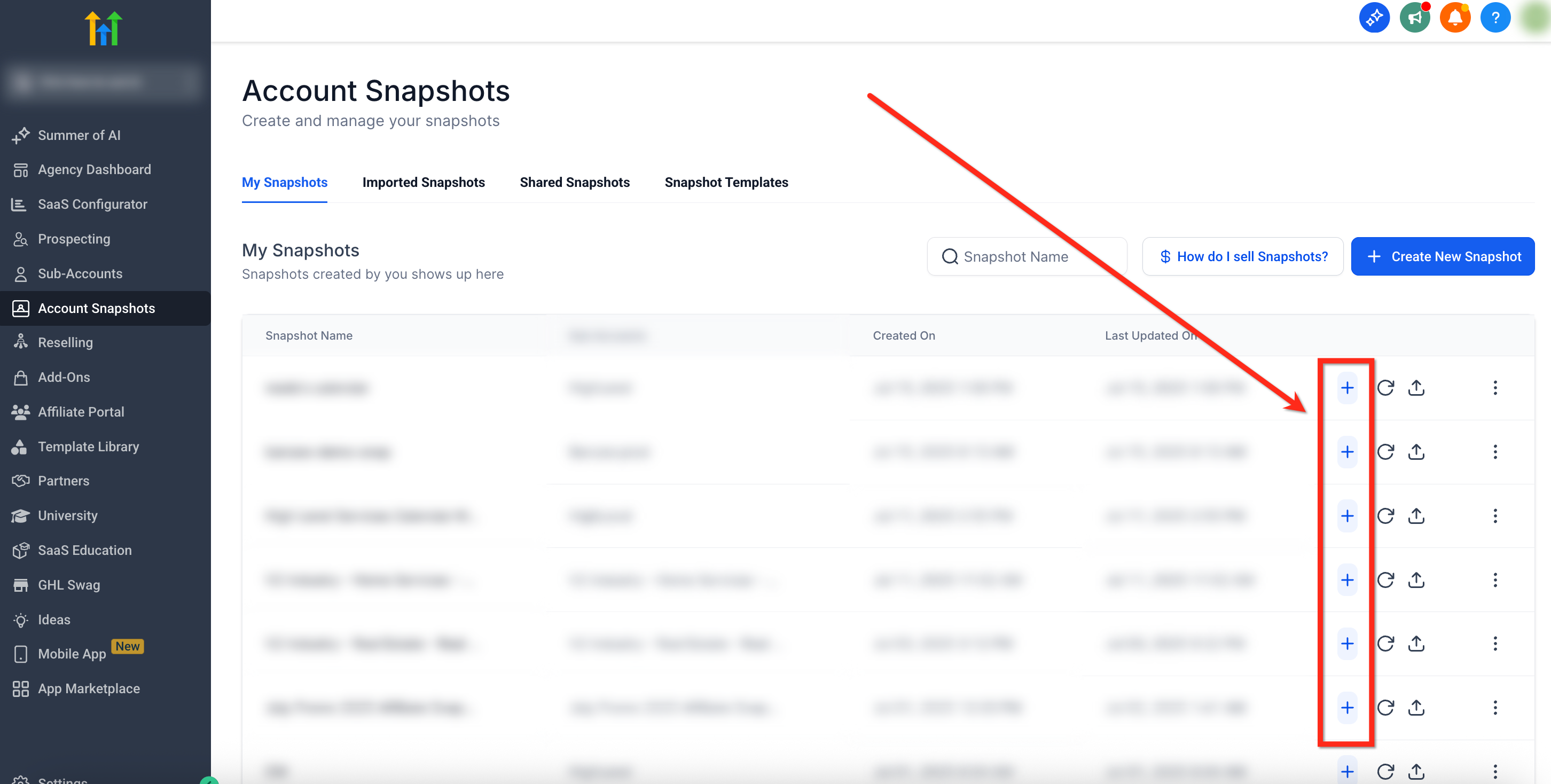
- Click the blue Create New Account (+) button beside the snapshot!(https://assets.patientcopilot.ai/665190af81c9800f.png) #### Step 3: Create Sub-Account - A new window will open to fill out the new sub-account information
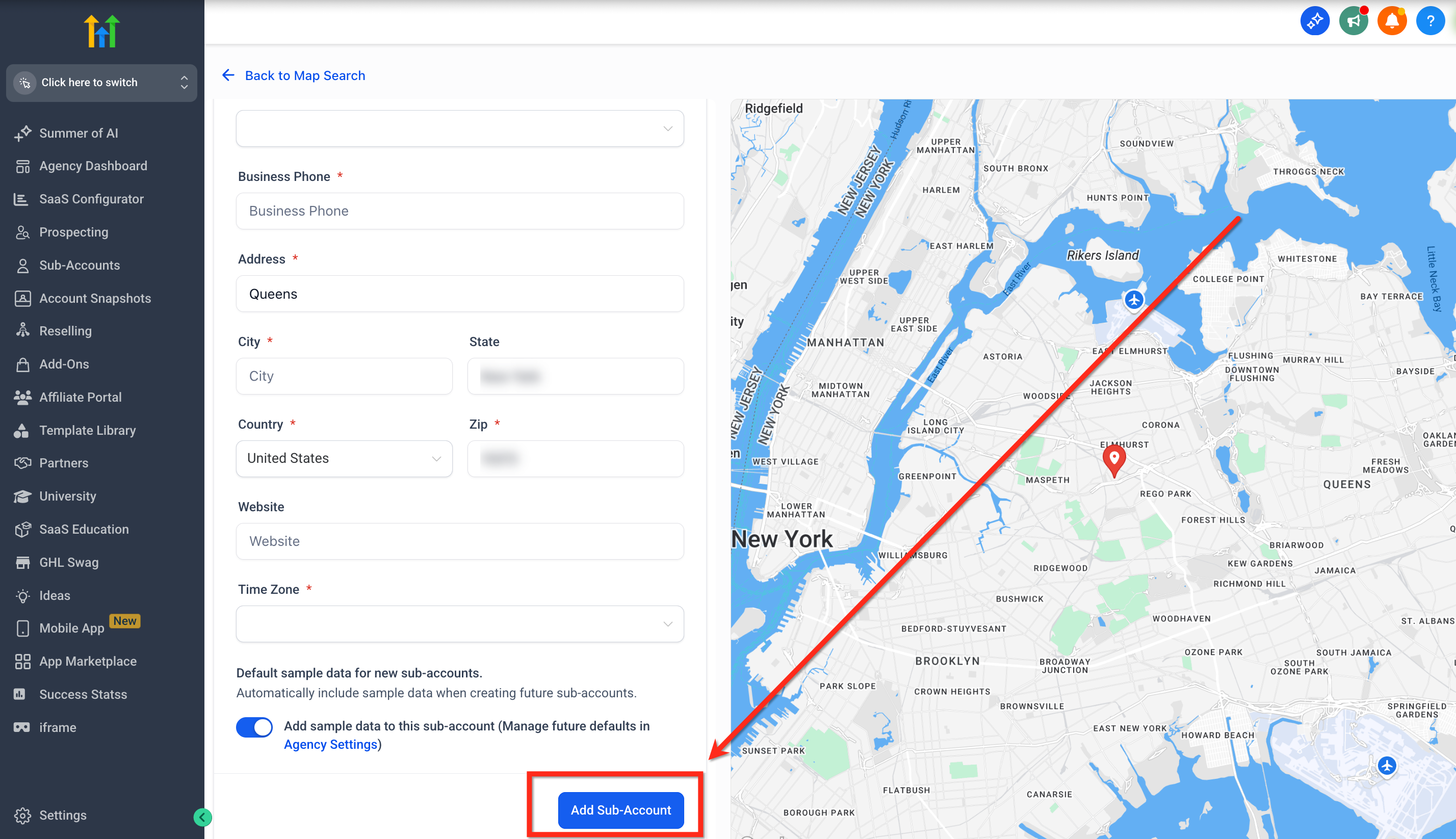
- Once all information has been entered, click Add Sub-Account!(https://assets.patientcopilot.ai/593fa283bda65c3a.png) * * * ## Frequently Asked Questions Q: Can I delete a snapshot from an account after it’s created? No, once applied, a snapshot cannot be “unloaded” or “deleted”. You can delete or modify specific elements manually. Q: What access is needed to create sub-accounts using snapshots? Only users with Agency Admin permissions can perform this action. Q: What assets are included in snapshots? Funnels, forms, workflows, calendars, settings, and more depending on what was saved in the snapshot. For more information, read Snapshot Overview. Q: Will the snapshot overwrite anything in the new sub-account? No. Since the sub-account is being created fresh, there is nothing to overwrite. The snapshot is applied during account creation, so its contents become the initial setup. Q: Can I apply more than one snapshot to a new sub-account? Not during the creation process. Only one snapshot can be selected when creating a sub-account. However, you can manually apply additional snapshots after the sub-account has been created. Q: What happens to funnels and websites after loading from a snapshot? When you load a snapshot into a sub-account, all included funnels and websites are copied over as drafts. They won’t be live until you connect a custom domain and publish them. * * * ## Related Articles - Load Snapshots with Dashboards