
Schedule Posts using RSS URL
Automatically publish new items from any valid RSS/Atom feed to your connected social channels using Social Planner → RSS Post. This is perfect for sharing your latest blog posts, podcast episodes, videos, or news—without manual work. IMPORTANT: Posting to Twitter/X via RSS is not supported due to API restrictions. All other supported networks in Social Planner can be used with RSS. * * * ## Prerequisites - A valid RSS/Atom feed URL (e.g., from your blog or YouTube channel). - Social accounts connected in Marketing → Social Planner → Settings (e.g., Facebook Page, Instagram Business, LinkedIn Profile/Page, Google Business Profile, Pinterest). * * * RSS feeds are still very much alive, though they may be a bit trickier to locate these days. Unlike in the past, browsers no longer highlight them, and websites don’t always prominently display RSS links. However, the majority of sites do offer RSS feeds. Let’s explore some quick ways to find them when a simple Google search isn’t enough. For instance, a substantial number of websites are built using WordPress, accounting for over 40% of the web. This means there’s a high likelihood that the website you’re visiting is a WordPress site, and they typically offer easily discoverable RSS feeds. To find a WordPress RSS feed, just add “/feed” to the end of the URL. For instance, https://justinpot.com/feed. This method works in most cases and is my go-to approach for finding RSS feeds. If this doesn’t yield results, here are a few additional tricks to try on other types of sites: - On Blogger-hosted sites, tack on “feeds/posts/default” to the end of the URL. For example: example.blogspot.com/feeds/posts/default.
- If a publication is on Medium, insert “/feed/” before the publication’s name. So, medium.com/example-site becomes medium.com/feed/example-site.
- YouTube channel pages can serve as RSS feeds. Just copy and paste the channel’s URL into your RSS reader.
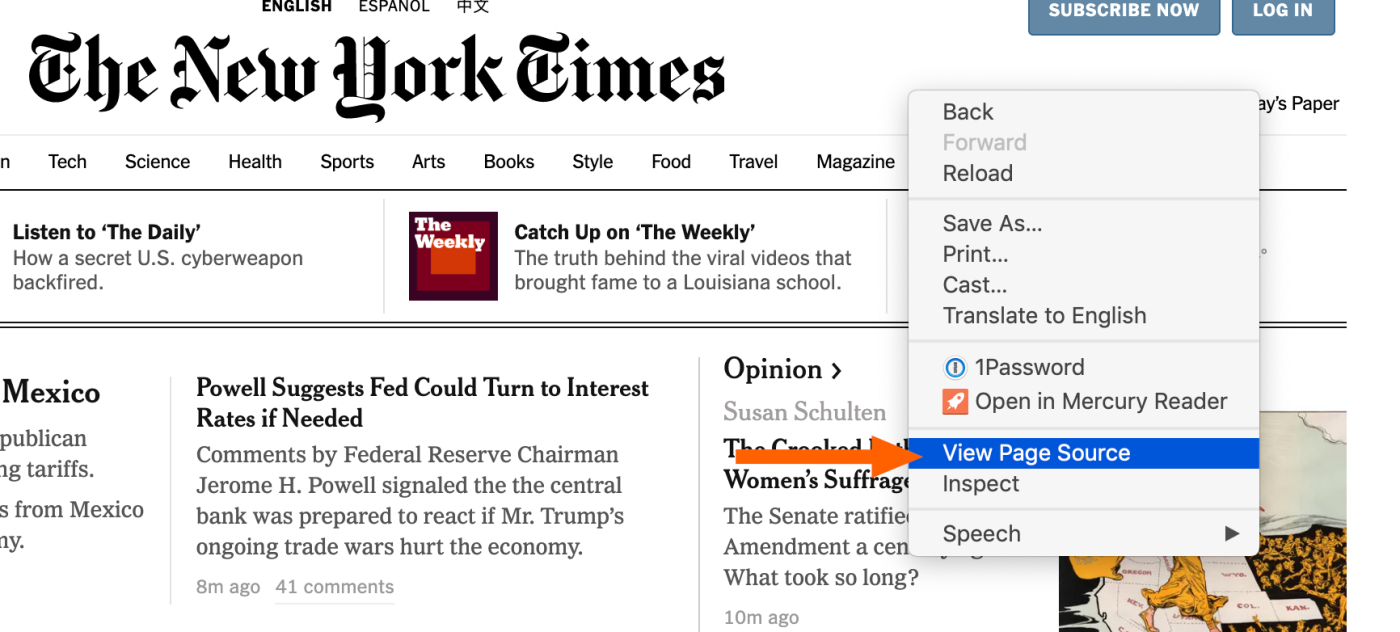
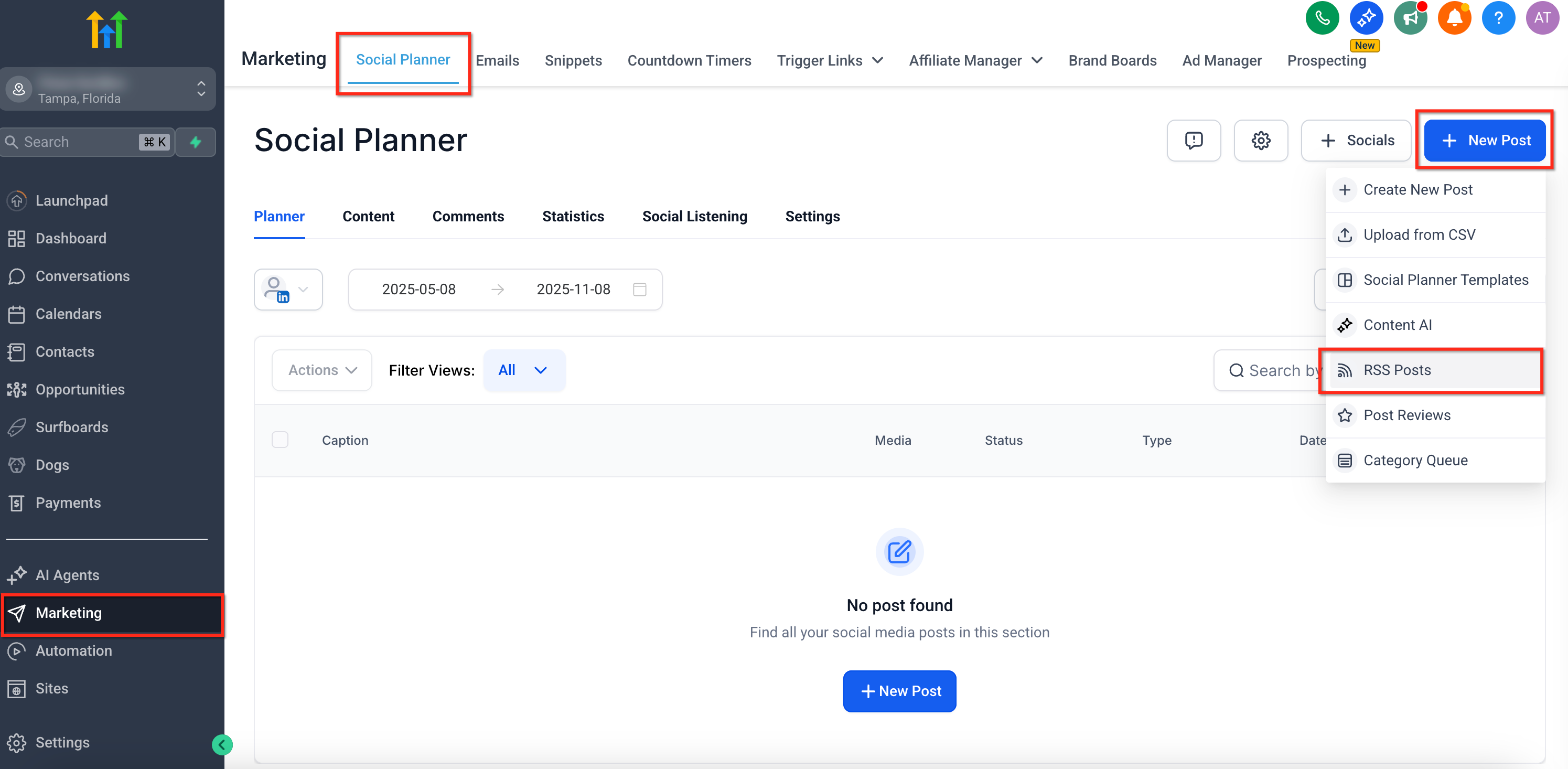
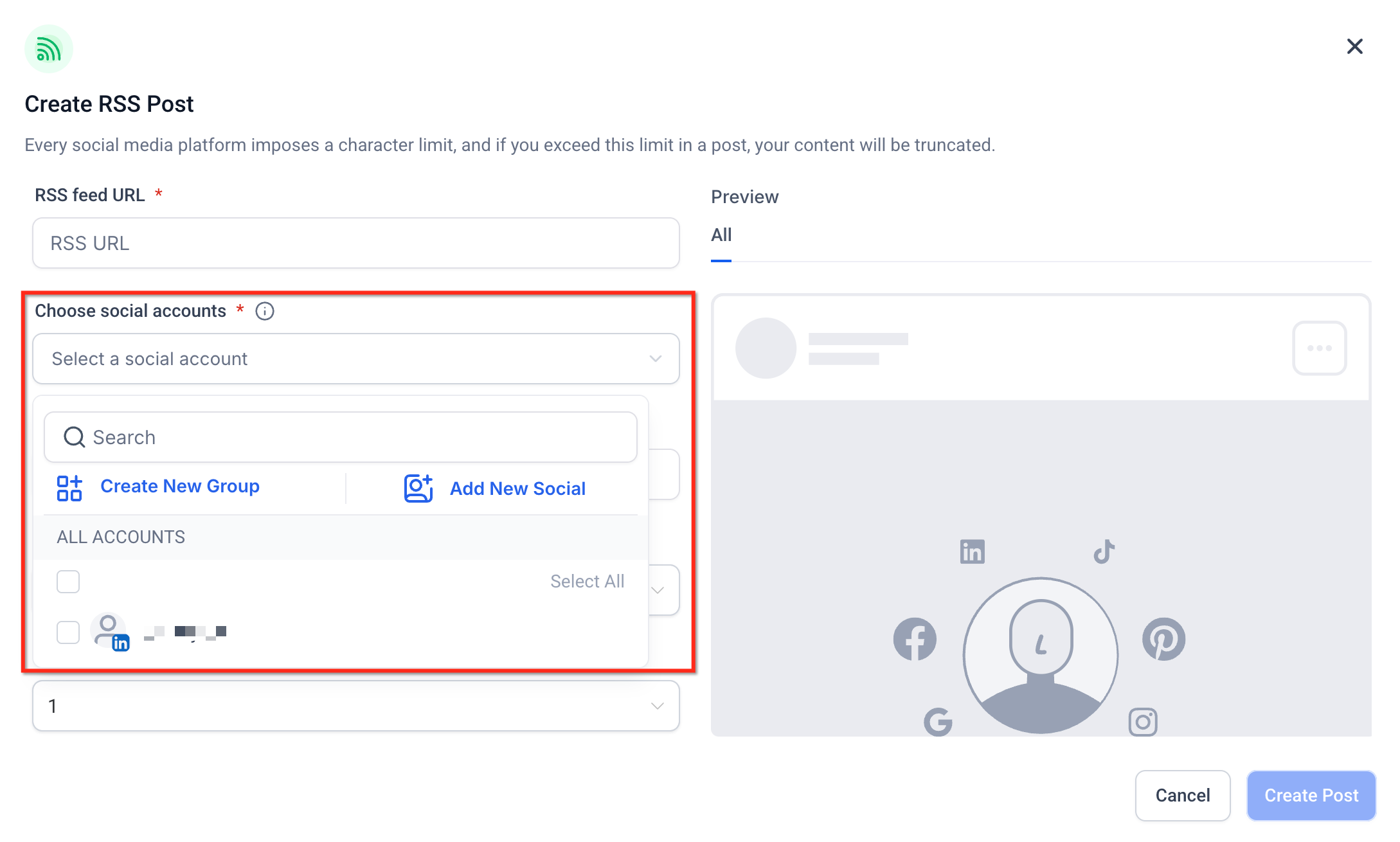
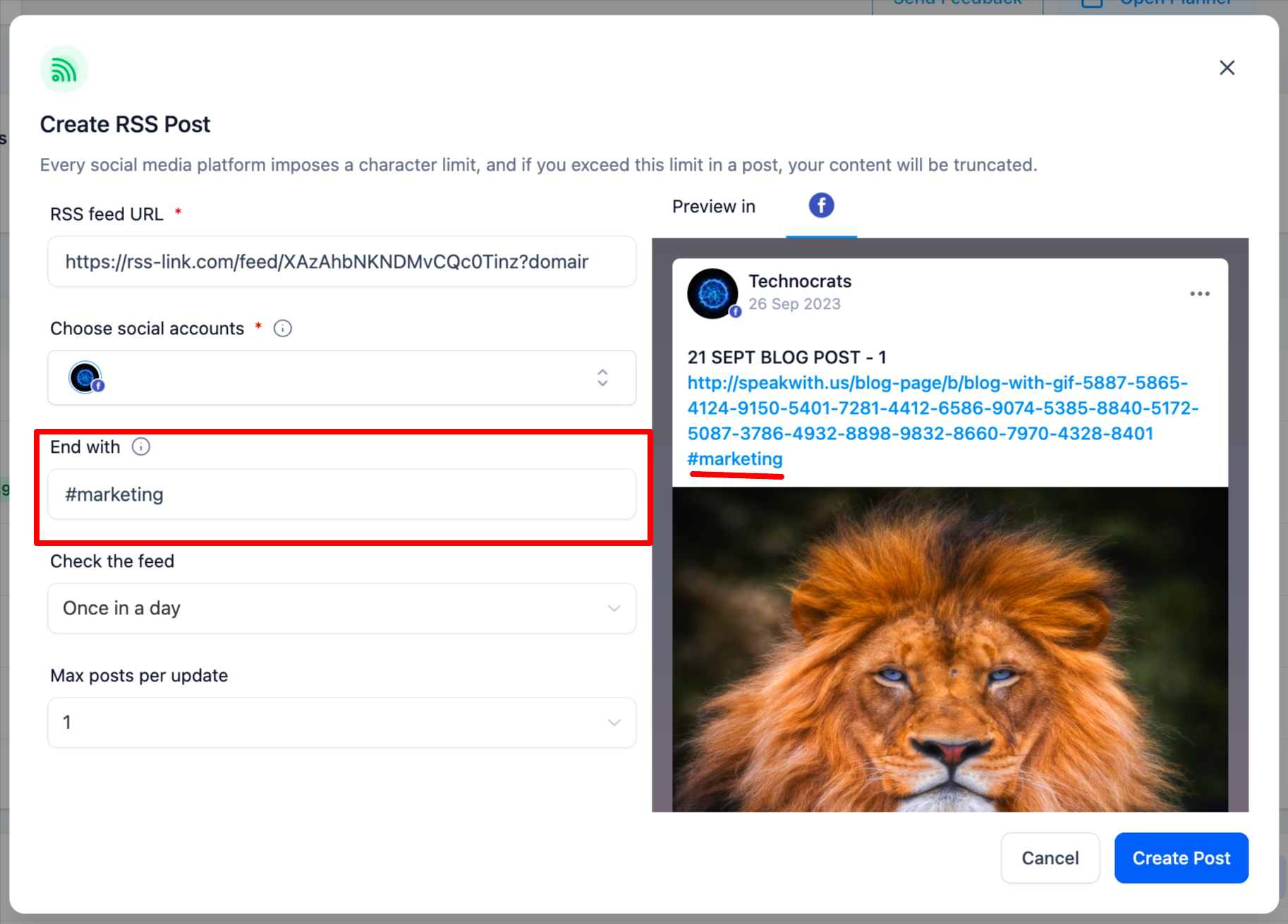
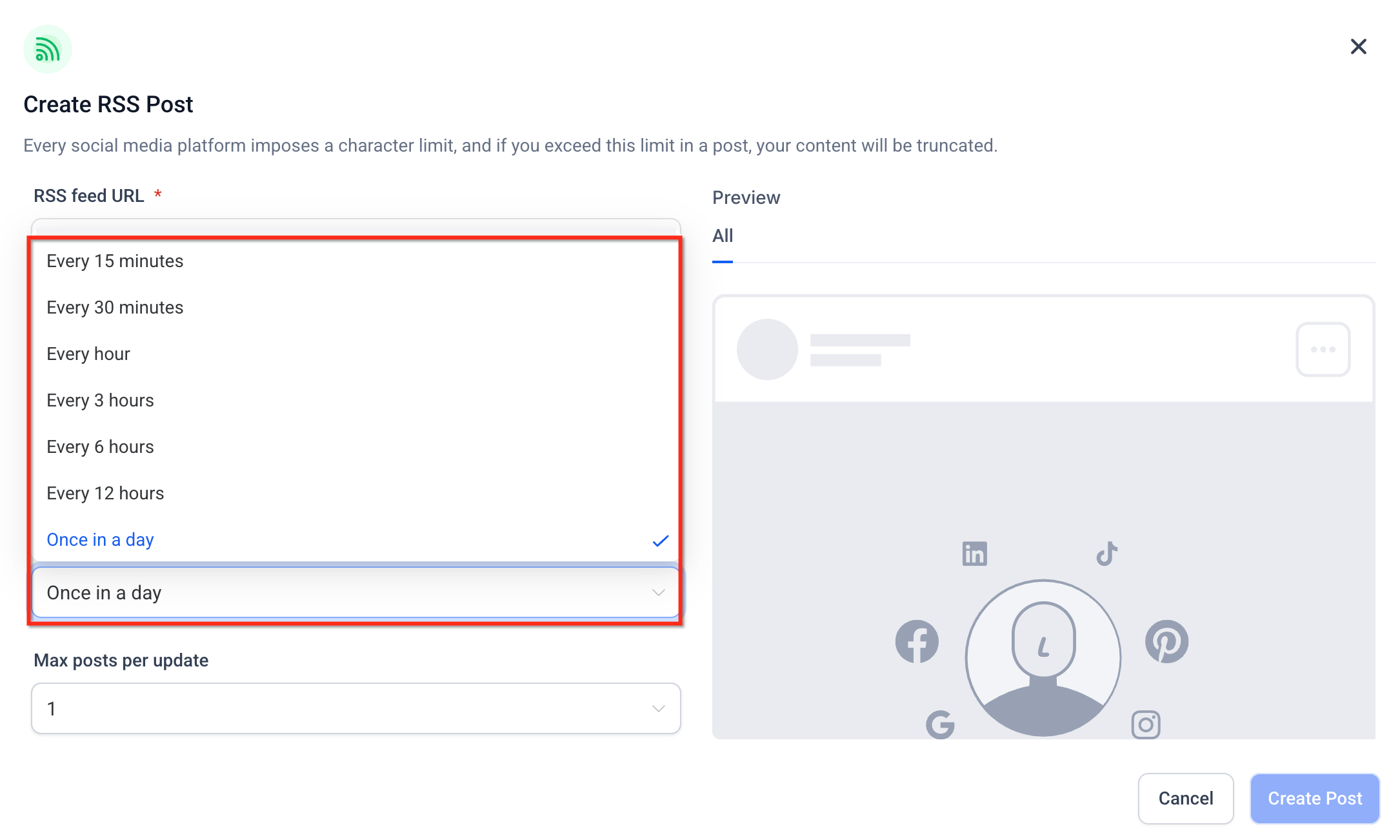
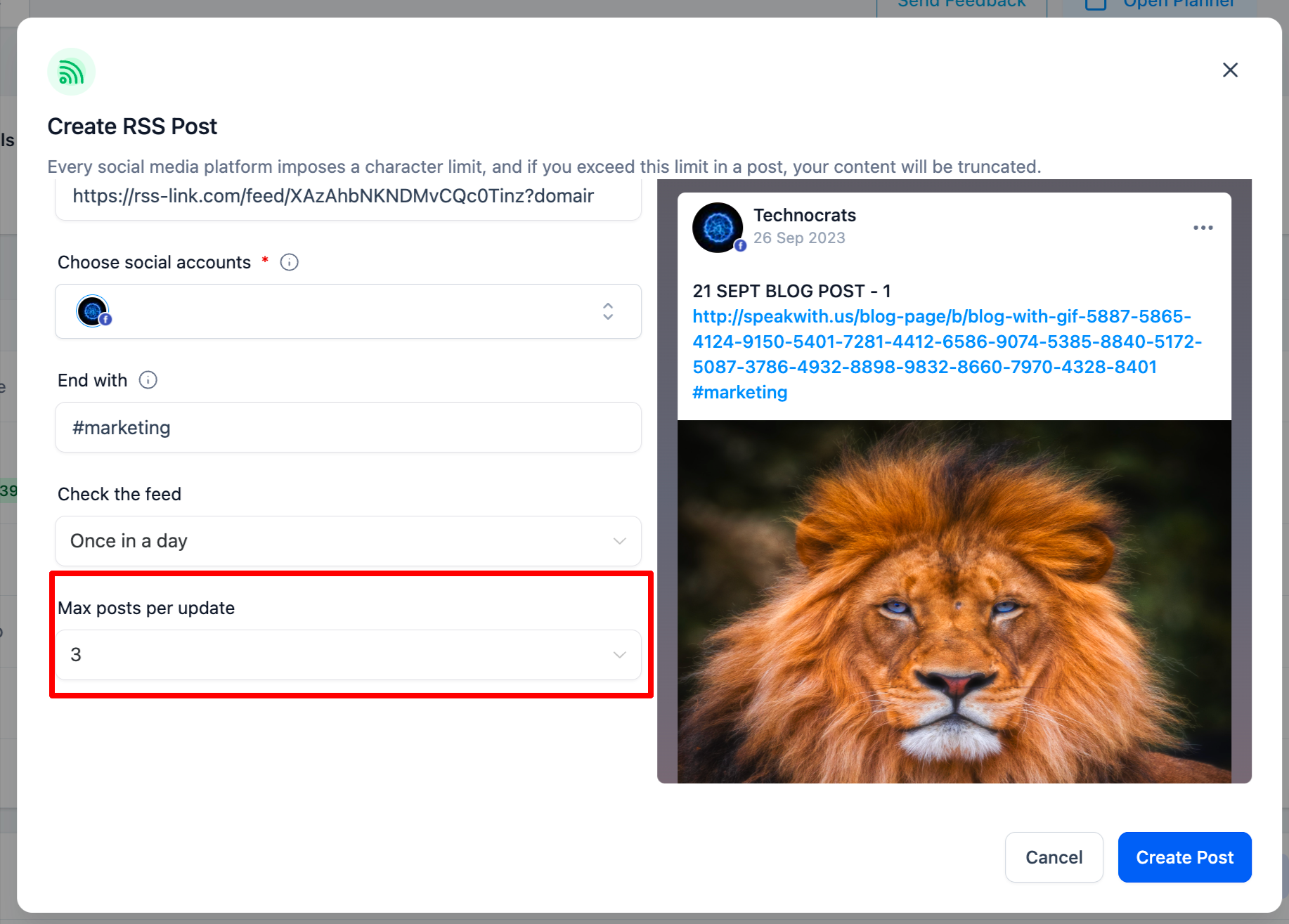
- You can also find an OPML file containing all your subscriptions there. If none of these methods proves successful, you can resort to checking a webpage’s source code. Don’t worry, it’s simpler than it sounds. Right-click on an empty space on the website where you’d like to find an RSS feed, then select “View Page Source” (the phrasing might vary slightly depending on your browser).!(https://assets.patientcopilot.ai/69132023e6233766.png) Next, search the code by pressing Ctrl+F (Windows, Linux) or Command+F (Mac). Start with a search for “RSS,” like so:!(https://assets.patientcopilot.ai/561e4308742e6965.png) If “rss” doesn’t yield results, try “atom” instead. Look for an RSS URL, as shown above, then copy and paste it into your feed reader. Happy feed hunting! * * * Set up an RSS-to-social flow in Social Planner so new items from your feed auto-publish to your connected channels on a schedule. Navigate to Marketing > Social Planner. Click on “New Post”, and there will be an option to select the “RSS Post” ###!(https://assets.patientcopilot.ai/7c85074205d7efcb.png)**Step 2**: Add URL Add the URL of RSS Feed [ Check above how to find the RSS URL] Select the socials where you would like to post. ###!(https://assets.patientcopilot.ai/617ab693b2bf406d.png)**Step 4:** Add Ending You can add “End with” option to append any text, hashtags or links. ###!(https://assets.patientcopilot.ai/7ce00cb88c70772f.png)**Step 5:** Update Time Select the option to update the feed update - from every 5 mins to once a day!(https://assets.patientcopilot.ai/f7ab6f6b12fd2fa1.png) ### Step 6: Select Maximum Posts - Select how many unique posts should be fetched from your RSS feed each time it checks for new content (minimum 1 to maximum 5). - For example, if you choose ‘3’, the system will pull up to the 3 most recent items from the RSS feed at the time of posting.
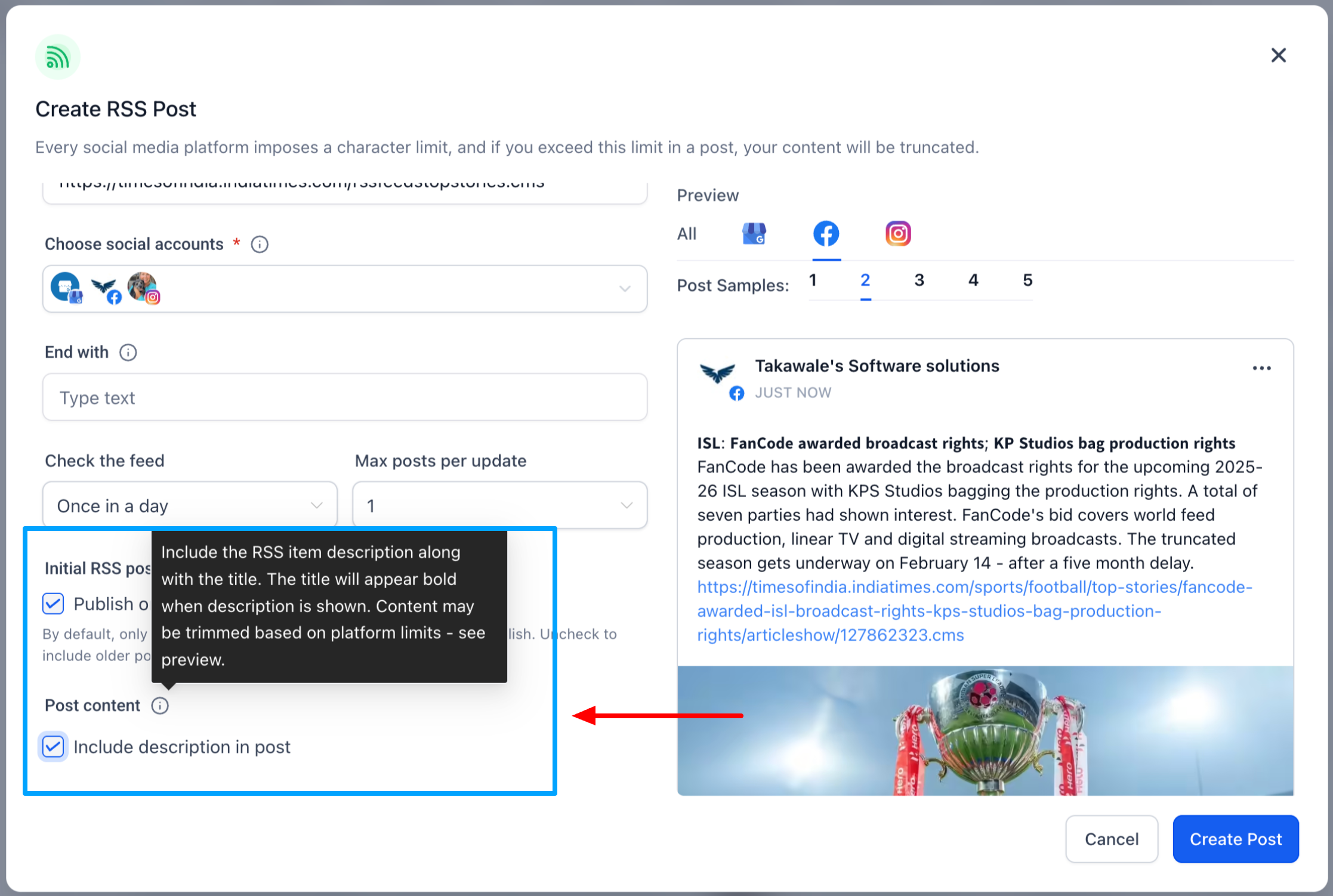
- This does not mean the same post will be published multiple times. Each fetched item will be published once as its own social post.!(https://assets.patientcopilot.ai/844ff224f2651c0e.png) You can now choose whether to include the RSS item description when publishing posts. - Enable Include Description to publish posts with both the title and description from the RSS feed - Disable it to continue publishing title-only posts - Use the multi-item preview (up to 5 items) to review formatting, content length, and truncation before saving This option helps you better control how much content is shared and ensures posts are optimized for different social platforms. When you publish RSS posts to multiple social networks, Social Planner generates post text per platform, based on each network’s character limits. This helps reduce unexpected truncation when the same RSS item posts to different platforms. Use the multi-item preview (up to 5 items) to confirm formatting and where truncation may occur before you save.!(https://assets.patientcopilot.ai/c93874933a9cdbcc.png)!(https://assets.patientcopilot.ai/4557544fe8431651.png) * * * Social Planner now tracks RSS feed items for 90 days to prevent missed or duplicate posts. When the RSS feed syncs, Social Planner checks each feed item individually. It identifies each item by its GUID. If no GUID is available, it uses the item’s link and title. - This helps Social Planner:
- Publish valid feed items once
- Skip duplicate feed items
- Detect items that appear late or out of order
- Continue working with existing RSS automations without manual changes * * * ## Frequently Asked Questions Q. Can I change frequency later? Yes, edit the RSS post to adjust Update Time or Maximum Posts. Q. Will the same article post multiple times? No. Each item is published once. If there’s no new content, nothing is posted. Q. Which networks are supported? Most Social Planner–supported networks can be selected. X (formerly Twitter) is not supported. Q. Do images appear automatically? Link previews are controlled by each social network. For the most reliable visuals, include featured images and Open Graph tags on the source page. Q. Why does the same RSS item look different on different social networks? Social networks have different character limits. Social Planner generates RSS post text per platform, so the same RSS item may truncate differently depending on the network. * * * ## Related Articles

**Step)
**Step)
**Step)
!(https://assets.patientcopilot.ai/4557544fe8431651.png)