
How to Add and Reuse Images in Forms, Surveys & QR Codes with Media Picker
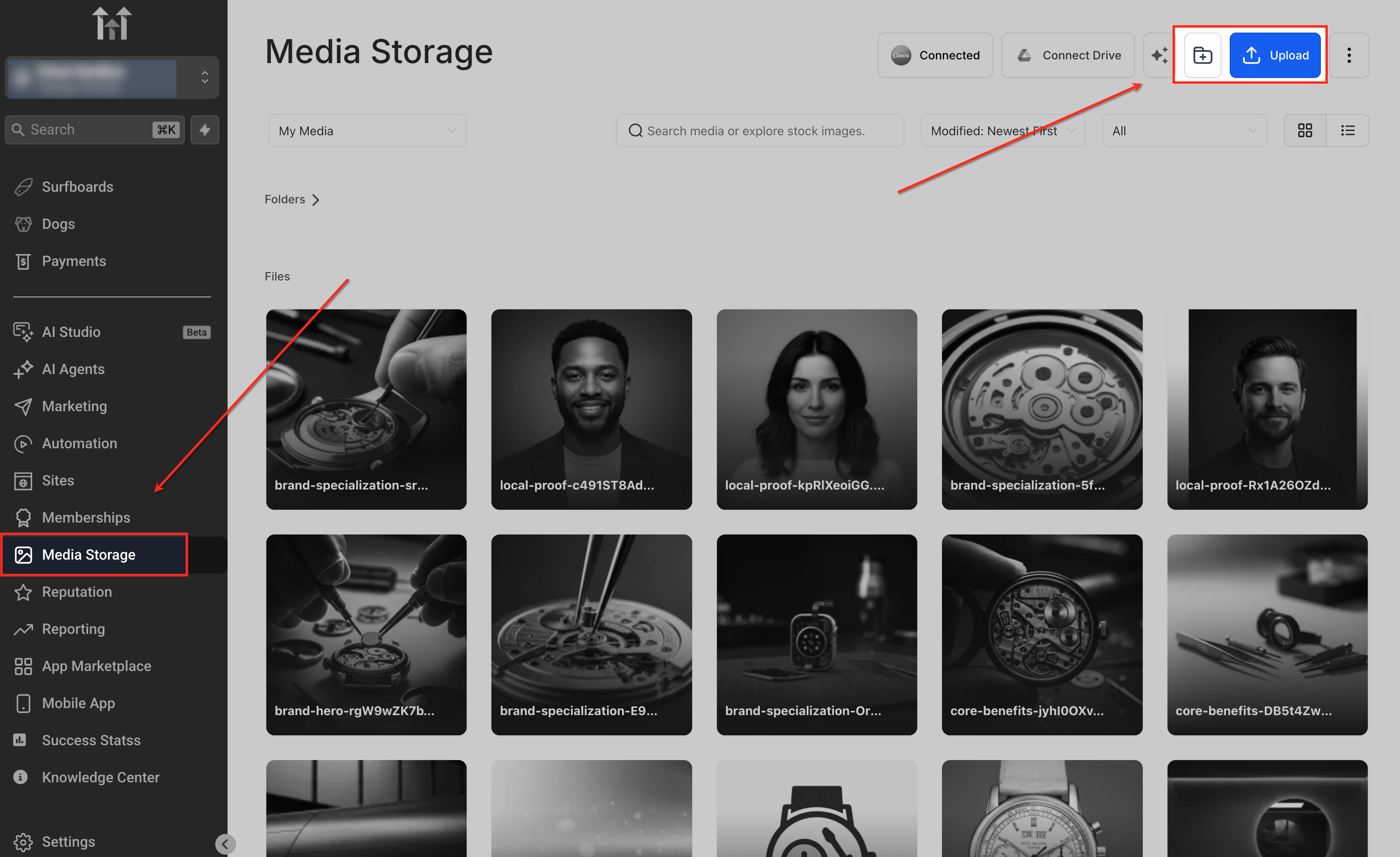
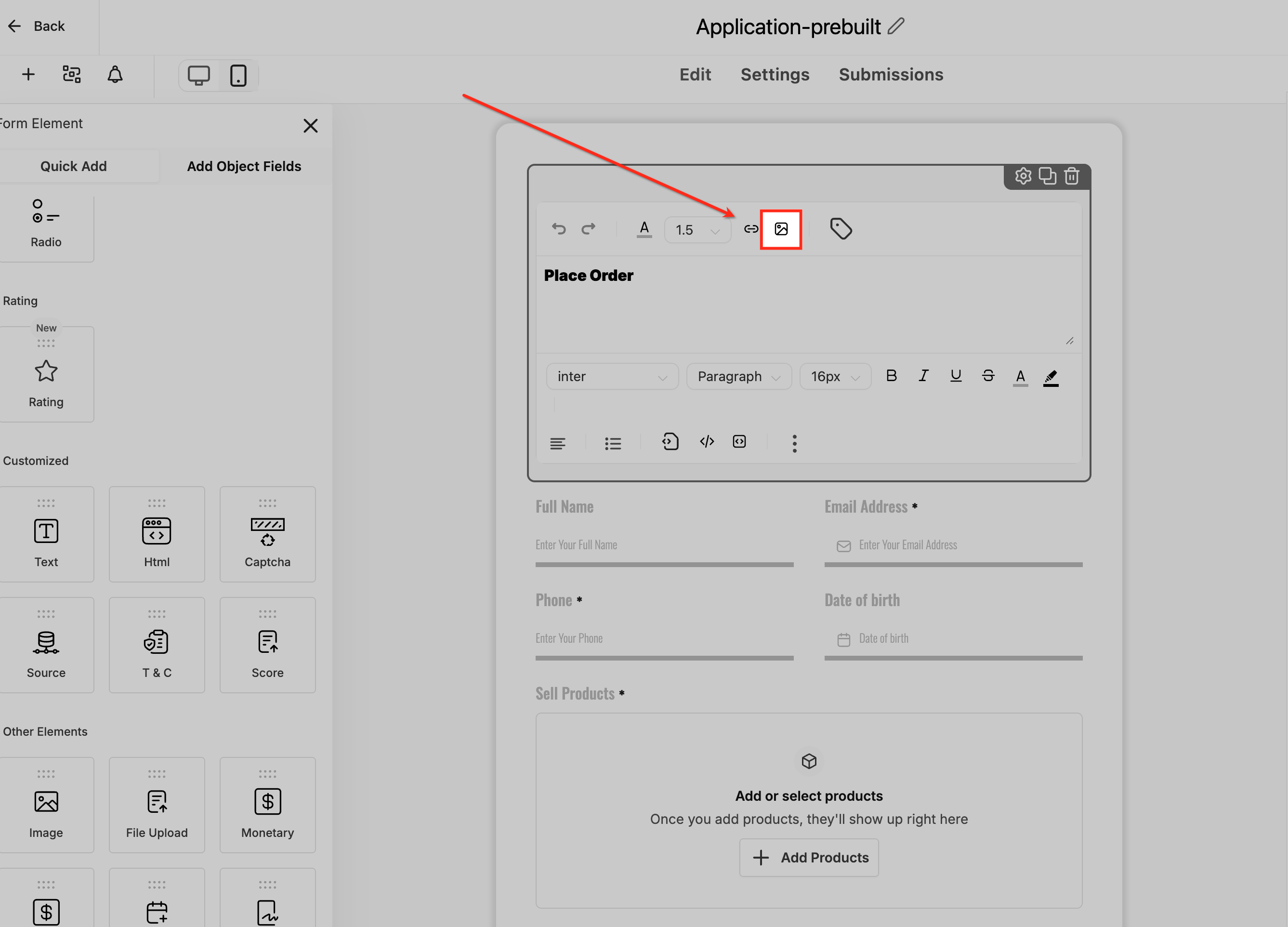
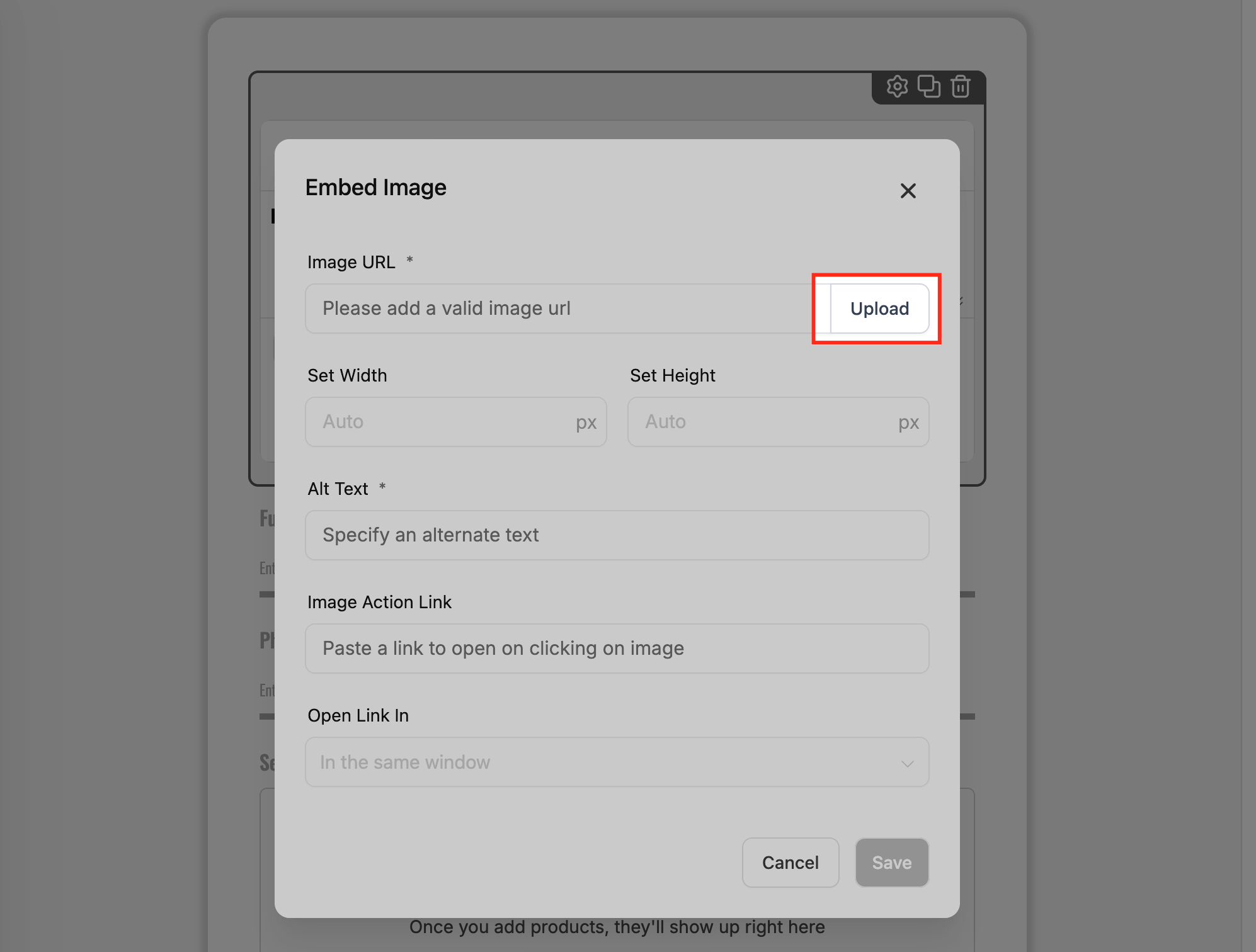
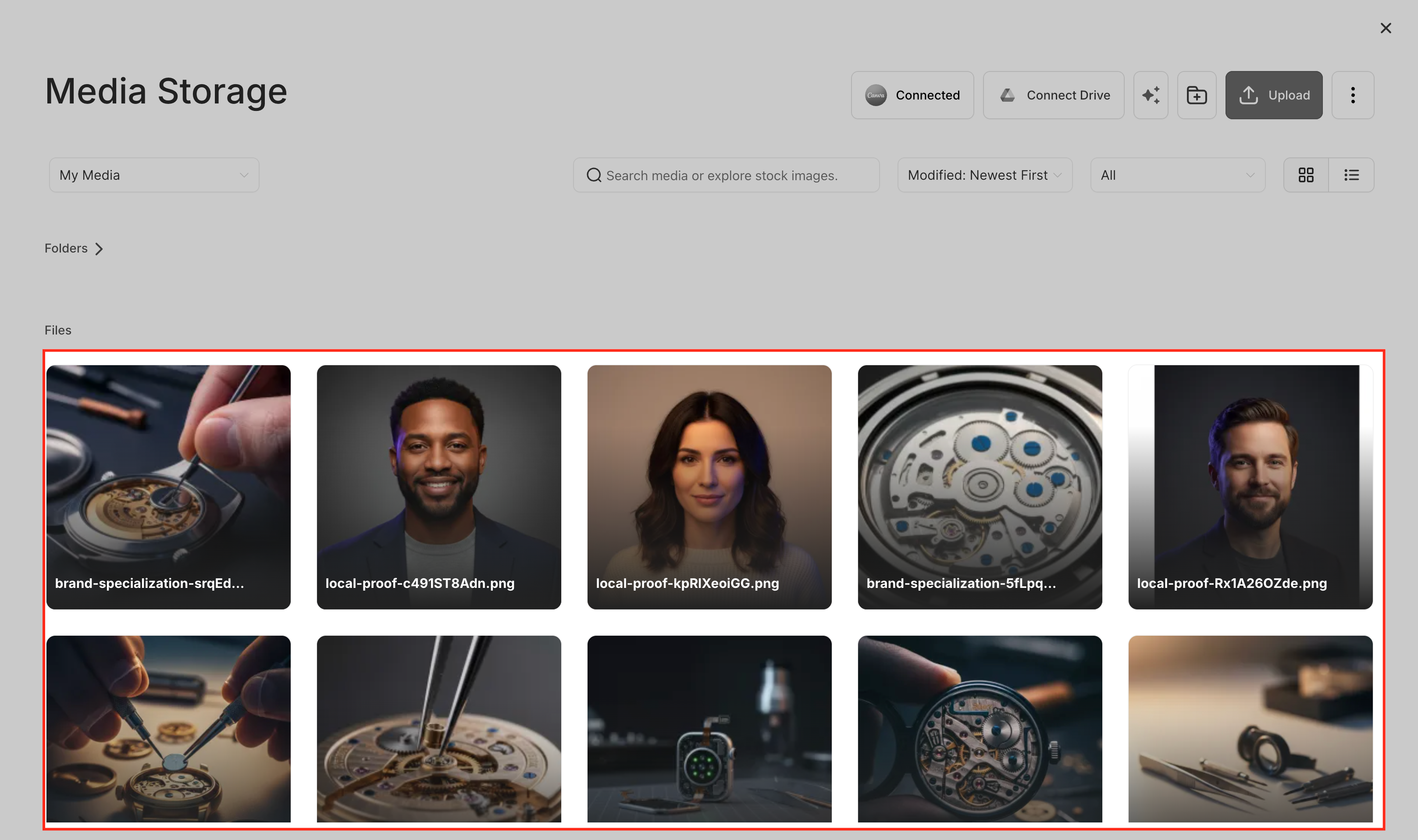
Media Picker & Media Storage Integration provides a unified way to manage and insert images across forms, surveys, quizzes, and QR codes. It connects these builders directly to Patient Copilot’s centralized Media Storage, allowing you to browse, upload, and reuse assets from a single location. * * * ## Image-Based Elements Image-based elements in forms, surveys, and quizzes use the Global Media Picker for selecting visuals. When working with these elements, Clicking Change Image opens the Media Picker. Selected or uploaded images are stored in Media Storage. The same image can be reused across multiple builders Example workflow: - Open your builder (e.g., Form Builder)
- Select an image element
- Click Change Image
- Choose or upload an image from the Media Picker
- Insert the image and save * * * ## Rich Text Editors Rich Text Editors (RTEs) support inserting images directly within text fields. You can Click the image icon in the editor toolbar, Open the Media Picker, Select or upload an image, Insert it inline within the text. This is useful for adding logos, instructions, or visual context inside descriptions and messages. * * * ## Quiz Result Builder The Quiz Result Builder supports images for different outcomes, allowing you to visually enhance results. For each result, Image selection opens the Global Media Picker. You can reuse existing assets or upload new ones. The same image can be applied across multiple results or quizzes. This helps maintain consistency across quiz experiences. * * * QR Code configurations support adding logos or image overlays using the Media Picker. When adding a logo,Click the image or logo option, Open the Media Picker, Select or upload a logo from Media Storage, Insert and adjust as needed. Using shared assets ensures consistent branding across campaigns. * * * ### Step 1: Organize your Media Storage Open Media Storage from the sidebar Create folders (e.g., Logos, Forms, Quizzes, QR Codes) Upload commonly used assets!(https://assets.patientcopilot.ai/e8a0b3fd5c227078.png) ### Step 2: Open a supported builder Navigate to Form Builder, Survey Builder, Quiz Builder, or QR Codes Create or edit an asset The screenshot below shows how the Media Picker is accessed in the Form Builder using the image icon in a Rich Text Editor.!(https://assets.patientcopilot.ai/0c694bdcbdea45b6.png) ### Step 3: Insert or change an image After clicking the image icon or Upload, the Media Picker opens as a pop-up within the builder. From here, you can browse your existing media, search for specific files, or upload a new image.!(https://assets.patientcopilot.ai/48898574e2661465.png) Select the image you want to use, then click Insert Media to add it to your form, survey, quiz, or QR code.!(https://assets.patientcopilot.ai/8976bfcad7bf4b1a.png)!(https://assets.patientcopilot.ai/4ece944b66e4fe65.png) ### Step 4: Maintain your media library Rename or move files in Media Storage Remove unused assets. Edit images when needed and reuse updated versions * * * ## Frequently Asked Questions Q: Do I need to enable the Media Picker? No. The Global Media Picker is available by default in supported areas. Q: Where are uploaded images stored? All images are stored in Media Storage for your sub-account and can be reused across different modules. Q: Does this affect files uploaded by contacts? No. Contact-submitted files follow separate storage processes. This integration applies to images used in builders. Q: Can I use external sources like Google Drive? Yes. Supported external sources can be accessed through the Media Picker. Q: What happens to existing images? Existing images remain unchanged and continue to function as expected. Q: Can I rename or organize images already in use? Yes. Changes made in Media Storage reflect wherever the image is used. Q: Are there file size or type limits? Yes. Limits are based on Media Storage and the specific builder being used. Q: Can I edit images inside the Media Picker? Image selection happens in the picker. Editing is available through Media Storage’s built-in editor. Q: What is the difference between Media Center and Media Storage? Media Storage is the library where files are stored, while the Media Picker (Media Center interface) is how you access and select those files. * * * ### Related Articles - Complete Guide to Media Storage  - Media Storage File Upload Limits - Google Drive Integration with Media Storage
!(https://assets.patientcopilot.ai/4ece944b66e4fe65.png)